Basic Fixes
- Check internet settings: Ensure that you have a high speed internet connection with your Samsung phone.
- Select the right Calendar: Open the Calendar app > Hamburger menu > Manage Calendars > ensure that your calendar is enabled.
- Clear Calendar App Cache and Data: Open Calendar app info > Storage > Clear cache.
- Reinstall the Calendar app: Open Settings > Apps > Calendar > Disable > Restart your phone > enable the Calendar app.
Fix 1: Check Sync Settings
If Samsung Calendar events disappear, ensure that the sync feature is enabled for Samsung Calendar and other calendars on your devices.
Step 1: Open Settings > Accounts and backup > Manage accounts.
Step 2: Select your Samsung account and then tap on Sync account.
Step 3: Then, tap on Calendar. Enable the toggle on the next screen.


Step 4: Next, tap on Sync using and then select Wi-Fi or mobile data. Press the Sync now option. If the toggle was already on, re-enable it by turning it off and on again.
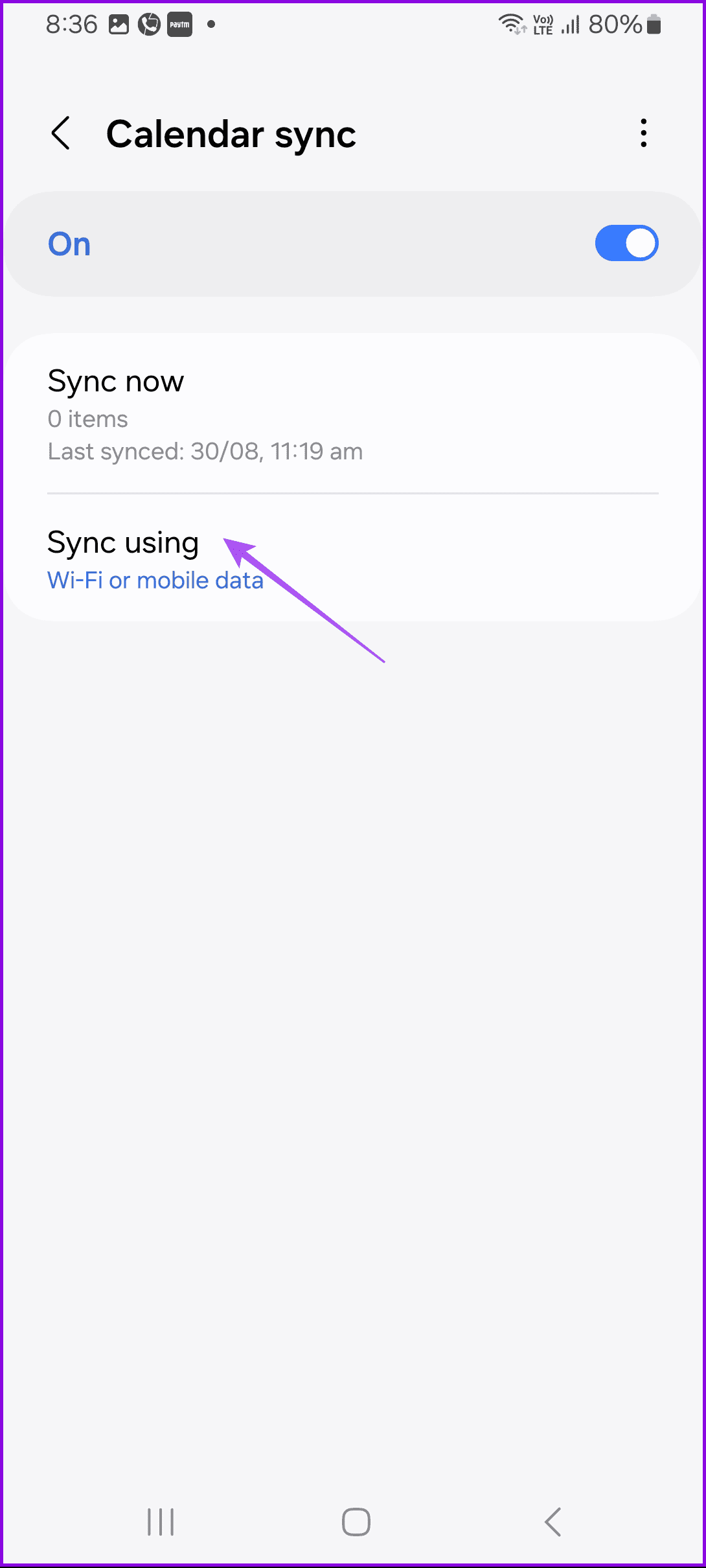
Step 5: Repeat the steps and then enable auto-sync for calendar from other accounts like Google. That is, tap on your Google account in step 3, followed by Sync account.
Fix 2: Manually Sync Events
If you have recently added a third-party calendar to Samsung Calendar, you must try syncing it manually to show its events.
Step 1: In the Samsung Calendar app, tap on the three-bar icon at the top.
Step 2: Scroll down and then tap on Sync now. Wait for the calendar to sync the events.
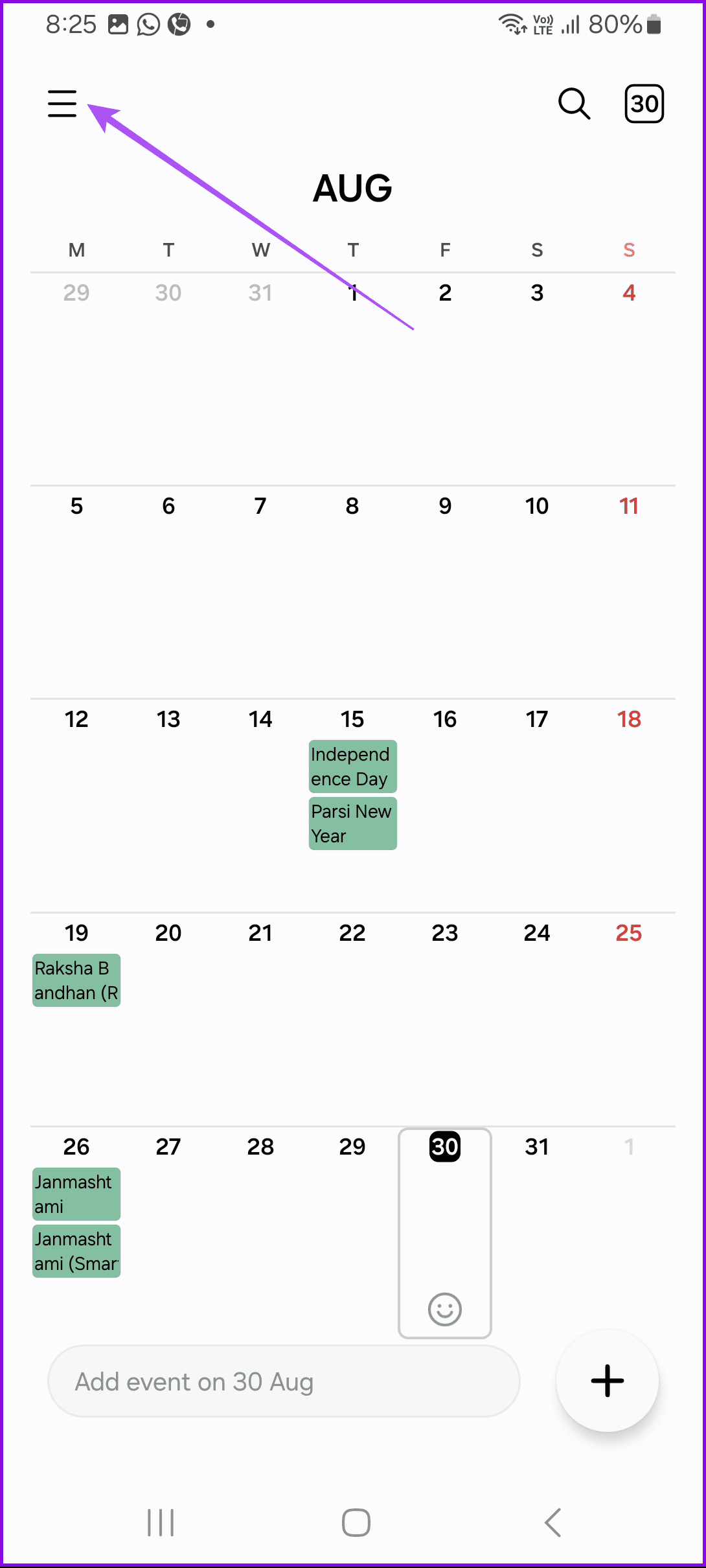

We also suggest enabling events and holidays for your specific email account. Tap the account name and then enable Holidays and Events.


Fix 3: Enable Automatic Date and Time
Next, ensure your Samsung Galaxy phone shows the correct date and time. Your device needs to have the right time to sync correctly.
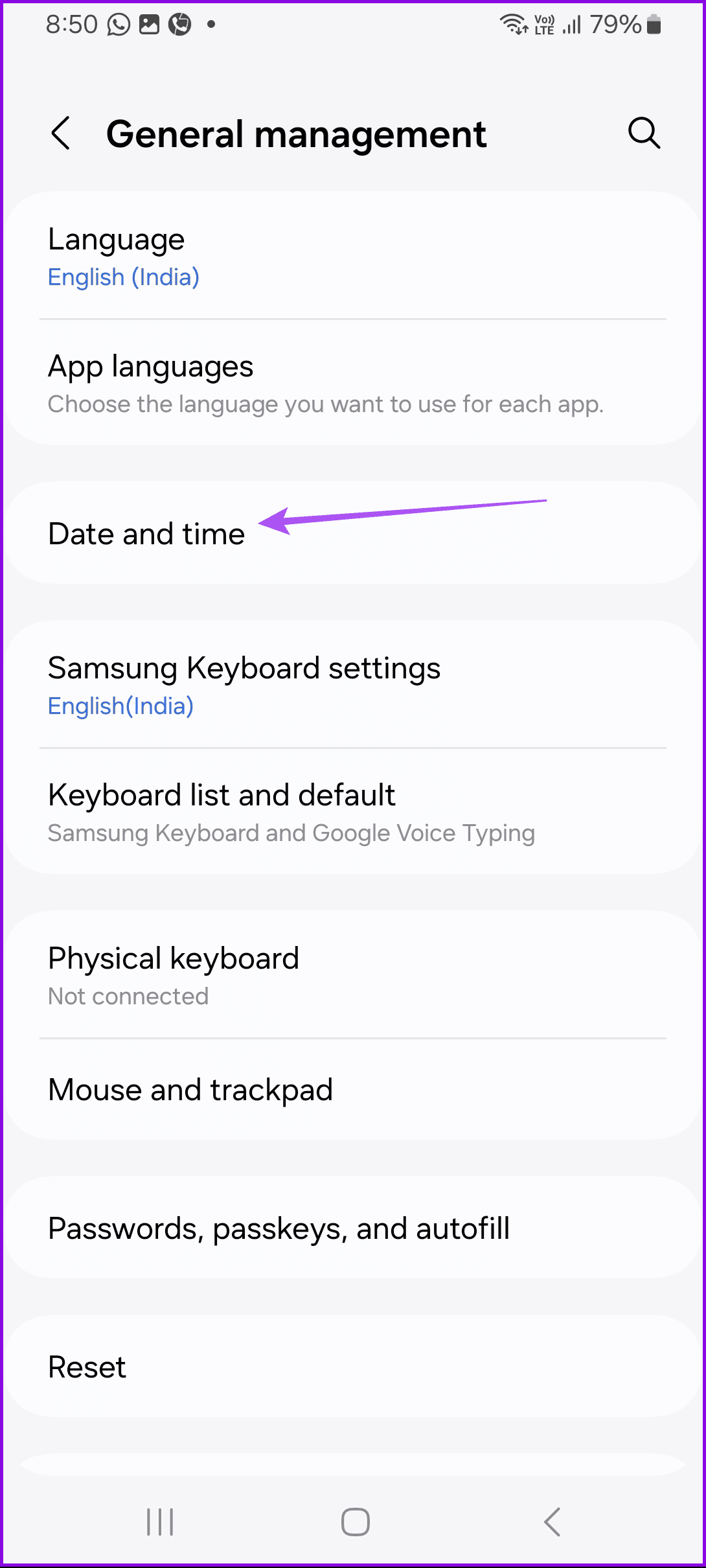
Open Settings > General management > Date and time > Automatic date and time.

Tip: Know how to add date, time, and weather to home screen on the phone.
Fix 4: Re-Enable Calendar
To show events like birthdays or holidays from a third-party calendar service like Google Calendar, you must first enable it in the Samsung Calendar app.
Step 1: First, add events like birthdays and holidays in third-party calendars such as Google Calendar.
Step 2: Now, open the Samsung Calendar app.
Step 3: Tap on the three-bar icon > select Manage calendars.
Step 4: If your third-party account is logged in on your phone, it should appear automatically. Enable the toggle next to the desired calendar.


If the account doesn’t show up, tap on the (+) Add icon at the top and then log in to your account to add the calendar events to Samsung Calendar.
Note: Refer to our guide to add birthdays to Google Calendar.
Was this helpful?
Last updated on 30 August, 2024
Read Next
 How to Add and Remove Holidays Calendar in Apple Calendar App
How to Use Holidays Calendar on iPhone The Apple Calendar app offers a built-in regional calendar, displaying the common holidays (occasions and festivals) from that area.
How to Add and Remove Holidays Calendar in Apple Calendar App
How to Use Holidays Calendar on iPhone The Apple Calendar app offers a built-in regional calendar, displaying the common holidays (occasions and festivals) from that area.
 4 Fixes for Events Not Showing in Outlook Calendar on Windows 11
Basic Fixes Check your internet speed: You should check the status of your internet speeds in order to sync your calendar events to Outlook Check your Outlook account: If you
4 Fixes for Events Not Showing in Outlook Calendar on Windows 11
Basic Fixes Check your internet speed: You should check the status of your internet speeds in order to sync your calendar events to Outlook Check your Outlook account: If you
 5 Ways to Fix Windows Calendar Not Showing Events
Fix 1.
5 Ways to Fix Windows Calendar Not Showing Events
Fix 1.
 How to Add and Remove Holidays in Outlook Calendar on Mobile and Desktop
How to Add Holidays in Outlook Calendar App on Mobile Let's check how to add holidays to the Outlook Calendar app for Android and iPhone.
How to Add and Remove Holidays in Outlook Calendar on Mobile and Desktop
How to Add Holidays in Outlook Calendar App on Mobile Let's check how to add holidays to the Outlook Calendar app for Android and iPhone.
 4 Fixes for Events Disappear from Calendar App on iPhone
Basic Fixes Check the internet connection: You must check if you use a strong internet connection to sync all your events quickly.
4 Fixes for Events Disappear from Calendar App on iPhone
Basic Fixes Check the internet connection: You must check if you use a strong internet connection to sync all your events quickly.
 How to Add Zoom Meetings to Outlook Calendar and Google Calendar
How to Add Zoom Meetings to Google Calendar The easiest way is using the Zoom for Google Workspace Google calendar add-on.
How to Add Zoom Meetings to Outlook Calendar and Google Calendar
How to Add Zoom Meetings to Google Calendar The easiest way is using the Zoom for Google Workspace Google calendar add-on.
 How to Connect Outlook Calendar With Google Calendar: 4 Best Ways
Note: The methods recommended in the article allow two-way syncs in the calendar.
How to Connect Outlook Calendar With Google Calendar: 4 Best Ways
Note: The methods recommended in the article allow two-way syncs in the calendar.
 How to Fix Birthdays Not Showing up in iPhone Calendar
Basic Fixes Force quit and relaunch the app: This will give the app a fresh start and reload it entirely on your iPhone.
How to Fix Birthdays Not Showing up in iPhone Calendar
Basic Fixes Force quit and relaunch the app: This will give the app a fresh start and reload it entirely on your iPhone.
The article above may contain affiliate links which help support Guiding Tech. The content remains unbiased and authentic and will never affect our editorial integrity.