Try Basic Fixes
- Check the default audio device and its volume level: If there are multiple audio devices connected to your computer, ensure your preferred audio device is set as default. Also, check the volume level of the device.
- Close Roblox and reopen it: Restarting Roblox is an effective way of fixing any temporary glitches with it. Close and reopen the Roblox window to see if that solves the problem.
- Try another Roblox game: The no sound issue on Roblox may be limited to the specific game you are playing. Try playing another game to check if the audio is not working for them.
Fix 1: Check Sound Settings on Roblox
Next, you should review the sound settings in your Roblox game and correct them if necessary.
Step 1: Open your Roblox game. Click the Roblox icon at the top left corner.

Step 2: Switch to the Settings tab and click the plus icon next to Volume to adjust the volume level for your game.
Step 3: Select your preferred audio device next to Output Device.

Press Esc to return to your game and check if the sound is working.
Fix 2: Run the Audio Troubleshooter
The built-in audio troubleshooter on Windows can scan your system for common audio issues and fix them automatically. Try running this tool to see if that gets Roblox to play sound.
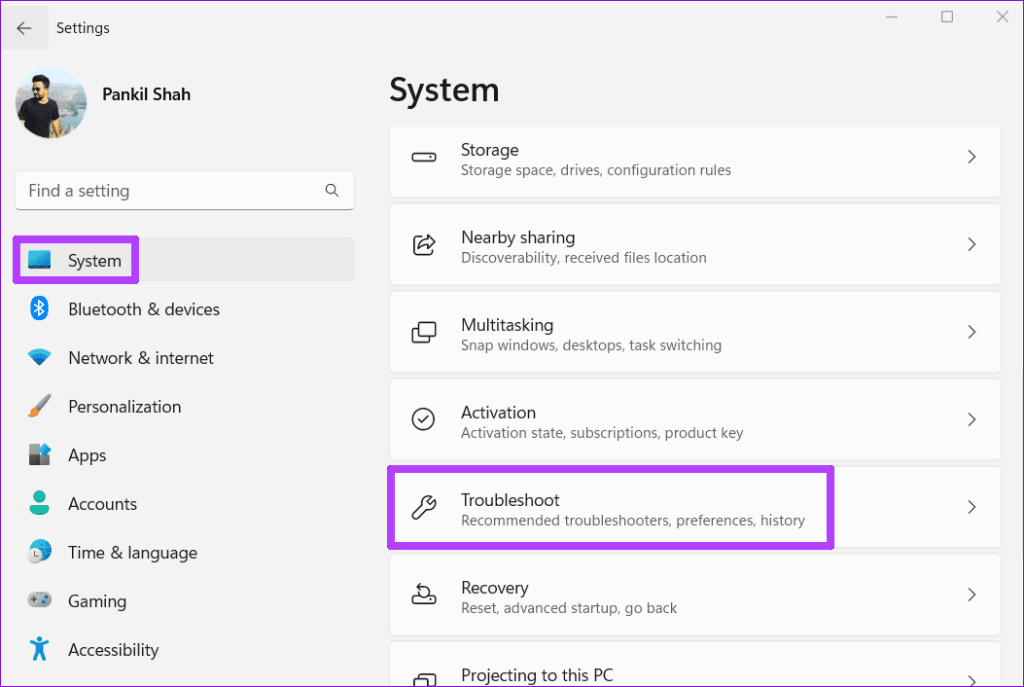
Step 1: Press the Windows key + I to open the Settings app. In the System tab, click on Troubleshoot.
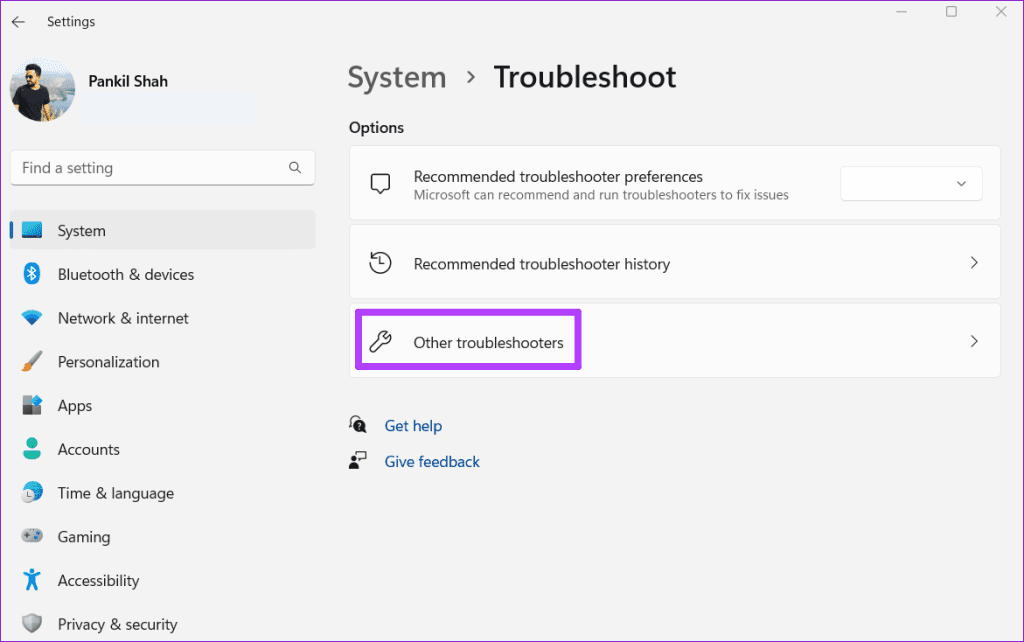
Step 2: Go to Other troubleshooters.
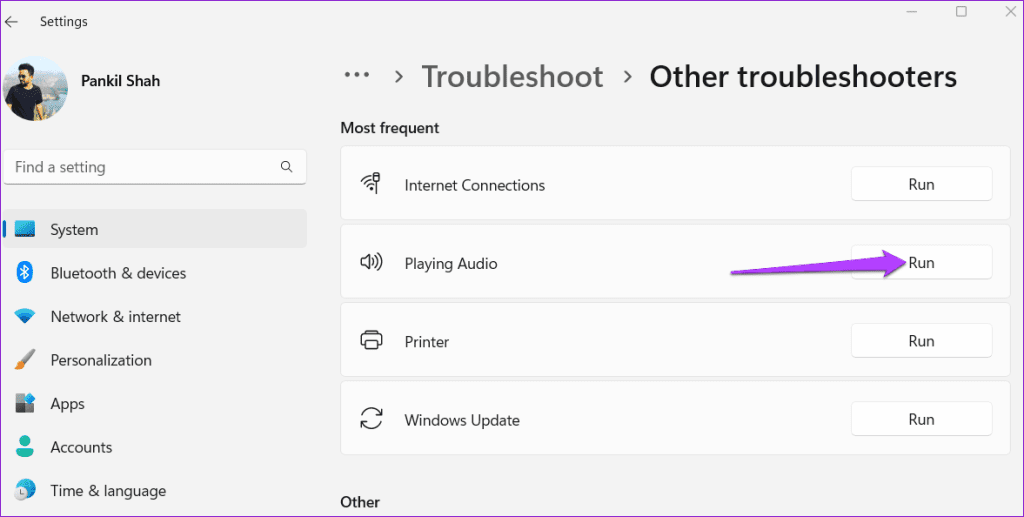
Step 3: Click the Run button next to Playing Audio and follow the on-screen instructions to finish the troubleshooting process.
Fix 3: Update Audio Drivers
Is Roblox showing the “No sound driver” error on your Windows PC? That could happen if the audio drivers on your PC are old or buggy. To fix this, try updating the problematic drivers using these steps:
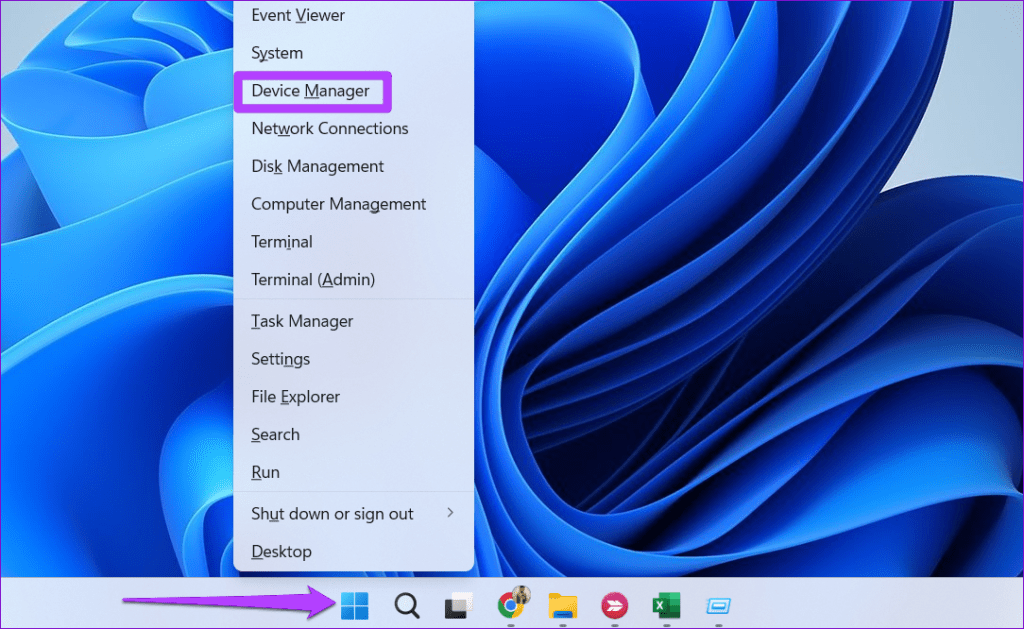
Step 1: Right-click on the Start icon and select Device Manager from the list.
Step 2: Find and expand Sound, video and game controllers. Then, right-click on the audio device and select Update driver from the list.
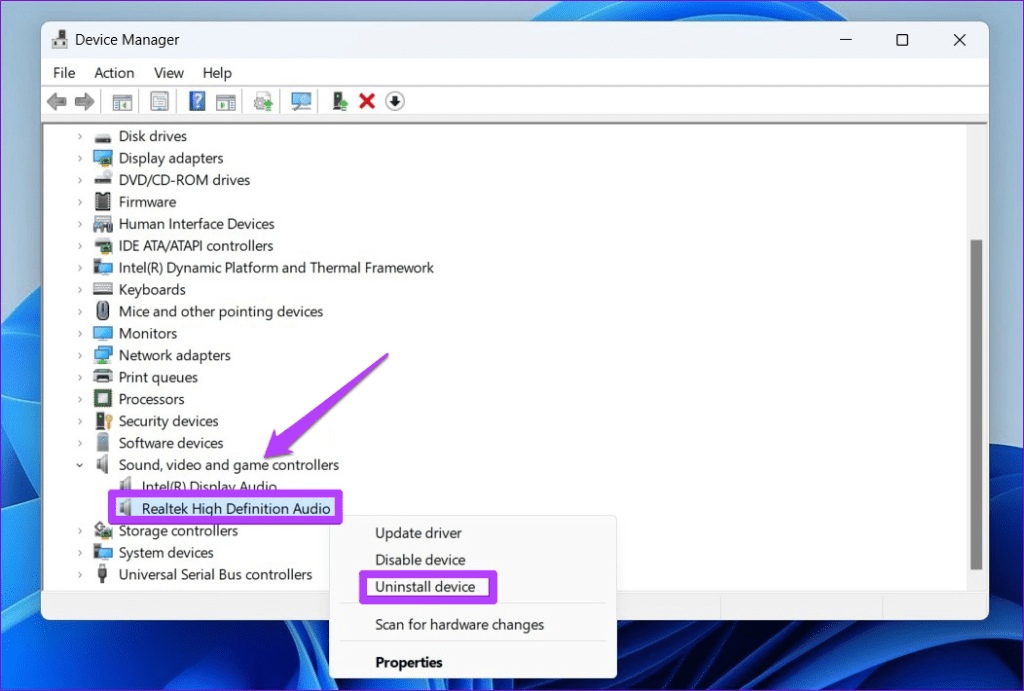
Follow the on-screen instructions to finish updating the driver. After that, restart your PC and play Roblox again.
Was this helpful?
Last updated on 09 April, 2024
Read Next
 5 Fixes for Roblox Not Launching on Windows
Try Basic Fixes Close Roblox completely and reopen it: Sometimes, apps and games on your Windows PC may experience problems while opening, causing them to become unresponsive.
5 Fixes for Roblox Not Launching on Windows
Try Basic Fixes Close Roblox completely and reopen it: Sometimes, apps and games on your Windows PC may experience problems while opening, causing them to become unresponsive.
 4 Fixes for Roblox Lag on Windows
Fix 1: Change Graphics Preference for Roblox Windows lets you set graphics preferences for each app and program separately.
4 Fixes for Roblox Lag on Windows
Fix 1: Change Graphics Preference for Roblox Windows lets you set graphics preferences for each app and program separately.
 3 Fixes for Roblox Not Updating on Windows
Try Basic Fixes Check if Roblox is down: At times, server-related issues can prevent Robox from launching or updating on your Windows PC.
3 Fixes for Roblox Not Updating on Windows
Try Basic Fixes Check if Roblox is down: At times, server-related issues can prevent Robox from launching or updating on your Windows PC.
 3 Fixes for Roblox Cursor Going Off Screen on Windows
Fix 1: Repair or Reset Roblox First, you should use the app repair feature on Windows to fix Roblox.
3 Fixes for Roblox Cursor Going Off Screen on Windows
Fix 1: Repair or Reset Roblox First, you should use the app repair feature on Windows to fix Roblox.
 6 Fixes for Roblox Chat Not Working on Windows
Fix 1: Modify Roblox Privacy Settings to Unblock Messages A common reason why the chat option may not show up or work in Roblox is if you have previously turned
6 Fixes for Roblox Chat Not Working on Windows
Fix 1: Modify Roblox Privacy Settings to Unblock Messages A common reason why the chat option may not show up or work in Roblox is if you have previously turned
 5 Fixes for Roblox Installer Not Working on Windows
Fix 1: Try Launching Roblox From the AppData Folder The Roblox installation process on Windows can sometimes become stuck for various reasons, making it seem like the installer is not
5 Fixes for Roblox Installer Not Working on Windows
Fix 1: Try Launching Roblox From the AppData Folder The Roblox installation process on Windows can sometimes become stuck for various reasons, making it seem like the installer is not
 4 Ways to Fix Roblox Error 503 “This Service Is Unavailable”
Why Are You Seeing Roblox Error Code 503 Server overload: One of the most common reasons for Roblox error 503 is when the servers become overloaded with too many user
4 Ways to Fix Roblox Error 503 “This Service Is Unavailable”
Why Are You Seeing Roblox Error Code 503 Server overload: One of the most common reasons for Roblox error 503 is when the servers become overloaded with too many user
 3 Ways to Fix Roblox Gift Card Not Working
Try Basic Fixes Wait and try again: Due to server overload or other temporary issues, Roblox may sometimes fail to process your gift cards.
3 Ways to Fix Roblox Gift Card Not Working
Try Basic Fixes Wait and try again: Due to server overload or other temporary issues, Roblox may sometimes fail to process your gift cards.
The article above may contain affiliate links which help support Guiding Tech. The content remains unbiased and authentic and will never affect our editorial integrity.