


Basic Fixes
- Check your Internet connection: You need a stable internet connection to view Instagram reels. So, check your internet speed on Fast and contact your service provider if needed.
- Refresh Instagram feed: Press and hold the top of the screen and pull it down.
- Check for changes in the app layout: If you can’t find the Reels icon at its usual place, check the app’s home screen. The Reel button might be repositioned.
- Find reels elsewhere: Check the Explore page, Stories, DMs, and others’ profiles to see if Reels work elsewhere. If yes, update the app; if not, jump to the fixes.
- Update or reinstall Instagram: To fix the bug causing the issue, update the app (if available) or uninstall and reinstall the app for a fresh, error-free start.
Fix 1. Force Quit Instagram
When you force quit an application, it clears all the active sessions and temporary files. This gets rid of the files responsible for bugs and issues. You can solve it by force quitting the app on your smartphone.
On iPhone
Step 1: Open App Switcher. Next, swipe up from the bottom of the Instagram app to close it.
On Android
Step 1: Open Settings. Go to Apps.
Step 2: Choose Manage apps.
Note: Depending on the Android version and skin, the option names might differ.
Step 3: Select Instagram > hit Force stop.
Step 4: Tap OK to confirm.


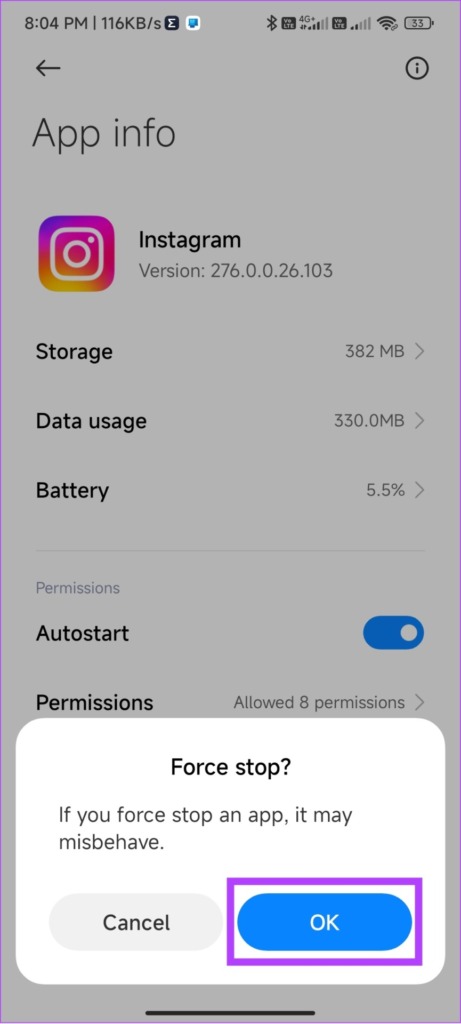
Now, try re-opening the Instagram app and see if you can see the Reels option on your profile.
Fix 2. Turn off Instagram Data Saver
Instagram offers a data saver feature for those who might not have data to spare while using the app. Since Reels are the best source to drain data, it might have been blocked if you have turned on data saver. So, try turning off data saver on Instagram and see if Reels are visible on your feed.
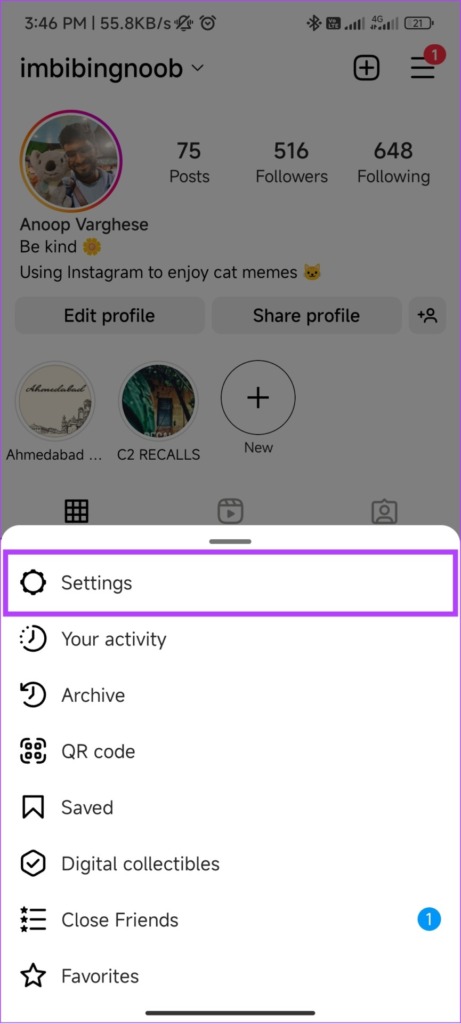
Step 1: Open Instagram and go to your profile icon at the bottom > tap the hamburger menu.
Step 2: Tap Settings > choose Account.


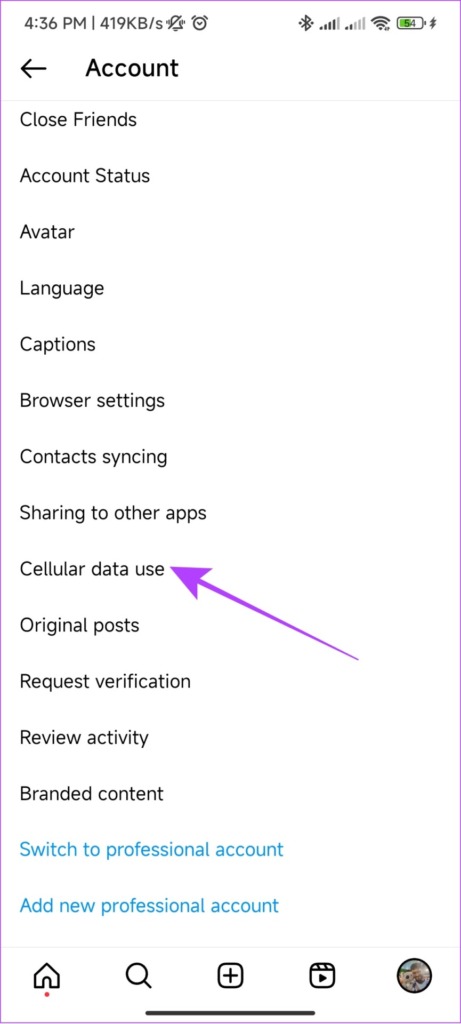
Step 3: Choose Cellular data use.
Step 4: Toggle off Data Saver.

Fix 3. Log Out and Log In
If you log out of your Instagram account, the app may remove certain cached files, possibly including those responsible for the error. Once you log in again, Instagram will initiate a fresh session and might bring Reels to your account.
We already have a guide on how to log out and log in to your Instagram account to help.
Fix 4. Clear Cache on Android
Cache files are supposed to store certain settings and data on a device’s local storage to help apps load faster. However, as time passes, these cache files accumulate and cause errors. The solution? Clear cache files of Instagram.
Was this helpful?
Last updated on 01 August, 2024
2 Comments
Leave a Reply
Read Next
 How to Fix Instagram Showing the Same Reels
Basic Fixes Check your network connection: Ensure your device has a good internet connection.
How to Fix Instagram Showing the Same Reels
Basic Fixes Check your network connection: Ensure your device has a good internet connection.
 Top 5 Ways to Fix Facebook Not Showing Reels on Mobile
https://youtu.be/Jgtj4Z-2Dzs Preliminary Fixes Check the Network Connection: Ensuring a stable network connection is crucial for loading content on Facebook, including Reels.
Top 5 Ways to Fix Facebook Not Showing Reels on Mobile
https://youtu.be/Jgtj4Z-2Dzs Preliminary Fixes Check the Network Connection: Ensuring a stable network connection is crucial for loading content on Facebook, including Reels.
 3 Ways to Fix Sound Not Working on Instagram Reels
Basic Troubleshooting Unmute/raise the volume: When your phone is silent, Instagram mutes the video on the home feed and the Reels tab.
3 Ways to Fix Sound Not Working on Instagram Reels
Basic Troubleshooting Unmute/raise the volume: When your phone is silent, Instagram mutes the video on the home feed and the Reels tab.
 4 Ways to Fix if You Can’t Pause Instagram Videos or Reels
Fix 1: Tap to Open Videos From Feed The videos on the feed or timeline cannot be paused like reels.
4 Ways to Fix if You Can’t Pause Instagram Videos or Reels
Fix 1: Tap to Open Videos From Feed The videos on the feed or timeline cannot be paused like reels.
 Why Are My Instagram Reels Blurry and How to Fix It
Why Do My Instagram Reels Look Blurry?
Why Are My Instagram Reels Blurry and How to Fix It
Why Do My Instagram Reels Look Blurry?
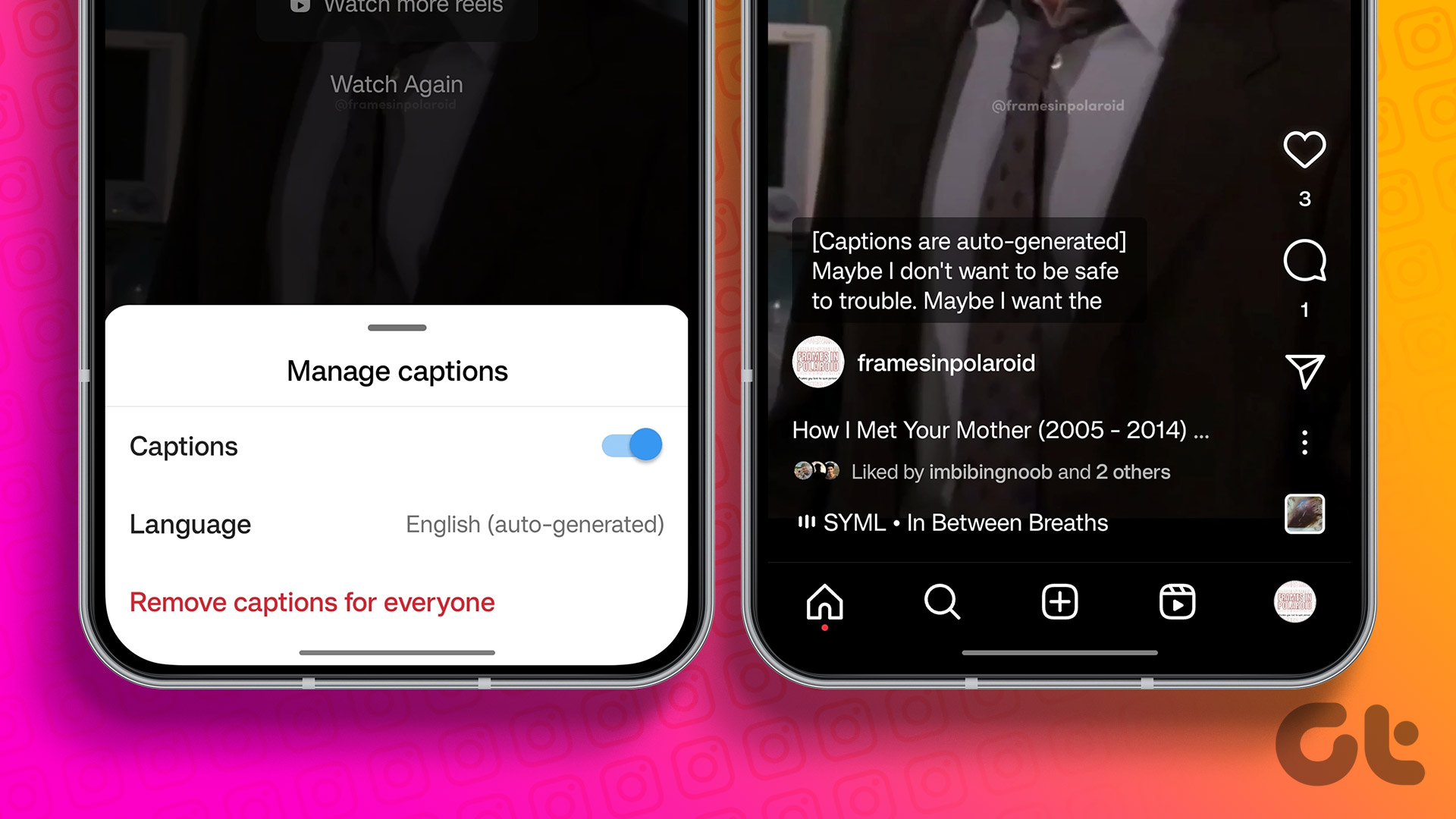 How to Add Captions (Subtitles) to Instagram Reels and Stories
Enable Auto-Generated Captions to any Reels This is similar to YouTube subtitles.
How to Add Captions (Subtitles) to Instagram Reels and Stories
Enable Auto-Generated Captions to any Reels This is similar to YouTube subtitles.
 How to Identify (Shazam) Songs Playing in Instagram Reels
Method 1: By Tapping the Song's Name Your first bet is to check if the maker of the Reel has added the name of the song to the Reel.
How to Identify (Shazam) Songs Playing in Instagram Reels
Method 1: By Tapping the Song's Name Your first bet is to check if the maker of the Reel has added the name of the song to the Reel.
 How to Make Instagram Reels With Multiple Photos
How Many Pictures Can You Put in an Instagram Reel?
How to Make Instagram Reels With Multiple Photos
How Many Pictures Can You Put in an Instagram Reel?
The article above may contain affiliate links which help support Guiding Tech. The content remains unbiased and authentic and will never affect our editorial integrity.
Instagram reels option is not showing any try not showing ????
I have reported many times, still reel option is not coming on Instagram.updated instagram yet I tried everything to get reel option on my instagram but reel option is not coming. Plz help me