Basic Fixes
- Restart your device: Restart your device to remove any bugs or glitches causing the problem.
- Let your device cool down: Unplug your device from charging, and turn off your Android/iOS device to let it cool down. Overheating can also cause the problem.
- Update device: Update your Android or iOS device for a bug-free experience.
- Use authentic charging accessories: Use official charging accessories to power your phone – power supply issues can cause your device to overheat.
- Get your device checked: It is also possible the display is physically damaged – you will need to contact the customer support team. Further, there’s also a chance of the battery being damaged, and it has to be replaced.
Fix 1: Check if It Is a Widespread Issue and Contact the Device Manufacturer
If the display turning purple is widespread, the manufacturer will likely take the necessary steps to help you. Recently, several OnePlus smartphone users faced an issue of lines on the display, the brand acknowledged the problem and offered a lifetime warranty.
Fix 2: Enable Safe Mode (Android)
If apps you’ve installed are creating problems on the display, the issue should be gone in Safe Mode. Press and hold the power button and long-tap on Power off to reboot the device into safe mode.
If the issue disappears in Safe Mode, it indicates one of your apps is causing the problem. Reboot your device normally and uninstall recently installed apps until you’ve identified the culprit.


Fix 3: Reset Phone
When none of the above methods work, it’s time to factory reset your iPhone or Android phone. Doing this will reset any misconfiguration causing the display to turn purple.
However, this will reset all the preferences and settings on your device – and it will remove any saved Bluetooth devices, Wi-Fi passwords, and so on.
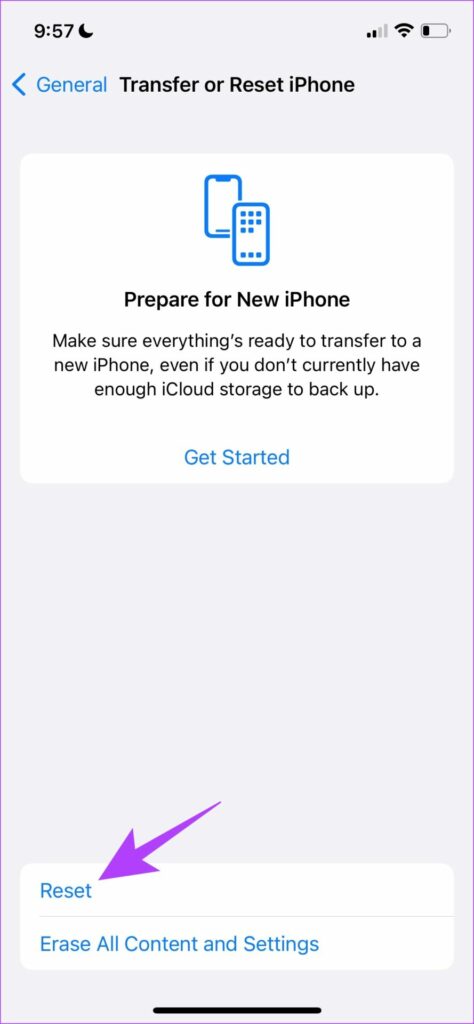
On iPhone
Go to Settings > Transfer or Reset iPhone > Reset > Reset All Settings.


On Android
Go to Settings > Back up and reset > Reset Phone and reset all the settings.


Also Read: How to fix always on display not working on Android
Was this helpful?
Last updated on 07 August, 2024
Read Next
 8 Ways to Add an App Back to Home Screen on iPhone and Android
Method 1: Look for the App Inside the Folders If an app has gone missing from your iPhone or Android phone, start by looking in the folders on your phone’s
8 Ways to Add an App Back to Home Screen on iPhone and Android
Method 1: Look for the App Inside the Folders If an app has gone missing from your iPhone or Android phone, start by looking in the folders on your phone’s
 2 Ways to Fix Screen Recorder Not Showing up on Android
Basic Fixes Check if your device is eligible: If you're unsure which Android version your device is running, use the Settings app.
2 Ways to Fix Screen Recorder Not Showing up on Android
Basic Fixes Check if your device is eligible: If you're unsure which Android version your device is running, use the Settings app.
 5 Ways to Fix Incoming Calls Not Showing on Screen on Android
Fix 1: Enable Notifications for Incoming Calls You may have disabled the notifications for incoming calls on your Android device.
5 Ways to Fix Incoming Calls Not Showing on Screen on Android
Fix 1: Enable Notifications for Incoming Calls You may have disabled the notifications for incoming calls on your Android device.
 4 Ways to Fix Android Phone Stuck on Boot Screen
https://youtu.be/JaOC_-u7kdM Try Basic Fixes Perform a force reboot: In most cases, performing a force reboot should resolve any temporary glitches with your OnePlus, Samsung, Motorola, or any other phone, allowing
4 Ways to Fix Android Phone Stuck on Boot Screen
https://youtu.be/JaOC_-u7kdM Try Basic Fixes Perform a force reboot: In most cases, performing a force reboot should resolve any temporary glitches with your OnePlus, Samsung, Motorola, or any other phone, allowing
 2 Ways to Fix Android Auto Black Screen Issue
Basic Fixes Let your phone cool down if it's overheating: If your phone has been sitting in your car for a long time and it's sunny outside, it's possible your
2 Ways to Fix Android Auto Black Screen Issue
Basic Fixes Let your phone cool down if it's overheating: If your phone has been sitting in your car for a long time and it's sunny outside, it's possible your
 3 Ways to Fix Screen Mirroring Not Working on Android
Basic Fixes Check network connection: Screen mirroring requires a robust Wi-Fi connection.
3 Ways to Fix Screen Mirroring Not Working on Android
Basic Fixes Check network connection: Screen mirroring requires a robust Wi-Fi connection.
 2 Ways to Fix Split Screen Not Working on Android Devices
Basic Fixes Free-up memory: The split screen feature demands a good amount of free memory/RAM.
2 Ways to Fix Split Screen Not Working on Android Devices
Basic Fixes Free-up memory: The split screen feature demands a good amount of free memory/RAM.
 4 Ways to Fix White Screen on Samsung and Other Android Phones
Fix 1: Remove the Battery Most new phones don't have the ability to replace the internal battery.
4 Ways to Fix White Screen on Samsung and Other Android Phones
Fix 1: Remove the Battery Most new phones don't have the ability to replace the internal battery.
The article above may contain affiliate links which help support Guiding Tech. The content remains unbiased and authentic and will never affect our editorial integrity.