Basic Fixes:
- Restart iPhone: Yes, this simple action sometimes does the magic. Turn off your iPhone, turn it back on, and pair the PS4 controller to your device again
- Update iOS: The PS4 DualShock controller supports iPhones with iOS 13 or higher. Update your iPhone if you’re running iOS 12 or lower, or check for updates to fix potential bugs via Settings > General > Software Update.
Fix 1: Connect in Pairing Mode
To connect the PS4 DualShock controller to your iPhone, ensure that the controller is in pairing mode. That is because your iPhone (and pretty much every other device) can only connect wirelessly to the PS4 DualShock Controller when it is in pairing mode.
Step 1: To put the DualShock controller in pairing mode, tap and hold the PS button and Share button simultaneously for about 3-5 seconds till the controller’s light bar flashes rapidly.
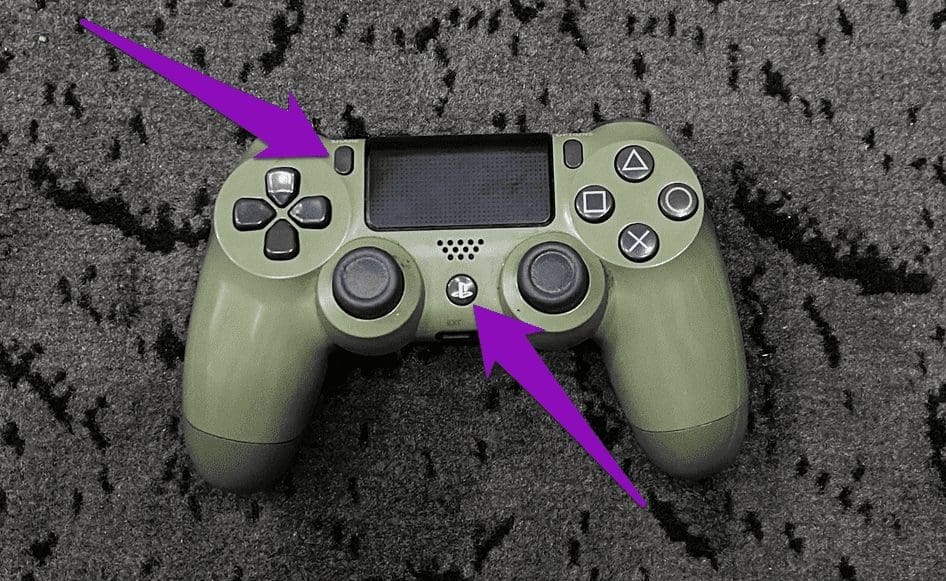
Step 2: Once the lightbar starts flashing as shown below, the controller is in pairing mode.

Note: The pairing mode (light bar flashes) lasts for 60 seconds only. This means you have a minute to connect your iPhone to the PS4 controller.
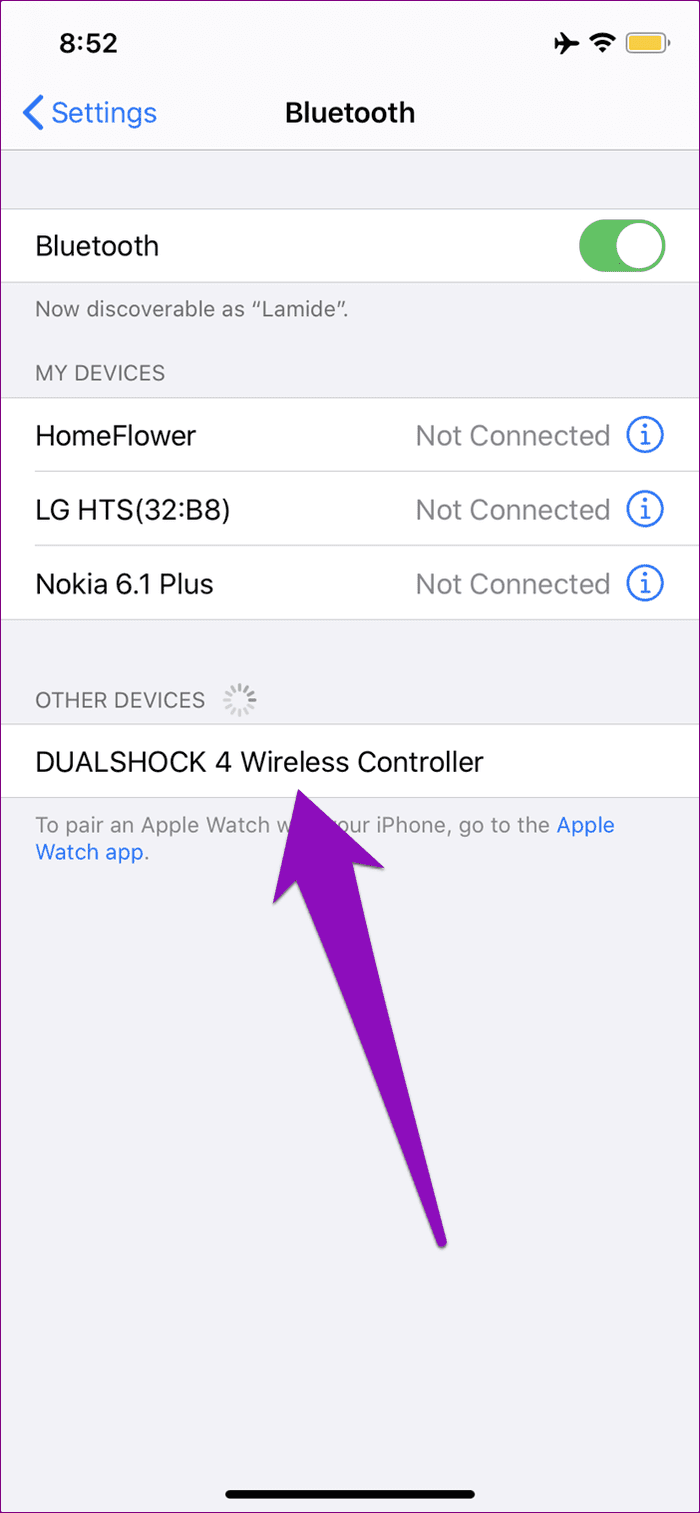
Step 3: In the meantime, navigate to your iPhone’s Bluetooth settings menu and tap on the DualShock 4 controller on the list to pair it.
Fix 2: Forget Controller
If you’ve previously connected the PS4 controller to your iPhone, but subsequent connections fail, you should remove the controller from your iPhone’s list of Bluetooth devices. Here’s how to do that.
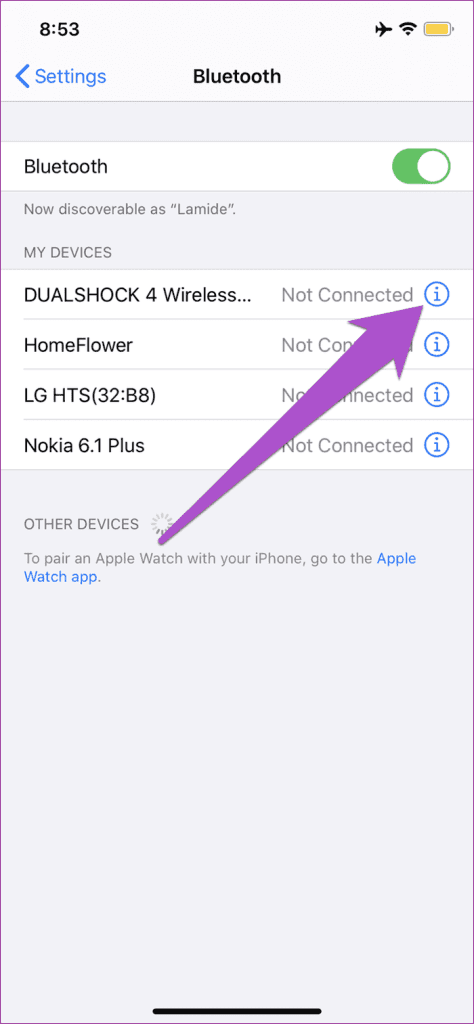
Step 1: On your iPhone, navigate to Settings > Bluetooth. Here, tap the info icon next to the DualShock Wireless Controller.

Step 2: Select ‘Forget This Device’. Then, tap ‘Forget Device’ on the prompt.

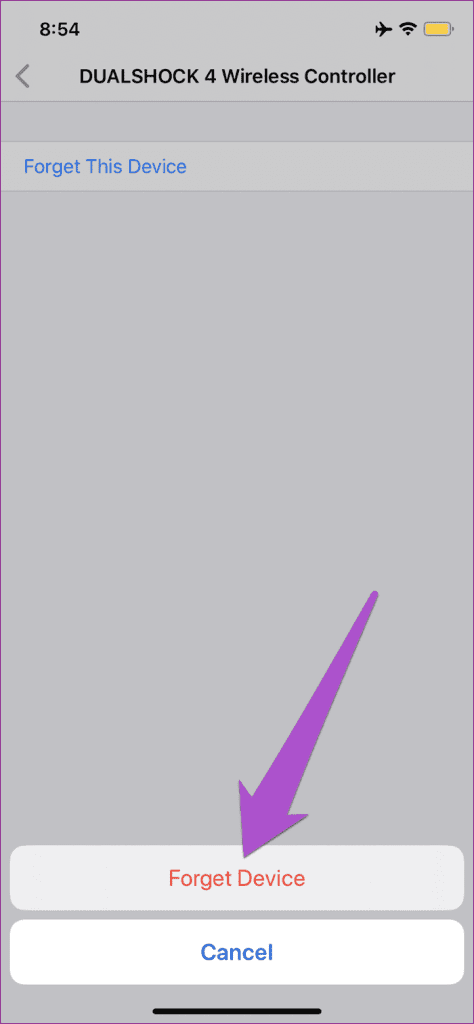
The PS4 controller will be removed from your iPhone’s list of Bluetooth devices. Now, try to pair the controller to your iPhone or iPad again and inspect if a connection is initiated.
Fix 3: Reset the Controller
Hard resetting the DualShock Controller to factory default is another effective method to resolve pairing issues. Follow the steps below to reset your PS4 controller.
Step 1: Turn the controller around and locate a tiny hole on the rear, close to the left shoulder buttons.
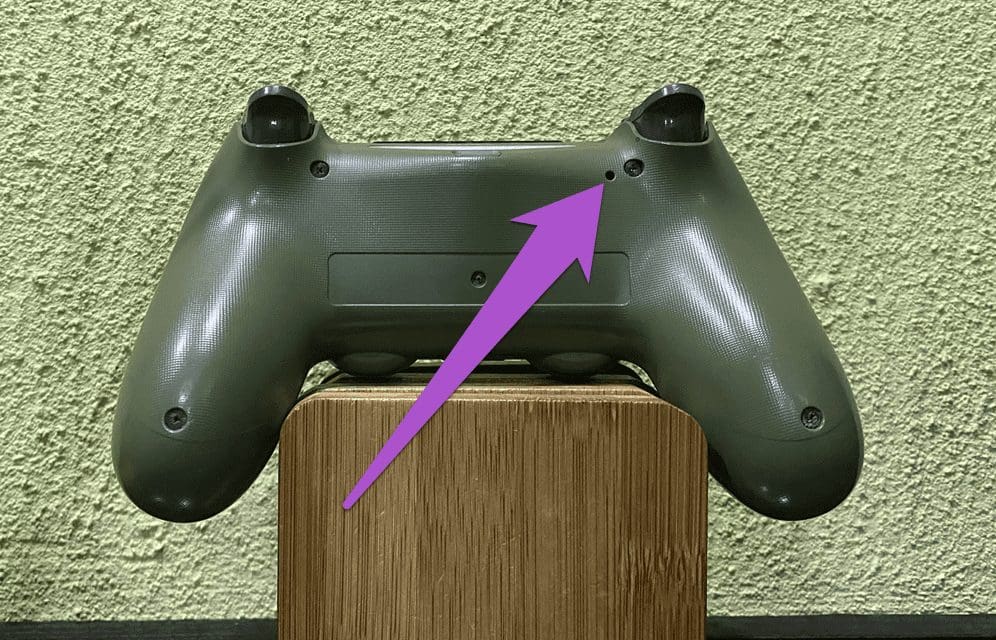
Step 2: Use the tip of a paperclip or a SIM card ejector to push the reset button in the tiny hole for about 3-5 seconds.
That will reset the DualShock controller to factory default and remove any glitch that prevents it from connecting to your iPhone. Once done, put the controller in pairing mode and check if it connects to your iPhone.
Was this helpful?
Last updated on 28 August, 2024
Read Next
 Top 4 Ways to Fix Windows 10 Not Detecting PS4 Controller
While Xbox reigns to work as a controller with Windows, there are plenty of PS4 owners who struggle to use their Dual Shock controller with Windows.
Top 4 Ways to Fix Windows 10 Not Detecting PS4 Controller
While Xbox reigns to work as a controller with Windows, there are plenty of PS4 owners who struggle to use their Dual Shock controller with Windows.
 4 Best Ways to Fix WhatsApp Reconnecting Issues on iPhone
Basic Fixes Restart iPhone: Restart your iPhone to fix any temporary bugs and glitches.
4 Best Ways to Fix WhatsApp Reconnecting Issues on iPhone
Basic Fixes Restart iPhone: Restart your iPhone to fix any temporary bugs and glitches.
 Top 7 Ways to Fix Steam Not Recognizing Controller on Windows 11
Select games on your PC are more fun with a controller rather than the keyboard and mouse combo.
Top 7 Ways to Fix Steam Not Recognizing Controller on Windows 11
Select games on your PC are more fun with a controller rather than the keyboard and mouse combo.
 6 Ways to Fix Download Issues on Netflix
1.
6 Ways to Fix Download Issues on Netflix
1.
 4 Ways to Fix Discord Connection Issues on Android and iPhone
Try These Basic Fixes Check if Discord is down: If its server is having problems, Discord may encounter connection issues.
4 Ways to Fix Discord Connection Issues on Android and iPhone
Try These Basic Fixes Check if Discord is down: If its server is having problems, Discord may encounter connection issues.
 3 Ways to Fix WhatsApp Not Connecting on iPhone
Basic Fixes: Enable and disable Airplane mode: If your iPhone is facing several network issues, enable Airplane mode on the iPhone.
3 Ways to Fix WhatsApp Not Connecting on iPhone
Basic Fixes: Enable and disable Airplane mode: If your iPhone is facing several network issues, enable Airplane mode on the iPhone.
 3 Ways to Fix Facebook Messenger Not Connecting to the Internet on iPhone
Try Basic Fixes Check if Messenger is down: Facebook Messenger servers can occasionally experience problems.
3 Ways to Fix Facebook Messenger Not Connecting to the Internet on iPhone
Try Basic Fixes Check if Messenger is down: Facebook Messenger servers can occasionally experience problems.
 3 Ways to Fix iPhone or iPad Not Connecting to Windows PC
Basic Fixes Check or switch your data cable: Closely inspect the data cable you use to connect the iPhone/iPad to your PC.
3 Ways to Fix iPhone or iPad Not Connecting to Windows PC
Basic Fixes Check or switch your data cable: Closely inspect the data cable you use to connect the iPhone/iPad to your PC.
The article above may contain affiliate links which help support Guiding Tech. The content remains unbiased and authentic and will never affect our editorial integrity.