Try Basic Fixes
- Close and reopen the Teams app: You can start by closing and reopening the Teams app. This will address any temporary issues that may have caused polls to stop working in Teams chat.
- Update the app: The Teams app on your PC may be outdated or buggy. Try updating it to the latest version and see if that gets polls to work again.
- Check if Teams is down: There’s a chance that the polls not working issue has nothing to do with the app but rather with Teams’ servers. You can visit Microsoft’s service status page to see if there is a widespread outage.
Fix 1: Clear Teams App Cache
Microsoft Teams collects and stores temporary files on your PC to improve its performance. However, if this data becomes old or corrupted, some of the app’s features, such as polls, may stop working. To fix this, clear the existing Teams app cache on your PC. Here are the steps for the same.
Step 1: Right-click on the Start icon to open the Power User menu and select Run, or press the Windows key + R keyboard shortcut to open the Run dialog box.

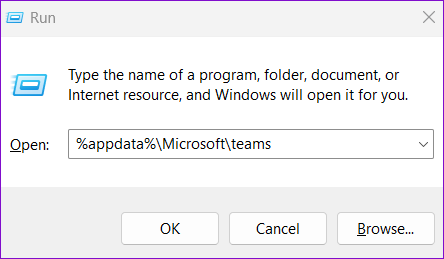
Step 2: Type %appdata%\Microsoft\Teams in the Open field and hit Enter.
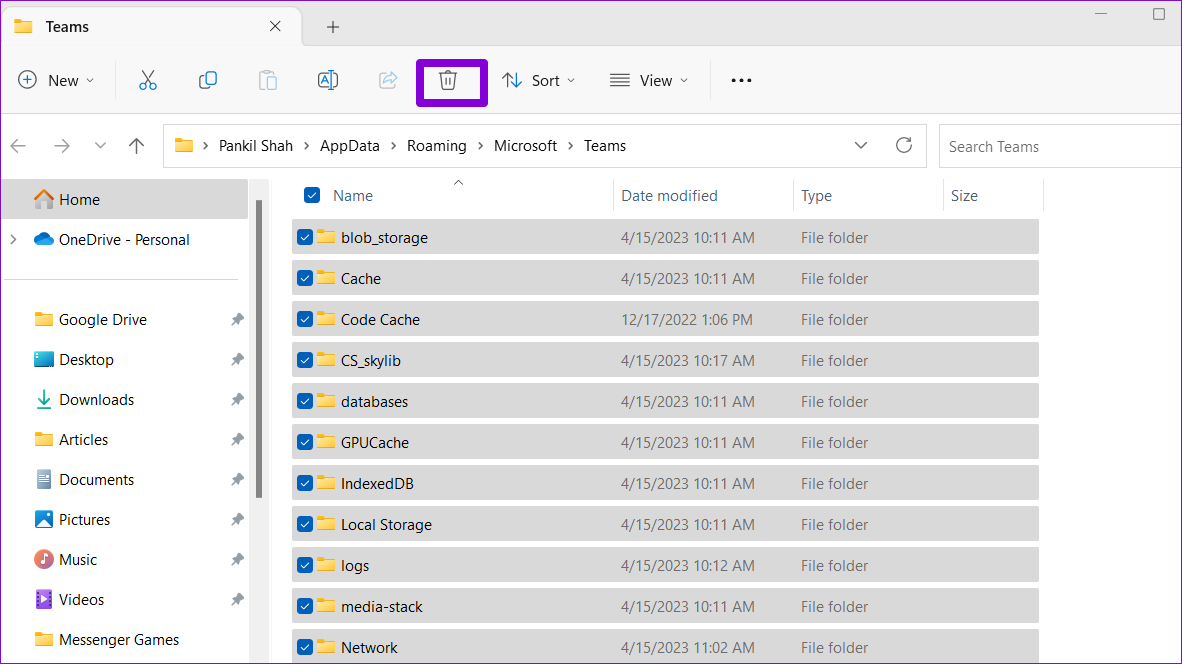
Step 3: In the File Explorer window, press Control + A keyboard shortcut to select all the files and folders. Then, click the trash icon at the top.
Restart the Teams app and see if the polls are working.
Fix 2: Check if Polls Work on Teams’ Web Version
If you still can’t view or create polls, switch to the web version of Microsoft Teams as a last resort. This should allow you to access your polls and determine whether the issue is specific to the app.

If you can use polls on Teams for the web but not on the desktop app, some of the core app files on your PC may be corrupt. So, consider uninstalling Microsoft Teams from your PC and proceeding with a fresh installation.
Was this helpful?
Last updated on 30 July, 2024
Read Next
 3 Fixes for Polls Not Working in WhatsApp
Basic Fixes Force quit and relaunch: If WhatsApp has been running in the background for some time, this will give it a fresh start on your mobile and desktop.
3 Fixes for Polls Not Working in WhatsApp
Basic Fixes Force quit and relaunch: If WhatsApp has been running in the background for some time, this will give it a fresh start on your mobile and desktop.
 How to Create and Use Polls in WhatsApp
On Mobile You can create polls in both personal chats and groups.
How to Create and Use Polls in WhatsApp
On Mobile You can create polls in both personal chats and groups.
 2 Ways to Fix Microsoft Teams Notifications Not Working on Windows 11/10
Preliminary Fixes Turn off Battery Saver: To ensure Microsoft Teams notifications work properly on Windows 11/10, turning off Battery Saver is essential.
2 Ways to Fix Microsoft Teams Notifications Not Working on Windows 11/10
Preliminary Fixes Turn off Battery Saver: To ensure Microsoft Teams notifications work properly on Windows 11/10, turning off Battery Saver is essential.
 5 Best Fixes for Microsoft Teams Microphone Not Working on Windows 10
More businesses and organizations now use Microsoft Teams to manage their teams working from office or remotely.
5 Best Fixes for Microsoft Teams Microphone Not Working on Windows 10
More businesses and organizations now use Microsoft Teams to manage their teams working from office or remotely.
 4 Fixes for Microsoft Teams Screen Sharing Not Working on Windows 11
https://youtu.be/Wm3ds6ia05A Preliminary Fixes Internet connection: Sharing your screen on Teams requires high-speed internet connectivity.
4 Fixes for Microsoft Teams Screen Sharing Not Working on Windows 11
https://youtu.be/Wm3ds6ia05A Preliminary Fixes Internet connection: Sharing your screen on Teams requires high-speed internet connectivity.
 4 Fixes for Audio Not Working in Microsoft Teams on Windows 11
Common Fixes Reboot Windows - Open the Start Menu, click Power in the bottom right, and select Restart.
4 Fixes for Audio Not Working in Microsoft Teams on Windows 11
Common Fixes Reboot Windows - Open the Start Menu, click Power in the bottom right, and select Restart.
 5 Fixes for Spell Check Not Working in Microsoft Teams for Windows
Fix 1: Disable and Re-Enable Spell Check This may seem too simple, but disabling and re-enabling the spell check feature in Microsoft Teams can help.
5 Fixes for Spell Check Not Working in Microsoft Teams for Windows
Fix 1: Disable and Re-Enable Spell Check This may seem too simple, but disabling and re-enabling the spell check feature in Microsoft Teams can help.
 How to Fix Microsoft Teams Notification Sound Not Working
On Windows Method 1: Check Notifications Options in the Settings App Step 1: Press the Windows + I keys shortcut to open the Settings app.
How to Fix Microsoft Teams Notification Sound Not Working
On Windows Method 1: Check Notifications Options in the Settings App Step 1: Press the Windows + I keys shortcut to open the Settings app.
The article above may contain affiliate links which help support Guiding Tech. The content remains unbiased and authentic and will never affect our editorial integrity.