


Fix 1: Restart Windows Explorer
Windows Explorer offers interface support for many system apps, and if it encounters a glitch, you may have trouble with File Explorer. So, you must restart the process using Task Manager.
Step 1: Press the Control + Shift + Enter keyboard shortcut to open the Task Manager.
Step 2: Click on the search bar > type explorer > press Enter to search for the process.
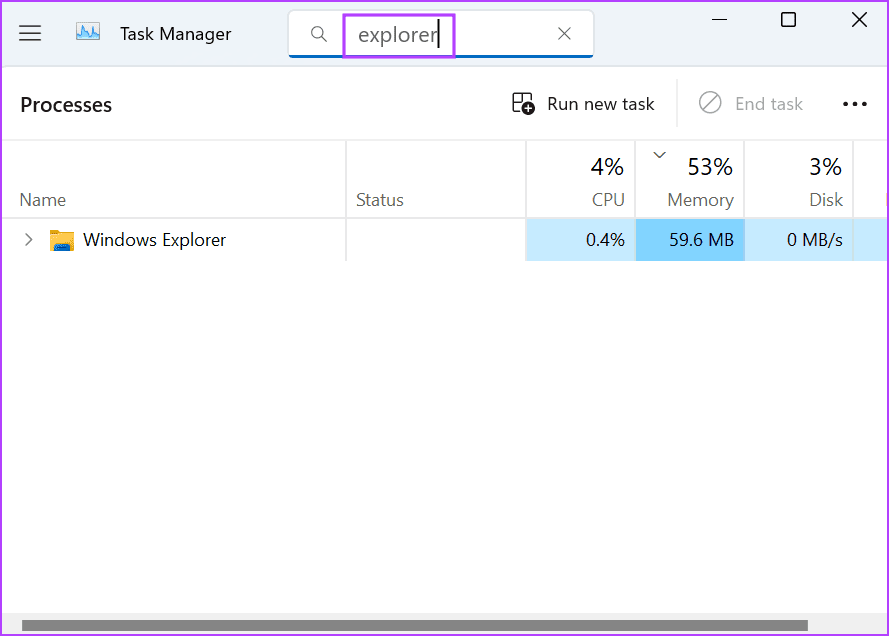
Step 3: Right-click on the Windows Explorer process and select Restart.
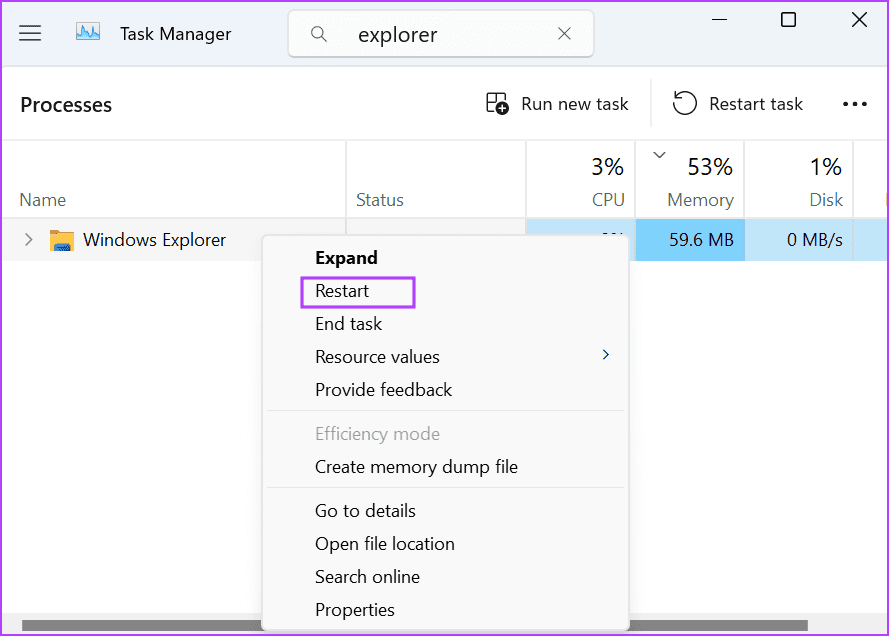
Your PC’s display will flicker briefly while the Windows Explorer process restarts. However, all the open app windows will remain as they were.
Fix 2: Rename the ZIP File
If the ZIP file’s name is too long, try renaming the file to a shorter name. Right-click on the ZIP file and select the Rename option from the context menu. Type a short name and press Enter to change the name of the file.

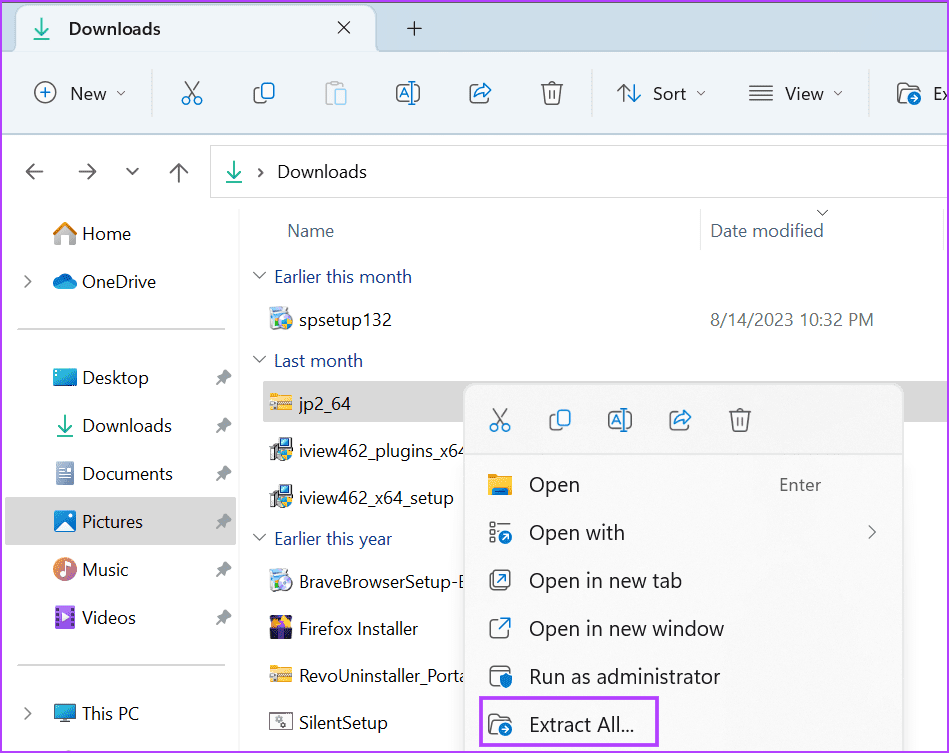
Right-click on the renamed archive file and select Extract All. Check if the extraction operation is successful.
Fix 3: Extract the Files to the Root Directory
Trying to extract an archive file located deep inside a directory can cause a problem. Windows also includes the folder structure in the file name, which can become unnecessarily long while extracting the file.
A simple workaround is to extract the archive to the root of the drive. The simpler path will reduce the number of characters and help you successfully extract the ZIP file.
Step 1: Press the Windows + E keyboard shortcut to open File Explorer.
Step 2: Navigate to the location of the archive file and right-click on it. Select Extract All.

Step 3: Delete everything in the path except the root directory name (C, D, or any other drive).

Step 4: Click on Extract.
Step 5: Check if you face the path too long error while unzipping.

Fix 4: Enable Support for Long Path Using Group Policy Editor
You can leverage the Group Policy Editor to support a longer path. After doing that, you can extract the ZIP file with names longer than 260 characters.
Step 1: Press the Windows key to open the Start menu > type gpedit.msc in the search bar > press Enter to open the Group Policy Editor.
Step 2: Navigate to the Computer Configuration section on the left > click on Administrative Templates.
Step 3: Click on the System from the right pane.

Step 4: Scroll down and click on Filesystem.

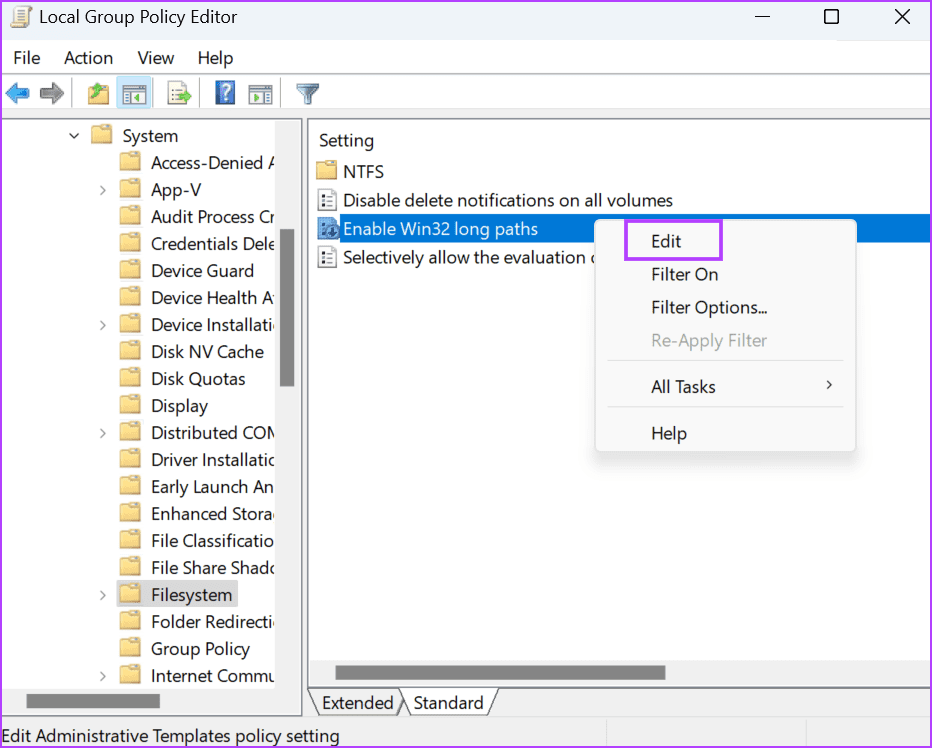
Step 5: Find the Enable Win32 long paths policy. Right-click on the policy and select Edit.
Step 6: Click on Enabled > Apply > OK.
Step 7: Close the Group Policy Editor and restart your PC to apply the changes.

Try extracting the file and check if the error ‘0x80010135: Path too long’ appears.
Fix 5: Enable Support for Long Paths Using the Registry Editor
If you use the Windows Home version, you cannot access the Group Policy Editor. Instead, you must use the Registry Editor to enable the support for long file paths on your PC. But before doing that, back up your registry manually as a safety measure.
Step 1: Press the Windows key to open the Start menu > type regedit in the search bar > press Enter.

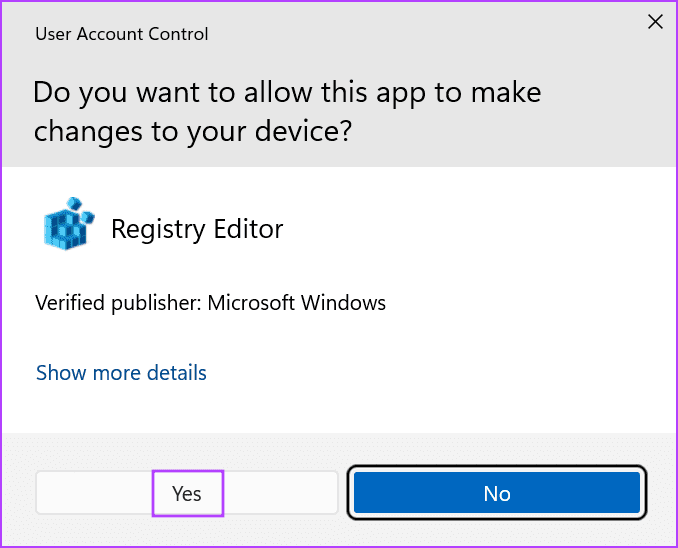
Step 2: The User Account Control Window will launch. Click on Yes to open the Registry Editor.
Step 3: Navigate to the address bar at the top, paste the following path, and press Enter.
HKEY_LOCAL_MACHINE\SYSTEM\CurrentControlSet\Control\FileSystem
Step 4: Hover to the right pane and locate the LongPathsEnabled value. Right-click on it > select Modify.
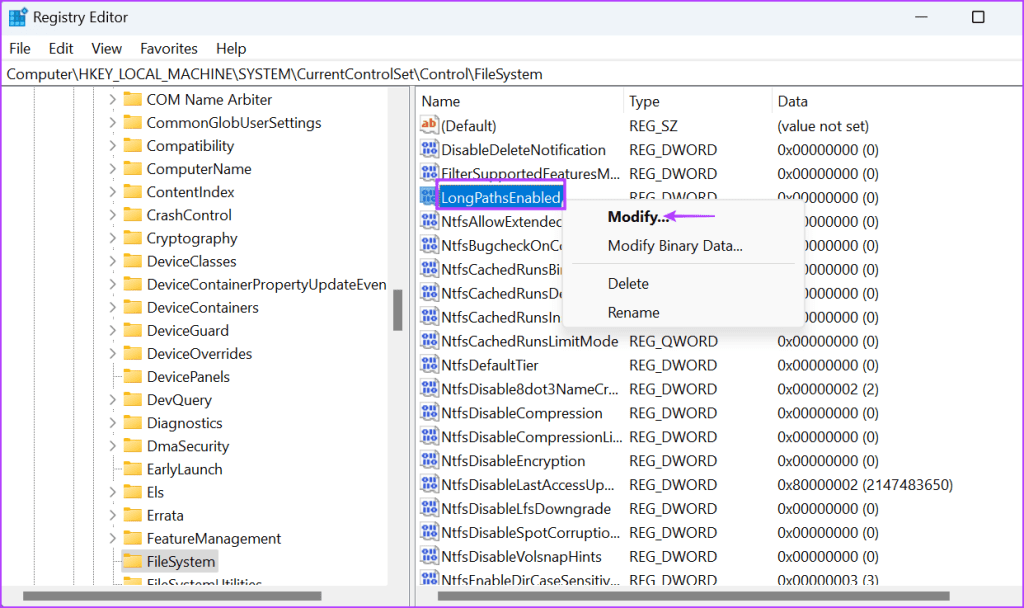
Step 5: Click on the Value Data text box and type 1 in it. Then, click on OK.

Step 6: Close the Registry Editor window and restart your PC to allow the changes to take effect.
Method 6: Use a Third-Party Archiving Program
If you still can’t extract the ZIP file after enabling the long path support, use a third-party archiving program like WinRAR or 7-ZIP. These programs don’t have the 260-character limit and can help you unarchive ZIP files with long names successfully unless the files themselves are corrupt.
Step 1: Download WinRAR. Run the setup file and install the app on your PC.
Step 2: Launch WinRAR and press Ctrl + O to launch the Open window. Browse the PC for the ZIP file and double-click to select it.

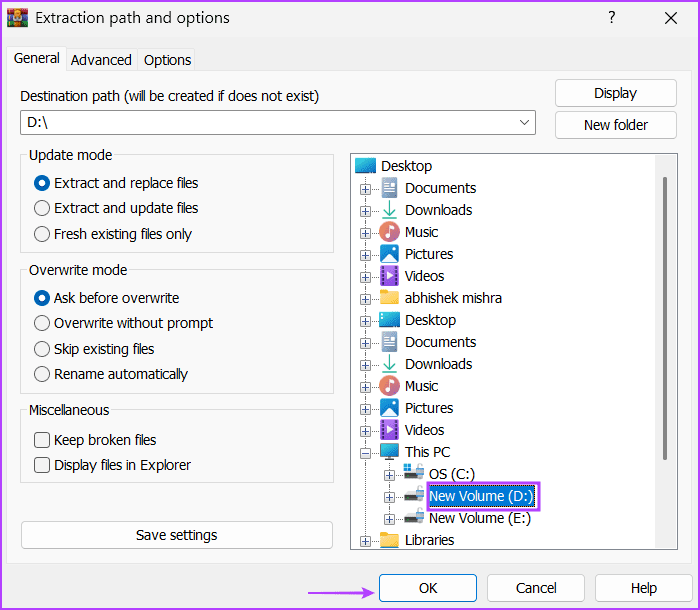
Step 3: Click on Extract To.

Step 4: Select the extraction location and click on OK.
Step 5: Press the Windows key + E to open the File Explorer. Navigate to the location where you extracted the ZIP file to access its contents.
Was this helpful?
Last updated on 12 August, 2024
2 Comments
Leave a Reply
Read Next
 4 Fixes for “Compress to ZIP File” Option Not Working in Windows 11
Try Basic Fixes Try another file or folder: Compressing another file or folder should help confirm if it's a system-wide issue.
4 Fixes for “Compress to ZIP File” Option Not Working in Windows 11
Try Basic Fixes Try another file or folder: Compressing another file or folder should help confirm if it's a system-wide issue.
 3 Easy Ways to Password Protect a ZIP File on Windows
Have you ever wanted to keep your sensitive files and documents safe and secure?
3 Easy Ways to Password Protect a ZIP File on Windows
Have you ever wanted to keep your sensitive files and documents safe and secure?
 5 Fixes for “Word Experienced an Error Trying to Open the File” Error in Windows
Fix 1: Unblock Your Word File Microsoft Word may fail to open a document if it has been altered by third-party software.
5 Fixes for “Word Experienced an Error Trying to Open the File” Error in Windows
Fix 1: Unblock Your Word File Microsoft Word may fail to open a document if it has been altered by third-party software.
 How To Automatically Extract ZIP Files After Downloading
ZIP files are necessary for combining multiple files together into one downloadable file.
How To Automatically Extract ZIP Files After Downloading
ZIP files are necessary for combining multiple files together into one downloadable file.
 5 Fixes for the “Outlook Data File Has Reached the Maximum Size” Error in Windows
Fix 1: Compact the Microsoft Outlook Data File Compacting your Outlook data file removes unused space and purges redundant information from the data file, effectively reducing its size.
5 Fixes for the “Outlook Data File Has Reached the Maximum Size” Error in Windows
Fix 1: Compact the Microsoft Outlook Data File Compacting your Outlook data file removes unused space and purges redundant information from the data file, effectively reducing its size.
 4 Ways to ZIP Files on Android
Method 1: Use WinZip WinZip is a reliable app that is popular among Windows users and it can be used for compressing files on Android.
4 Ways to ZIP Files on Android
Method 1: Use WinZip WinZip is a reliable app that is popular among Windows users and it can be used for compressing files on Android.
 3 Ways to Fix Content File Locked Error in Steam for Windows
Try Basic Fixes Run Steam as an administrator: If your Steam library folder lacks the necessary write permissions, you may encounter the 'content file locked' error.
3 Ways to Fix Content File Locked Error in Steam for Windows
Try Basic Fixes Run Steam as an administrator: If your Steam library folder lacks the necessary write permissions, you may encounter the 'content file locked' error.
 5 Ways to Fix “Outlook Data File Cannot Be Accessed” Error on Windows
Fix 1: Change the Default Mail Delivery Location One of the most straightforward ways to fix the "Outlook data file cannot be accessed" error is to configure Microsoft Outlook to
5 Ways to Fix “Outlook Data File Cannot Be Accessed” Error on Windows
Fix 1: Change the Default Mail Delivery Location One of the most straightforward ways to fix the "Outlook data file cannot be accessed" error is to configure Microsoft Outlook to
The article above may contain affiliate links which help support Guiding Tech. The content remains unbiased and authentic and will never affect our editorial integrity.


yeah can be a real pain, I tried LongPath Tool Program to good effect
I found a simpler workaround for when files inside the zip file are too long – instead of right clicking the zip file and selecting “Extract all…”, simply double click the zip file instead to open it. Then drag and drop all the files to your desktop or a folder of your choice.
This, for some reason, doesn’t trigger the “file name too long” error.