Basic Fixes
- Check your network connection: Ensure your device has a good internet connection. I recommend at least 5 Mbps to stream content on Paramount Plus.
- Check the Paramount Plus server status: Visit Downdetector to check an active Paramount Plus server outage.
- Reauthenticate your account: Account authentication issues can prevent you from accessing Paramount Plus. Click your profile icon at the top right of the Paramount Plus page, and select ‘Sign out’. Click ‘Sign in’ and type your account credentials to log back in.
- Verify your Paramount + plan: Ensure you have an active Paramount Plus subscription to stream its content online. To subscribe, click your profile icon at the top-right, and select ‘Account’. Click ‘Subscribe now’, and pick a relevant plan.
- Log out of other signed-in devices: Paramount Plus permits three simultaneous streams on an account. If you’ve breached the device limit, change your account password to prevent others from piggybacking on your subscription. Click your profile picture > Account, and select ‘Edit Password’.
- Enable/Disable VPN: Paramount Plus is available in the U.S. and a few other countries. If you can’t access it in your region, enable or disable your VPN connection to gain access.
- Update your browser: Existing browser issues can prevent you from opening Paramount Plus. Update it to the latest version from its in-app settings. To update Google Chrome, click the three-dot menu at the top right, select Help, and open ‘About Google Chrome’.
Fix 1: Disable Ad Blockers and Browser Extensions
An Ad blocker or similar browser extension can prevent certain webpage elements, like ads, from loading, causing the Paramount Plus site to crash. To fix it, disable these extensions in your browser settings. Let’s take Google Chrome for instance.
Step 1: Click the three-dot menu at the top right of Google Chrome, select Extensions, and open Manage Extensions.

Step 2: Toggle off the Ad Blocker or a similar extension to turn it off. Alternatively, click Remove to delete it from your browser and reload Paramount Plus.

Fix 2: Clear Paramount Plus Cache
Paramount Plus collects cache to save your account details, search terms, and streaming preferences. If it collects corrupt data, the website may not work as expected. Clear its cache manually to restore normalcy.
Step 1: Open Paramount Plus in your browser, click the More menu icon in the address bar, and select Site settings.

Step 2: Click Delete data to remove Paramount Plus stored cache and cookies from your browser.

Fix 3: Disable Tracking Protection for Paramount Plus (Firefox)
Firefox’s ‘Enhanced Tracking Protection’ feature can cause streaming issues in Paramount Plus. To avoid it, add Paramount Plus as an exception to stream its content without errors.
Step 1: Click the hamburger menu at the top right of Firefox and open Settings.
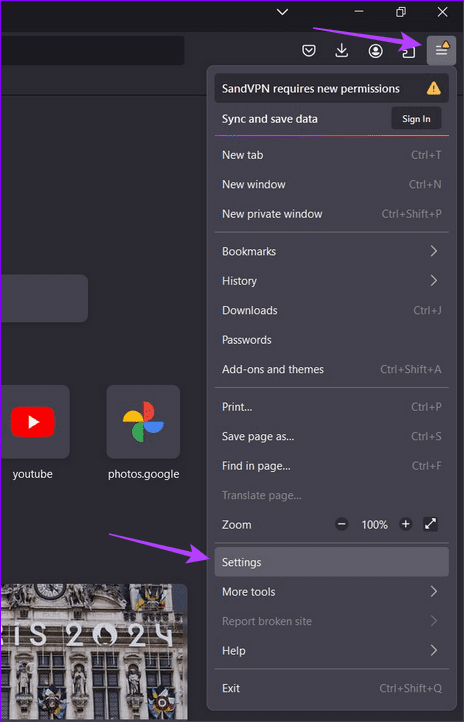
Step 2: Select Privacy & Security from the left sidebar, and click Manage Exceptions.
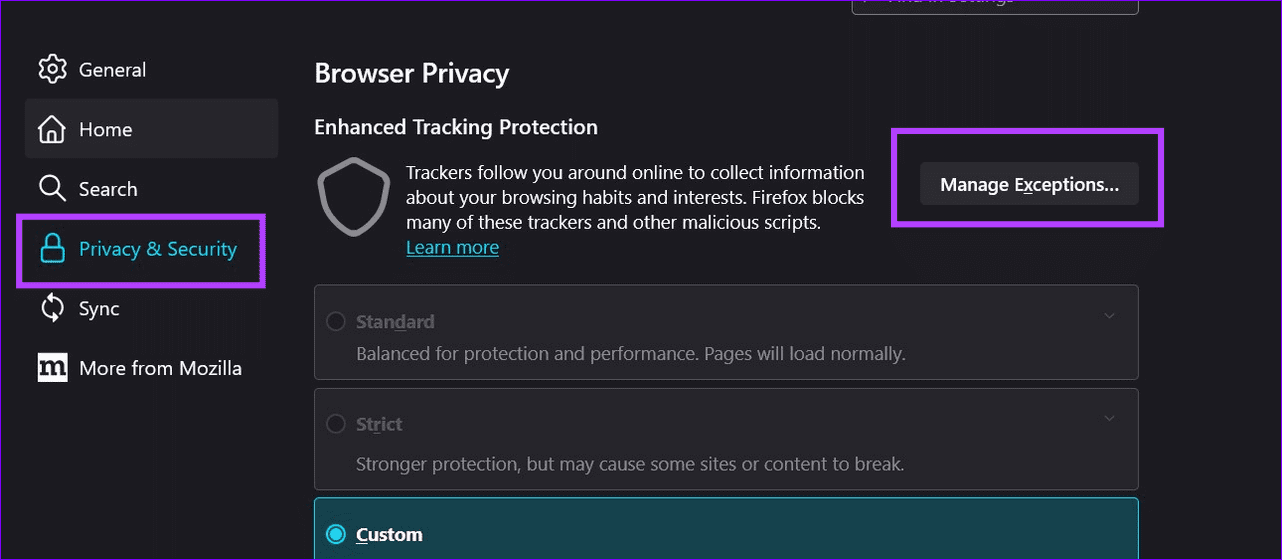
Step 3: Add the Paramount Plus website address, and click Add Exception.

Step 4: Select Save Changes and reload Paramount Plus in your browser to regain access.

Was this helpful?
Last updated on 01 August, 2024
Read Next
 3 Ways to Fix Telegram Web Not Working
Try Basic Fixes Check if Telegram is down: It's a good idea to check Telegram's server status before proceeding with the other solutions on this list.
3 Ways to Fix Telegram Web Not Working
Try Basic Fixes Check if Telegram is down: It's a good idea to check Telegram's server status before proceeding with the other solutions on this list.
 Top 6 Ways to Fix Telegram Web Notifications Not Working
Telegram is one of the most popular instant messaging apps for multiple reasons.
Top 6 Ways to Fix Telegram Web Notifications Not Working
Telegram is one of the most popular instant messaging apps for multiple reasons.
 4 Ways to Fix Google Messages for Web Not Working
Try Basic Fixes Turn off VPN: If you're using a VPN connection on your PC, you may want to turn it off.
4 Ways to Fix Google Messages for Web Not Working
Try Basic Fixes Turn off VPN: If you're using a VPN connection on your PC, you may want to turn it off.
 4 Ways to Fix Microsoft Outlook Web Not Working
Try Basic Fixes Check if Outlook is down: If Outlook servers are having an off day, you can't use Outlook in your web browser.
4 Ways to Fix Microsoft Outlook Web Not Working
Try Basic Fixes Check if Outlook is down: If Outlook servers are having an off day, you can't use Outlook in your web browser.
 5 Ways to Fix Microsoft Teams Web Not Working
Basic Fixes Sign out and sign back in: Authentication issues with your Microsoft account can sometimes cause Teams to stop working.
5 Ways to Fix Microsoft Teams Web Not Working
Basic Fixes Sign out and sign back in: Authentication issues with your Microsoft account can sometimes cause Teams to stop working.
 3 Ways to Fix TikTok Not Working in Web Browser
Preliminary Fixes Check network connection: Ensure your device has a stable network connection.
3 Ways to Fix TikTok Not Working in Web Browser
Preliminary Fixes Check network connection: Ensure your device has a stable network connection.
 4 Ways to Fix Facebook Not Playing Videos
Basic Fixes Check internet speed: Make sure you use either 5G or a strong Wi-Fi network to watch videos on the Facebook app.
4 Ways to Fix Facebook Not Playing Videos
Basic Fixes Check internet speed: Make sure you use either 5G or a strong Wi-Fi network to watch videos on the Facebook app.
 5 Ways to Fix No Audio on WhatsApp Web
Preliminary Checks Check the video or try playing another/older video: Is the video a GIF?
5 Ways to Fix No Audio on WhatsApp Web
Preliminary Checks Check the video or try playing another/older video: Is the video a GIF?
The article above may contain affiliate links which help support Guiding Tech. The content remains unbiased and authentic and will never affect our editorial integrity.