Basic Fixes
Notably, if you come across the ‘Your Organization’s Policies Are Preventing’ error in Outlook, it would be mostly due to a restriction from your administrator. And if that’s not the case, it’s probably a registry or default app issue, which, thankfully, can be resolved easily.
- Contact your organization to check for restrictions – If your device is provided by the school, university, or office, contact your IT department or system administrator. A probability is that the error message appears due to specific security policies or restrictions implemented by your organization.
- Change the default browser – One of the culprits behind Outlook’s ‘Your Organization’s Policies Are Blocking This Action’ error can be your default browser. Try switching the browser to see if the problem is fixed.
Note: If you’re using the Outlook app, try opening the link using the web version and vice versa.
- Make Outlook the default app for mail – If you’re using any other email client, setting Outlook as the default mail app can resolve issues related to organization policies blocking actions.
Fix 1. Resetting Your Browser Settings
Sometimes, browser settings can lead to the ‘Organization’s Policies Are Preventing’ error. To reset your browser settings, follow these steps.
Note: While these instructions are for Edge and Chrome, the method to reset settings is quite similar for other browsers as well.
Step 1: Open the Edge browser and click the three-dot icon from the top-right corner.
Step 2: Select Settings. Here, click Reset settings from the left sidebar.

Step 3: Click ‘Restore settings to their original defaults’ and then Reset to confirm the action.
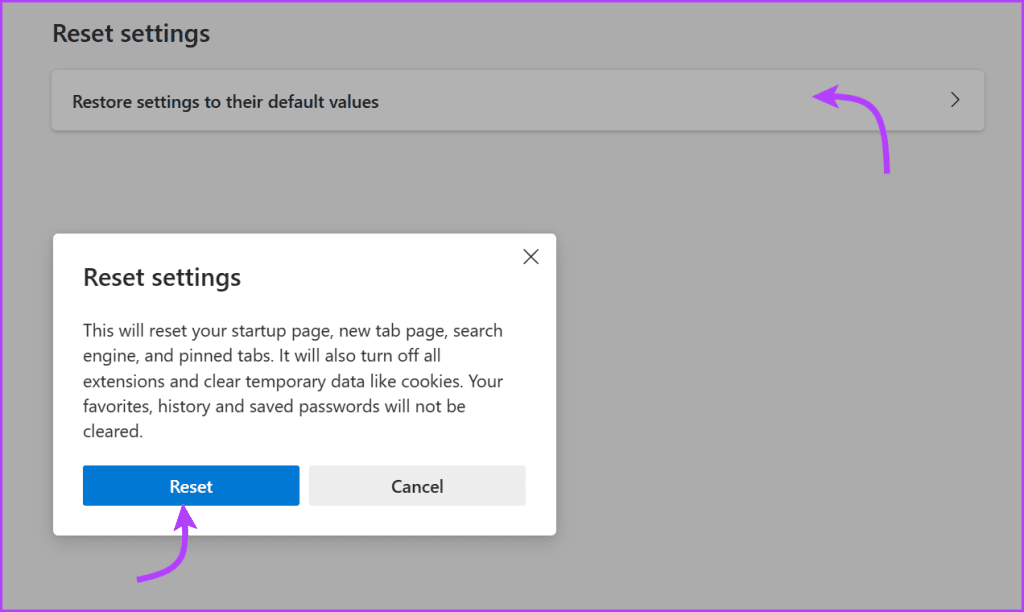
After resetting your browser settings, restart Outlook and try opening links in your emails.
Fix 2. Check Registry Key Inside Registry Editor
You could be prevented from opening links in Outlook due to incorrect registry settings. You’ll have to check HKEY CLASSES ROOT.html and tweak it if there’s some error. Here’s how.
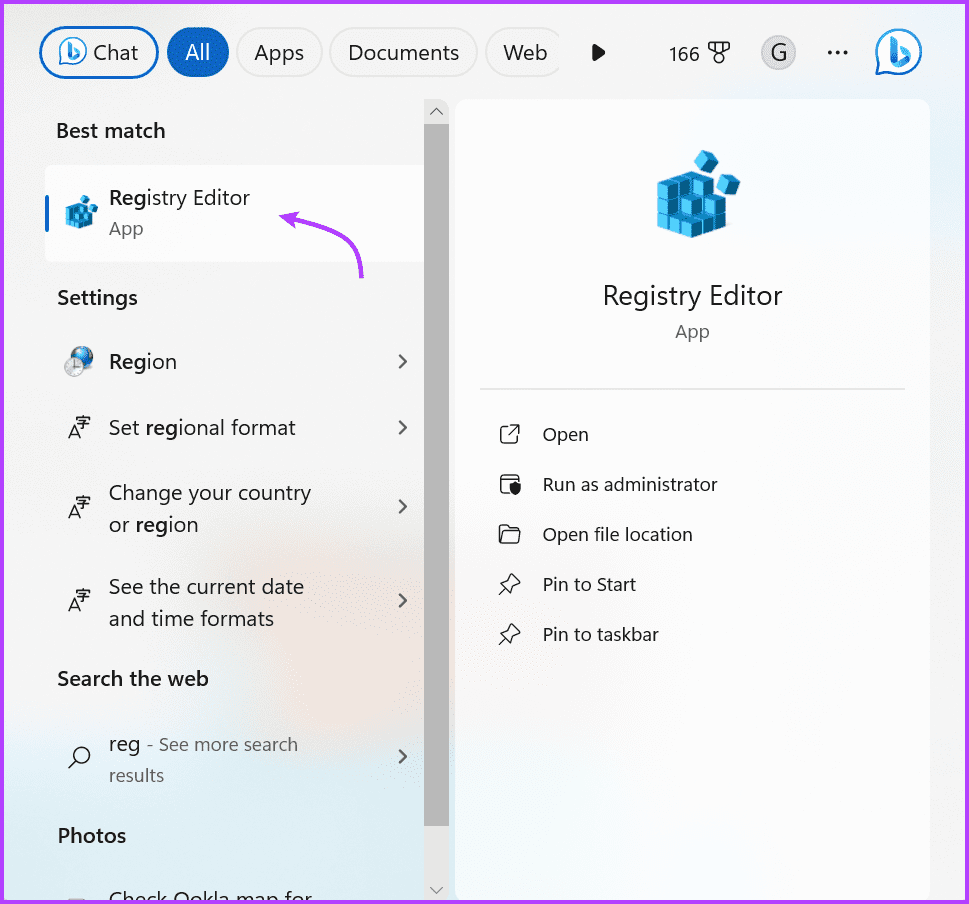
Step 1: Click the Start icon > search Registry > select the Registry Editor app from the results.
Step 2: Select HKEY_CLASSES_ROOT. Scroll down to the .html folder.
Step 3: Here, ensure the following values are met:
- Default – The value under the Data section should be htmlfile
- Content Type – The value under the Data section should be text/html
- PerceivedType – The value under the Data section should be text

Sometimes, instead of “htmlfile,” you may have “FirefoxHTML” or other incorrect entries. Edit the wrong entry and replace it with “htmlfile.”
Once done, restart the Outlook app and default browser and see if you still get blocked by the organization policy message. If you do, try the next method to fix the issue.
Fix 3. Import the HTMLFile Key From Another Computer
If all else fails, it’s time to enlist some help from your friend or colleague whose Outlook is working flawlessly. The idea is to replace the corrupted registry with a fresh one so you get rid of the ‘Your Organization’s Policies Are Preventing’ error in Outlook.
Note: Before operating any Registry changes, ensure to back up your computer. If anything unexpected occurs, you can restore your data using the backup folder.
Now, these are the steps your friend or colleague should follow to export the HTMLFile Key.
Step 1: Open the Registry Editor app. Navigate to HKEY_CURRENT_USER\Software\Classes\htmlfile.
Step 2: Right-click the htmlfile folder, select Export, and Save the .reg file.

Once you receive the file, save it to your desktop. Then, double-click it to add the information it contains to your computer’s Registry. Check if Outlook can open hyperlinks now.

Was this helpful?
Last updated on 12 August, 2024
Read Next
 How to See What Group Policies Are Applied to Your Windows 11
Have you ever wondered what secret rules your Windows 11 system follows?
How to See What Group Policies Are Applied to Your Windows 11
Have you ever wondered what secret rules your Windows 11 system follows?
 4 Ways to Fix Outlook Error 500 ‘Something Went Wrong’
Preliminary Fixes Troubleshoot your internet connection: Ensure you have a stable and reliable internet connection.
4 Ways to Fix Outlook Error 500 ‘Something Went Wrong’
Preliminary Fixes Troubleshoot your internet connection: Ensure you have a stable and reliable internet connection.
 Top 4 Ways to Change New Outlook Back to Old (Classic View) Outlook on Windows and Mac
The new Outlook app for desktop boasts a modern and simplified design, aligning it more closely with the web version of Microsoft Outlook.
Top 4 Ways to Change New Outlook Back to Old (Classic View) Outlook on Windows and Mac
The new Outlook app for desktop boasts a modern and simplified design, aligning it more closely with the web version of Microsoft Outlook.
 Top 6 Ways to Fix Cannot Expand Folder Error in Outlook
Microsoft Outlook users have been facing a particular error for the past decade.
Top 6 Ways to Fix Cannot Expand Folder Error in Outlook
Microsoft Outlook users have been facing a particular error for the past decade.
 6 Ways to Fix Microsoft Outlook Failed to Delete a Message Error
Fix 1.
6 Ways to Fix Microsoft Outlook Failed to Delete a Message Error
Fix 1.
 5 Ways to Fix Outlook IMAP Error 0x800CCC0E on Windows 11
Try Basic Fixes Clear emails from the Outbox folder: Outlook may throw the 0x800CCC0E error if some of your messages are stuck in the outbox.
5 Ways to Fix Outlook IMAP Error 0x800CCC0E on Windows 11
Try Basic Fixes Clear emails from the Outbox folder: Outlook may throw the 0x800CCC0E error if some of your messages are stuck in the outbox.
 6 Ways to Fix “The Set of Folders Cannot Be Opened” Error in Outlook for Windows
Fix 1: Reset the Navigation Pane Sometimes, Outlook may fail to load the navigation pane entirely and throw an error message that reads, "Cannot start Microsoft Outlook.
6 Ways to Fix “The Set of Folders Cannot Be Opened” Error in Outlook for Windows
Fix 1: Reset the Navigation Pane Sometimes, Outlook may fail to load the navigation pane entirely and throw an error message that reads, "Cannot start Microsoft Outlook.
 5 Ways to Fix “Outlook Data File Cannot Be Accessed” Error on Windows
Fix 1: Change the Default Mail Delivery Location One of the most straightforward ways to fix the "Outlook data file cannot be accessed" error is to configure Microsoft Outlook to
5 Ways to Fix “Outlook Data File Cannot Be Accessed” Error on Windows
Fix 1: Change the Default Mail Delivery Location One of the most straightforward ways to fix the "Outlook data file cannot be accessed" error is to configure Microsoft Outlook to
The article above may contain affiliate links which help support Guiding Tech. The content remains unbiased and authentic and will never affect our editorial integrity.