Fix 1: Disable Offline Mode
Your first step is to ensure that Outlook is not in offline mode. If it is, your email content won’t appear correctly.
To disable offline mode in Outlook, switch to the Send / Receive tab and click the Work Offline button. After that, wait for Outlook to sync your emails and try to load them again.

Fix 2: Change the Font Color in Outlook
Another thing you need to do is check the set font color for email messages. If you have inadvertently changed the font color to white, you won’t be able to read the email content.
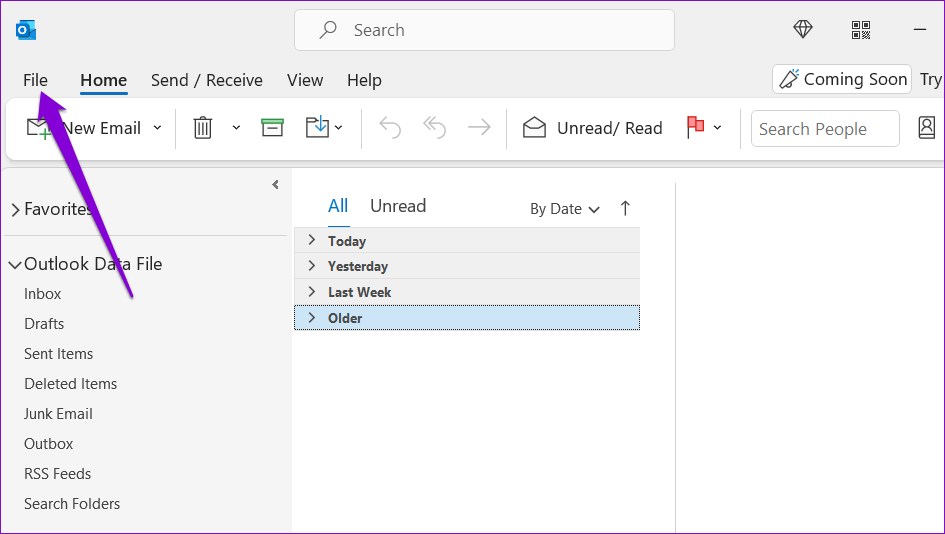
Step 1: Open the Outlook app and click the File menu at the top-left corner.
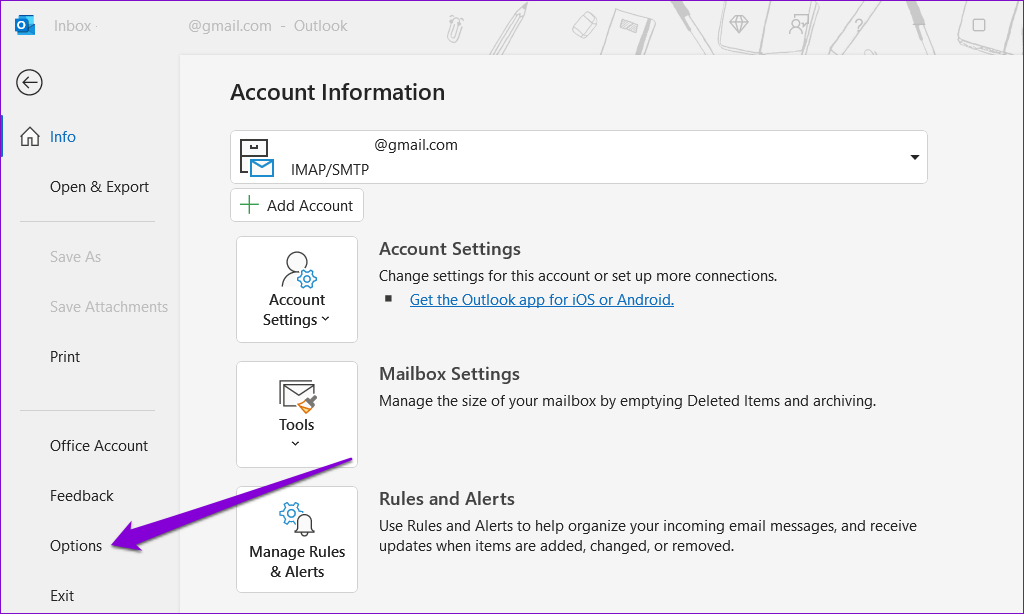
Step 2: Select Options from the left pane.
Step 3: Switch to the Mail tab and click the Stationery and Fonts button.

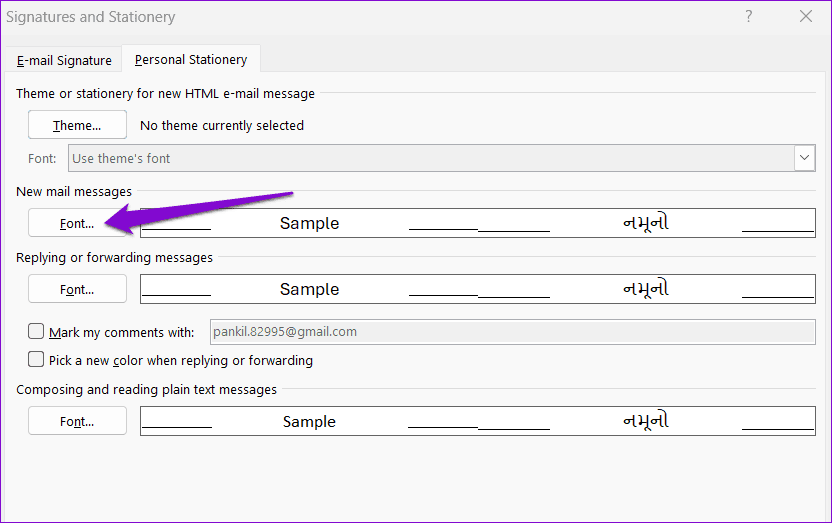
Step 4: Under New mail messages, click the Font button.
Step 5: Use the drop-down menu under Font color to select Automatic. Then, click OK.

Fix 3: Enable Automatic Picture Downloads for Email Messages
If Outlook is only failing to load images in your emails, you may have prevented it from downloading pictures automatically. Here’s how to change that.
Step 1: Open the Outlook app and go to File > Options.
Step 2: Navigate to the Trust Center tab and click the Trust Center Settings button.

Step 3: In the Automatic Download tab, clear the Don’t download pictures automatically in standard HTML email messages or RSS items and Don’t download pictures in encrypted or signed HTML email messages checkboxes. Then, click OK.

Fix 4: Run Outlook in Safe Mode
Starting Microsoft Outlook in safe mode allows you to run the program without any third-party add-ins. If Outlook is not displaying email content due to one of your add-ins, opening it in safe mode will help you determine that.
To launch Outlook in Safe Mode, hold down the Ctrl key and double-click the Outlook shortcut. Select Yes when the confirmation prompt appears.
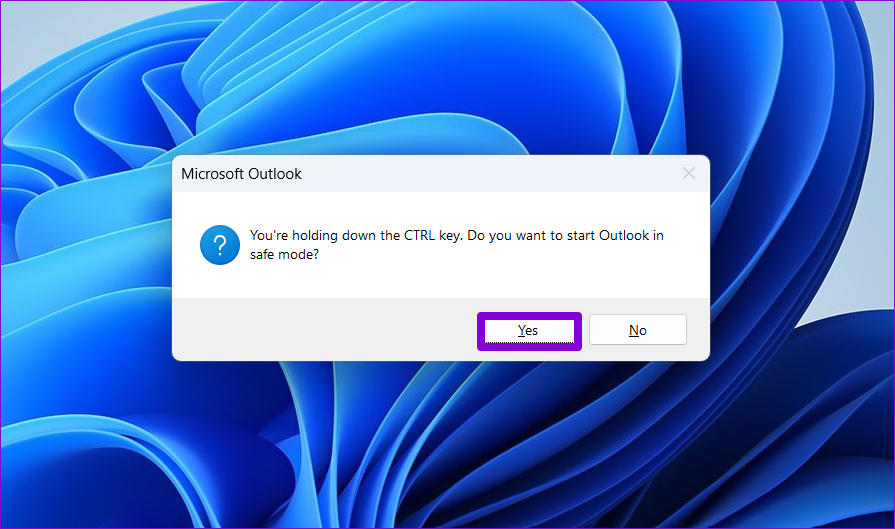
If Outlook loads email content as expected while in safe mode, it’s likely that one of the third-party add-ins is causing the problem. To identify it, you will need to disable all Outlook add-ins and re-enable them one at a time.
Step 1: In the Outlook app, head to File > Options.
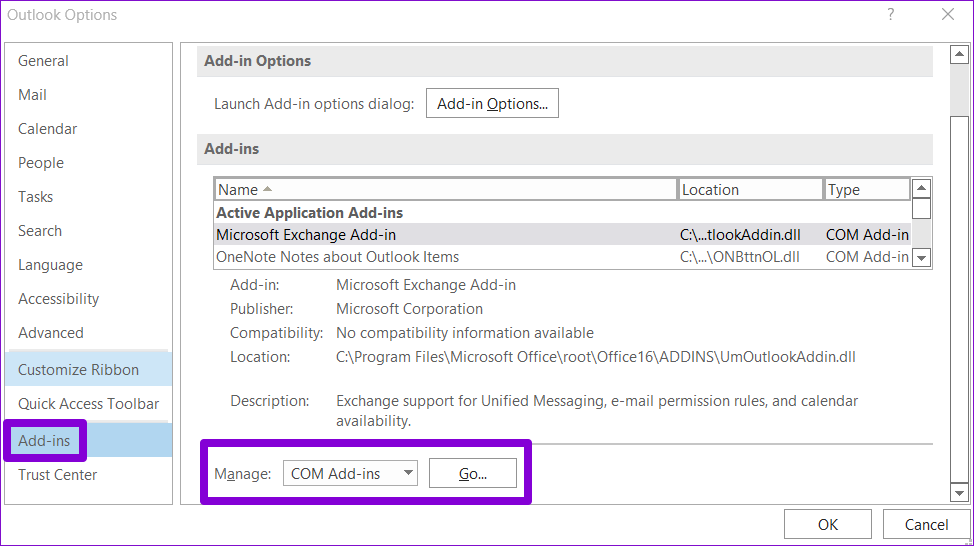
Step 2: In the Outlook Options window, switch to the Add-ins tab. Use the drop-down menu next to Manage and select COM Add-ins. Then, click the Go button.
Step 3: Uncheck all the boxes to disable add-ins and click OK.
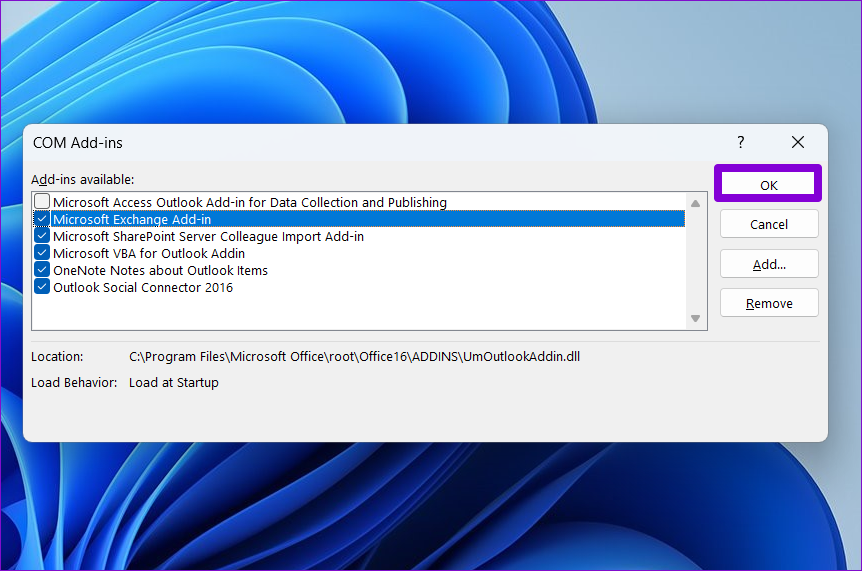
Restart Outlook in normal mode and enable your add-ins one by one until the issue occurs again. After that, remove the problematic add-in.
Fix 5: Clear the RoamCache Folder
It’s possible that Microsoft Outlook cache files on your PC have become corrupted, which is why the email contents are not appearing correctly. If that’s the case, clearing Outlook’s cache files should help fix the problem.
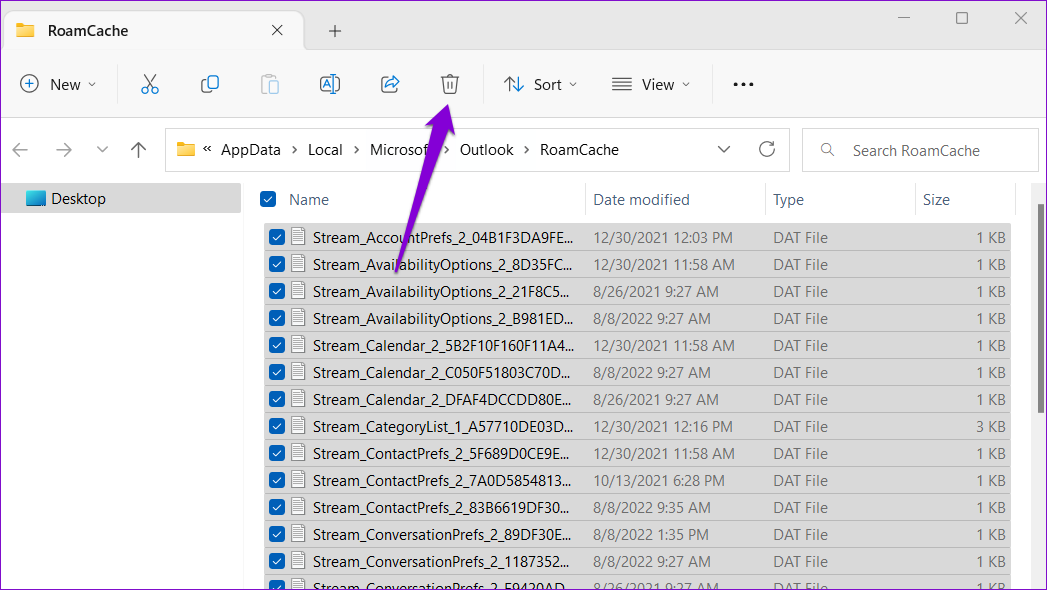
Step 1: Press the Windows + R keyboard shortcut to open the Run dialog box. Paste the following path in the text field and press Enter.
%localappdata%\Microsoft\Outlook\RoamCache
Step 2: Select all the files inside the folder and click the trash icon at the top to delete them.
Fix 6: Repair Outlook Data Files
Such issues with the Outlook app can also occur if the existing data files are damaged. The good news is that Outlook offers a tool that can automatically fix any problems with the data files. Here’s how to run it.
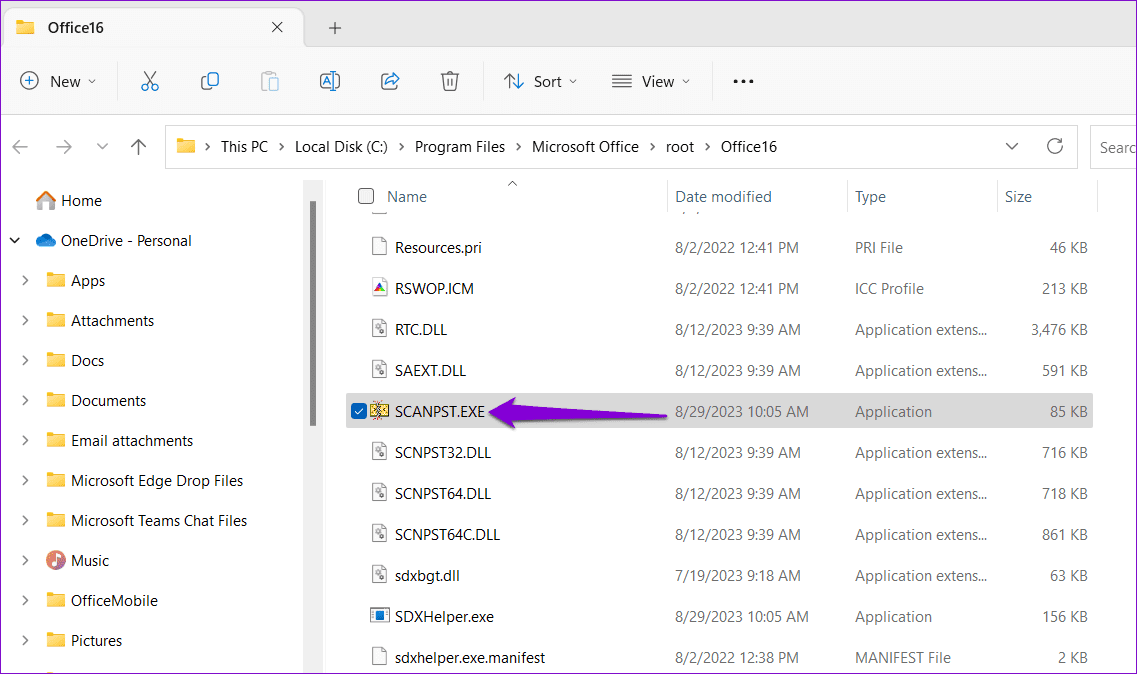
Step 1: Press the Windows key + E to open File Explorer and navigate to the following folder.
C:\Program Files\Microsoft Office\root\Office16
Step 2: Double-click the SCANPST.EXE file.
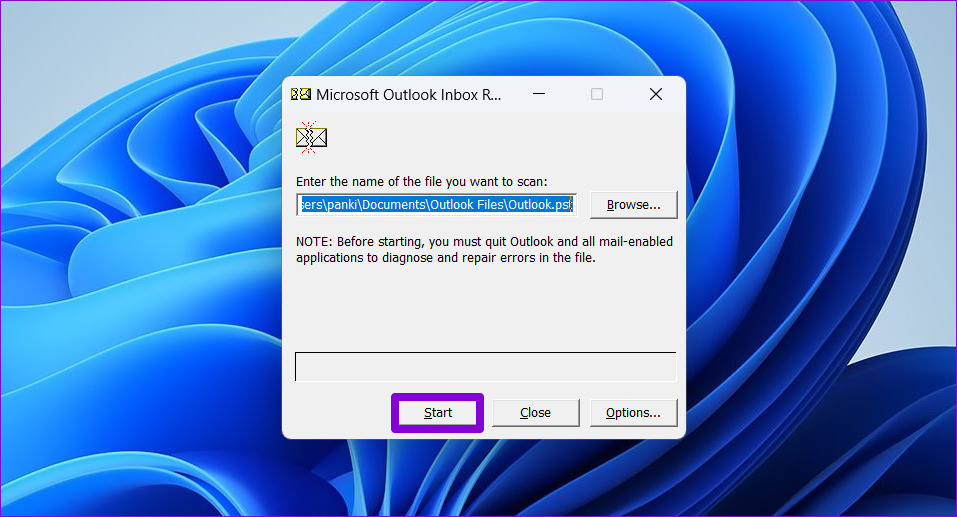
Step 3: Click Start to initiate the scan.
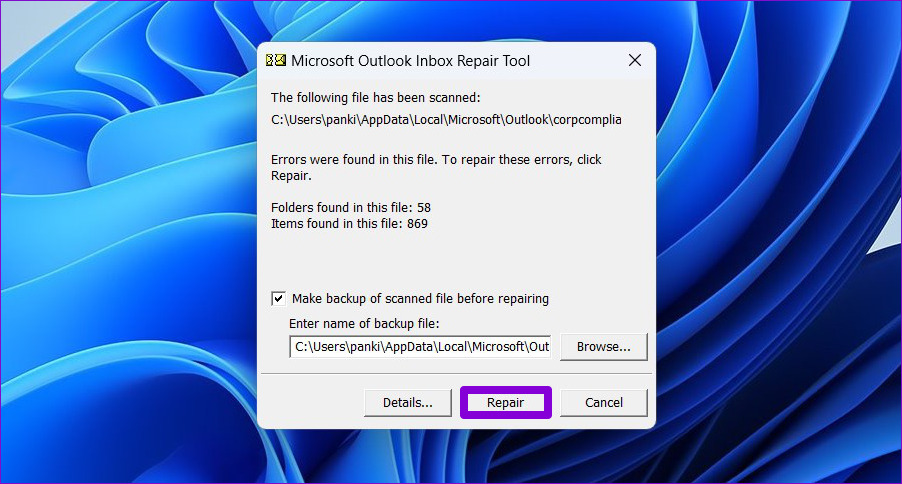
Step 4: Wait for the tool to scan your files. If it finds any issues, click the Repair button.
Was this helpful?
Last updated on 16 May, 2024
Read Next
 How to Save a Microsoft Outlook Email as a PDF (Desktop and Mobile)
1.
How to Save a Microsoft Outlook Email as a PDF (Desktop and Mobile)
1.
 5 Fixes for Email Templates Missing in Microsoft Outlook
Fix 1: Check the Email Templates Folder An obvious reason why your Outlook email templates may not show up is that you have accidentally deleted them.
5 Fixes for Email Templates Missing in Microsoft Outlook
Fix 1: Check the Email Templates Folder An obvious reason why your Outlook email templates may not show up is that you have accidentally deleted them.
 6 Fixes for Sent Items Not Showing in Microsoft Outlook for Windows
Fix 1: Make Sure Outlook Is Configured to Save Sent Items Your sent emails may not show up in Outlook if you have previously configured the app to not save
6 Fixes for Sent Items Not Showing in Microsoft Outlook for Windows
Fix 1: Make Sure Outlook Is Configured to Save Sent Items Your sent emails may not show up in Outlook if you have previously configured the app to not save
 How to Insert Emojis in a Microsoft Outlook Email
Have you ever typed a work email and wished there was a way to add a touch of personality or convey emotions through your words?
How to Insert Emojis in a Microsoft Outlook Email
Have you ever typed a work email and wished there was a way to add a touch of personality or convey emotions through your words?
 How to Recall an Email on Microsoft Outlook for Desktop and Web
Have you experienced panic after sending an email because you noticed an error or you forgot to include an important attachment?
How to Recall an Email on Microsoft Outlook for Desktop and Web
Have you experienced panic after sending an email because you noticed an error or you forgot to include an important attachment?
 3 Ways to Fix Content File Locked Error in Steam for Windows
Try Basic Fixes Run Steam as an administrator: If your Steam library folder lacks the necessary write permissions, you may encounter the 'content file locked' error.
3 Ways to Fix Content File Locked Error in Steam for Windows
Try Basic Fixes Run Steam as an administrator: If your Steam library folder lacks the necessary write permissions, you may encounter the 'content file locked' error.
 6 Ways to Fix “PowerPoint Found a Problem With Content” on Windows
Fix 1: Repair the Presentation File When you receive the "PowerPoint found a problem with content" error, PowerPoint offers the option to repair the file.
6 Ways to Fix “PowerPoint Found a Problem With Content” on Windows
Fix 1: Repair the Presentation File When you receive the "PowerPoint found a problem with content" error, PowerPoint offers the option to repair the file.
 5 Ways to Fix Outlook Contact List Not Showing Up on Windows
Fix 1: Enable the Auto-Complete Feature in Outlook Options The most common reason Outlook may not suggest contacts while composing a message is if the Auto-Complete feature is disabled.
5 Ways to Fix Outlook Contact List Not Showing Up on Windows
Fix 1: Enable the Auto-Complete Feature in Outlook Options The most common reason Outlook may not suggest contacts while composing a message is if the Auto-Complete feature is disabled.
The article above may contain affiliate links which help support Guiding Tech. The content remains unbiased and authentic and will never affect our editorial integrity.