


Fix 1: Enable the Auto-Complete Feature in Outlook Options
The most common reason Outlook may not suggest contacts while composing a message is if the Auto-Complete feature is disabled. Hence, this is the first thing you should check.
Step 1: Open the Outlook app and click the File menu in the top left corner.
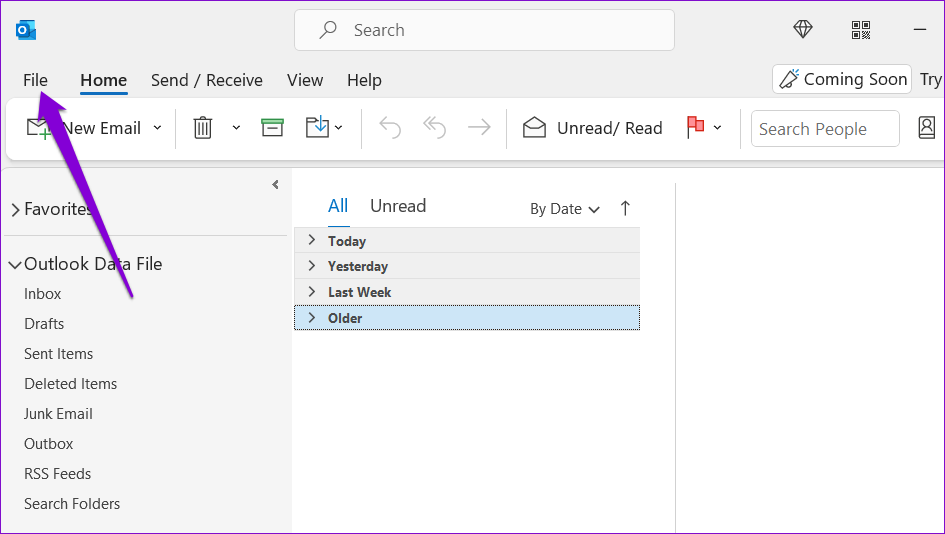
Step 2: Select Options from the left sidebar.
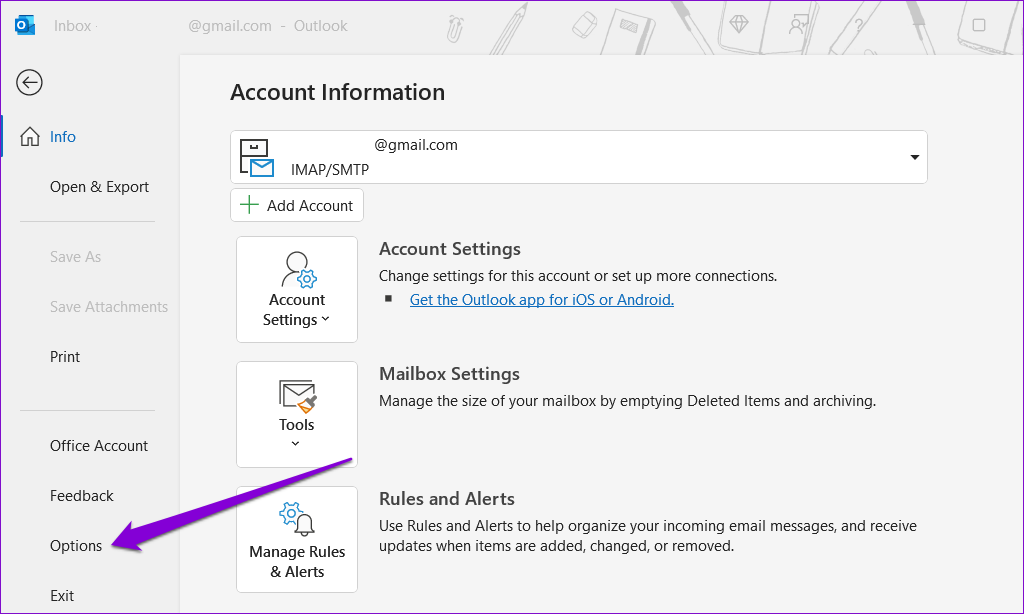
Step 3: In the Outlook Options window that opens, switch to the Mail tab.
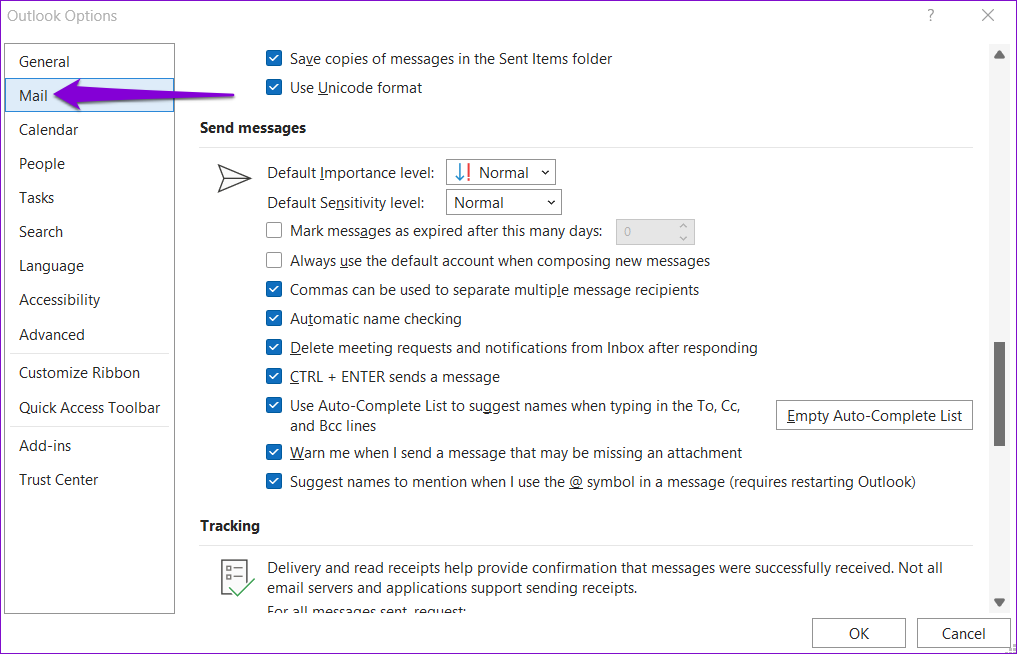
Step 4: Scroll down to the Send messages section and tick the box that reads Use Auto-Complete List to suggest names when typing in the To, Cc, and Bcc lines.
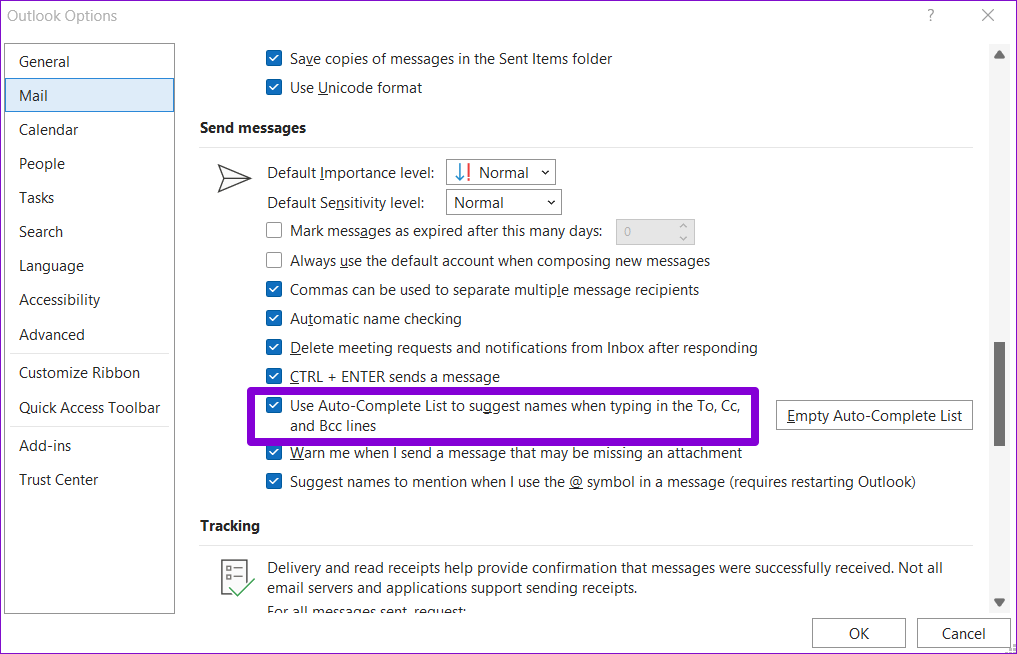
Step 5: Click OK to save the changes.
Fix 2: Configure the Contacts Folder to Appear in Outlook Address Book
Outlook lets you create contact folders to organize your contacts into different groups. If Outlook isn’t displaying contacts from one of these folders, it may not be set up to appear in your address book. Here’s how you can change that.
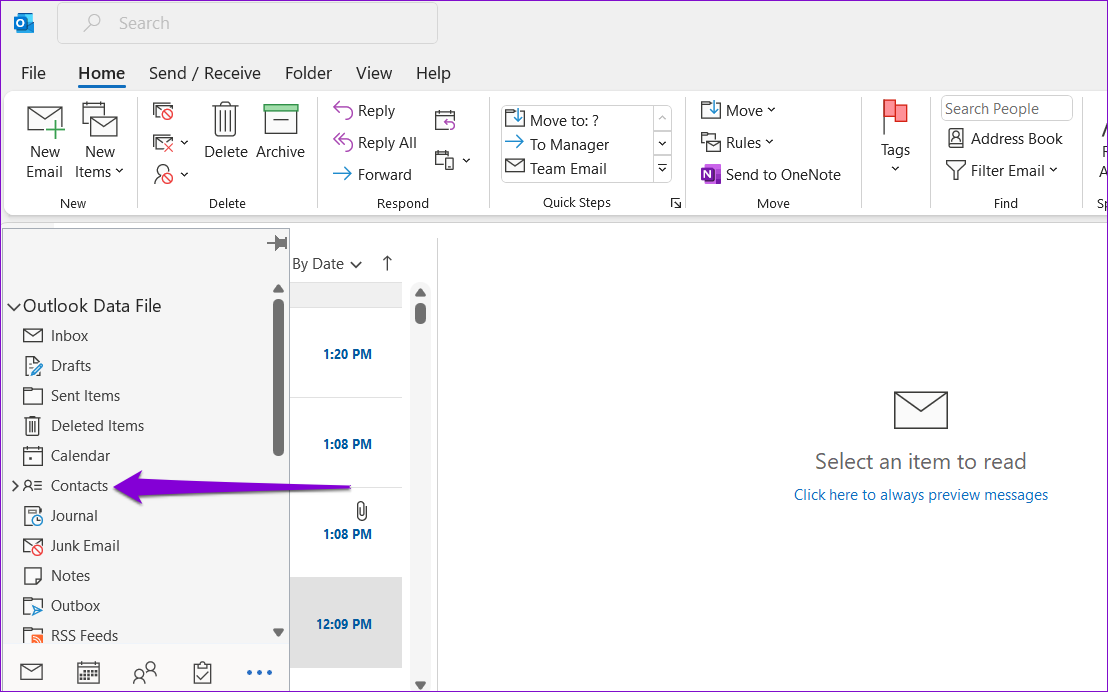
Step 1: In the Outlook app, expand Contacts from the left pane.
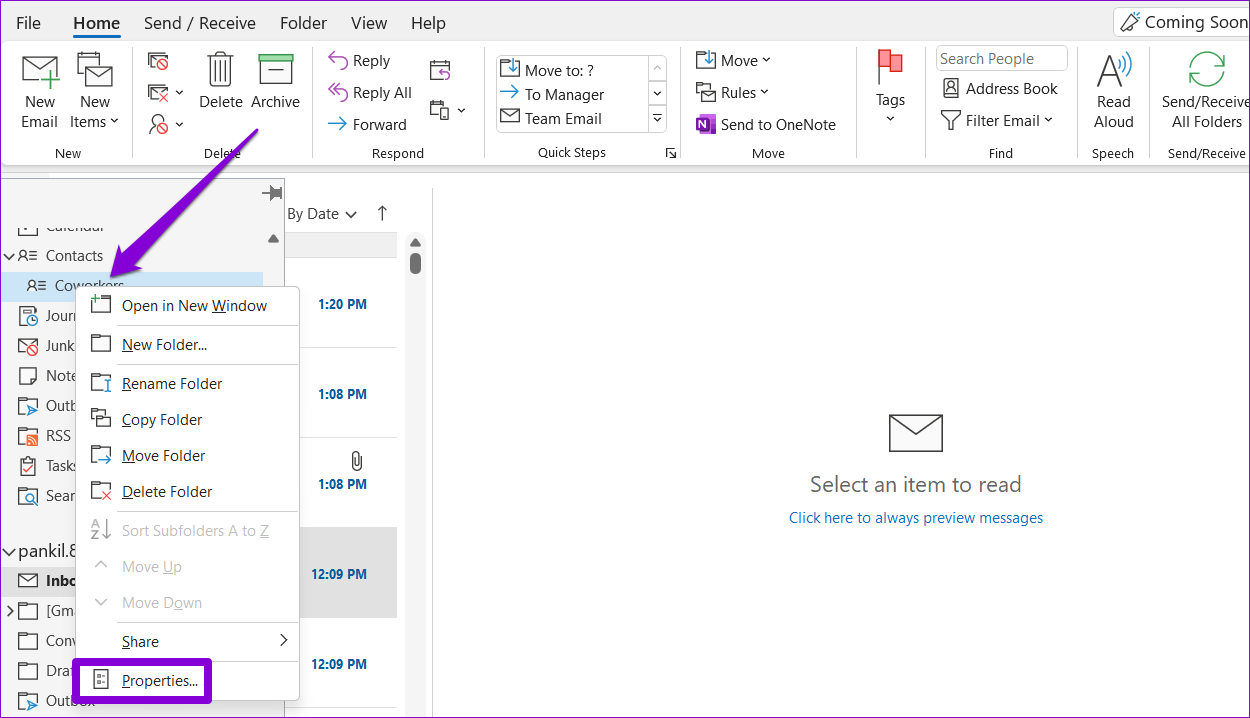
Step 2: Right-click on the problematic contact folder and select Properties.
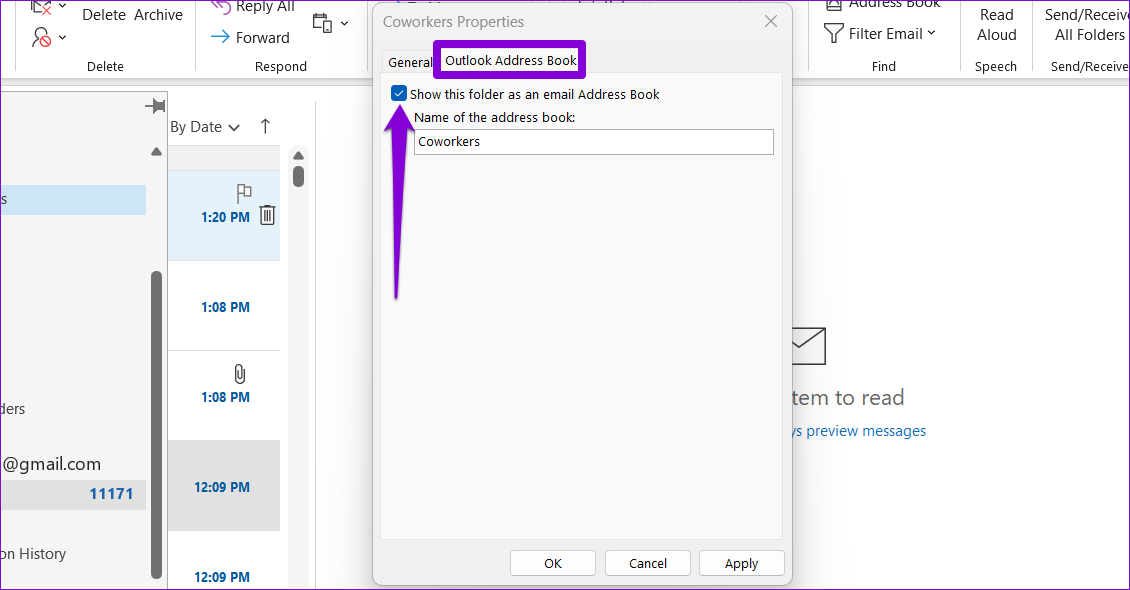
Step 3: In the Properties window, switch to the Outlook Address Book tab and tick the Show this folder as an email Address Book option.
Step 4: Hit Apply, followed by OK, to save changes.
Fix 3: Use Outlook in Safe Mode
Using third-party add-ins is an excellent way to extend Outlook’s functionality. However, these add-ins can sometimes conflict with the Outlook app and prevent it from working correctly. To see if this is the case, you can launch Outlook in safe mode.
Press the Windows key + R to open the Run dialog. Type in outlook.exe/safe and press Enter. If Outlook displays your contacts in safe mode, the add-in causing the problem was disabled. To find it, you need to disable all your add-ins and re-enable them one by one.
Step 1: Open the Outlook app in normal mode and go to File > Options.
Step 2: In the Outlook Options window, navigate to the Add-ins tab. Use the drop-down menu next to Manage and select COM Add-ins. Then click on the Go button next to it.
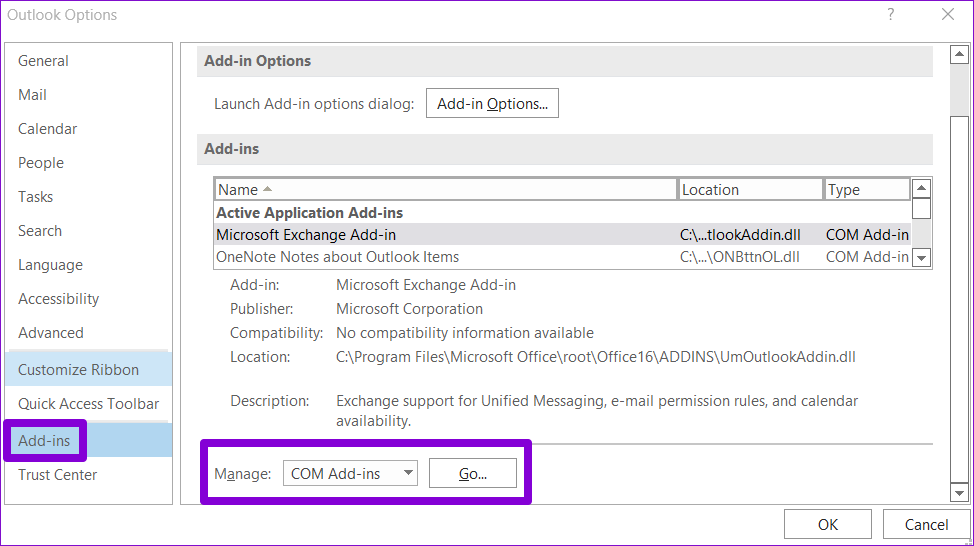
Step 3: Uncheck the boxes to disable add-ins and click OK.
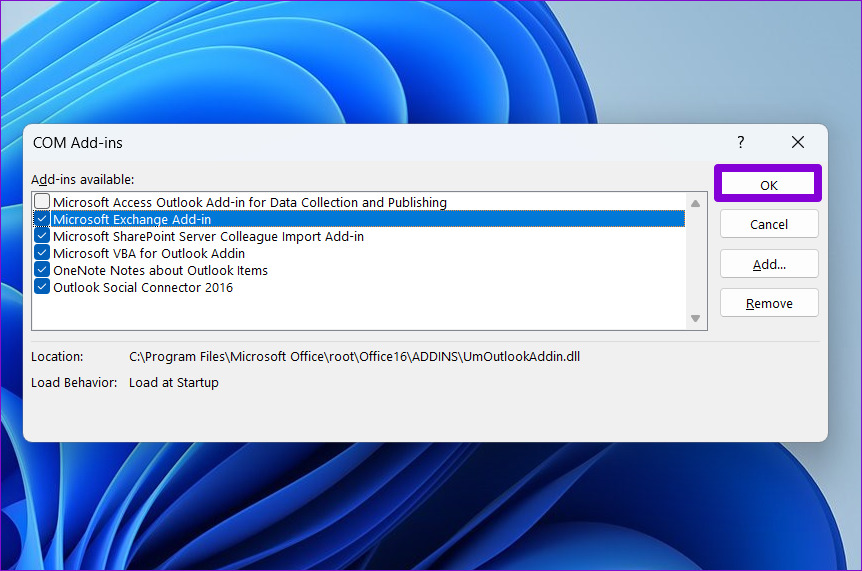
Enable all your add-ins one at a time until the issue occurs again. Once you find the problematic add-in, consider updating or removing it to resolve the issue for good.
Fix 4: Clear Outlook Cache
The more you use Outlook, the more cache data it accumulates. While that’s a good thing, Outlook cache data can also cause problems once it becomes old or corrupted. You can try clearing the Outlook cache to see if that restores its ability to display contacts.
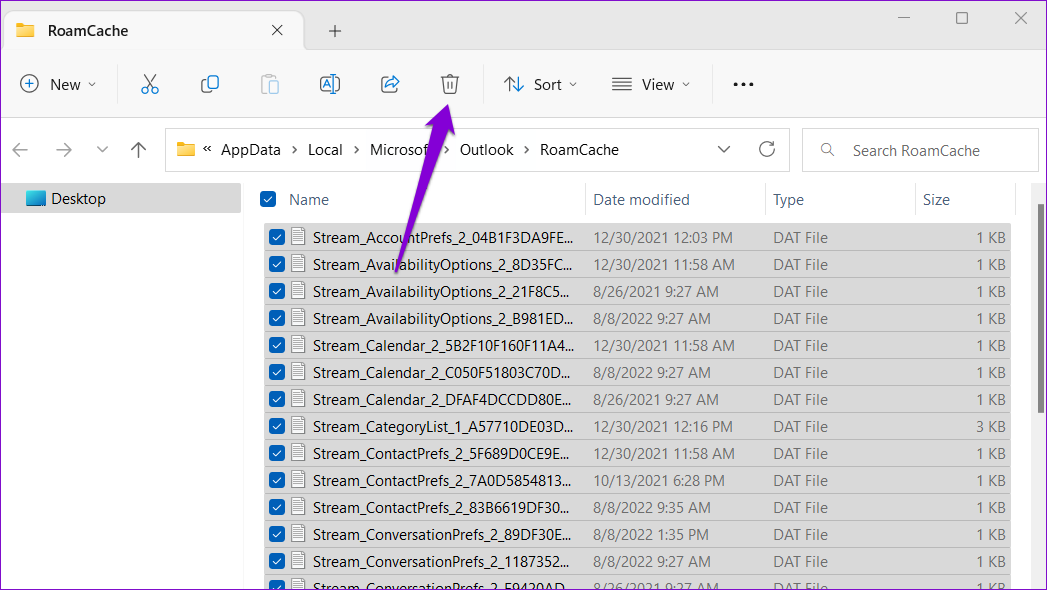
Step 1: Press the Windows key + R to open the Run dialog box. Type the following path in the Open field and press Enter.
%localappdata%\Microsoft\Outlook\RoamCache
Step 2: In the File Explorer window that opens, select all files and click the trash icon at the top to delete them.
Fix 5: Run the Office Repair Tool to Fix Outlook
Microsoft provides a handy repair tool for the Office suite. It can automatically resolve issues with all your Office apps, including Outlook. You can run this tool to fix any issues that may have been preventing Outlook from showing contacts on Windows.
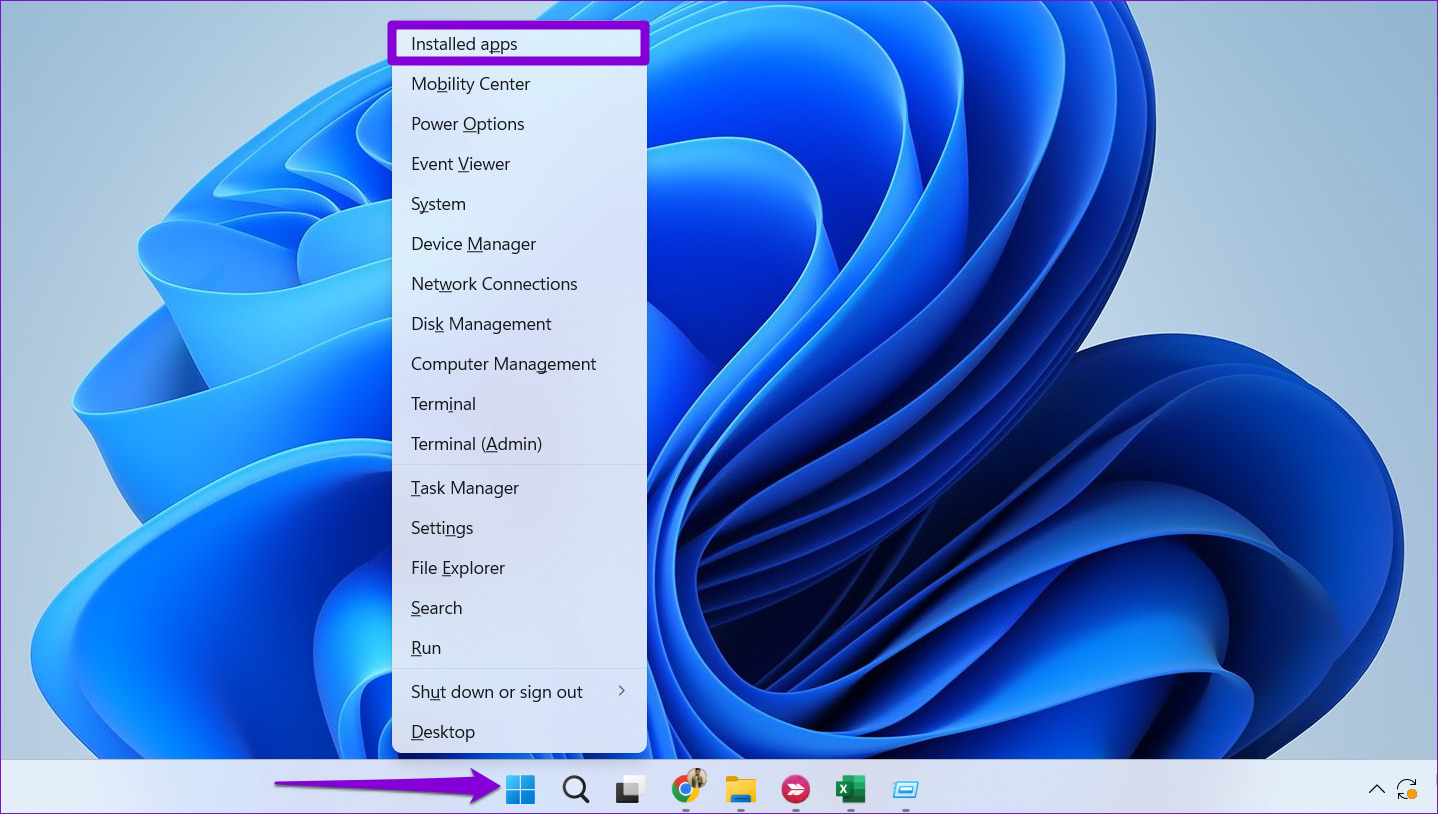
Step 1: Right-click on the Start icon and select Installed apps from the list.
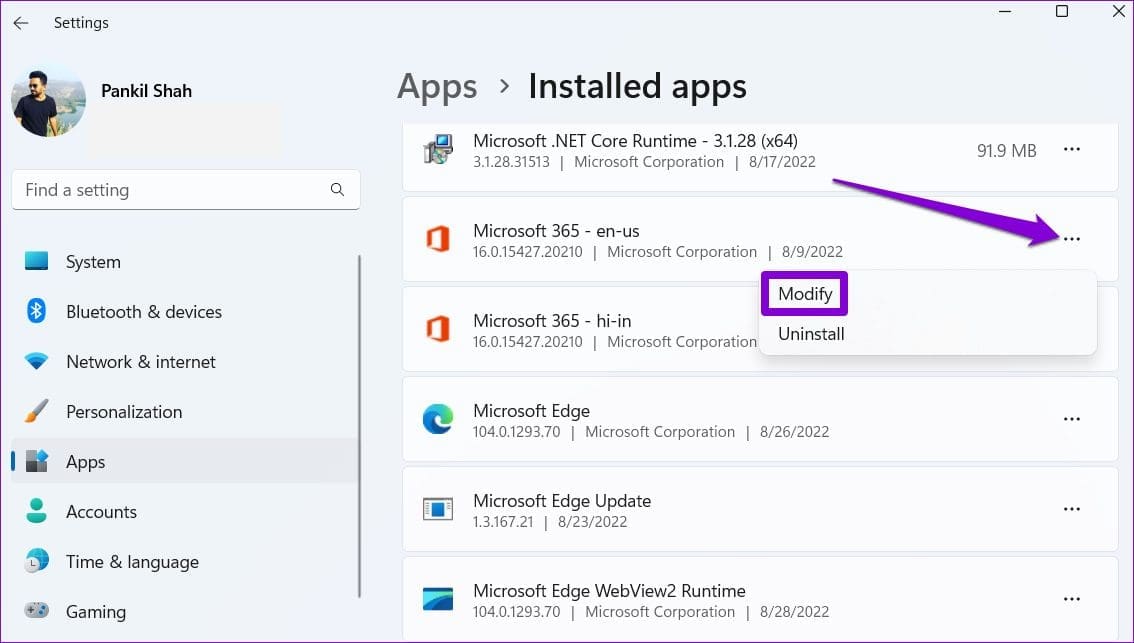
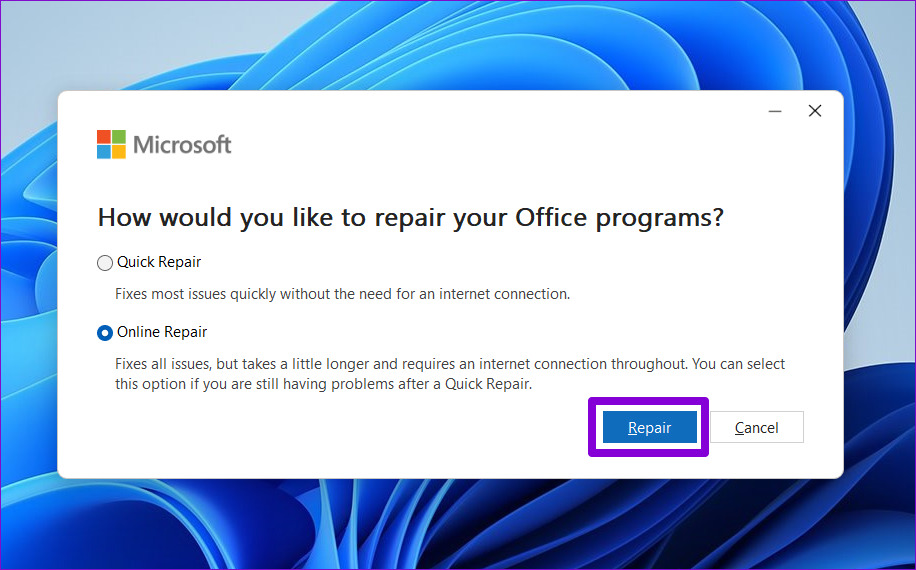
Step 2: Scroll down to locate the Microsoft Office product on the list. Click the three-dot menu icon next to it and select Modify.
Step 3: Select Online Repair and click Repair.
Was this helpful?
Last updated on 10 July, 2024
Read Next
 3 Ways to Fix WhatsApp Not Showing Contact Names
Why Is WhatsApp Showing Numbers but Not Names?
3 Ways to Fix WhatsApp Not Showing Contact Names
Why Is WhatsApp Showing Numbers but Not Names?
 3 Ways to Add a Contact in Microsoft Outlook
Method 1: Add a Contact From a Received Email The easiest way to add someone to your Outlook address book is to open one of their emails and add the
3 Ways to Add a Contact in Microsoft Outlook
Method 1: Add a Contact From a Received Email The easiest way to add someone to your Outlook address book is to open one of their emails and add the
 5 Ways to Fix Outlook Signature Not Showing on Windows
Fix 1: Configure Outlook to Compose Messages in HTML Format Are you using images in your Outlook signature?
5 Ways to Fix Outlook Signature Not Showing on Windows
Fix 1: Configure Outlook to Compose Messages in HTML Format Are you using images in your Outlook signature?
 6 Ways to Fix Microsoft Outlook Not Showing Email Content on Windows
Fix 1: Disable Offline Mode Your first step is to ensure that Outlook is not in offline mode.
6 Ways to Fix Microsoft Outlook Not Showing Email Content on Windows
Fix 1: Disable Offline Mode Your first step is to ensure that Outlook is not in offline mode.
 4 Ways to Fix Unable to Contact Your DHCP Server Error on Windows 11
Fix 1: Restart Your DHCP Client service The DHCP Client service registers and updates the PC's IP address and DNS record.
4 Ways to Fix Unable to Contact Your DHCP Server Error on Windows 11
Fix 1: Restart Your DHCP Client service The DHCP Client service registers and updates the PC's IP address and DNS record.
 8 Best Fixes for Google Messages App Not Showing Contact Names on Android
The Google Messages app can help you send text messages and react to them as well.
8 Best Fixes for Google Messages App Not Showing Contact Names on Android
The Google Messages app can help you send text messages and react to them as well.
 4 Fixes for Android Not Showing Contact Names for Incoming Calls
https://youtu.be/42YJeJ_T88c Fix 1: Allow the Phone App to Access Your Contacts Like most apps, the Phone app on your Android also requires permission to access your contact list.
4 Fixes for Android Not Showing Contact Names for Incoming Calls
https://youtu.be/42YJeJ_T88c Fix 1: Allow the Phone App to Access Your Contacts Like most apps, the Phone app on your Android also requires permission to access your contact list.
 5 Fixes for iPhone Not Showing Contact Names for Incoming Calls
Fix 1: Disable and Re-Enable iCloud Contact Sync Issues with your iCloud account could affect your iPhone's ability to sync contacts, preventing it from showing contact names on incoming caller
5 Fixes for iPhone Not Showing Contact Names for Incoming Calls
Fix 1: Disable and Re-Enable iCloud Contact Sync Issues with your iCloud account could affect your iPhone's ability to sync contacts, preventing it from showing contact names on incoming caller
The article above may contain affiliate links which help support Guiding Tech. The content remains unbiased and authentic and will never affect our editorial integrity.

