


Try These Things First
- Check your internet connection: If your internet connection is not working as expected, it might cause OneDrive to glitch. So, you can run a speed test on your Windows 11 device. If the speeds are less than expected, check our guide to fix slow internet speeds on Windows 11.
- Check your hard drive storage: If your device’s hard drive does not have enough storage to save the downloaded file, OneDrive might show the error 0x80070185 “Cloud Operation Was Unsuccessful.” You must check the total space on your Windows hard drive to ensure this is not the case.
- Reinstall OneDrive: Uninstalling OneDrive will remove unwanted settings or bugs preventing you from fetching or downloading your files. Once you have done this, reinstall a fresh copy of OneDrive and try again.
Fix 1: Unlink OneDrive and Relink It
Unlinking and relinking OneDrive is similar to logging out and logging back in. This will remove all your account-related information and pause all sync activity. It will be resumed once OneDrive is relinked with your Microsoft account. Here’s how to do it.
Step 1: Click the OneDrive icon in the taskbar, select the gear icon, and choose Settings.

Step 2: Select Account from the left sidebar and click Unlink this PC on the right.

Step 3: Click Unlink account.
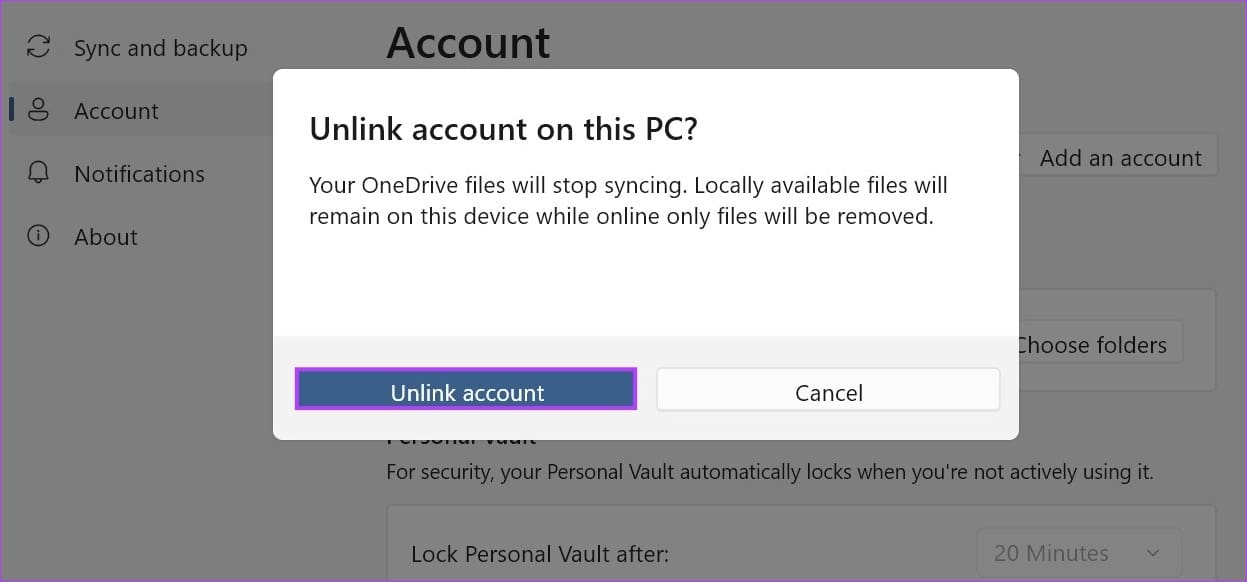
Step 4: Restart the OneDrive app.
Step 5: Once OneDrive opens again, log in with your account.
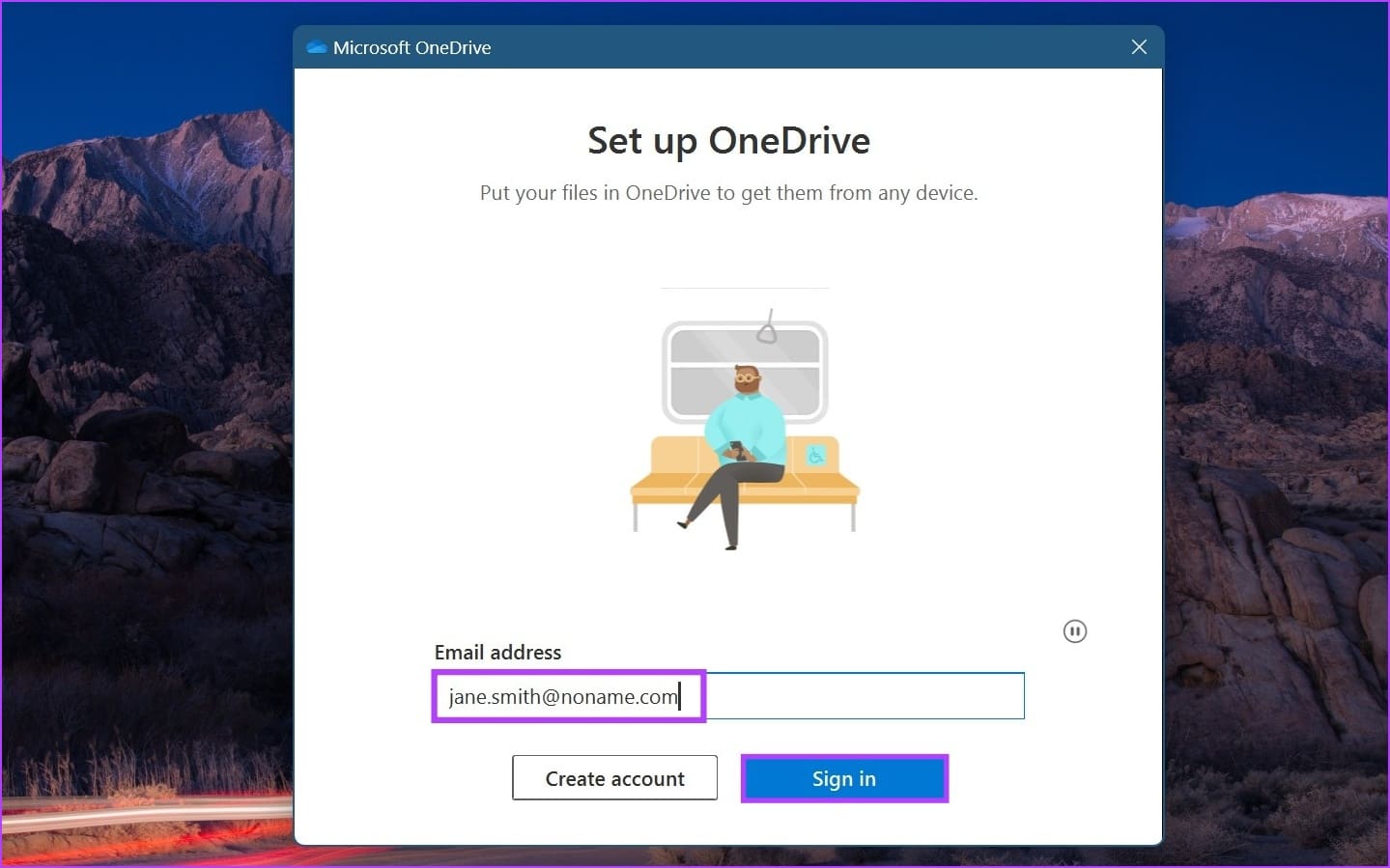
Fix 2: Make OneDrive Files Available Offline
If you have trouble accessing specific files, you can make them available offline using the Windows Files Explorer. Then, delete the file from the folder again, leaving only the file shortcut. This will make the file available online on OneDrive. Follow the below steps to do it.
Step 1: Open the OneDrive folder in Files Explorer.
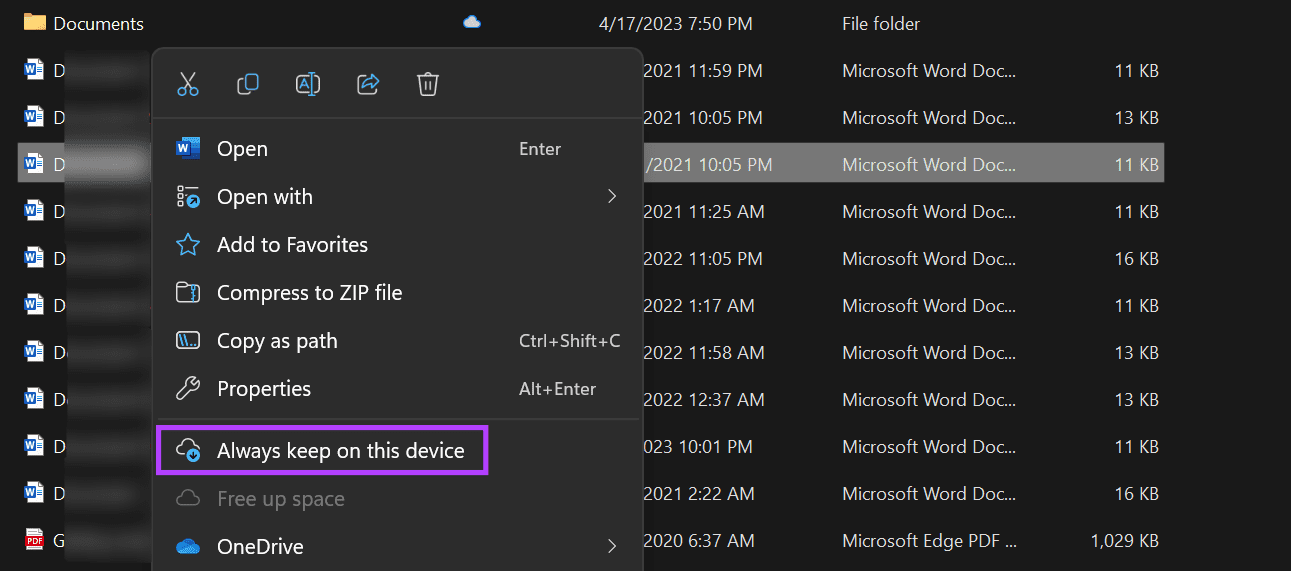
Step 2: Right-click the relevant file and choose Always keep on this device.
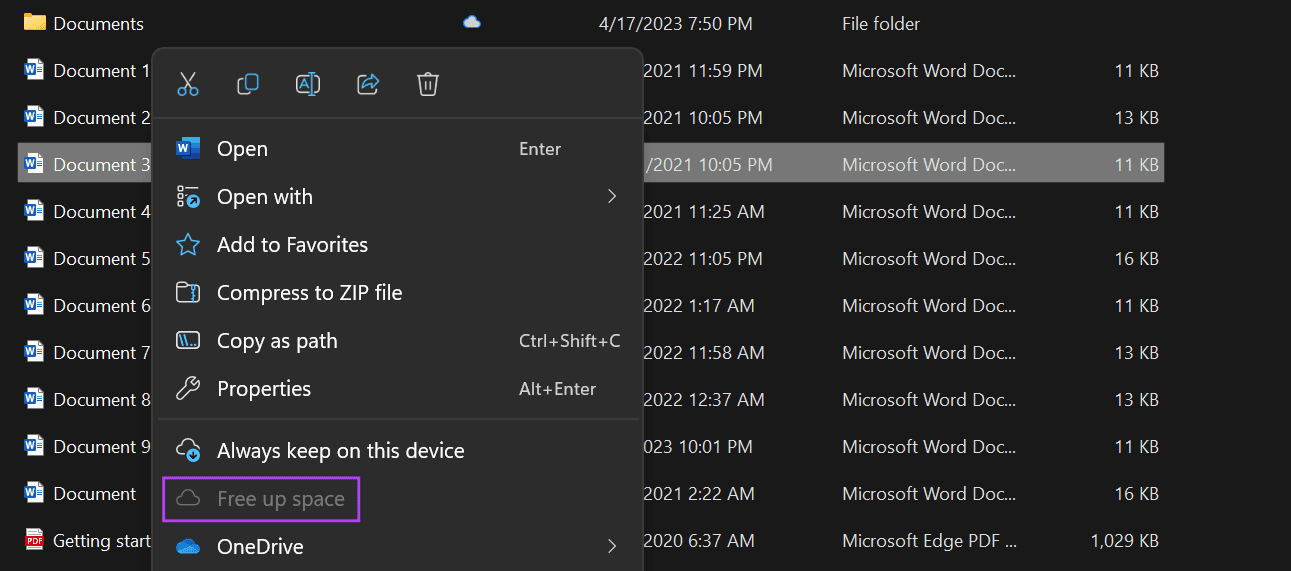
Step 3: Right-click on the file again and click on Free up space, once available.
Now, double-click on the file shortcut to try and open the file on your Windows 11 device. You can also repeat these steps for any other OneDrive files.
Fix 3: Reset OneDrive
Your device stores cache for some apps, like OneDrive, to help them load faster. However, if this cache is ever corrupted or otherwise compromised, it can cause OneDrive to display the error 0x80070185. To fix this, reset OneDrive on Windows 11. Here’s how.
Step 1: Press the Windows + R keys to open the Run dialog box, enter the following command, and hit Enter.
%localappdata%\Microsoft\OneDrive\OneDrive.exe /reset
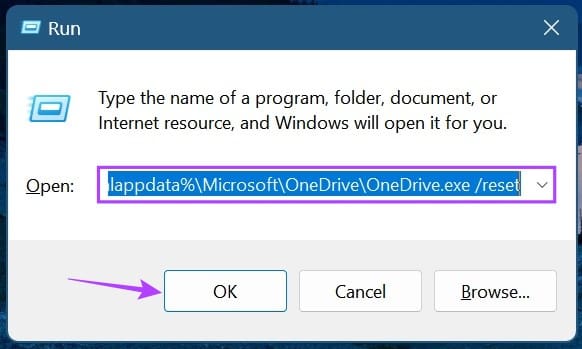
Once the command is executed, use the taskbar to reopen OneDrive, and you’ll see that you’re no longer facing the issue.
FAQs
Open OneDrive from the Windows taskbar. Then, click on the cogwheel icon > Settings. Now, check the total storage space on OneDrive. Ensure your OneDrive has storage, or it might interfere with regular app functions.
On your Windows 11 device, use the Windows + I key to open the Settings menu. Here, go to Apps and click on Startup. Now, scroll to Microsoft OneDrive and turn on the toggle. This will ensure OneDrive opens upon startup on Windows 11.
Was this helpful?
Last updated on 16 July, 2024
Read Next
 6 Fixes for “The Operation Failed” Error in Microsoft Outlook for Windows
Fix 1: Open Outlook in Safe Mode Running Office apps like Outlook in safe mode can help you determine if one of the add-ins is responsible for the issue.
6 Fixes for “The Operation Failed” Error in Microsoft Outlook for Windows
Fix 1: Open Outlook in Safe Mode Running Office apps like Outlook in safe mode can help you determine if one of the add-ins is responsible for the issue.
 iCloud vs OneDrive: Which Cloud Storage Is Better on iOS
iCloud has been an integral part of the iOS and Mac ecosystem.
iCloud vs OneDrive: Which Cloud Storage Is Better on iOS
iCloud has been an integral part of the iOS and Mac ecosystem.
 5 Fixes for Cloud Gaming Not Working in Xbox App for Windows
Fix 1.
5 Fixes for Cloud Gaming Not Working in Xbox App for Windows
Fix 1.
 5 Best Ways to Fix Can’t Open Files in OneDrive Error in Windows
People use OneDrive for storing and saving files in all formats.
5 Best Ways to Fix Can’t Open Files in OneDrive Error in Windows
People use OneDrive for storing and saving files in all formats.
 Top 3 Ways to Fix OneDrive Connectivity Error Code 0x8004de40 in Windows 10
OneDrive is arguably one of the best cloud storage and backup solutions for Windows computers.
Top 3 Ways to Fix OneDrive Connectivity Error Code 0x8004de40 in Windows 10
OneDrive is arguably one of the best cloud storage and backup solutions for Windows computers.
 15 Ways to Fix OneDrive Sync Is Pending or Stuck Error in Windows 10
One of the most common issues with any cloud storage service is broken sync.
15 Ways to Fix OneDrive Sync Is Pending or Stuck Error in Windows 10
One of the most common issues with any cloud storage service is broken sync.
 A Complete Guide to OneDrive Storage and Avoiding Disk Full Error
Microsoft OneDrive, previously known as SkyDrive, is a complete cloud storage solution for Windows users.
A Complete Guide to OneDrive Storage and Avoiding Disk Full Error
Microsoft OneDrive, previously known as SkyDrive, is a complete cloud storage solution for Windows users.
 4 Ways to Fix OneDrive Personal Vault Not Showing on Windows Error
Basic Fixes: Access From Another Device: OneDrive works on desktop, mobile, and the web.
4 Ways to Fix OneDrive Personal Vault Not Showing on Windows Error
Basic Fixes: Access From Another Device: OneDrive works on desktop, mobile, and the web.
The article above may contain affiliate links which help support Guiding Tech. The content remains unbiased and authentic and will never affect our editorial integrity.

