Basic Fixes
- Connect Your iPhone to a Wi-Fi Network: Try connecting to a 5GHz Wi-Fi network if you have a dual-band router.
- Check OneDrive Storage: Visit your OneDrive account and check how much storage remains.
- Disable Low Power Mode: Open Settings > Battery > Disable Low Power Mode on your iPhone. Also, ensure your iPhone’s battery level is above 20%. OneDrive backup will stop if the battery is less than 20%.
- Enable background app refresh: Open Settings > OneDrive > Enable Background App Refresh.
- Update or reinstall the OneDrive app: Install the latest version of the app on your iPhone to get rid of bugs or glitches.
Fix 1: Enable Camera Upload Again
Try disabling and re-enabling Camera Upload. That will force OneDrive to re-index your local photo library from scratch. Don’t worry. Any items that you’ve already uploaded won’t be affected.
Open OneDrive app > Settings > Camera Uploads > Enable Camera Upload.

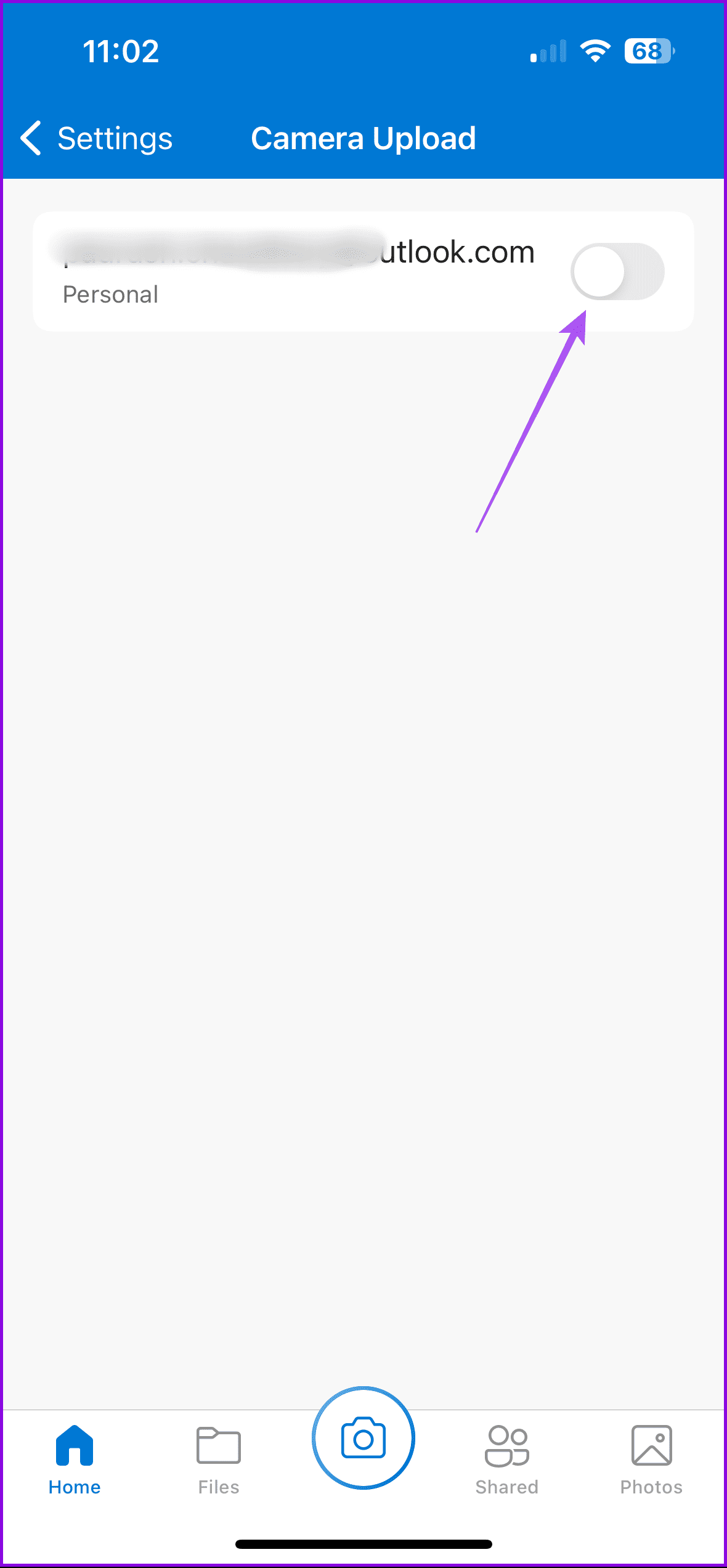
Check if that got things moving once again. If not, let’s see what you can do next.
Fix 2: Disable iCloud Photos
iOS has a distinct space-saving mechanism dubbed Optimize Storage, which will automatically replace original copies already backed up to iCloud with low-resolution placeholders.
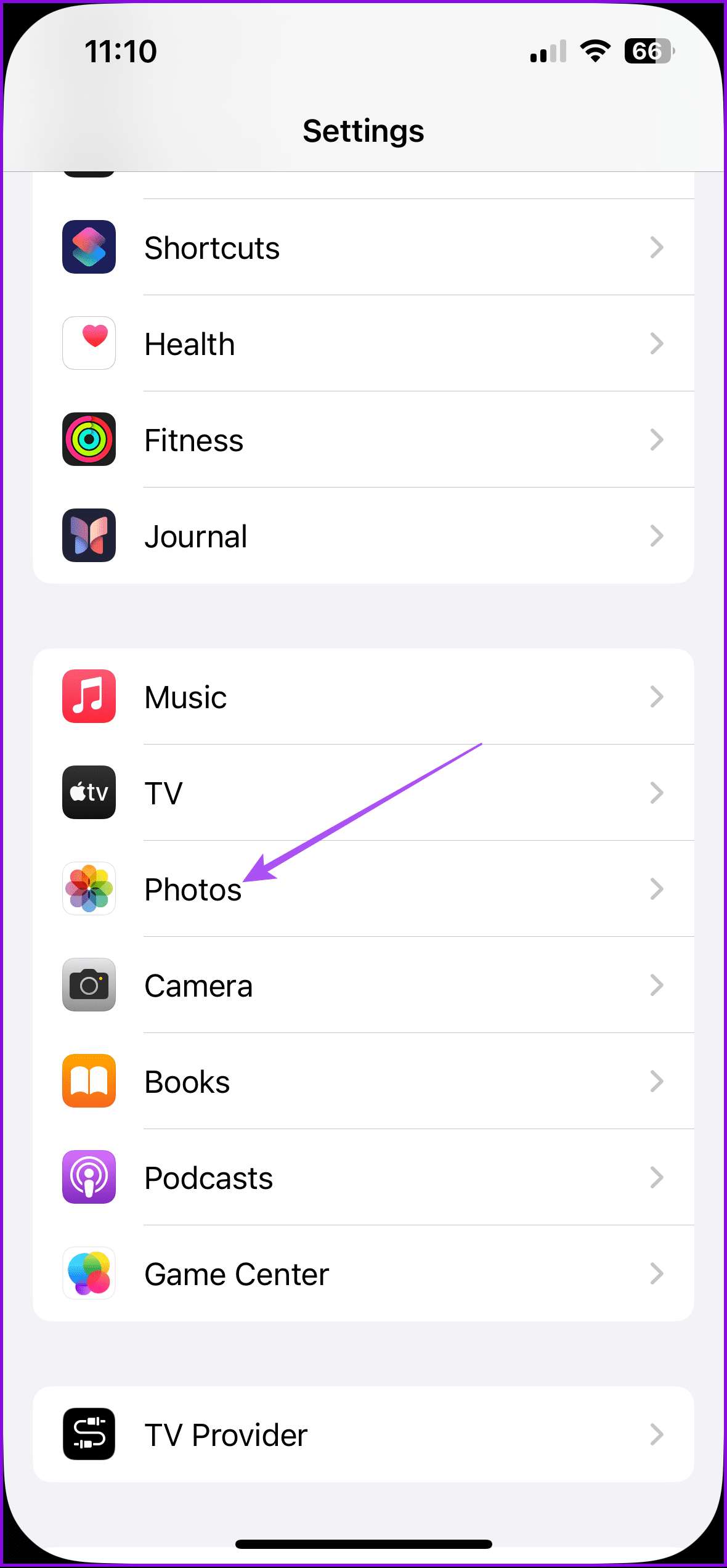
However, that will conflict with OneDrive, which can only upload your original copies. Hence, you need to turn it iCloud photo upload.
Open Settings > Photos > Disable iCloud Photos.

Fix 3: Turn On Bedtime Backup
If you have large videos or need to upload lots of images, you may see some marked as Remaining. We recommend using Bedtime Backup to upload your photos even faster with OneDrive’s dedicated upload mode.
Tap on Remaining in the OneDrive app > Select Get Started > Turn on Bedtime Backup.
Fix 4: Pause Video Backups Temporarily
If you are on a slower internet connection, then OneDrive’s upload capabilities may grind to a halt if you have videos in the mix. To at least upload your photos, consider pausing video backups temporarily.
Open the OneDrive app > Settings > Camera Upload > Turn Off Include Videos.

If your photos start to back up again, only turn on video backups either once they’ve finished uploading or if you are on a stronger internet connection.
Fix 5: Reset Network Settings
It most likely won’t come to this, but if Camera Upload still fails to function properly, that might be caused due to corrupted network settings on your iPhone. It’s time to reset them.
However, that means you will lose all saved Wi-Fi networks and passwords during the reset procedure. Cellular network settings will be automatically updated by your carrier after the reset so you need not worry about that.
Step 1: Open Settings > General > Transfer or Reset Settings > Reset.
Step 2: Tap Reset Network Settings, and then tap Reset Network Settings again to confirm.


After the reset, manually connect to a Wi-Fi network via the Settings app or enable cellular data. Camera Upload in OneDrive should work fine from here on out.
Was this helpful?
Last updated on 13 July, 2024
Read Next
 6 Fixes for Slow Upload and Download Speeds on Google Drive
Preliminary Fixes Check your internet speed: Since Google Drive relies on your internet connection, a change in your internet speed will directly impact the upload and download speeds.
6 Fixes for Slow Upload and Download Speeds on Google Drive
Preliminary Fixes Check your internet speed: Since Google Drive relies on your internet connection, a change in your internet speed will directly impact the upload and download speeds.
 3 Ways to Upload Voice Memos to Google Drive from iPhone
Method 1: Save iPhone Voice Memos by Sharing to Drive Step 1: Record a new voice memo or tap on the existing recording you want to export to Google Drive.
3 Ways to Upload Voice Memos to Google Drive from iPhone
Method 1: Save iPhone Voice Memos by Sharing to Drive Step 1: Record a new voice memo or tap on the existing recording you want to export to Google Drive.
 6 Fixes for OneDrive App Not Syncing on Android and iPhone
Try Basic Fixes Check OneDrive storage status: The OneDrive app on your Android or iPhone may fail to upload files due to insufficient storage space.
6 Fixes for OneDrive App Not Syncing on Android and iPhone
Try Basic Fixes Check OneDrive storage status: The OneDrive app on your Android or iPhone may fail to upload files due to insufficient storage space.
 Your iPhone Can Now Take Pictures Like a $10,000 Camera — Thanks to Leica’s New Camera App
Over the years, phones have become synonymous with pocket cameras.
Your iPhone Can Now Take Pictures Like a $10,000 Camera — Thanks to Leica’s New Camera App
Over the years, phones have become synonymous with pocket cameras.
 How to Upload Photos to Google Photos on Android, iPhone, PC
How to Upload Photos on Google Photos From Mobile There are two ways to add pictures to Google Photos from Android or iOS devices.
How to Upload Photos to Google Photos on Android, iPhone, PC
How to Upload Photos on Google Photos From Mobile There are two ways to add pictures to Google Photos from Android or iOS devices.
 Top 8 Fixes for OneDrive Sync Issues on Mac
Microsoft OneDrive is one of the best cloud storage solutions for everyone.
Top 8 Fixes for OneDrive Sync Issues on Mac
Microsoft OneDrive is one of the best cloud storage solutions for everyone.
 4 Fixes for Microsoft OneDrive Not Signing In on Mac
Basic Fixes Check internet connection: Switch to 5GHz frequency band to get better connection speeds.
4 Fixes for Microsoft OneDrive Not Signing In on Mac
Basic Fixes Check internet connection: Switch to 5GHz frequency band to get better connection speeds.
 4 Fixes for OneDrive Not Showing Up in File Explorer on Windows
Fix 1: Restart Windows Explorer Windows Explorer is a system process that handles the graphical user interface for File Explorer.
4 Fixes for OneDrive Not Showing Up in File Explorer on Windows
Fix 1: Restart Windows Explorer Windows Explorer is a system process that handles the graphical user interface for File Explorer.
The article above may contain affiliate links which help support Guiding Tech. The content remains unbiased and authentic and will never affect our editorial integrity.