

Fix 1: Disable and Re-Enable Spell Check
This may seem too simple, but disabling and re-enabling the spell check feature in Microsoft Teams can help. Hence, try that first.
Step 1: In the Microsoft Teams app, click the three horizontal dots icon at the top right corner and select Settings from the list.

Step 2: In the General tab, clear the Enable spell check box.

Step 3: Click the Show hidden icons arrow on the taskbar, right-click on the Teams logo, and select Quit.

Reopen the Teams app after this and enable the spell-check feature again.
Fix 2: Select the Appropriate Language in Teams and Windows
Setting different languages in Microsoft Teams and Windows can prevent the spell check feature from working correctly. To avoid any discrepancies, set the Teams app and Windows to the same language using these steps:
Step 1: Open the Microsoft Teams settings menu.
Step 2: In the General tab, click the drop-down menu under App language to select your preferred language.

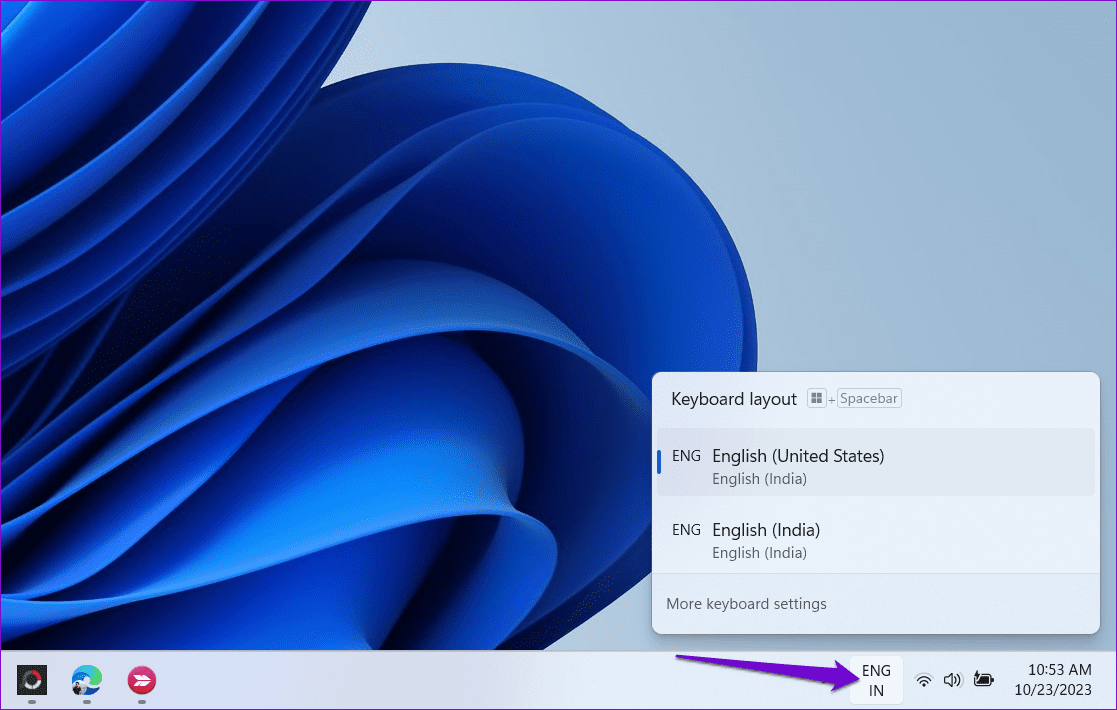
Step 3: Close the Teams app. Click the language icon on the taskbar and select the same keyboard layout from the list.
Fix 3: Delete the Teams Dictionary File
Microsoft Teams creates and stores a dictionary file on your Windows PC to conduct spell checks. If this file has become corrupted or inaccessible, the spell check feature may become unavailable in Teams. Deleting the problematic dictionary file will force Microsoft Teams to recreate it, resolving any issues with the spell check feature.
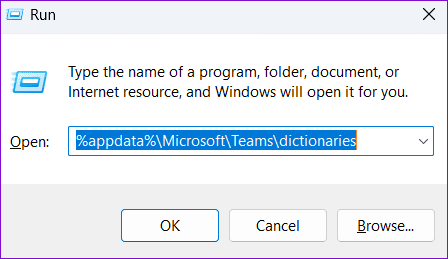
Step 1: Press the Windows key + R to open the Run dialog box. Type the following path in the address bar at the top and press Enter:
%appdata%\Microsoft\Teams\dictionaries
Step 2: Select the BDIC file and click the trash icon at the top to delete it.

After this, restart the Teams app. Type a misspelled word in a chat, right-click on it, and check if the spell check feature works properly.
Fix 4: Import the Dictionary File From Another App
If deleting the dictionary file from the Teams library proves ineffective or if the file is already missing, try importing a dictionary file from another app, such as Chrome. Several users on a Microsoft Community post reported fixing issues with Teams’ spell check feature with this workaround. You can also give it a try.
Step 1: Press the Windows key + R to open the Run dialog box. Type the following path in the text field and press Enter:
%LocalAppData%\Google\Chrome\User Data

Step 2: In the File Explorer window, locate the BDIC file named en-us or something similar. Select it and click the copy icon in the toolbar at the top.

Step 3: Type %appdata%\Microsoft\Teams\dictionaries in the File Explorer address bar and press Enter.

Step 4: Click the paste icon to paste the file.

Once you complete the above steps, Teams should detect and suggest corrections for misspelled words as expected.
Fix 5: Clear Microsoft Teams Cache
Outdated or corrupted cache files associated with the Teams app can cause such problems. You can try deleting the existing Teams cache files to see if that helps.
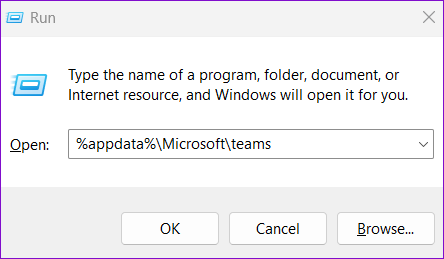
Step 1: Press the Windows key + R to open the Run dialog box. Type %appdata%\Microsoft\Teams in the box and hit Enter.
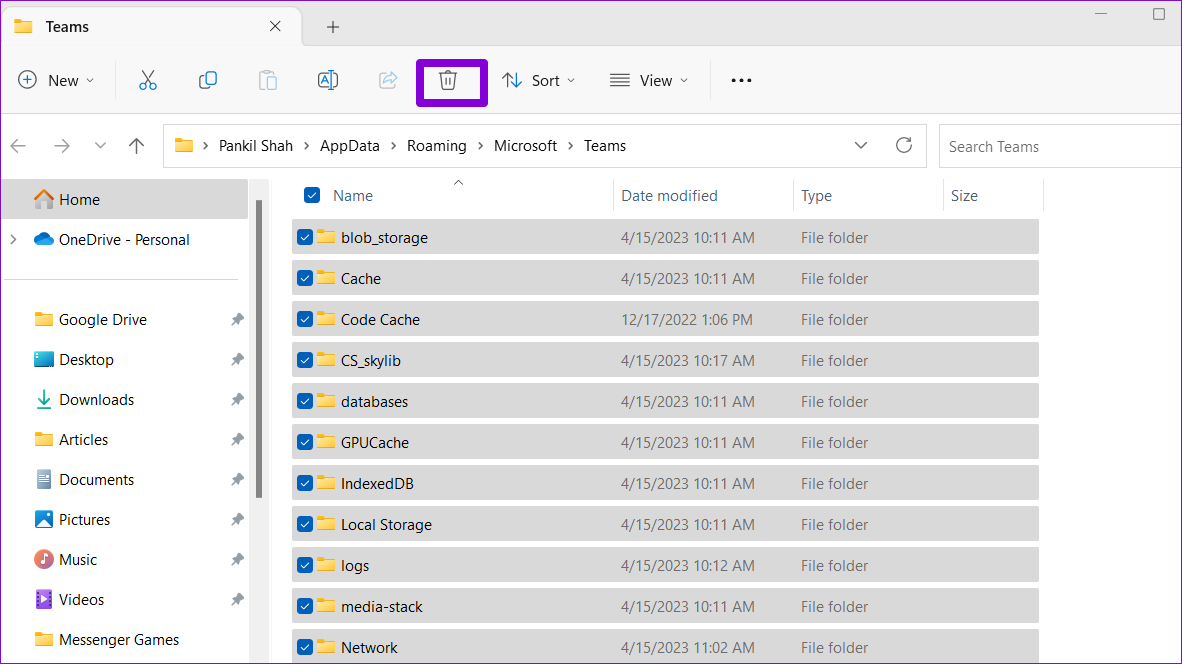
Step 2: In the File Explorer window that opens, select all the files and folders and click the trash icon at the top to delete them.
Was this helpful?
Last updated on 30 April, 2024
Read Next
 5 Fixes for Spell Check Not Working in Microsoft Outlook for Windows
Fix 1: Check Spelling and Autocorrect Settings The first thing you should do is ensure that spell check is enabled and configured correctly in Outlook.
5 Fixes for Spell Check Not Working in Microsoft Outlook for Windows
Fix 1: Check Spelling and Autocorrect Settings The first thing you should do is ensure that spell check is enabled and configured correctly in Outlook.
 6 Ways to Spell Check Is Not Working in Microsoft Word
Before you begin, try to restart Microsoft Word to fix temporary bugs and glitches.
6 Ways to Spell Check Is Not Working in Microsoft Word
Before you begin, try to restart Microsoft Word to fix temporary bugs and glitches.
 3 Ways to Fix Spell Check Not Working in Google Docs
Basic Fixes Check network connectivity: Google Docs does not check for spelling in offline mode.
3 Ways to Fix Spell Check Not Working in Google Docs
Basic Fixes Check network connectivity: Google Docs does not check for spelling in offline mode.
 5 Ways to Fix Spell Check Not Working in Gmail
Fix 1: Make Sure Spell Check Is Enabled This may seem obvious, but it's worth double-checking that you haven't accidentally turned off the spell check feature in Gmail.
5 Ways to Fix Spell Check Not Working in Gmail
Fix 1: Make Sure Spell Check Is Enabled This may seem obvious, but it's worth double-checking that you haven't accidentally turned off the spell check feature in Gmail.
 How to Disable OneNote Spell Check
OneNote is simply fantastic at what it offers.
How to Disable OneNote Spell Check
OneNote is simply fantastic at what it offers.
 5 Best Fixes for Microsoft Teams Microphone Not Working on Windows 10
More businesses and organizations now use Microsoft Teams to manage their teams working from office or remotely.
5 Best Fixes for Microsoft Teams Microphone Not Working on Windows 10
More businesses and organizations now use Microsoft Teams to manage their teams working from office or remotely.
 4 Fixes for Microsoft Teams Screen Sharing Not Working on Windows 11
https://youtu.be/Wm3ds6ia05A Preliminary Fixes Internet connection: Sharing your screen on Teams requires high-speed internet connectivity.
4 Fixes for Microsoft Teams Screen Sharing Not Working on Windows 11
https://youtu.be/Wm3ds6ia05A Preliminary Fixes Internet connection: Sharing your screen on Teams requires high-speed internet connectivity.
 4 Fixes for Audio Not Working in Microsoft Teams on Windows 11
Common Fixes Reboot Windows - Open the Start Menu, click Power in the bottom right, and select Restart.
4 Fixes for Audio Not Working in Microsoft Teams on Windows 11
Common Fixes Reboot Windows - Open the Start Menu, click Power in the bottom right, and select Restart.
The article above may contain affiliate links which help support Guiding Tech. The content remains unbiased and authentic and will never affect our editorial integrity.

