


Preliminary Fixes
- Check Microsoft Teams servers: Microsoft Teams is infamous for server outrage. You can confirm the issue from social media handles or visit Downdetector.
- Change timezone: An incorrect timezone on your Windows PC can be the real culprit behind Teams login issues. To reset, go to Settings > Time & language > Date & time > expand Time zone and select a relevant option > restart the PC and try signing into your Teams account.
- Don’t use VPN: When you connect to a VPN network, you may also encounter sign-in issues when trying to log in again. To prevent this, disable any VPN network on your desktop or laptop.
- Update or reinstall the Teams app: Updating the Microsoft Teams app is often the first fix to try for sign-in errors. If that doesn’t work, reinstalling Teams can clear out any corrupted files causing the problem.
- Access Microsoft Teams from the web: Microsoft Teams is also available on the web. You can access the service from Google Chrome or Microsoft Edge and clear up meetings and the day’s schedule.
Fix 1: Clear Microsoft Teams Cache
Step 1: Close the Microsoft Teams app > press the Windows + R keys to open the Run menu.
Step 2: Type the below in the box and hit Enter.
%appdata%MicrosoftTeams
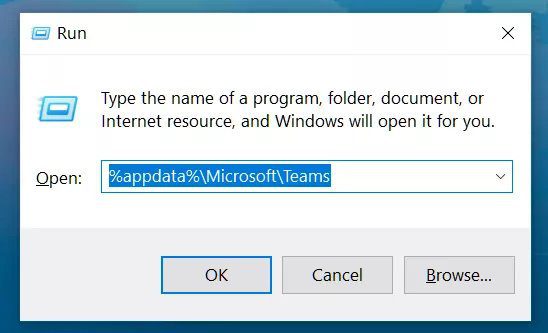
The command will open the File Explorer menu with Microsoft Teams files.
Step 3: Select all folders and files and remove them from the computer.
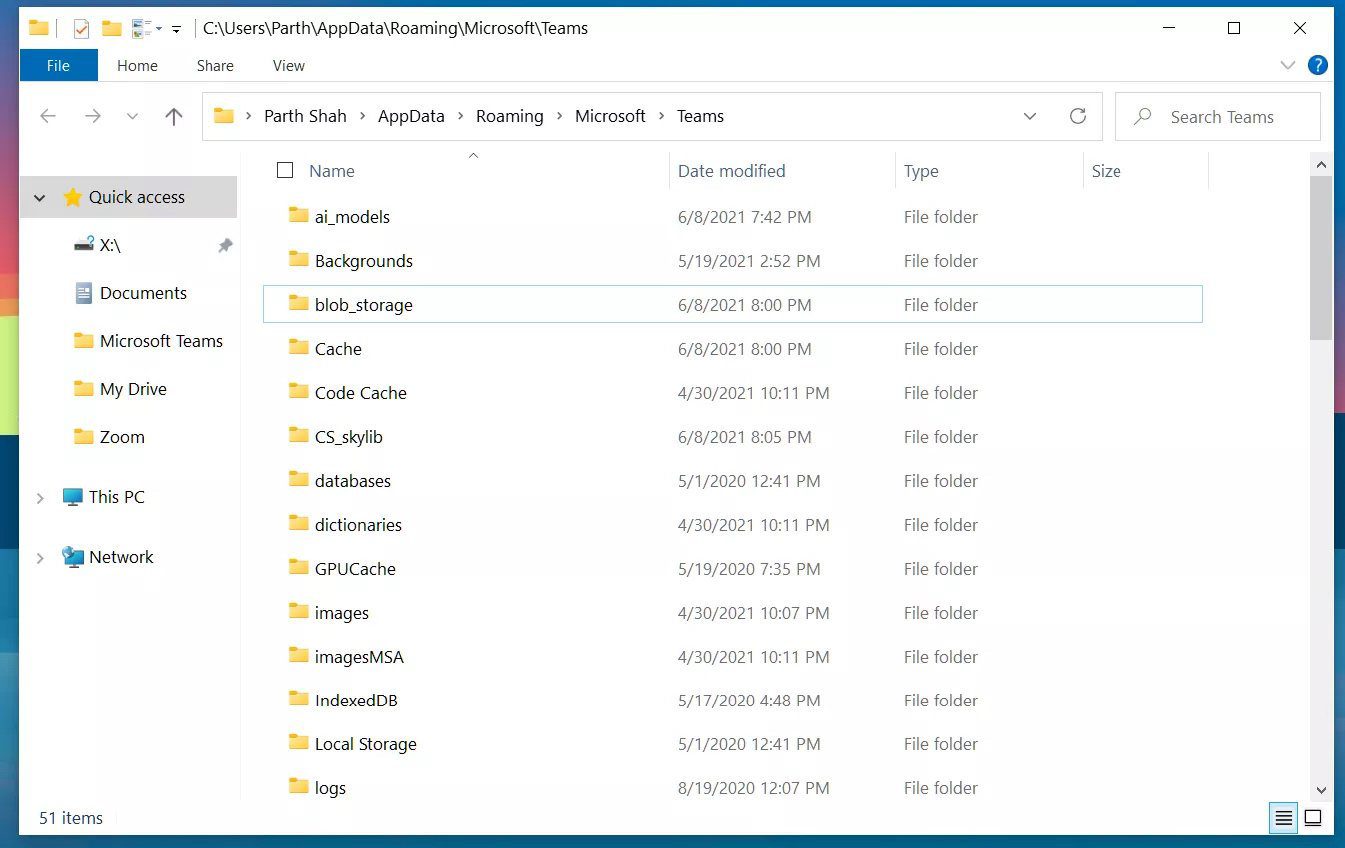
Restart the Windows machine and try signing in again. If this doesn’t resolve the issue, proceed to the next fix.
Fix 2: Repair Microsoft Teams
Step 1: Open the Windows Settings app (Use the Windows + I keys).
Step 2: Navigate to Apps > Installed apps > select Microsoft Teams from the menu.
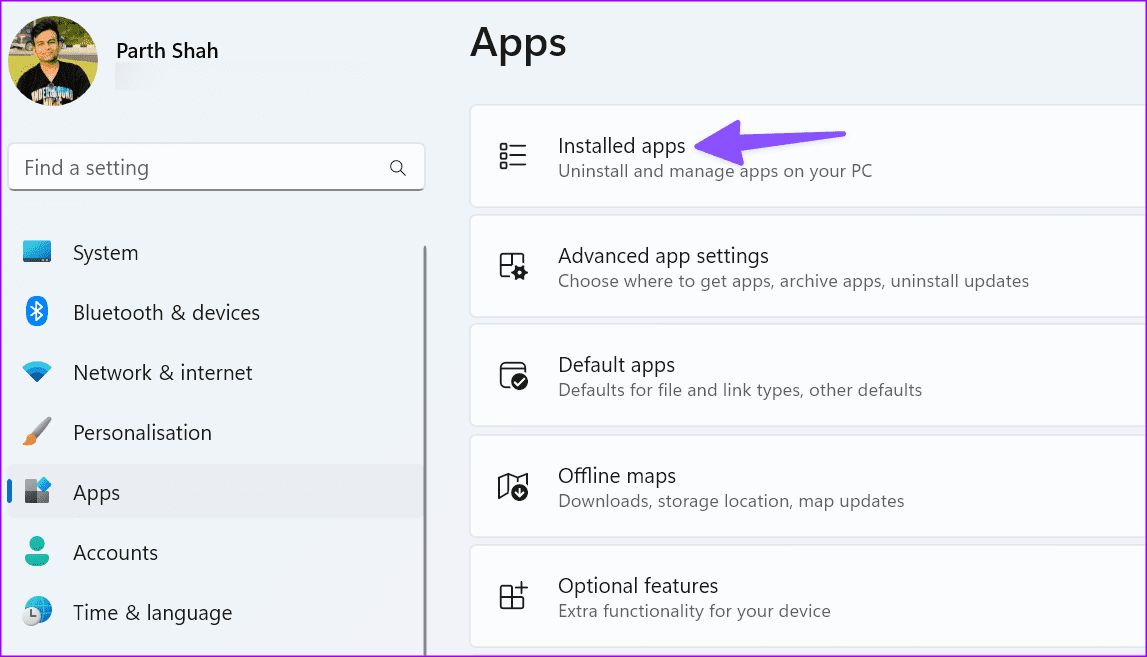
Step 3: Click on the three-dot icon next to the Teams app and select the Advanced options.

Step 4: Select Repair and let Windows handle the issue in the background.
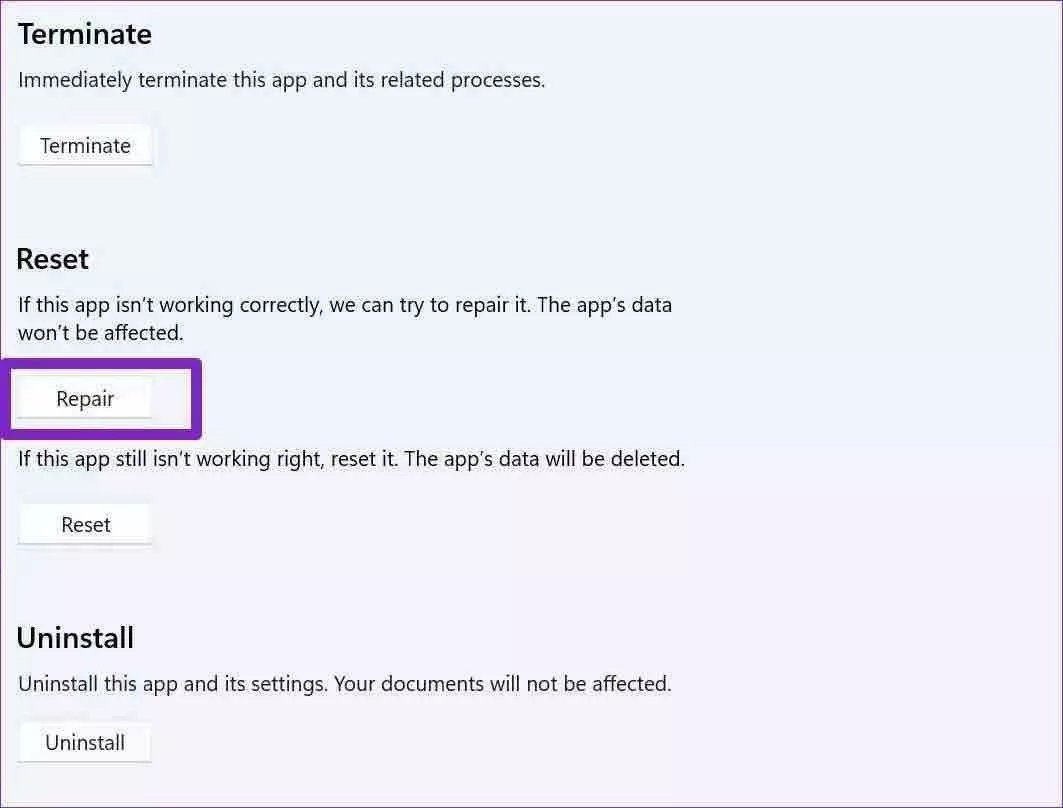
Finally, open Microsoft Teams and try to sign in again. This should fix the issue; if it doesn’t, check out the next fix.
Fix 3: Disable Proxy
Step 1: Press the Windows key, search for Internet options, and hit Enter.
Step 2: Slide to Connections at the top and open LAN settings.
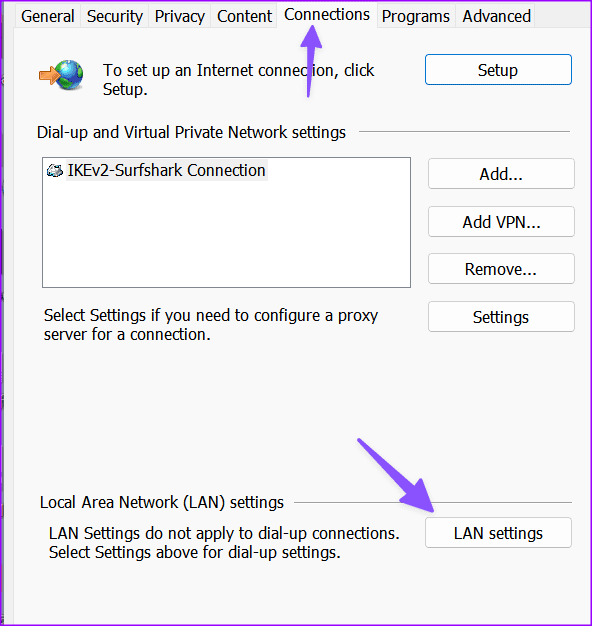
Step 3: Ensure to disable the checkmark below the Proxy server and click OK.
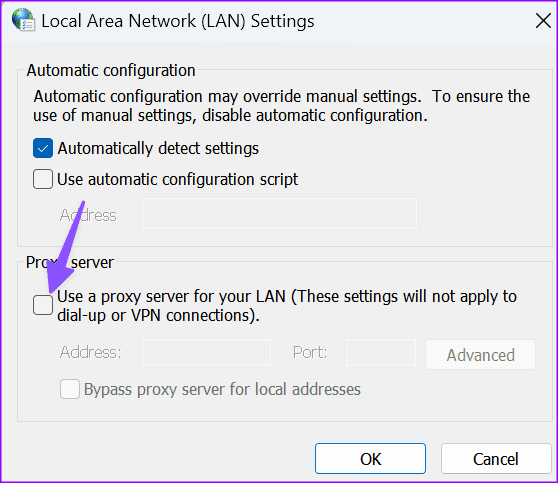
Now, launch Microsoft Teams and log in with your account details.
Fix 4: Clear Credential Manager
Step 1: Press the Windows key and search for Credential Manager. Hit Enter.
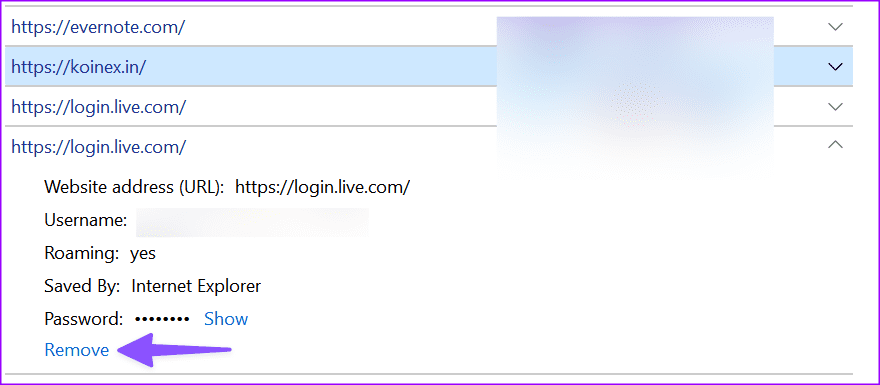
Step 2: Scroll to your Microsoft account and click on it.
Step 3: Select Remove.
FAQs
You may not have a relevant plan to use Microsoft Teams on a different account. You should check with the company admin and try again.
Was this helpful?
Last updated on 29 May, 2024
2 Comments
Leave a Reply
Read Next
 4 Ways to Fix Microsoft Teams Keeps Asking to Sign in on Windows 10/11
Fix 1: Clear Teams Cache Microsoft Teams collects cache in the background to improve loading times and the overall app experience.
4 Ways to Fix Microsoft Teams Keeps Asking to Sign in on Windows 10/11
Fix 1: Clear Teams Cache Microsoft Teams collects cache in the background to improve loading times and the overall app experience.
 How to Sign Documents in Microsoft Teams
Microsoft Teams' user base is skyrocketing.
How to Sign Documents in Microsoft Teams
Microsoft Teams' user base is skyrocketing.
 5 Ways to Fix “Something Went Wrong” Error in Microsoft Teams for Windows
Try Basic Fixes Check if Teams is down: It's not uncommon for Microsoft Teams servers to go down at times.
5 Ways to Fix “Something Went Wrong” Error in Microsoft Teams for Windows
Try Basic Fixes Check if Teams is down: It's not uncommon for Microsoft Teams servers to go down at times.
 3 Ways to Fix Unable to Sign in to Microsoft OneNote on Windows
Fix 1: Remove OneNote Credentials From Credential Manager The Credential Manager in Windows stores login details for all your apps.
3 Ways to Fix Unable to Sign in to Microsoft OneNote on Windows
Fix 1: Remove OneNote Credentials From Credential Manager The Credential Manager in Windows stores login details for all your apps.
 Top 7 Fixes for We’ve Run Into an Issue Error in Microsoft Teams on Windows
Microsoft Teams is a popular business collaboration app among Windows users, and for good reason.
Top 7 Fixes for We’ve Run Into an Issue Error in Microsoft Teams on Windows
Microsoft Teams is a popular business collaboration app among Windows users, and for good reason.
 4 Ways to Fix Google Play Won’t Let Me Sign in Error
Basic Fixes Check network connection: If your internet connection isn't stable or is facing a problem, you can't log in to Play Store.
4 Ways to Fix Google Play Won’t Let Me Sign in Error
Basic Fixes Check network connection: If your internet connection isn't stable or is facing a problem, you can't log in to Play Store.
 5 Ways to Fix Microsoft Teams Not Showing Status on Windows 11/10
Basic Fixes Sign Back In: Many times, signing out and then signing back in can fix temporary issues, which could be because your account has been logged in for a long
5 Ways to Fix Microsoft Teams Not Showing Status on Windows 11/10
Basic Fixes Sign Back In: Many times, signing out and then signing back in can fix temporary issues, which could be because your account has been logged in for a long
 Top 5 Ways to Fix Microsoft Teams Not Displaying Images on Windows
Preliminary Fixes Check the Internet Connection: A stable internet connection is crucial for Microsoft Teams to properly load images and other media content.
Top 5 Ways to Fix Microsoft Teams Not Displaying Images on Windows
Preliminary Fixes Check the Internet Connection: A stable internet connection is crucial for Microsoft Teams to properly load images and other media content.
The article above may contain affiliate links which help support Guiding Tech. The content remains unbiased and authentic and will never affect our editorial integrity.

thers no such thing called advanced options
in my device i am on a windows 10
Thanks so much for this!!
The clearing och cache by deleting ALL folders and files in the %appdata% Microsoft/Teams folder solved it for me.
Cheers!