Preliminary Fixes
- Turn off Battery Saver: To ensure Microsoft Teams notifications work properly on Windows 11/10, turning off Battery Saver is essential. To disable it, go to Settings > select System > Battery > toggle off Battery Saver mode.
- Turn off Focus Assist: Focus Assist minimizes distractions by limiting notifications during specified times or activities. To do this, open the Settings app > navigate to System > Focus Assist > select Off.
Fix 1: Check Notifications Settings in Teams
Step 1: Launch Teams on the web or desktop > select the three-dot menu at the top.
Step 2: Select Settings.

Step 3: Click Notifications from the sidebar.
Step 4: Enable the toggle for Show message preview.

Adjusting these settings helps maintain seamless communication and ensures you don’t miss important updates from your team. If this fix didn’t help, check out the next one.
Fix 2: Check Windows Notification Settings
You should also review the system notification settings and ensure you haven’t disabled app alerts from there. Here’s how to do it.
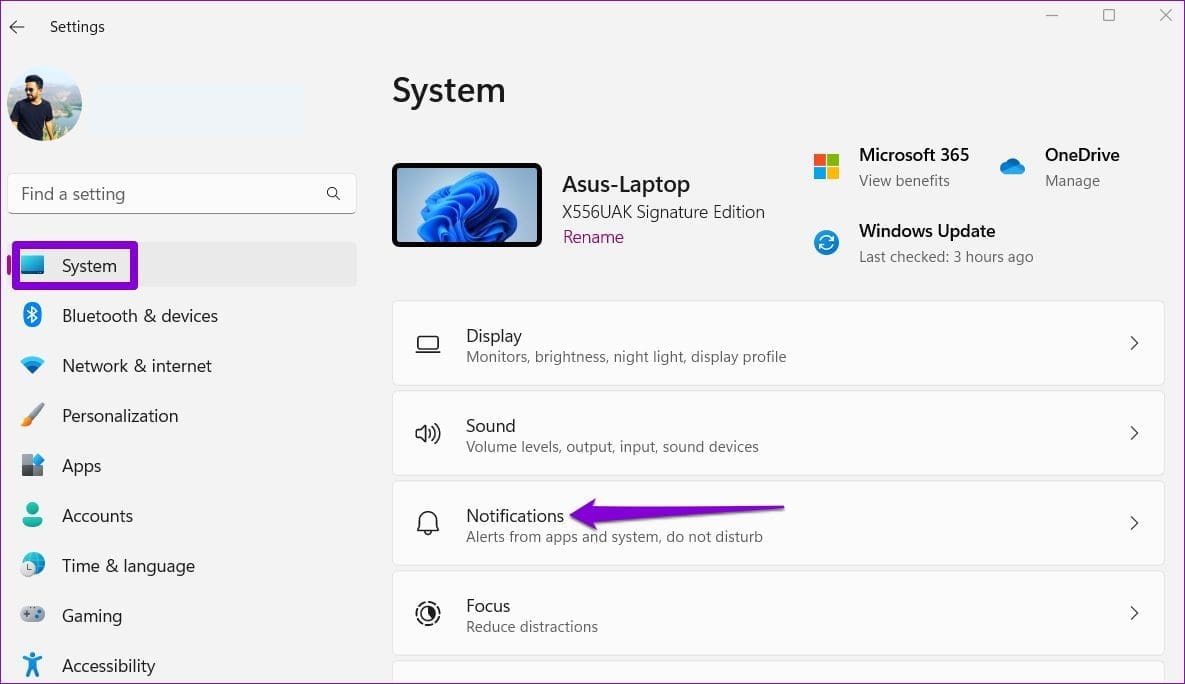
Step 1: Press the Windows key + I to launch the Settings app and go to Notifications.
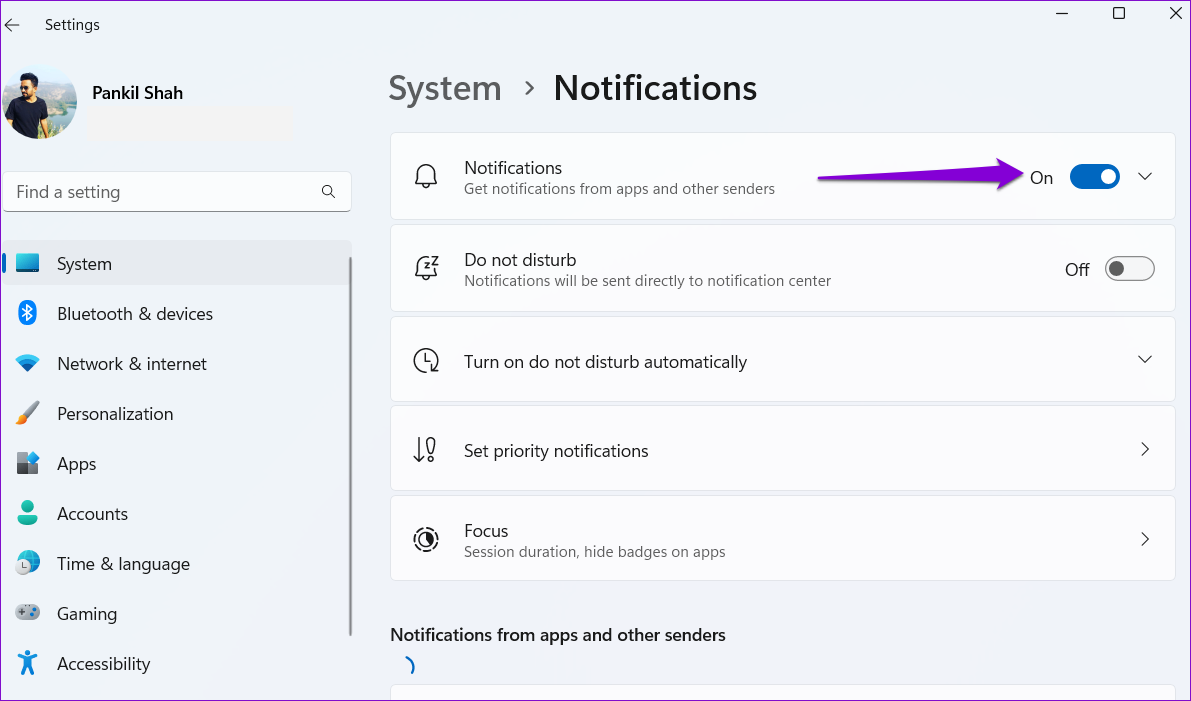
Step 2: Enable the toggle for Notifications. Then, scroll through the list of apps and enable the toggle for Teams, if not already.
You have successfully enabled Teams notifications on Windows 11 and 10. By following the steps outlined in this article, you should now have a fully functioning notification system.
Was this helpful?
Last updated on 13 August, 2024
Read Next
 4 Ways to Fix Microsoft Teams Notifications Not Working on Android
Basic Fixes Check the Microsoft Teams server: Open the Microsoft Service Health page and click on Teams in the left sidebar to check its service status.
4 Ways to Fix Microsoft Teams Notifications Not Working on Android
Basic Fixes Check the Microsoft Teams server: Open the Microsoft Service Health page and click on Teams in the left sidebar to check its service status.
 Top 4 Ways to Fix Microsoft Teams Notifications Not Working on Mac
Basic Fixes Check Microsoft Teams Status: If Microsoft suffers from an outage, you might want to confirm the issue via Downdetector.
Top 4 Ways to Fix Microsoft Teams Notifications Not Working on Mac
Basic Fixes Check Microsoft Teams Status: If Microsoft suffers from an outage, you might want to confirm the issue via Downdetector.
 4 Fixes When Microsoft Teams Notifications Are Not Working in Google Chrome
Basic Fixes: Ensure Team status is not set to DND: If you set your status to Do Not Disturb, you will not get notifications by default.
4 Fixes When Microsoft Teams Notifications Are Not Working in Google Chrome
Basic Fixes: Ensure Team status is not set to DND: If you set your status to Do Not Disturb, you will not get notifications by default.
 4 Fixes for Microsoft Teams Notifications Not Working on iPhone
Fix 1: Enable Notifications in iPhone Settings Ensure you haven't disabled notifications for the Teams app in Settings.
4 Fixes for Microsoft Teams Notifications Not Working on iPhone
Fix 1: Enable Notifications in iPhone Settings Ensure you haven't disabled notifications for the Teams app in Settings.
 3 Ways to Fix Hyperlink Is Not Working in Microsoft Teams
Basic Fixes Re-sign in Microsoft Team: It could be a temporary glitch which can be easily fixed by signing out and then signing back into your Microsft account Reinstall the
3 Ways to Fix Hyperlink Is Not Working in Microsoft Teams
Basic Fixes Re-sign in Microsoft Team: It could be a temporary glitch which can be easily fixed by signing out and then signing back into your Microsft account Reinstall the
 How to Fix Polls Not Working in Microsoft Teams for Windows
Try Basic Fixes Close and reopen the Teams app: You can start by closing and reopening the Teams app.
How to Fix Polls Not Working in Microsoft Teams for Windows
Try Basic Fixes Close and reopen the Teams app: You can start by closing and reopening the Teams app.
 6 Ways to Fix Microsoft Edge Notifications Not Working on Windows
Fix 1: Check System Notification Settings The first thing you should do is check the system notification settings and ensure that Microsoft Edge is allowed to send notifications on your
6 Ways to Fix Microsoft Edge Notifications Not Working on Windows
Fix 1: Check System Notification Settings The first thing you should do is check the system notification settings and ensure that Microsoft Edge is allowed to send notifications on your
 6 Ways to Fix Microsoft Teams Can Not Open Files on Windows
Fix 1.
6 Ways to Fix Microsoft Teams Can Not Open Files on Windows
Fix 1.
The article above may contain affiliate links which help support Guiding Tech. The content remains unbiased and authentic and will never affect our editorial integrity.