Basic Fixes
- Sign Back In: Many times, signing out and then signing back in can fix temporary issues, which could be because your account has been logged in for a long time. Doing it will fix those issues.
- Multiple Account Login: Are you part of multiple teams and signed in to more than one Teams account? That could also cause a conflict. Sign out from all accounts and then sign in to the one you need to use right now or where Status is not showing in Teams.
- Update Microsoft Teams and Windows: Updating your Windows OS and Microsoft Teams app will install the latest patches for any underlying bug fixes.
- Clean Reinstall Windows: Some old system or installation files may have become corrupted, leading to the Status not showing an error. So, you must reinstall the app.
Fix 1. Reset Status
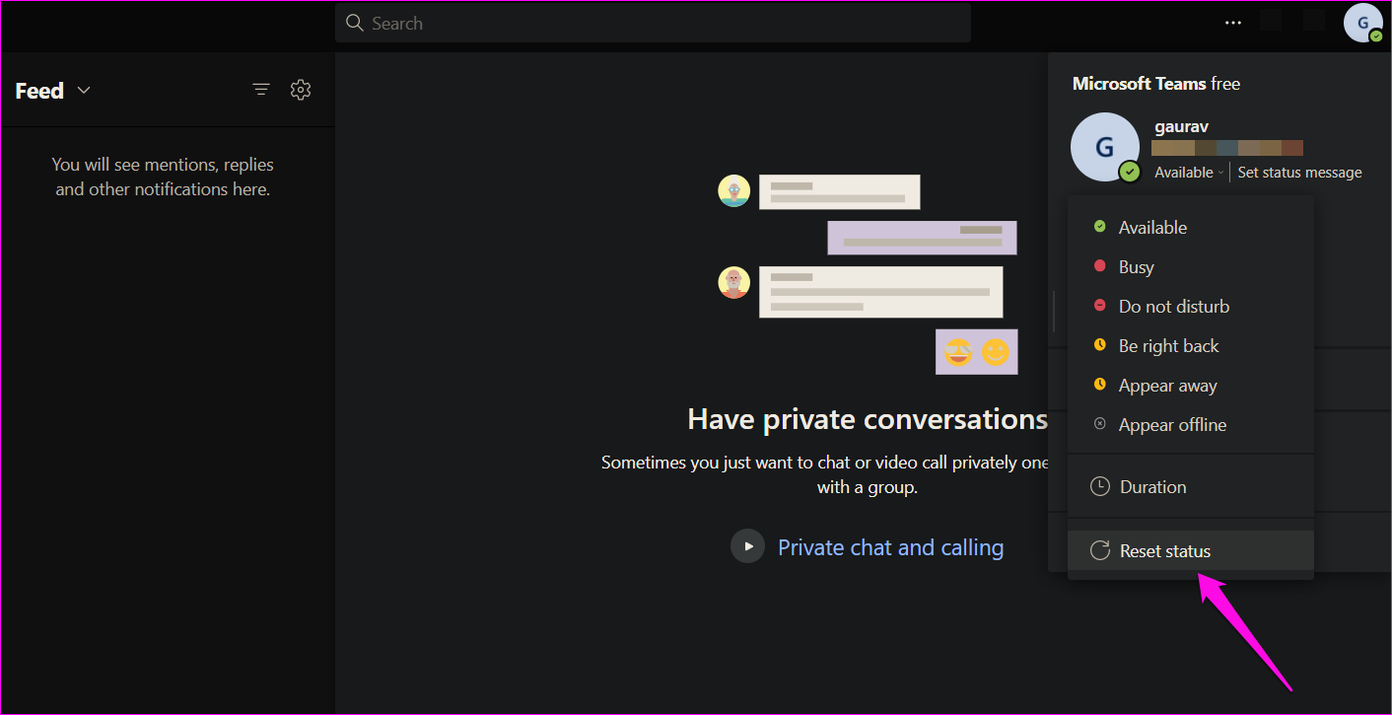
If the problem is not widespread and only happens to one user, ask him/her to reset the status. You can click on the profile icon and choose to Reset status.
Fix 2. Select the Teams Only Option
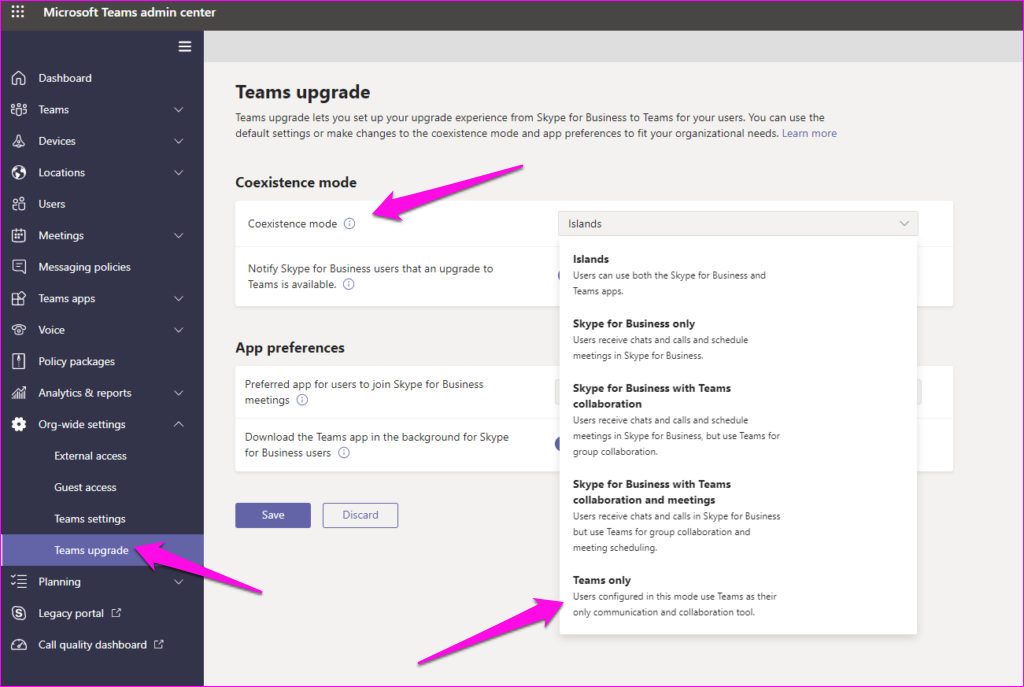
Microsoft Teams has an option called Coexistence Mode that allows Coexistence mode to help organizations smoothly move users from Skype for Business, which is being retired, to the newer Teams platform users who upgraded from Skype for Business to coexist with users who directly joined Teams. By default, it is set to Islands mode.
Step 1: Open Microsoft Teams Admin Center.
Step 2: Go to Org-wide settings > Teams upgrade. Select Teams only from the drop-down menu next to Coexistence mode.
Step 3: Restart Teams once and confirm if the Status is showing correctly now.
Fix 3. Uncheck Register Teams as the Chat App for Office
Another reason for conflict could be that the Teams app is set as the default chat app for Office users. Teams is importing Status from Office Suite, resulting in the Status Unknown or Status Missing issue.
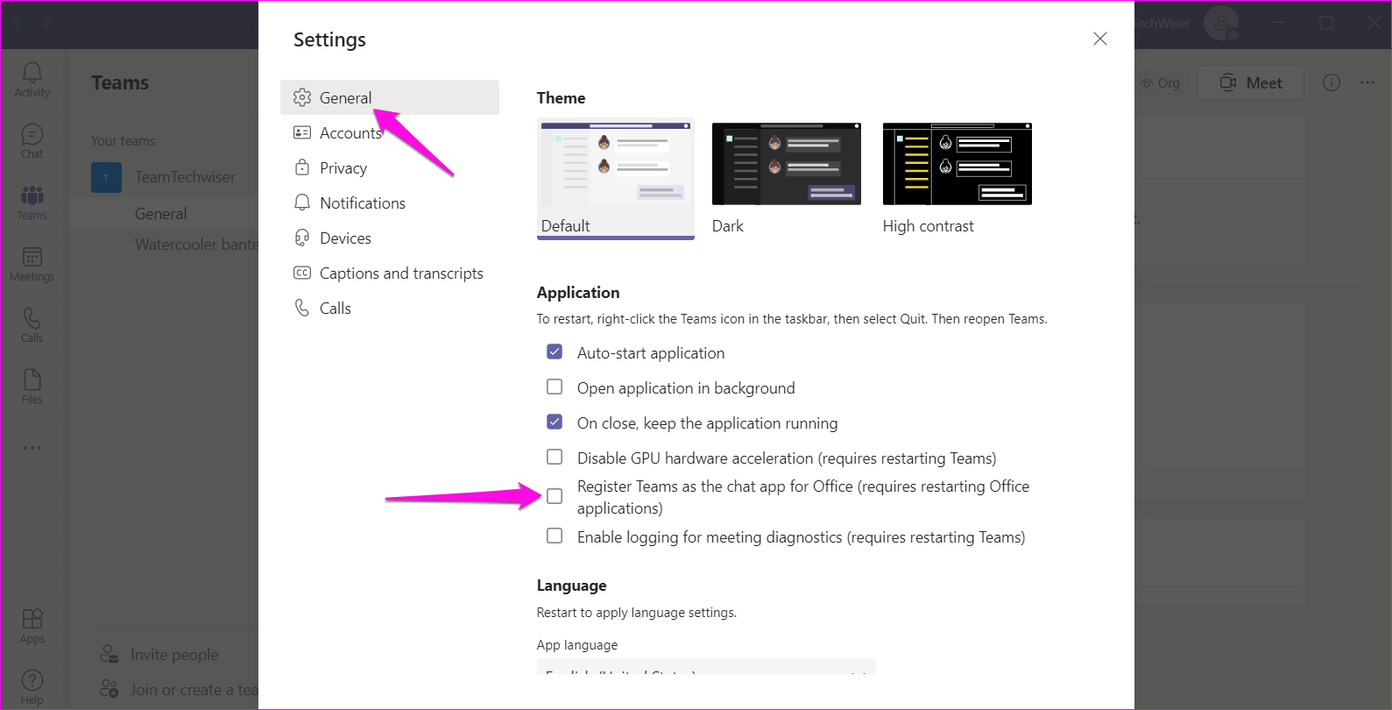
Step 1: Click on your profile avatar and select Settings.

Step 2: Under the General tab in the left sidebar, uncheck Register Teams as the chat app for Office. If the option is not on, enable it to sync status correctly.
Fix 4. Delete Settings Files
Following this step will reset the Teams app. You may have to sign back into Teams and set some preferences again.
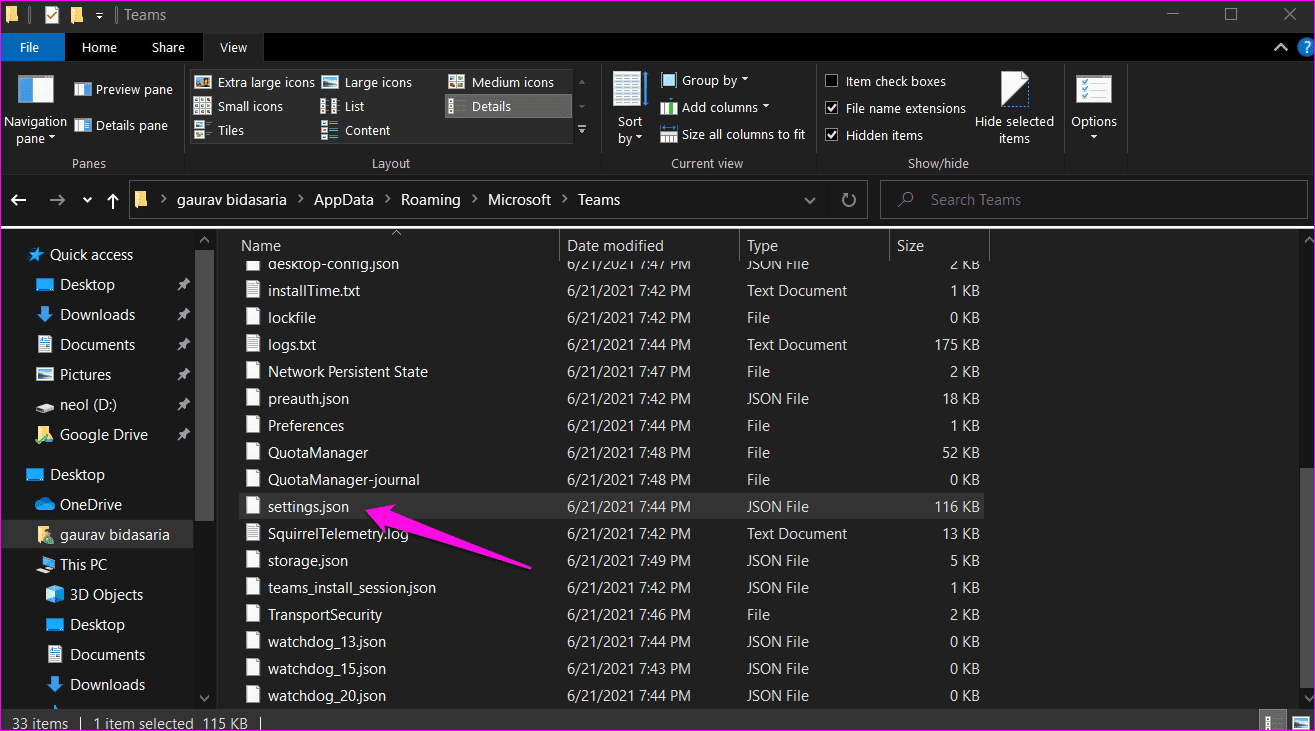
Step 1: Press Windows key + E to open File Explorer, and type the address below to reach the file folder quickly. If you don’t see anything, check Hidden items under the View tab of File Explorer.
%appdata%\Microsoft\teams
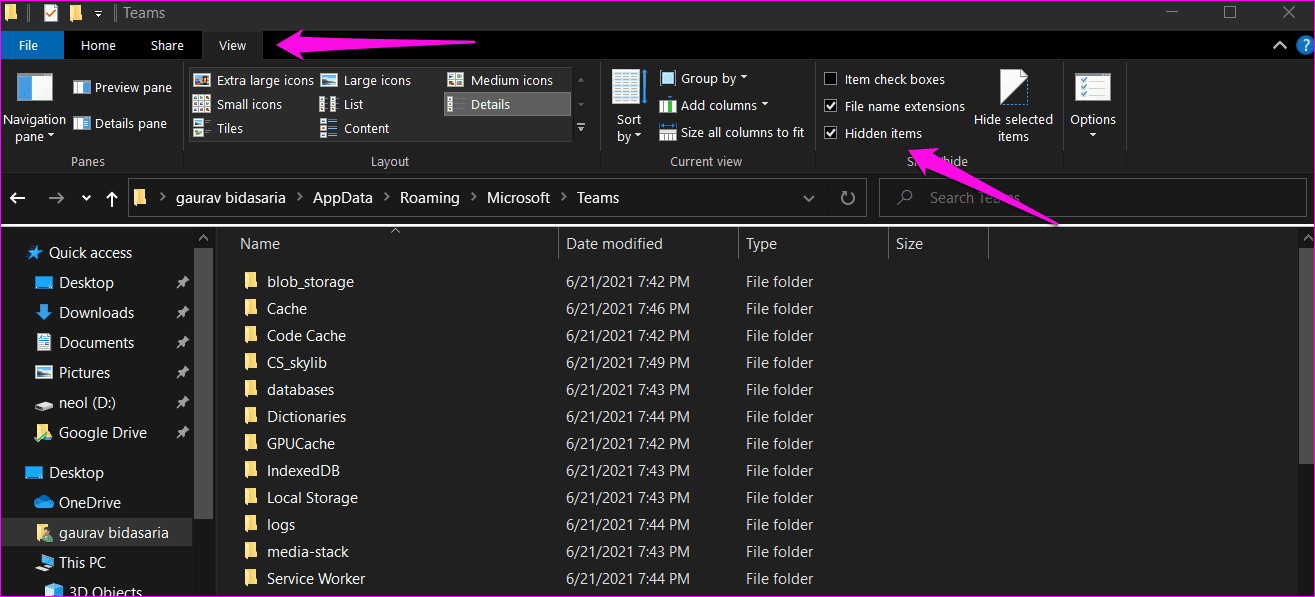
Step 2: Delete the settings.json file. Before doing so, copy the file to the desktop and back it up.
Fix 5: Clear Cache for Microsoft Teams
Step 1: Close the Teams app by clicking the cross button.
Step 2: Open File Explorer again (Windows key + E), and go to the following path:
%appdata%\Microsoft\teams
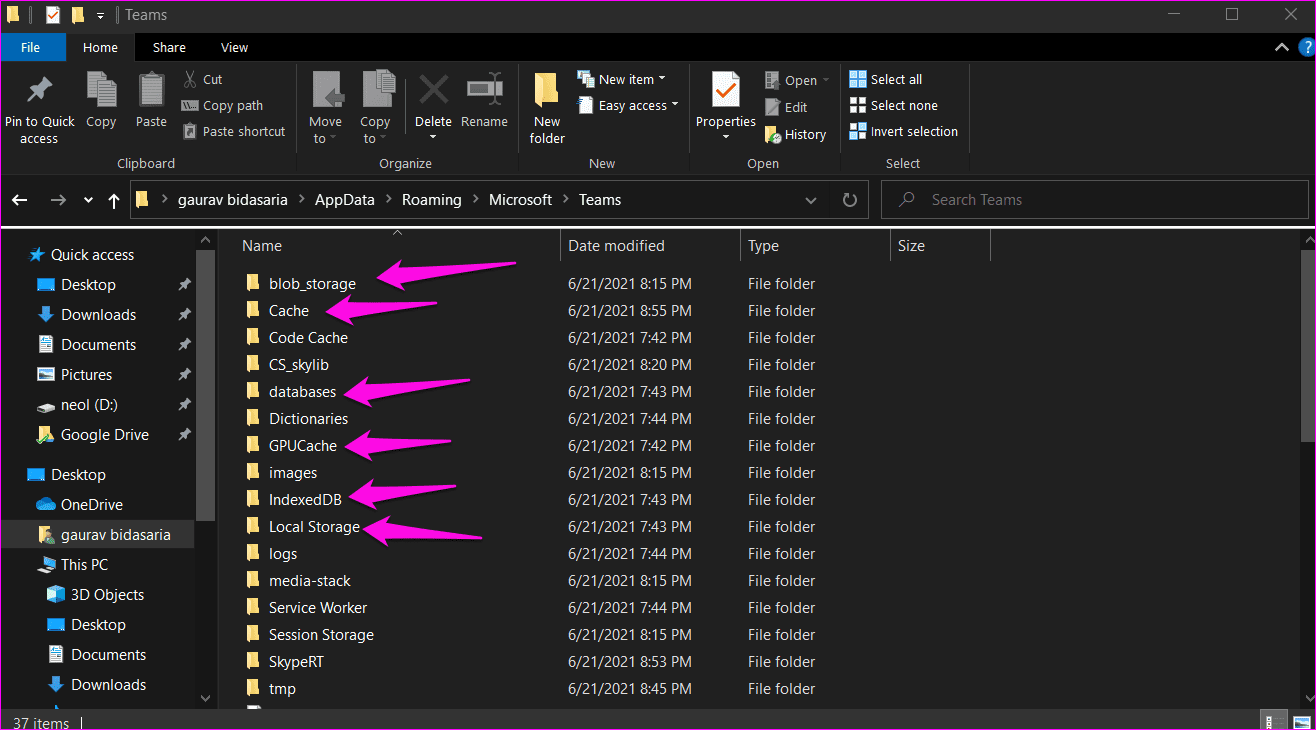
Step 3: Delete the list of files and folders
- application cache\cache
- blob_storage
- Cache
- databases
- GPUcache
- IndexedDB
- Local Storage
- tmpdelete teams cache files
Step 4: Reboot your computer, open the Teams app, and check if this fixed the issue.
Was this helpful?
Last updated on 11 July, 2024
Read Next
 5 Ways to Keep Microsoft Teams Status Green All the Time
https://youtu.be/xs1269oi98k Note: Microsoft Teams provides several status options to indicate your availability, such as Available, Busy, Away, and more.
5 Ways to Keep Microsoft Teams Status Green All the Time
https://youtu.be/xs1269oi98k Note: Microsoft Teams provides several status options to indicate your availability, such as Available, Busy, Away, and more.
 4 Ways to Fix if Microsoft Teams Keeps Showing Away
Fix 1: Manually Reset Your Status Active on Teams On Windows or Mac Step 1: Launch Microsoft Team, depending on your operating system. Note: For demonstration purposes, we are going
4 Ways to Fix if Microsoft Teams Keeps Showing Away
Fix 1: Manually Reset Your Status Active on Teams On Windows or Mac Step 1: Launch Microsoft Team, depending on your operating system. Note: For demonstration purposes, we are going
 Top 4 Ways to Fix Facebook Messenger Not Showing Active Status
https://youtu.be/BQ7VyEtSDlI Preliminary Fixes The Person Has Disabled Active Status: If the person whose active status you’re trying to see has disabled their active status, you won't be able to see
Top 4 Ways to Fix Facebook Messenger Not Showing Active Status
https://youtu.be/BQ7VyEtSDlI Preliminary Fixes The Person Has Disabled Active Status: If the person whose active status you’re trying to see has disabled their active status, you won't be able to see
 2 Ways to Fix Microsoft Teams Notifications Not Working on Windows 11/10
Preliminary Fixes Turn off Battery Saver: To ensure Microsoft Teams notifications work properly on Windows 11/10, turning off Battery Saver is essential.
2 Ways to Fix Microsoft Teams Notifications Not Working on Windows 11/10
Preliminary Fixes Turn off Battery Saver: To ensure Microsoft Teams notifications work properly on Windows 11/10, turning off Battery Saver is essential.
 6 Ways to Fix Microsoft Teams Crashing on Windows 11
Common Fixes Check service outage - Access Microsoft Service health and click Teams in the left sidebar to check service status.
6 Ways to Fix Microsoft Teams Crashing on Windows 11
Common Fixes Check service outage - Access Microsoft Service health and click Teams in the left sidebar to check service status.
 Top 5 Ways to Fix Microsoft Teams Not Displaying Images on Windows
Preliminary Fixes Check the Internet Connection: A stable internet connection is crucial for Microsoft Teams to properly load images and other media content.
Top 5 Ways to Fix Microsoft Teams Not Displaying Images on Windows
Preliminary Fixes Check the Internet Connection: A stable internet connection is crucial for Microsoft Teams to properly load images and other media content.
 4 Ways to Fix Microsoft Teams Keeps Asking to Sign in on Windows 10/11
Fix 1: Clear Teams Cache Microsoft Teams collects cache in the background to improve loading times and the overall app experience.
4 Ways to Fix Microsoft Teams Keeps Asking to Sign in on Windows 10/11
Fix 1: Clear Teams Cache Microsoft Teams collects cache in the background to improve loading times and the overall app experience.
 6 Ways to Fix Microsoft Teams Can Not Open Files on Windows
Fix 1.
6 Ways to Fix Microsoft Teams Can Not Open Files on Windows
Fix 1.
The article above may contain affiliate links which help support Guiding Tech. The content remains unbiased and authentic and will never affect our editorial integrity.