


Basic Fix
- Close other programs: This may be necessary, especially since other running programs may interfere with installation. Once closed, verify if the installation works.
Fix 1: Run the Installer With Administrative Rights
Many applications, including Microsoft Office, require administrative permissions to complete the installation. Without them, you are prone to various issues, including a stuck installation. So, launch the Microsoft Office installer with administrative rights and check if it resolves the error.
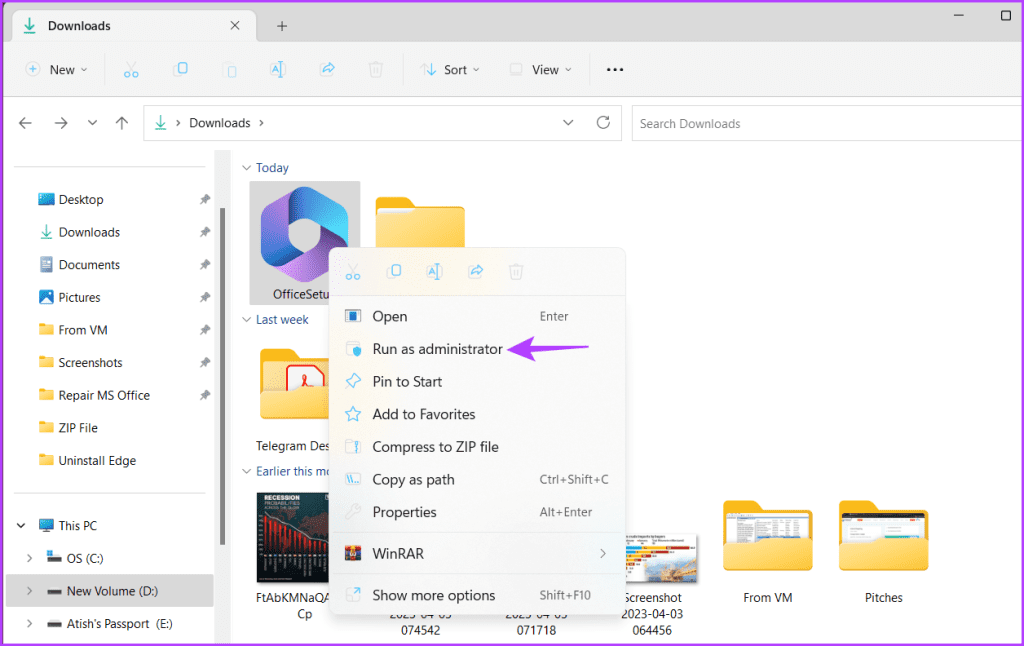
To do that, right-click the Microsoft Office installer and choose Run as administrator.
Fix 2: Delete the Office Registry Entry and Retry the Installation
If you have an old installation that was not properly uninstalled, it may conflict with the new one. To fix this, delete the Office registry key. Follow the steps below.
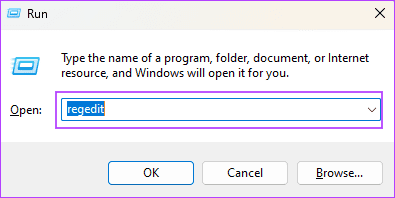
Step 1: Press Windows + I to open the Run dialog, type regedit, and hit Enter.
Step 2: Navigate to the path below.
Computer\HKEY_CURRENT_USER\Software\Microsoft\Office
Step 3: Right-click Office > click the Delete option.

Step 4: Retry the installation.
Fix 3: Ensure Firewall Is Not Blocking the Installation
If you have a restrictive firewall or antivirus software, it may be blocking your installation. The only way around this is to let the app go through the firewall or temporarily disable your antivirus or firewall.
Once disabled, retry the installation. Once the installation is complete, remember to re-enable the antivirus or firewall.
Fix 4: Use the Microsoft Support and Recovery Tool
Microsoft Support and Recovery Tool is a dedicated tool by Microsoft that scans and offers the best solution for any Office problem. You can download it and follow the steps below to install and use it.
Step 1: Open the downloaded folder and double-click on SaraSetup file.

Step 2: Choose Office & Office Apps and click Next.

Step 3: Select the problem you’re facing and click Next.

Step 4: Follow the on-screen instructions. The Microsoft Support and Recovery Tool will scan your computer and suggest fixes that might help you fix the installation error.
Was this helpful?
Last updated on 27 May, 2024
1 Comment
Leave a Reply
Read Next
 How to Repair Microsoft Office Installation Errors in Windows
Are you having trouble installing Microsoft Office on your Windows computer?
How to Repair Microsoft Office Installation Errors in Windows
Are you having trouble installing Microsoft Office on your Windows computer?
 4 Ways to Fix Microsoft Excel Stuck at Starting on Windows 11/10
Preliminary Fixes Force restart Microsoft Excel: When Microsoft Excel is stuck at starting on Windows 11, a force restart can often resolve the issue.
4 Ways to Fix Microsoft Excel Stuck at Starting on Windows 11/10
Preliminary Fixes Force restart Microsoft Excel: When Microsoft Excel is stuck at starting on Windows 11, a force restart can often resolve the issue.
 4 Ways to Fix Microsoft Outlook Stuck on Updating Inbox on Windows
Fix 1: Disable Cached Exchange Mode Cached Exchange Mode (CEM) is a feature available in Microsoft Outlook that allows you to keep a copy of your Exchange mailbox on your
4 Ways to Fix Microsoft Outlook Stuck on Updating Inbox on Windows
Fix 1: Disable Cached Exchange Mode Cached Exchange Mode (CEM) is a feature available in Microsoft Outlook that allows you to keep a copy of your Exchange mailbox on your
 How to Generate QR Codes in Microsoft Office Using QR4Office
Pre-Requisites to Create QR Codes With QR4office To create a QR code, you'll need the following: Windows 10 version 16299 or higher Microsoft 365 subscription Microsoft Word/PowerPoint/Excel QR4Office How to
How to Generate QR Codes in Microsoft Office Using QR4Office
Pre-Requisites to Create QR Codes With QR4office To create a QR code, you'll need the following: Windows 10 version 16299 or higher Microsoft 365 subscription Microsoft Word/PowerPoint/Excel QR4Office How to
 4 Ways to Fix Apple Watch Not Showing or Getting Notifications
Basic Fixes Ensure the Apple Watch is connected to the iPhone: The Apple Watch uses Bluetooth, so it must be connected to your iPhone to receive notifications.
4 Ways to Fix Apple Watch Not Showing or Getting Notifications
Basic Fixes Ensure the Apple Watch is connected to the iPhone: The Apple Watch uses Bluetooth, so it must be connected to your iPhone to receive notifications.
 How to Fix Emails Stuck in Outbox of Microsoft Outlook
With an estimated 400 million active users, Microsoft Outlook is one of the popular email clients.
How to Fix Emails Stuck in Outbox of Microsoft Outlook
With an estimated 400 million active users, Microsoft Outlook is one of the popular email clients.
 5 Ways to Fix Microsoft Word Stuck on Saving
Basic Fixes Wait for some time: Give it a moment since Word files might take a while to save recent changes, especially when the file size has increased considerably.
5 Ways to Fix Microsoft Word Stuck on Saving
Basic Fixes Wait for some time: Give it a moment since Word files might take a while to save recent changes, especially when the file size has increased considerably.
 How to Disable or Restrict Apps from Getting Deleted on iPhone
Method 1: Don't Allow Deleting Apps In the Content Restrictions menu on your iPhone, you can disable deleting apps.
How to Disable or Restrict Apps from Getting Deleted on iPhone
Method 1: Don't Allow Deleting Apps In the Content Restrictions menu on your iPhone, you can disable deleting apps.
The article above may contain affiliate links which help support Guiding Tech. The content remains unbiased and authentic and will never affect our editorial integrity.


This artivle fails to resolve the issue as it neglects the primary problem. Windows is STUCK on the “Getting Windows Ready” screen and you can’t access any of the files discussed, so can’t make any of the suggested changes.