

Fix 1: Check System Notification Settings
The first thing you should do is check the system notification settings and ensure that Microsoft Edge is allowed to send notifications on your computer. To do so, use the following steps:
Step 1: Press the Windows key + I to open the Settings app and head to System > Notifications.
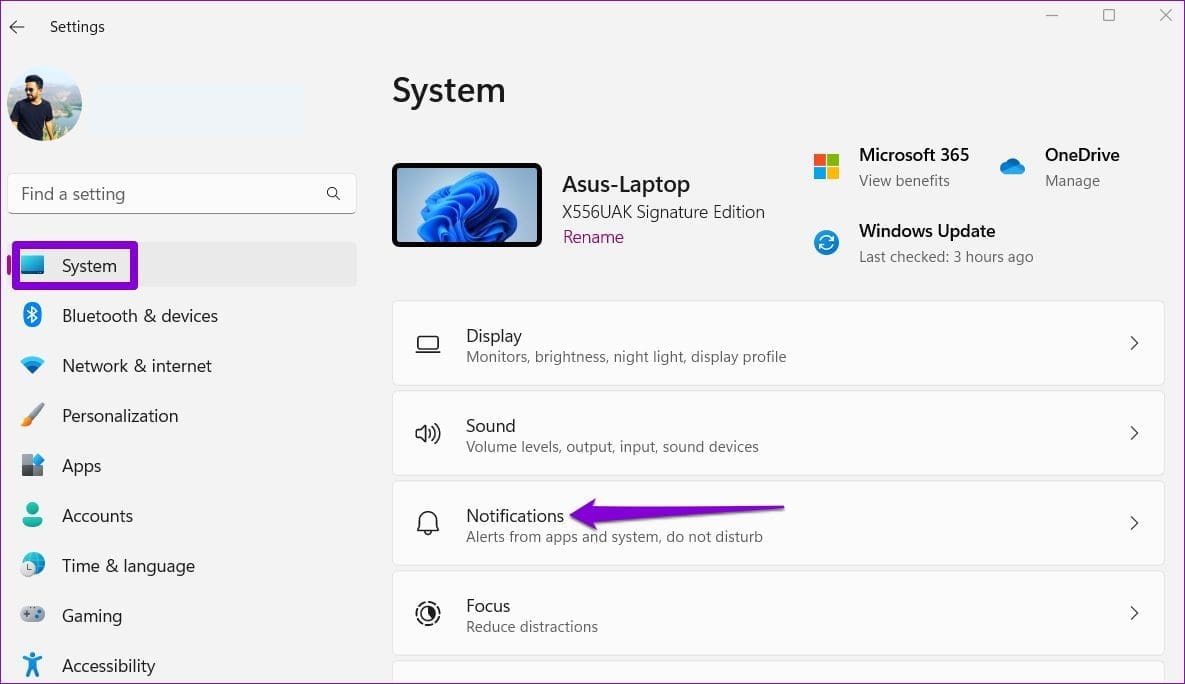
Step 2: Enable the toggle for Notifications, if it isn’t already.
Step 3: Under Notifications from apps and other senders, enable the toggle for Microsoft Edge.

Fix 2: Allow Websites to Send Notifications
Next, ensure you haven’t accidentally disabled website notifications from Edge’s Settings menu. Here’s how to do it.
Step 1: In Microsoft Edge, click the menu icon (three horizontal dots) at the top-right corner and select Settings.

Step 2: Switch to the Cookies and site permissions tab. Then, select Notifications from the right pane.

Step 3: Enable the toggle for Ask before sending (recommended).

Further, if any of your favorite websites appear under the Block section, click the three-dot icon next to their URL and select Remove.

Fix 3: Check the Website’s Native Notification Settings
Some websites, such as Gmail, Facebook, YouTube, and others, have their notification settings independent of Edge and your computer’s notification settings. If you have turned off desktop alerts for these services, you must enable them.
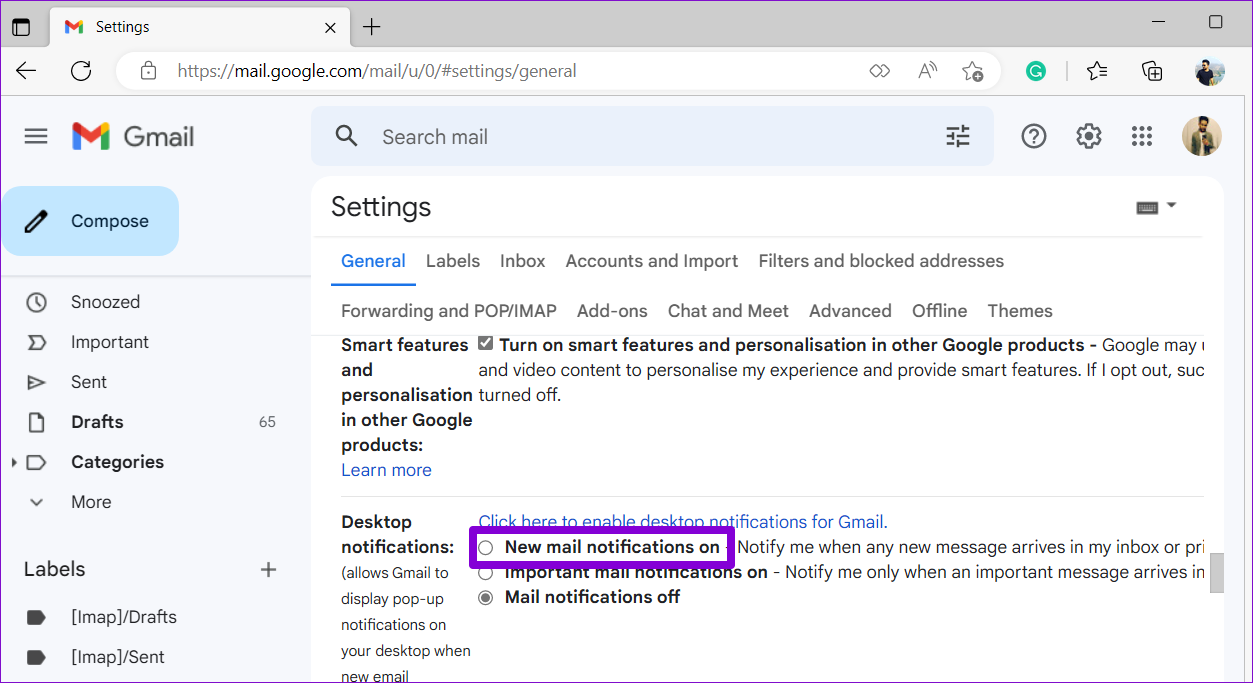
For instance, if you are not getting notifications from Gmail, open its Settings menu. Scroll to the Desktop notifications section and select New mail notifications on. Then, click Save changes at the bottom.
Fix 4: Unmute and Keep the Website Tab Open
Notifications from a website may appear silently on Windows if the website tab is muted. To change that, right-click on the website tab and select Unmute tab.

Further, you must keep the website tab open and active. If you’re using an extension to suspend inactive browser tabs, disable it and see if that makes Edge notifications work.
Fix 5: Turn Off Do Not Disturb
Do not disturb is useful for avoiding distractions and focusing on your work. However, if you enable it by accident, your apps, including Microsoft Edge, will fail to display notifications.
Step 1: Press the Windows key + I to open the Settings app and head to System > Notifications.
Step 2: Toggle off Do not disturb.
Step 3: Click on Turn on do not disturb automatically and clear all the boxes to prevent Do Not Disturb from turning on by itself.

Fix 6: Repair Microsoft Edge
If Microsoft Edge fails to send notifications even after configuring all the settings, there might be an issue with the browser. You can use the Microsoft Edge repair tool to reinstall the browser on your computer and resolve any issues.
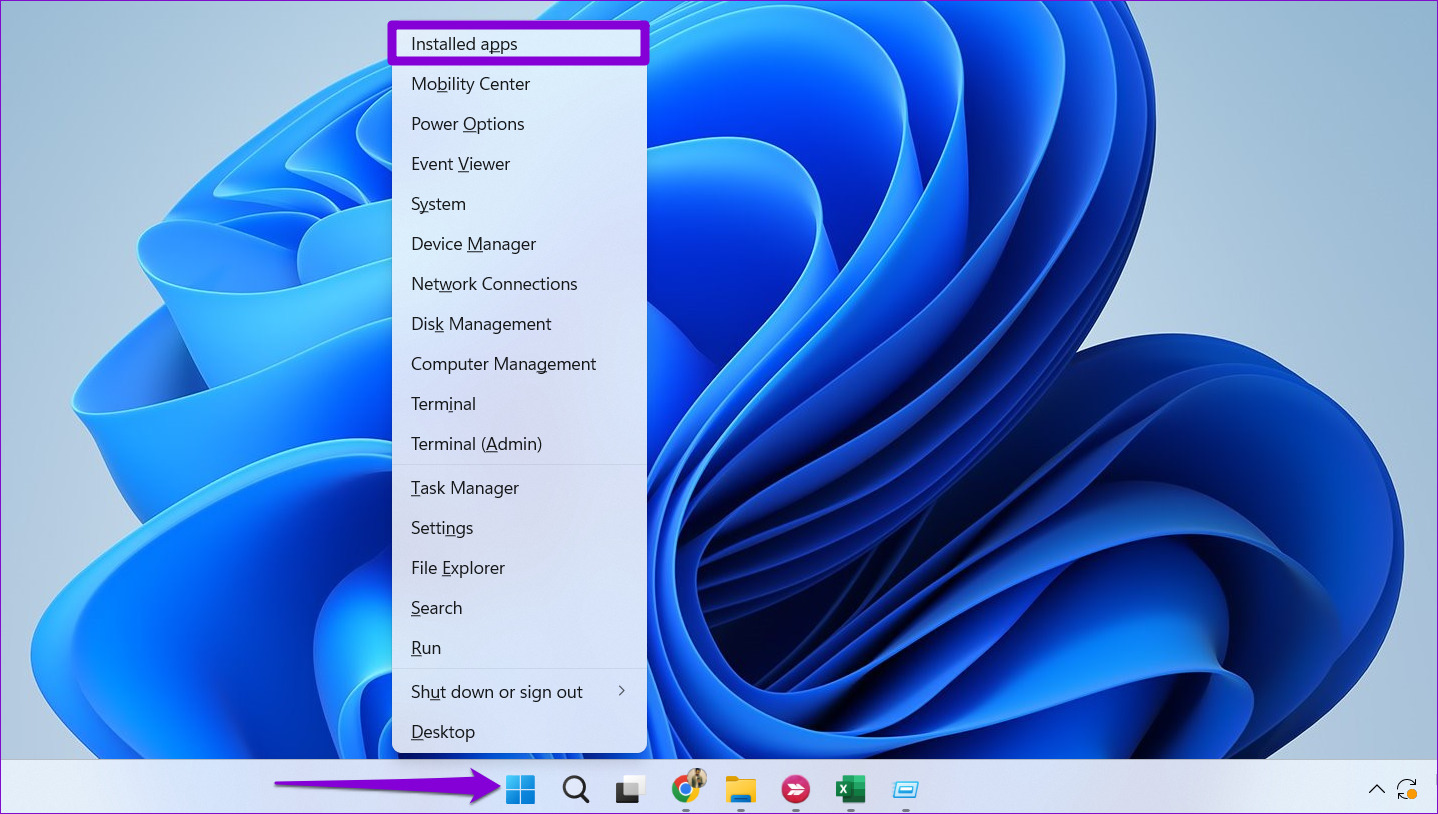
Step 1: Right-click the Start icon and select Installed apps from the list.
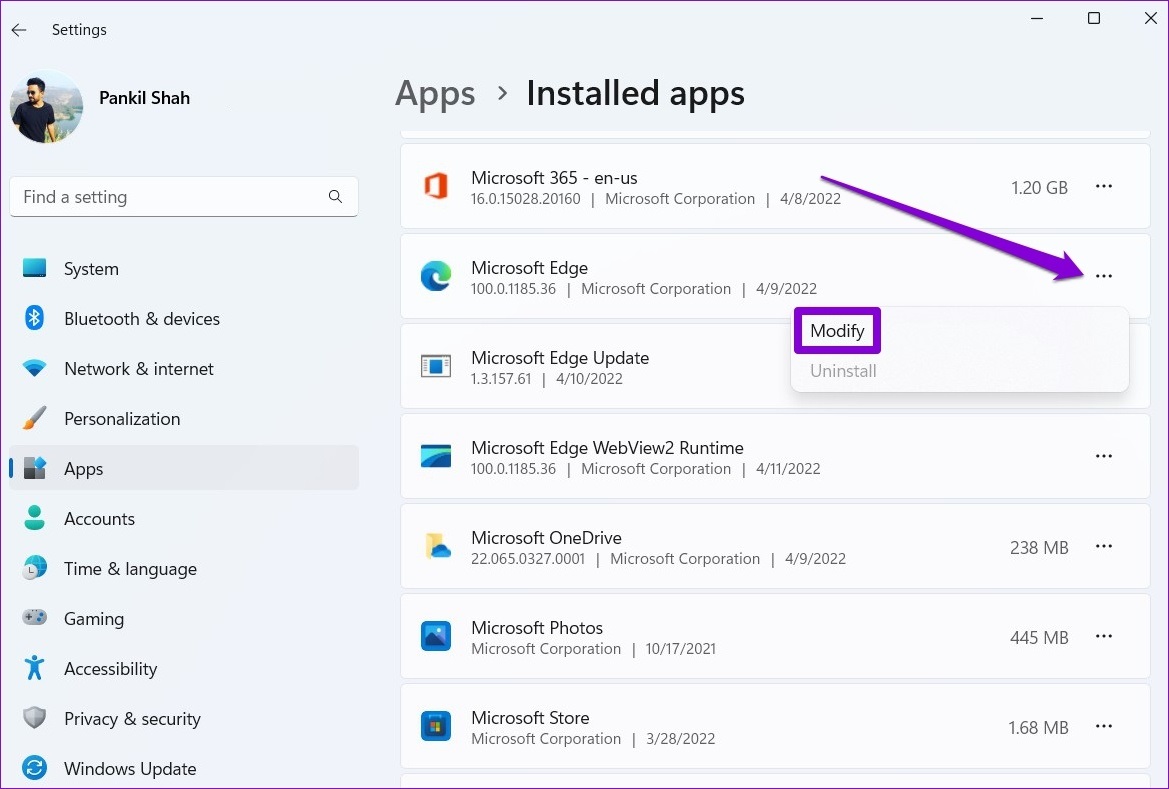
Step 2: Scroll through the list or use the search tool at the top to locate Microsoft Edge. Click the three-dot menu icon and select Modify.
Step 3: Click the Repair button.

Wait for the process to complete. Following that, Edge notifications should work on Windows.
Was this helpful?
Last updated on 30 July, 2024
1 Comment
Leave a Reply
Read Next
 How to Use the Edge Bar in Microsoft Edge on Windows 11
How to Enable Edge Bar in Microsoft Edge Step 1: Launch Microsoft Edge on your PC > click the three-dot menu icon at the top right > select Settings.
How to Use the Edge Bar in Microsoft Edge on Windows 11
How to Enable Edge Bar in Microsoft Edge Step 1: Launch Microsoft Edge on your PC > click the three-dot menu icon at the top right > select Settings.
 6 Ways to Fix Camera Not Working in Microsoft Edge on Windows
Fix 1: Close Background Apps If another app is already using your computer’s camera, Microsoft Edge can't access it.
6 Ways to Fix Camera Not Working in Microsoft Edge on Windows
Fix 1: Close Background Apps If another app is already using your computer’s camera, Microsoft Edge can't access it.
 2 Ways to Fix Microsoft Teams Notifications Not Working on Windows 11/10
Preliminary Fixes Turn off Battery Saver: To ensure Microsoft Teams notifications work properly on Windows 11/10, turning off Battery Saver is essential.
2 Ways to Fix Microsoft Teams Notifications Not Working on Windows 11/10
Preliminary Fixes Turn off Battery Saver: To ensure Microsoft Teams notifications work properly on Windows 11/10, turning off Battery Saver is essential.
 3 Ways to Fix Extensions Not Working in Microsoft Edge
Basic Fixes: Ensure you're signed in on Edge: Signing in to Edge helps you access all browser features while syncing your information.
3 Ways to Fix Extensions Not Working in Microsoft Edge
Basic Fixes: Ensure you're signed in on Edge: Signing in to Edge helps you access all browser features while syncing your information.
 Top 6 Ways to Fix Microsoft Edge Black Screen Issues on Windows 10
Microsoft Edge continues to quickly pace ahead in the browser race on mobile and desktop.
Top 6 Ways to Fix Microsoft Edge Black Screen Issues on Windows 10
Microsoft Edge continues to quickly pace ahead in the browser race on mobile and desktop.
 7 Ways to Fix Microsoft Edge Running Slow on Windows 11
Basic Fixes Update or reinstall Microsoft Edge: Open the Microsoft Store, search Microsoft Edge browser, and click Update.
7 Ways to Fix Microsoft Edge Running Slow on Windows 11
Basic Fixes Update or reinstall Microsoft Edge: Open the Microsoft Store, search Microsoft Edge browser, and click Update.
 6 Ways to Fix No Sound in Microsoft Edge on Windows 11
Common Fixes Unmute the Edge tab: If you've unknowingly muted a tab, unmute it by right-clicking the tab > Unmute tab.
6 Ways to Fix No Sound in Microsoft Edge on Windows 11
Common Fixes Unmute the Edge tab: If you've unknowingly muted a tab, unmute it by right-clicking the tab > Unmute tab.
 4 Ways to Fix Microsoft Edge Keeps Refreshing Tabs on Windows
Fix 1: Disable Sleeping Tabs When you enable sleeping tabs in Edge, the browser puts your inactive tabs to sleep to conserve computer resources.
4 Ways to Fix Microsoft Edge Keeps Refreshing Tabs on Windows
Fix 1: Disable Sleeping Tabs When you enable sleeping tabs in Edge, the browser puts your inactive tabs to sleep to conserve computer resources.
The article above may contain affiliate links which help support Guiding Tech. The content remains unbiased and authentic and will never affect our editorial integrity.


this did not help. i can set up all my website notifications to “allow”, but they do nothing. in edge, they disappear completely after closing the browser and opening it back up. in firefox they stay, but do absolutely nothing. i have been looking around countless websites and no one seems to have found a fix for this.