Basic Fixes
- Force quit and relaunch Edge: If the app has been running in the background for some time, this will give it a fresh start.
- Update or reinstall Edge browser: Installing the latest version will remove any bugs causing the issue.
Fix 1: Clear Browsing Data
If Microsoft Edge is not responding on your mobile or desktop, clear your browsing data. This includes browsing history, cookies and site data, passwords, and everything that makes the browsing experience more responsive.
Step 1: Open Microsoft Edge on your iPhone or iPad.
Step 2: Tap the hamburger menu icon at the bottom-right corner and select Settings.
Step 3: Tap on Privacy and Security and select Clear Browsing Data.


Step 4: Tap on Clear Now at the bottom and tap on Clear Now again to confirm.
Step 5: Select Done at the top right to confirm.
Fix 2: Change DNS Server
The next solution we recommend is changing the DNS server. Your Internet Server Provider’s DNS server might be overloaded and busy since several subscribers might be using it. Instead, try any of the public DNS servers and enjoy better speeds in Microsoft Edge.
Step 1: Open Settings on your iPhone or iPad.
Step 2: Tap on Wi-Fi and tap the Info icon next to your connected Wi-Fi name.
Step 3: Scroll down to DNS and tap on Configure DNS. Then, select Manual from the following screen.

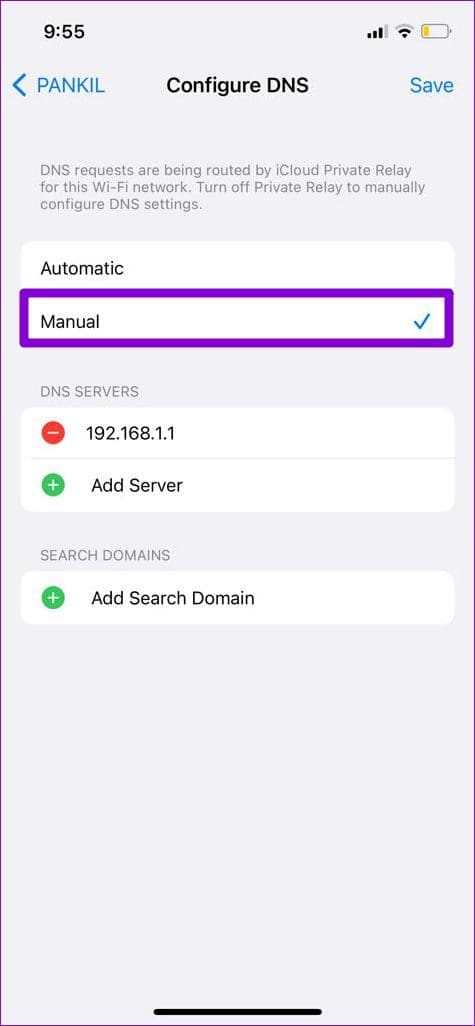
Step 4:Tap on the minus icon to delete the prefilled entries under DNS servers.
Step 5: Tap Add Server and type the DNS server address you want. If you want to use Google’s public DNS servers, type 8.8.8.8 and 8.8.4.4 in the text box.
Step 6: Tap on Save.
Similarly, you can configure DNS servers for other Wi-Fi networks
Fix 3: Enable Location Services
Several websites require location permission to function smoothly and provide location-specific features. So, the next solution we suggest is enabling location access for Microsoft Edge on your mobile or desktop.
Step 1: Open the Settings app and select Edge.
Step 2: Tap on Location and ensure location access has been enabled.


Step 3: Close Settings and open Edge to check if the problem is solved.
Fix 4: Clear App Cache
If Microsoft Edge is still not opening or crashing, try clearing the app cache on your mobile or desktop. This will make you re-login to your internet accounts.
Step 1: Open the Settings app and tap on General.
Step 2: Select iPhone Storage and go to Edge.
Step 3: Tap on Offload App and tap Offload App again at the bottom to confirm.


Step 4: Close the Settings app and reinstall Edge on your iPhone. Check if this fixed the problem.
Tip: Learn how you can edit PDFs using the built-in editor in Microsoft Edge.
Was this helpful?
Last updated on 07 August, 2024
Read Next
 3 Fixes for Cast Media to Device Not Working in Microsoft Edge
Basic Fixes Check device support: The first thing you need to be sure of is that your smart TV or streaming device supports Miracast or is certified by the DLNA
3 Fixes for Cast Media to Device Not Working in Microsoft Edge
Basic Fixes Check device support: The first thing you need to be sure of is that your smart TV or streaming device supports Miracast or is certified by the DLNA
 How to Use the Edge Bar in Microsoft Edge on Windows 11
How to Enable Edge Bar in Microsoft Edge Step 1: Launch Microsoft Edge on your PC > click the three-dot menu icon at the top right > select Settings.
How to Use the Edge Bar in Microsoft Edge on Windows 11
How to Enable Edge Bar in Microsoft Edge Step 1: Launch Microsoft Edge on your PC > click the three-dot menu icon at the top right > select Settings.
 Top 8 Fixes for Microsoft Edge Not Opening PDF Files in Windows
The other day I was trying to open a PDF file in Microsoft Edge to edit it.
Top 8 Fixes for Microsoft Edge Not Opening PDF Files in Windows
The other day I was trying to open a PDF file in Microsoft Edge to edit it.
 2 Fixes for Microsoft Word Not Opening on iPhone and iPad
Basic Fixes Check OneDrive storage: All your Word documents get saved on OneDrive.
2 Fixes for Microsoft Word Not Opening on iPhone and iPad
Basic Fixes Check OneDrive storage: All your Word documents get saved on OneDrive.
 3 Ways to Fix Extensions Not Working in Microsoft Edge
Basic Fixes: Ensure you're signed in on Edge: Signing in to Edge helps you access all browser features while syncing your information.
3 Ways to Fix Extensions Not Working in Microsoft Edge
Basic Fixes: Ensure you're signed in on Edge: Signing in to Edge helps you access all browser features while syncing your information.
 6 Ways to Fix Camera Not Working in Microsoft Edge on Windows
Fix 1: Close Background Apps If another app is already using your computer’s camera, Microsoft Edge can't access it.
6 Ways to Fix Camera Not Working in Microsoft Edge on Windows
Fix 1: Close Background Apps If another app is already using your computer’s camera, Microsoft Edge can't access it.
 6 Ways to Fix Microsoft Edge Notifications Not Working on Windows
Fix 1: Check System Notification Settings The first thing you should do is check the system notification settings and ensure that Microsoft Edge is allowed to send notifications on your
6 Ways to Fix Microsoft Edge Notifications Not Working on Windows
Fix 1: Check System Notification Settings The first thing you should do is check the system notification settings and ensure that Microsoft Edge is allowed to send notifications on your
 5 Fixes for Err_Empty_Response Error in Chrome or Edge
Fix 1: Disable Extensions A misbehaving or poorly optimized extension can prevent Chrome or Edge from loading websites at times, triggering the Err_Empty_Response error.
5 Fixes for Err_Empty_Response Error in Chrome or Edge
Fix 1: Disable Extensions A misbehaving or poorly optimized extension can prevent Chrome or Edge from loading websites at times, triggering the Err_Empty_Response error.
The article above may contain affiliate links which help support Guiding Tech. The content remains unbiased and authentic and will never affect our editorial integrity.