Basic Fixes:
- Force close all background apps: If other apps use the microphone in the background, you may have issues accessing it on Instagram. You can close such apps on your phone and use the microphone on Instagram to check.
- Ensure the microphone is enabled on your phone: Android lets you completely disable the microphone on the system level to keep prying eyes away. So, ensure microphone access is turned on system-wide.
- Clean phone microphone: Over time, your phone microphone and speakers collect dust and debris. You must regularly clean the phone microphone with a small brush. Additionally, closely check the applied case and ensure it does not block the microphone.
- Turn Bluetooth off: One of your Bluetooth devices may stay active and connected to your phone. In that case, Instagram uses the connected device’s microphone, not your phone’s. So, disable Bluetooth on your phone to disconnect such devices.
- Update or reinstall Instagram: You can install the latest software updates to fix software bugs. However, if the issue persists, uninstall and reinstall Instagram to clear all custom app settings. Then, set up Instagram and check again.
Fix 1: Check Microphone Access
When you first try to record a video or start a call on Instagram, the app asks for microphone access. If you accidentally deny the permission, the app can’t access the microphone on your phone. It’s time to tweak the Settings. Here’s how to do it.
iPhone
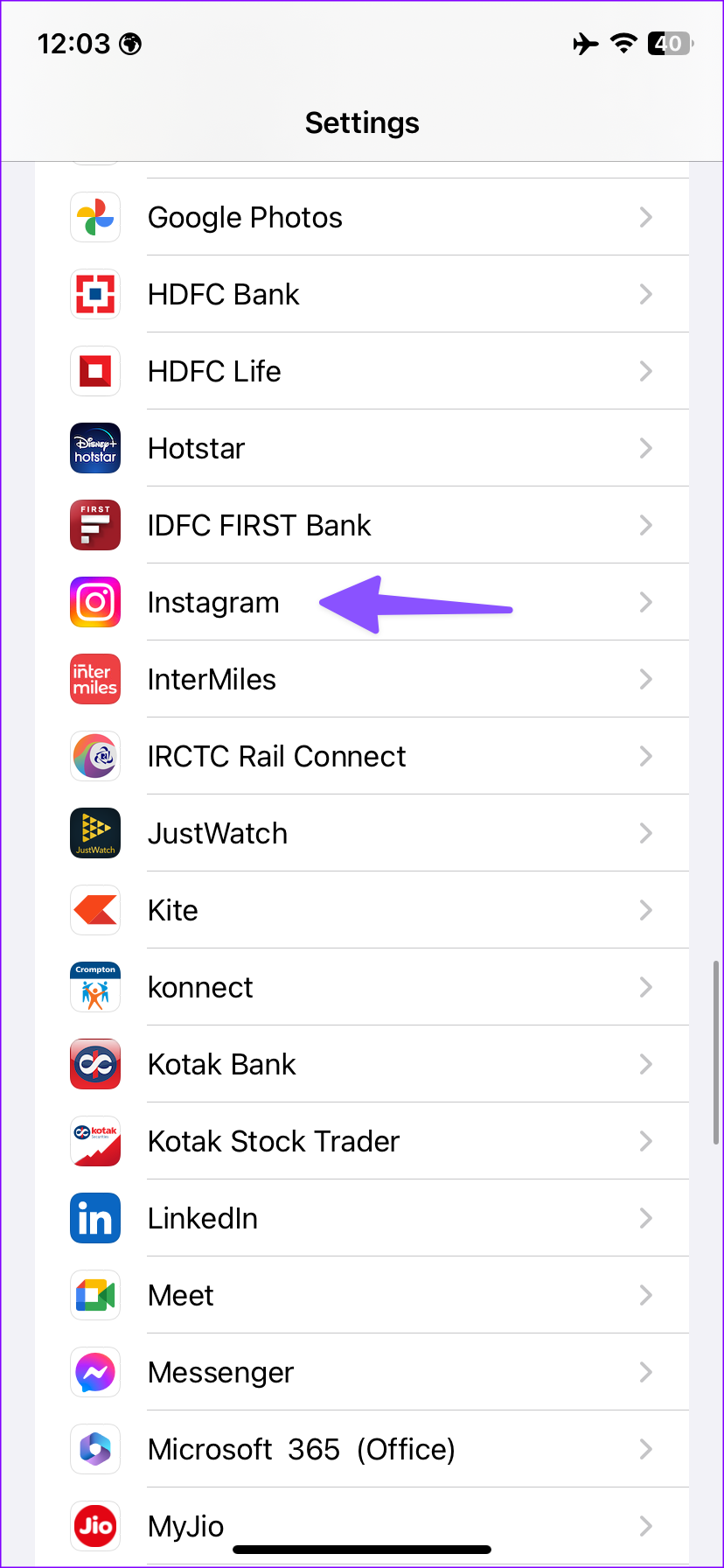
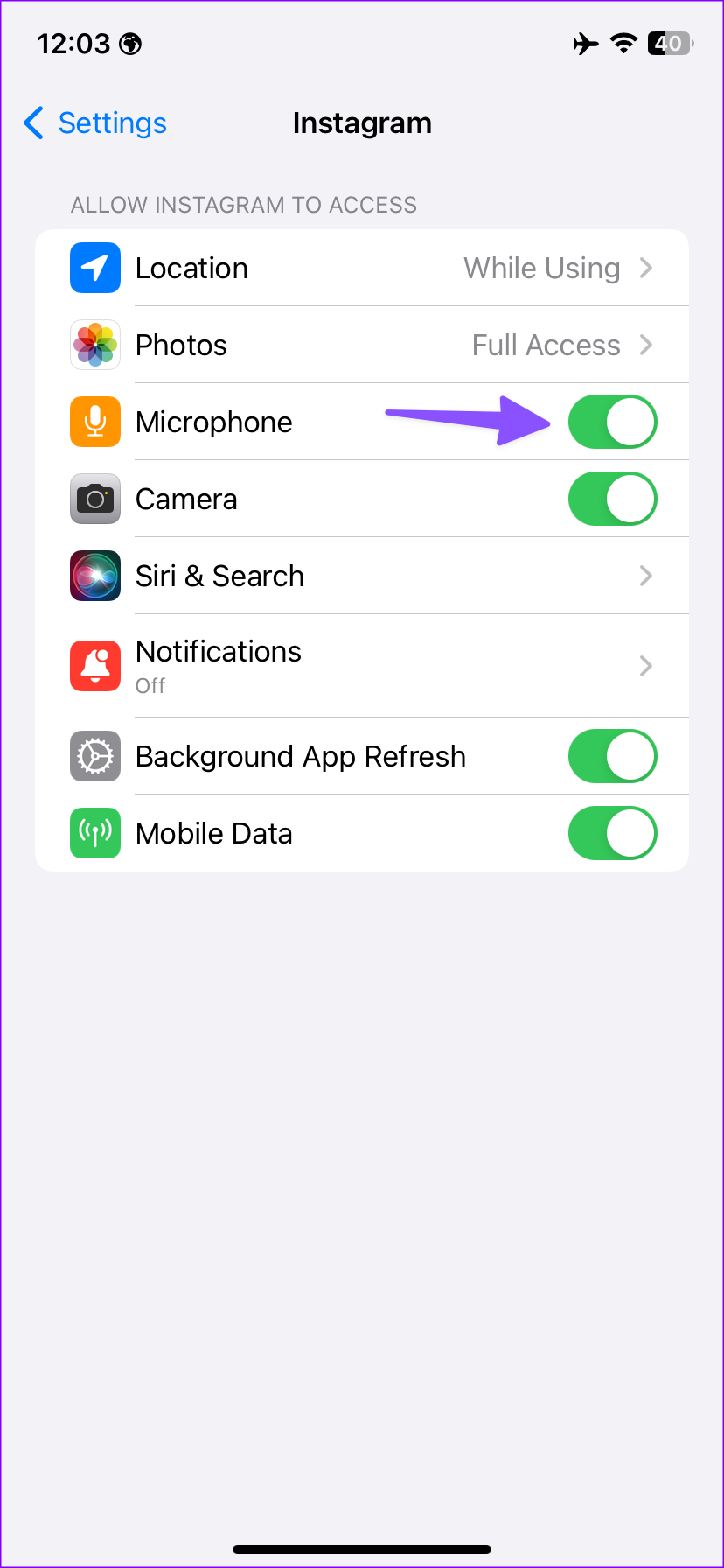
Step 1: Open the Settings app > tap on Instagram > turn on the toggle for Microphone.
Android
Step 1: Long-press on the Instagram app icon and open the info menu.
Step 2: Select Permissions > tap Microphone > select the Allow only while using the app option.


Fix 2: Clear Instagram Cache
A corrupt Instagram cache on your Android phone or iPhone can cause issues when using the app’s microphone. In this case, clear the Instagram app cache and try again. Follow the below steps to use it on your Android device. iPhone users can consider offloading the Instagram app.
Step 1: Long-press on the Instagram app icon and open the info menu.
Step 2: Select Storage and cache > tap Clear Cache.
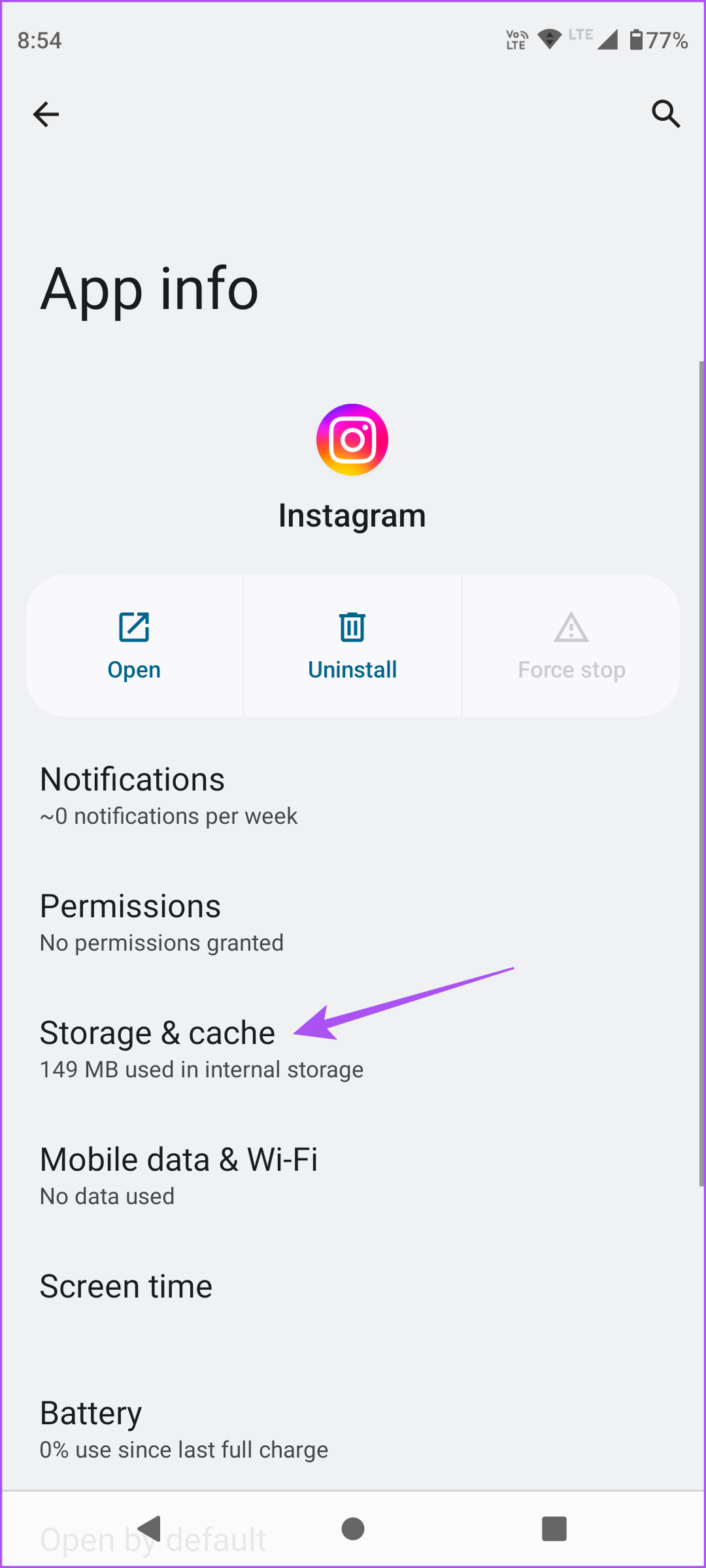
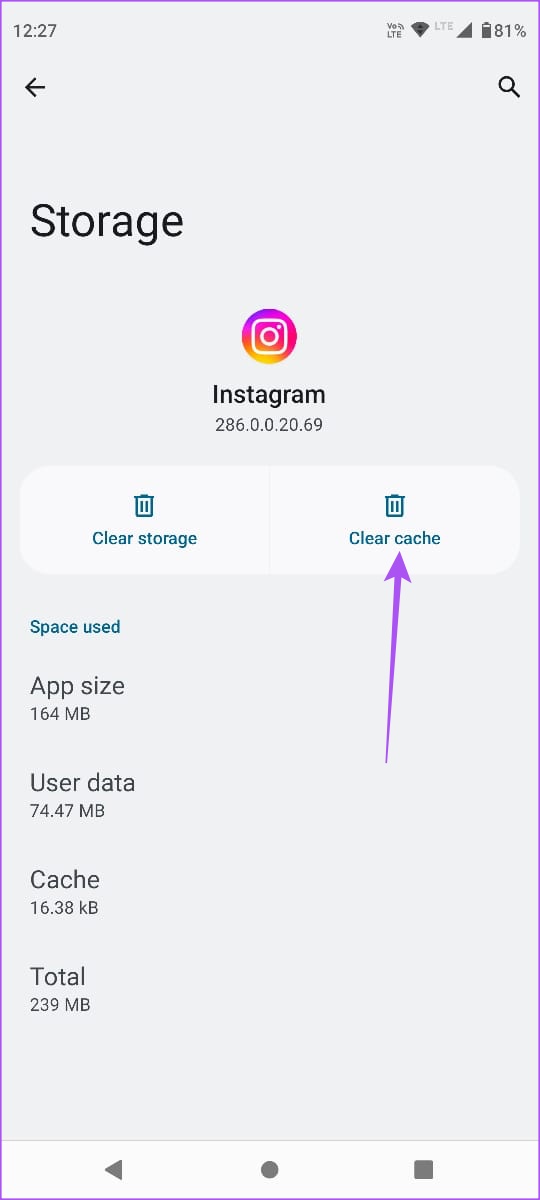
Then, try using the microphone again in the Instagram app. You can also read our dedicated post to learn the implications of clearing the cache for Instagram.
Was this helpful?
Last updated on 26 June, 2024
Read Next
 Top 8 Ways to Fix WhatsApp Microphone Not Working on iPhone and Android
Thanks to group calls, the ability to share and create call links, and desktop support, WhatsApp voice and video calls are gaining traction among users.
Top 8 Ways to Fix WhatsApp Microphone Not Working on iPhone and Android
Thanks to group calls, the ability to share and create call links, and desktop support, WhatsApp voice and video calls are gaining traction among users.
 How to Fix Microphone Not Working on Facebook Messenger
Basic Troubleshoot Remove the phone case: If your phone case blocks the microphone, you may notice muffled audio during video recording and calls.
How to Fix Microphone Not Working on Facebook Messenger
Basic Troubleshoot Remove the phone case: If your phone case blocks the microphone, you may notice muffled audio during video recording and calls.
 Top 10 Ways to Fix Google Meet Microphone Not Working on Windows and Mac
For the most part, Google Meet offers a seamless browser-based video conferencing experience on both Windows and macOS.
Top 10 Ways to Fix Google Meet Microphone Not Working on Windows and Mac
For the most part, Google Meet offers a seamless browser-based video conferencing experience on both Windows and macOS.
 5 Ways to Fix Microphone Not Working on iPhone
Try Basic Fixes Unplug all the accessories and disable Bluetooth: One of the external accessories connected to your iPhone may be causing problems with the microphone.
5 Ways to Fix Microphone Not Working on iPhone
Try Basic Fixes Unplug all the accessories and disable Bluetooth: One of the external accessories connected to your iPhone may be causing problems with the microphone.
 4 Ways to Fix Microphone Not Working on iPad
Basic Fixes: Check the microphone on the iPad: To check the device's microphone, open the camera app on your iPad and record a video.
4 Ways to Fix Microphone Not Working on iPad
Basic Fixes: Check the microphone on the iPad: To check the device's microphone, open the camera app on your iPad and record a video.
 7 Ways to Fix Microphone Not Working Issue on Windows 11
Try Basic Fixes Check the microphone connection: If you’re using an external microphone on your PC, check its physical connection to see if it's connected properly.
7 Ways to Fix Microphone Not Working Issue on Windows 11
Try Basic Fixes Check the microphone connection: If you’re using an external microphone on your PC, check its physical connection to see if it's connected properly.
 6 Ways to Fix Microphone Not Working on Apple Watch
Basic Fixes Restart Apple Watch: Restart your Apple Watch to fix temporary bugs and glitches.
6 Ways to Fix Microphone Not Working on Apple Watch
Basic Fixes Restart Apple Watch: Restart your Apple Watch to fix temporary bugs and glitches.
 6 Ways to Fix Windows Not Detecting Microphone in Headset
Basic Fixes Check cable and Bluetooth connection: Check the microphone and its wire for significant damage on either side.
6 Ways to Fix Windows Not Detecting Microphone in Headset
Basic Fixes Check cable and Bluetooth connection: Check the microphone and its wire for significant damage on either side.
The article above may contain affiliate links which help support Guiding Tech. The content remains unbiased and authentic and will never affect our editorial integrity.