Basic Fixes:
- Enable and disable Airplane Mode: You won’t receive RCS messages if your phone has network connection issues. You can enable and disable Airplane Mode and check again. This will reset your phone’s network settings.
- Force stop and restart the Messages app: If the Messages app is acting up, open the app settings and force stop it. Then, tap on the app icon again to reopen the Messages app and see if you’re receiving message notifications on your Android phone.
- Disable DND/Focus Modes: If you have enabled the Do Not Disturb or any other Focus Mode on Android, you won’t receive notifications from any app, including the Messages app. So, disable DND and Focus mode on your Android phone and check again.
- Check for app updates: Google regularly updates the Messages app with new features and bug fixes. So, if this issue is due to an app bug, you must update Messages to the latest version from the Play Store.
Fix 1: Allow Notification Permission
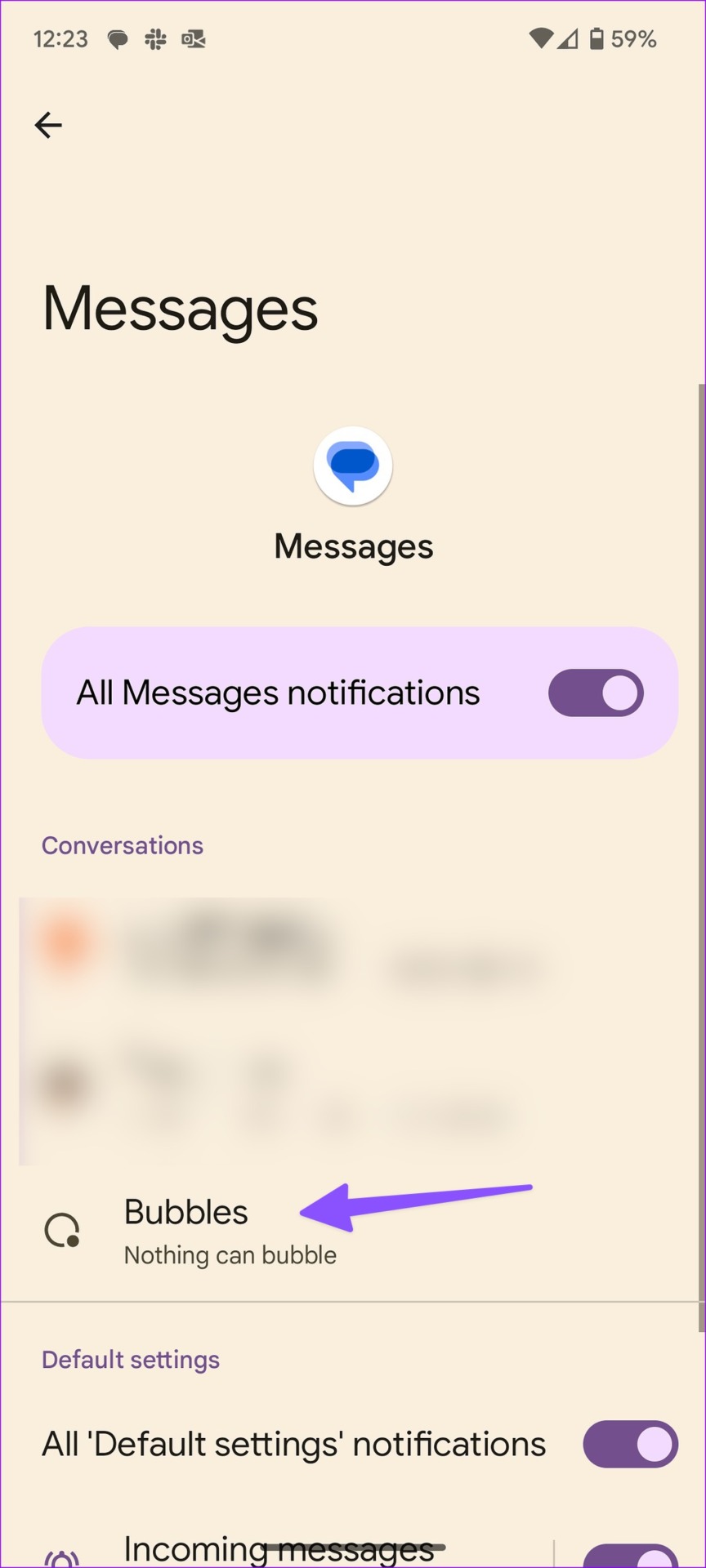
If you have denied notification permission for the Messages app, revert the action to start getting alerts. You can also do this if you’re facing issues with bubble notifications in the Messages app. Follow the below steps to do it.
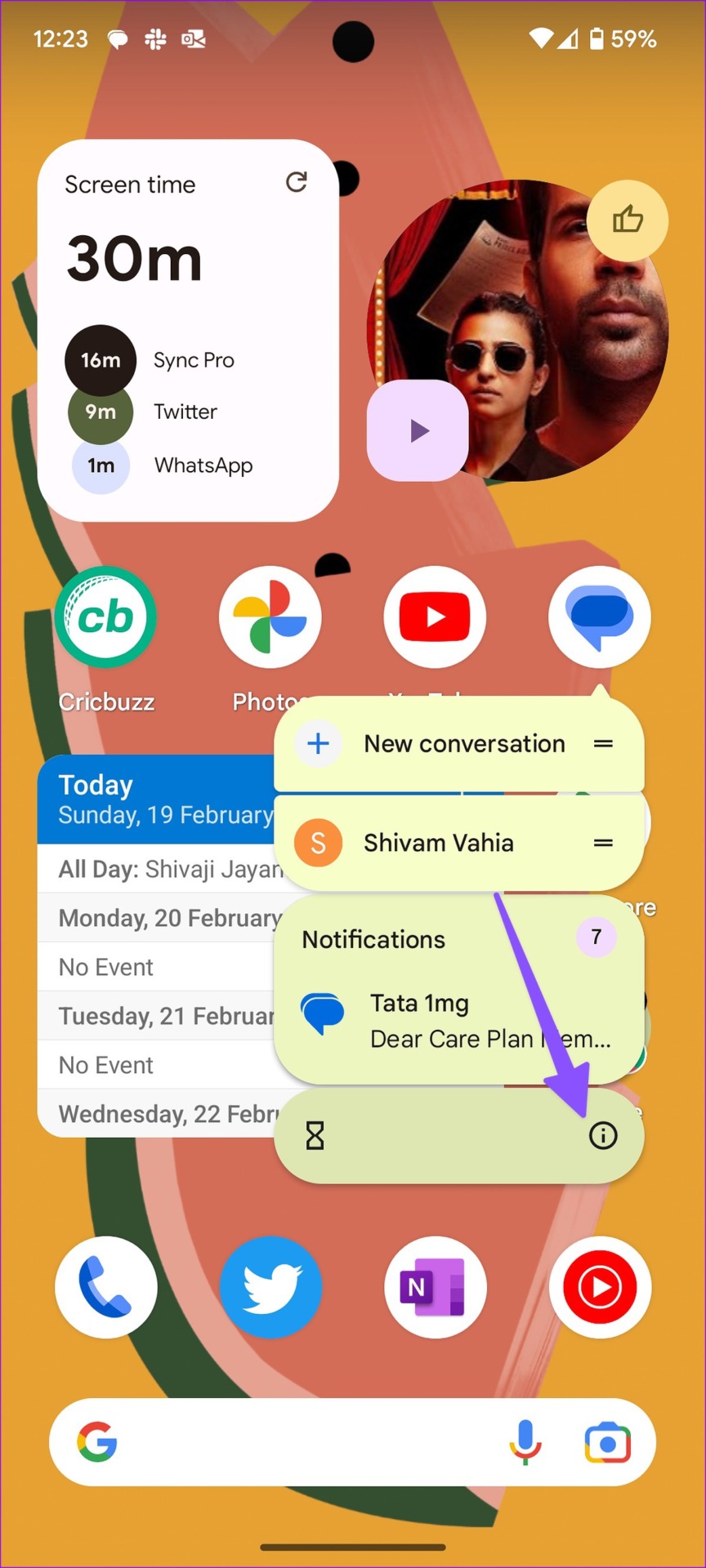
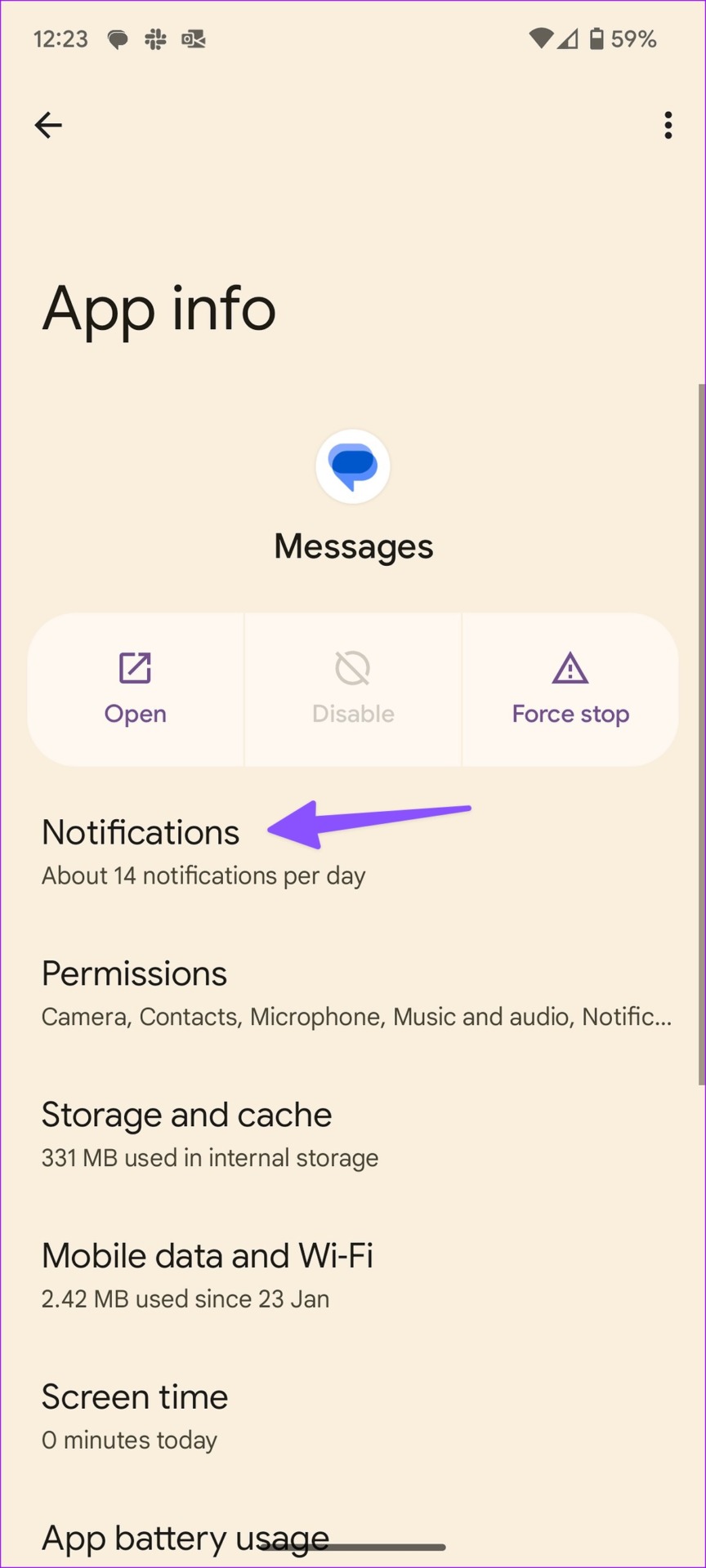
Step 1: Long-press on the Messages app > tap on the App info menu. Here, tap on Notifications.
Step 2: First, turn on the toggle for All Messages notifications. Then, tap on Bubbles > select All conversations can bubble.

Fix 2: Disable Bedtime Mode
An active Bedtime Mode enables DND on your Android phone for a peaceful sleep. You need to turn it off to fix the Messages app notifications not working issue. Here’s how to do it.
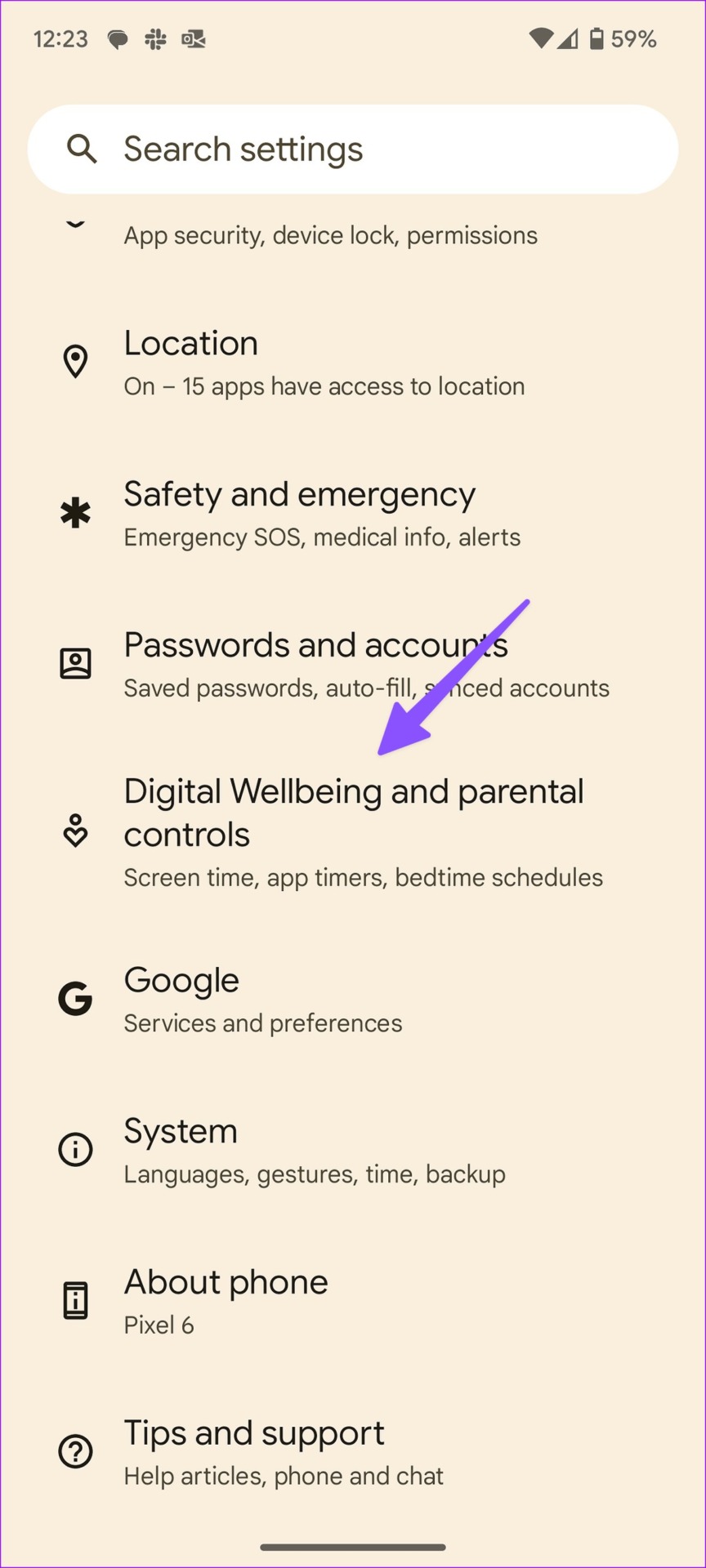
Step 1: Open the Settings app > scroll down to tap on Digital Wellbeing and Parental Controls.
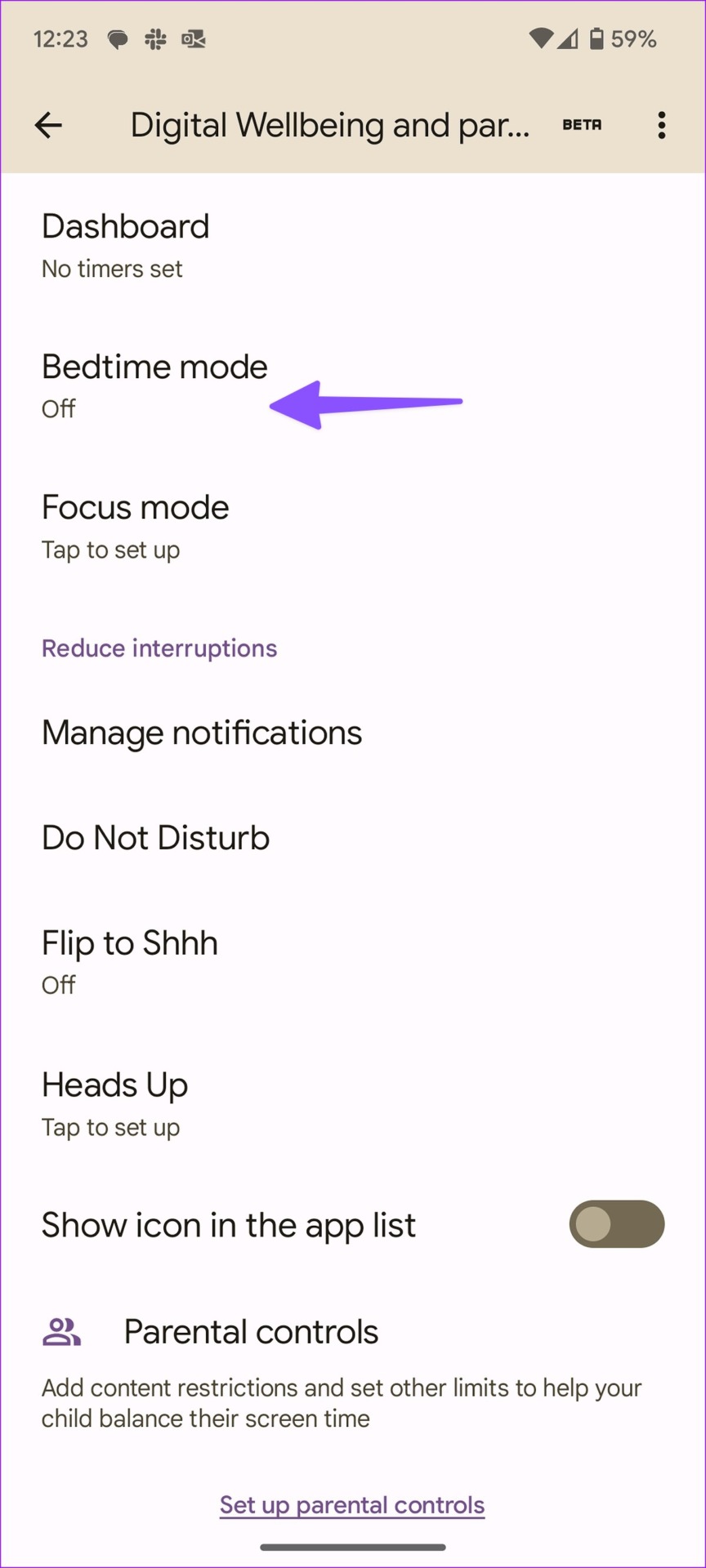
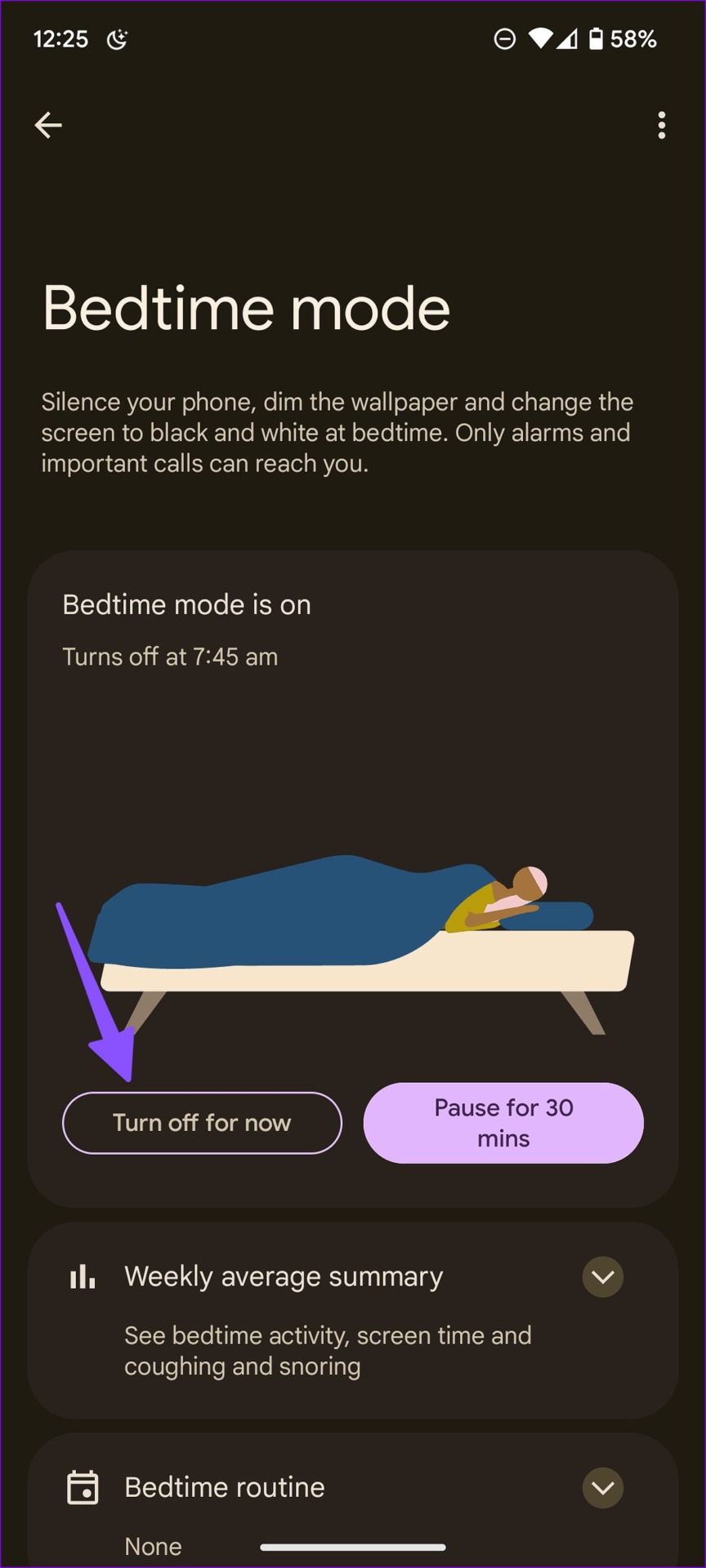
Step 2: Select Bedtime mode > tap on Turn off for now.
Fix 3: Clear Messages App Cache
Corrupt Messages cache may be the biggest culprit behind notifications not working issue. Let’s clear the cache and try receiving real-time alerts.
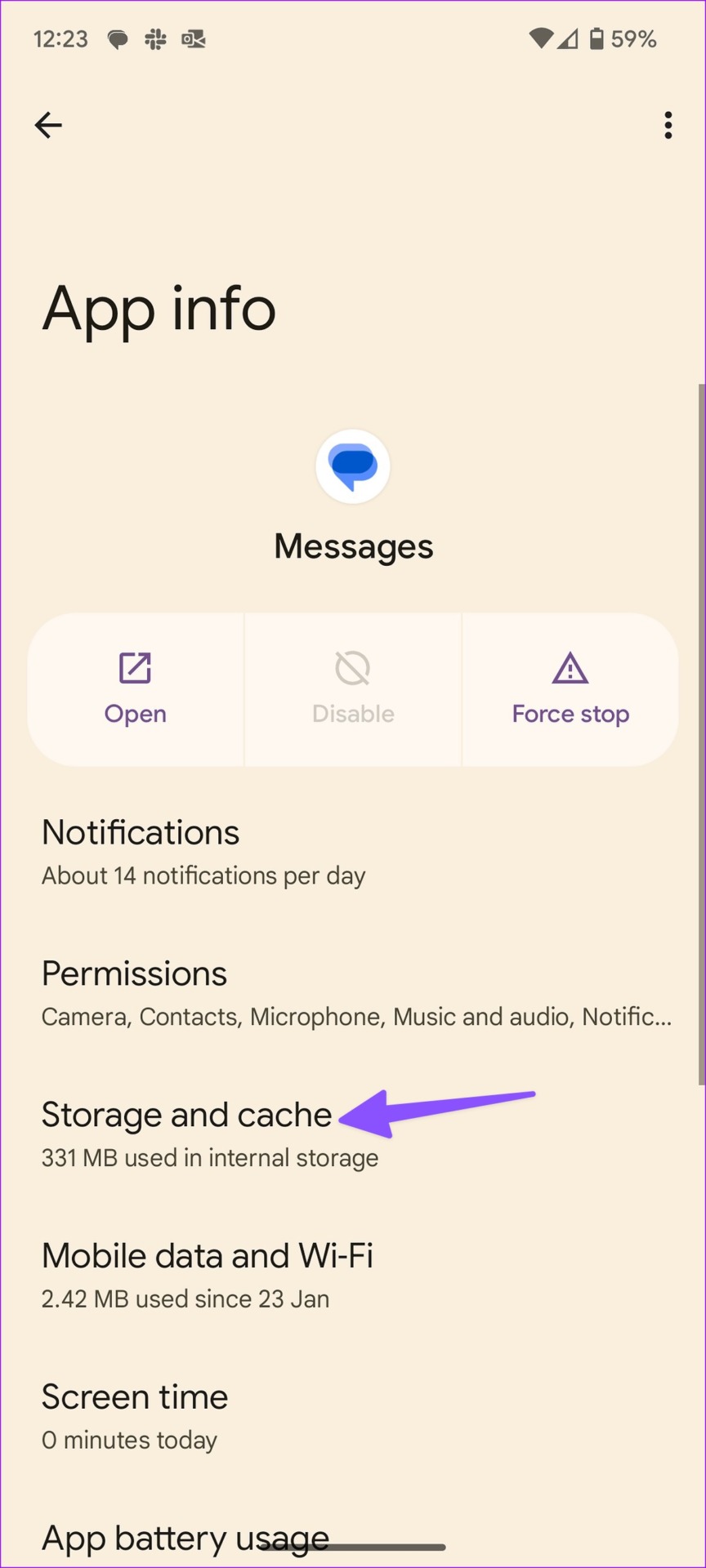
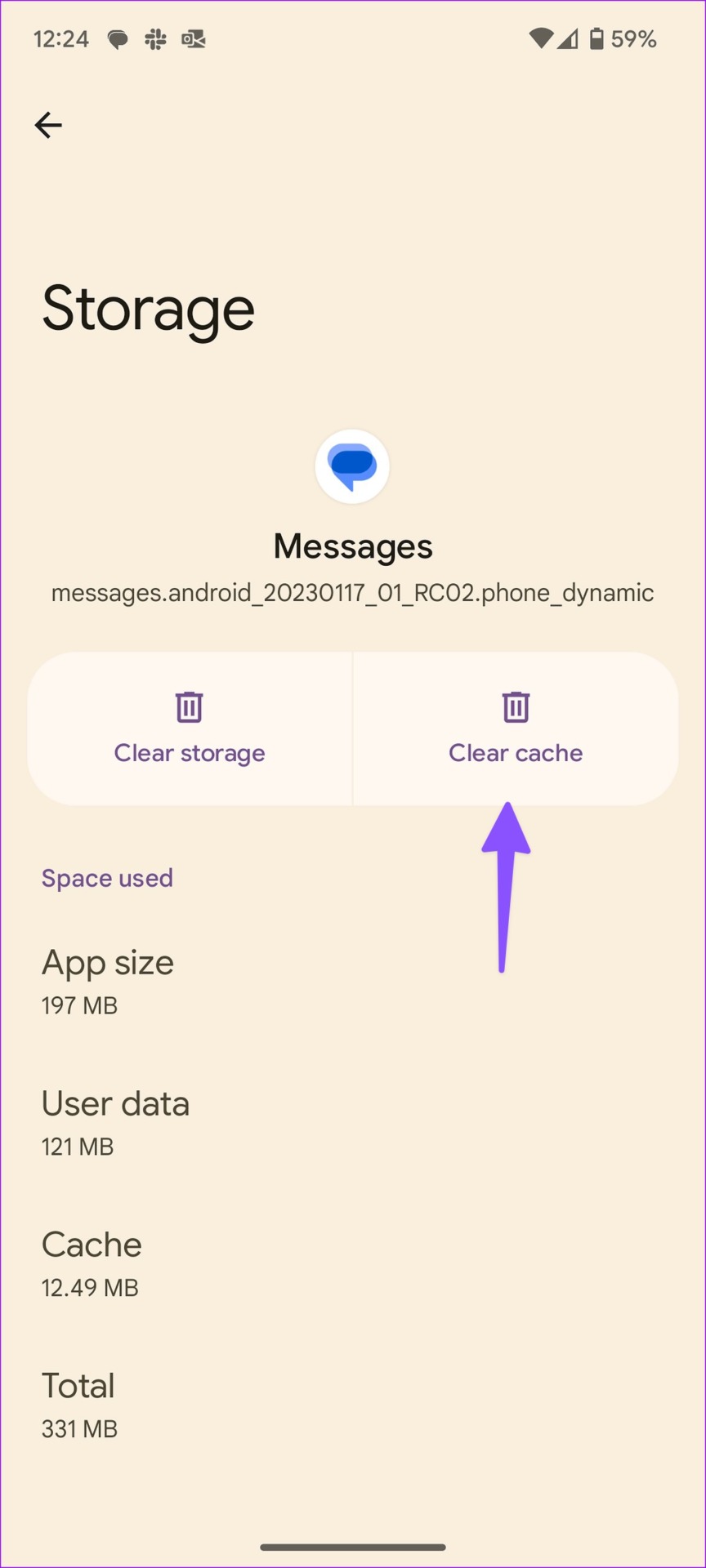
Step 1: Long-press on the Messages app icon > tap on the App Info menu.
Step 2: Select Storage and cache > tap Clear cache.
Fix 4: Remove Third-Party Messaging Apps
Third-party messaging apps may interfere with the default Messages app on Android. When this happens, find and remove such apps from your Android phone using the belowmentioned steps.
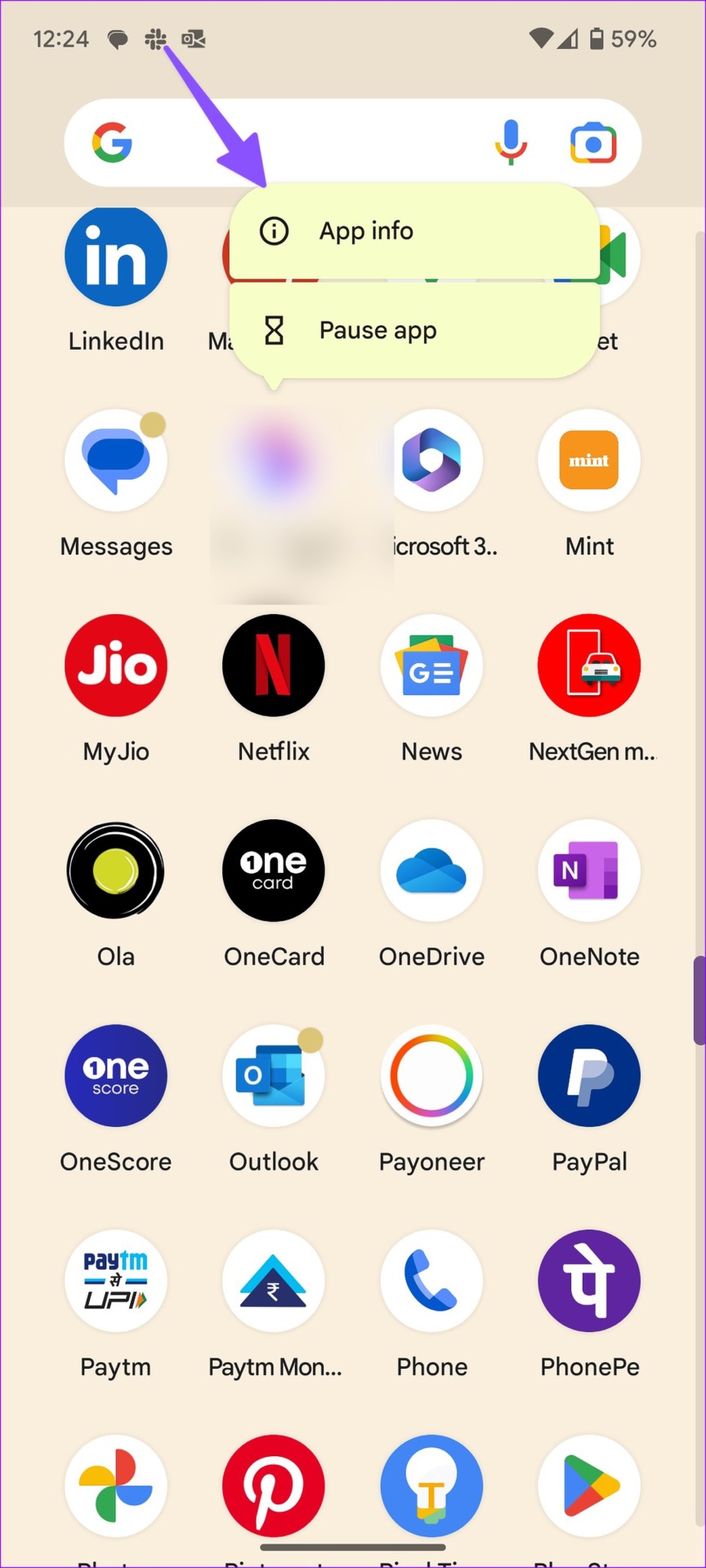
Step 1: Long-press on the third-party messaging app > open the App info menu.
Step 2: Select Uninstall and confirm your decision.

Repeat these steps to uninstall any other third-party messaging app from your Android device. Then, wait a while and see if the Messages app notifications are working as expected.
Was this helpful?
Last updated on 20 May, 2024
Read Next
 5 Fixes for Facebook Messenger Notifications Not Working on Mobile
Try Basic Fixes Turn Off the battery saver mode: When you enable battery saver mode on your phone, it limits certain background activities to reduce power consumption.
5 Fixes for Facebook Messenger Notifications Not Working on Mobile
Try Basic Fixes Turn Off the battery saver mode: When you enable battery saver mode on your phone, it limits certain background activities to reduce power consumption.
 Top 13 Fixes for Outlook Notifications Not Working on Android and iPhone
Email notifications are quite crucial.
Top 13 Fixes for Outlook Notifications Not Working on Android and iPhone
Email notifications are quite crucial.
 3 Fixes if Reactions Are Not Working on Google Messages
Basic Fixes Force quit and relaunch Google Messages: This will give the app a fresh start.
3 Fixes if Reactions Are Not Working on Google Messages
Basic Fixes Force quit and relaunch Google Messages: This will give the app a fresh start.
 4 Fixes for Link Previews Not Working in Google Messages App
Basic Fixes Check internet connection speeds: Switch to 5G or a 5GHz frequency band if you have a dual-band router.
4 Fixes for Link Previews Not Working in Google Messages App
Basic Fixes Check internet connection speeds: Switch to 5G or a 5GHz frequency band if you have a dual-band router.
 5 Fixes for Telegram Voice Messages Not Working on Android and iPhone
Try Basic Fixes Check if Telegram is down: If Telegram servers are experiencing problems, you may have trouble sending or receiving voice messages.
5 Fixes for Telegram Voice Messages Not Working on Android and iPhone
Try Basic Fixes Check if Telegram is down: If Telegram servers are experiencing problems, you may have trouble sending or receiving voice messages.
 6 Best Fixes for Android Not Getting Gmail Notifications
Do you often miss out on important and timely information because your Gmail mobile app doesn't notify you of new emails?
6 Best Fixes for Android Not Getting Gmail Notifications
Do you often miss out on important and timely information because your Gmail mobile app doesn't notify you of new emails?
 How to Transfer Samsung Messages to Google Messages
How to Switch From Samsung Messages to Google Messages on the Same Phone If you want to switch to the Messages by Google app on your Samsung phone, you only
How to Transfer Samsung Messages to Google Messages
How to Switch From Samsung Messages to Google Messages on the Same Phone If you want to switch to the Messages by Google app on your Samsung phone, you only
 Google Messages vs. Samsung Messages: Which Is Better
1.
Google Messages vs. Samsung Messages: Which Is Better
1.
The article above may contain affiliate links which help support Guiding Tech. The content remains unbiased and authentic and will never affect our editorial integrity.