

Try Basic Fixes
- Check the volume mixer: Right-click the speaker icon on the taskbar and select the Open volume mixer option. In the Settings window that opens, check the volume level under the System section and increase it to your liking. Windows 11 allows you to set different volume levels for each app, so be sure to review and adjust the levels for every app you intend to use.
- Verify the volume levels of your headphones or speakers: If your headphones or speakers have their own volume controls, make sure you check them as well. If you’ve accidentally muted your audio device, it can make it seem like there’s a problem with your PC. You can also switch to a different audio device to rule out any issues with your headphones or speakers.
Fix 1: Run the Audio Troubleshooter
Windows 11’s audio troubleshooter can automatically detect and resolve common sound-related issues on your computer. You can try running this troubleshooter if the speaker or headphone volume remains too low even after you increase it.
Step 1: Press the Windows key + I to open the Settings app and head to System > Troubleshoot.

Step 2: Go to Other troubleshooters.
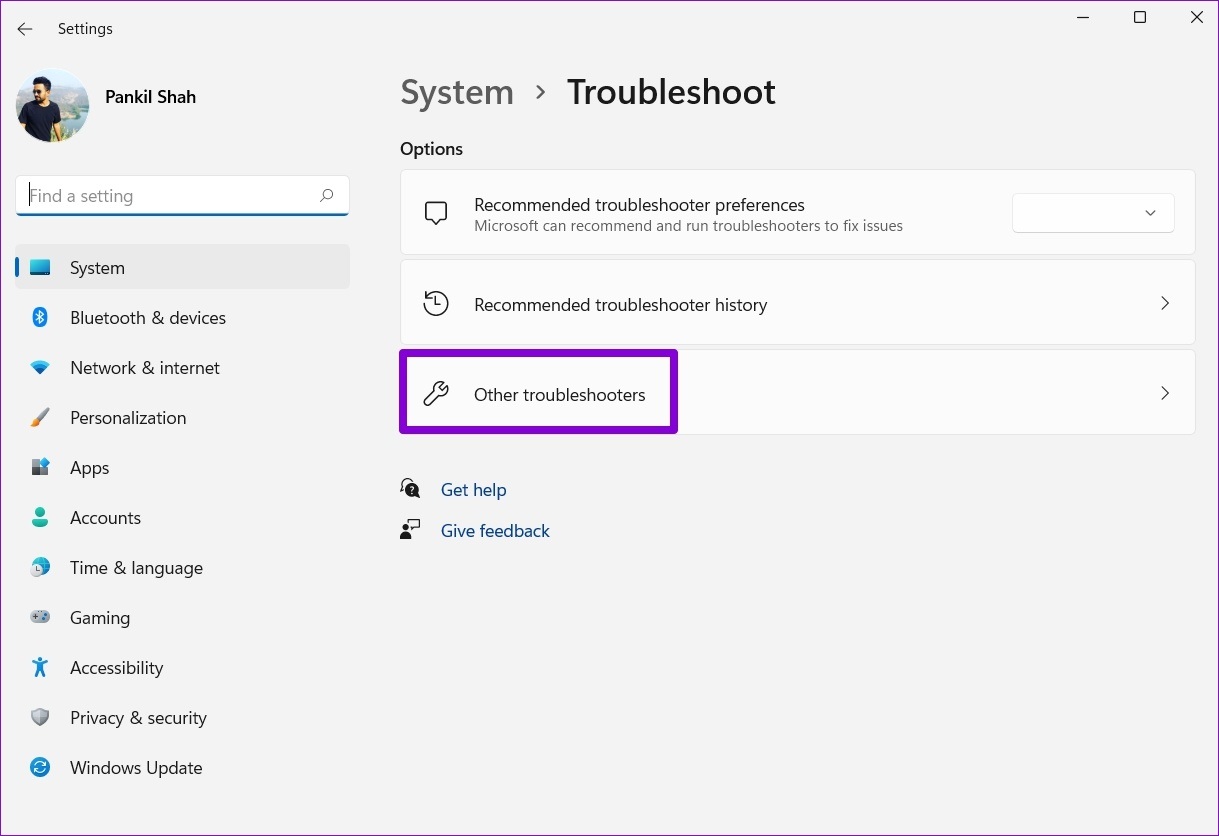
Step 3: Click the Run button next to the Playing Audio troubleshooter.

Follow the on-screen prompts and allow Windows to resolve any issues.
Fix 2: Enable Loudness Equalization
The Loudness Equalization feature on Windows can help boost your PC’s overall volume output. You can try enabling it if running the troubleshooter does not help.
Step 1: Click the search icon on the taskbar, type in sound settings and press Enter.
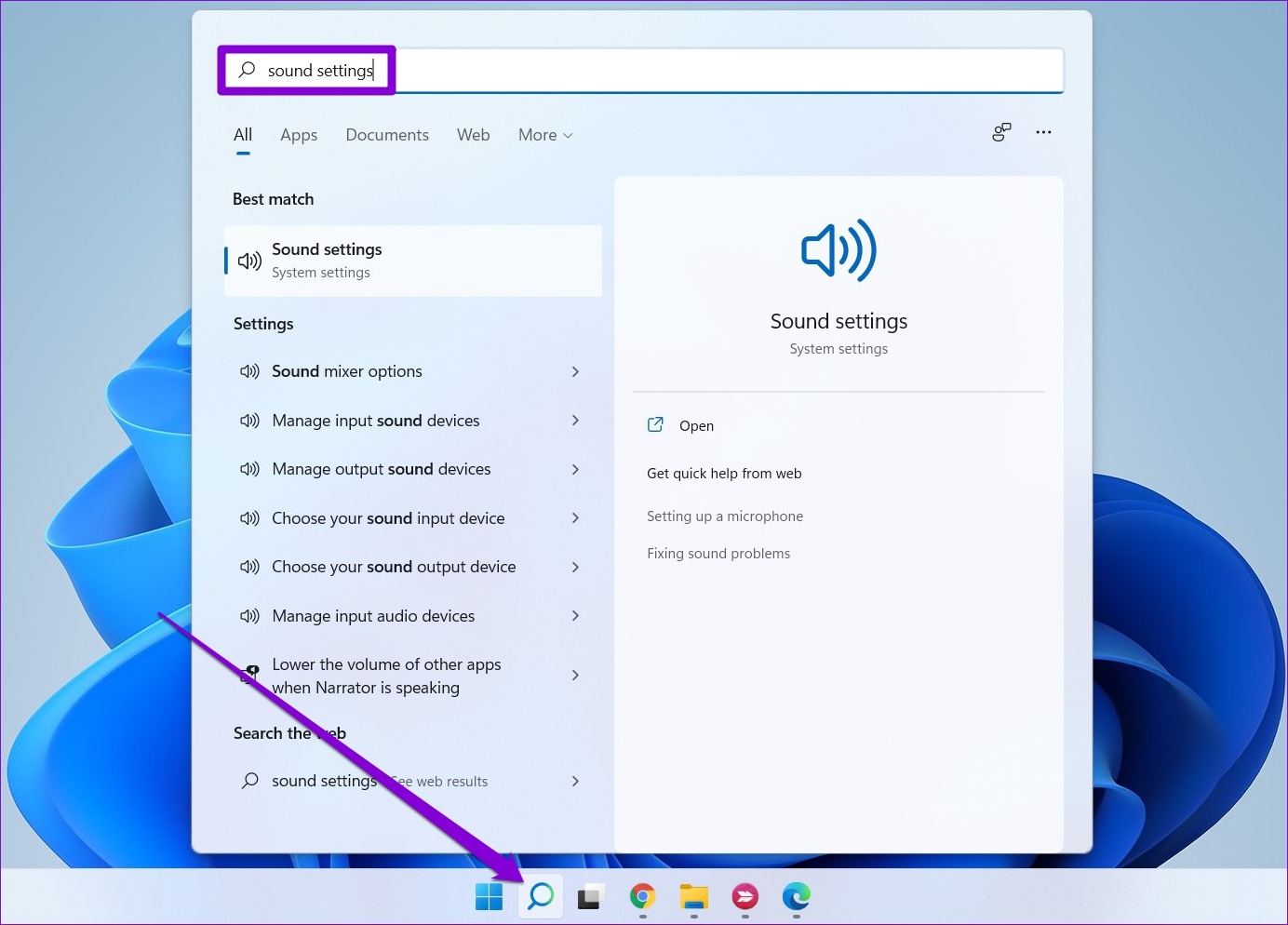
Step 2: Under Advanced, click on More sound settings.

Step 3: Double-click on your audio device to open its properties.

Step 4: Switch to the Enhancements tab and tick the Loudness Equalization option. Then, hit Apply followed by OK.

Fix 3: Disable Sound Enhancements
While Windows 11’s built-in audio enhancements promise to improve the sound output, they may not work well with all audio devices. So, if the sound output appears to be too low, it’s best to disable these enhancements.
Step 1: Press the Windows key + I to open the Settings app and navigate to Sound.

Step 2: Select your audio device.

Step 3: Use the drop-down menu next to Audio enhancements and select Off.

Fix 4: Modify Sound Properties
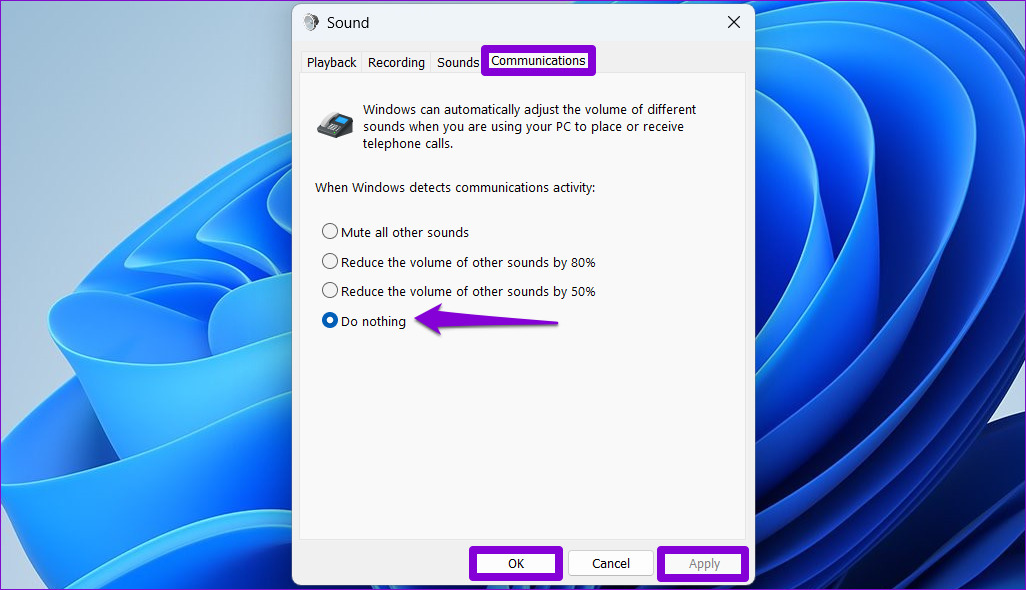
Windows 11 includes a feature that automatically reduces your PC’s volume when it detects communication activity. Since this feature could contribute to the low volume issue on Windows, you should disable it using these steps:
Step 1: Right-click the speaker icon and select Sound settings.

Step 2: Click on More sound settings.
Step 3: Switch to the Communications tab and select the Do nothing option. Then, hit Apply followed by OK.
Fix 5: Update or Reinstall the Audio Driver
If the sound output on your Windows 11 laptop or PC is still low, it could be due to incompatible or outdated audio drivers. In such cases, updating the audio drivers should help fix the issue.
Step 1: Right-click on the Start icon and select Device Manager from the list.

Step 2: Double-click on Sound, video and game controllers to expand it. Right-click on your audio device and select Update driver.

From there, follow the on-screen prompts to finish updating the driver. If the issue remains, uninstall the audio drivers using Device Manager. Then, restart your PC and Windows will install the missing driver whenever it boots next.

Fix 6: Restart Audio Services
On Windows, services are small programs that run in the background every time your PC boots up. If one of the audio-related services is malfunctioning, you could experience low-volume issues. Here’s what you can do to fix that.
Step 1: Press the Windows key + R to open the Run dialog. Type services.msc in the box and press Enter.
Step 2: In the Services window, scroll down to locate the Windows Audio service. Right-click on Windows Audio and select Restart from the list.
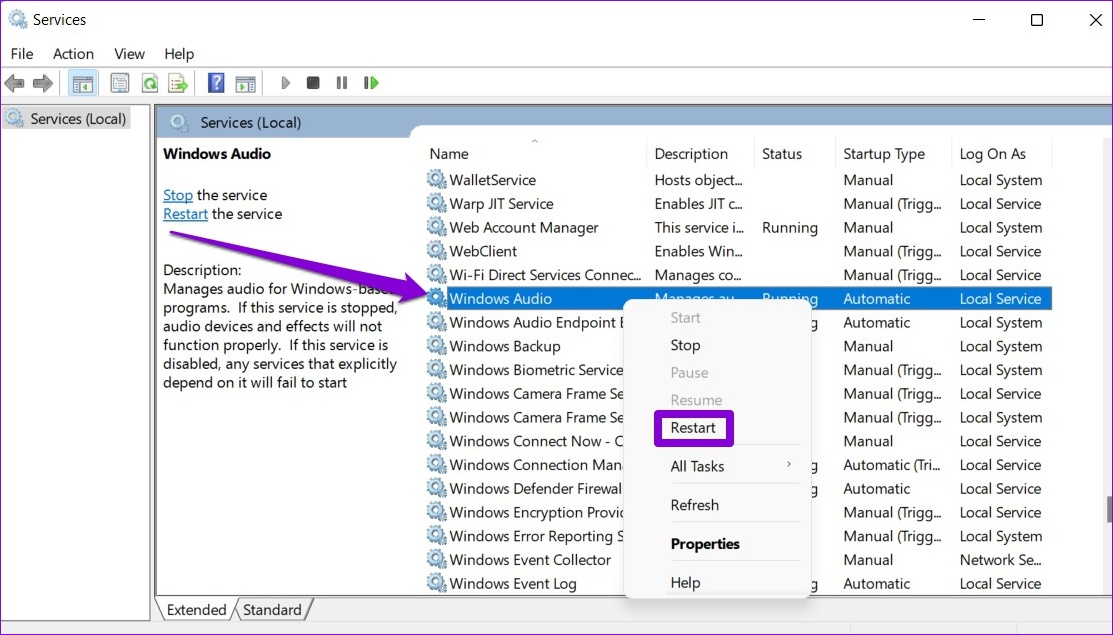
Similarly, restart the “Windows Audio Endpoint Builder” service and see if that solves the problem.
Fix 7: Use a Third-Party App Like Equalizer APO
Several users on a Microsoft Community post reported fixing low-volume issues on Windows 11 by using the Equalizer APO app, which utilizes a high-quality audio processing engine. So, if all else fails, you can use Equalizer APO to fine-tune and boost the volume on your Windows 11 PC.

Was this helpful?
Last updated on 11 July, 2024
3 Comments
Leave a Reply
Read Next
 7 Ways to Fix Low Volume on YouTube Videos in Chrome
Basic Fixes Restart Chrome and the computer - A simple reboot can fix minor glitches that may cause the volume problem.
7 Ways to Fix Low Volume on YouTube Videos in Chrome
Basic Fixes Restart Chrome and the computer - A simple reboot can fix minor glitches that may cause the volume problem.
 5 Ways to Fix Low or Loud Alarm Volume on iPhone
Common Fixes Restart iPhone - Press and hold either of the volume buttons with the side button and drag the power off slider to shut down.
5 Ways to Fix Low or Loud Alarm Volume on iPhone
Common Fixes Restart iPhone - Press and hold either of the volume buttons with the side button and drag the power off slider to shut down.
 5 Ways to Fix Low Call Volume on iPhone
Basic Fixes Clean earpiece - Gently clean the earpiece cavity to remove accumulated dust and debris.
5 Ways to Fix Low Call Volume on iPhone
Basic Fixes Clean earpiece - Gently clean the earpiece cavity to remove accumulated dust and debris.
 4 Ways to Fix Apple Music Low Volume Issue on iPhone
Basic Fixes: Check volume levels on iPhone: If the volume levels are set to low, it might result in an overall low volume when using Apple Music.
4 Ways to Fix Apple Music Low Volume Issue on iPhone
Basic Fixes: Check volume levels on iPhone: If the volume levels are set to low, it might result in an overall low volume when using Apple Music.
 3 Fixes for iMessage Voice Messages Playing in Low Volume
Basic Fixes Check iPhone volume levels: You may have reduced the volume levels previously to avoid disturbing others while using your iPhone to consume media.
3 Fixes for iMessage Voice Messages Playing in Low Volume
Basic Fixes Check iPhone volume levels: You may have reduced the volume levels previously to avoid disturbing others while using your iPhone to consume media.
 3 Fixes for WhatsApp Voice Message Playing at Low Volume on iPhone
Basic Fixes Avoid proximity sensor activation: Don't bring your iPhone closer to your ear while listening to the voice messages.
3 Fixes for WhatsApp Voice Message Playing at Low Volume on iPhone
Basic Fixes Avoid proximity sensor activation: Don't bring your iPhone closer to your ear while listening to the voice messages.
 5 Ways to Fix “Your Computer Is Low on Memory” Error on Windows 10 and Windows 11
Try Basic Fixes Close unwanted apps and programs: Start by closing any unwanted apps and programs on your computer, especially the ones consuming a major chunk of your PC’s memory.
5 Ways to Fix “Your Computer Is Low on Memory” Error on Windows 10 and Windows 11
Try Basic Fixes Close unwanted apps and programs: Start by closing any unwanted apps and programs on your computer, especially the ones consuming a major chunk of your PC’s memory.
 7 Ways to Fix Volume Level Automatically Goes Up or Down in Windows 11
Fix 1: Run the Audio Troubleshooter Microsoft offers several troubleshooters to help you identify and resolve common system-related issues on Windows.
7 Ways to Fix Volume Level Automatically Goes Up or Down in Windows 11
Fix 1: Run the Audio Troubleshooter Microsoft offers several troubleshooters to help you identify and resolve common system-related issues on Windows.
The article above may contain affiliate links which help support Guiding Tech. The content remains unbiased and authentic and will never affect our editorial integrity.


Restart Audio Services worked for me. Fairly new HP Win 11 laptop so not too familiar with it yet. Thank you for the excellent guide.
Step one solved a persistent annoyance for me. Thank you!
none of these steps worked