Basic Fixes:
- Check for faults and replace the bad keyboard: Ensure the keyboard is not faulty. A bad or damaged keyboard is not uncommon, primarily if you have used it for an extended period.
- Confirm and fix specific apps that trigger the problem: Certain apps, such as your more recently installed apps, may trigger the problem. In this case, you may uninstall them.
Fix 1: Confirm You Are Using the Right Kind of Keyboard Layout
There are a couple of keyboard layouts, including QWERTY, AZERTY, Dvorak, Colemak, etc. If you have chosen the wrong layout for your keyboard in the Settings app, you may notice the laptop keyboard is typing wrong or multiple characters. Here is how to confirm your layout.
Step 1: In most cases, you should have a QWERTY or AZERTY layout, which can be identified by looking at the first row of the alphabet key. Keep this in mind and continue with the steps below.
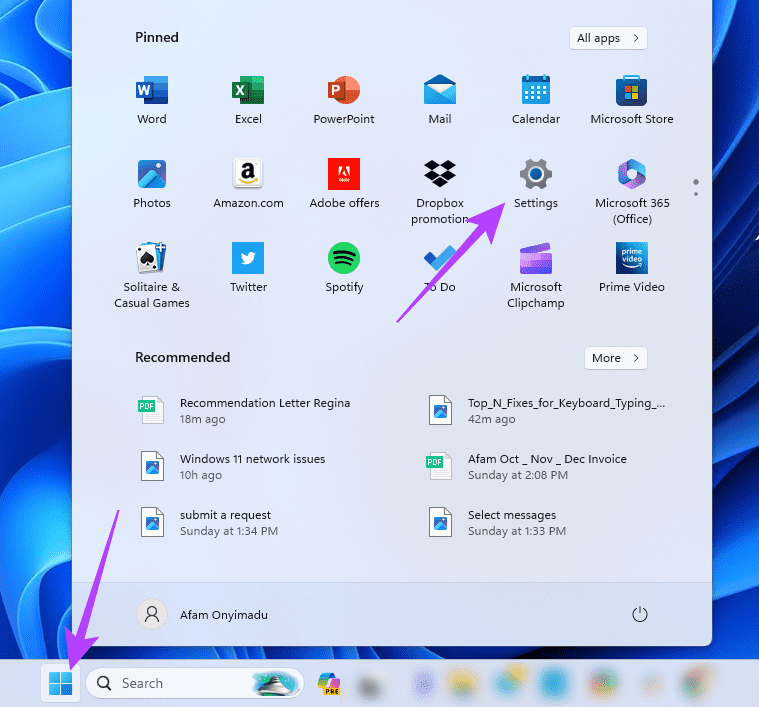
Step 2: Click the Start menu on the Taskbar, then click the Settings icon.
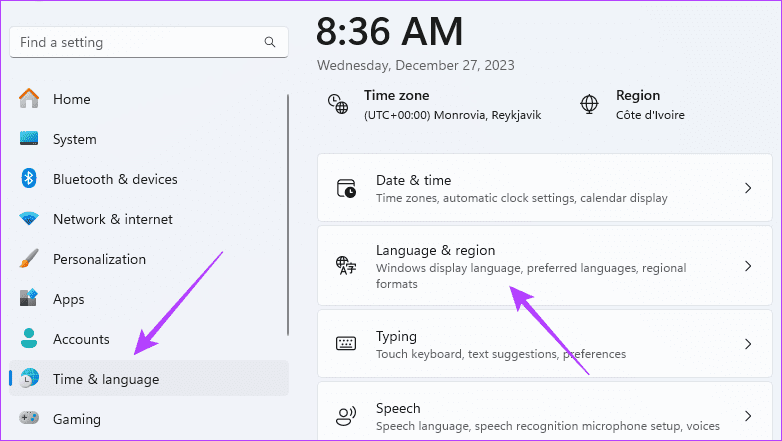
Step 3: On the left pane, click Time & language, then click Language & region on the right.
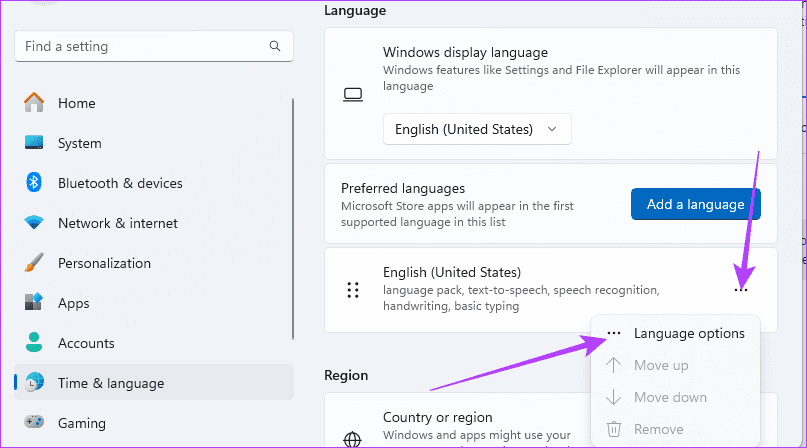
Step 4: Click the ellipses for your Preferred language, then click Language options.
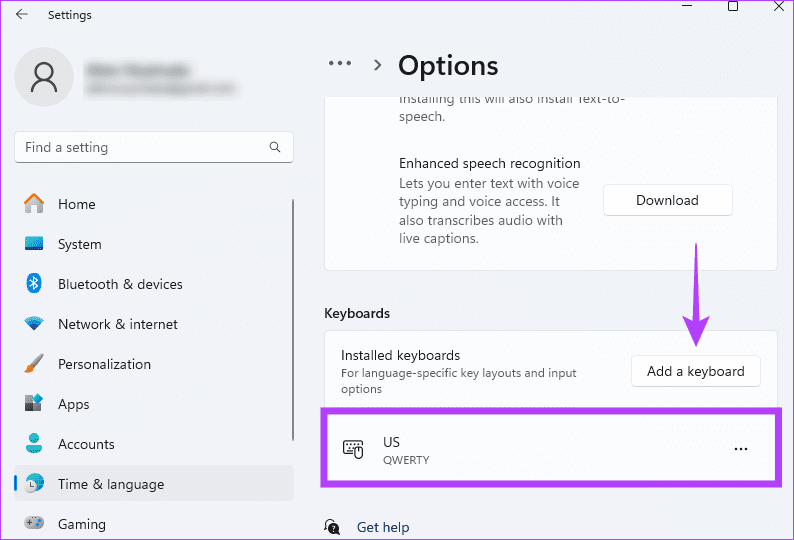
Step 5: Scroll down to the Keyboards section and verify if the right keyboard has been added for you; if not, click Add a keyboard button and select the appropriate keyboard.
Fix 2: Update the Default Input Method
Multiple or incompatible input methods will result in conflicts and can be responsible for the keyboard typing wrong or multiple letters in Windows 11. To fix this problem, you must update the ‘Override the default input method’ setting, as shown below.
Step 1: Click the Start menu on the Taskbar, then click the Settings icon.
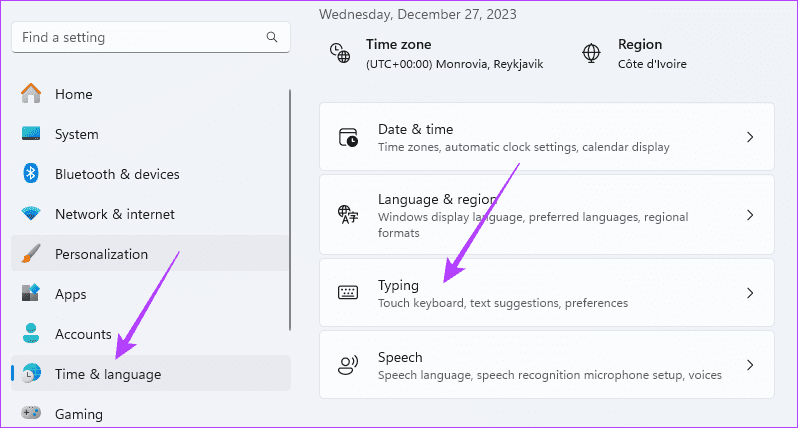
Step 2: On the left pane, click Time & language, then click Typing on the right.
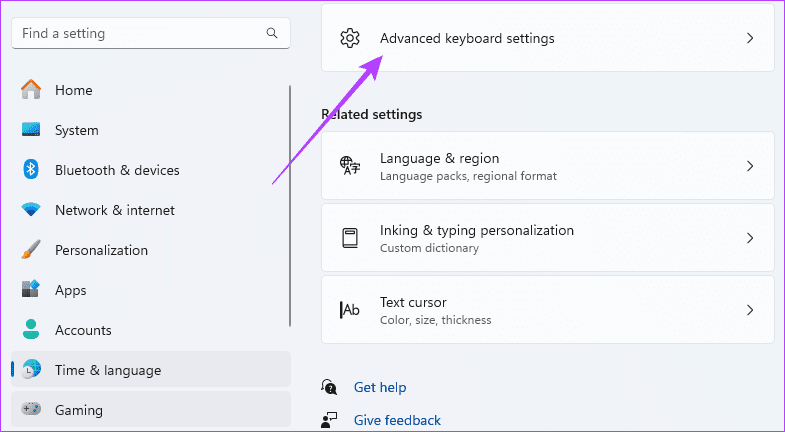
Step 3: Click the Advanced keyboard settings option.
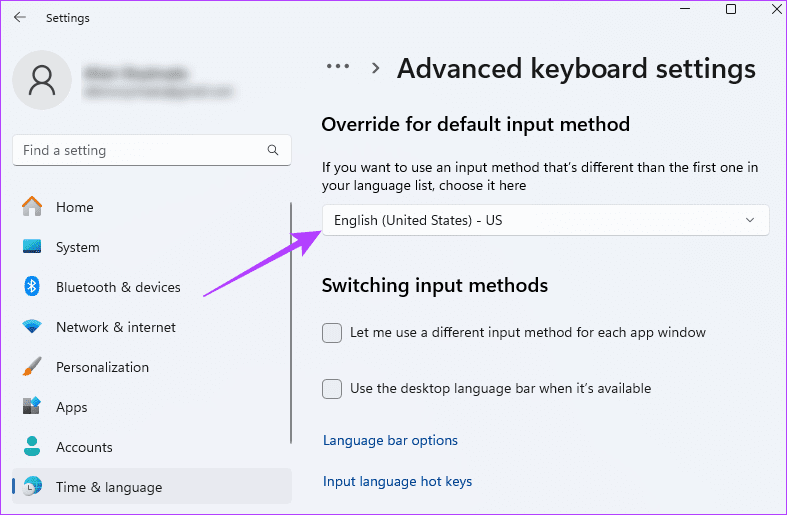
Step 4: Select English (United States) – US or a suitable input method from the Override for default input method dropdown menu.
Fix 3: Reinstall or Update Keyboard Drivers
If your keyboard is typing wrong or multiple letters in Windows 11, you likely have issues with the keyboard drivers. Drivers are essential software that helps hardware components communicate with the operating system. As such, you should uninstall and reinstall the old drivers with a functional, updated version, as shown below.
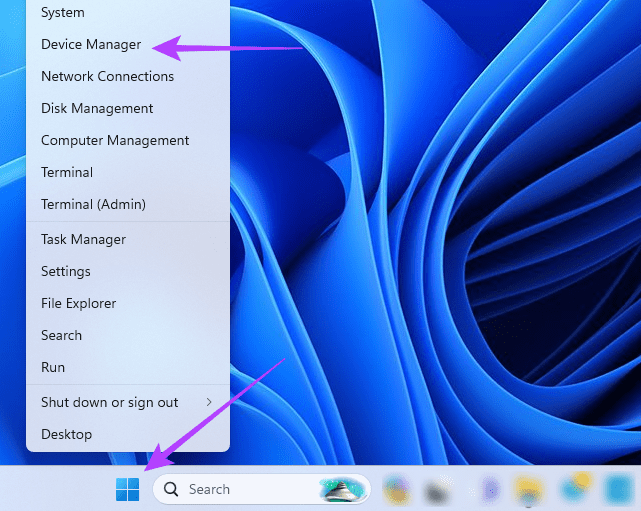
Step 1: Right-click the Start menu and select Device Manager.
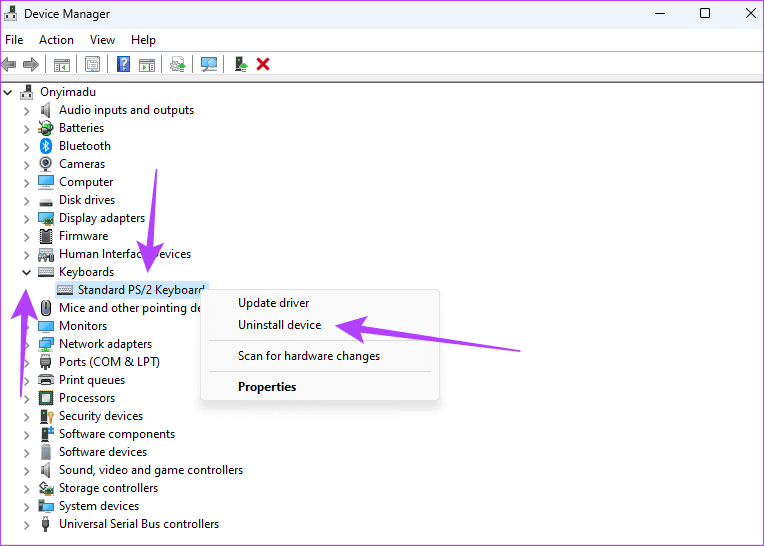
Step 2: Expand the Keyboards category, right-click your driver, click Uninstall device, and confirm your choice.
Step 3: Restart your computer and re-launch the Device Manager.
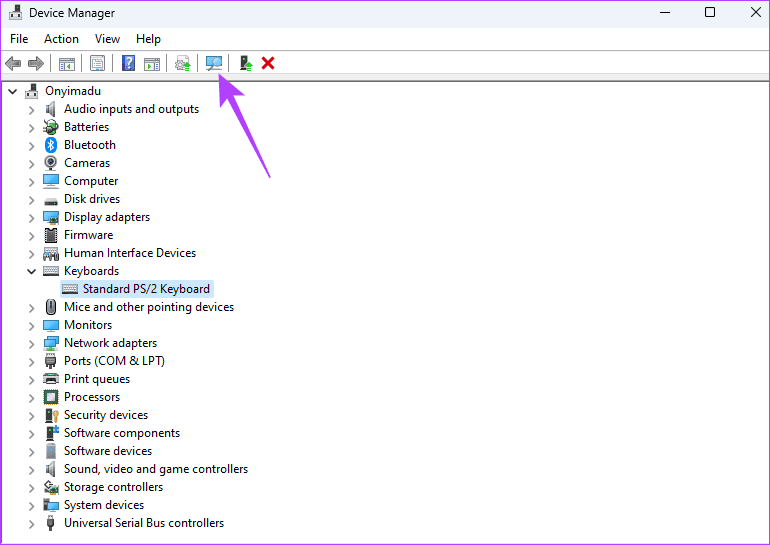
Step 4: Click the icon for Scan for hardware changes, and a new updated driver should be automatically installed.
Was this helpful?
Last updated on 03 September, 2024
Read Next
 5 Ways to Fix Windows 10 Keyboard Special Characters Not Working
Have you struggled to enter an email ID on your Windows 10 computer?
5 Ways to Fix Windows 10 Keyboard Special Characters Not Working
Have you struggled to enter an email ID on your Windows 10 computer?
 3 Ways to Fix Keyboard Typing Multiple Letters in Windows 11/10
Basic Fixes Clean keyboard: Over time, your keyboard might gather small dust particles under the keys.
3 Ways to Fix Keyboard Typing Multiple Letters in Windows 11/10
Basic Fixes Clean keyboard: Over time, your keyboard might gather small dust particles under the keys.
 5 Ways to Fix Keyboard Auto-Typing on Windows
Note: The steps executed in this article are on Windows 11.
5 Ways to Fix Keyboard Auto-Typing on Windows
Note: The steps executed in this article are on Windows 11.
 6 Ways to Fix Keyboard Typing Lag on Android
Basic Fixes: Let your phone cool down: After a long gaming season or extensive video recording, your Android phone might feel warm to touch on the sides.
6 Ways to Fix Keyboard Typing Lag on Android
Basic Fixes: Let your phone cool down: After a long gaming season or extensive video recording, your Android phone might feel warm to touch on the sides.
 6 Fixes for Windows Hello Something Went Wrong Error
Fix 1: Enable Camera Access If you have previously disabled camera access, Windows Hello may have trouble using your camera and display the "Sorry, something went wrong.
6 Fixes for Windows Hello Something Went Wrong Error
Fix 1: Enable Camera Access If you have previously disabled camera access, Windows Hello may have trouble using your camera and display the "Sorry, something went wrong.
 How to Add Special Characters and Symbols in Apple Pages and Other Tricks
Back in 2006, Apple introduced the iWork suite of apps, including Pages, Keynote, and Numbers.
How to Add Special Characters and Symbols in Apple Pages and Other Tricks
Back in 2006, Apple introduced the iWork suite of apps, including Pages, Keynote, and Numbers.
 5 Tips to Insert Special Characters in Google Docs
Tip 1: Open Special Characters Library Faster To access the Insert Special Characters box in Google Docs, you usually need to follow two steps: selecting the Insert menu and clicking
5 Tips to Insert Special Characters in Google Docs
Tip 1: Open Special Characters Library Faster To access the Insert Special Characters box in Google Docs, you usually need to follow two steps: selecting the Insert menu and clicking
 4 Fixes for “No Permission to Enable Voice Typing” on Android
Basic Fixes: Clear the Gboard app cache: As you use Gboard, it collects data to enhance your experience.
4 Fixes for “No Permission to Enable Voice Typing” on Android
Basic Fixes: Clear the Gboard app cache: As you use Gboard, it collects data to enhance your experience.
The article above may contain affiliate links which help support Guiding Tech. The content remains unbiased and authentic and will never affect our editorial integrity.