


Basic Fixes
- Restart your iPhone and router: Long-press your iPhone’s physical Power and Volume Up buttons and slide the power slider to shut it down. Press and hold the Power button to reboot. As for the router, press its Power button or replug the power source to restart it.
- Move close to the router: It will improve network signals to fix the Unable to join the Wi-Fi error.
- Connect to the other Wi-Fi frequency: If you have a dual-band Wi-Fi router, switch to the other frequency (2.4GHz or 5GHz) to solve the network connection issue.
- Disable Low Power Mode: Open the Settings app, select Battery, and toggle off the Low Power Mode.
- Update iOS: Open iPhone Settings, select General, tap Software Update, and install available system updates.
Fix 1: Forget and Reconnect to the Wi-Fi Network
Existing issues with a saved Wi-Fi network can prevent your iPhone from joining it. To fix this, manually forget the network and retry connecting.
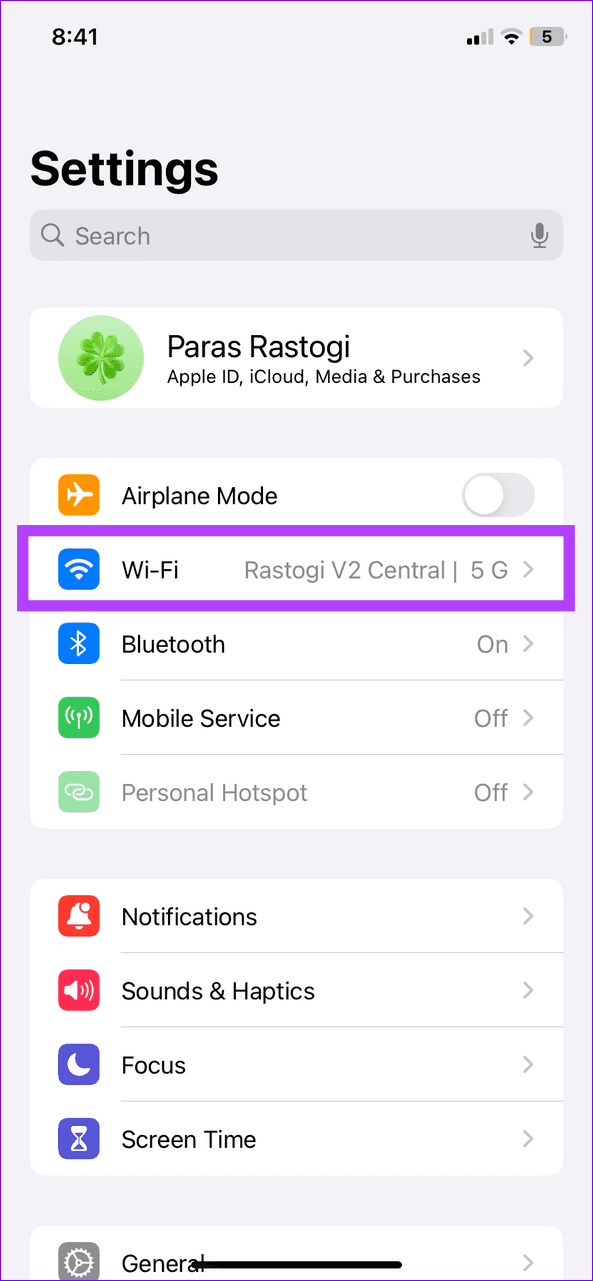
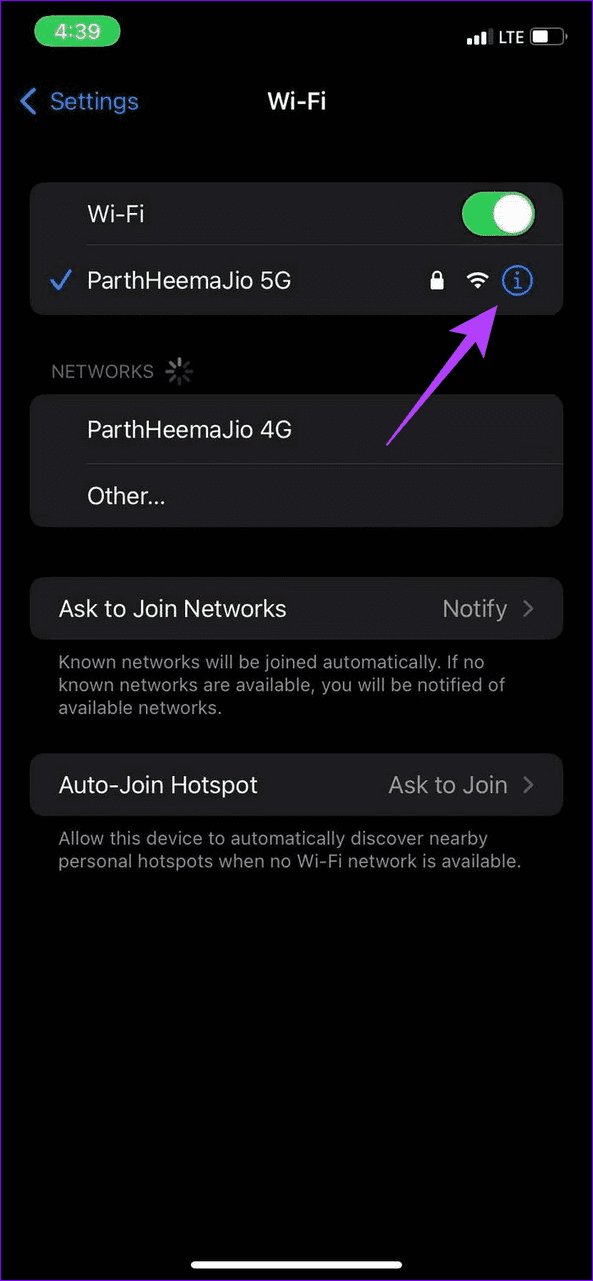
Step 1: Open the Settings app, select Wi-Fi, and tap i next to the saved network.
Step 2: Tap Forget This Network. Head back to Wi-Fi, and select the network again to reconnect to it.


Fix 2: Disable iCloud Private Relay
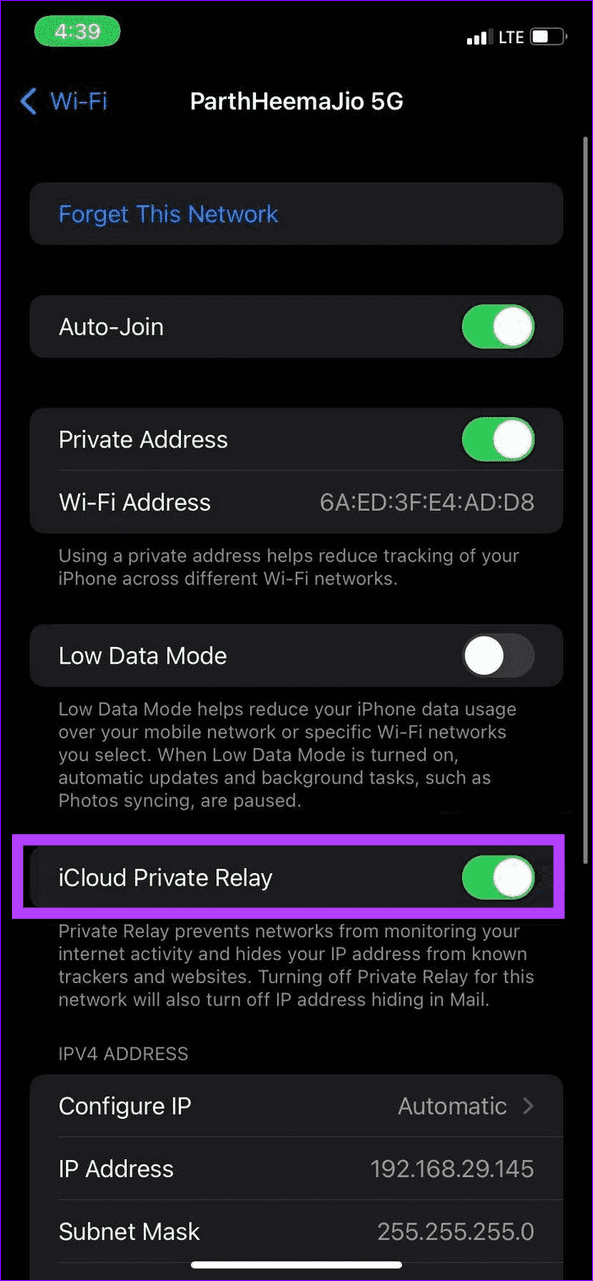
iCloud Private Relay, available for iCloud+ subscribers, hides your IP address to prevent network monitoring from known trackers. If the service is down, it may disrupt Wi-Fi connectivity, resulting in an unable to join the Wi-Fi network error. Disable it to restore normal functioning.
Open the connected Wi-Fi settings on your iPhone (check the above steps), scroll down, and toggle off iCloud Private Relay.
Fix 3: Reset Network Settings
Lastly, reset all network settings on your iPhone to remove incorrect network configurations, preventing your iPhone from joining the Wi-Fi network.
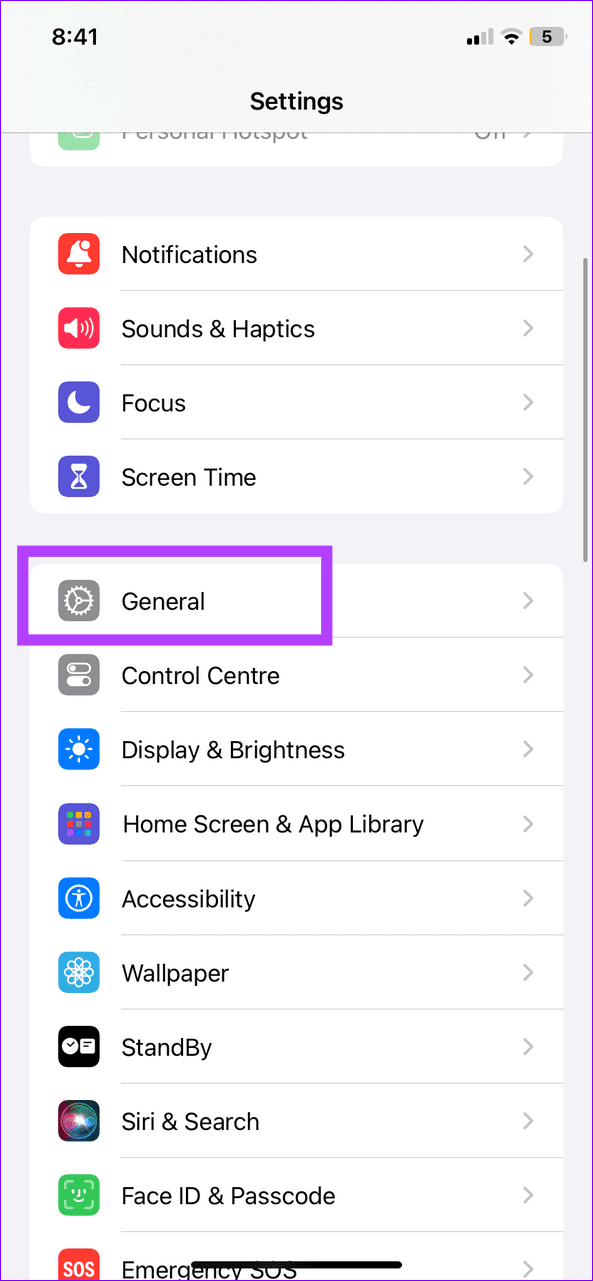
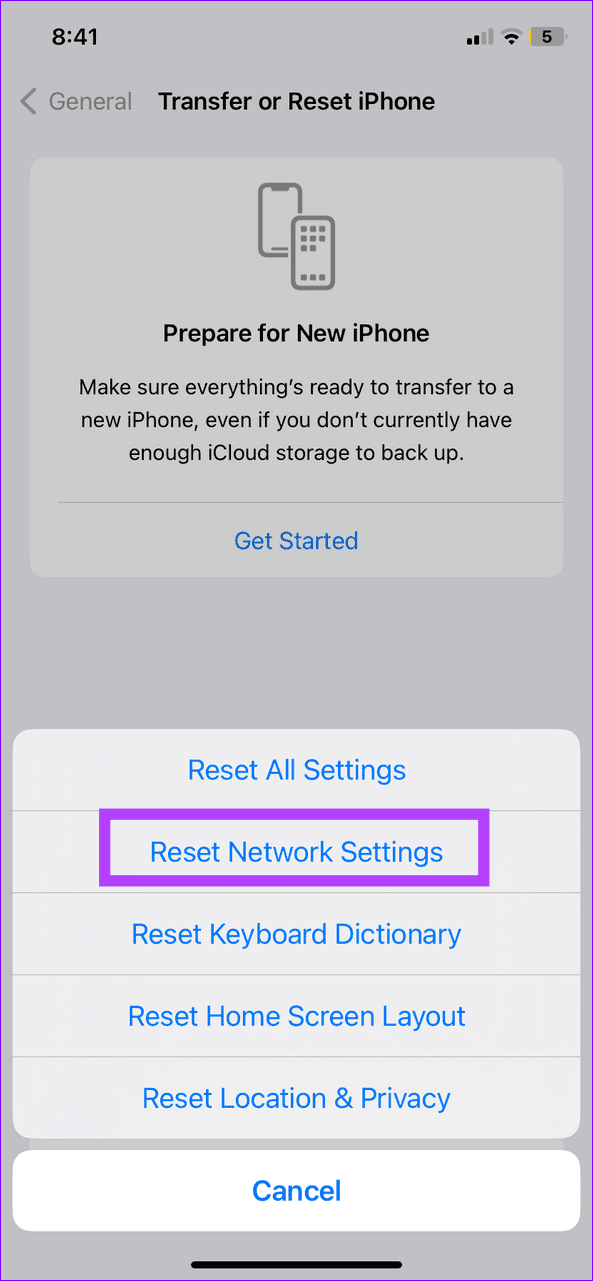
Step 1: Open the Settings app, select General, and tap Transfer or Reset iPhone.

Step 2: Select Reset and tap Reset Network Settings. When prompted, enter your device passcode to confirm it.

Was this helpful?
Last updated on 12 July, 2024
1 Comment
Leave a Reply
Read Next
 2 Ways to Fix Google Meet “Not Allowed to Join” Error
Basic Fixes Sign into Google: The admin may have configured it to only allow participants who have signed in to a Google Account.
2 Ways to Fix Google Meet “Not Allowed to Join” Error
Basic Fixes Sign into Google: The admin may have configured it to only allow participants who have signed in to a Google Account.
 5 Ways to Fix “Unable to Load Photo” Error on iPhone
Try Basic Fixes Free up storage space: A lack of storage space could prevent your iPhone from loading photos from the cloud.
5 Ways to Fix “Unable to Load Photo” Error on iPhone
Try Basic Fixes Free up storage space: A lack of storage space could prevent your iPhone from loading photos from the cloud.
 3 Ways to Fix Unable to Answer Calls on iPhone
Common Fixes Force restart your iPhone: Press and quickly release Volume Up, followed by the Volume Down buttons.
3 Ways to Fix Unable to Answer Calls on iPhone
Common Fixes Force restart your iPhone: Press and quickly release Volume Up, followed by the Volume Down buttons.
 4 Ways to Fix Unable to Load Video or Photo Error on iPhone
Basic Fixes Turn off Low Power Mode: Unless your iPhone is running really low on battery, it's best to turn off Low Power Mode since it limits background activities like
4 Ways to Fix Unable to Load Video or Photo Error on iPhone
Basic Fixes Turn off Low Power Mode: Unless your iPhone is running really low on battery, it's best to turn off Low Power Mode since it limits background activities like
 4 Ways to Fix Unable to Clear History in Safari for iPhone
Fix 1: Disable Web Content Restrictions The Screen Time feature on your iPhone lets you apply content restrictions and block inappropriate websites.
4 Ways to Fix Unable to Clear History in Safari for iPhone
Fix 1: Disable Web Content Restrictions The Screen Time feature on your iPhone lets you apply content restrictions and block inappropriate websites.
 How to Fix “Unable to Start Collaboration” in iPhone Notes
Fix 1: Check iCloud Storage Space Suppose you have multiple notes stored on your iPhone, including media files like scanned documents, photos, and videos.
How to Fix “Unable to Start Collaboration” in iPhone Notes
Fix 1: Check iCloud Storage Space Suppose you have multiple notes stored on your iPhone, including media files like scanned documents, photos, and videos.
 4 Ways to Fix Unable to Use WhatsApp on Two Devices on iPhone and Android
Before you begin, ensure there are no problems with the network connectivity on your device, and install the latest version of WhatsApp from the Play Store or App Store.
4 Ways to Fix Unable to Use WhatsApp on Two Devices on iPhone and Android
Before you begin, ensure there are no problems with the network connectivity on your device, and install the latest version of WhatsApp from the Play Store or App Store.
 3 Ways to Fix Unable to Log in to Snapchat on Android and iPhone
Try Basic Fixes Check Snapchat's server status: It’s not uncommon for popular social media services like Snapchat to experience server outages.
3 Ways to Fix Unable to Log in to Snapchat on Android and iPhone
Try Basic Fixes Check Snapchat's server status: It’s not uncommon for popular social media services like Snapchat to experience server outages.
The article above may contain affiliate links which help support Guiding Tech. The content remains unbiased and authentic and will never affect our editorial integrity.

Thank you.. it really helped . I was able to fix it