Basic Fixes:
- Restart iPhone: Force your iOS device to shut down. Then, restart the device to load all features and functions from scratch. This can help resolve any temporary glitches or bugs that might make your iPhone’s wallpaper disappear.
- Check iPhone battery percentage: To conserve battery power, your iPhone might automatically disable wallpapers. In this case, check the current battery percentage on your device and ensure it is enough to allow your iPhone to operate normally.
- Turn off Focus Mode and DND: Focus Mode and DND can help you keep distractions at bay. However, this might also cause issues with certain wallpapers. When this happens, disable Focus Mode or DND on your iPhone.
- Check iPhone storage: If your iPhone currently doesn’t have enough storage, it can lag or hang your device. This can also be why your iPhone’s wallpaper keeps going black. So, check and ensure your iPhone has at least 30% storage space available.
- Try downloading/saving the wallpaper again: If the wallpaper you’re currently using isn’t available anymore or was not downloaded properly, it might not appear on your iPhone. In this case, try downloading or saving the wallpaper again on your iPhone.
- Check for iOS update: If the issue of the background on your iPhone turning black is due to a software glitch, updating your iPhone to the latest software version can help fix it.
Fix 1: Try Setting a Different Wallpaper
If your previous wallpaper keeps disappearing on your iPhone, try setting a new one to check if there is an issue with the wallpaper itself. Here’s how to do it.
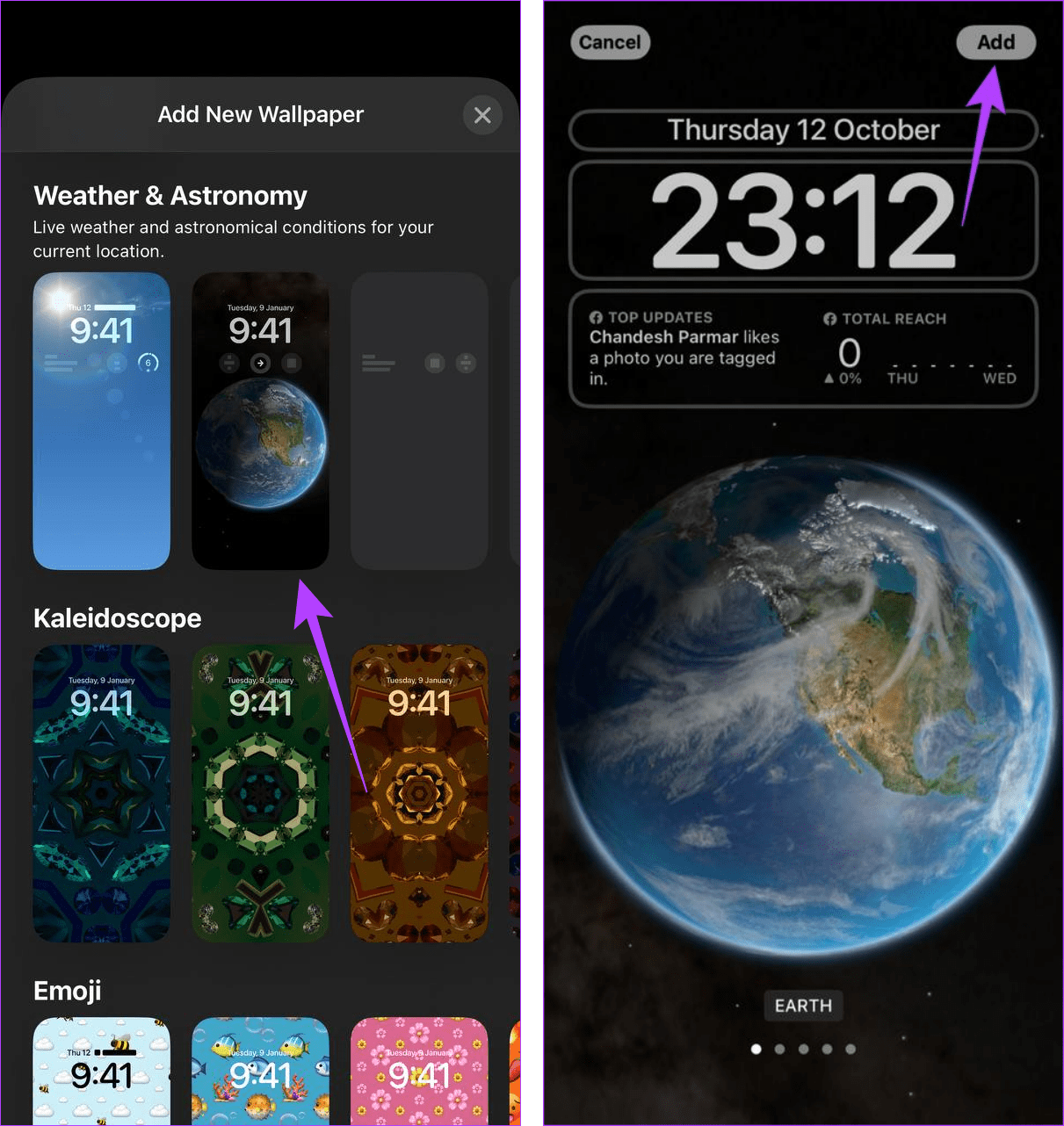
Step 1: Open your device. Press and hold the lock screen. Unlock your device and tap on the + icon.

Step 2: Tap the relevant wallpaper. Once you have made the changes, tap on Add. Then, check again.
Also Read: How to set a different Lock Screen and Home Screen wallpaper on iPhone
Fix 2: Rearrange Your Wallpaper Customizations
Certain wallpaper customizations, like widgets, can interfere with the wallpaper itself. This can cause issues like wallpaper being unavailable or going black randomly. To check if this is the case, rearrange or delete some wallpaper customizations and check again. Here’s how to do it.
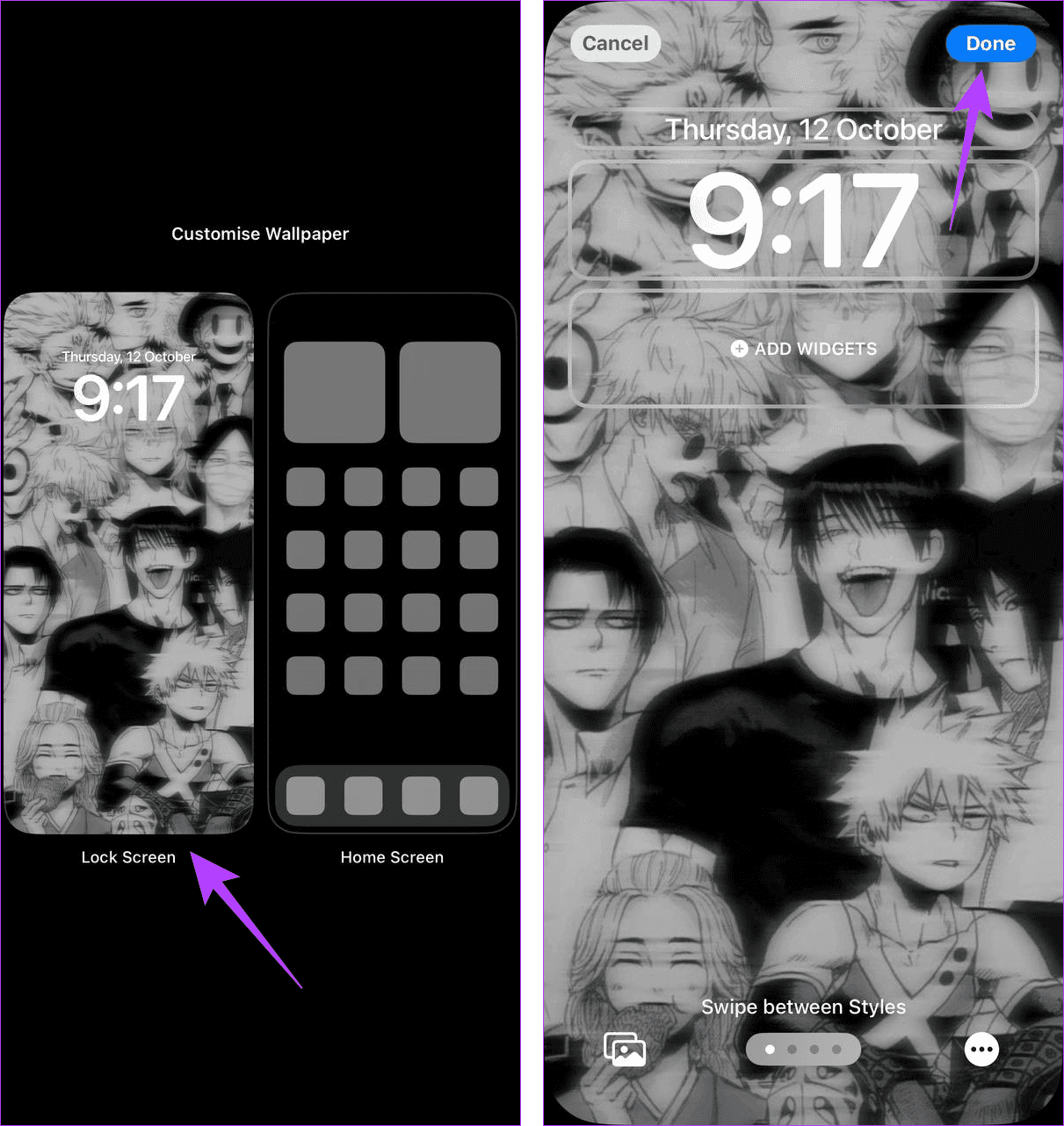
Step 1: Open your device. Press and hold the lock screen. Unlock your device and tap on Customize.

Step 2: Tap on Lock Screen and delete or rearrange the widgets. Then, tap on Done.
Fix 3: Turn off Always on Display
iPhone 14 Pro series or the iPhone 15 Pro series users have the Always On display enabled by default. It might, however, cause issues with your wallpaper. Disabling this feature will help fix any related wallpaper issues. Here’s how to do it.
Step 1: Open Settings and tap on Display & Brightness.
Step 2: Tap on Always On Display and turn the toggle off.


This will disable Always On Display on your iPhone. Once done, check and see if your iPhone’s wallpaper is visible.
Was this helpful?
Last updated on 25 July, 2024
Read Next
 5 Ways to Fix Memoji Disappeared After iOS 17 Update on iPhone
Fix 1: Send a Memoji via Stickers After the iOS 17 update, you can use the Stickers option to send a Memoji in iMessage.
5 Ways to Fix Memoji Disappeared After iOS 17 Update on iPhone
Fix 1: Send a Memoji via Stickers After the iOS 17 update, you can use the Stickers option to send a Memoji in iMessage.
 6 Ways to Find and Recover Disappeared iPhone Notes
Basic Troubleshoot Check the Recently Deleted Folder - Assuming the disappeared note is accidentally deleted, you can recover it within 30 days from the date of deletion.
6 Ways to Find and Recover Disappeared iPhone Notes
Basic Troubleshoot Check the Recently Deleted Folder - Assuming the disappeared note is accidentally deleted, you can recover it within 30 days from the date of deletion.
 How to Fix Message App Icon Disappeared on iPhone and iPad
Try These Fixes First Restart your device: The Messages app might not appear because of a temporary bug.
How to Fix Message App Icon Disappeared on iPhone and iPad
Try These Fixes First Restart your device: The Messages app might not appear because of a temporary bug.
 8 Fixes for GIFs Not Working or Disappeared on iPhone
Not everything can be described in words.
8 Fixes for GIFs Not Working or Disappeared on iPhone
Not everything can be described in words.
 8 Best Ways to Fix Taskbar Disappeared or Missing on Windows 11
The Windows 11 taskbar is where you can find your favorite apps and the Start menu.
8 Best Ways to Fix Taskbar Disappeared or Missing on Windows 11
The Windows 11 taskbar is where you can find your favorite apps and the Start menu.
 4 Ways to Fix Depth Effect Wallpaper Not Working on iPhone
Which iPhone Models Support the Depth Effect Feature The depth effect feature is only available on iPhones with an A12 Bionic chip or later.
4 Ways to Fix Depth Effect Wallpaper Not Working on iPhone
Which iPhone Models Support the Depth Effect Feature The depth effect feature is only available on iPhones with an A12 Bionic chip or later.
 5 Ways to Fix Blurry Home or Lock Screen Wallpaper on iPhone
Fix 1: Check if the Wallpaper Resolution Fits Your iPhone's Screen If you have downloaded a wallpaper, check its resolution and ensure that it matches the screen resolution of your
5 Ways to Fix Blurry Home or Lock Screen Wallpaper on iPhone
Fix 1: Check if the Wallpaper Resolution Fits Your iPhone's Screen If you have downloaded a wallpaper, check its resolution and ensure that it matches the screen resolution of your
 3 Ways to Make a Picture Fit Wallpaper on iPhone
Method 1: By Using the Wallpaper Resizer App You can use third-party wallpaper resizing apps to do the job.
3 Ways to Make a Picture Fit Wallpaper on iPhone
Method 1: By Using the Wallpaper Resizer App You can use third-party wallpaper resizing apps to do the job.
The article above may contain affiliate links which help support Guiding Tech. The content remains unbiased and authentic and will never affect our editorial integrity.