

Fix 1: Force Restart the iPhone to Reset the Setup Process
If your new iPhone is taking forever to set up, there might be a glitch or issue with the setup process preventing it from proceeding to the next step. The best solution to this problem is to force restart your iPhone.
- For iPhone 6s or lower:
Press and hold the Home and Power buttons simultaneously. Release them when you see the Apple logo on the screen.
- For iPhone 7 and 7 Plus:
Press and hold the Volume down key and the Power button. Release them when you see the Apple logo on the screen.
- For iPhone 8 and higher:
Press and release the Volume up key, press and release the Volume down key, and then press and hold the Side/Power button till you see the Apple logo on the screen.
Fix 2: Update or Restore iOS
Since your iPhone isn’t set up, you can’t update or reset it via the Settings app. Instead, you can use iTunes on Windows or Finder on Mac.
Note: We will perform the steps using Finder on Mac but the procedure remains the same for iTunes on Windows.
Step 1: Connect your iPhone to your Mac/PC via a lightning/USB-C cable.
Step 2: Access the iPhone via the sidebar on Finder if you have a Mac. If you’re using iTunes, open the app and click on your iPhone.

Step 3: Now, click on Check for Update.
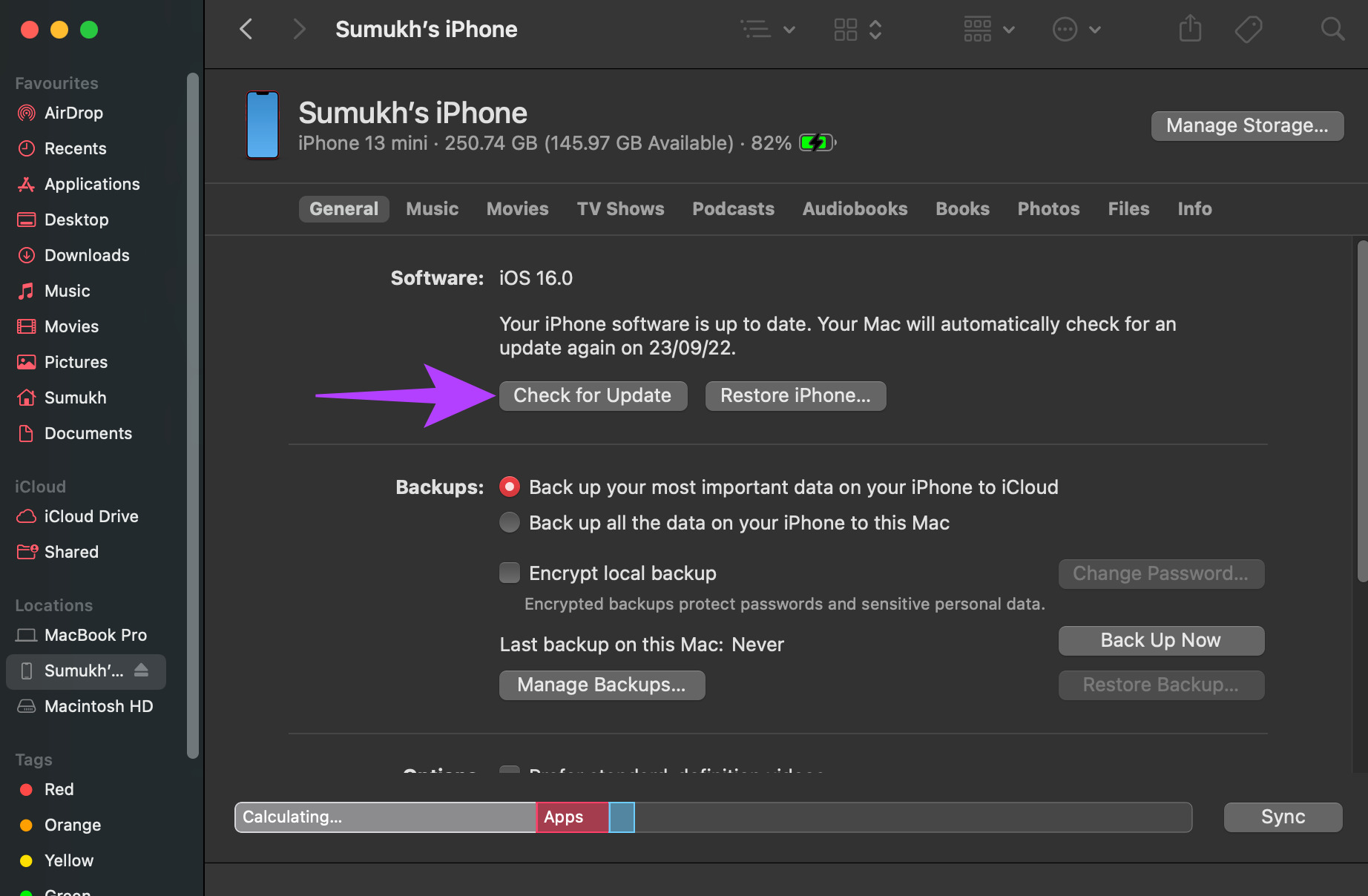
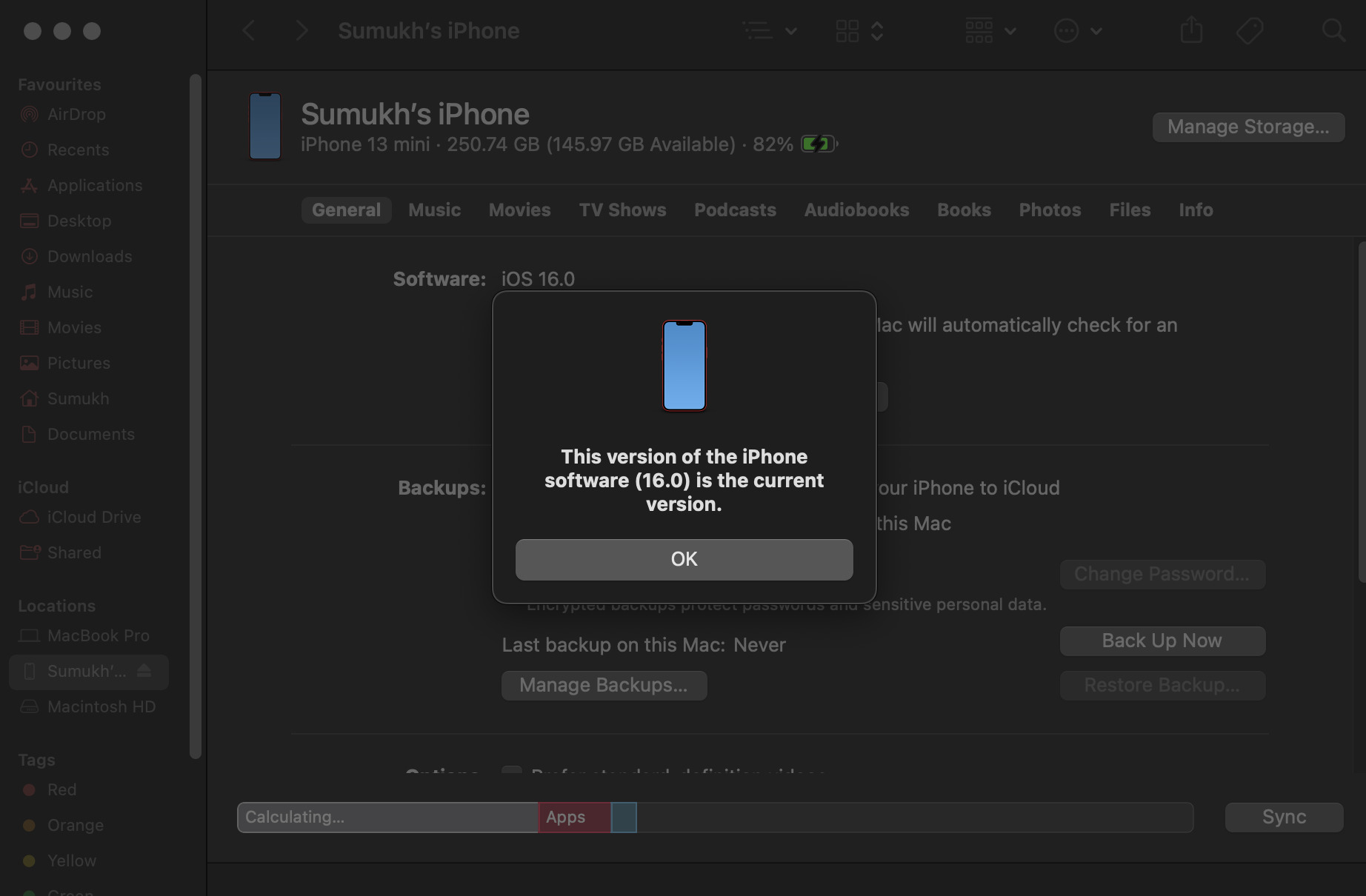
If an update is available, select Install, and your iPhone will be updated to the latest iOS version.
However, if your iPhone is already on the latest iOS version, your only option is to restore it.
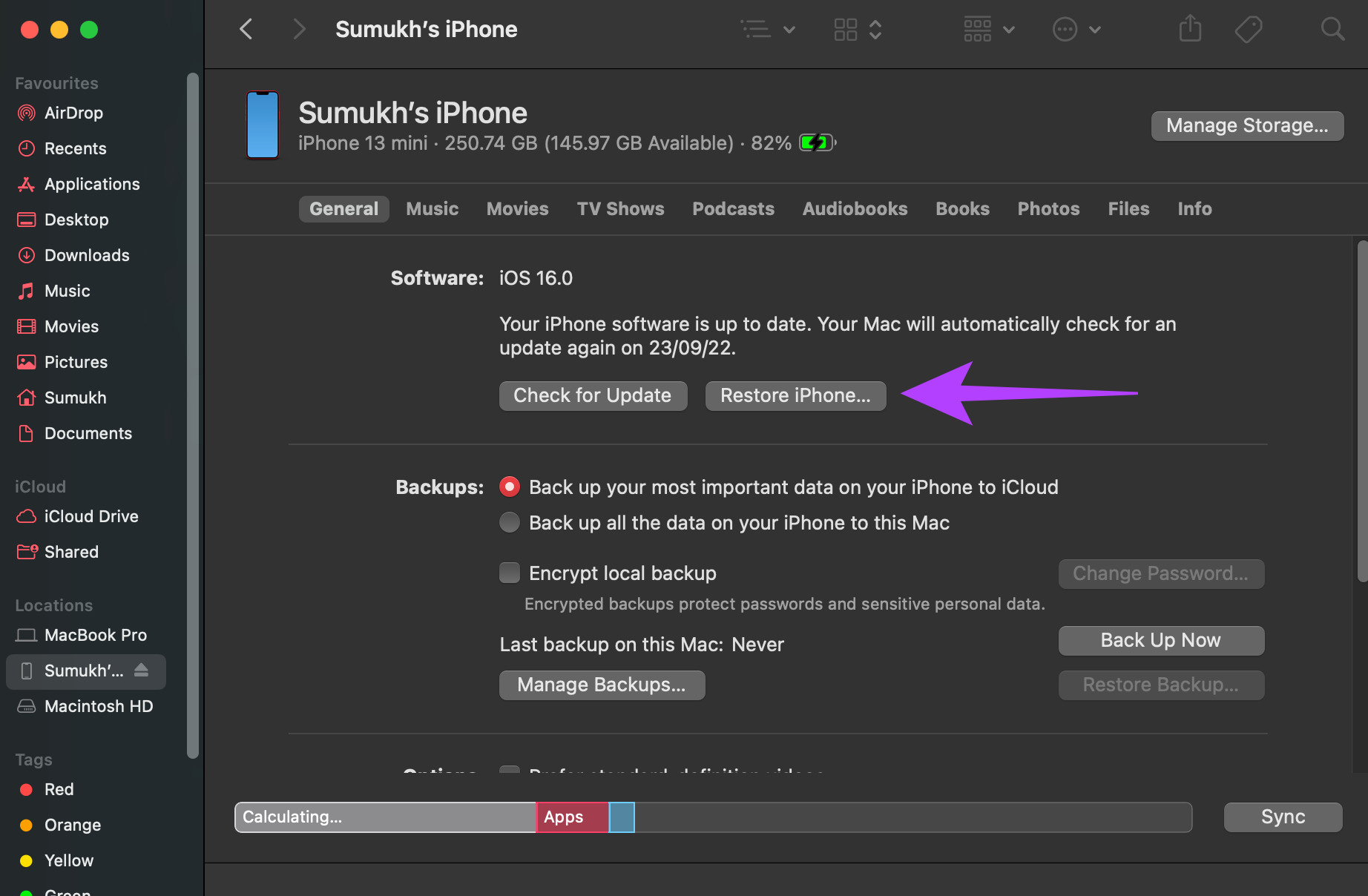
Step 4: Click on Restore iPhone. Follow the on-screen instructions, and the restore process will begin shortly.
Once your iPhone is restored, it will be reset, and you can start over from the beginning. This time, hopefully, your iPhone should be set up without any issues.
Frequently Asked Questions
Generally, logging in to your Apple ID and setting up your iPhone only takes a few seconds, or at most, 1-2 minutes. If it’s taking longer than that, there’s probably something wrong.
You will be given the option to add and log in to your Apple ID while setting up the iPhone for the first time. If you want to add it later on, you can do so via the Settings app.
When you’re asked to log in to your Apple ID during the setup process, you will also see an option to create a new Apple ID if you don’t already have one. Select this option to set up an Apple account.
Was this helpful?
Last updated on 29 August, 2024
2 Comments
Leave a Reply
Read Next
 High Efficiency vs Most Compatible: Which iPhone Camera Capture Setting Should You Choose
When it comes to photos and videos, Apple is almost always on par, if not better, than the competition.
High Efficiency vs Most Compatible: Which iPhone Camera Capture Setting Should You Choose
When it comes to photos and videos, Apple is almost always on par, if not better, than the competition.
 Top 5 Ways to Fix Screen Resolution Setting Grayed Out Problem on Windows 10
Whether you’ve plugged in a new monitor or trying to improve the video performance, tweaking your screen resolution to the right settings is the key to a better viewing experience.
Top 5 Ways to Fix Screen Resolution Setting Grayed Out Problem on Windows 10
Whether you’ve plugged in a new monitor or trying to improve the video performance, tweaking your screen resolution to the right settings is the key to a better viewing experience.
 6 Ways to Fix This Setting Is Managed by Your Administrator Error on Windows 11
Fix 1: Remove Third-Party Antivirus Some settings become unavailable in the Windows Security app after you install and run a third-party antivirus program on your PC.
6 Ways to Fix This Setting Is Managed by Your Administrator Error on Windows 11
Fix 1: Remove Third-Party Antivirus Some settings become unavailable in the Windows Security app after you install and run a third-party antivirus program on your PC.
 How to Get Back ‘Forget This Network’ iOS Setting if it Disappears
iOS has apparently had a very weird bug for quite a few years now that Apple has never addressed.
How to Get Back ‘Forget This Network’ iOS Setting if it Disappears
iOS has apparently had a very weird bug for quite a few years now that Apple has never addressed.
 3 Ways to Fix Apple Mail Stuck on Checking for Mail on iPhone
Basic Fixes: Check the network connection: First, check the network connection quality on your iPhone. If you face network issues, you can enable Airplane mode on your iPhone and disable it
3 Ways to Fix Apple Mail Stuck on Checking for Mail on iPhone
Basic Fixes: Check the network connection: First, check the network connection quality on your iPhone. If you face network issues, you can enable Airplane mode on your iPhone and disable it
 How to Fix “This Setting Has Been Configured by a Profile” on Mac
Before moving on with the fixes, we suggest installing the latest software version on your Mac.
How to Fix “This Setting Has Been Configured by a Profile” on Mac
Before moving on with the fixes, we suggest installing the latest software version on your Mac.
 Restrict vs Block on Facebook: Which Privacy Setting Should You Use
Picture this — your parents join Facebook, and they add you.
Restrict vs Block on Facebook: Which Privacy Setting Should You Use
Picture this — your parents join Facebook, and they add you.
 A Guide to Setting Up And Using OneDrive on Mac
Microsoft OneDrive plays a major role in the Microsoft 365 ecosystem.
A Guide to Setting Up And Using OneDrive on Mac
Microsoft OneDrive plays a major role in the Microsoft 365 ecosystem.
The article above may contain affiliate links which help support Guiding Tech. The content remains unbiased and authentic and will never affect our editorial integrity.
It works, except the above methods, MagFone iOS System Recovery is also a good choice
Today I bought an iPhone 11, switched from Android to iPhone, the iPhone loads and loads for a very long time logging into Apple ID, other buttons do not work, please help