Basic Fixes:
- Check sound settings: First, check the ringer and alert volume on your iPhone. Your iPhone won’t ring for incoming calls and messages if it’s set to zero.
- Check the mute switch: You may have enabled the iPhone mute switch with an accidental click in the pocket or bag. You can unmute the iPhone using the side switch.
- Remove the phone case: Ill-fitted cases may accidentally enable the mute switch and trigger silent mode on your iPhone. In this case, remove the case and check again.
- Update iOS: Updating your iPhone’s iOS software to the latest version can take care of such niggles. Open iPhone Settings > select General > Software Update > install the latest update.
Fix 1: Disable Attention Aware Features
Attention Aware lowers your phone’s volume when it detects you’re looking at the screen. This can inevitably lower the ringer or notification volume. To ensure this does not happen, disable the Attention Aware Features on your iPhone. Here’s how.
Step 1: Open Settings > tap on Face ID & Passcode > enter the passcode if prompted.
Step 2: Turn off the Attention-Aware Features toggle.

Also Read: How to fix iPhone alarm going off but no sound issue
Fix 2: Disable Do Not Disturb Automation
If you have set a Do Not Disturb automation on iPhone, the system enables DND in the background and silences incoming callers and notifications. Here’s how to turn off DND automation.
Step 1: Open Settings > select Focus > tap Do Not Disturb.
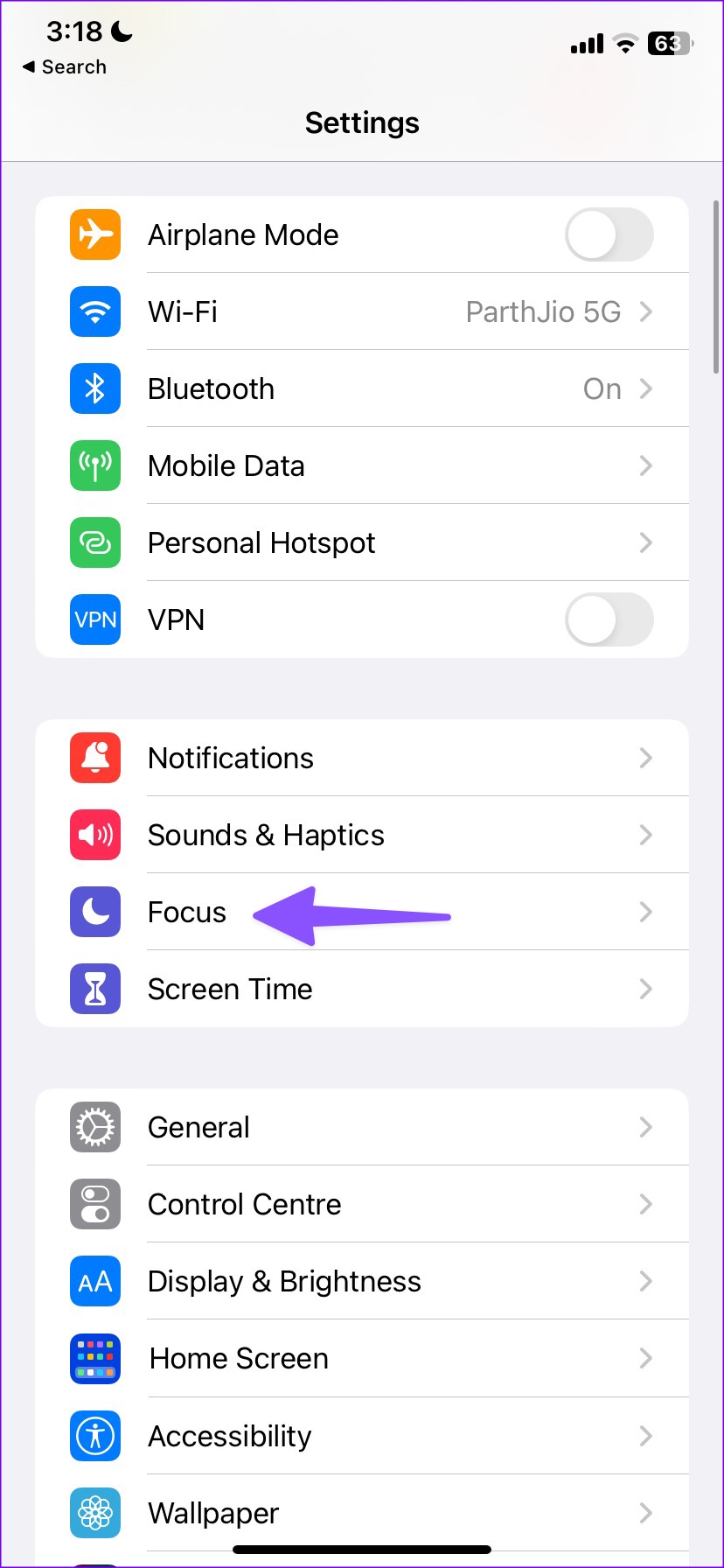

Step 2: Open the relevant DND schedule > turn off or delete the schedule.


Also Read: How to fix Do Not Disturb turning on automatically on iPhone
Fix 3: Turn off the Driving Focus
iOS automatically enables Driving Focus when you connect your iPhone to a car Bluetooth or Activate CarPlay. Driving Focus silences notifications and calls from all the apps and contacts. So, here’s how to disable it.
Step 1: Open Settings > select Focus > select Driving.
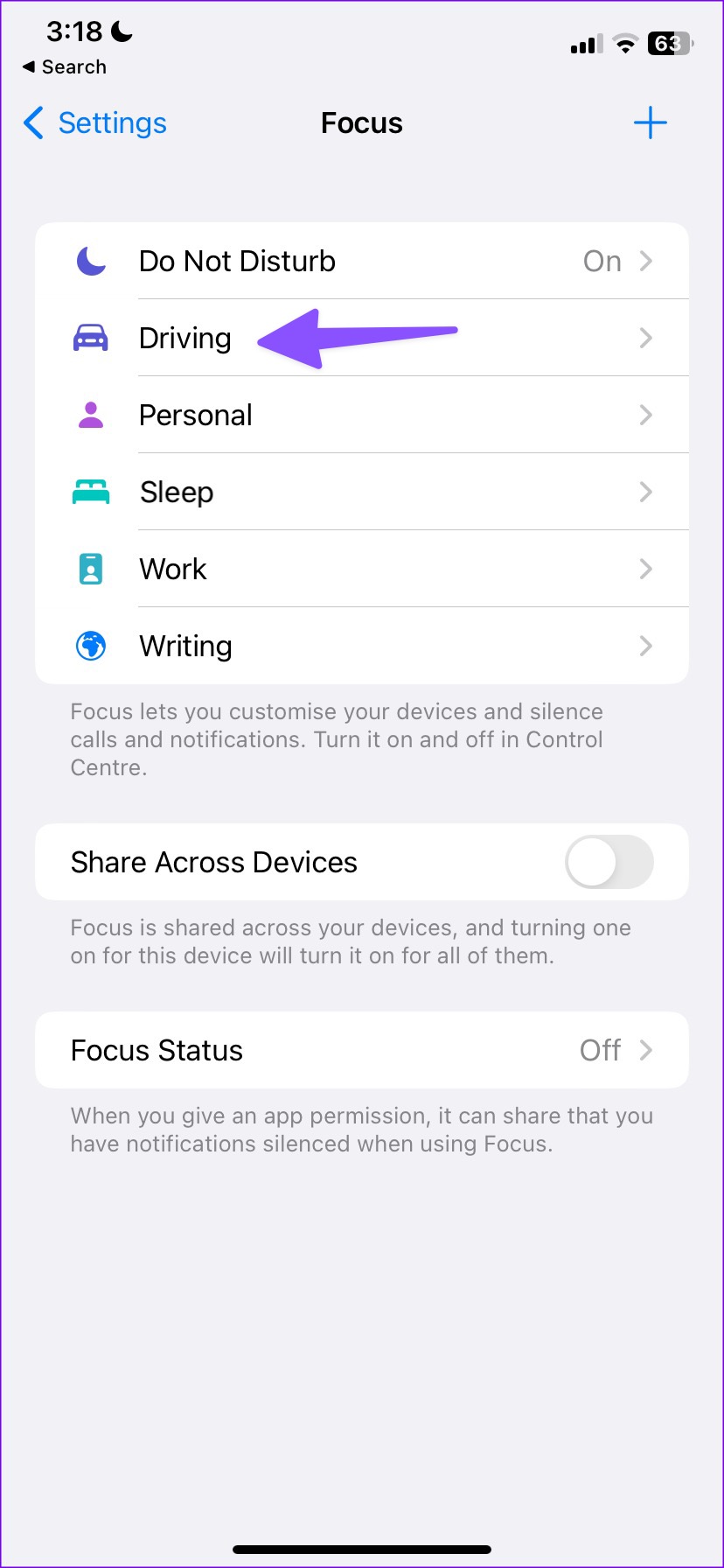
Step 2: Tap While Driving > select Manually > turn off the Activate With CarPlay toggle.


Fix 4: Turn off the Silence Unknown Callers
iOS comes with a nifty add-on to silence unknown callers on your iPhone. It effectively avoids spam callers on your iPhone. However, you may miss important calls from courier companies or banks. You should disable the option and try again. Here’s how.
Step 1: Open Settings > scroll down and tap on Phone. Select Silence Unknown Callers > turn off the toggle.


Fix 5: Disable Back Tap Gestures
In accessibility settings, you can enable back-tap gestures and perform tasks such as opening the App Switcher menu, Camera, and more. If you have set double or triple-tap gestures to mute the iPhone, disable them. You may accidentally double-tap on the back of your iPhone and silence the system.
Step 1: Open Settings > scroll down and tap on Accessibility > select Touch.
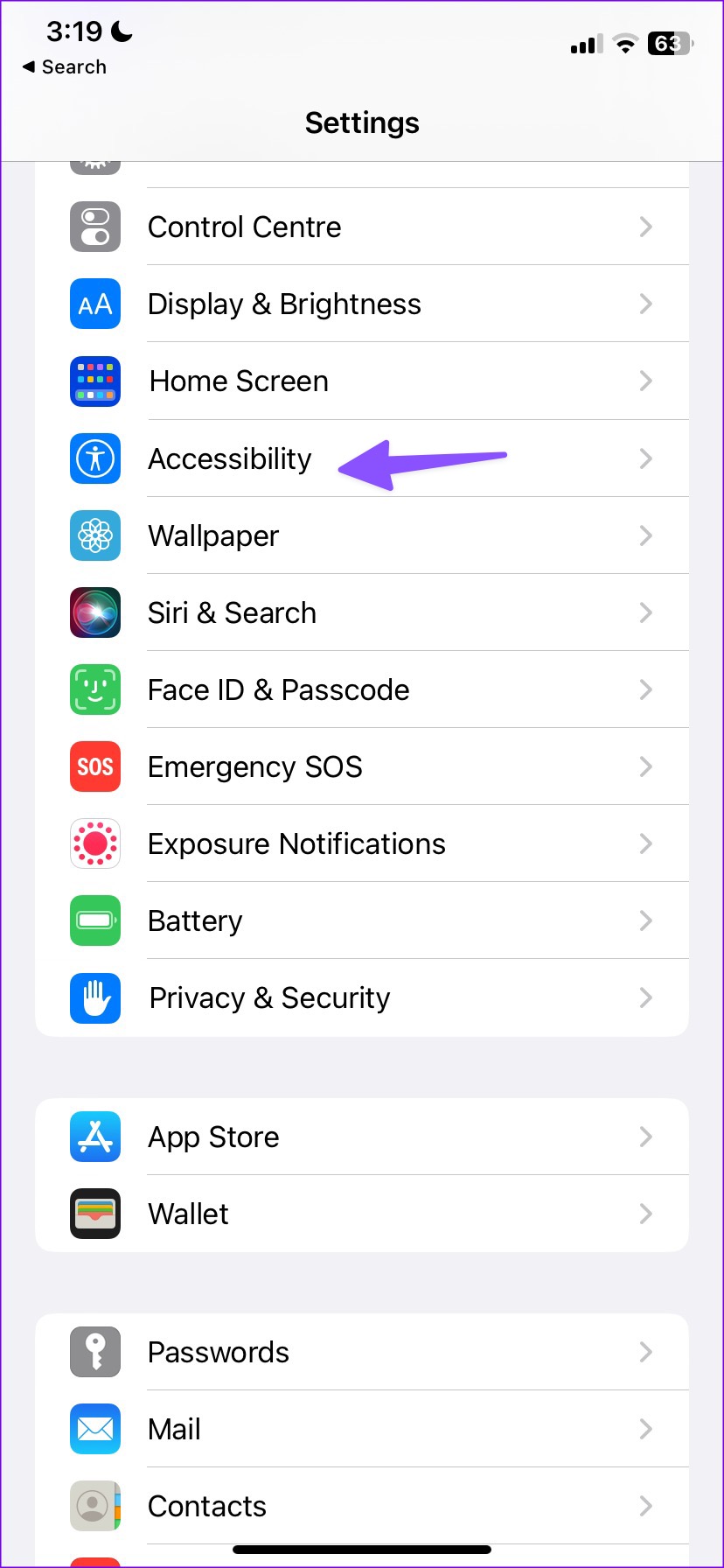

Step 2: Go to Back Tap > Double Tap or Triple Tap > remove the Mute action.


Fix 6: Reset All Settings
A wrong setting tweak on your iPhone may lead to silent mode turning on and off by itself. It’s time to reset the settings on your iPhone. This will delete all custom phone settings without affecting any device data. Here’s how to do it.
Step 1: Open Settings and tap on General > Transfer or Reset iPhone.


Step 2: Select Reset and tap Reset All Settings. Enter your device’s passcode to confirm.


Wait for the reset process to finish. Then, try using your iPhone for a while to check if the issue has been fixed.
Was this helpful?
Last updated on 30 August, 2024
Read Next
 4 Ways to Fix Android Phone Automatically Goes into Silent Mode
Basic Fixes Restart device: Restart your Android device to fix temporary bugs and glitches.
4 Ways to Fix Android Phone Automatically Goes into Silent Mode
Basic Fixes Restart device: Restart your Android device to fix temporary bugs and glitches.
 7 Ways to Fix Volume Level Automatically Goes Up or Down in Windows 11
Fix 1: Run the Audio Troubleshooter Microsoft offers several troubleshooters to help you identify and resolve common system-related issues on Windows.
7 Ways to Fix Volume Level Automatically Goes Up or Down in Windows 11
Fix 1: Run the Audio Troubleshooter Microsoft offers several troubleshooters to help you identify and resolve common system-related issues on Windows.
 What’s the Difference Between Do Not Disturb, Airplane, and Silent Mode on iPhone
What Is Silent Mode on iPhone?
What’s the Difference Between Do Not Disturb, Airplane, and Silent Mode on iPhone
What Is Silent Mode on iPhone?
 Turn On or Off Silent Mode on iPhone Without Switch or Action Button
https://youtu.be/4aTyKBjOvVY How to Enable & Disable Silent Mode on iPhone 15 Pro and Pro Max iPhone 15 Pro and 15 Pro Max not only have an Action Button instead of
Turn On or Off Silent Mode on iPhone Without Switch or Action Button
https://youtu.be/4aTyKBjOvVY How to Enable & Disable Silent Mode on iPhone 15 Pro and Pro Max iPhone 15 Pro and 15 Pro Max not only have an Action Button instead of
 5 Ways to Find Your Android When it’s in Silent Mode
Method 1: Use the Find My Device App on Another Phone If you have enabled Find My Device on your Android phone, you can play a sound to find it
5 Ways to Find Your Android When it’s in Silent Mode
Method 1: Use the Find My Device App on Another Phone If you have enabled Find My Device on your Android phone, you can play a sound to find it
 How to Fix iPhone Screen Goes Black During Call
https://youtu.be/AoTMsNjBpdw Why Does My iPhone Screen Go Black During Call?
How to Fix iPhone Screen Goes Black During Call
https://youtu.be/AoTMsNjBpdw Why Does My iPhone Screen Go Black During Call?
 Do Not Disturb vs. Silent vs. Airplane Mode on Android: Know the Difference
What Is Silent Mode on Android When you enable silent mode, you will not hear call alerts or notifications.
Do Not Disturb vs. Silent vs. Airplane Mode on Android: Know the Difference
What Is Silent Mode on Android When you enable silent mode, you will not hear call alerts or notifications.
 5 Ways to Fix Android Phone Screen Goes Black During a Call
Before you begin, try restarting your Android device and update it to the latest available software version.
5 Ways to Fix Android Phone Screen Goes Black During a Call
Before you begin, try restarting your Android device and update it to the latest available software version.
The article above may contain affiliate links which help support Guiding Tech. The content remains unbiased and authentic and will never affect our editorial integrity.