Basic Troubleshooting
- Check cellular connectivity: If you are in an area with low or no coverage, errors like call drop, call failing, and not receiving or sending can occur.
- Check messages in Filters: The Messages app has a handy filter menu to organize your messages in relevant categories. Check other folders for the message you’re expecting.
- Enable/disable Airplane mode: It is one of the common ways to fix network-related issues on the iPhone. Once the issue is resolved, SMS should promptly arrive.
- Check your storage space: If your iPhone is low on storage, consider deleting old messages to allow new messages to pop in.
- Switch between 5G and LTE: If you are trying to send an iMessage, switch from 5G to LTE and vice-versa, depending on which offers better connectivity in your region.
- Restart device: Rebooting your iPhone fixes the usual glitches on your phone. Simultaneously hold the power and volume up/down buttons and reboot the iPhone.
- Update iPhone: An outdated iOS version can lead to issues like ‘text messages not showing up on iPhone’. It’s time to update iPhone to the latest version.
Fix 1. Update Carrier Settings
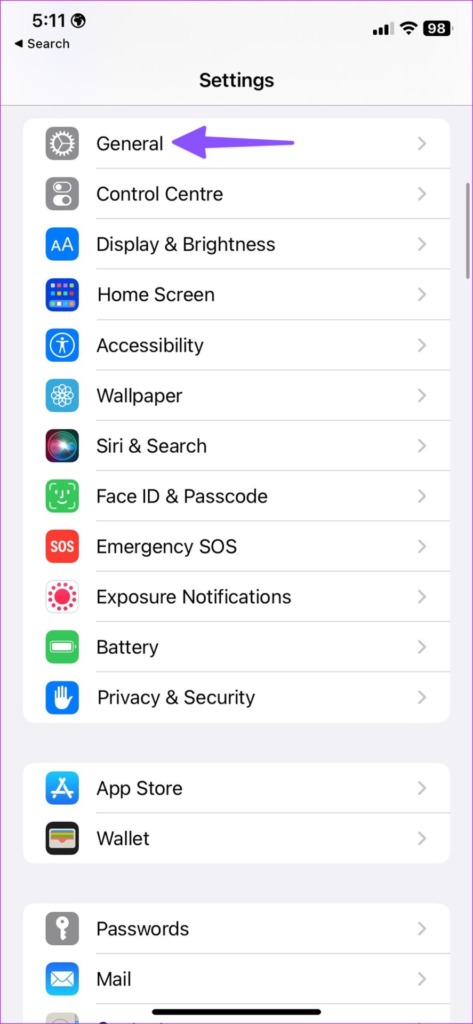
Your local carrier regularly releases updates to ensure flawless iPhone calls and text functions. If these carrier settings are outdated, they might interfere with text messages on the iPhone. Follow the steps below to update carrier settings on the iPhone.
Step 1: Open the Settings app on the iPhone.
Step 2: Go to General > select the About menu.
Step 3: Scroll to the Physical SIM section. If an update is available, tap Update and follow the on-screen instructions.


Fix 2. Ensure the Line is Turned On (For Multiple Sims)
You can disable and enable the cellular line and fix the text messages not showing up on the iPhone issue.
Step 1: Open Settings > go to Mobile data/Cellular data.
Step 2: Tap the SIM (which is not receiving messages).
Step 3: Turn off the toggle for Turn On This Line. After some time enable it again.


Fix 3. Disable and Re-Enable iMessage
It is yet another trick that has worked for many users facing iPhone not receiving text message issues. One can disable iMessage and enable it again to troubleshoot the issue.
Step 1: Open the Settings app on the iPhone.
Step 2: Go to Messages > disable the iMessage toggle.
Step 3: Restart your device (optional). Now, enable iMessage again.


Now, ask the person on the other side to send the text message again.
Fix 4. Ensure Hide Alerts Is Turned off
If you’re not receiving texts from one person, maybe you mistakenly turned off their notifications. To check and resolve that, follow the instructions below.
Step 1: Open Messages app > go to the conversation.
Step 2: Tap the name at the top.
Step 3: Here, ensure to toggle off Hide Alerts if not already.


Fix 5. Reset Network Settings
If text messages are still not showing on your iPhone, reset the network settings on it. You can read our dedicated guide to learn the implications of resettings network settings.
Step 1: Open the Settings app > General.
Step 2: Scroll down and tap Transfer or Reset iPhone.
Step 3: Select Reset > tap Reset Network Settings.


Step 4: Enter the device password and confirm to continue.
Notably, you may not receive text messages when your local carrier faces an outage. You can visit Downdetector and search for your carrier. You can look for major outage spikes and user comments confirming the same.
In that case, there’s nothing you can do but wait for the carrier to fix server-side problems. Additionally, if none of the above steps worked for you, contact your carrier provider and complain about the issue. Hopefully, they can assist you with a solution.
FAQs
If you have blocked the person on your iPhone, you won’t receive text messages from them.
If the recipient has enabled RCS (Rich Communication Services) on their Android phone, you may not receive text messages from them.
You can find your messages in the Filters menu. Your iPhone won’t show text messages if you are in the wrong category in the Messages app.
You can disable the iMessage function from the Messages settings and move from iMessage to SMS.
Was this helpful?
Last updated on 25 July, 2024
Read Next
 4 Ways to Fix Android Not Receiving Texts From iPhone
Why Is My Android Phone Not Receiving Texts From an iPhone?
4 Ways to Fix Android Not Receiving Texts From iPhone
Why Is My Android Phone Not Receiving Texts From an iPhone?
 How to Send Group Texts from Android and iPhone
How to Send Group Texts on iPhone Sending group texts on an iPhone is easy and convenient with Apple’s Messages app.
How to Send Group Texts from Android and iPhone
How to Send Group Texts on iPhone Sending group texts on an iPhone is easy and convenient with Apple’s Messages app.
 How to Stop Texts From Unknown Numbers on Your Phone
How to Block Messages From Unknown Numbers on iPhone Apple allows you to block spam texts sent from unknown numbers.
How to Stop Texts From Unknown Numbers on Your Phone
How to Block Messages From Unknown Numbers on iPhone Apple allows you to block spam texts sent from unknown numbers.
 6 Ways to Fix iPhone Not Receiving Call Issue
https://youtu.be/kvx_Yard1jI Basic Fixes: Remove and reinstall the SIM card: A recent iOS update may have corrupted your phone’s SIM card system.
6 Ways to Fix iPhone Not Receiving Call Issue
https://youtu.be/kvx_Yard1jI Basic Fixes: Remove and reinstall the SIM card: A recent iOS update may have corrupted your phone’s SIM card system.
 How to Fix iPhone Not Sending or Receiving Pictures
https://www.youtube.com/watch?v=n-Z00F3Tgs8 Basic Fixes The first order of business is to establish whether you can't send pictures in Messages or iMessage or both.
How to Fix iPhone Not Sending or Receiving Pictures
https://www.youtube.com/watch?v=n-Z00F3Tgs8 Basic Fixes The first order of business is to establish whether you can't send pictures in Messages or iMessage or both.
 5 Ways to Fix Outlook Not Receiving Emails on iPhone
Common Fixes Enable and disable the Airplane Mode: Open the Settings app, toggle on the Airplane Mode, and turn it off after a few seconds.
5 Ways to Fix Outlook Not Receiving Emails on iPhone
Common Fixes Enable and disable the Airplane Mode: Open the Settings app, toggle on the Airplane Mode, and turn it off after a few seconds.
 5 Ways to Fix No Sound When Receiving Text on iPhone
Common Fixes Check the notification volume - Open the Settings app, tap Sounds & Haptics, and maximize the Ringtone and Alerts volume slider.
5 Ways to Fix No Sound When Receiving Text on iPhone
Common Fixes Check the notification volume - Open the Settings app, tap Sounds & Haptics, and maximize the Ringtone and Alerts volume slider.
 4 Ways to Fix iPhone Not Receiving Emails
https://youtu.be/F6cOkDGNWuU Basic Fixes: Manually refresh the email inbox: Open the Mail app on your iPhone and swipe down from the top to refresh the inbox.
4 Ways to Fix iPhone Not Receiving Emails
https://youtu.be/F6cOkDGNWuU Basic Fixes: Manually refresh the email inbox: Open the Mail app on your iPhone and swipe down from the top to refresh the inbox.
The article above may contain affiliate links which help support Guiding Tech. The content remains unbiased and authentic and will never affect our editorial integrity.