Basic Fixes:
- Manually refresh the email inbox: Open the Mail app on your iPhone and swipe down from the top to refresh the inbox. Then, check and see if the recently received emails are visible.
- Check spam/junk folder: If the Mail app accidentally marked the relevant emails as spam, they will not be visible in the main inbox. So, check the spam or junk folder for the relevant emails.
- Update the Mail app: The Mail app is part of iOS software on iPhones. The company frequently releases new updates to add features and fix bugs, like the iPhone not receiving emails. So, check and install the latest software updates for your iPhone.
- Reinstall the Mail app: Apple finally lets you delete default apps on your iPhone. So, if you can’t see your emails, uninstall the Mail app from your iPhone. Then, reinstall it from the App Store, sign in again, and check if your emails are visible.
Fix 1: Enable the Mobile Data Access
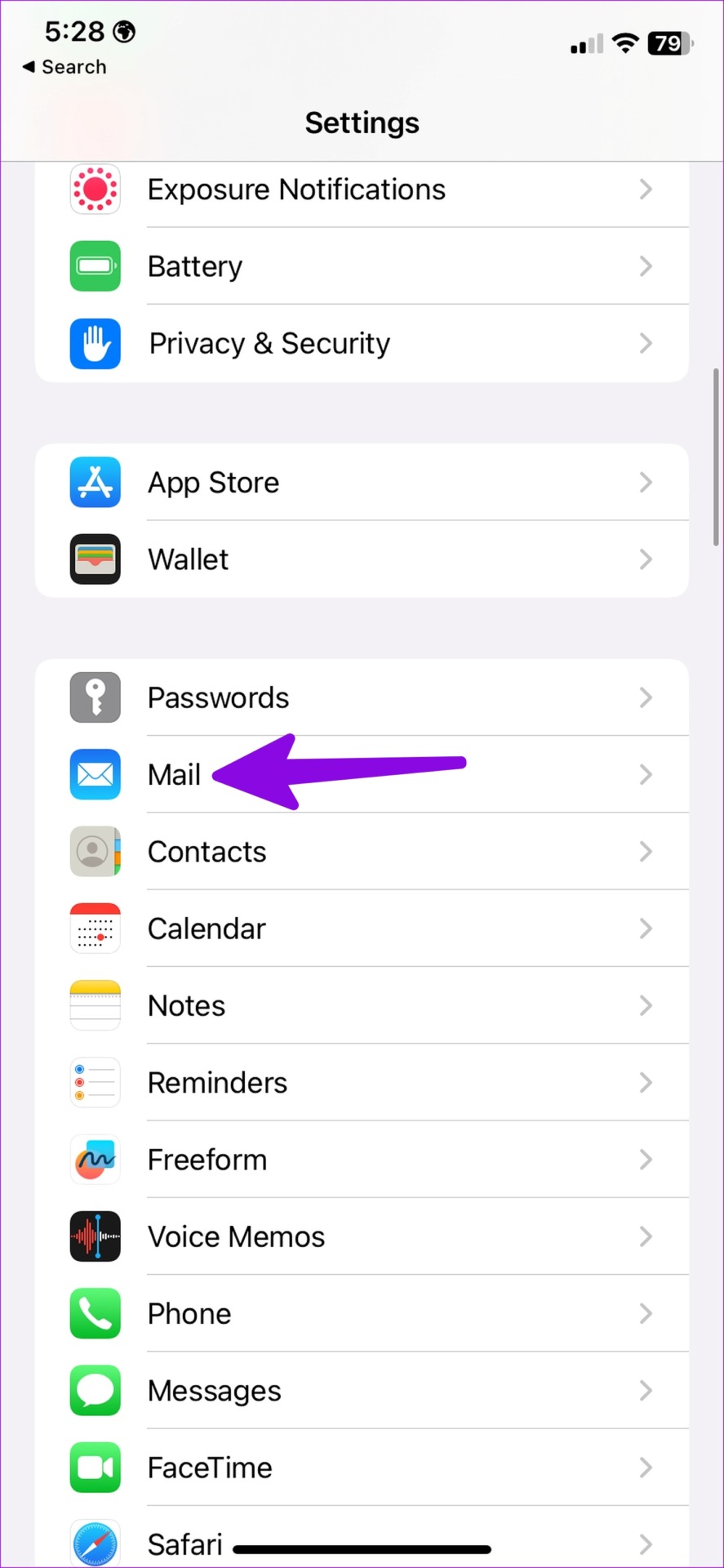
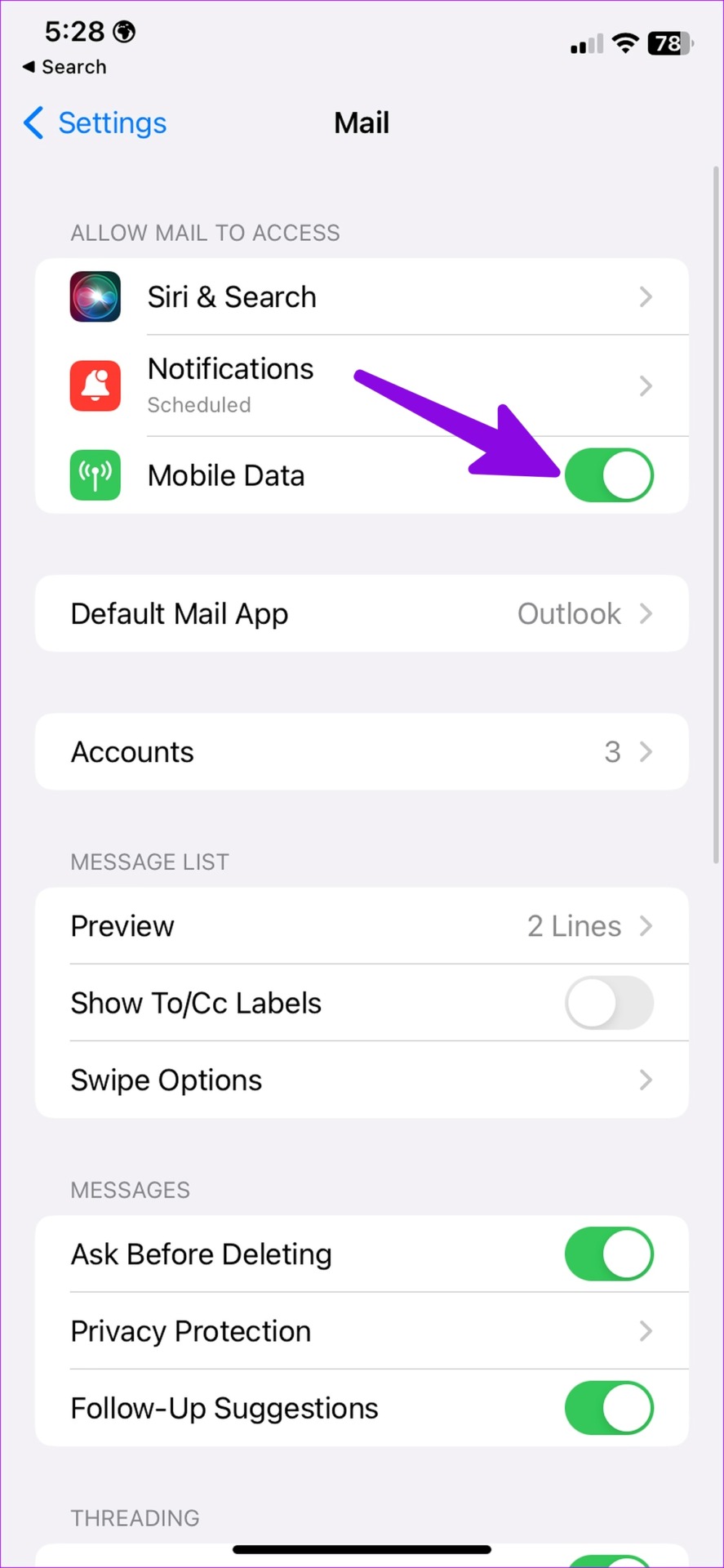
If you have denied mobile data access to the default Mail app, your iPhone won’t receive new emails. You must make the necessary changes from the Settings menu. Here’s how to enable it on your iPhone.
Step 1: Open Settings and tap on Mail. Enable the Mobile Data toggle.
Fix 2: Check Syncing Settings for Inbox
You can select push to receive new emails, fetch to refresh new emails at a fixed interval, or manually receive new emails. You should ideally choose the Push option. If it’s unavailable, use the fetch function and set a short interval frequency to receive new emails. Here’s how to ensure the correct sync setting is selected.
Step 1: Open Settings and tap on Mail. Tap on Accounts.

Step 2: Select Fetch New Data and turn on the toggle for Push.
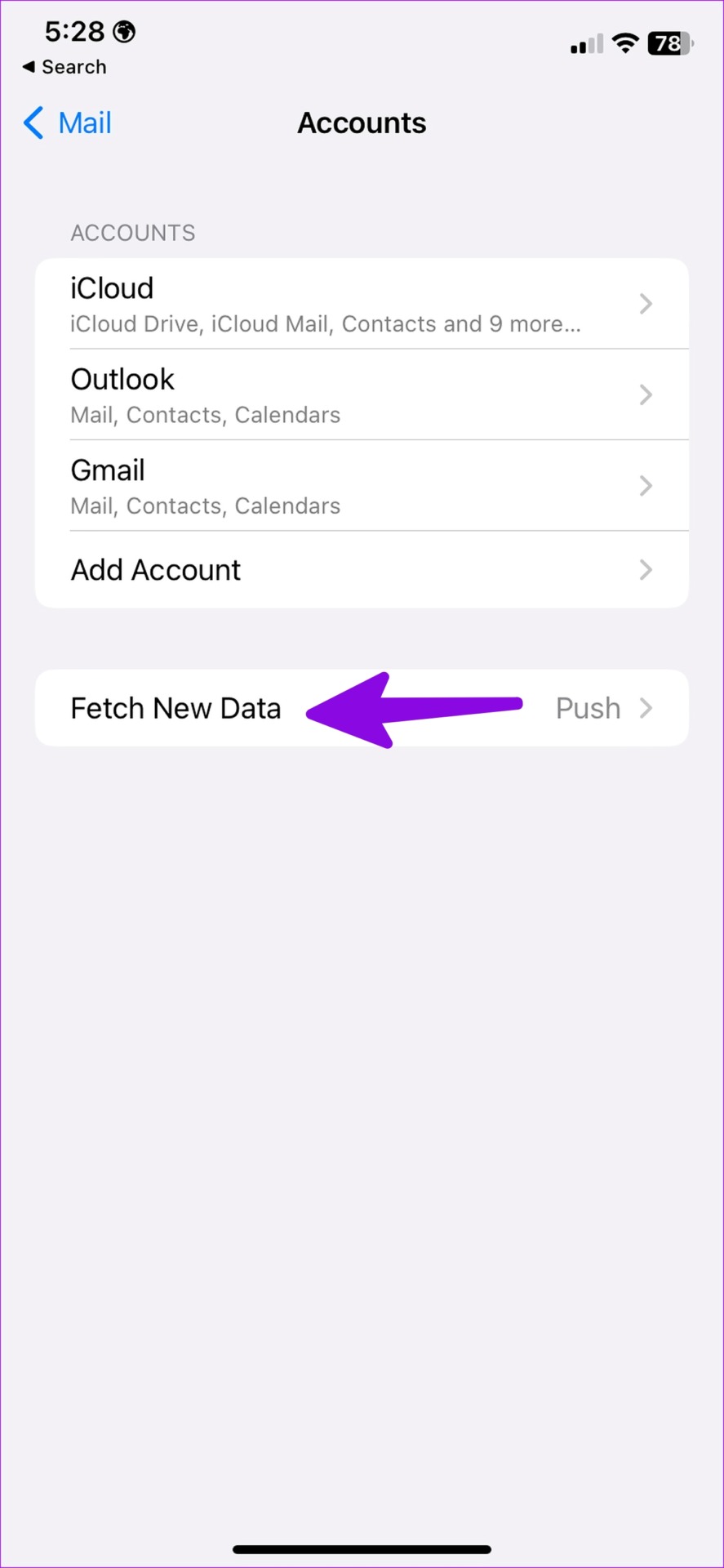
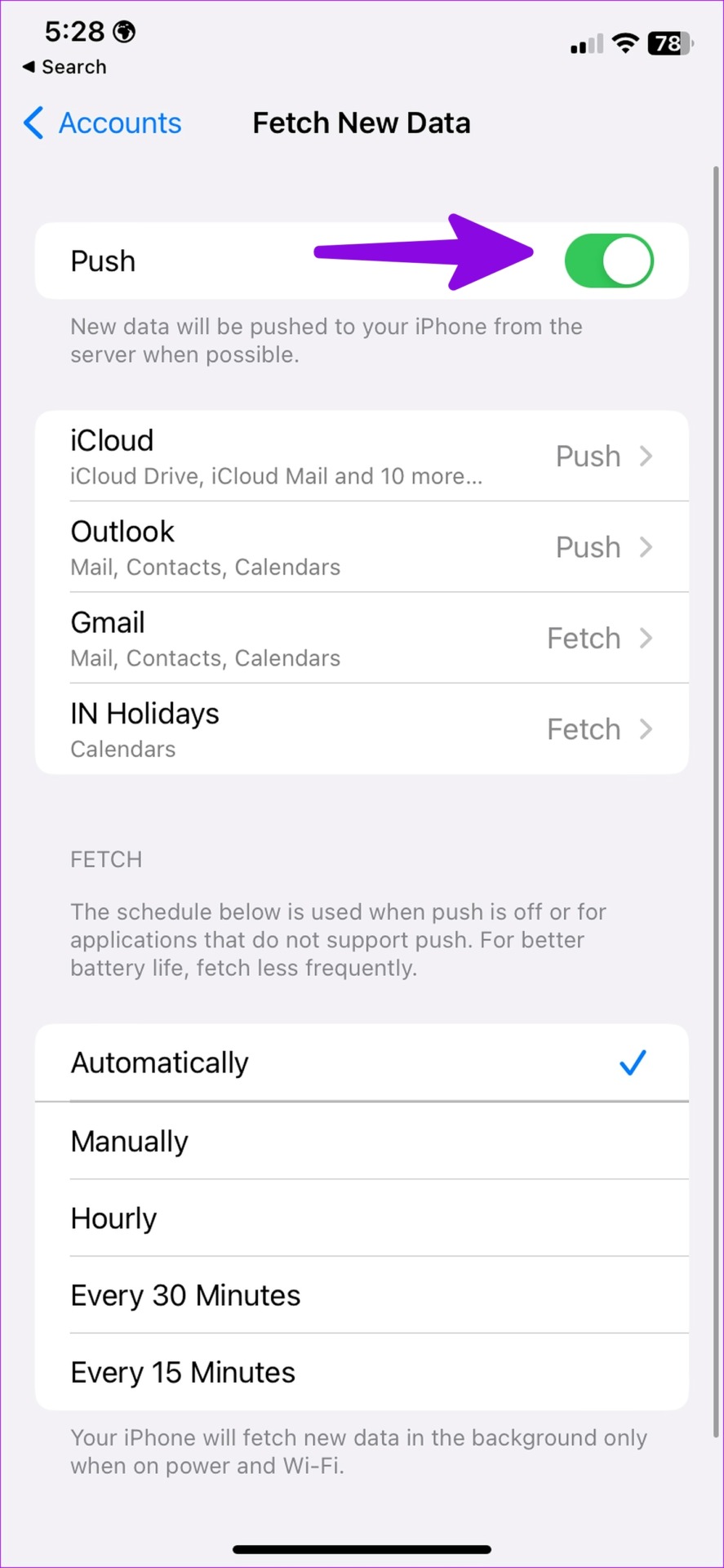
Select the same for all your email accounts. If Push isn’t available in an email provider, select Fetch.
Fix 3: Remove the Account and Add It Again
Did you change your Gmail or Outlook account password? You must re-authenticate your account with a new password to start getting emails. If that doesn’t help, remove the account and add it again. Here’s how to do it.
Step 1: Open Settings → Mail → Accounts. Tap on the relevant account.
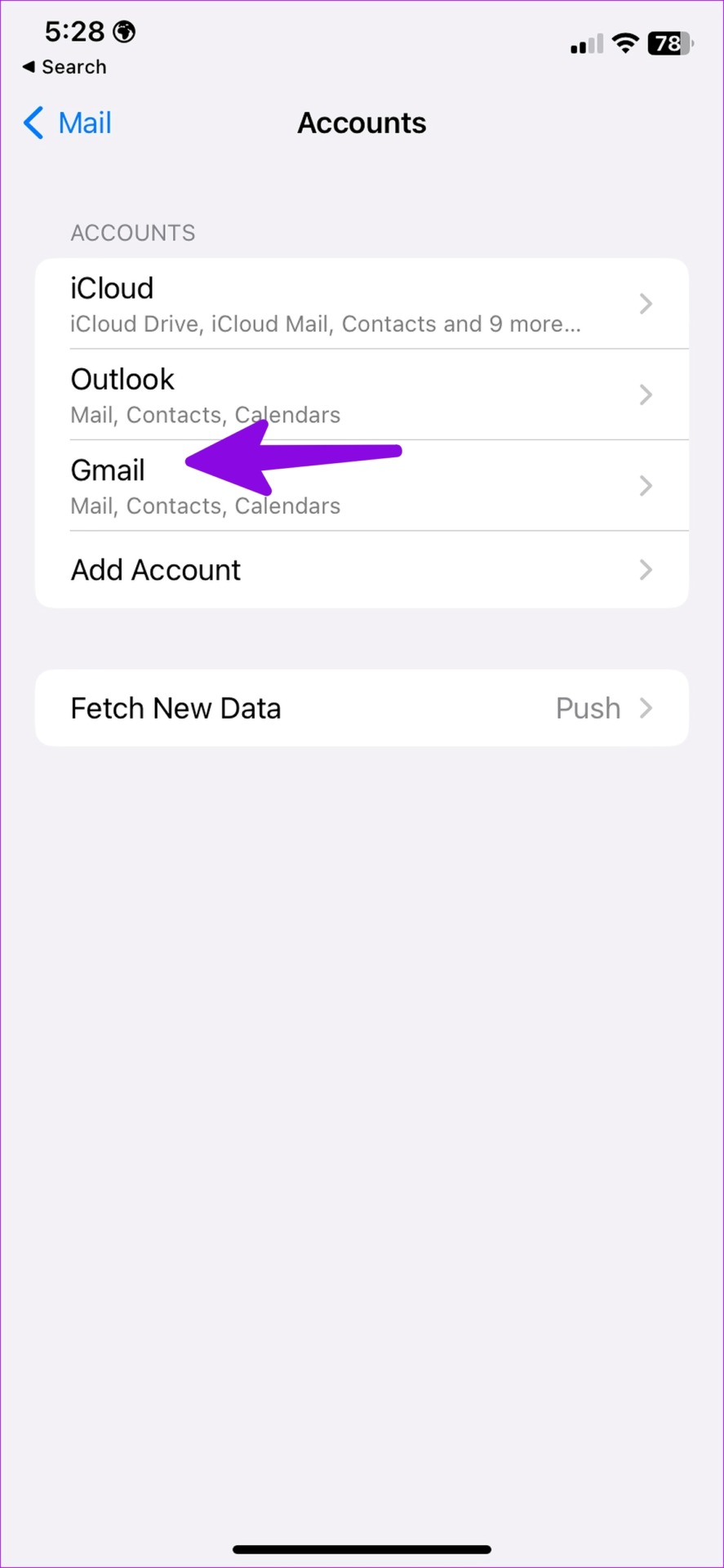
Step 2: Select Delete Account and confirm your decision.
Step 3: Then, return to the Accounts page and select Add Account.

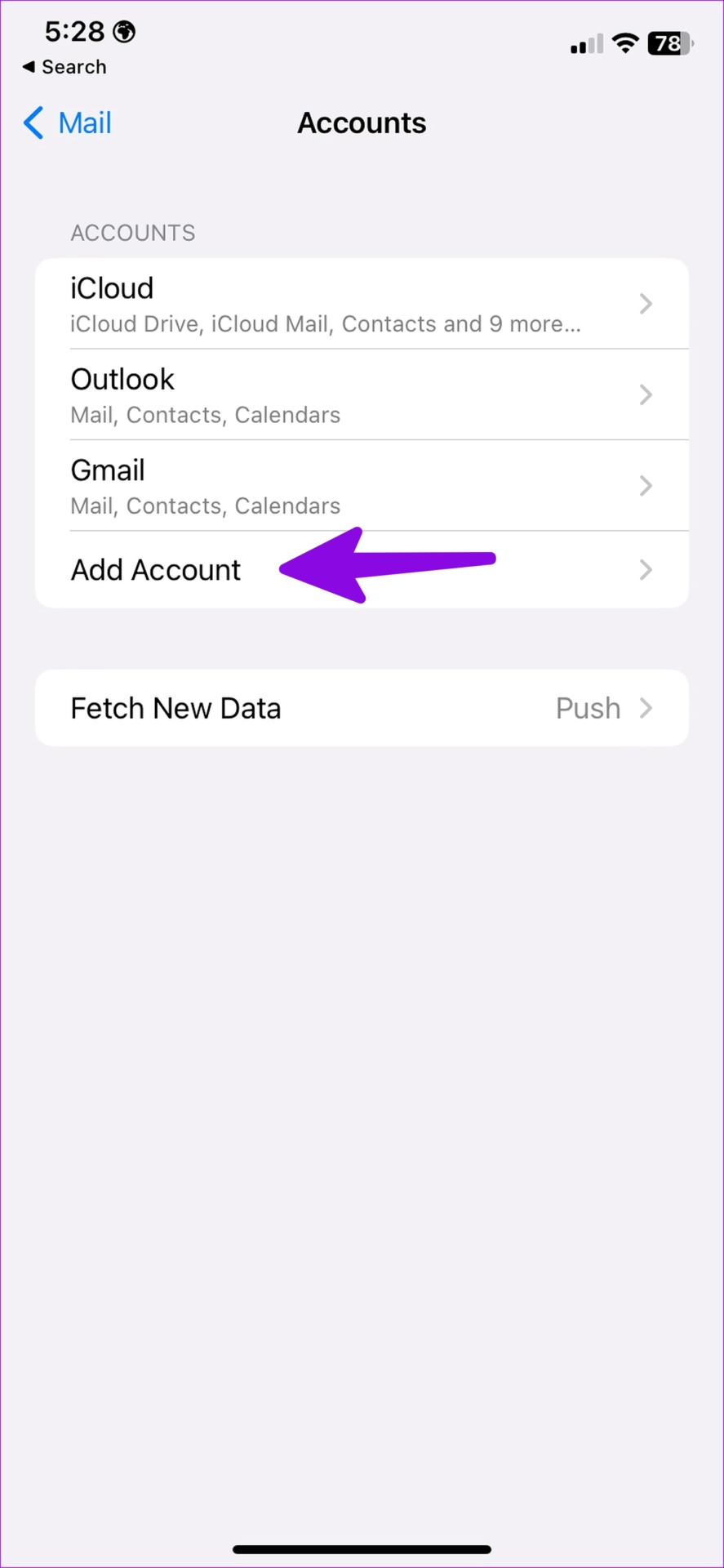
Enter the correct login details and wait for your emails to finish syncing. You can also check our guide if certain emails have disappeared from the Mail app on your iPhone.
Fix 4: Check Mail Notification Settings
You’ll need to check the notification settings for the Mail app on your iPhone. If you have denied the permission, you will continue to receive new emails in the background but won’t receive any alerts about them. Follow the steps below to enable and customize Mail notifications.
Step 1: Open Settings → Mail. Select Notifications.
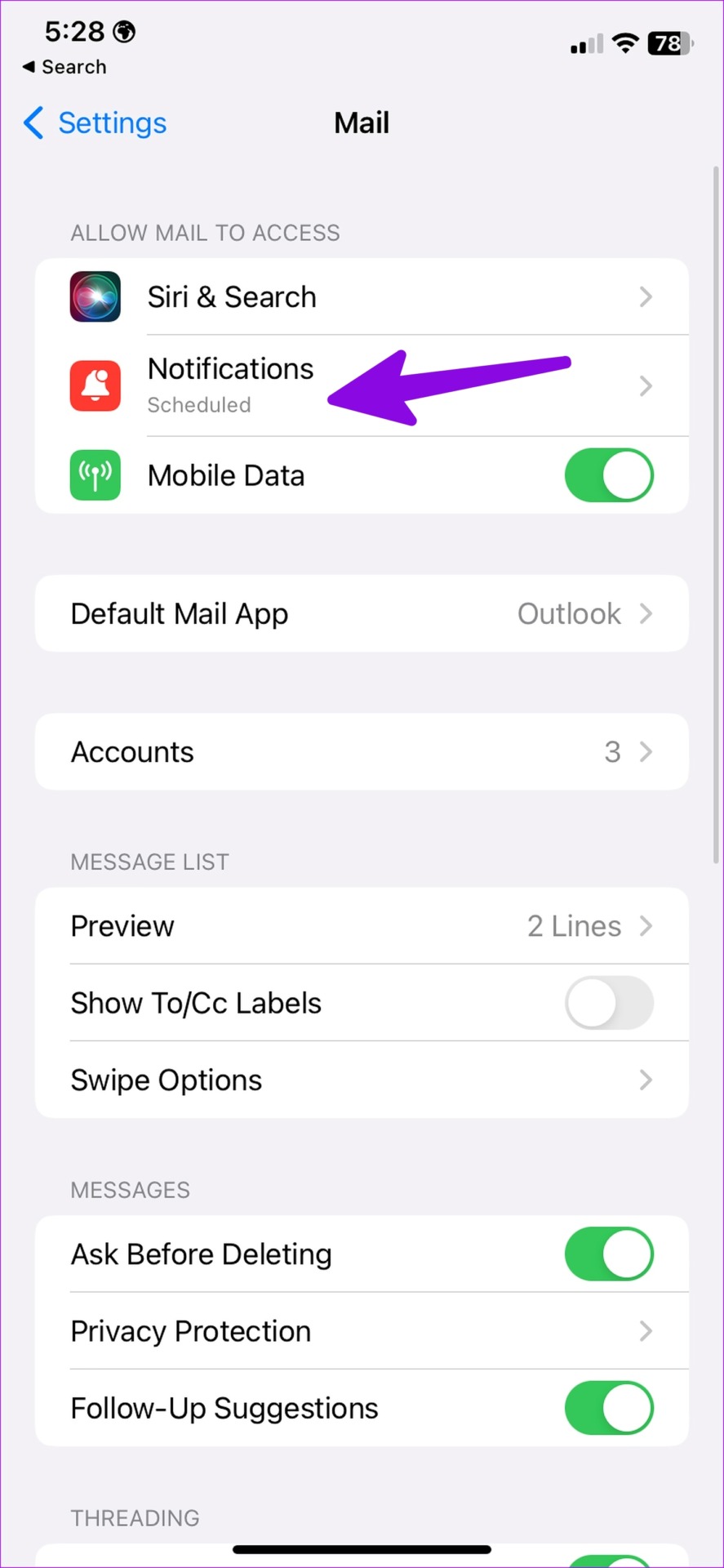
Step 2: Enable the Allow Notifications toggle.
Step 3: Tap on Customize Notifications and set all accounts to Immediate Delivery.
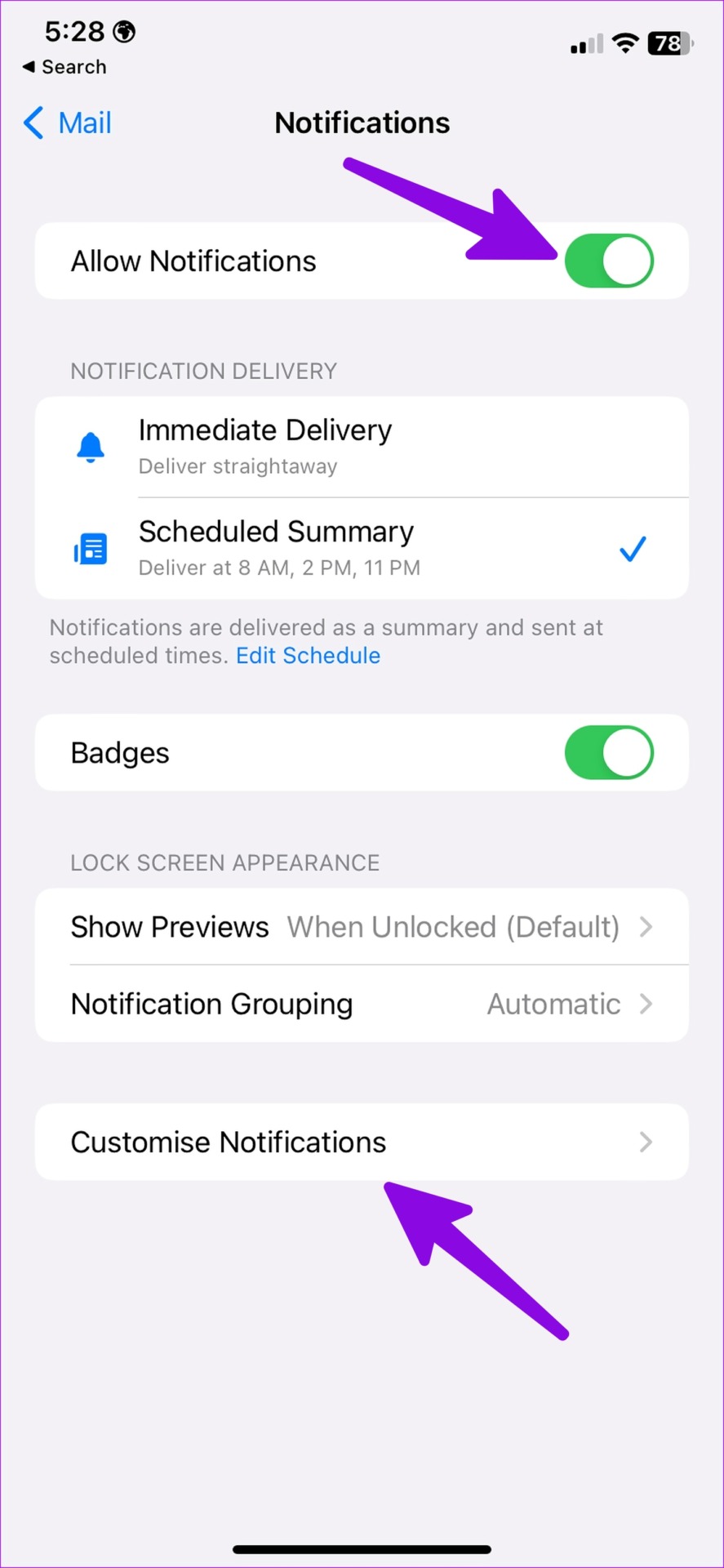
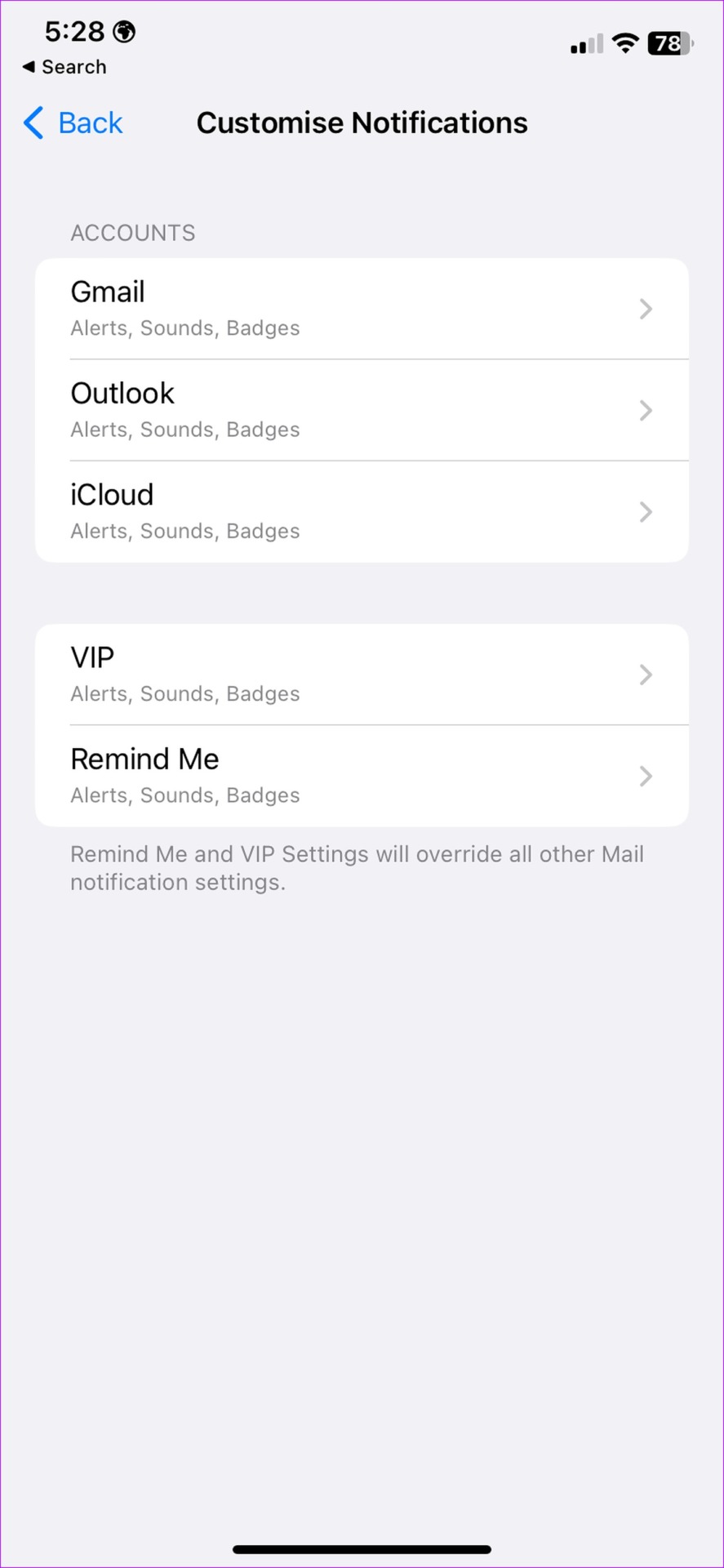
This will ensure the Mail app immediately notifies you of any recent emails so that you never miss another important email on your iPhone.
Was this helpful?
Last updated on 28 June, 2024
Read Next
 5 Ways to Fix Outlook Not Receiving Emails on iPhone
Common Fixes Enable and disable the Airplane Mode: Open the Settings app, toggle on the Airplane Mode, and turn it off after a few seconds.
5 Ways to Fix Outlook Not Receiving Emails on iPhone
Common Fixes Enable and disable the Airplane Mode: Open the Settings app, toggle on the Airplane Mode, and turn it off after a few seconds.
 5 Ways to Fix Gmail Receiving Late Emails on Phone
Common Fixes Check your network connection: Ensure your phone has a good internet connection to avoid delays in receiving new emails on Gmail.
5 Ways to Fix Gmail Receiving Late Emails on Phone
Common Fixes Check your network connection: Ensure your phone has a good internet connection to avoid delays in receiving new emails on Gmail.
 4 Ways to Fix iPad Not Receiving Emails
Basic Fixes: Check network connection: If your iPad has network connection issues, it can’t receive new emails and update the current inbox in the Mail app. So, connect to a better network
4 Ways to Fix iPad Not Receiving Emails
Basic Fixes: Check network connection: If your iPad has network connection issues, it can’t receive new emails and update the current inbox in the Mail app. So, connect to a better network
 3 Fixes for Gmail Not Receiving Emails on iPhone
Basic Fixes Check Spam: Sometimes even the most important and legitimate emails land up in the Spam folder.
3 Fixes for Gmail Not Receiving Emails on iPhone
Basic Fixes Check Spam: Sometimes even the most important and legitimate emails land up in the Spam folder.
 4 Fixes for Outlook Web Not Receiving Emails
Basic Fixes Check outlook server status: Visit DownDetector and check whether Outlook servers are responding in your region.
4 Fixes for Outlook Web Not Receiving Emails
Basic Fixes Check outlook server status: Visit DownDetector and check whether Outlook servers are responding in your region.
 3 Fixes for Microsoft Outlook Not Receiving Emails on Android
Basic Fixes Check other inboxes: If you have multiple email accounts in the Outlook app, you might have opened the wrong one in the app.
3 Fixes for Microsoft Outlook Not Receiving Emails on Android
Basic Fixes Check other inboxes: If you have multiple email accounts in the Outlook app, you might have opened the wrong one in the app.
 5 Ways to Fix Android Phone Not Receiving Emails
Basic Fixes Check internet connectivity: Ensure your device is connected to a Wi-Fi network or cellular data with good signal strength and an active plan.
5 Ways to Fix Android Phone Not Receiving Emails
Basic Fixes Check internet connectivity: Ensure your device is connected to a Wi-Fi network or cellular data with good signal strength and an active plan.
 2 Ways to Fix Outlook Receiving Late Emails on Windows 11
Basic Fixes: Check the Internet connection and Outlook server status: If you work with a sketchy Internet connection on your laptop, you may face delays in receiving emails on Outlook.
2 Ways to Fix Outlook Receiving Late Emails on Windows 11
Basic Fixes: Check the Internet connection and Outlook server status: If you work with a sketchy Internet connection on your laptop, you may face delays in receiving emails on Outlook.
The article above may contain affiliate links which help support Guiding Tech. The content remains unbiased and authentic and will never affect our editorial integrity.