Basic Fixes:
- Remove and reinstall the SIM card: A recent iOS update may have corrupted your phone’s SIM card system. Reinstalling the SIM card can help fix this issue. Aside from refreshing the SIM card system, it also rules out the possibility of the SIM card being loose.
- Turn Airplane Mode on and off: Your iPhone may not receive calls due to a glitch in network settings. So, toggle on Airplane Mode. Wait for five seconds, then turn off Airplane Mode. Now, check if your iPhone has started receiving calls.
- Disable DND and Focus modes: DND and iPhone Focus Modes stop call notifications from breaking through. So, disable DND and any other Focus Mode and check again.
- Disable Bluetooth: If your Bluetooth headphones are connected to your iPhone, your phone rings on the connected device. You need to disable Bluetooth from the Control Center menu and try again.
- Check for iOS updates: The iPhone not receiving call issue might be due to a recent buggy build released by Apple. To download the latest update, go to Settings > General > Software Update and install the latest iOS update.
Fix 1: Ensure the Number Is Not Blocked
If you have previously blocked any number on your iPhone, they can’t call you. You must ensure the recipient’s phone number is not added to the iPhone block list. Follow the steps below to clear the block list on your iPhone.
Step 1: Open Settings and tap on Phone. Tap on Blocked Contacts.

Check the block list and unblock the relevant numbers to start receiving calls from them again on your iPhone.
Fix 2: Disable Silence Unknown Callers
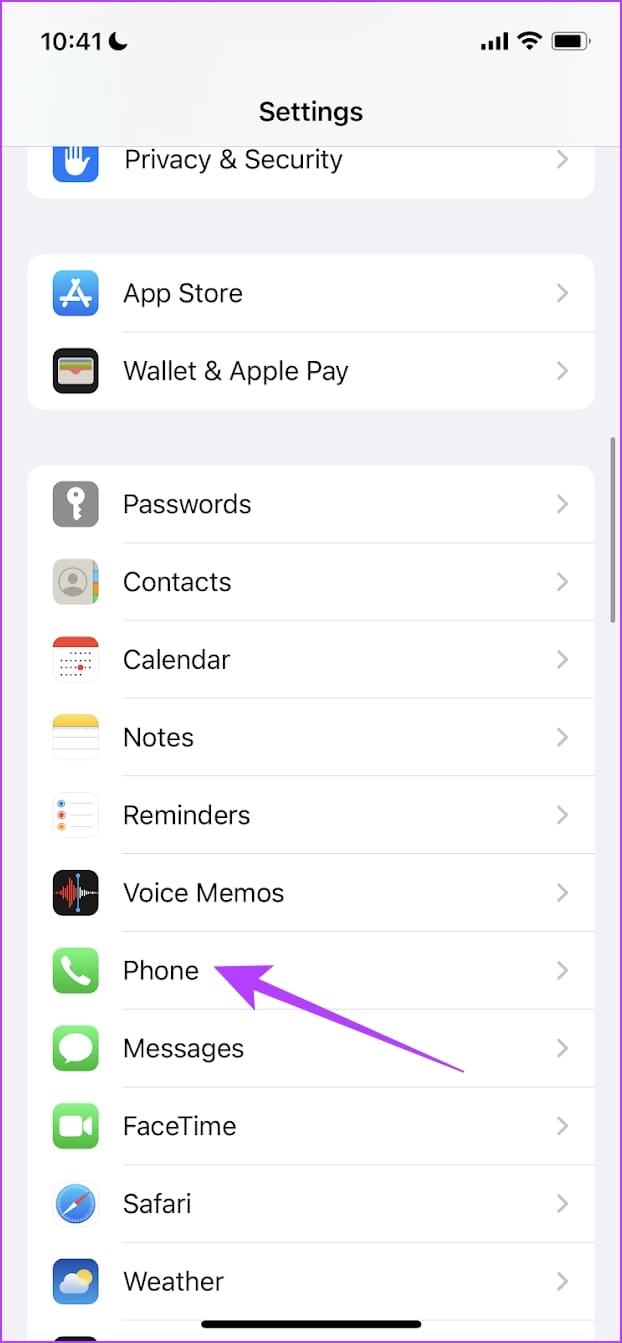
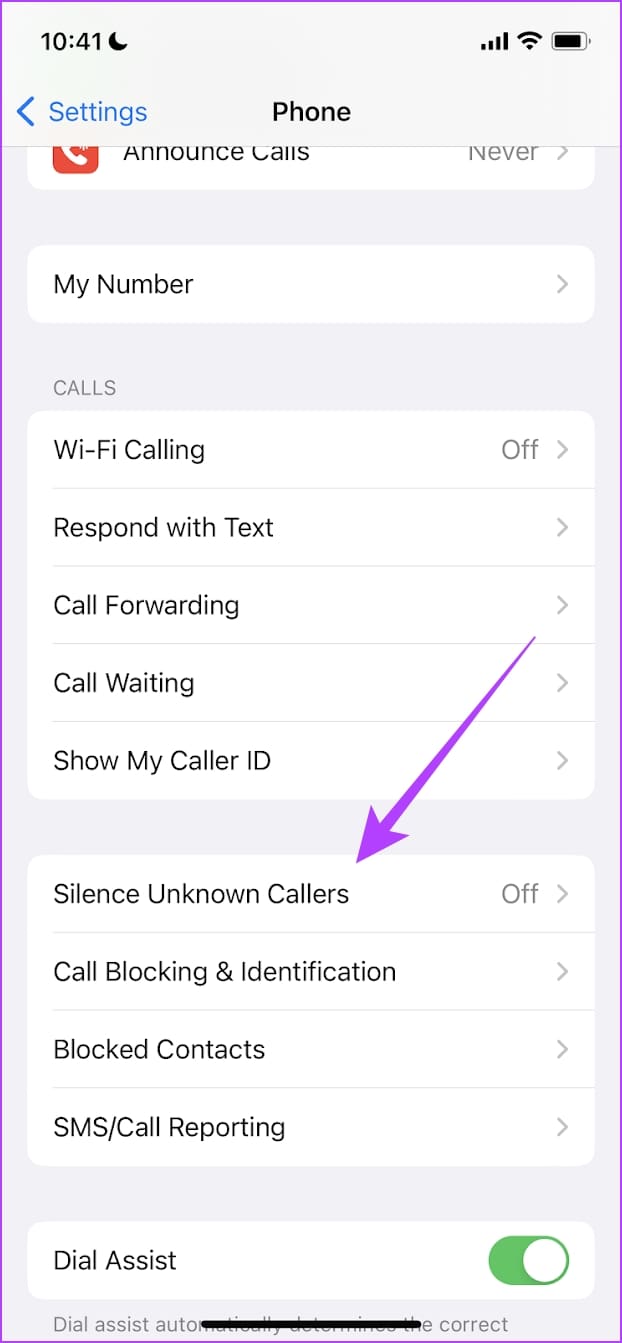
If you have the relevant settings enabled on your iPhone, it will automatically silence known callers. This will stop calls from numbers not saved on your device. When this happens, disable the silence unknown callers setting on your iPhone. Here’s how.
Step 1: Open Settings and tap on Phone. Tap on Silence Unknown Callers.
Step 2: Turn off the Silence Unknown Callers toggle.

Fix 3: Check iPhone Notifications Settings
Did you accidentally disable Phone app notifications on your iPhone? This might stop call notifications on your iPhone. It’s time to enable the option from the Settings menu. Here’s how to do it.
Step 1: Open Settings and tap on Notifications.
Step 2: Enable the Allow Notifications and other notification toggle.


Fix 4: Disable VoLTE
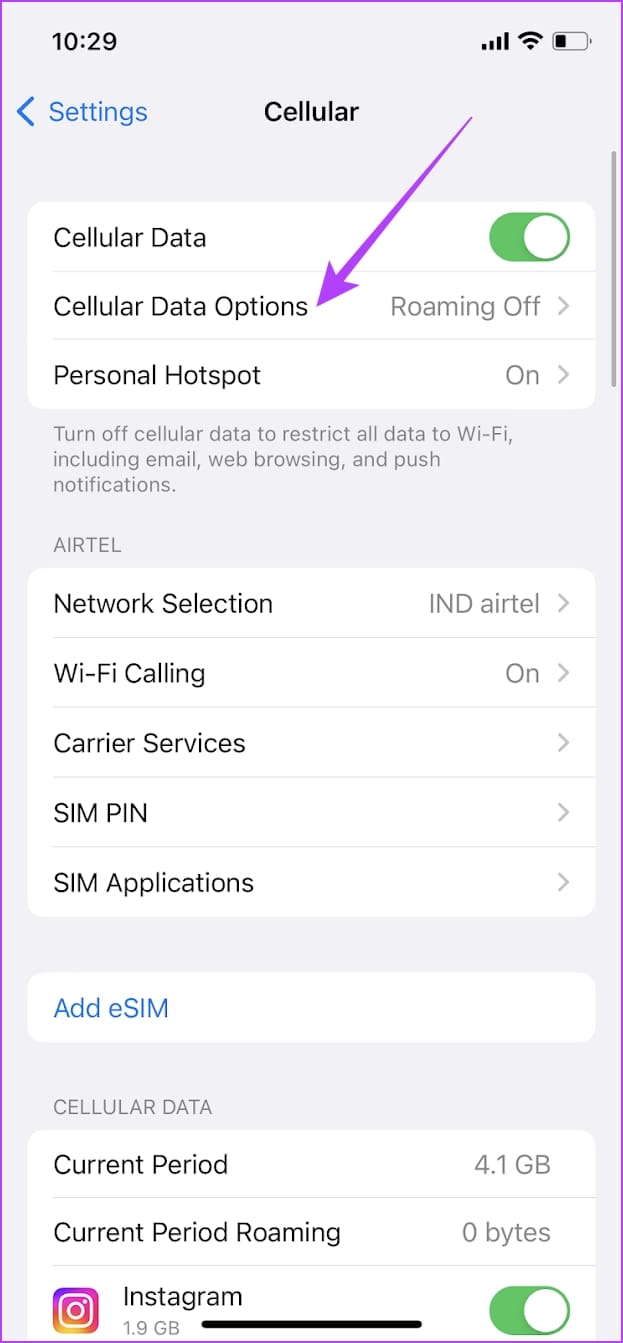
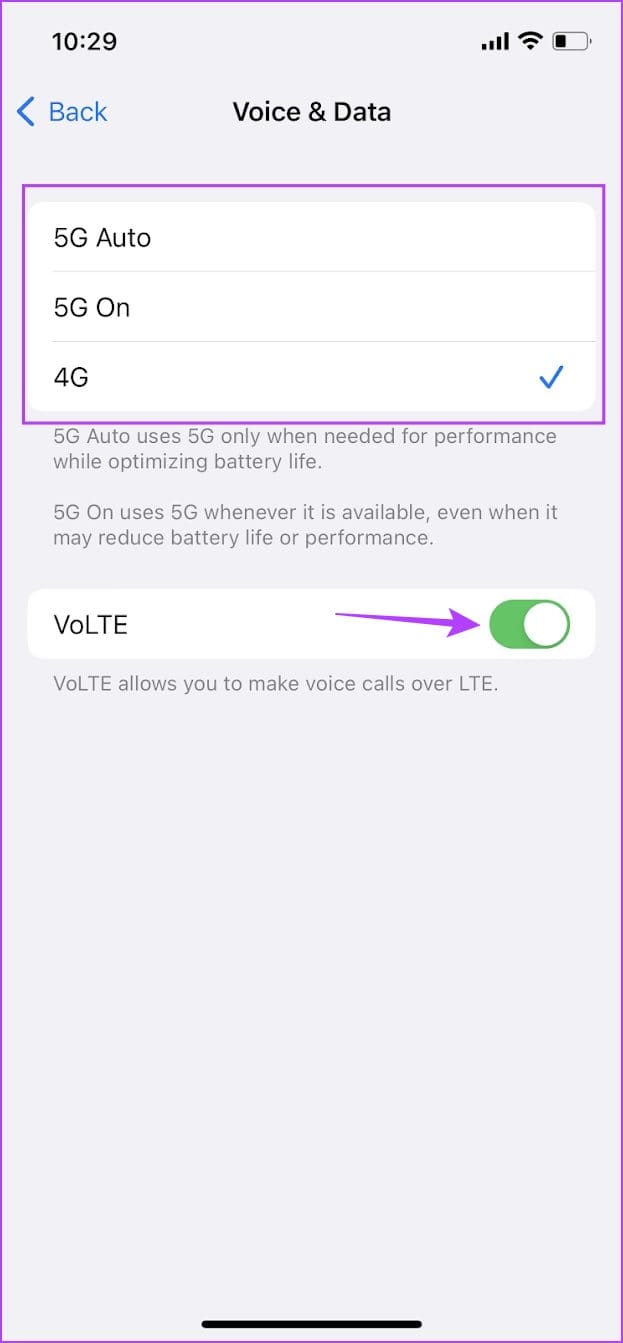
VoLTE helps you place calls over the LTE network rather than the standard one. While this can enhance your call experience, certain users might experience calls not ringing at all. When this happens, you can disable VoLTE on your iPhone. Here’s how.
Step 1: Open Settings and tap on Cellular. Tap on Cellular Data Options.
Step 2: Turn off the VoLTE toggle and change the cellular data mode if required.

Fix 5: Disable Call Forwarding
If your calls are being forwarded to a different device, they will not be visible on your current device. In this case, disable call forwarding on your iPhone and start receiving calls on your main device. Here’s how to do it.
Step 1: Open Settings → Phone. Tap on Call Forwarding and turn the toggle off.


Fix 6: Reset Network Settings
Network-related problems that could not be resolved by the initial tweaks often require a network reset. Resetting network settings will delete all your current network configurations and restore the default network values. This will fix any related call issues. Follow the below steps to do it.
Step 1: Open Settings and tap on General. Tap on Transfer or Reset iPhone.


Step 2: Here, tap on Reset. Tap on Reset Network Settings.
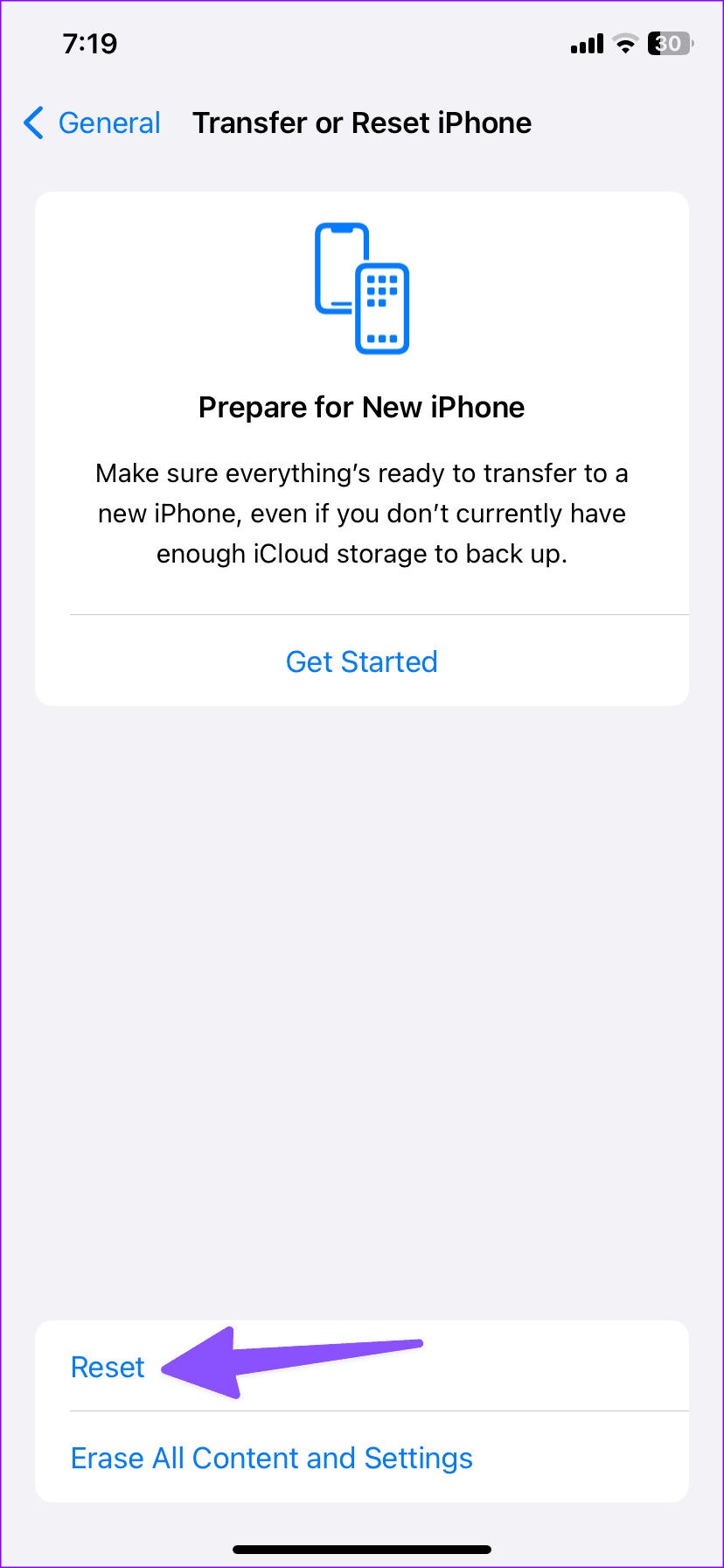

Once done, your iPhone will reboot and load up with the default network values. Now, perform a test call to check if the iPhone calls drop.
Was this helpful?
Last updated on 28 June, 2024
Read Next
 10 Ways to Fix Call Drop Issue on Samsung Galaxy Phones
With the latest advancements in calling technology, users can enjoy crystal-clear calls over their mobile network.
10 Ways to Fix Call Drop Issue on Samsung Galaxy Phones
With the latest advancements in calling technology, users can enjoy crystal-clear calls over their mobile network.
 How to Fix iPhone Not Sending or Receiving Pictures
https://www.youtube.com/watch?v=n-Z00F3Tgs8 Basic Fixes The first order of business is to establish whether you can't send pictures in Messages or iMessage or both.
How to Fix iPhone Not Sending or Receiving Pictures
https://www.youtube.com/watch?v=n-Z00F3Tgs8 Basic Fixes The first order of business is to establish whether you can't send pictures in Messages or iMessage or both.
 5 Ways to Fix iPhone Not Receiving Texts
Basic Troubleshooting Check cellular connectivity: If you are in an area with low or no coverage, errors like call drop, call failing, and not receiving or sending can occur.
5 Ways to Fix iPhone Not Receiving Texts
Basic Troubleshooting Check cellular connectivity: If you are in an area with low or no coverage, errors like call drop, call failing, and not receiving or sending can occur.
 5 Ways to Fix Outlook Not Receiving Emails on iPhone
Common Fixes Enable and disable the Airplane Mode: Open the Settings app, toggle on the Airplane Mode, and turn it off after a few seconds.
5 Ways to Fix Outlook Not Receiving Emails on iPhone
Common Fixes Enable and disable the Airplane Mode: Open the Settings app, toggle on the Airplane Mode, and turn it off after a few seconds.
 4 Ways to Fix Android Not Receiving Texts From iPhone
Why Is My Android Phone Not Receiving Texts From an iPhone?
4 Ways to Fix Android Not Receiving Texts From iPhone
Why Is My Android Phone Not Receiving Texts From an iPhone?
 5 Ways to Fix No Sound When Receiving Text on iPhone
Common Fixes Check the notification volume - Open the Settings app, tap Sounds & Haptics, and maximize the Ringtone and Alerts volume slider.
5 Ways to Fix No Sound When Receiving Text on iPhone
Common Fixes Check the notification volume - Open the Settings app, tap Sounds & Haptics, and maximize the Ringtone and Alerts volume slider.
 4 Ways to Fix iPhone Not Receiving Emails
https://youtu.be/F6cOkDGNWuU Basic Fixes: Manually refresh the email inbox: Open the Mail app on your iPhone and swipe down from the top to refresh the inbox.
4 Ways to Fix iPhone Not Receiving Emails
https://youtu.be/F6cOkDGNWuU Basic Fixes: Manually refresh the email inbox: Open the Mail app on your iPhone and swipe down from the top to refresh the inbox.
 3 Ways to Fix iPhone Hangs Up When I Call Someone
Basic Fixes Restart your iPhone: If your iPhone hangs up during a call, restarting it is the first thing to try.
3 Ways to Fix iPhone Hangs Up When I Call Someone
Basic Fixes Restart your iPhone: If your iPhone hangs up during a call, restarting it is the first thing to try.
The article above may contain affiliate links which help support Guiding Tech. The content remains unbiased and authentic and will never affect our editorial integrity.