Basic Fixes
- Bring the device closer: If you are trying to connect to a Bluetooth device that is far away, bring it closer. It may be outside the range of connectivity.
- Enable pairing mode on the device: If you enable pairing mode, only a few Bluetooth devices can be connected.
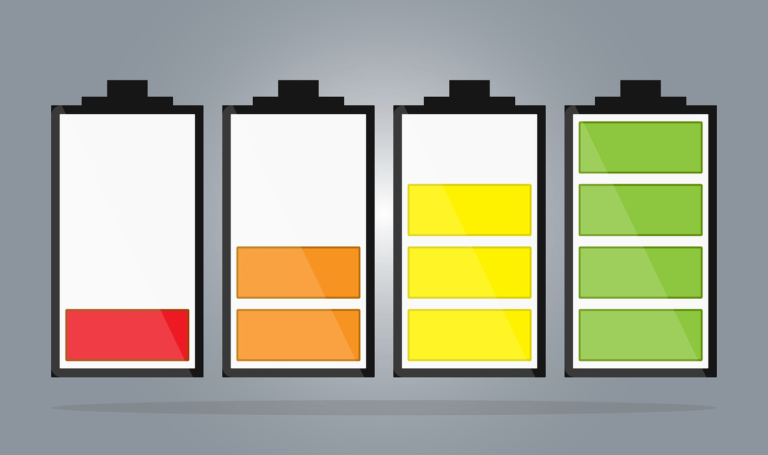
- Check the battery on the Bluetooth device: Recharge the device if it is running low on charge and connect it to your iPhone.
- Reconnect device: Open the Settings app, go to Bluetooth, select your device, and tap on Forget. Now, reconnect the device. This should fix any glitches.
- Use 5GHz Wi-Fi: Bluetooth uses a 2.4GHz frequency band, which can cause the signals to overlap and cause problems. Try using a 5Ghz Wi-Fi.
- Disconnect from other devices: Not all Bluetooth devices can connect to multiple devices at once. Check if the Bluetooth device is already connected to another device.
- Restart iPhone: Restarting your iPhone can remove any temporary bugs and glitches.
Fix 1: Update or Reset Bluetooth Device
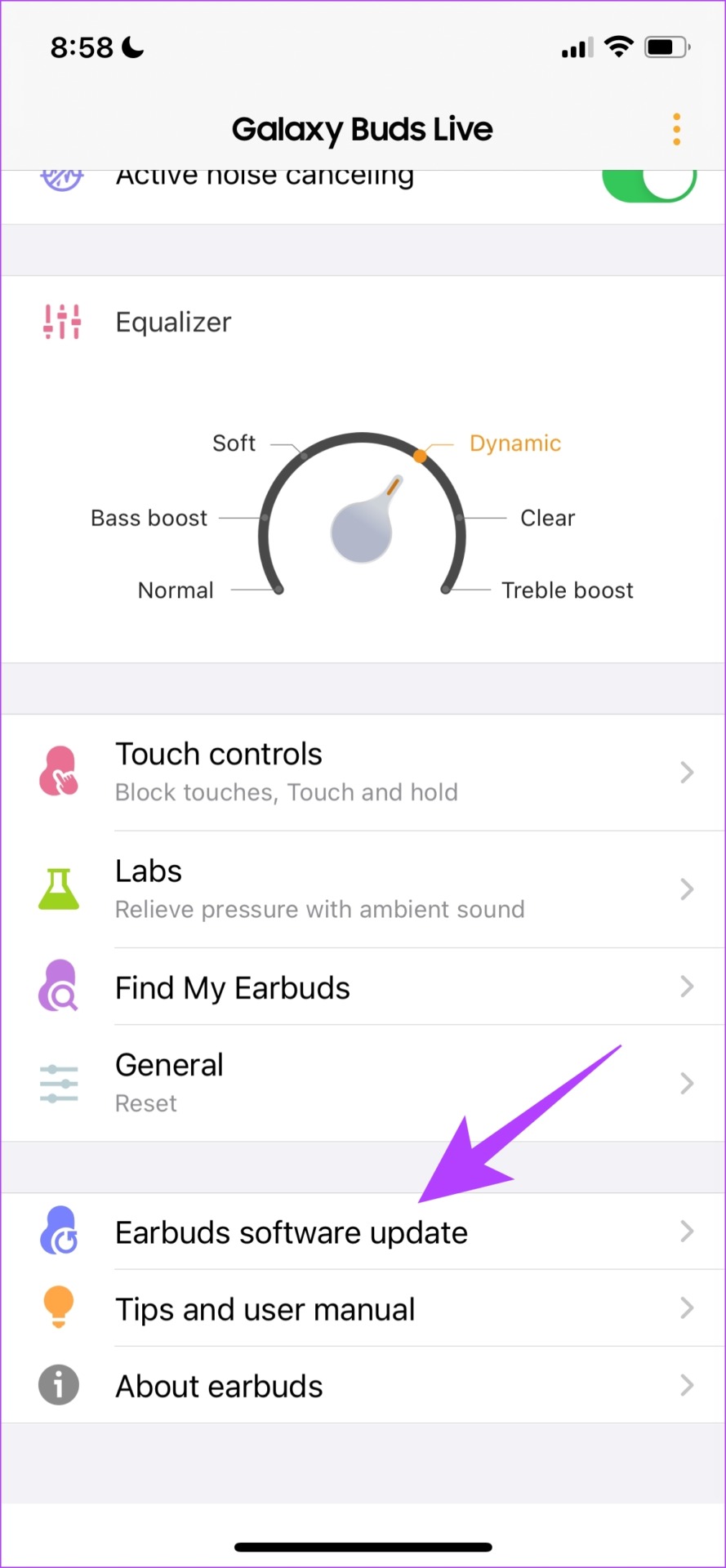
Most Bluetooth devices have a dedicated app that allows users to update the firmware. Updating the firmware can resolve any widespread issues with the device.
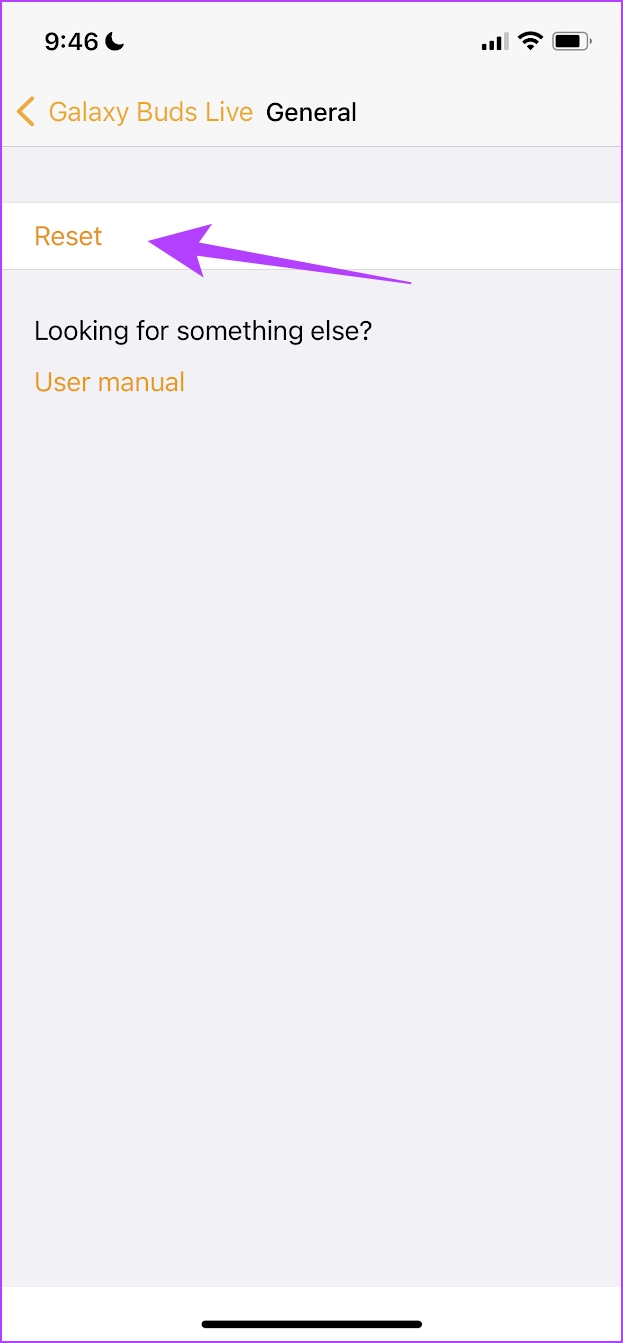
Resetting the Bluetooth device will reset all the applied configurations to their default states. Most issues will likely be fixed. This is also possible on the official Bluetooth device app.
For example, here’s how it looks on the dedicated app for Samsung Bluetooth devices to update the firmware or reset the device.
Fix 2: Reset Network Settings on iPhone
Resetting the network settings on your iPhone will reapply all the default configurations related to your Wi-Fi, Cellular, and Bluetooth networks. This can help fix issues with Bluetooth on your iPhone.
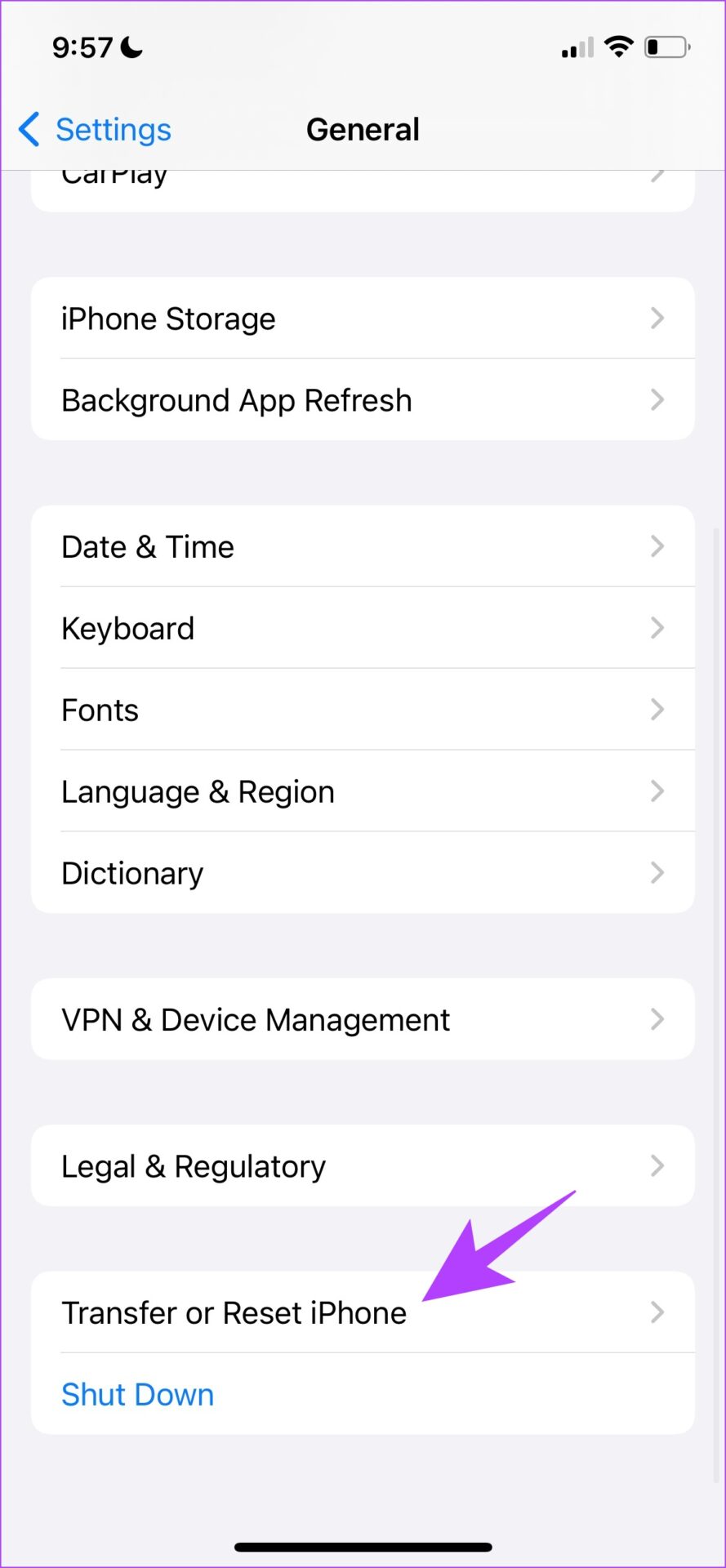
Step 1: Open the Settings app. Tap on General.
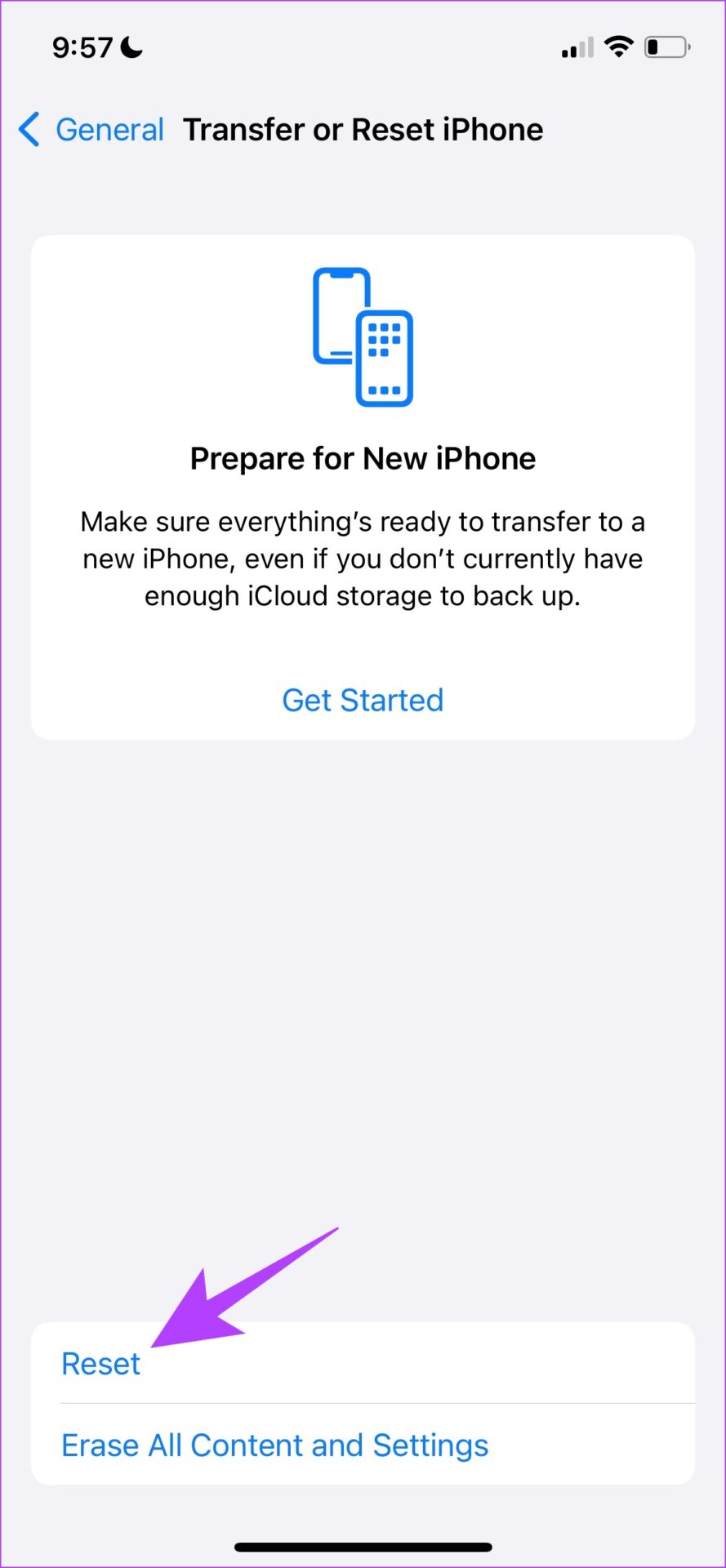
Step 2: Select Transfer or Reset iPhone, tap on Reset, and tap Reset Network Settings.
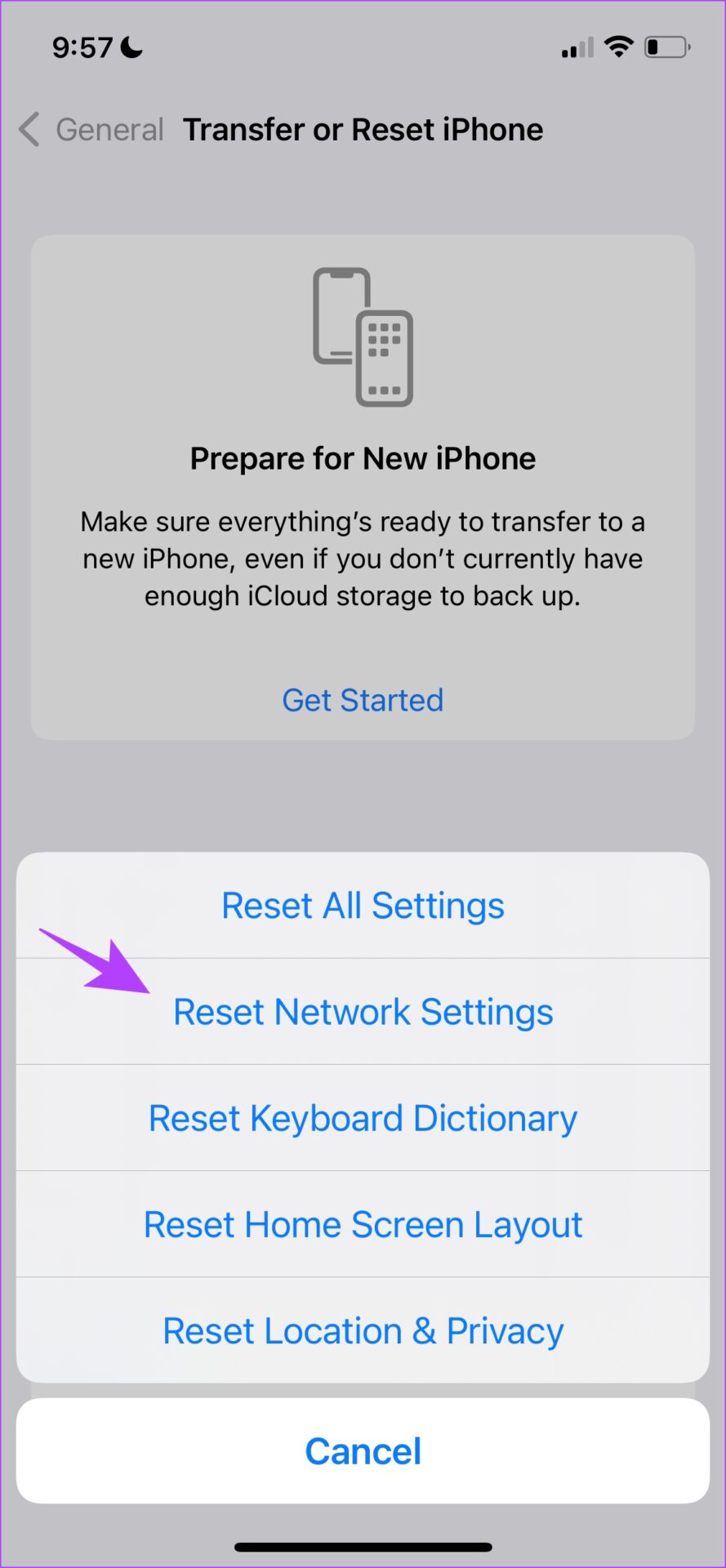
If this does not work, you can reset all the settings on your iPhone as a last resort.
Was this helpful?
Last updated on 16 July, 2024
Read Next
 2 Fixes for Bluetooth Device Not Connecting Automatically on iPhone
Basic Fixes Reconnect device: Open the Settings app, go to Bluetooth, select your device, and tap on Forget.
2 Fixes for Bluetooth Device Not Connecting Automatically on iPhone
Basic Fixes Reconnect device: Open the Settings app, go to Bluetooth, select your device, and tap on Forget.
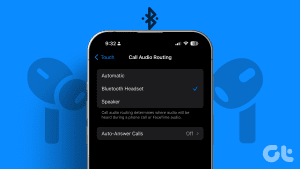 How to Answer Calls with Bluetooth Device on iPhone
Route Call Audio to Bluetooth Devices by Default To receive calls via Bluetooth devices, you must ensure two things.
How to Answer Calls with Bluetooth Device on iPhone
Route Call Audio to Bluetooth Devices by Default To receive calls via Bluetooth devices, you must ensure two things.
 Bluetooth 5.1 vs Bluetooth 4.2: The 4 Key Differences
Bluetooth is one of the most common means of wireless connectivity.
Bluetooth 5.1 vs Bluetooth 4.2: The 4 Key Differences
Bluetooth is one of the most common means of wireless connectivity.
 3 Fixes for iPhone Not Connecting to a Bluetooth Speaker
Basic Fixes Check the Bluetooth speaker battery: Most Bluetooth speakers have an LED indicator suggesting its current charge.
3 Fixes for iPhone Not Connecting to a Bluetooth Speaker
Basic Fixes Check the Bluetooth speaker battery: Most Bluetooth speakers have an LED indicator suggesting its current charge.
 How to Use an Android Device as Mic for Bluetooth Speakers
1.
How to Use an Android Device as Mic for Bluetooth Speakers
1.
 How to Fix Bluetooth Missing From Device Manager in Windows 11
Basic Fix: Replug your Bluetooth adapter: This applies to those using Bluetooth adapter on Windows 11 PCs.
How to Fix Bluetooth Missing From Device Manager in Windows 11
Basic Fix: Replug your Bluetooth adapter: This applies to those using Bluetooth adapter on Windows 11 PCs.
 5 Ways to Fix Unable to Remove Bluetooth Device on Windows 11
Fix 1: Try Removing Device in Airplane Mode To start, enable Airplane mode and remove the Bluetooth device again.
5 Ways to Fix Unable to Remove Bluetooth Device on Windows 11
Fix 1: Try Removing Device in Airplane Mode To start, enable Airplane mode and remove the Bluetooth device again.
 6 Best Multi-Device Keyboards With Bluetooth Connectivity
Most people use more than one screen.
6 Best Multi-Device Keyboards With Bluetooth Connectivity
Most people use more than one screen.
The article above may contain affiliate links which help support Guiding Tech. The content remains unbiased and authentic and will never affect our editorial integrity.