


Basic Fixes
- Clean earpiece – Gently clean the earpiece cavity to remove accumulated dust and debris.
- Remove screen protector – Remove the screen protector and case blocking the earpiece speaker.
- Flip the Silent switch – Turn on and turn off the physical Silent switch on the side multiple times to fix low call volume.
- Force restart iPhone – Press and quickly release the Volume Up button followed by Volume Down. Next, hold the side button and release it when the Apple logo appears.
- Disconnect Bluetooth devices – Open the Settings app, tap Bluetooth, and disconnect all paired devices.
- Update iOS – Head to General, tap Software Update, and select Update Now (if available).
Fix 1: Disable Phone Noise Cancellation
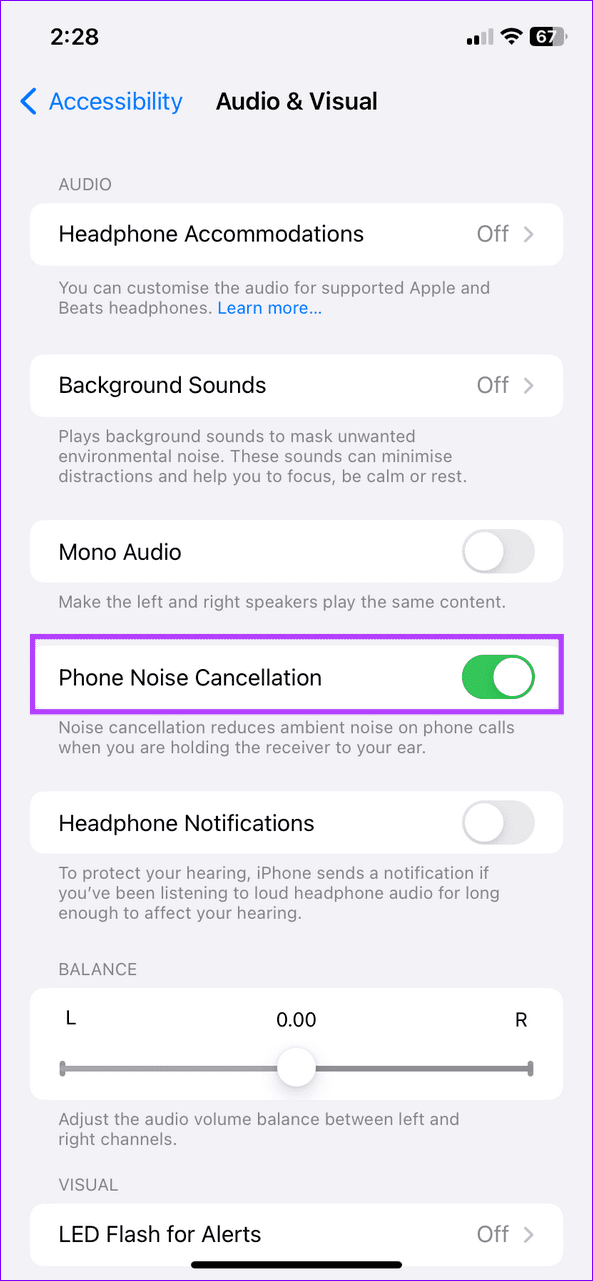
iOS’s Phone Noise Cancellation reduces ambient noise on phone calls when holding the receiver close to your ear. If buggy, it can reduce the volume of actual call conversations. Disable the feature to restore normalcy.
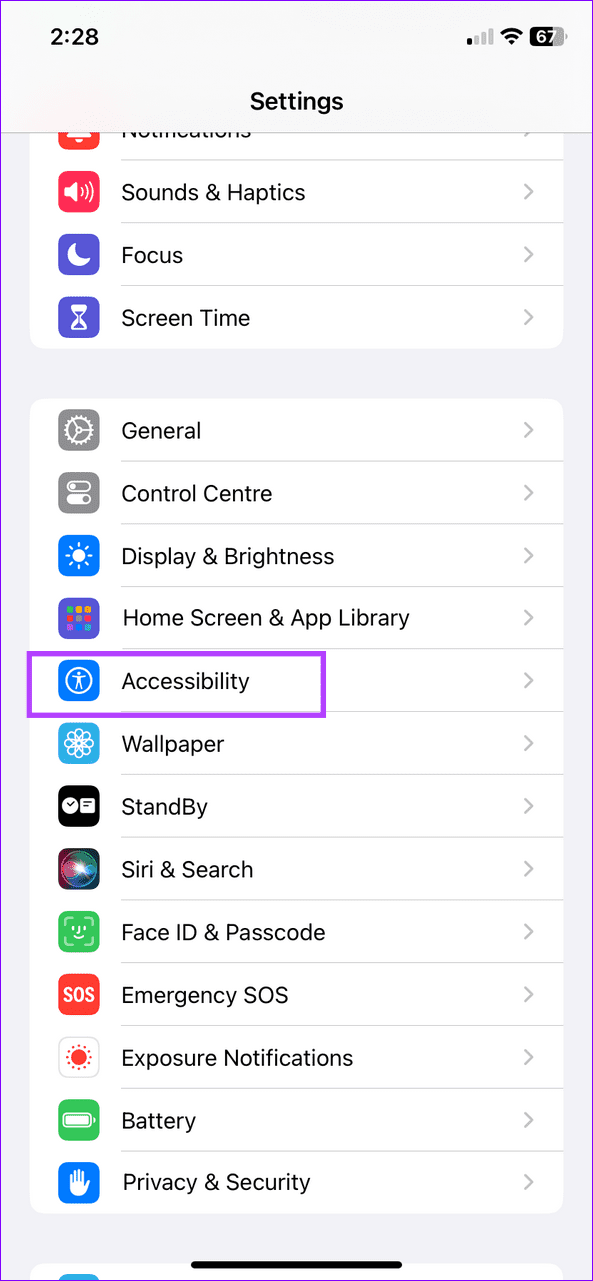
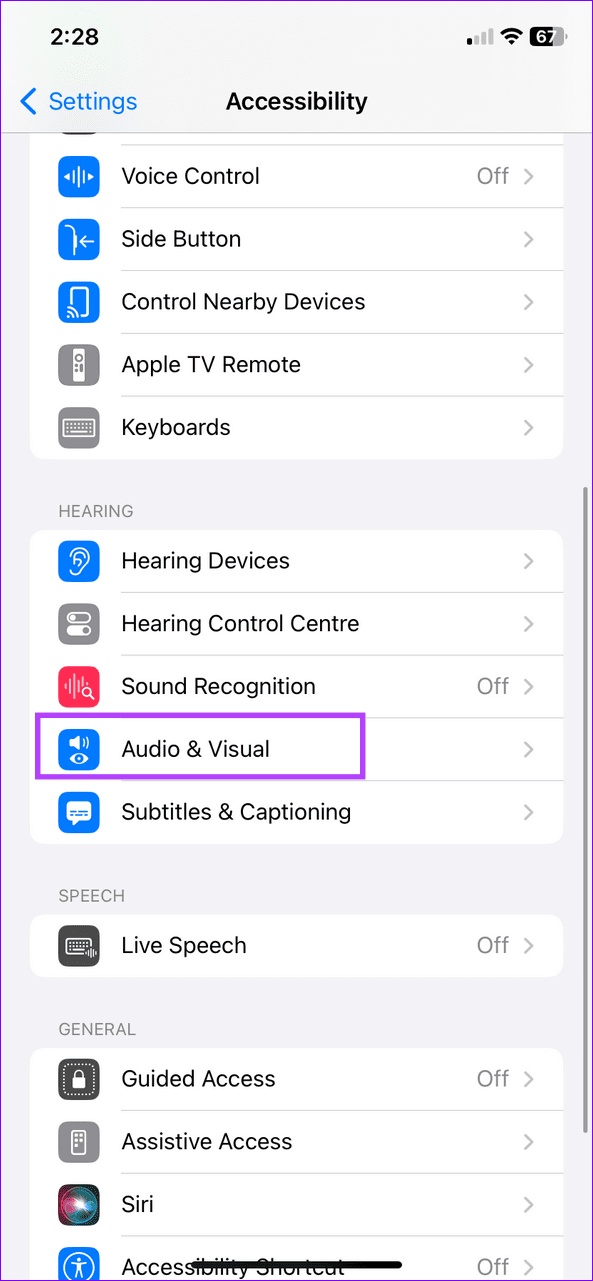
Step 1: Open iPhone Settings and tap Accessibility.
Step 2: Select Audio & Visual and toggle off Phone Noise Cancellation.
Fix 2: Adjust Volume During a Call
If the volume output is quite low during calls, you can press and hold the Volume Up button on the side to increase it. You can see its level indication through the graphical volume bar on the left side.
Fix 3: Adjust Call Audio Routing
The Call Audio Routing feature on iOS governs the call audio output. Setting it manually to Speaker directs the phone call audio to the earpiece, fixing low call volume issues.
Step 1: Select Accessibility under iPhone settings and tap Touch under the Physical and Motor section.
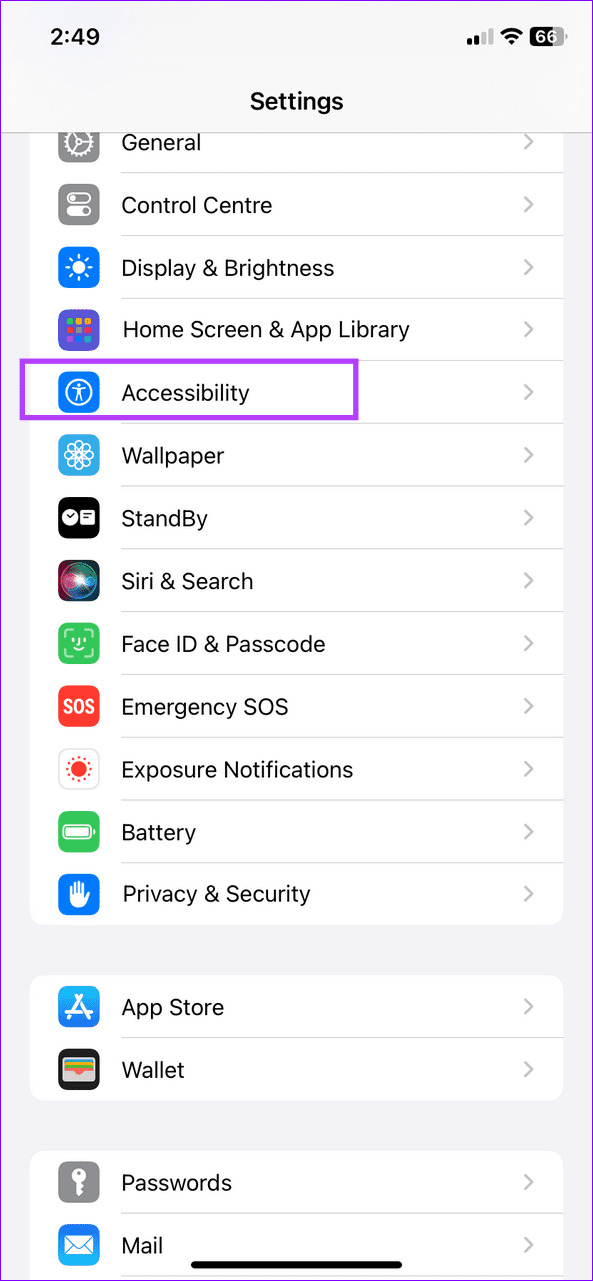

Step 2: Tap Call Audio Routing and set it to Speaker.


Fix 4: Reset Network Settings
Incorrect network settings are a common underlying culprit behind low call volume issues on iPhones. Head to iPhone settings to reset the network.
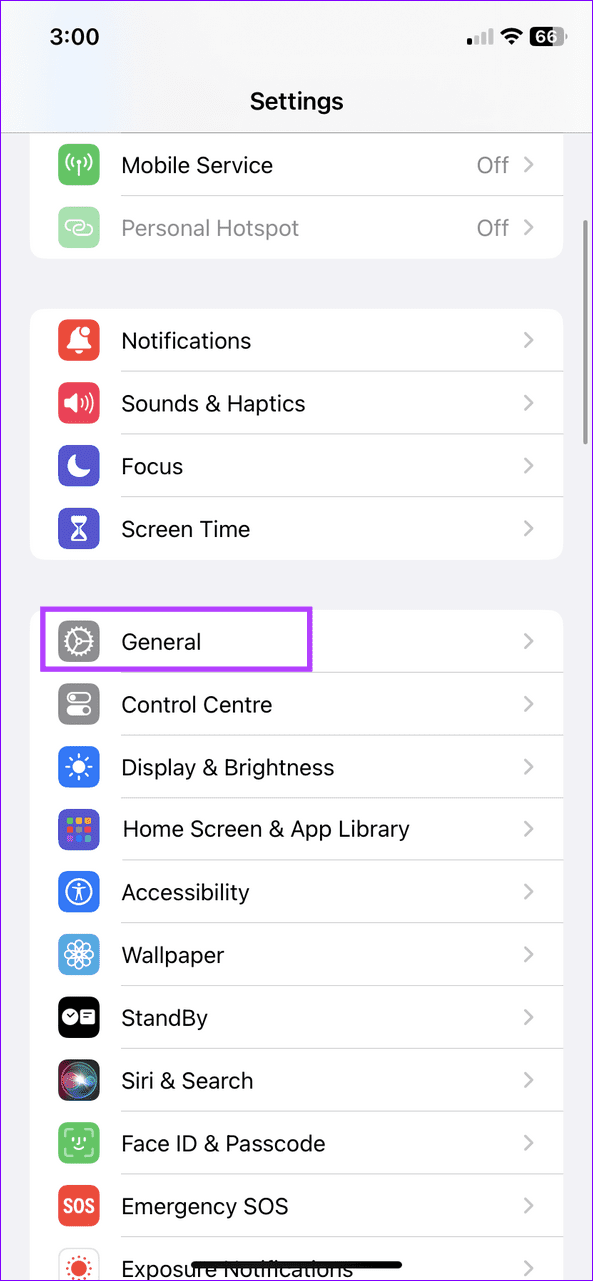
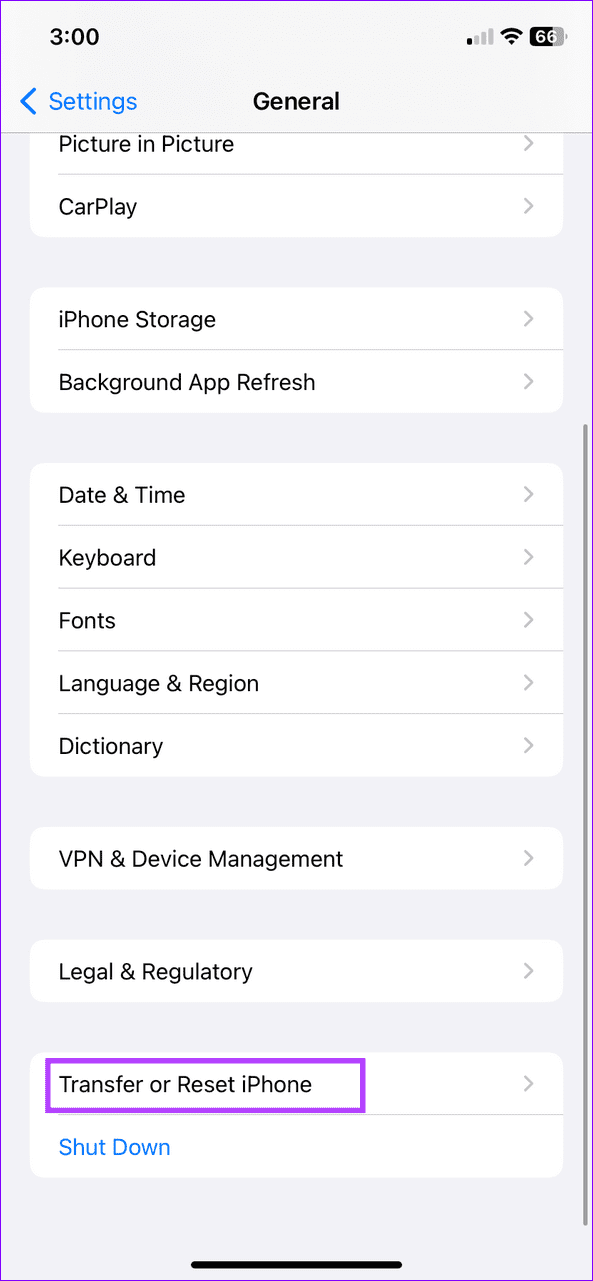
Step 1: Open the Settings app, select General, and tap Transfer or Reset iPhone.
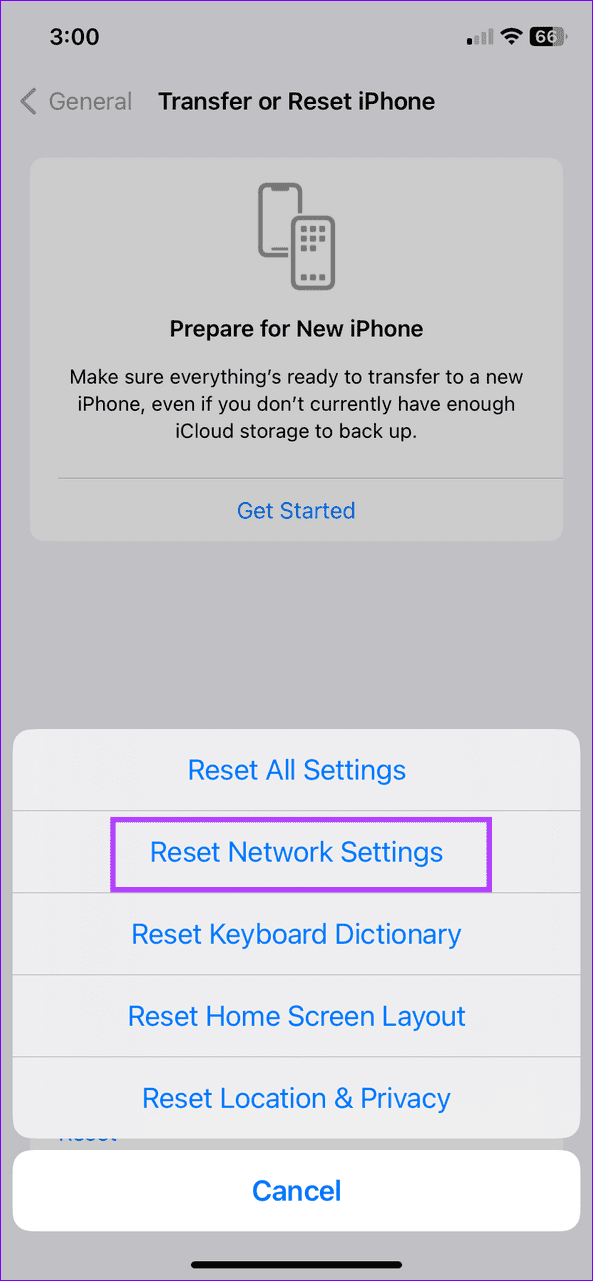
Step 2: Tap Reset and select Reset Network Settings. Authenticate your action with the device passcode when prompted.

Fix 5: Reset All iPhone Settings
If removing all existing network settings didn’t help, reset your entire iPhone settings to restore the device configuration to its factory state.
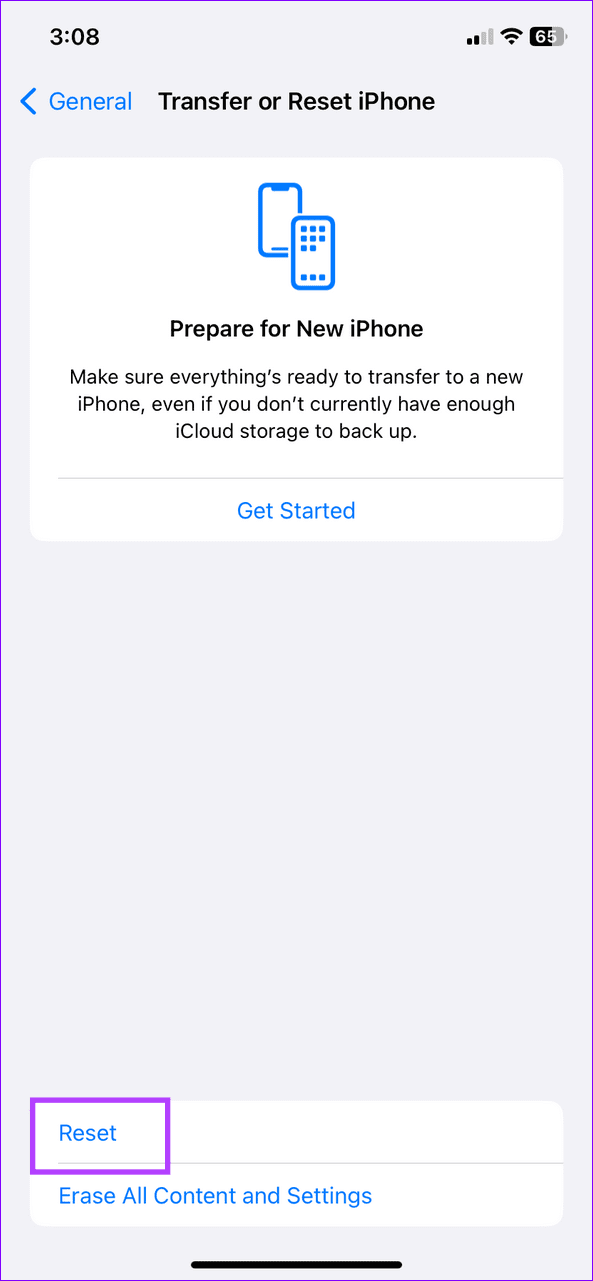
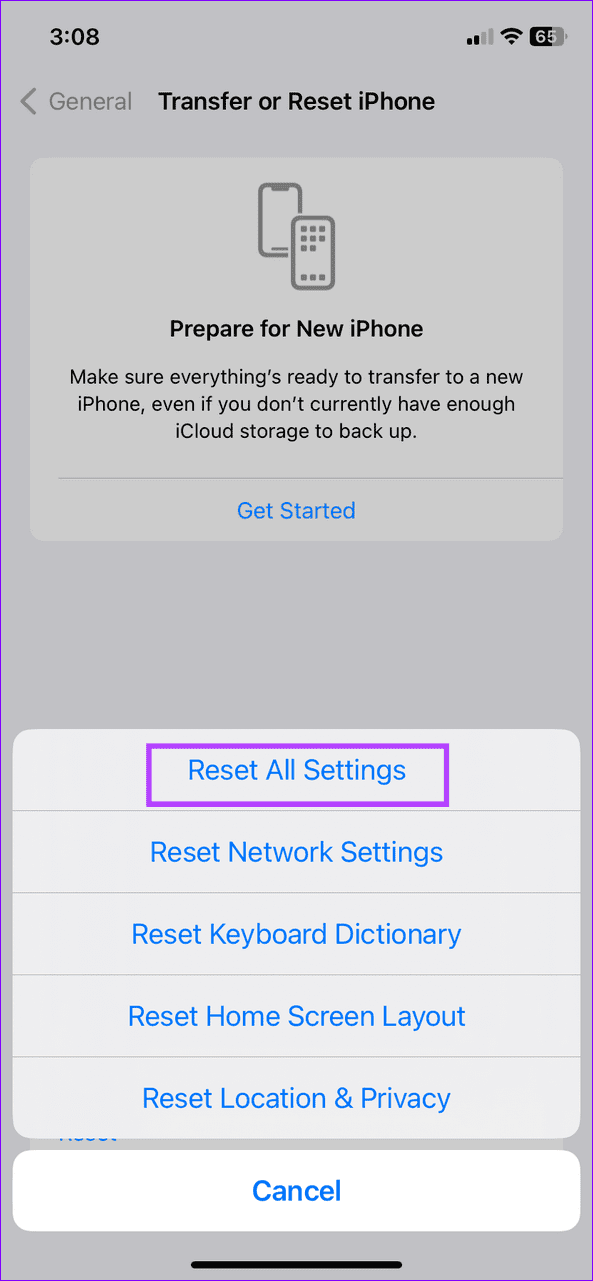
Step 1: Open General settings and tap Transfer or Reset iPhone at the bottom.
Step 2: Select Reset and tap Reset All Settings.

Was this helpful?
Last updated on 23 April, 2024
3 Comments
Leave a Reply
Read Next
 5 Ways to Fix Low or Loud Alarm Volume on iPhone
Common Fixes Restart iPhone - Press and hold either of the volume buttons with the side button and drag the power off slider to shut down.
5 Ways to Fix Low or Loud Alarm Volume on iPhone
Common Fixes Restart iPhone - Press and hold either of the volume buttons with the side button and drag the power off slider to shut down.
 4 Ways to Fix Apple Music Low Volume Issue on iPhone
Basic Fixes: Check volume levels on iPhone: If the volume levels are set to low, it might result in an overall low volume when using Apple Music.
4 Ways to Fix Apple Music Low Volume Issue on iPhone
Basic Fixes: Check volume levels on iPhone: If the volume levels are set to low, it might result in an overall low volume when using Apple Music.
 3 Fixes for WhatsApp Voice Message Playing at Low Volume on iPhone
Basic Fixes Avoid proximity sensor activation: Don't bring your iPhone closer to your ear while listening to the voice messages.
3 Fixes for WhatsApp Voice Message Playing at Low Volume on iPhone
Basic Fixes Avoid proximity sensor activation: Don't bring your iPhone closer to your ear while listening to the voice messages.
 7 Ways to Fix Low Volume on YouTube Videos in Chrome
Basic Fixes Restart Chrome and the computer - A simple reboot can fix minor glitches that may cause the volume problem.
7 Ways to Fix Low Volume on YouTube Videos in Chrome
Basic Fixes Restart Chrome and the computer - A simple reboot can fix minor glitches that may cause the volume problem.
 7 Ways to Fix Low Volume on Windows 11
https://youtu.be/1snNqM2ZcwI Try Basic Fixes Check the volume mixer: Right-click the speaker icon on the taskbar and select the Open volume mixer option.
7 Ways to Fix Low Volume on Windows 11
https://youtu.be/1snNqM2ZcwI Try Basic Fixes Check the volume mixer: Right-click the speaker icon on the taskbar and select the Open volume mixer option.
 3 Fixes for iMessage Voice Messages Playing in Low Volume
Basic Fixes Check iPhone volume levels: You may have reduced the volume levels previously to avoid disturbing others while using your iPhone to consume media.
3 Fixes for iMessage Voice Messages Playing in Low Volume
Basic Fixes Check iPhone volume levels: You may have reduced the volume levels previously to avoid disturbing others while using your iPhone to consume media.
 3 Ways to Fix Volume Buttons Not Working on iPhone
Basic Fixes Remove the case: The case might be tight and restrict the volume buttons from clicking.
3 Ways to Fix Volume Buttons Not Working on iPhone
Basic Fixes Remove the case: The case might be tight and restrict the volume buttons from clicking.
 3 Ways to Fix Volume Level Keeps Going Up or Down on iPhone
Try These Basic Fixes Remove the phone case: If your iPhone's case remains pressed against one of the volume buttons, the volume level can increase or decrease.
3 Ways to Fix Volume Level Keeps Going Up or Down on iPhone
Try These Basic Fixes Remove the phone case: If your iPhone's case remains pressed against one of the volume buttons, the volume level can increase or decrease.
The article above may contain affiliate links which help support Guiding Tech. The content remains unbiased and authentic and will never affect our editorial integrity.
In some cases, if you forcefully choose to factory reset your iPhone, you may risk losing the data of your iPhone. Several tools can help your iPhone caller volume low problem fix while maintaining your data intact, such as TunesKit iOS System Recovery.
For user safety, I don’t recommend using any third-party software to factory reset your iPhone. It’s safer to rely on official methods provided by Apple.
Worked on my iPhone can now hear when someone calls me thanks