

Basic Troubleshooting
- Restart the Calendar app: Restarting the app can usually fix minor bugs or system errors.
- Restart the iPhone: Restart the iPhone to reset the cache. This usually fixes various problems.
- Update iOS: A probable reason for the Apple Calendar search not working could be a bug in iOS. And gladfully, that can be fixed with the next update.
Method 1. Ensure Calendar Sync Is Set Up for All Events
If you’re searching for an old event or an upcoming event created on a different device, this hack might do the trick.
Step 1: Go to Settings. Scroll down and select Calendar.
Step 2: Select Sync. Here, select All Events if not already.


Step 3: Now, wait for a few seconds and launch the Calendar app.
Step 4: Tap the Calendars tab and pull down from the top to refresh the Calendar.


If All Events is already selected, choose a specific timeframe like Events 1 Month Back. Refresh the Calendar app and switch to All Events again. It might help you fix the bug and reset the search feature. If you still can’t find a specific event, follow this guide to fix events disappearing from the Calendar app.
Method 2. Ensure All Groups Are Turned on
Apple lets you set up multiple calendars; from shared ones to work/personal calendars, allowing you to keep events organized. However, there might be a chance that the events you’re searching for belong to a different group. So, ensure all the calendar groups are enabled.
Step 1: Launch the Calendar app. Select the Calendar tab from the bottom.
Step 2: Check all the important Calendar groups and tap the group to turn it on.
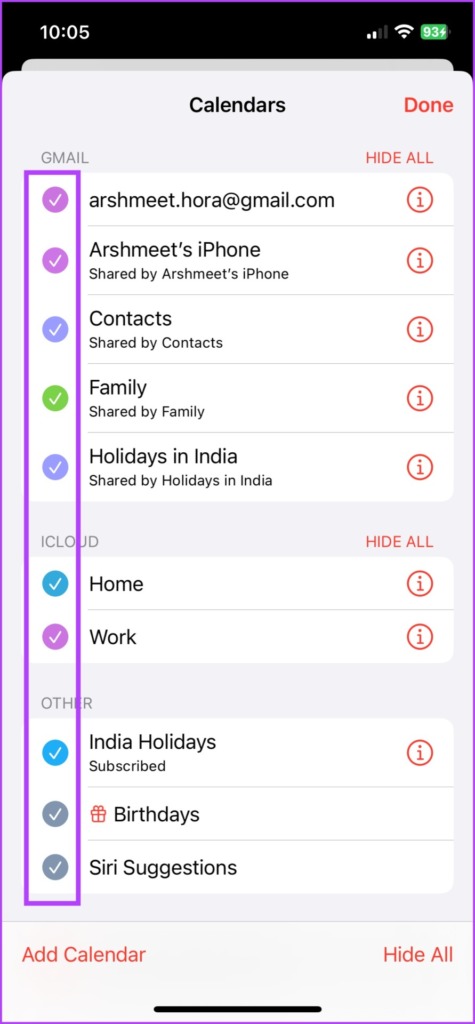
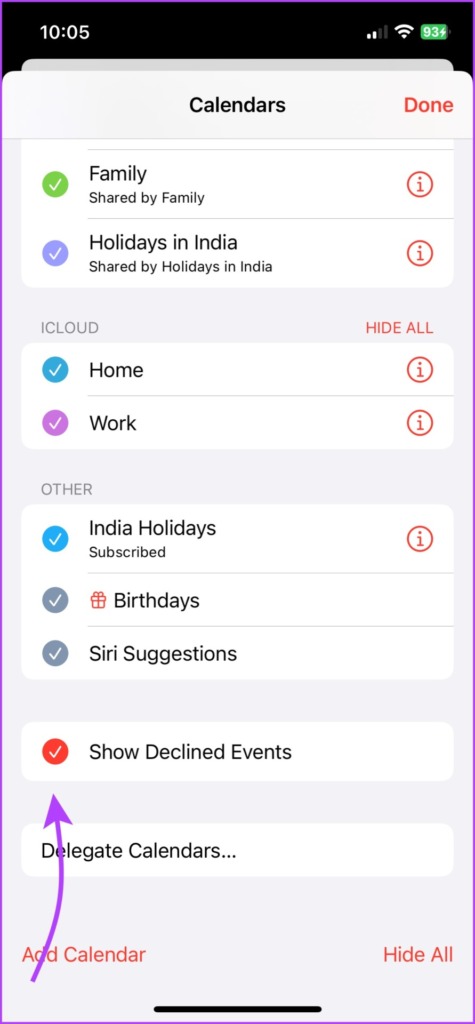
As an extra measure, also check Show Declined Events to ensure any old non-accepted event is also included in your search.
Note: There’s also a chance that the event you’re searching for belonged to a shared calendar you’re no longer subscribed to. Thus, you can’t find it.
Method 3. Reset Calendar’s Siri and Search Setting
This method is another way to eliminate bugs or settings errors. It was suggested by one of our readers and it resolved the issue for them.
Step 1: Force quit the Calendar app. Go to Settings > Calendar.
Step 2: Tap Siri and Search.
Step 3: Toggle off all tabs. After some time, toggle on all or preferred settings.
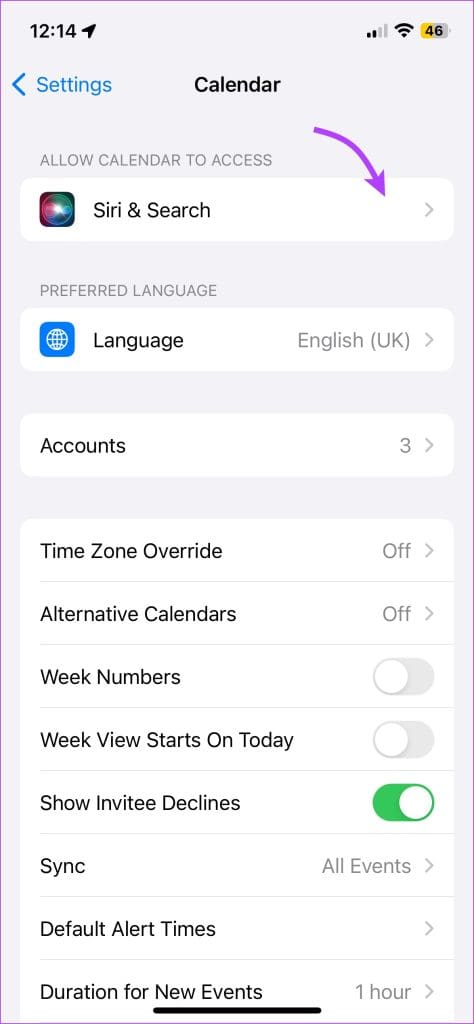


Once done, force close the Settings app and restart the Calendar app. Hopefully, the issue will be resolved.
Method 4. Reset All Settings on Your iPhone
When you reset iPhone settings, it wipes off all saved settings, including Wi-Fi passwords, Bluetooth devices, and more. However, it will probably reset the bug or issue stopping you from searching the iPhone Calendars for events.
Well, it sounds like an extreme measure, but desperate times call for some intense problem-solving.
Step 1: Launch the Settings app. Go to General.
Step 2: Scroll down and select ‘Transfer or Reset iPhone’. Tap Reset.
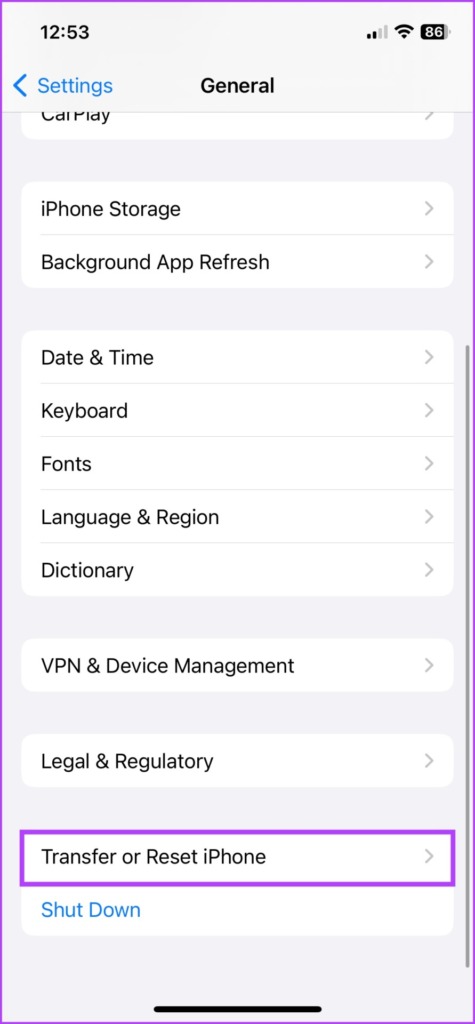
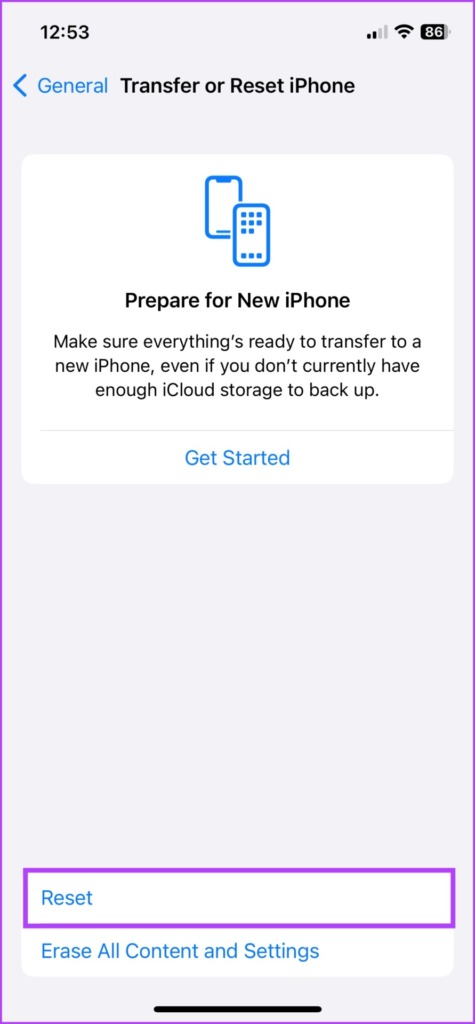
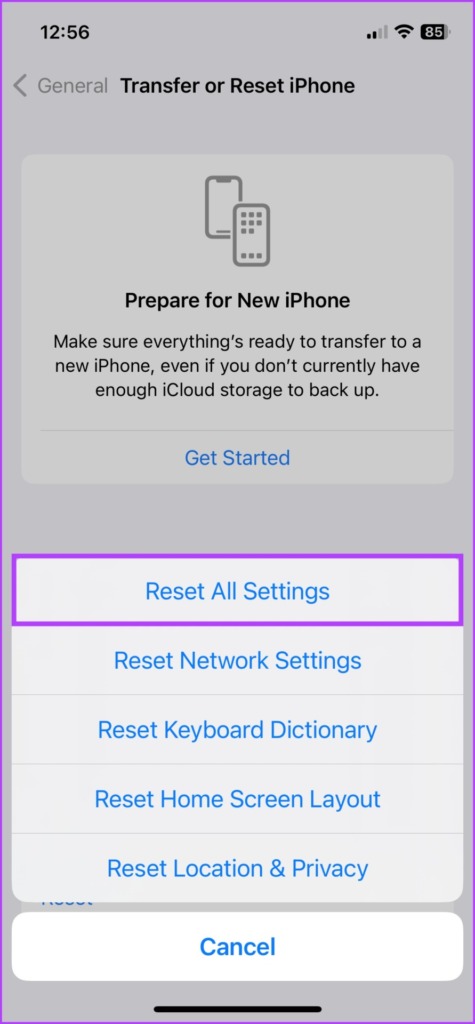
Step 3: Select Reset All Settings and enter your passcode.
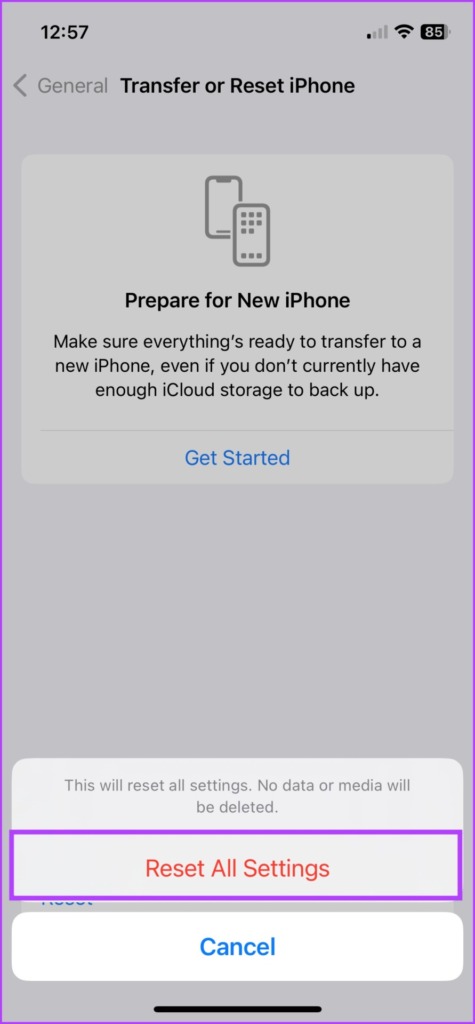
Step 4: Finally, select Reset All Settings again to confirm.
Well, if nothing else works, it’s time to call or contact Apple Support. You can do so by downloading the support app or visiting the Apple Support website.
Was this helpful?
Last updated on 05 July, 2024
10 Comments
Leave a Reply
Read Next
 How to Add and Remove Holidays Calendar in Apple Calendar App
How to Use Holidays Calendar on iPhone The Apple Calendar app offers a built-in regional calendar, displaying the common holidays (occasions and festivals) from that area.
How to Add and Remove Holidays Calendar in Apple Calendar App
How to Use Holidays Calendar on iPhone The Apple Calendar app offers a built-in regional calendar, displaying the common holidays (occasions and festivals) from that area.
 How to Connect Outlook Calendar With Google Calendar: 4 Best Ways
Note: The methods recommended in the article allow two-way syncs in the calendar.
How to Connect Outlook Calendar With Google Calendar: 4 Best Ways
Note: The methods recommended in the article allow two-way syncs in the calendar.
 How to Add Zoom Meetings to Outlook Calendar and Google Calendar
How to Add Zoom Meetings to Google Calendar The easiest way is using the Zoom for Google Workspace Google calendar add-on.
How to Add Zoom Meetings to Outlook Calendar and Google Calendar
How to Add Zoom Meetings to Google Calendar The easiest way is using the Zoom for Google Workspace Google calendar add-on.
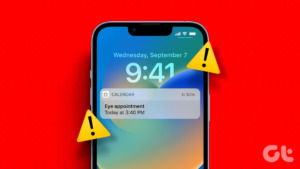 4 Ways to Fix Calendar Alerts Not Working on iPhone
Try Basic Fixes Disable Focus mode: When Focus mode is active, your iPhone pauses notifications for all apps, including Calendar.
4 Ways to Fix Calendar Alerts Not Working on iPhone
Try Basic Fixes Disable Focus mode: When Focus mode is active, your iPhone pauses notifications for all apps, including Calendar.
 4 Ways to Fix App Store Search Not Working on iPhone
Try Basic Fixes Check the App Store server status: Sometimes, the App Store can suffer from service outages.
4 Ways to Fix App Store Search Not Working on iPhone
Try Basic Fixes Check the App Store server status: Sometimes, the App Store can suffer from service outages.
 6 Ways to Fix Spotlight Search Not Working On iPhone and iPad
Before you begin, try restarting your iPhone or updating it to the latest version to get rid of any bugs that are affecting Spotlight Search.
6 Ways to Fix Spotlight Search Not Working On iPhone and iPad
Before you begin, try restarting your iPhone or updating it to the latest version to get rid of any bugs that are affecting Spotlight Search.
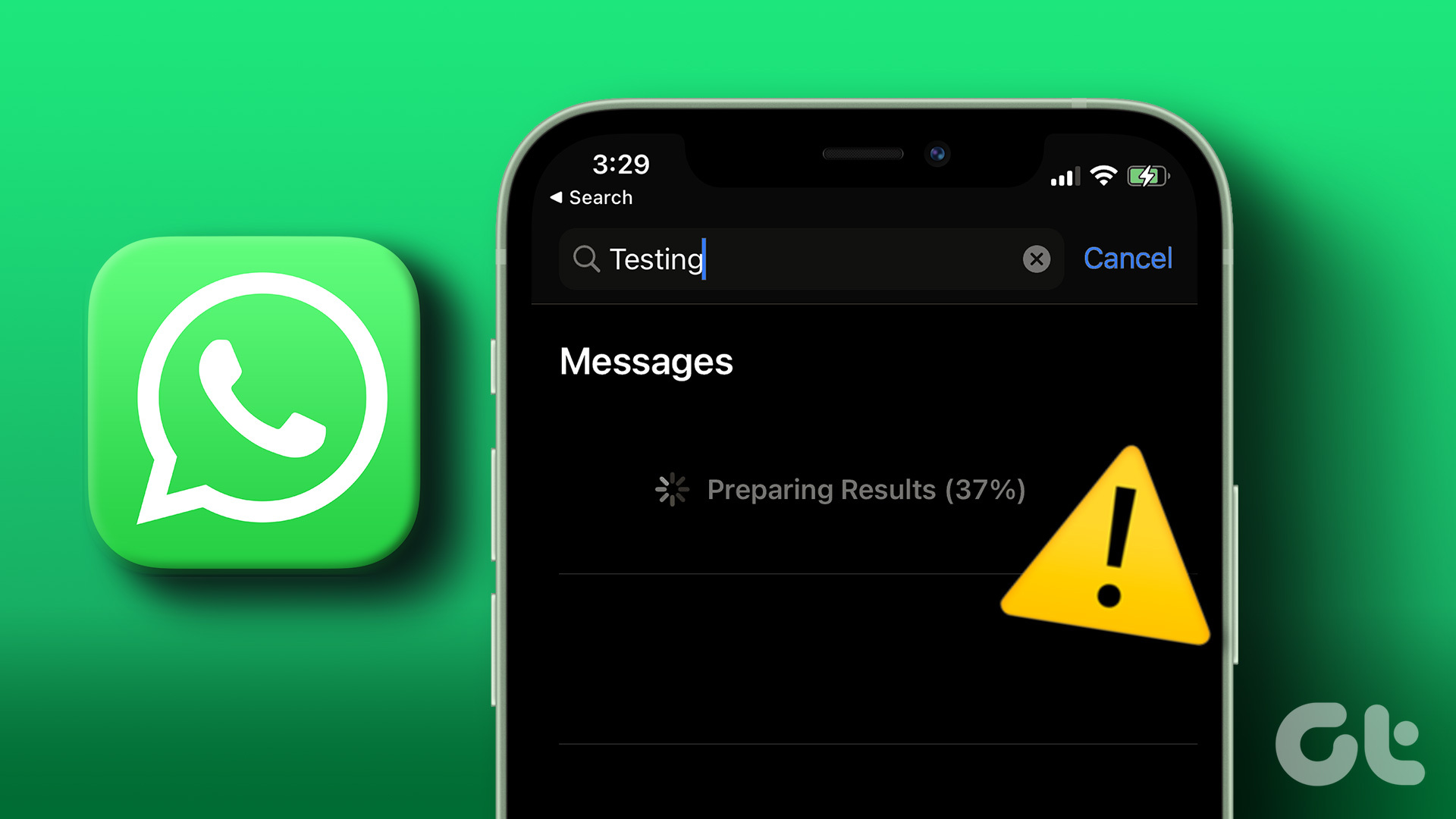 3 Ways to Fix WhatsApp Search Not Working on iPhone
Fix 1: Disable and Re-Enable iCloud Sync for WhatsApp If WhatsApp has trouble retrieving chats from iCloud, it may get stuck when using the search tool.
3 Ways to Fix WhatsApp Search Not Working on iPhone
Fix 1: Disable and Re-Enable iCloud Sync for WhatsApp If WhatsApp has trouble retrieving chats from iCloud, it may get stuck when using the search tool.
 3 Ways to Fix Google Calendar Not Syncing on iPhone
Basic Fixes Switch to Wi-Fi: If you are using mobile data, we suggest switching to Wi-Fi on your iPhone.
3 Ways to Fix Google Calendar Not Syncing on iPhone
Basic Fixes Switch to Wi-Fi: If you are using mobile data, we suggest switching to Wi-Fi on your iPhone.
The article above may contain affiliate links which help support Guiding Tech. The content remains unbiased and authentic and will never affect our editorial integrity.
Thank you so much for this helpful instruction find! I was finally able to reset my calendar with the fix that you suggested of changing my search to the past month and then changing it back to all events. After I did that my calendar work perfectly again! Thank you so much and you rock.!!
Thank you for your insight and help. I tried all the steps but finally had to do the last step and “Reset all settings”. It worked. Thanks again!!!
Thank you for your steps, all it took was for me to change to fetch.
Great help thanks again
I’m afraid the article is amazing but my problem remains and no one seems to know how to help: since yesterday morning, and out of nowhere, my Google calendar app (not the default calendar that comes with iPhone but the one of Google, that is an icon with a square, each side a different colour) just stopped searching correctly: results just show TASKS, don’t show the EVENTS. MY AGENDA IS MY LIFE, can’t work without this feature. I’ve tried it all, and ended up calling apple support… they couldn’t help either. Open a ticket and all, but no results…. CAN ANYONE PLEASE HELP?
Mine is not working exactly the same way. Just tasks, not calendar events. Help please!
Hi there, I have had the same issue and contacted Apple Support who helped solve the problem.
Here are the steps:
Force close calendar app.
Go to Calendar settings and open ‘Siri and search’.
Toggle off all buttons and leave off for one minute.
Toggle all buttons back on.
Force close settings.
Reopen calendar.
This fixed the issue for me – I hope it helps some of you with the same issue.
Thank you so much!!! I tried all but resetting my iPad from the article and none of those things fixed the problem, though they were good options to start with. But your instructions solved the issue! Thank you for posting them!!
Thank you very much!!! I’ve had this problem for months and nothing worked! Who knew Siri could interfere with your calendar entries and seeing past appointments. I had tried everything!
🙏 Don’t ask me why, but your suggestion worked(after trying a whole bunch of others).
Thanks.
THANK YOU!! This had been driving me crazy! The second half of your 3rd option is what did it for me. 🙂 I really appreciate the help!