Basic Fixes:
- Check iPhone volume: If your device’s volume is not set to max, the culprit might be your iPhone’s volume controls. To check, open sound settings and set the device volume to maximum. This way, all device alerts, like alarms, will ring loudly and as expected.
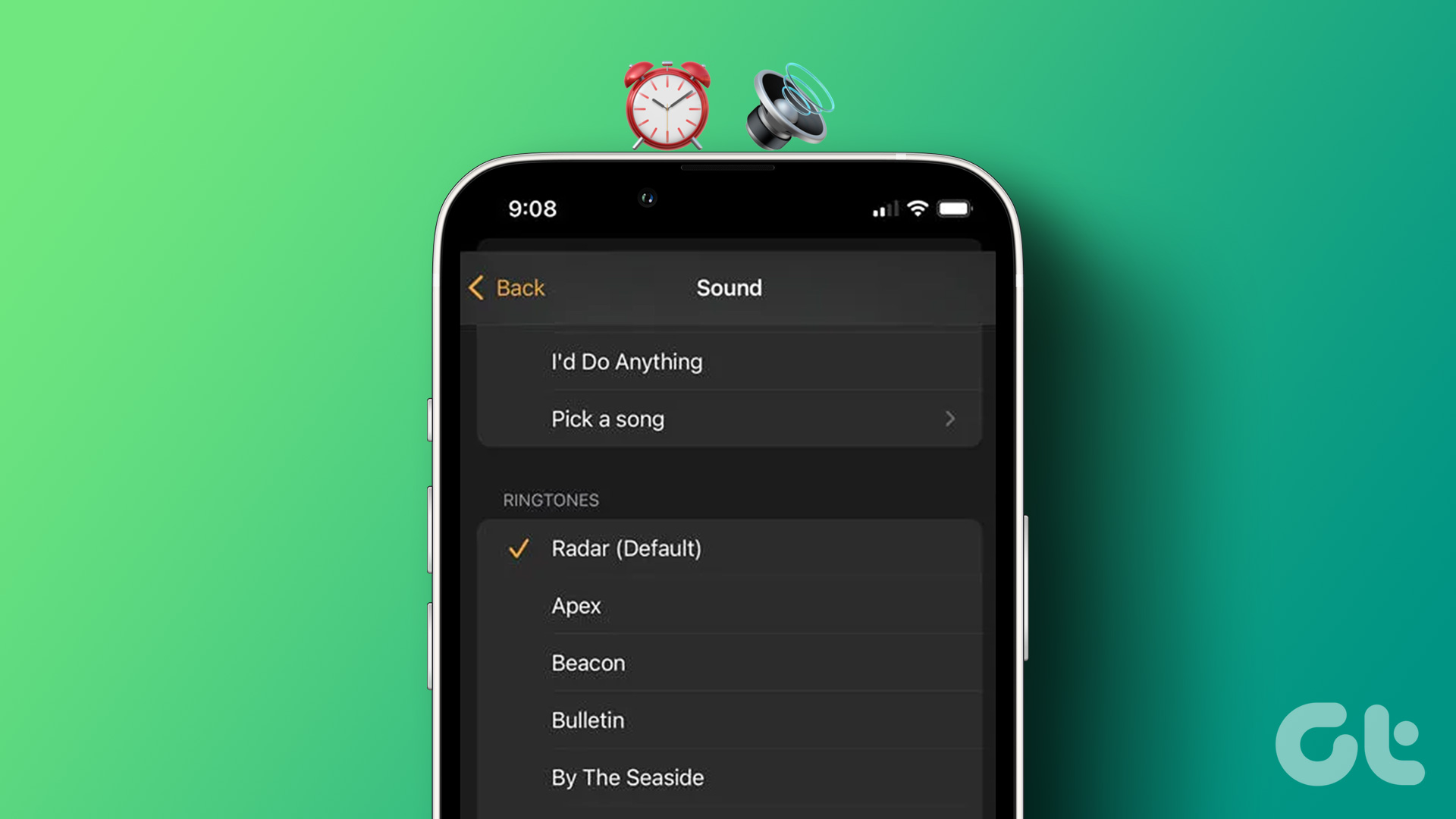
- Change alarm tone: Even if your device’s volume is set to the highest, the alarm volume might still be too low if the alarm tone is not loud in the first place. To fix this, open the Clock app and change the alarm sound to a louder one.
- Turn Bluetooth off: If your device’s Bluetooth is turned on, it might accidentally pair with another known Bluetooth device. In this case, the alarm tone might ring in the headphones, making the alarm silent to you. To prevent this, turn off Bluetooth on your iPhone.
- Turn off conflicting alarms: If your iPhone has two alarms set for the same time or a few seconds apart, they might cancel each other out and your iPhone’s screen might display the alarm without audio notification. Turn off one of the two alarms and see if this fixes the issue.
- Check for software updates: If the issue of the alarm volume being too low or silent on your iPhone is due to a software glitch, a software update can fix it. Open the Settings app and check if an update is available.
Fix 1: Set Another Alarm
If your alarm is not ringing properly, you can replace it with another one. To do this, create a new alarm for that time and turn off the previous one. Follow the below steps to do it.
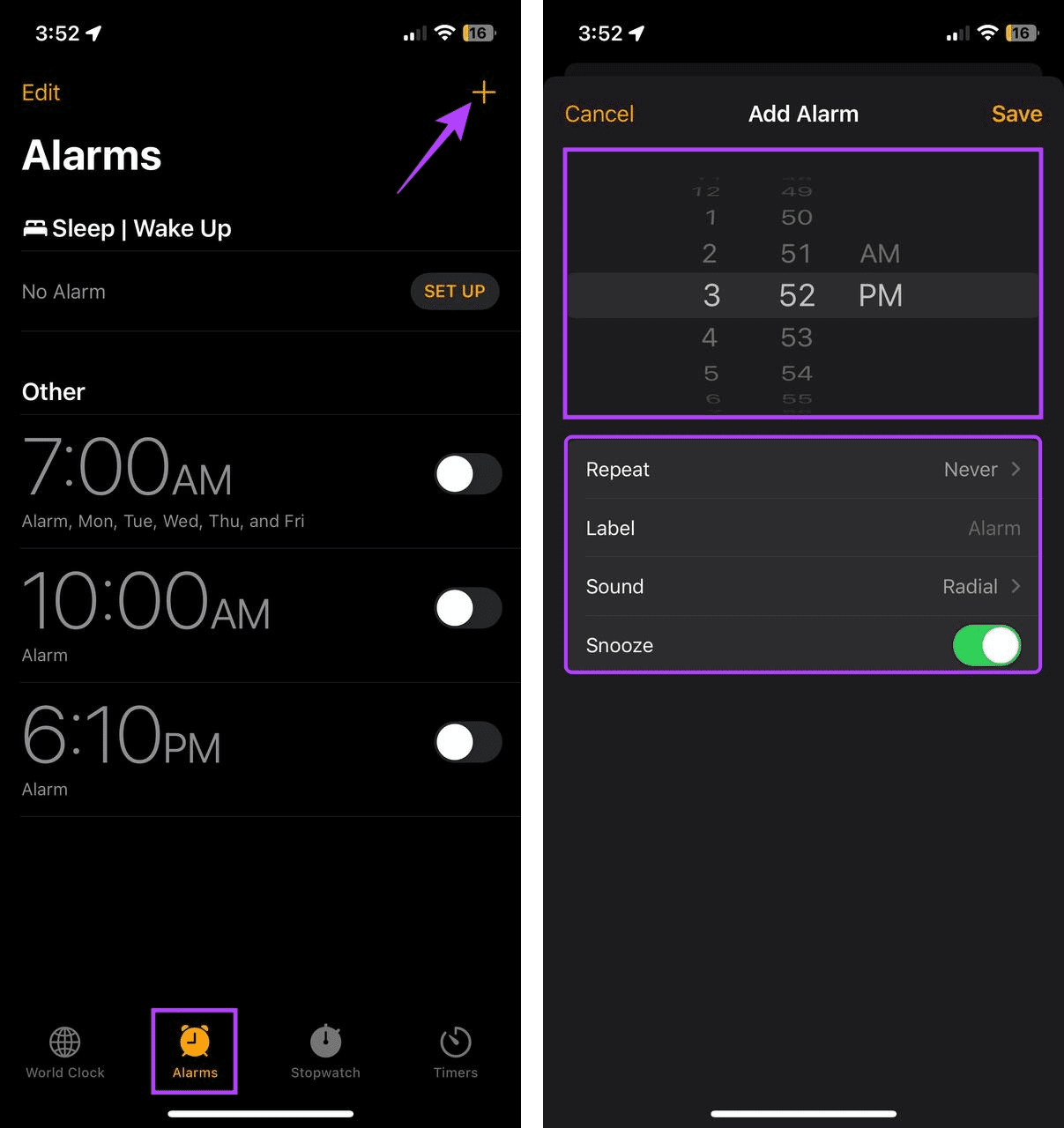
Step 1: Open the Clock app and tap on Alarms. Tap on the + icon.
Step 2: Swipe up and down to select the correct time. Change the alarm sound or set it to repeat.
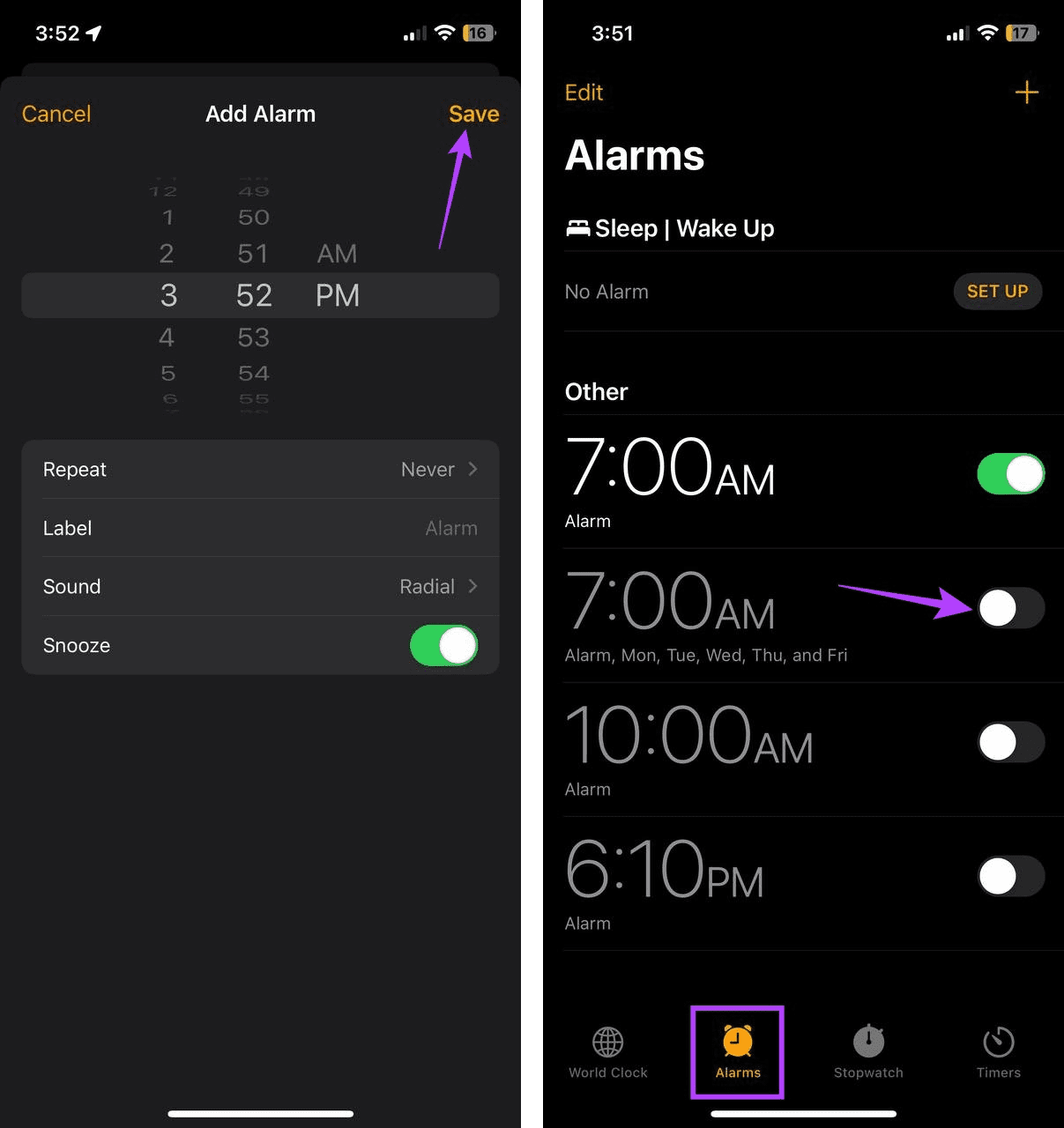
Step 3: Check the alarm info and tap on Save. Turn off the previous alarm toggles on the Alarms page.
Also Read: How to set a custom alarm sound on iPhone
Fix 2: Turn off Attention Aware
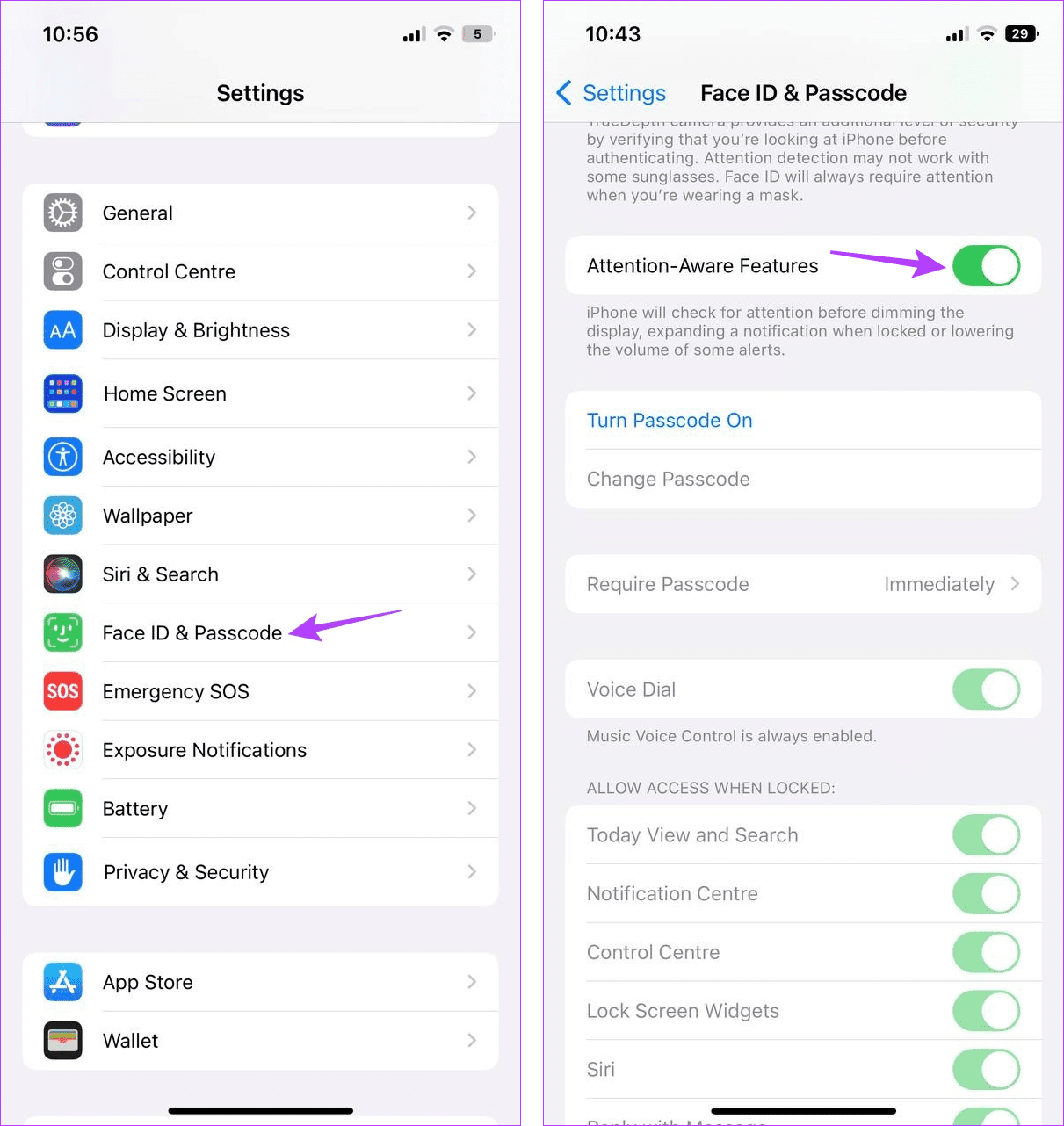
Attention Aware on your iPhone uses your device’s front sensors and camera to see when you’re looking at the phone and automatically lowers the volume for certain alerts. However, this can cause your alarm to show up on the screen but not ring. To prevent this, turn off this feature on your iPhone. Here’s how.
Step 1: Open Settings and tap on Face ID & Passcode. Turn off the Attention-Aware Features toggle.
Also Read: How to fix low or loud alarm volume on iPhone
Fix 3: Disable Sleep Schedule
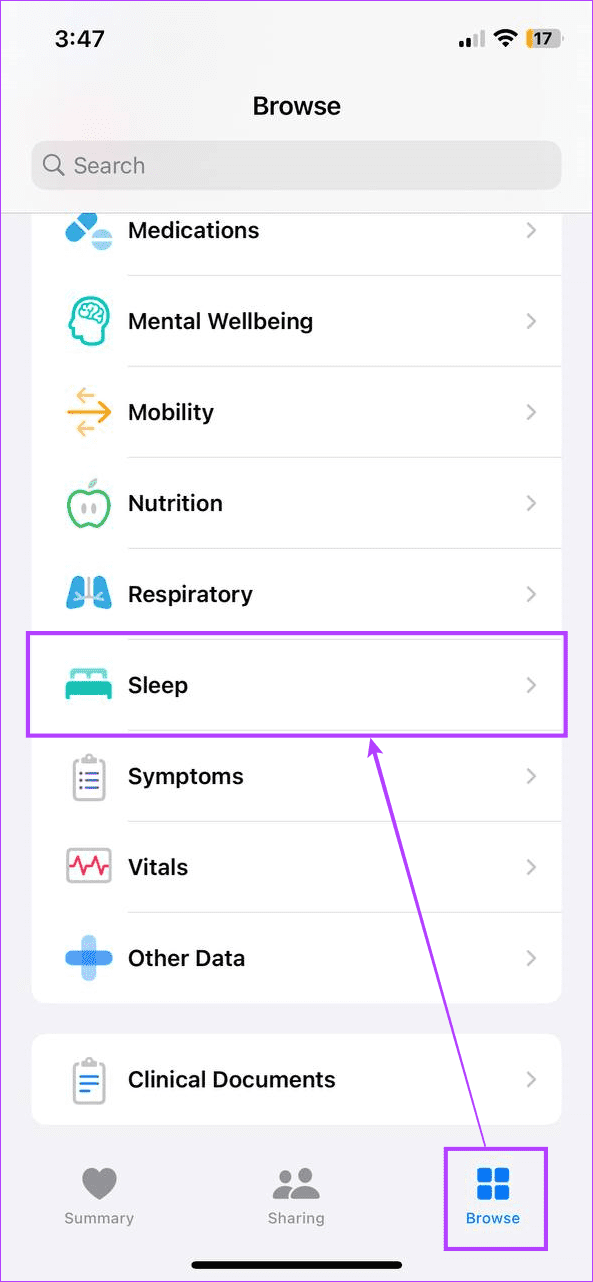
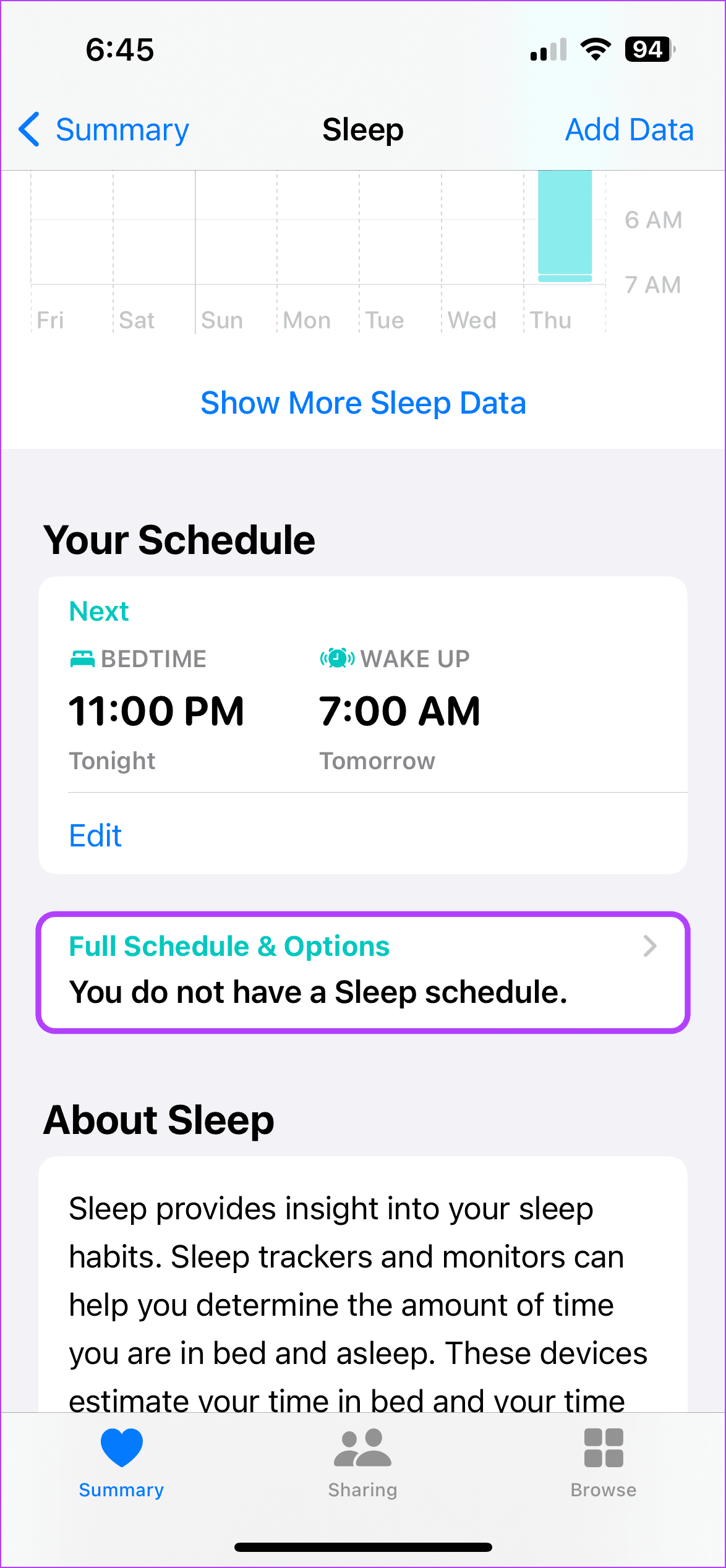
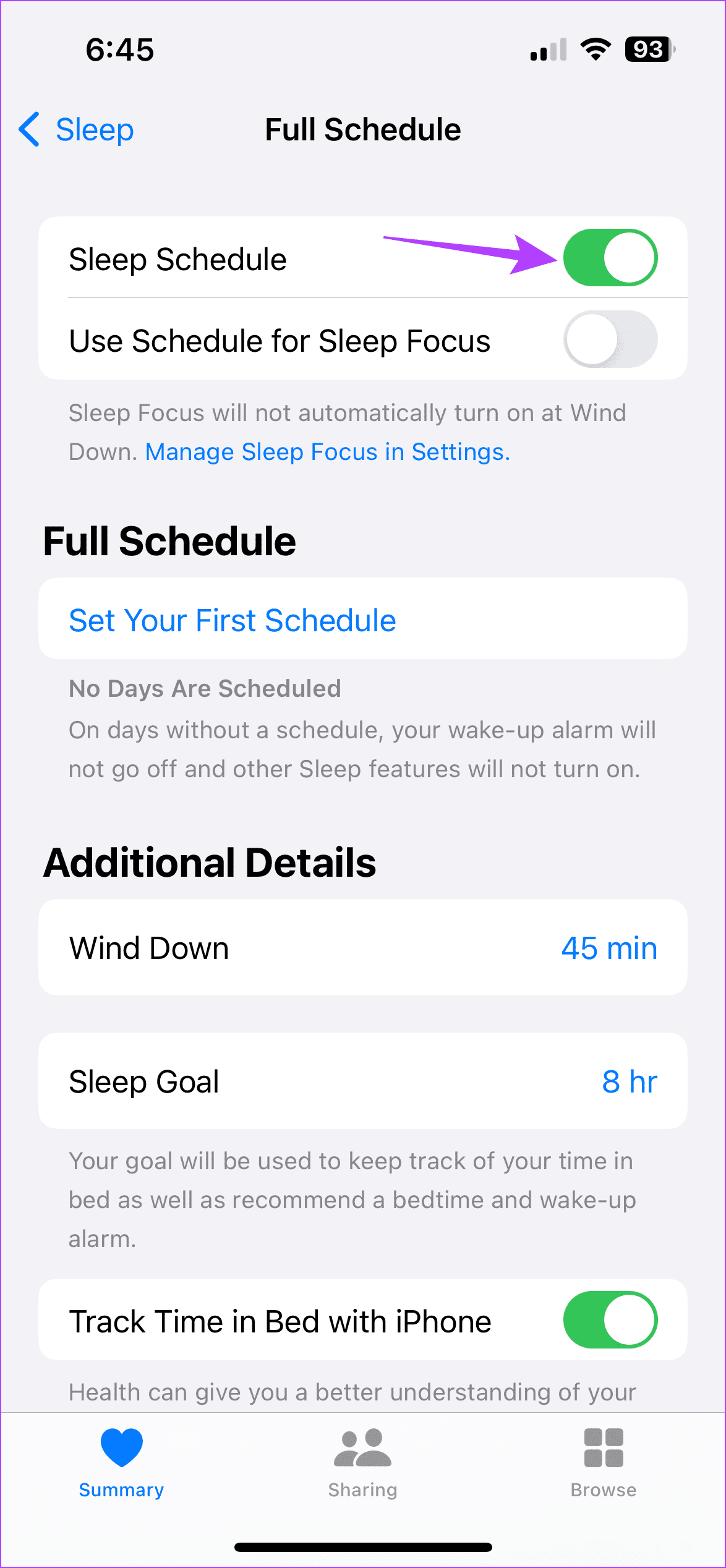
Sleep Schedule helps you manage your sleep cycle. While this helps increase the quality of your sleep, the Bedtime mode feature can cancel out alarms, causing the iPhone alarm to ring without any sound. You can turn off Sleep Schedule from the Health app to prevent this. Here’s how.
Step 1: Open the Health app and tap on Browse. Go to Sleep and tap on Full Schedule & Options.
Step 2: Turn off the Sleep Schedule toggle.
Fix 4: Check Standby Mode Settings
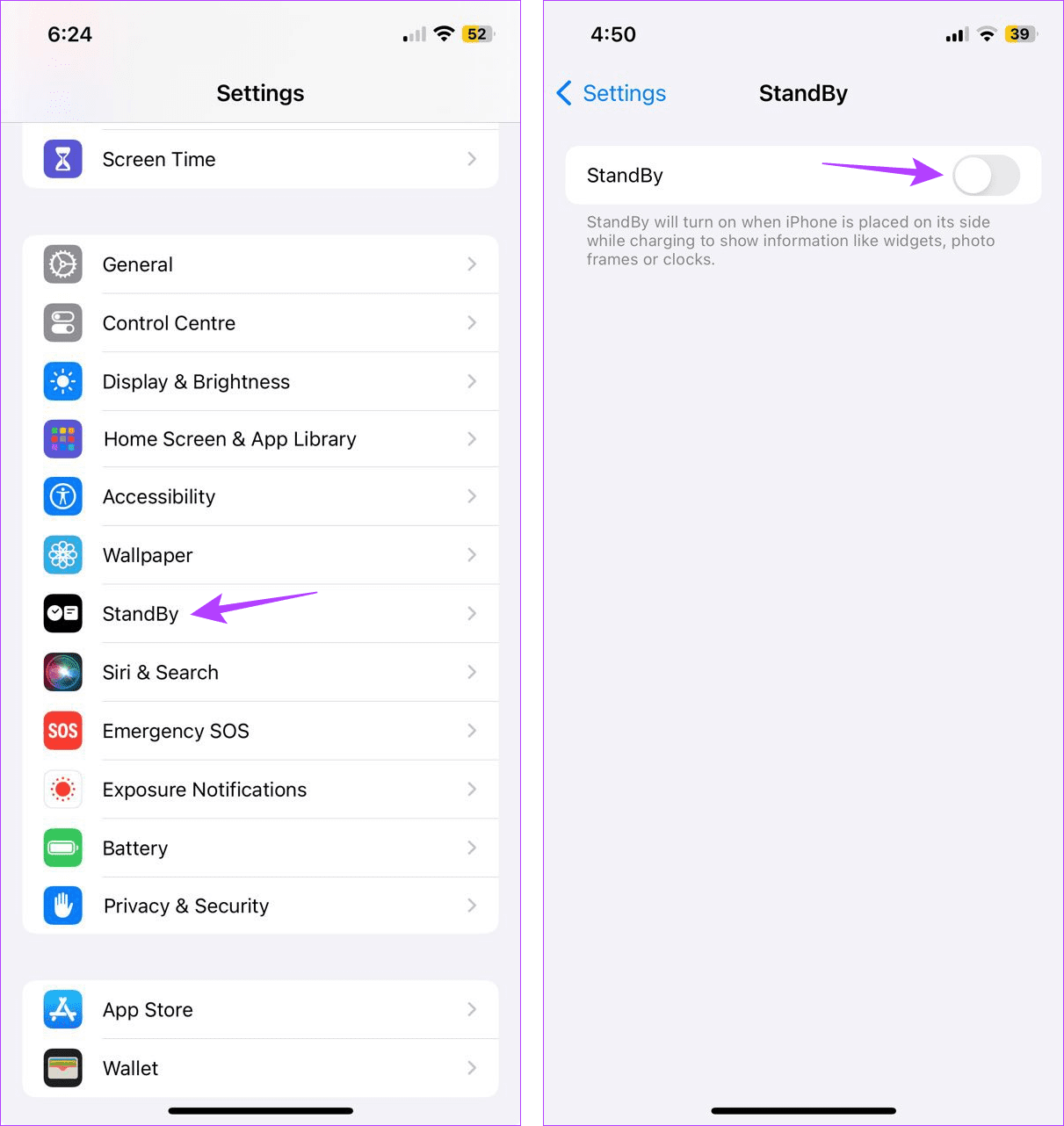
StandBy Mode feature allows your iPhone to become a live display with information like time, weather updates, etc. However, this can stop alarms from appearing on the screen, preventing them from ringing. In this case, turn off StandBy Mode and check if this fixes the issue. Follow the below steps to do it.
Step 1: Open Settings and tap on StandBy. Turn off the toggle for StandBy.
Fix 5: Reset All Settings
Certain iPhone settings can interfere with your alarms. To fix this, reset all iPhone settings. This will delete all your custom settings, added devices, and other settings data. It is an excellent way to fix most issues, especially if you can’t pinpoint the exact cause. Note that doing this will not affect your device data.
Was this helpful?
Last updated on 30 August, 2024
Read Next
 How to Set a Custom Alarm Sound on iPhone (For Free)
Method 1.
How to Set a Custom Alarm Sound on iPhone (For Free)
Method 1.
 5 Ways to Fix Low or Loud Alarm Volume on iPhone
Common Fixes Restart iPhone - Press and hold either of the volume buttons with the side button and drag the power off slider to shut down.
5 Ways to Fix Low or Loud Alarm Volume on iPhone
Common Fixes Restart iPhone - Press and hold either of the volume buttons with the side button and drag the power off slider to shut down.
 3 Ways to Fix Alarm Not Going Off on Apple Watch
Basic Fixes Restart Apple Watch: Your watch may be experiencing a software issue, which might trigger the alarm, but there may not be any sound.
3 Ways to Fix Alarm Not Going Off on Apple Watch
Basic Fixes Restart Apple Watch: Your watch may be experiencing a software issue, which might trigger the alarm, but there may not be any sound.
 5 Ways to Fix Alarm Not Working on Android Phones
Basic Fixes: Restart your phone: Restarting your phone can help remove any temporary bugs or glitches that can cause your Android phone's alarm not to ring.
5 Ways to Fix Alarm Not Working on Android Phones
Basic Fixes: Restart your phone: Restarting your phone can help remove any temporary bugs or glitches that can cause your Android phone's alarm not to ring.
 3 Ways to Fix Apple TV No Sound Issue
Basic Fixes Unmute using remote: The Apple TV remote has a dedicated mute button.
3 Ways to Fix Apple TV No Sound Issue
Basic Fixes Unmute using remote: The Apple TV remote has a dedicated mute button.
 8 Best Online Alarm Clock Websites for Free
Online alarm clocks are an ideal option for people who travel frequently or need multiple alarms or reminders throughout the day.
8 Best Online Alarm Clock Websites for Free
Online alarm clocks are an ideal option for people who travel frequently or need multiple alarms or reminders throughout the day.
 5 Ways to Fix No Sound When Receiving Text on iPhone
Common Fixes Check the notification volume - Open the Settings app, tap Sounds & Haptics, and maximize the Ringtone and Alerts volume slider.
5 Ways to Fix No Sound When Receiving Text on iPhone
Common Fixes Check the notification volume - Open the Settings app, tap Sounds & Haptics, and maximize the Ringtone and Alerts volume slider.
 3 Ways to Fix Video Sound Not Working on iPhone
Basic Fixes: Check iPhone volume levels: You can use the volume up button on your iPhone to turn up the device volume to max.
3 Ways to Fix Video Sound Not Working on iPhone
Basic Fixes: Check iPhone volume levels: You can use the volume up button on your iPhone to turn up the device volume to max.
The article above may contain affiliate links which help support Guiding Tech. The content remains unbiased and authentic and will never affect our editorial integrity.