


Note: Remember that the steps can differ based on your Android smartphone. The steps added in this article will still give you an idea of what to do.
Preliminary Fixes
- Try a Different Browser: If the issue is specific to links opening in a browser, try setting a different default browser on your device.
- Check for App Conflicts: If you have multiple apps for handling links, conflicts might arise. Try disabling, closing, or uninstalling other link-related apps temporarily.
- Disable VPN: Using a VPN can sometimes cause issues with apps like Instagram, leading to problems such as opening the wrong links. Disabling the VPN can often resolve these issues.
- Force Stop Instagram App: Force restarting the app can solve many issues, including incorrect link redirection. To do so on Android, go to Settings > Apps & notifications > Instagram > Force Stop. For iOS, an app will close instantly when you remove it from the recent.
- Update Instagram: Outdated app versions may contain bugs that can cause various issues, including problems with link handling. Updating the Instagram app on Android or iOS can resolve these bugs.
- Uninstall and Reinstall the App: If force stopping and updating the app don’t work, reinstalling Instagram can help by removing any corrupted files and ensuring a fresh installation.
Fix 1: Clear Instagram From the Recent Page
On Android
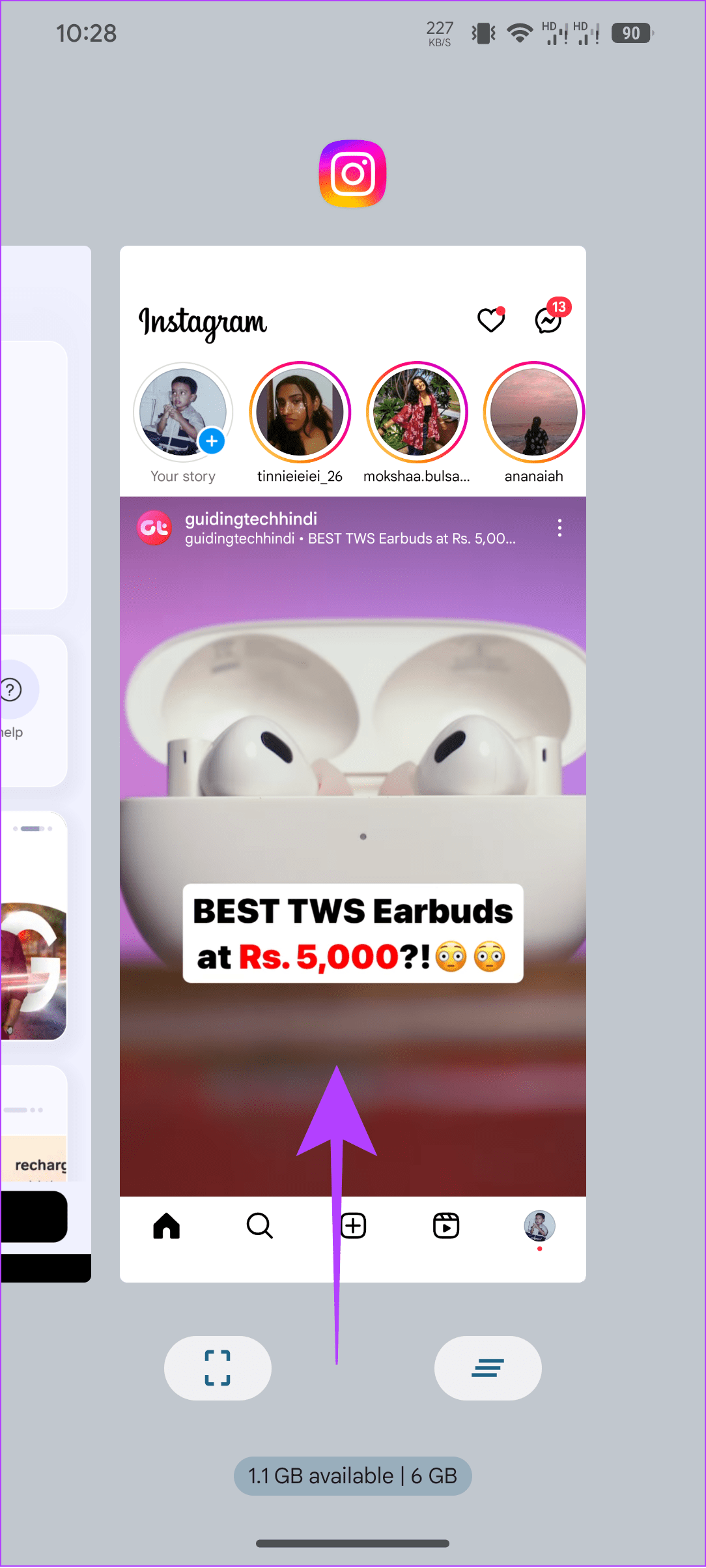
Step 1: Swipe up from the navigation bar or tap the recent button to access the recent page.
Step 2: Now, locate Instagram and swipe up from the bottom to remove the app.
On iPhone
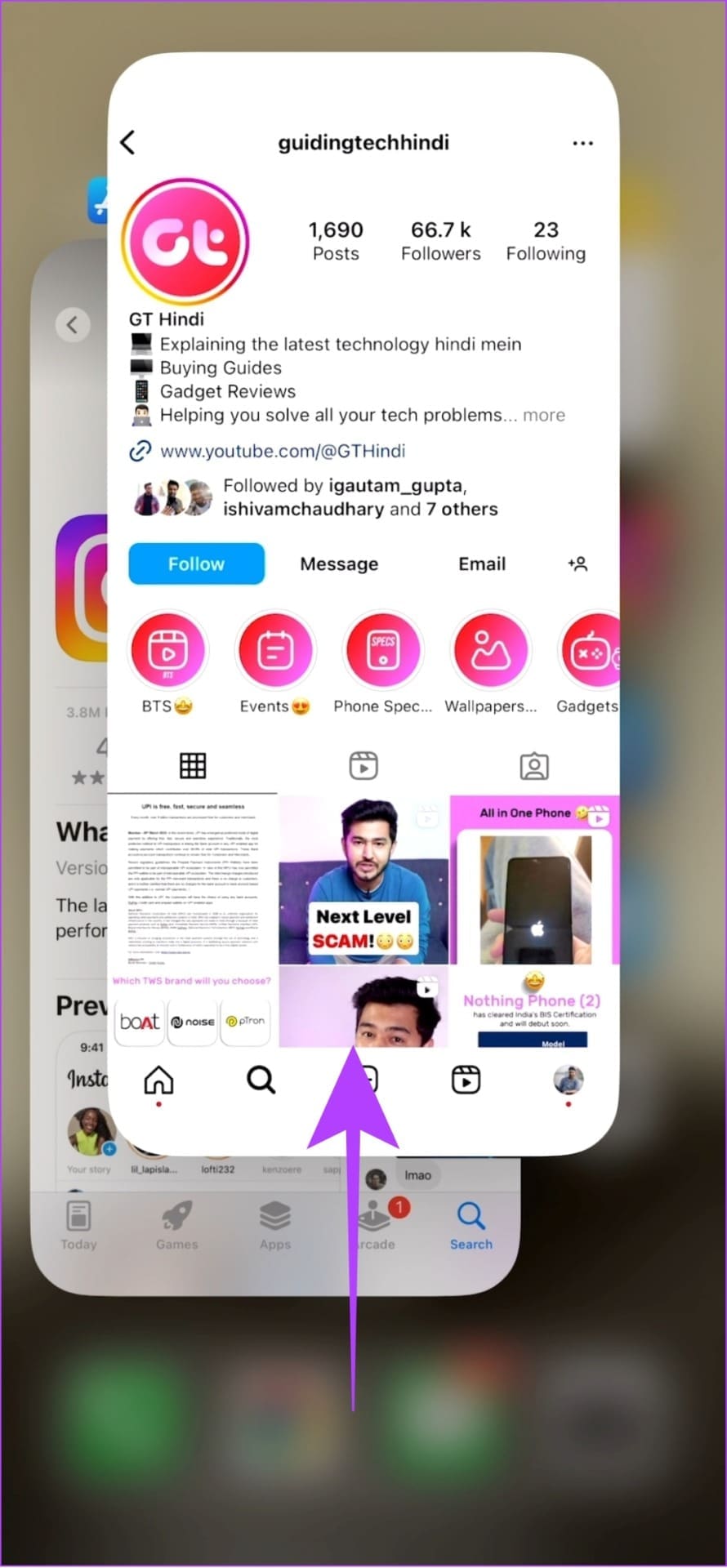
Step 1: Open the recent menu by swiping up from the Navigation bar.
Note: If you own an iPhone with the home button, press the home button and swipe up from the bottom.
Step 2: Locate Instagram and swipe up from the bottom to remove the app from the background.
Fix 2: Copy and Open the Link in the Browser
Step 1: Press and hold the link you have received.
Step 2: Choose Copy.
Step 3: Paste the link on the browser of your choice.


This should open the correct link. If it doesn’t, move on to the next fix.
Fix 3: Clear Instagram App Cache
iPhone users can offload the Instagram app and reinstall it to clear all the temporary files. As for Android, follow the steps mentioned below.
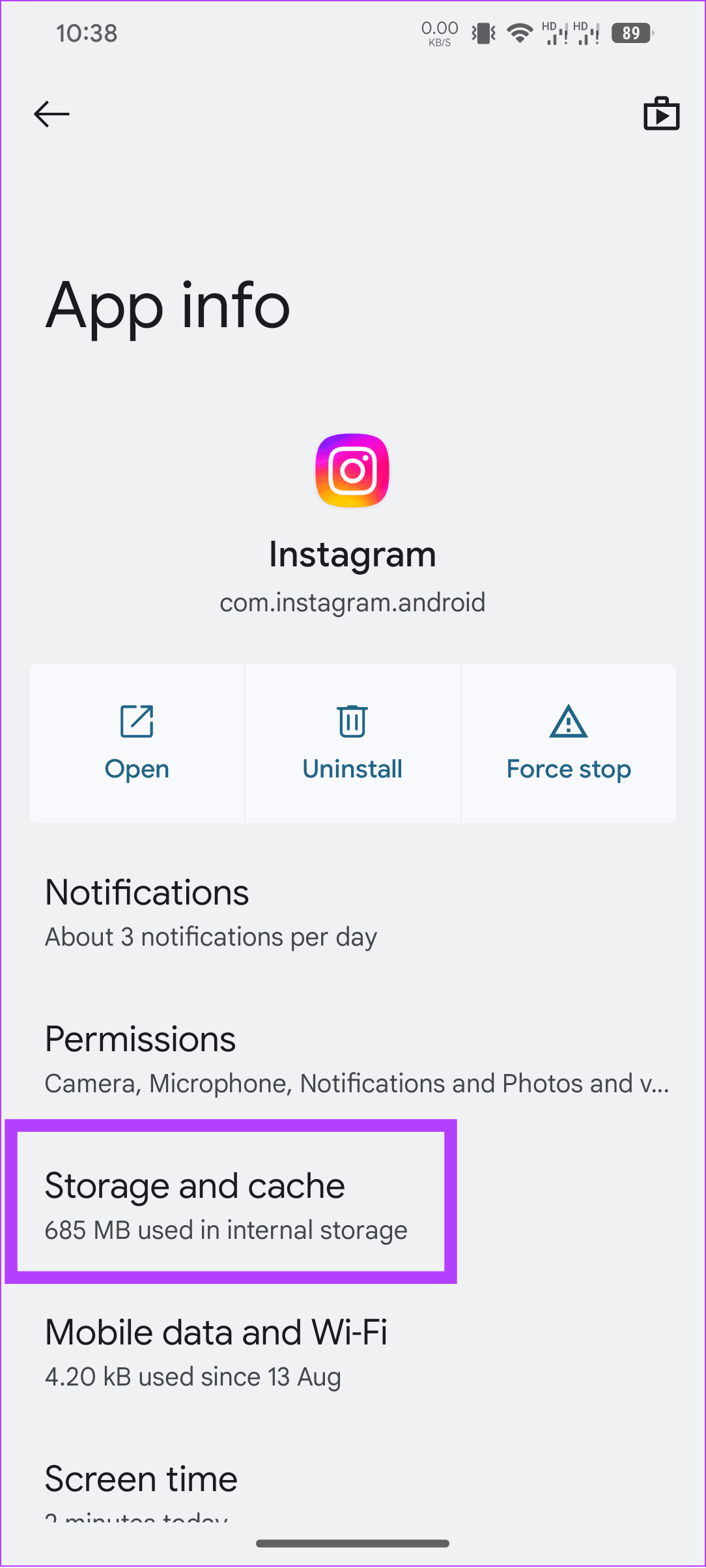
Step 1: Open Settings > tap Apps, and choose See all X apps.


Step 2: Tap Instagram and choose Storage and cache.
Step 3: Choose Clear cache.

If none of the above solutions work, we suggest contacting Instagram support.
FAQs on Instagram Opening Wrong Link
Instagram doesn’t allow links in the post captions apart from ads. However, links can still be added to bios, stories, DMs, etc.
Instagram is compatible with almost all popular web browsers, as the website has been optimized accordingly. However, if you face an issue with Instagram on a particular browser, you can check other browsers.
Instagram opening the wrong link could be a massive issue for those who tried to access the post through the external link. We have ensured to provide all the fixes to prevent this issue.
Was this helpful?
Last updated on 27 July, 2024
Read Next
 4 Ways to Fix Instagram Something Went Wrong Error
Basic Fixes Check your network connection: Ensure your device has a good internet connection.
4 Ways to Fix Instagram Something Went Wrong Error
Basic Fixes Check your network connection: Ensure your device has a good internet connection.
 3 Ways to Fix Snapchat “Something Went Wrong” Error on Android and iPhone
https://youtu.be/qmKVtzAaayE Try Basic Fixes Avoid adding too many friends at once: If you've recently added too many friends, Snapchat may prevent you from adding more by displaying errors like "Something
3 Ways to Fix Snapchat “Something Went Wrong” Error on Android and iPhone
https://youtu.be/qmKVtzAaayE Try Basic Fixes Avoid adding too many friends at once: If you've recently added too many friends, Snapchat may prevent you from adding more by displaying errors like "Something
 3 Ways to Fix “Something Went Wrong” Error on Facebook Messenger
Try Basic Fixes Update the app: The Facebook Messenger app could malfunction if you haven't updated it in a while.
3 Ways to Fix “Something Went Wrong” Error on Facebook Messenger
Try Basic Fixes Update the app: The Facebook Messenger app could malfunction if you haven't updated it in a while.
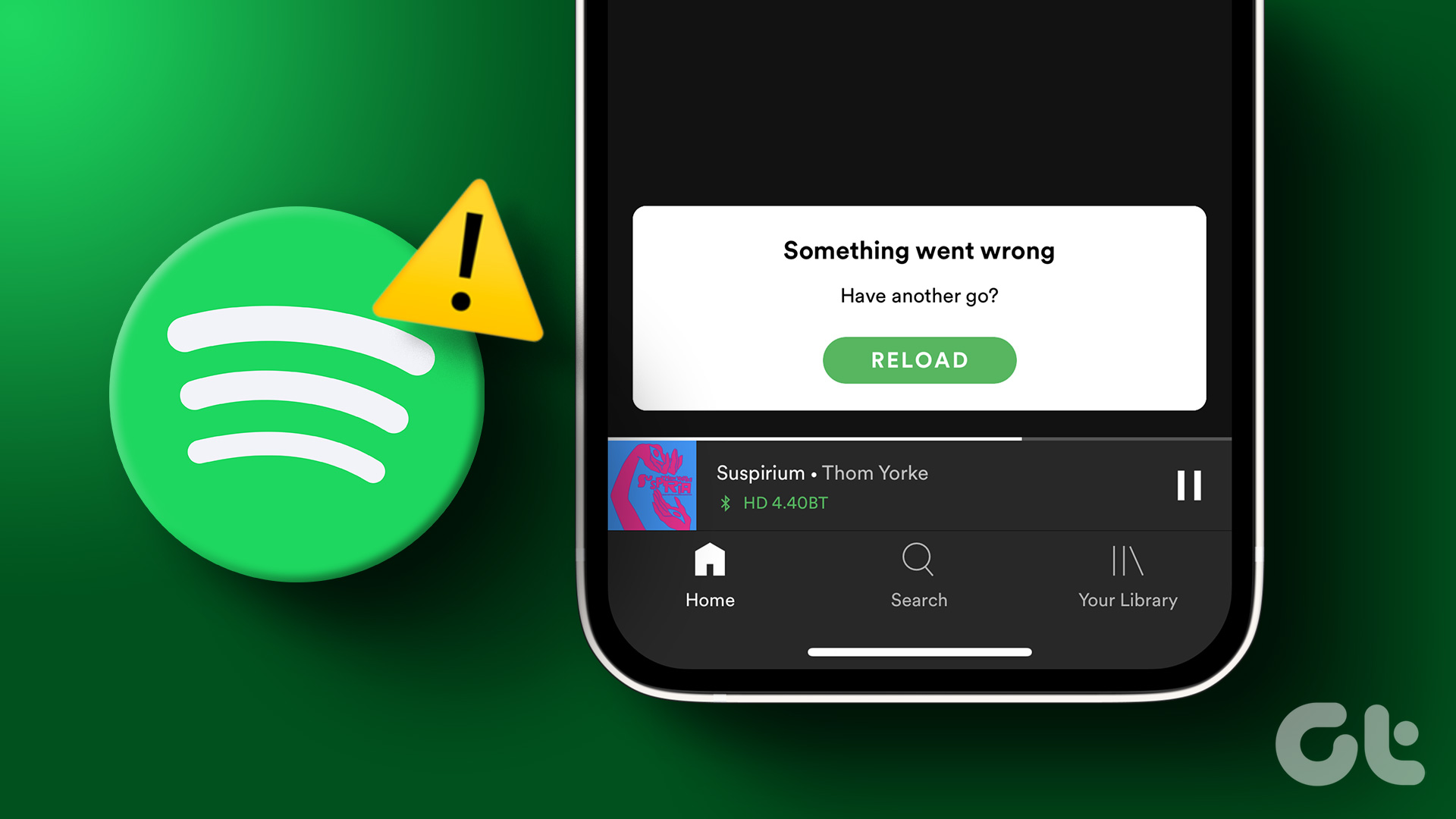 3 Ways to Fix Something Went Wrong Error in Spotify for Android and iPhone
Try Basic Fixes Update the app: Using an outdated version of the Spotify app can also trigger the "Something went wrong" error.
3 Ways to Fix Something Went Wrong Error in Spotify for Android and iPhone
Try Basic Fixes Update the app: Using an outdated version of the Spotify app can also trigger the "Something went wrong" error.
 Top 4 Ways to Fix ‘Something Went Wrong’ Error on X (Formerly Twitter)
Preliminary Fixes Check Network Connection: First, check the network connection on your phone and the desktop.
Top 4 Ways to Fix ‘Something Went Wrong’ Error on X (Formerly Twitter)
Preliminary Fixes Check Network Connection: First, check the network connection on your phone and the desktop.
 4 Ways to Fix Outlook Error 500 ‘Something Went Wrong’
Preliminary Fixes Troubleshoot your internet connection: Ensure you have a stable and reliable internet connection.
4 Ways to Fix Outlook Error 500 ‘Something Went Wrong’
Preliminary Fixes Troubleshoot your internet connection: Ensure you have a stable and reliable internet connection.
 5 Ways to Fix iPhone Showing Wrong Caller ID
Basic Fixes Force restart your iPhone: Press and quickly release the Volume Up button followed by Volume Down.
5 Ways to Fix iPhone Showing Wrong Caller ID
Basic Fixes Force restart your iPhone: Press and quickly release the Volume Up button followed by Volume Down.
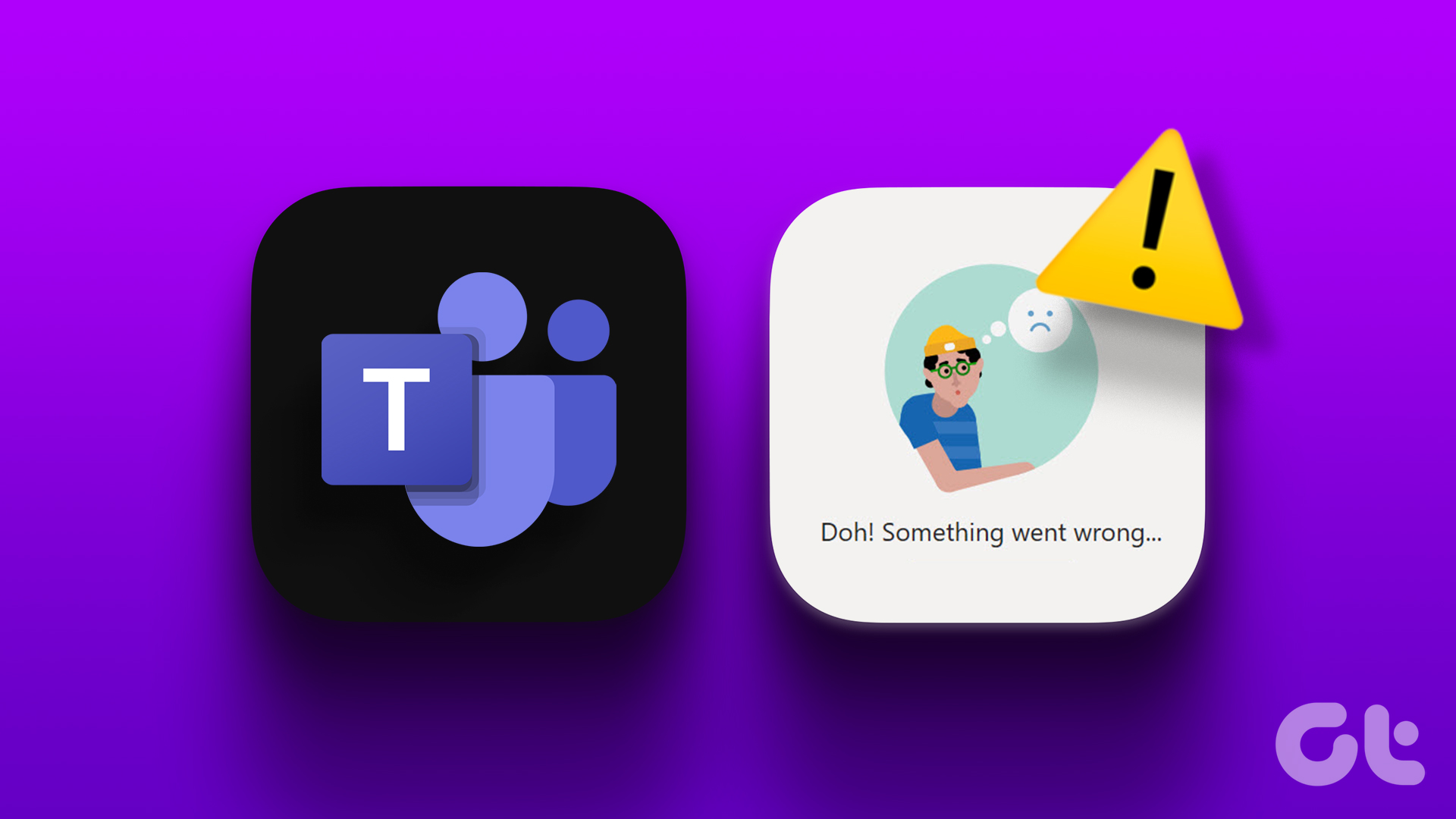 5 Ways to Fix “Something Went Wrong” Error in Microsoft Teams for Windows
Try Basic Fixes Check if Teams is down: It's not uncommon for Microsoft Teams servers to go down at times.
5 Ways to Fix “Something Went Wrong” Error in Microsoft Teams for Windows
Try Basic Fixes Check if Teams is down: It's not uncommon for Microsoft Teams servers to go down at times.
The article above may contain affiliate links which help support Guiding Tech. The content remains unbiased and authentic and will never affect our editorial integrity.

