Basic Fixes:
- Restart the Instagram app: It’s a good idea to completely close Instagram on your phone and reopen it to load stories. This can help fix most temporary app glitches.
- Enable and disable Airplane mode: If your phone’s mobile internet connection is unstable, Instagram may have issues loading stories on your Android device or iPhone. You can temporarily enable and disable Airplane mode to reset the network connection.
- Check Instagram servers: If Instagram servers are down, the app won’t load user stories. You can’t refresh the feed, send direct messages, or share new posts. Visit Downdetector and check. If there’s a problem, wait for Instagram to solve issues from its end.
- Disable data saver: Both Android and iOS offer an option to apply some brakes to cellular data usage. It can be the major culprit behind stories not loading issues on Instagram. So, disable the data saver on your phone.
- Check for Instagram app updates: Instagram frequently releases updates with new features and bug fixes. The app not loading stories issue can be due to an outdated app build. You must update Instagram to the latest version from the Google Play Store or App Store.
Fix 1: Enable Mobile Data for Instagram (iPhone)
If you have disabled mobile data access for Instagram, the app will fail to fetch new stories and posts on your mobile data connection. Instagram will use cache to load the home page, but the stories won’t open when you tap on them. To fix this, enable mobile data access for Instagram. Here’s how.
Step 1: Open Settings and tap on Instagram. Enable the Mobile Data toggle.


Fix 2: Disable Data Saver Mode on Instagram
When you turn on the default data saver mode in Instagram, the app takes longer to load photos, videos, and stories. Follow the steps below to disable it.
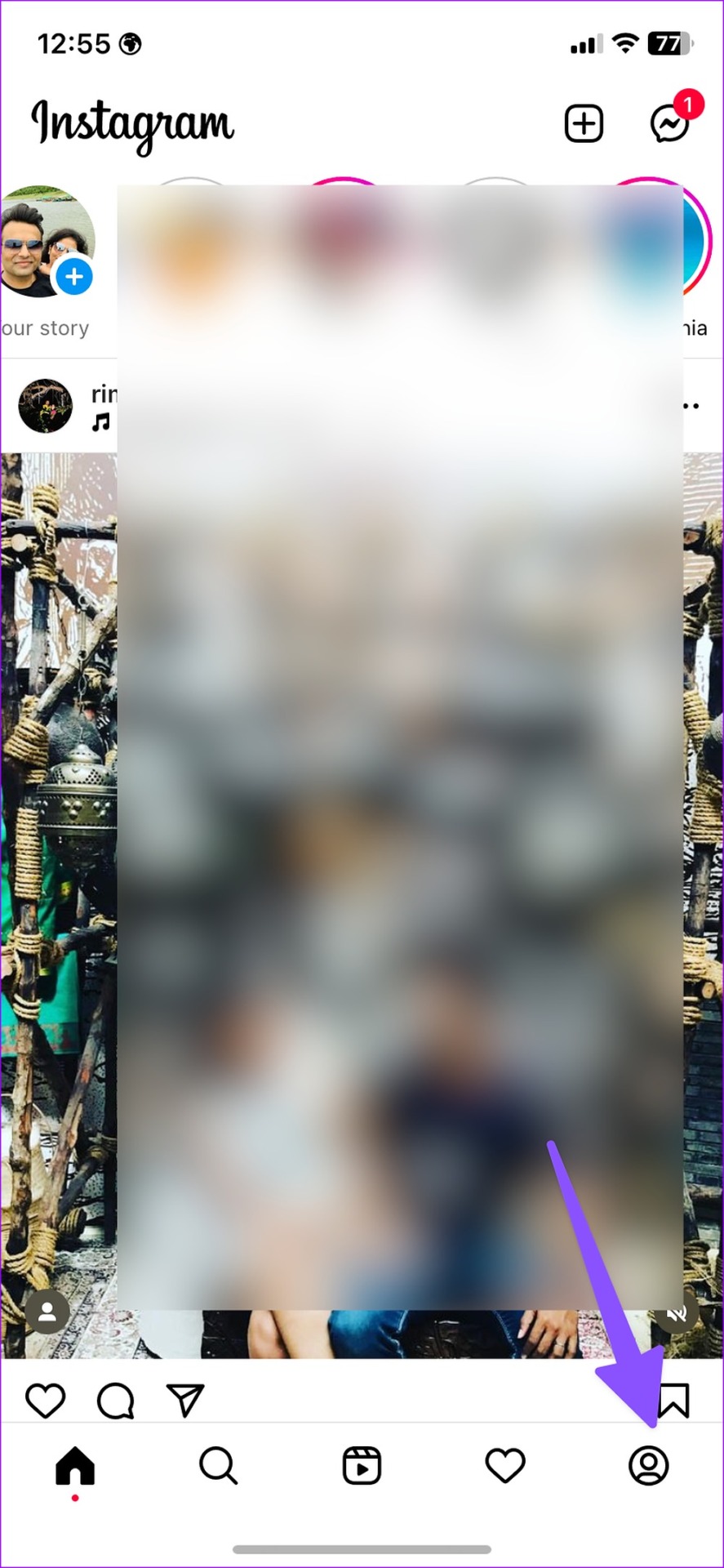
Step 1: Open Instagram and tap the profile icon. Tap the hamburger menu and open Settings.

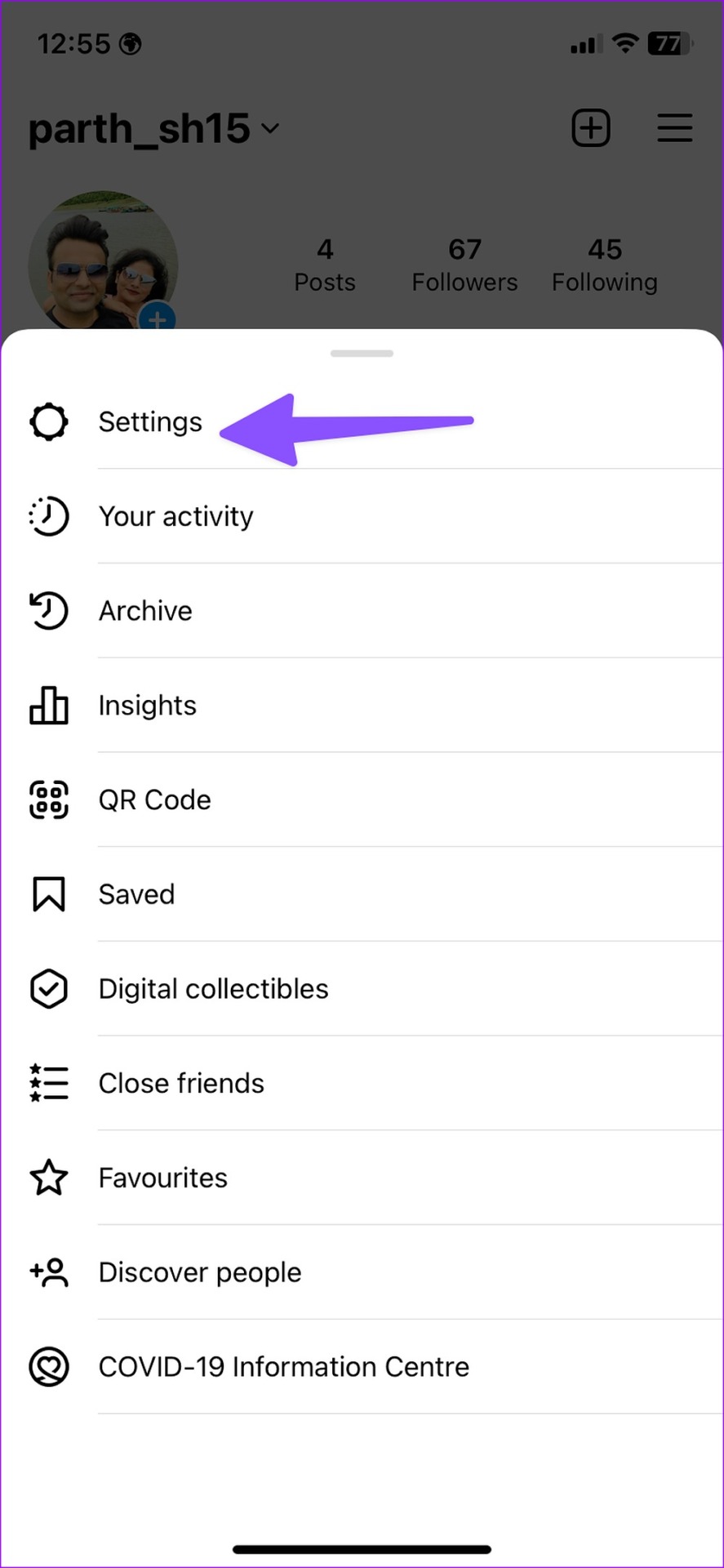
Step 2: Go to Account and select Data usage. Disable the Use less mobile data toggle.


Fix 3: Clear Instagram App Cache (Android)
Instagram collects cache files to load the home feed on your phone quickly. When the app collects corrupt or overmounts of cache, you may face issues like stories not loading on your phone. It’s time to clear the cache for Instagram and try again. Here’s how.
Tip: iPhone users can offload the Instagram app because there are no native options to clear the app cache.
Step 1: Long-press on the Instagram app and tap the i button.
Step 2: Select Storage and cache and tap on Clear cache.


Fix 4: Authenticate Your Account Again
Did you recently change your Instagram password? The app won’t load stories due to outdated account credentials. You must log out from your account and sign back in using the latest login info. Here’s what you need to do.
Step 1: Open Instagram and tap the profile icon. Tap the hamburger menu.
Step 2: Tap on Settings. Scroll down and tap on Log out. Confirm when prompted.

Once done, log back in using the correct account credentials. Once Instagram is set up, play Stories again to check if the issue is fixed.
Was this helpful?
Last updated on 01 July, 2024
Read Next
 4 Ways to Fix Blurry Stories on Instagram
Stories on Instagram are a great way to share the moments that you cherish, with your friends and followers.
4 Ways to Fix Blurry Stories on Instagram
Stories on Instagram are a great way to share the moments that you cherish, with your friends and followers.
 9 Ways to Fix Videos Freezing on Instagram Stories and Posts
Ever since apps like Dubsmash and TikTok popularized short videos, popular social media apps have come up with alternatives for posting short-form content.
9 Ways to Fix Videos Freezing on Instagram Stories and Posts
Ever since apps like Dubsmash and TikTok popularized short videos, popular social media apps have come up with alternatives for posting short-form content.
 3 Ways to Save Instagram Stories With Music Easily
These days content sharing is inevitable, especially between platforms.
3 Ways to Save Instagram Stories With Music Easily
These days content sharing is inevitable, especially between platforms.
 3 Ways to Fix Instagram Not Working, Loading, or Crashing
Fix 1: Reinstall Instagram Most apps release bug fixes through regular updates, and Instagram is no different.
3 Ways to Fix Instagram Not Working, Loading, or Crashing
Fix 1: Reinstall Instagram Most apps release bug fixes through regular updates, and Instagram is no different.
 4 Ways to Fix Instagram Not Loading Pictures
https://youtu.be/ccdQFrpMrmo Basic Fixes: Disable VPN: Instagram may not show pictures and new posts if the connected VPN server faces an outage.
4 Ways to Fix Instagram Not Loading Pictures
https://youtu.be/ccdQFrpMrmo Basic Fixes: Disable VPN: Instagram may not show pictures and new posts if the connected VPN server faces an outage.
 3 Ways to Fix Instagram Not Loading New Posts on Your Phone
Basic Fixes: Ensure your Instagram account is not blocked/suspended: If you use Instagram excessively for several hours or take too many actions quickly, the service may temporarily block you.
3 Ways to Fix Instagram Not Loading New Posts on Your Phone
Basic Fixes: Ensure your Instagram account is not blocked/suspended: If you use Instagram excessively for several hours or take too many actions quickly, the service may temporarily block you.
 How to Recover Deleted Instagram Posts, Stories, Reels, and IGTV Videos
To save people from losing their Instagram data when their account gets hacked, Instagram launched the Recently Deleted feature.
How to Recover Deleted Instagram Posts, Stories, Reels, and IGTV Videos
To save people from losing their Instagram data when their account gets hacked, Instagram launched the Recently Deleted feature.
 How to Add Stickers to Instagram Posts and Stories
Add Stickers to Instagram Stories on Android and iPhone Step 1: Open the Instagram app on your iPhone and Android.
How to Add Stickers to Instagram Posts and Stories
Add Stickers to Instagram Stories on Android and iPhone Step 1: Open the Instagram app on your iPhone and Android.
The article above may contain affiliate links which help support Guiding Tech. The content remains unbiased and authentic and will never affect our editorial integrity.