Basic Fixes
- Check if Instagram is down: Check if Instagram is facing downtime. If yes, wait for the platform to be restored.
- Check network connectivity: Ensure there are no problems with network connectivity on your device.
- Update Instagram: Update Instagram to the latest version on your Android or iOS device for a bug-free experience.
- Check file format and size: Ensure you’re using the standard format (PNG/JPG or MP4/MOV) to upload images or videos, and if they’re too large in size – they may take an extended time to upload.
- Restart Instagram and your device: Restart the Instagram app, and your smartphone to fix temporary bugs and glitches.
Fix 1: Sign Out and Sign In
Once you sign out of Instagram and log in again, there is a good chance that the issue will be resolved.
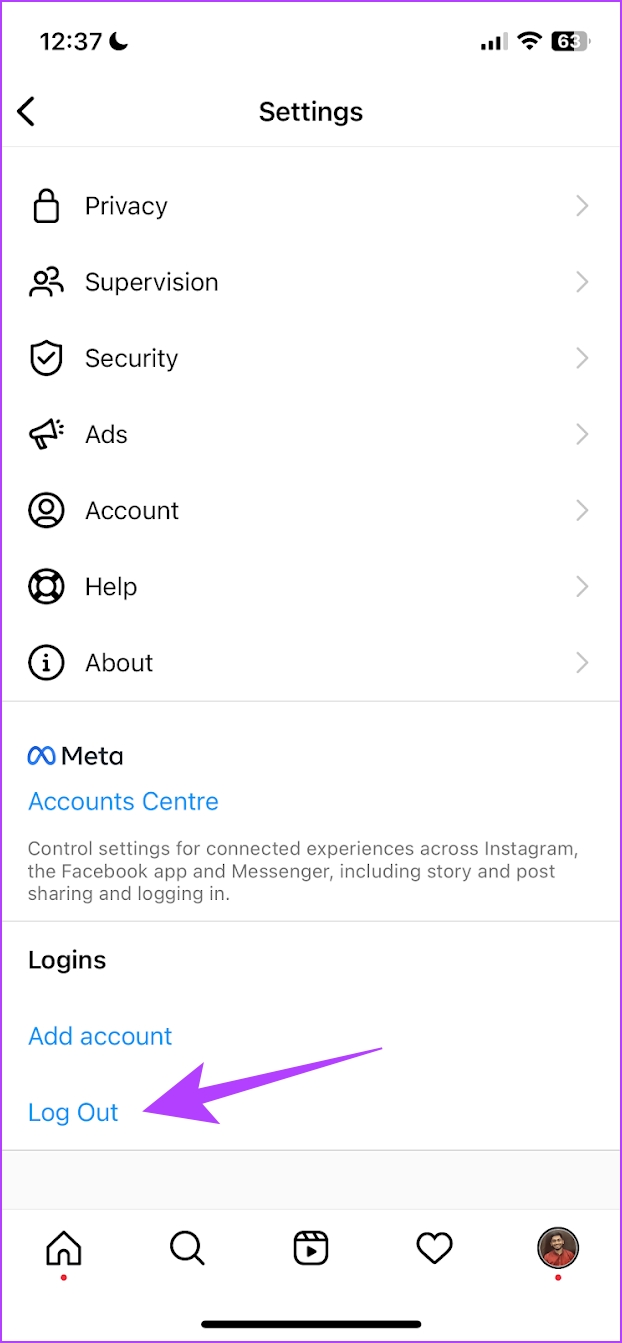
Step 1: Open the Instagram app and go to the Profile tab. Tap on the menu button and select Settings.
Step 2: Tap on Log Out. Once you are logged out, sign in to your account.


Fix 2: Reduce File Size
If you deal with huge RAW image files to upload on Instagram, the service might not let you post them.
Instagram compresses the media upload size, but it may throw an error when dealing with large image files. You must reduce photo file size on your iPhone, Android, or desktop.
We won’t go into details on how to do that, and you can read our dedicated post on how to reduce photo file size on iPhone and Mac.
Fix 2: Enable Background App Refresh and Autostart
When uploading large videos as an Instagram post, you must keep the app open on your phone for a successful post. If you return to the home screen, you might face Instagram not letting you post errors.
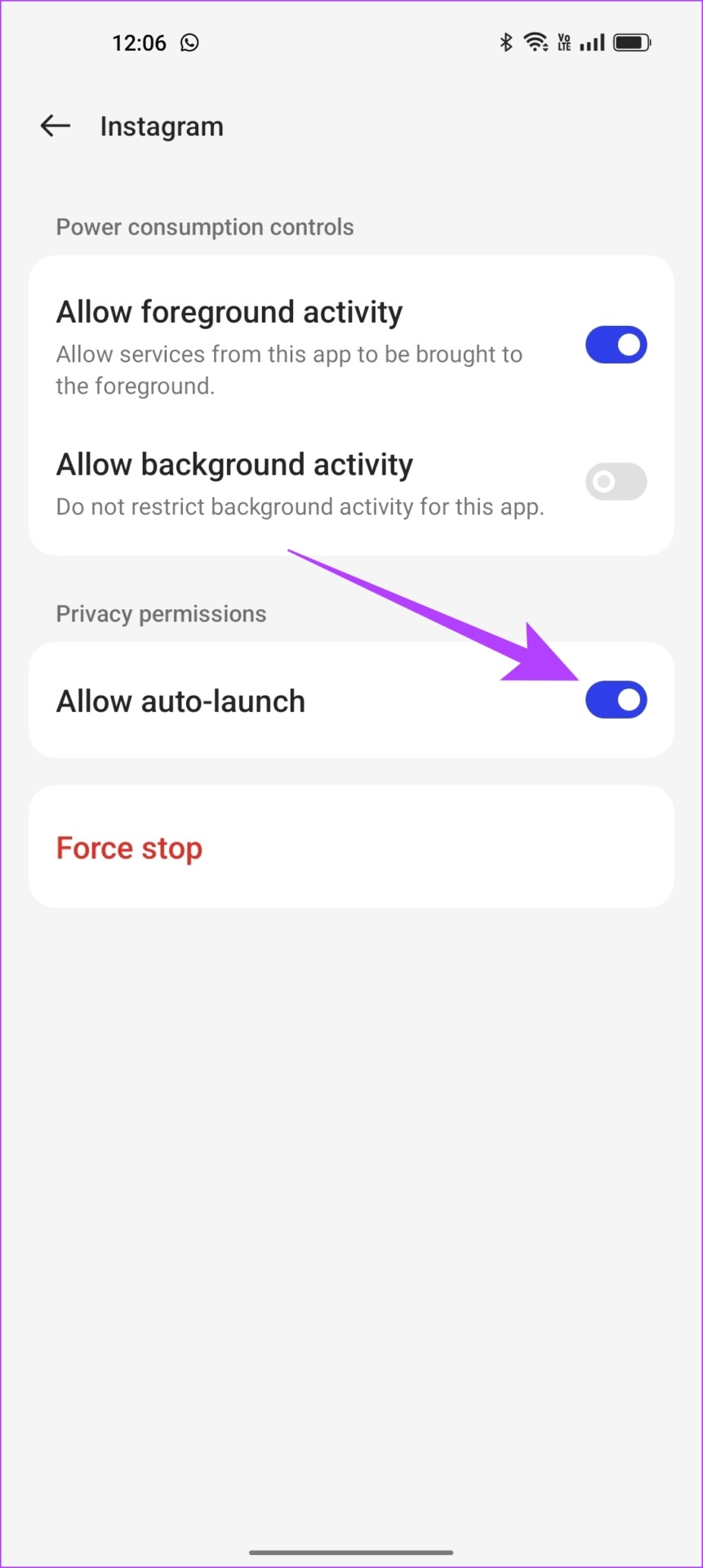
For a flawless upload process, it’s best to enable Background App Refresh (iPhone) or Autostart (Android) from the Settings menu.
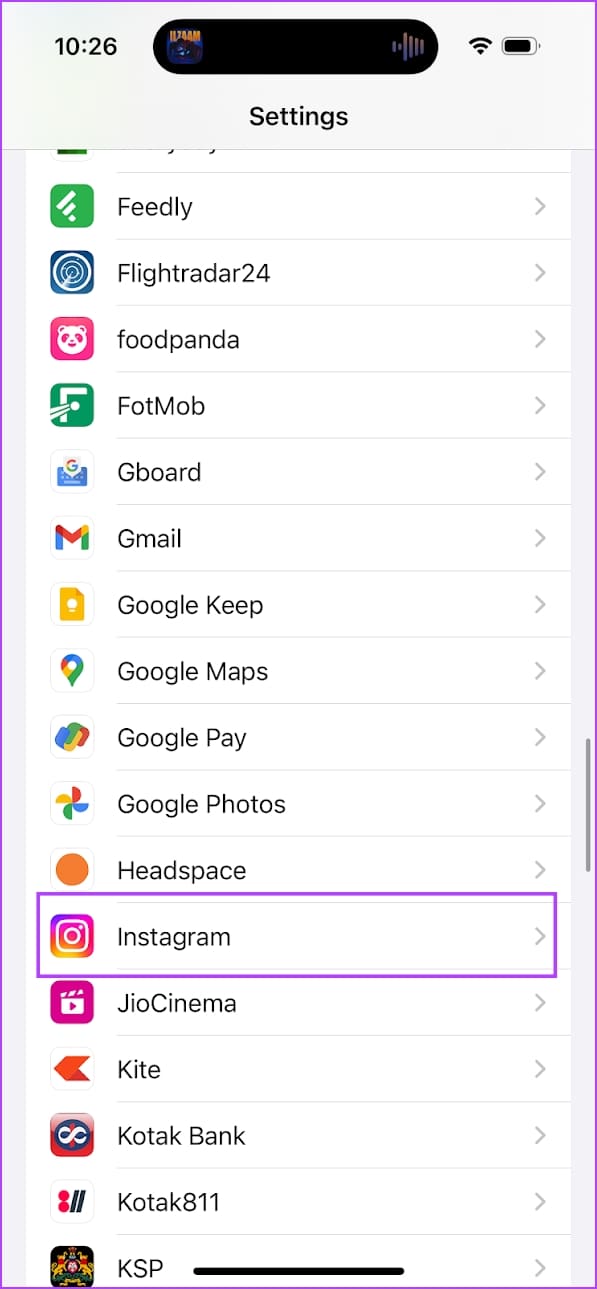
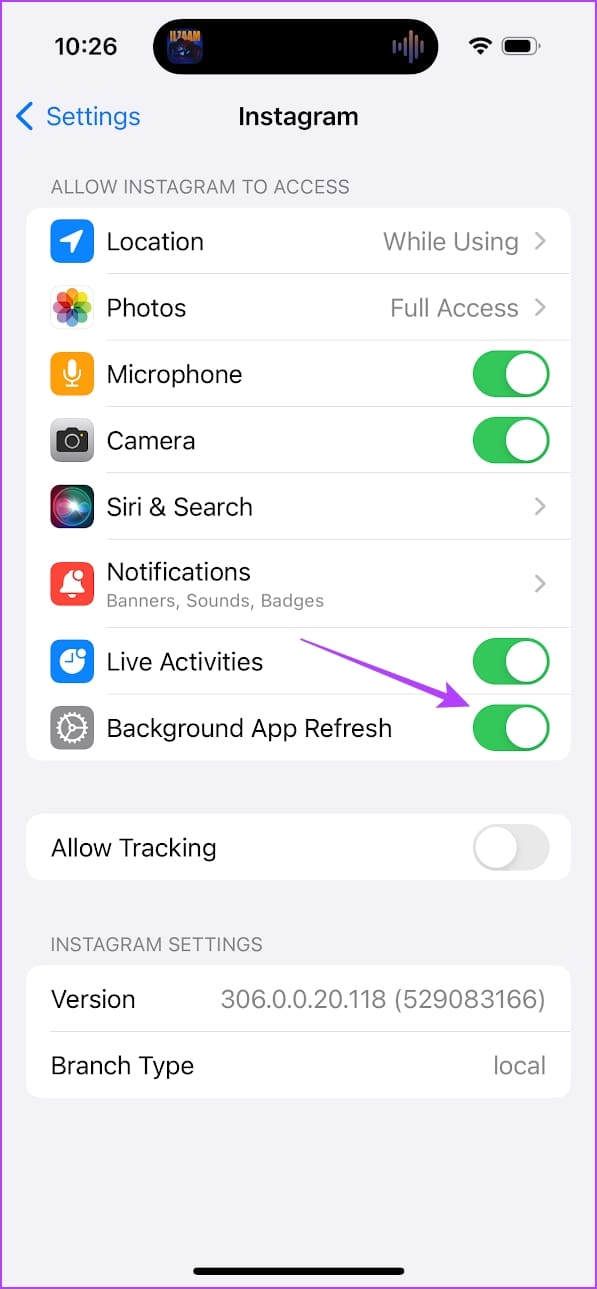
On iPhone
Open Settings > Instagram and enable Background App Refresh.
On Android
Note: If you don’t see the below settings, try disabling any battery usage restrictions which has the same effect.
Tap and hold the app icon, select App Info, go to Battery Usage, and turn on Auto Launch.
Autostart is now enabled for the app, and when necessary, it can launch a few background activities on its own.


Fix 3: Clear Cache
Clearing cache and junk files may resolve the issue with uploading posts. You can check our guide on what happens when you clear your cache on Instagram for a better understanding.
On Android
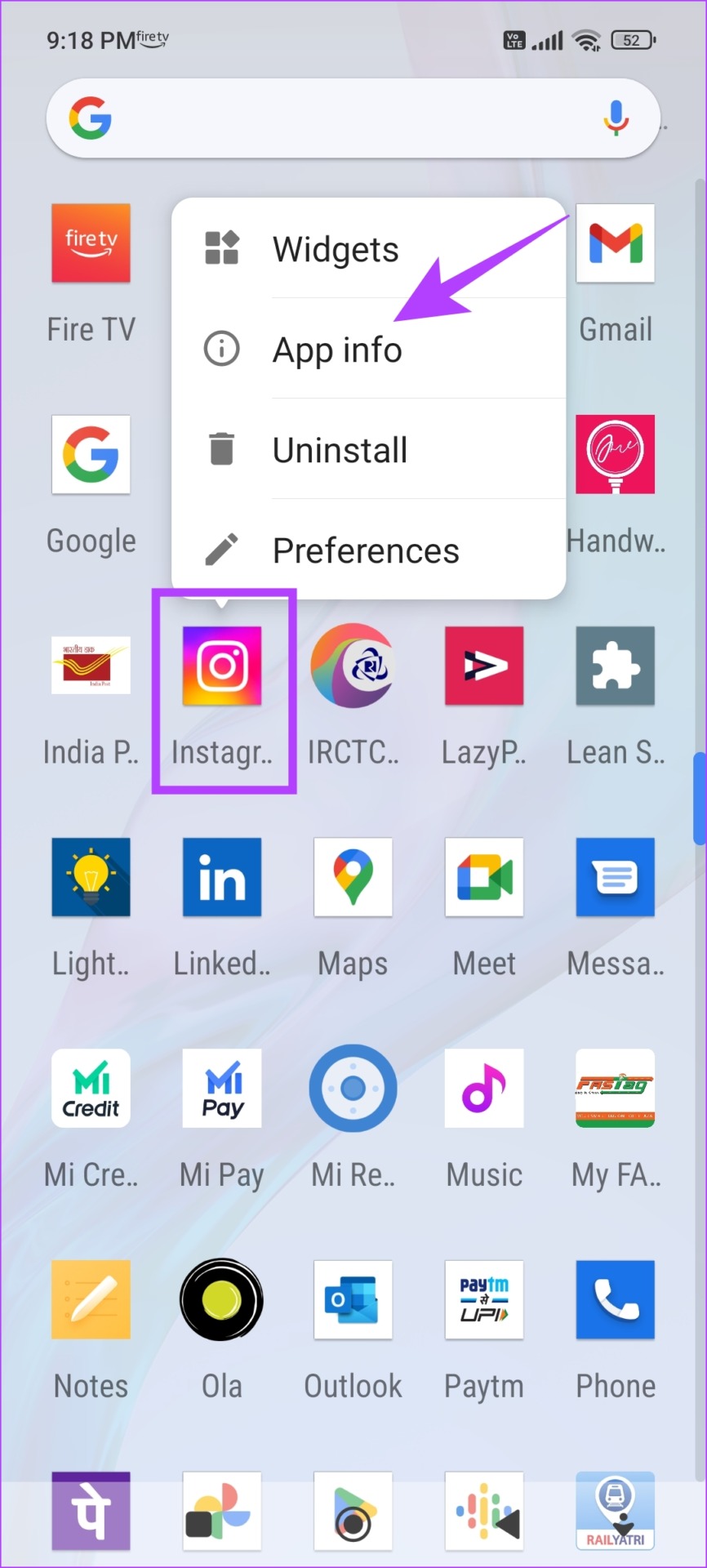
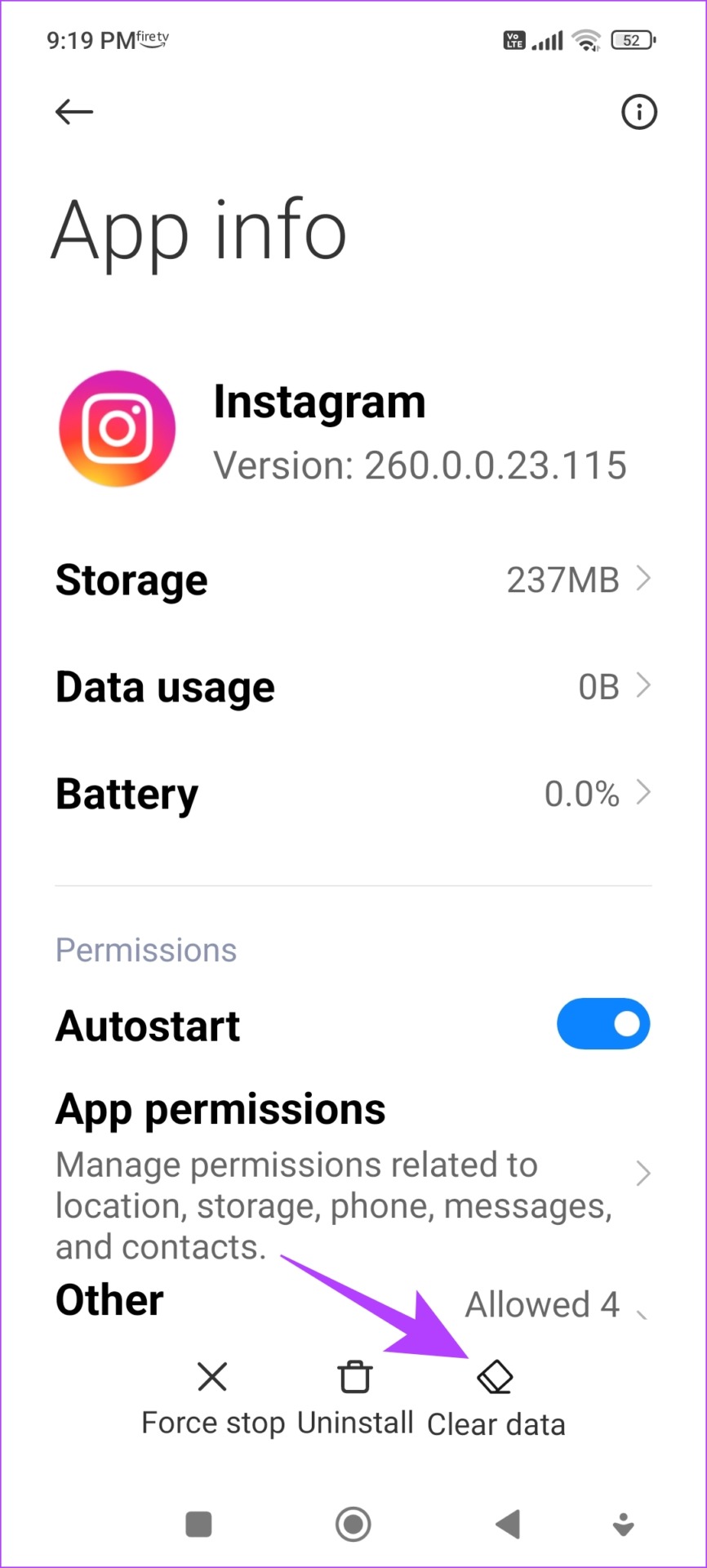
Step 1: Long-press the Instagram app on the home screen and tap on App info. Tap on Clear Data.
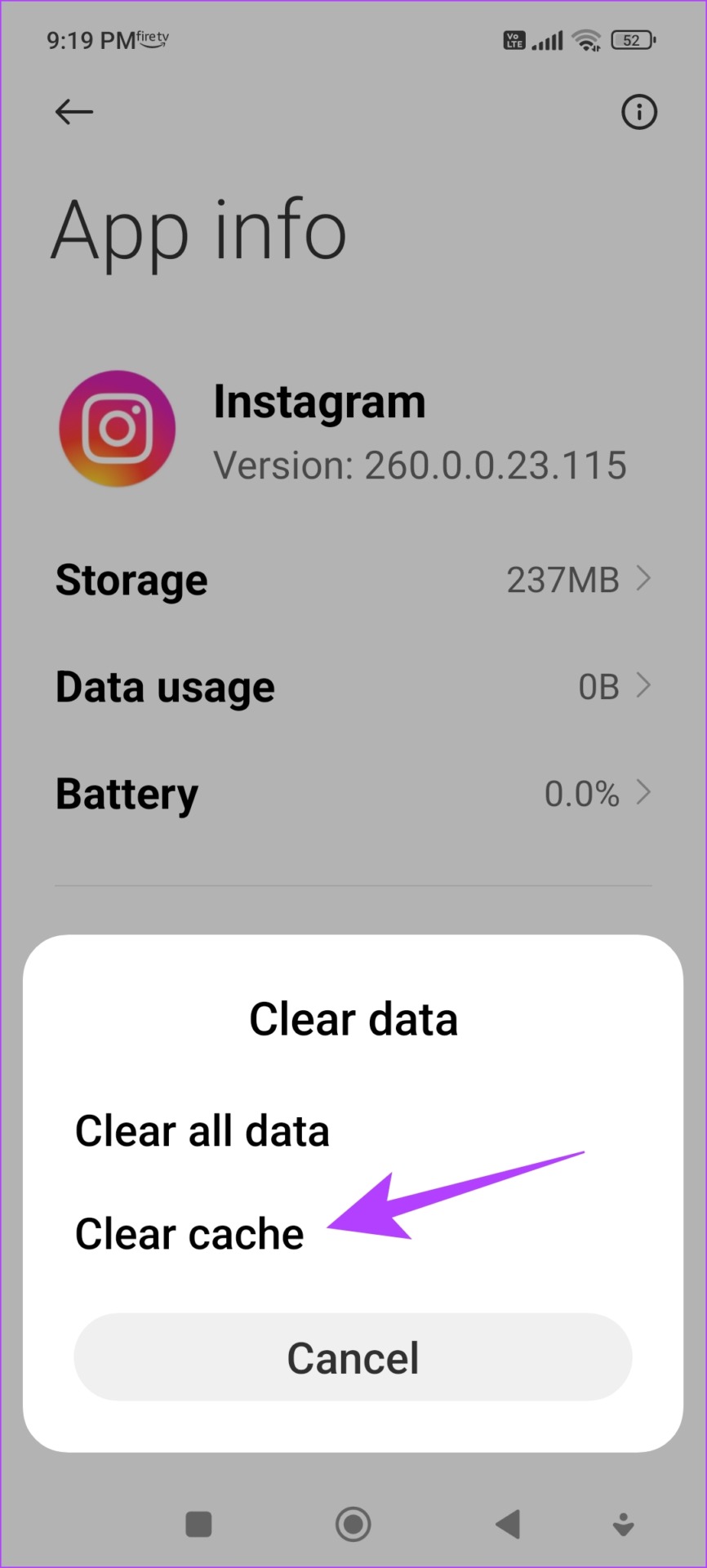
Step 2: Tap on Clear cache and select OK to confirm.
On iPhone
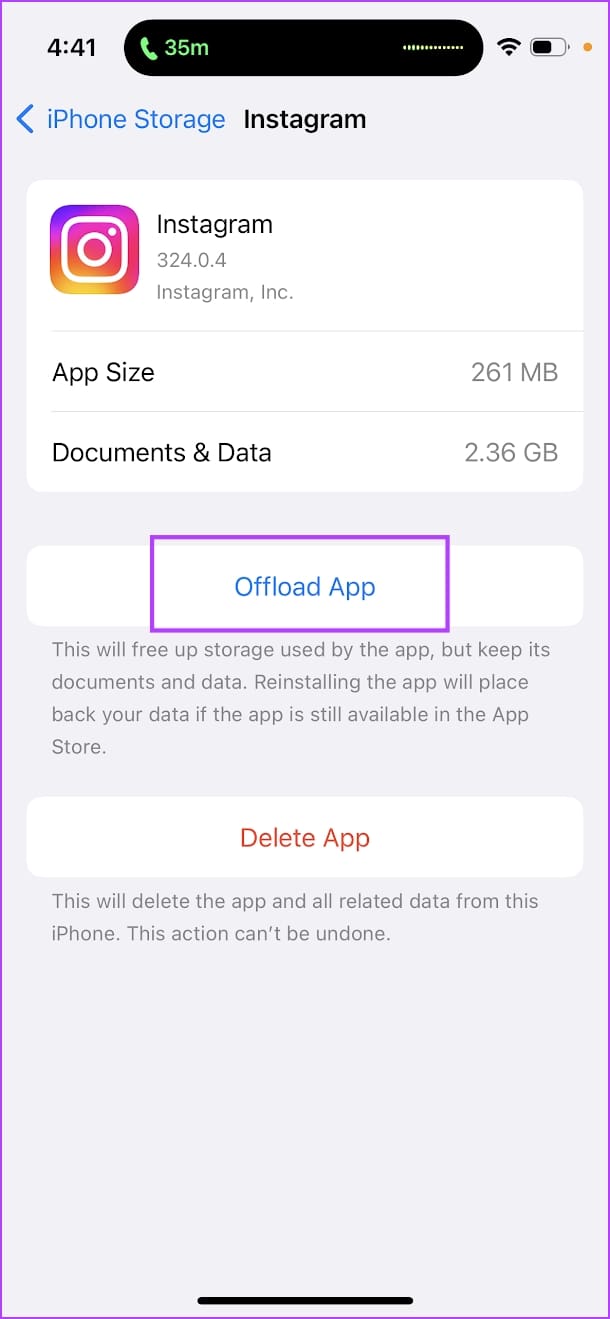
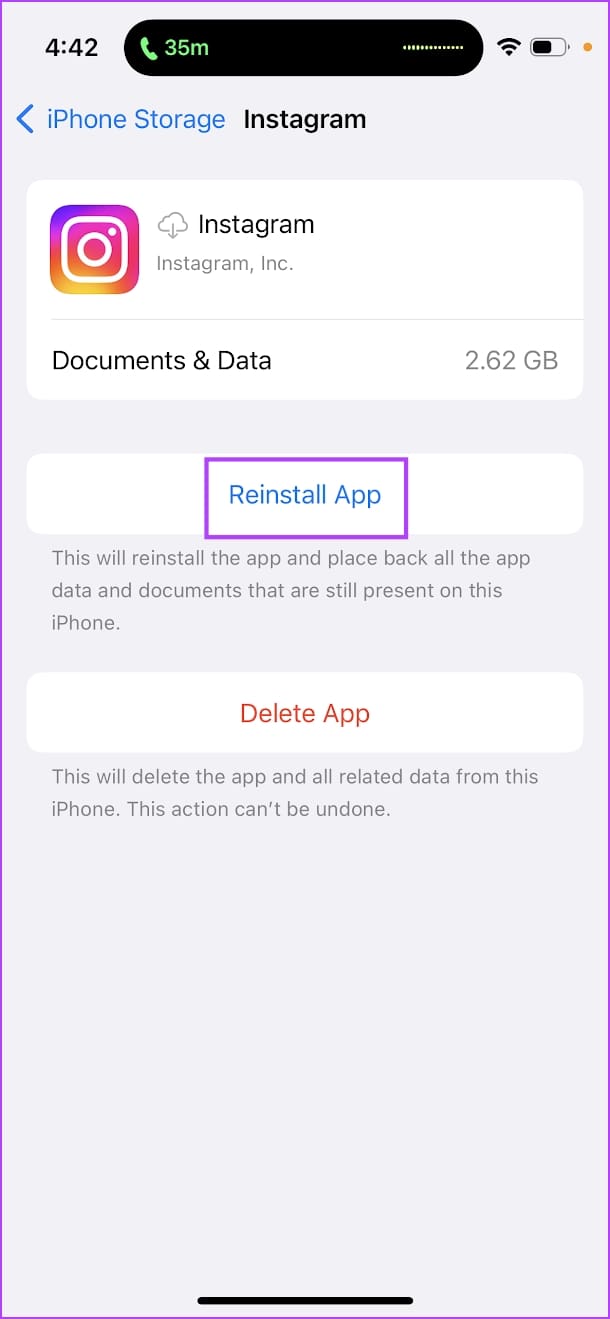
Offloading an application on your iPhone removes temporary data, including cache and junk files.
Step 1: Open the Settings app. Go to General -> iPhone Storage.
Step 2: Scroll down and select Instagram from the list. Select Offload App. Wait for the offloading to complete, then tap on the Reinstall App option.
Fix 4: Enable Cellular Data for Instagram
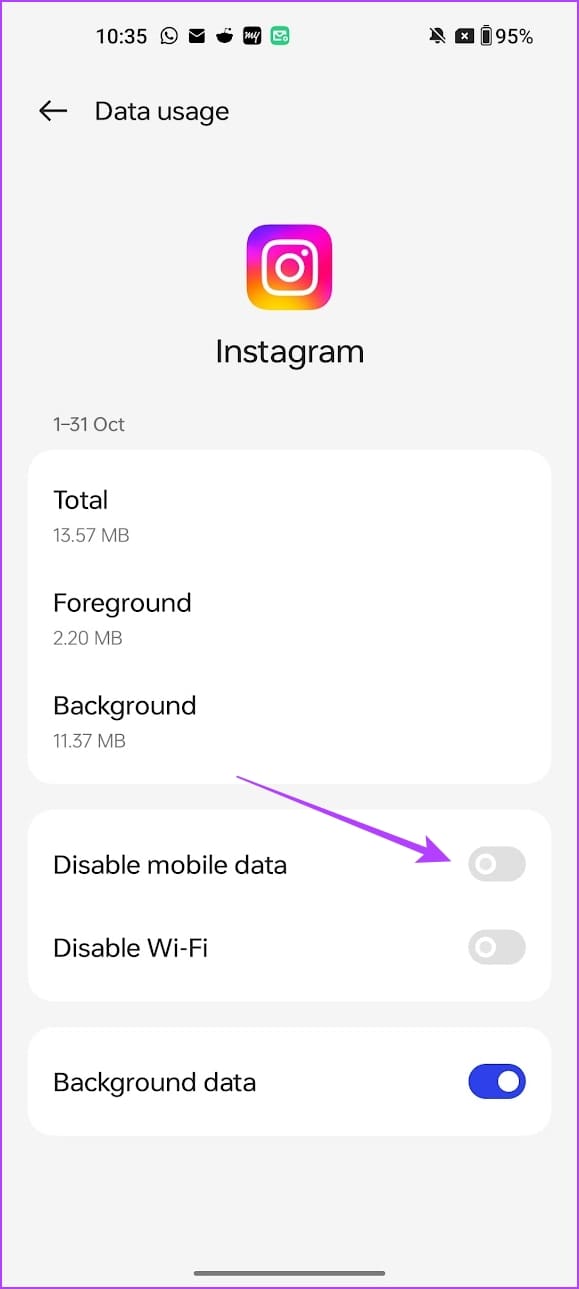
On both iPhone and Android, you can manually disable mobile data access for apps. If you are using mobile data and if you have accidentally disabled it for Instagram, you can’t upload posts or even access anything on Instagram that requires an internet connection.
On iPhone
Go to Settings, scroll down, select Instagram from the list, and enable Mobile Data.


On Android
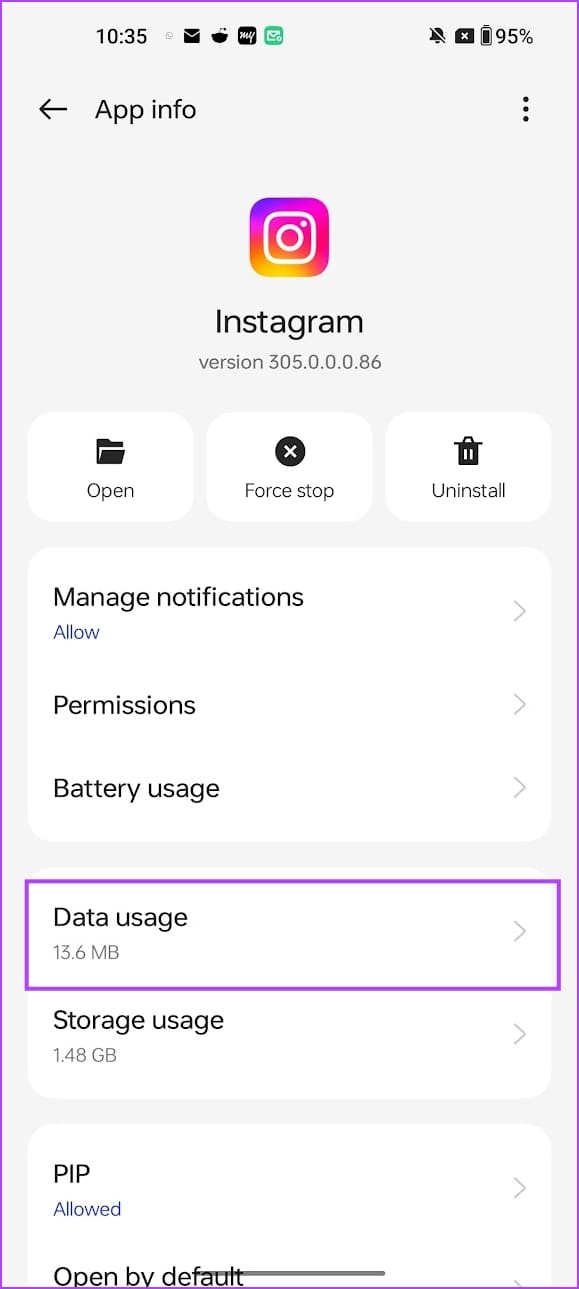
Step 1: Tap and hold the Instagram app icon, and select App Info.
Step 2: Select Data usage and ensure you haven’t enabled Disable mobile data.
If none of the above methods work, contact Instagram’s support team to get it fixed.
Was this helpful?
Last updated on 26 July, 2024
Read Next
 4 Ways to Fix the Couldn’t Post Comment Error on Instagram App
Basic Fixes Check network connection: Ensure there's no problem with your Wi-Fi or cellular network.
4 Ways to Fix the Couldn’t Post Comment Error on Instagram App
Basic Fixes Check network connection: Ensure there's no problem with your Wi-Fi or cellular network.
 8 Ways to Fix Add Music to Instagram Post Not Showing
Adding music enhances the vibe of an Instagram post.
8 Ways to Fix Add Music to Instagram Post Not Showing
Adding music enhances the vibe of an Instagram post.
 4 Ways to Copy Captions or Text From an Instagram Post
Method 1: Using a Web Browser The easiest way to copy any text on Instagram is to use Instagram on a web browser.
4 Ways to Copy Captions or Text From an Instagram Post
Method 1: Using a Web Browser The easiest way to copy any text on Instagram is to use Instagram on a web browser.
 How To Post Multiple Landscape and Portrait Photos on Instagram
Instagram Size Guide for Images Adhering to Instagram's recommended image sizes is paramount to ensure that your photos are displayed in the best possible quality.
How To Post Multiple Landscape and Portrait Photos on Instagram
Instagram Size Guide for Images Adhering to Instagram's recommended image sizes is paramount to ensure that your photos are displayed in the best possible quality.
 How to Share a Facebook Post to Instagram Automatically or Manually
How to Automatically Post From Facebook to Instagram Before you can post content from Facebook to Instagram, there’s one prerequisite - link your Instagram and Facebook account/page.
How to Share a Facebook Post to Instagram Automatically or Manually
How to Automatically Post From Facebook to Instagram Before you can post content from Facebook to Instagram, there’s one prerequisite - link your Instagram and Facebook account/page.
 How to Share Instagram Post to Snapchat Story
Can You Link Instagram to Snapchat No, you cannot directly connect Instagram to Snapchat.
How to Share Instagram Post to Snapchat Story
Can You Link Instagram to Snapchat No, you cannot directly connect Instagram to Snapchat.
 What Happens When You Archive a Post on Instagram?
What Happens When You Archive Instagram Post?
What Happens When You Archive a Post on Instagram?
What Happens When You Archive Instagram Post?
 What happens When You Save a Post on Instagram
It’s Kept in the Saved Folder When you save a post on Instagram, it’s added to the Saved section of Instagram and kept in the All Posts folder.
What happens When You Save a Post on Instagram
It’s Kept in the Saved Folder When you save a post on Instagram, it’s added to the Saved section of Instagram and kept in the All Posts folder.
The article above may contain affiliate links which help support Guiding Tech. The content remains unbiased and authentic and will never affect our editorial integrity.