Why Can’t I See My Friends’ Posts on My Instagram Feed?
There could be several reasons why you’re not seeing your friends’ posts on your Instagram feed:
- Algorithm preferences: Instagram shows you posts based on your interactions, interests, and relationships. Instagram might prioritize other content if you haven’t engaged with your friends’ posts (liking, commenting, or viewing their profiles).
- Following settings: Check if you’re still following your friends. Sometimes, unintentional unfollows can happen, or you might have muted their posts, which hides them from your feed.
- Account settings: If your friends have private accounts and you’re not following each other, you won’t see their posts.
- Technical issues: Sometimes, Instagram experiences glitches that can affect what appears in your feed. Try restarting the app or checking for updates.
- Shadowbanning or restrictions: If your account has been flagged for violating Instagram’s community guidelines, your visibility could be restricted. This might prevent you from seeing certain content, including posts from your friends.
How to Fix Instagram Feed Not Showing Friends’ Posts
Fix 1. Switch to Following Feed on Instagram
Instagram offers a handy filter to change your feed. Launch the Instagram app and tap the down arrow next to the Instagram name at the top. Select Following, and the app will show feeds from your following accounts only.
You can even create a Favorites list to get updates from selected accounts.
Step 1: Tap the down arrow next to the Instagram name and select Favorites.
Step 2: Tap Add favorites and check the suggested list from the following menu. Select more accounts or tap + at the top to add more people to your favorites list.

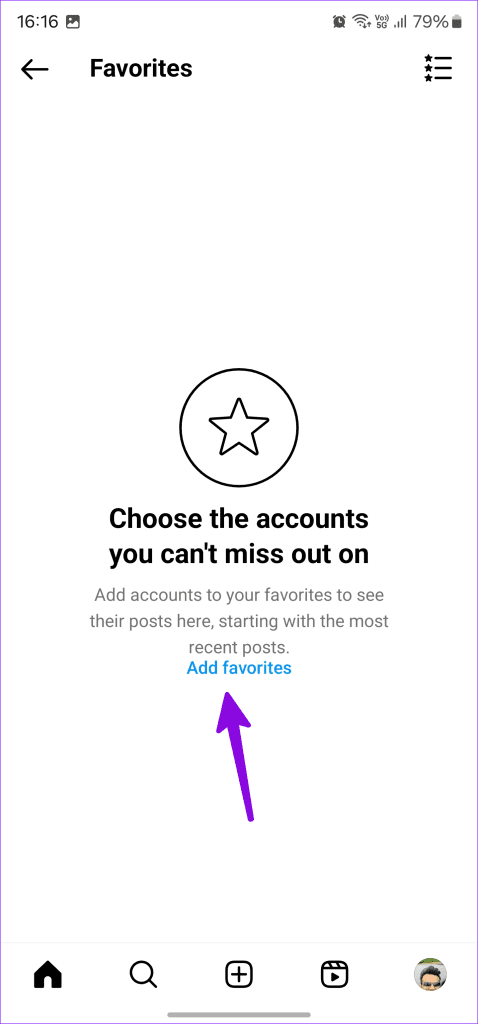
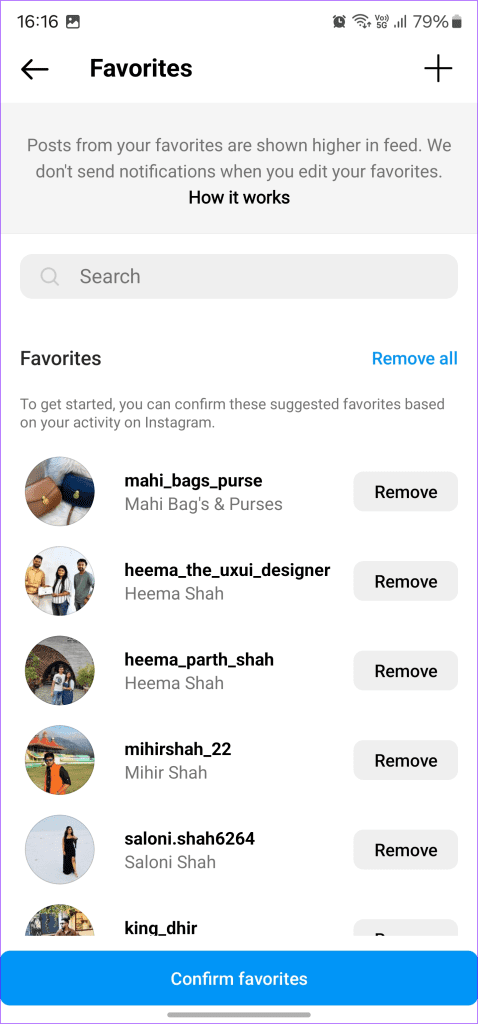
You can now check your favorite accounts’ recent posts in the same menu.
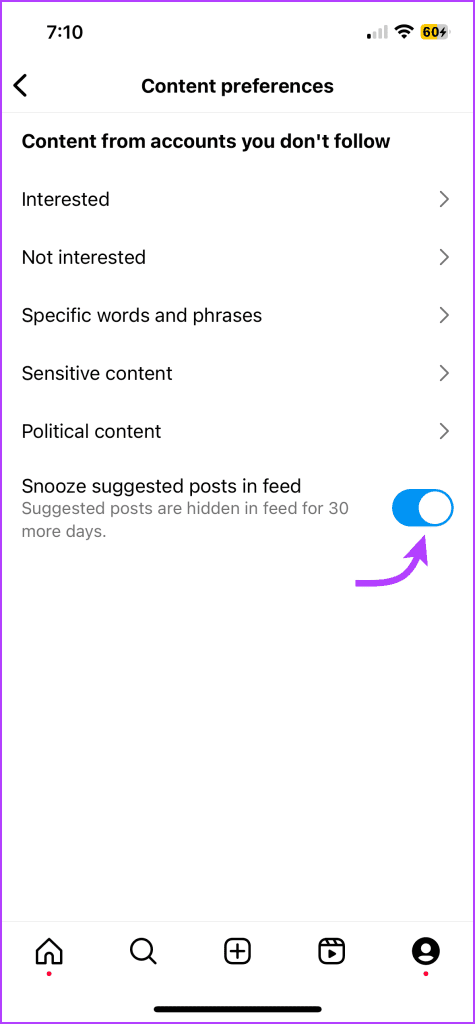
Fix 2. Mute Suggested Posts for 30 Days
If you experience issues with Instagram not showing your friends’ posts, muting suggested posts for 30 days might help.
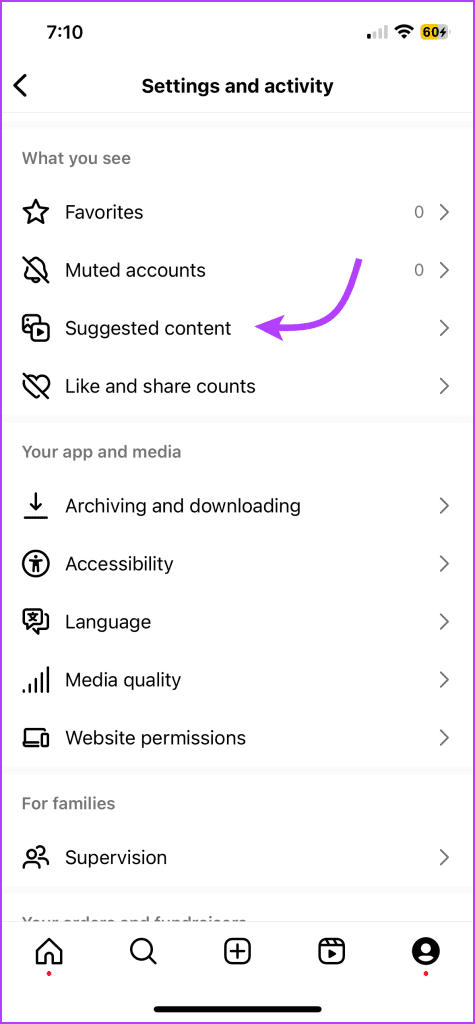
Step 1: Open Instagram → Profile page → tap the three-line icon (hamburger icon).
Step 2: Scroll down to the What you see section and select Suggested content.
Step 3: Toggle on Snooze suggested posts in feed.

Fix 3. Other Fixes You Can Try
- Check if you’ve been blocked or restricted: While it may be disheartening to know, you must employ tactics to know if you’re being blocked on Instagram or restricted.
- Log out and log in to Instagram: You may face issues accessing your Instagram account due to outdated login credentials. You should log out from your account and log in again.
- Clear Instagram cache: Instagram collects cache in the background to improve the app loading times and performance. When the app collects a corrupt cache, you may experience glitches; so clear the Instagram cache (only on Android) to proceed.
Note: If you’re unsure what happens when you clear cache on Instagram, check out the linked post.
Tips to See Instagram Friends’ Posts Often
Apart from the troubleshooting tricks above, you may follow these suggestions to see your friends’ posts often on Instagram:
- Be active on Instagram. Like, comment on, and share content frequently on the platform to engage with the content.
- You can tag friends with your posts. It indicates that you have a close connection with selected accounts.
- You can manually search for necessary profiles to signal your interest in their content.
- You can mute or unfollow unnecessary accounts to help Instagram focus on relevant content only.
- You must stay active in the Direct Messages menu. You can prefer the default messaging function to share interested Reels and stories with friends and family.
Was this helpful?
Last updated on 16 August, 2024
Read Next
 How to Collaborate on Instagram Posts With Your Friends
Note: Instagram Collaboration makes things easier as there’s no need to share the same post from two or more separate accounts while also allowing you to reach a wider audience.
How to Hide All Posts on Facebook From Public or Friends
How to Hide Past Posts on Facebook The good news is that you can manage the visibility of previously posted content.
How to Collaborate on Instagram Posts With Your Friends
Note: Instagram Collaboration makes things easier as there’s no need to share the same post from two or more separate accounts while also allowing you to reach a wider audience.
How to Hide All Posts on Facebook From Public or Friends
How to Hide Past Posts on Facebook The good news is that you can manage the visibility of previously posted content.
 5 Ways to Fix Instagram Couldn’t Refresh Feed
Basic Fixes Check network connection: Ensure there's no problem with your Wi-Fi or cellular network.
5 Ways to Fix Instagram Couldn’t Refresh Feed
Basic Fixes Check network connection: Ensure there's no problem with your Wi-Fi or cellular network.
 Top 4 Ways to Fix Facebook Not Showing Friends Post
Why Am I Not Seeing Friend's Posts in My Facebook Feed Let's first understand how the Facebook feed algorithm works.
Top 4 Ways to Fix Facebook Not Showing Friends Post
Why Am I Not Seeing Friend's Posts in My Facebook Feed Let's first understand how the Facebook feed algorithm works.
 5 Ways to Fix Facebook News Feed Not Updating
Basic Fixes Make sure you have a stable internet connection (Mobile or Wi-Fi).
5 Ways to Fix Facebook News Feed Not Updating
Basic Fixes Make sure you have a stable internet connection (Mobile or Wi-Fi).
 3 Ways to Fix Instagram Not Loading New Posts on Your Phone
Basic Fixes: Ensure your Instagram account is not blocked/suspended: If you use Instagram excessively for several hours or take too many actions quickly, the service may temporarily block you.
3 Ways to Fix Instagram Not Loading New Posts on Your Phone
Basic Fixes: Ensure your Instagram account is not blocked/suspended: If you use Instagram excessively for several hours or take too many actions quickly, the service may temporarily block you.
 9 Ways to Fix Videos Freezing on Instagram Stories and Posts
Ever since apps like Dubsmash and TikTok popularized short videos, popular social media apps have come up with alternatives for posting short-form content.
9 Ways to Fix Videos Freezing on Instagram Stories and Posts
Ever since apps like Dubsmash and TikTok popularized short videos, popular social media apps have come up with alternatives for posting short-form content.
 3 Easy Ways to Hide Posts From Someone on Instagram
Note: Changing settings on your desktop automatically syncs to your mobile device, so you don't have to follow the same methods on your mobile device as you would on your
3 Easy Ways to Hide Posts From Someone on Instagram
Note: Changing settings on your desktop automatically syncs to your mobile device, so you don't have to follow the same methods on your mobile device as you would on your
The article above may contain affiliate links which help support Guiding Tech. The content remains unbiased and authentic and will never affect our editorial integrity.