Try Basic Fixes
- Remove conflicting apps: At times, running multiple health or fitness apps on your iPhone can result in conflicts and prevent the Health app from tracking your steps or other activities. So, remove any third-party health or fitness apps from your iPhone.
- Install iOS updates: It’s always a good idea to keep your iPhone updated to the latest iOS version. If the problem is caused by a bug, installing pending updates should help.
Fix 1: Enable Fitness Tracking Permission
The Health app on your iPhone requires Fitness Tracking permission to count your steps. If you have inadvertently disabled this permission for the Health app, it will fail to count your steps. Here’s how to enable it.
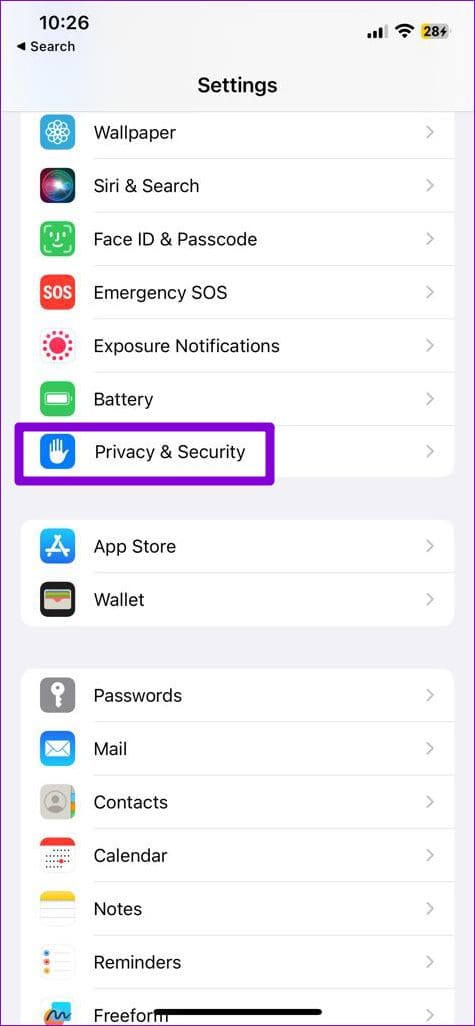
Step 1: Open the Settings app on your iPhone.
Step 2: Scroll down to tap on Privacy & Security and select Motion & Fitness from the following screen.
Step 3: Enable the toggles next to Fitness Tracking and the Health app.


Fix 2: Disable Low Power Mode
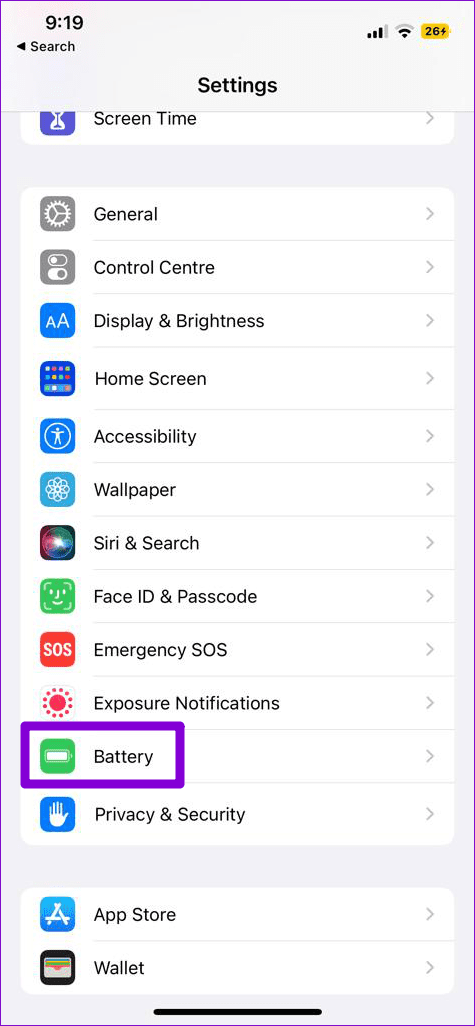
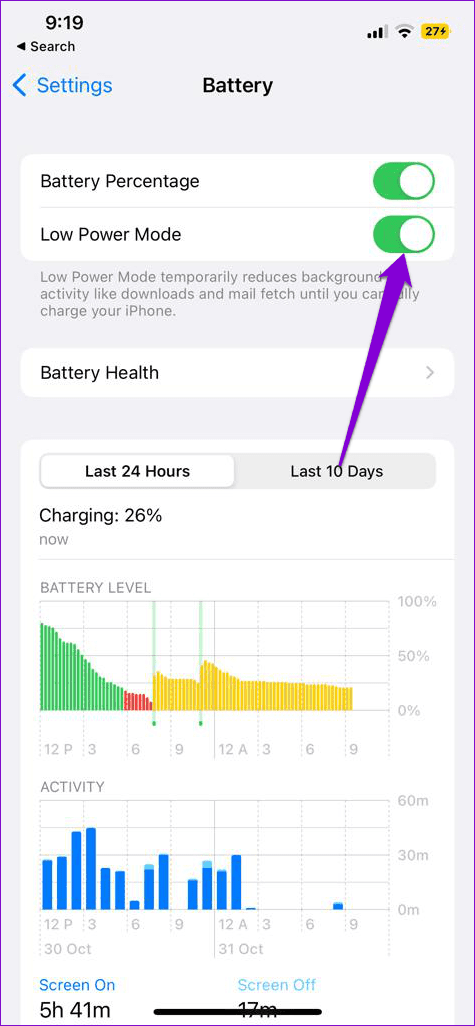
Enabling Low Power Mode allows your iPhone to restrict various background activities to reduce power consumption. This can cause the Health app’s step counter to stop working on your iPhone. Hence, it’s best to disable Low Power Mode when you don’t need it. To do so, open the Settings app and tap on Battery. Then, disable the toggle next to Low Power Mode.
Fix 3: Enable Motion Calibration
The Health app relies on your iPhone’s accelerometer to measure your steps and the distance you travel. However, if this sensor has an issue, you might need to recalibrate it. Here’s how to do it.
Step 1: Open the Settings app on your iPhone.
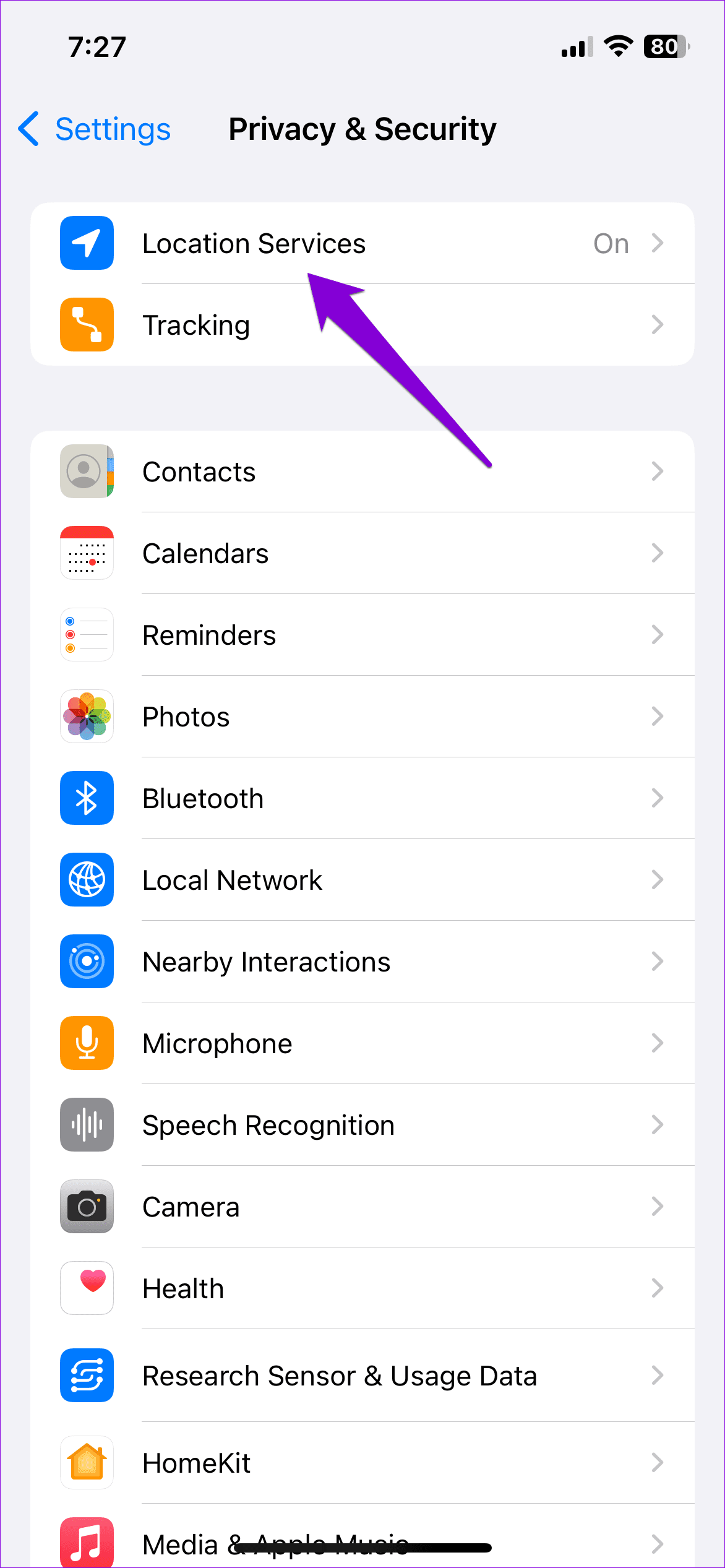
Step 2: Tap on Privacy & Security and select Location Services from the following menu.
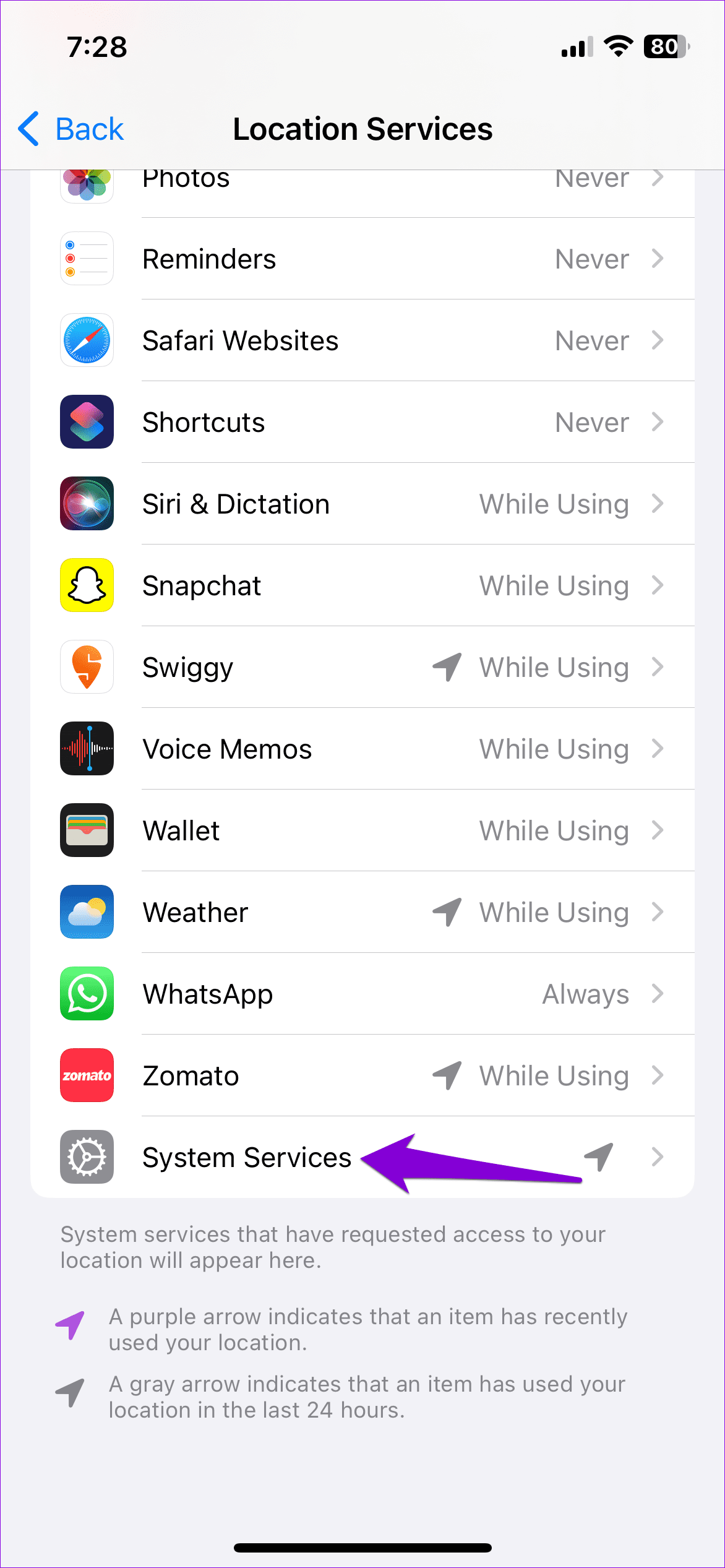
Step 3: Scroll down to select System Services and enable the toggle next to Motion Calibration & Distance.

Was this helpful?
Last updated on 15 July, 2024
Read Next
 5 Fixes for Samsung Health App Not Tracking Steps
Basic Fixes Ensure that step counter is enabled: Open the Health app > Tap on Steps > Three dots in the top-right corner > Check and ensure that the step
5 Fixes for Samsung Health App Not Tracking Steps
Basic Fixes Ensure that step counter is enabled: Open the Health app > Tap on Steps > Three dots in the top-right corner > Check and ensure that the step
 5 Ways to Fix Google Fit App Not Tracking Steps on Android
Try Basic Fixes Disable or uninstall other step counter apps: If there are multiple health apps installed on your Android, Google Fit may fail to track your steps due to
5 Ways to Fix Google Fit App Not Tracking Steps on Android
Try Basic Fixes Disable or uninstall other step counter apps: If there are multiple health apps installed on your Android, Google Fit may fail to track your steps due to
 Top 6 Ways to Fix Samsung Galaxy Watch Not Tracking Steps
Samsung Galaxy Watch is one of the best alternatives to Apple Watch in the Android camp.
Top 6 Ways to Fix Samsung Galaxy Watch Not Tracking Steps
Samsung Galaxy Watch is one of the best alternatives to Apple Watch in the Android camp.
 Google Fit vs Samsung Health: Which is the Better Fitness App?
Although Samsung Health and Google Fit nail the basics of fitness tracking, both apps differ in numerous aspects.
Google Fit vs Samsung Health: Which is the Better Fitness App?
Although Samsung Health and Google Fit nail the basics of fitness tracking, both apps differ in numerous aspects.
 3 Ways to Fix Apple Watch Not Counting Steps Correctly
Basic Fixes Clean Rear Sensors: Dirty Apple Watch sensors can prevent footsteps from being counted or cause them to be counted improperly.
3 Ways to Fix Apple Watch Not Counting Steps Correctly
Basic Fixes Clean Rear Sensors: Dirty Apple Watch sensors can prevent footsteps from being counted or cause them to be counted improperly.
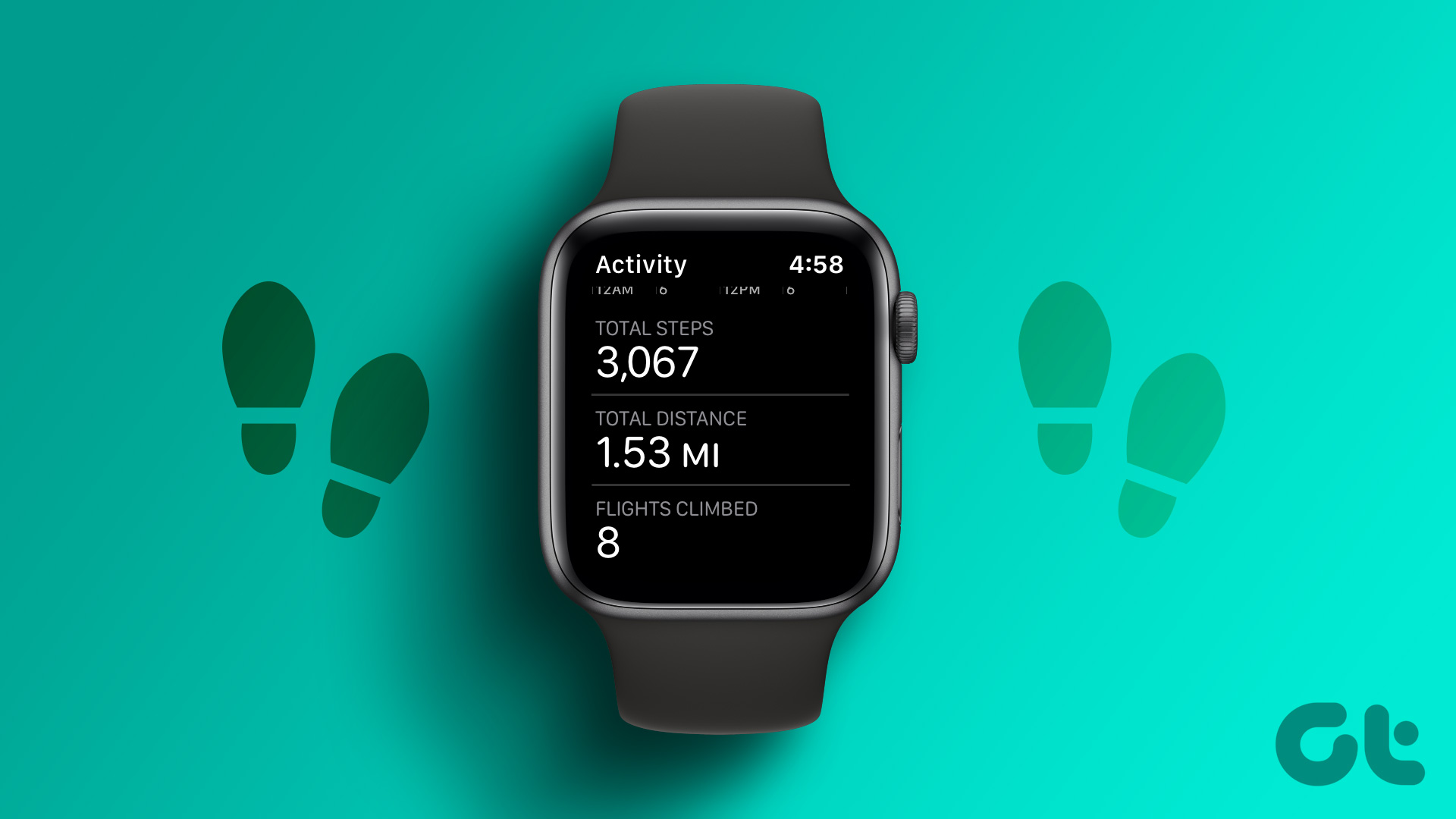 6 Ways to See Steps on Apple Watch
View Daily Steps on Apple Watch or iPhone Method 1: Use the Activity App on Apple Watch Step 1: Press the Digital Crown on your Apple Watch to open the
6 Ways to See Steps on Apple Watch
View Daily Steps on Apple Watch or iPhone Method 1: Use the Activity App on Apple Watch Step 1: Press the Digital Crown on your Apple Watch to open the
 How to Show Steps on an Apple Watch Face
While you can see steps on your Apple Watch, there's no native way to display the metric on any watch face.
How to Show Steps on an Apple Watch Face
While you can see steps on your Apple Watch, there's no native way to display the metric on any watch face.
 How to Change MacBook Name With Easy Steps
Your Mac computer has a name that is more than an identifier.
How to Change MacBook Name With Easy Steps
Your Mac computer has a name that is more than an identifier.
The article above may contain affiliate links which help support Guiding Tech. The content remains unbiased and authentic and will never affect our editorial integrity.