Basic Fixes
- Check internet connection: Grammarly will only work with an internet connection. Ensure your device is connected to a stable network.
- Don’t use incognito mode: Extensions will not work if you use incognito mode on Chrome.
- Reload website: Try reloading the website to refresh the extension and erase the bug.
- Clear Chrome cache: Clear Chrome cache and junk files to get rid of bugs causing the issue.
Fix 1: Double Click to Activate Extension
If you don’t see suggestions from Grammarly, double-click at the start or end of your text. This will prompt Grammarly to open and suggest corrections to the content. You can also click on the Grammarly correction count icon at the bottom right corner.

Also Read: How to use Grammarly in Microsoft Word for Windows and Mac
Fix 2: Reload the Extension
Restarting the extension will reload it and may fix the issue with Grammarly.
Step 1: Click on the extensions icon on the Chrome toolbar. Click on the three-dot icon next to Grammarly and select Manage Extension.

Step 2: Turn off the toggle for the Grammarly extension and turn it on again.
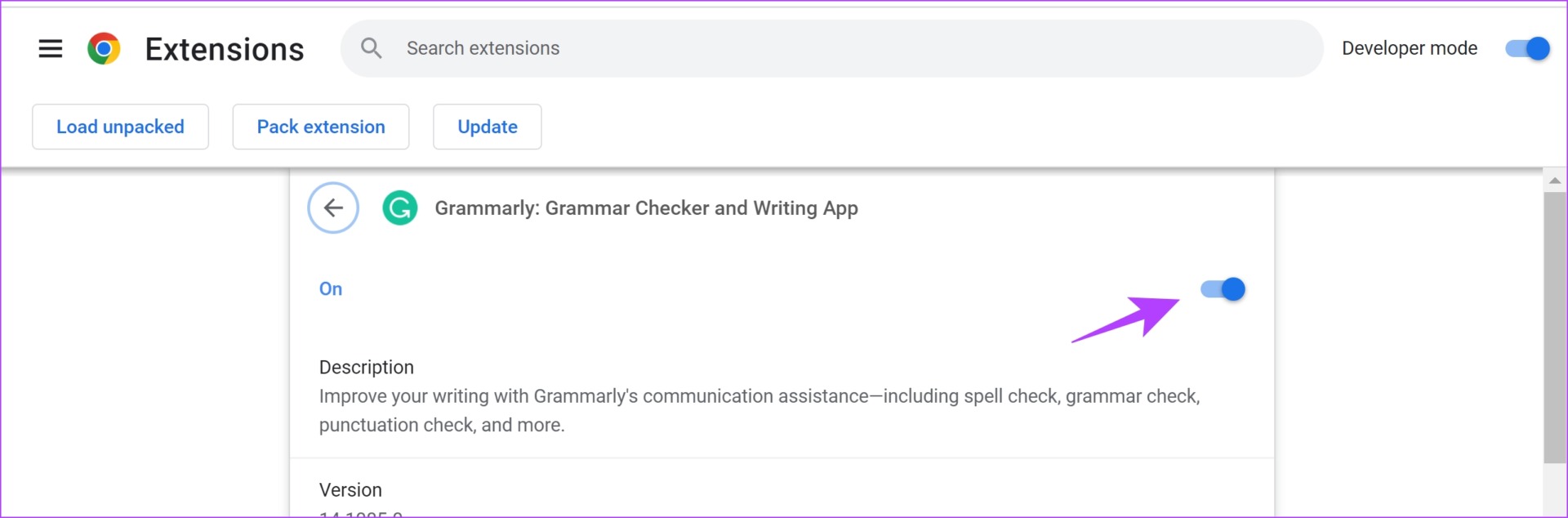
Alternatively, you can also open the Grammarly extension, turn it off, and turn on the toggle for it.


Fix 3: Re-Install Extension
Re-installing the extension will eliminate bugs and corrupted files, which may help fix the issue.
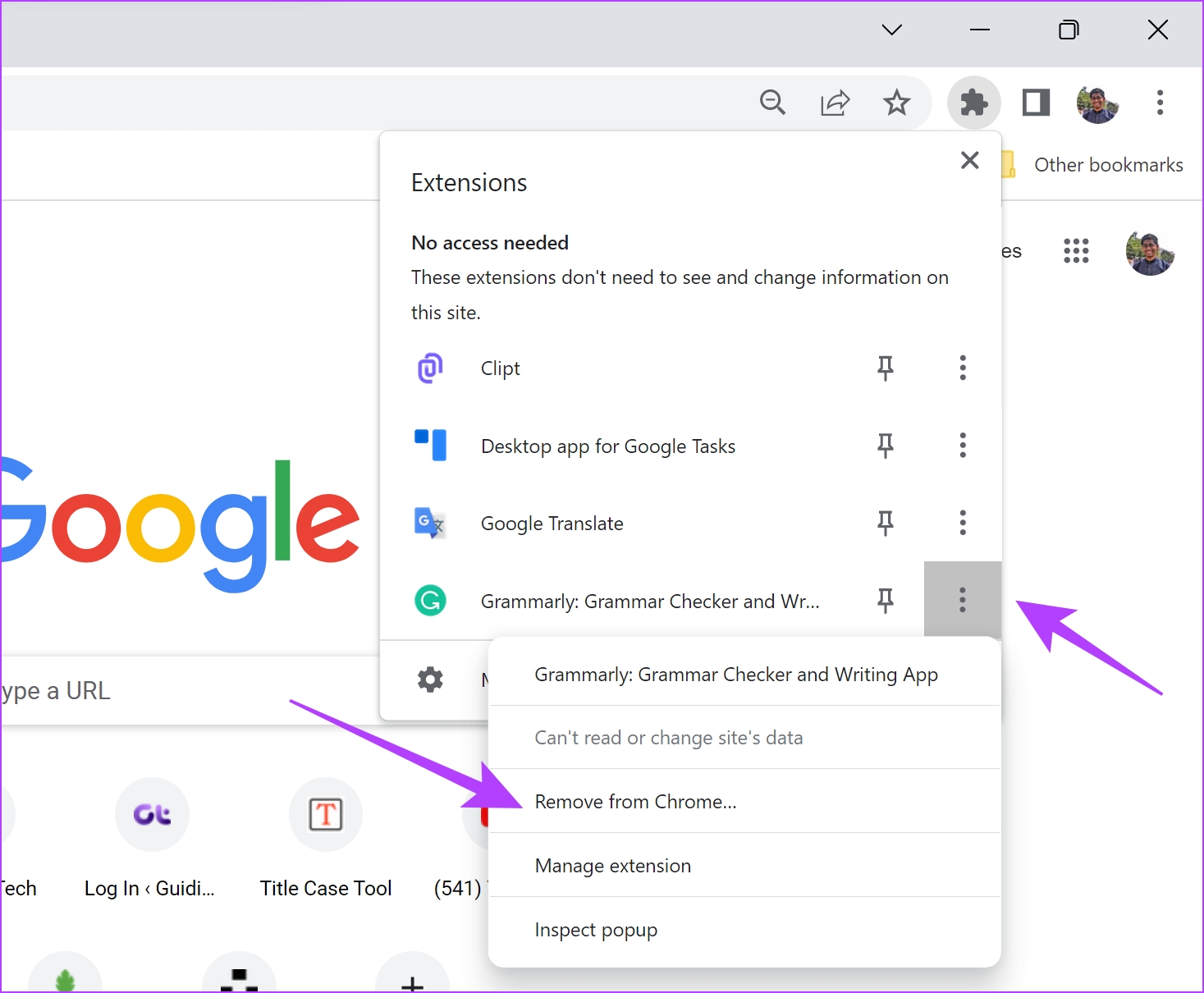
Click on the extensions icon on the toolbar > click on the three-dot icon for the Grammarly extension > select Remove from Chrome.
Once removed, install the extension from the Chrome Webstore.
Fix 4: Check Your Grammarly Subscription
If your Grammarly extension is not fully broken and only a few features don’t seem to work, check if there’s an issue with your premium subscription.
Step 1: Click on the extensions icon on the Chrome toolbar. Open the Grammarly extension. Now, scroll down and select My Grammarly.
Step 2: Click on Account > Subscription. Check your current plan and see whether your premium subscription is still active.

Also Read: How to fix Grammarly not working in Google Docs.
Fix 5: Sign Out and Sign In to Grammarly
If your Grammarly account is having trouble, signing out and signing in will help.
Step 1: Open the Grammarly extension and click on My Grammarly.
Step 2: Click on Sign Out in the sidebar and sign in with your credentials again.

If nothing works, use the Grammarly extension on other web browsers. If not, visit Grammarly and paste your content for suggestions and corrections.
Also Read: Best Grammarly alternatives for PC and mobile
Was this helpful?
Last updated on 14 May, 2024
Read Next
 Top 7 Ways to Fix Google Chrome Failed to Load Extension
Extensions play an important role in the Chrome ecosystem.
Top 7 Ways to Fix Google Chrome Failed to Load Extension
Extensions play an important role in the Chrome ecosystem.
 How to Use Grammarly in Microsoft Word (Windows and Mac)
Use Grammarly in Microsoft Word on Mac Install Grammarly on Mac Step 1: Open Microsoft Word > select the Insert menu at the top.
How to Use Grammarly in Microsoft Word (Windows and Mac)
Use Grammarly in Microsoft Word on Mac Install Grammarly on Mac Step 1: Open Microsoft Word > select the Insert menu at the top.
 3 Ways to Change File Type (Extension) on Windows 11
https://youtu.be/Y4c__3CZces How to Use Control Panel to Make File Type Visible Before we go about changing the file type on Windows 11, let's first have a look at how you
3 Ways to Change File Type (Extension) on Windows 11
https://youtu.be/Y4c__3CZces How to Use Control Panel to Make File Type Visible Before we go about changing the file type on Windows 11, let's first have a look at how you
 4 Android Browsers With Extension Support
1.
4 Android Browsers With Extension Support
1.
 How to Dial an Extension on iPhone and Android
How to Call With an Extension on iPhone Directly If you have an iPhone, here's how to call with an extension before you dial a number.
How to Dial an Extension on iPhone and Android
How to Call With an Extension on iPhone Directly If you have an iPhone, here's how to call with an extension before you dial a number.
 6 Best Flat and Thin Extension Cords You Should Buy
Flat and thin extension cords are a great way to add extra power outlets to your home without the unsightly clutter of a traditional round cord.
6 Best Flat and Thin Extension Cords You Should Buy
Flat and thin extension cords are a great way to add extra power outlets to your home without the unsightly clutter of a traditional round cord.
 How to Change File Type (Extension) on iPhone
Whatever files you currently have on your iPhone, all have an extension attached to them.
How to Change File Type (Extension) on iPhone
Whatever files you currently have on your iPhone, all have an extension attached to them.
 3 Ways to Fix Chrome Create Shortcut Not Working Issue
Fix 1: Create Shortcut Option Grayed Out Issue Sometimes, the Create Shortcut option will be grayed out if you use an Incognito or Guest window in Chrome.
3 Ways to Fix Chrome Create Shortcut Not Working Issue
Fix 1: Create Shortcut Option Grayed Out Issue Sometimes, the Create Shortcut option will be grayed out if you use an Incognito or Guest window in Chrome.
The article above may contain affiliate links which help support Guiding Tech. The content remains unbiased and authentic and will never affect our editorial integrity.