Basic Fixes:
- Restart Chrome: In some cases, a simple restart should fix the issue. Press the Ctrl + Shift + Esc keys to Task Manager (on Windows) or search for Activity Monitor in macOS and open it. Identify and force exit all instances of Google Chrome. Once done, try relaunching the browser and then accessing Google Sheets.
- Use Incognito Mode: Try using your Google Sheets in Incognito Mode — this temporarily disables most Chrome extensions. If Google Sheets loads up quickly and normally, an extension is the root cause of the issue. You can then head over to Menu > Extensions to determine which extension is affecting Google Sheets.
- Update Chrome: Make sure you have the latest version of Chrome installed on your computer. Head over to Menu > Help > About Google Chrome. The browser will now automatically check for any updates.
Fix 1: Clear Google Sheets Data
To fix website-related malfunctions in Chrome, clearing the site’s data is always a good place to start. There are many (hidden and straightforward) ways to clear Google Sheets data in Chrome, but here’s one of the quickest.
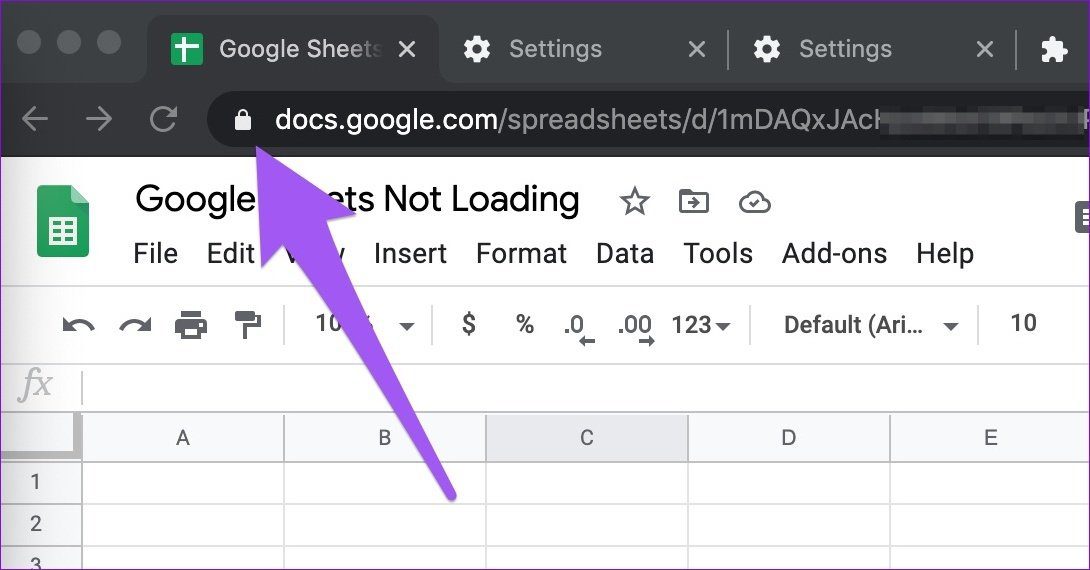
Step 1: Go to the Google Sheets tab and click the lock icon at the address bar’s left corner.
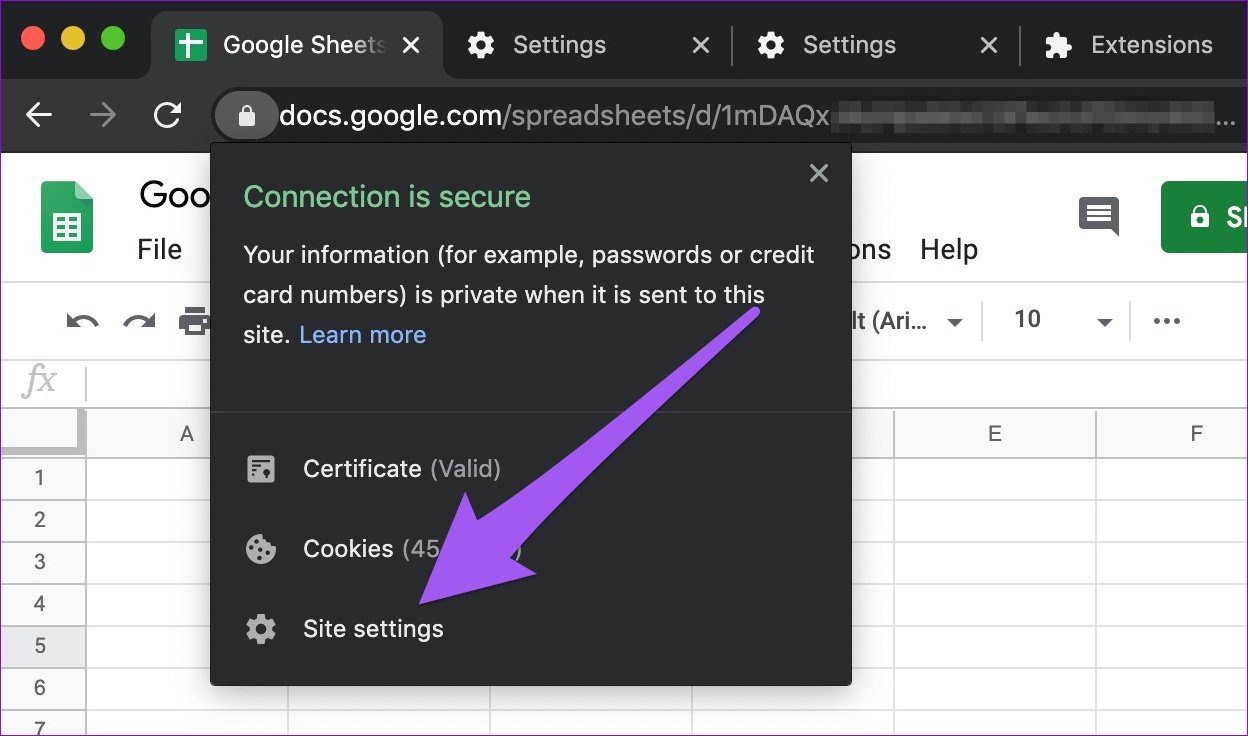
Step 2: Next, select Site Settings on the context menu.
Step 3: In the Usage section of the Settings page, click on the Clear Data button.

Step 4: Finally, click on the Clear button to confirm.
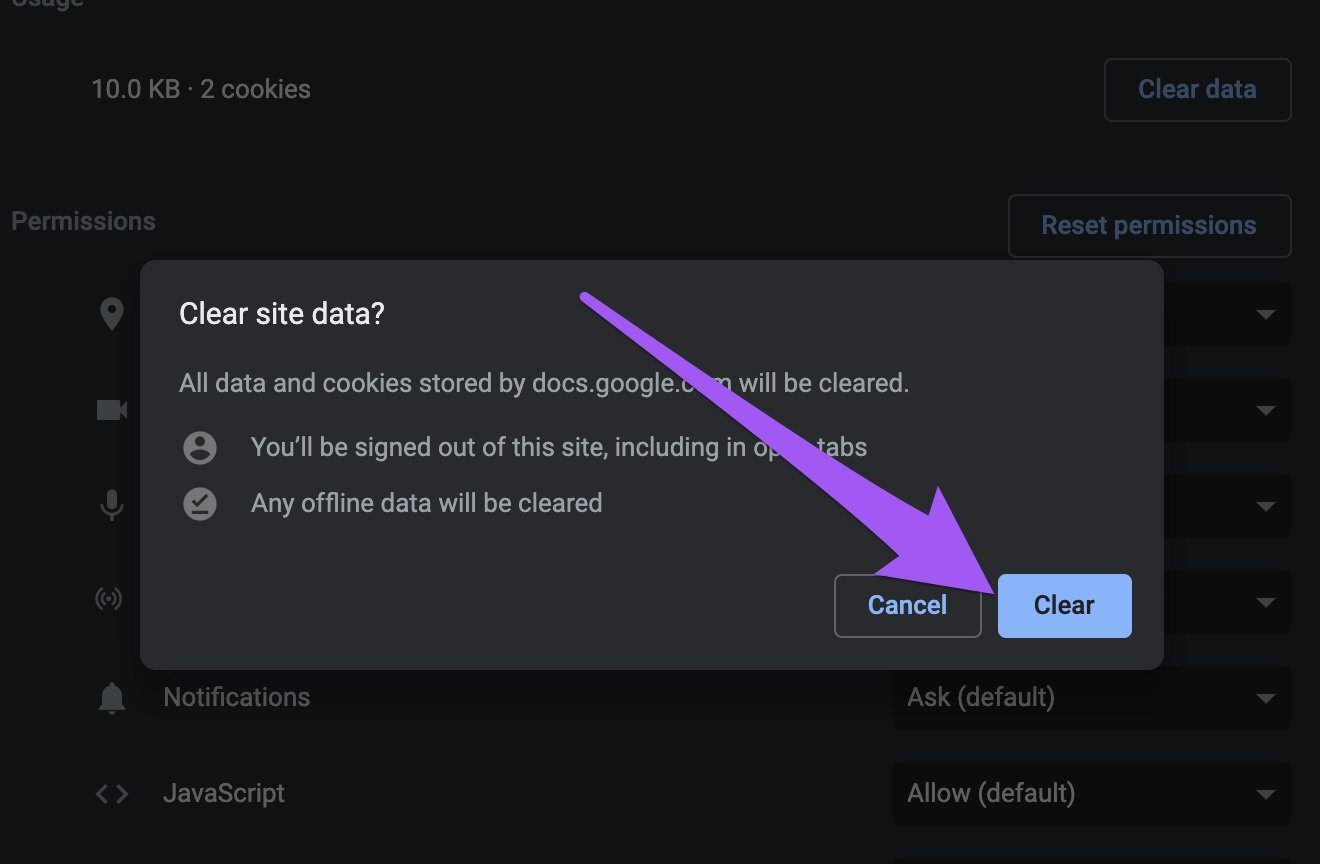
Note: Ignore the first warning on the prompt; you will not be signed out of your Google (Sheets) account. However, if you were working offline on Google Sheets and recent modifications to the documents were being saved on your computer, you might lose changes not saved to the cloud.
Fix 2: Clear Chrome’s Hosted App Data
Data from Google apps (Gmail, Docs, etc.) that you use in Google Chrome are stored as ‘Hosted app data.’ When you run into problems using Google’s services on Chrome, try clearing the browser’s ‘Hosted app data.’
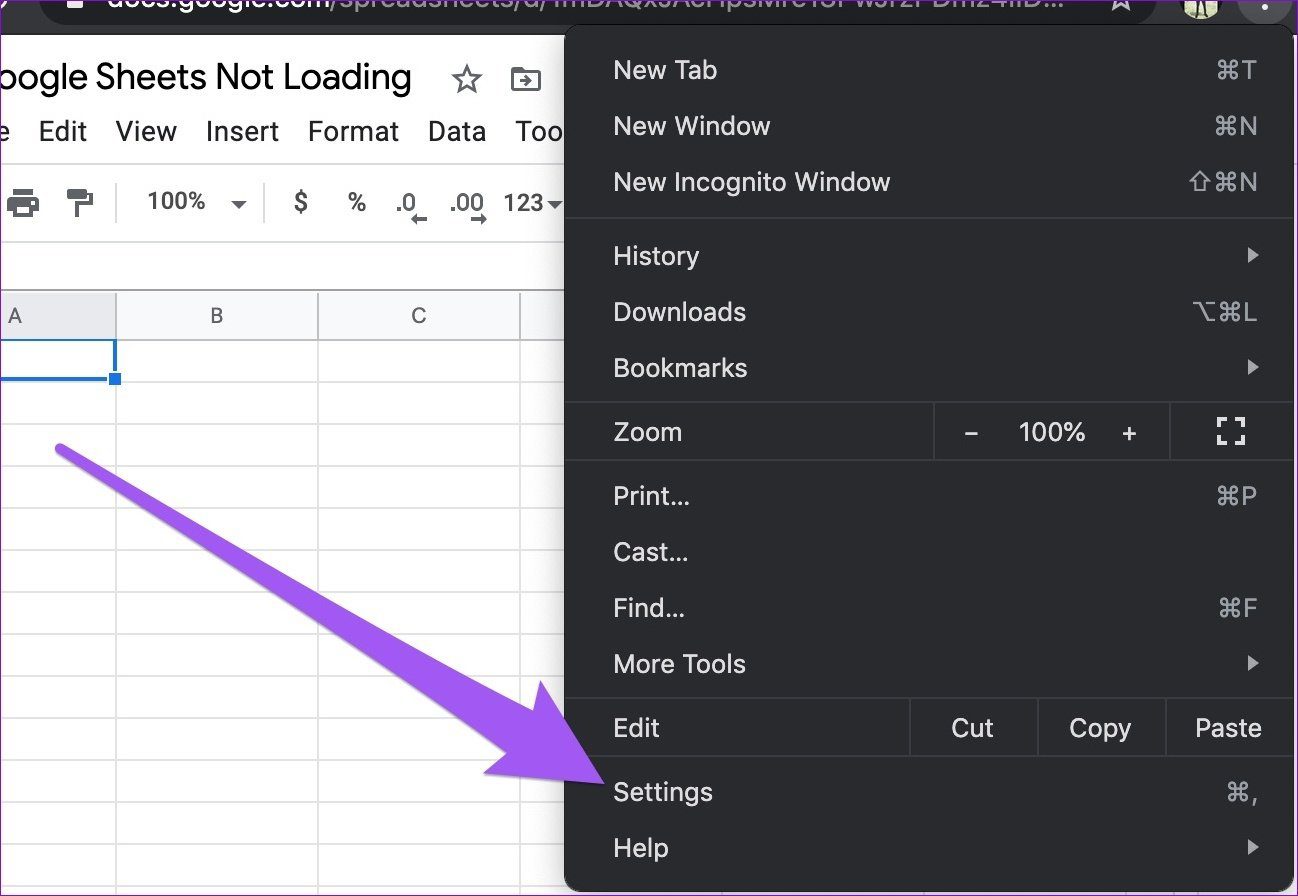
Step 1: Tap the Chrome menu icon and select Settings.
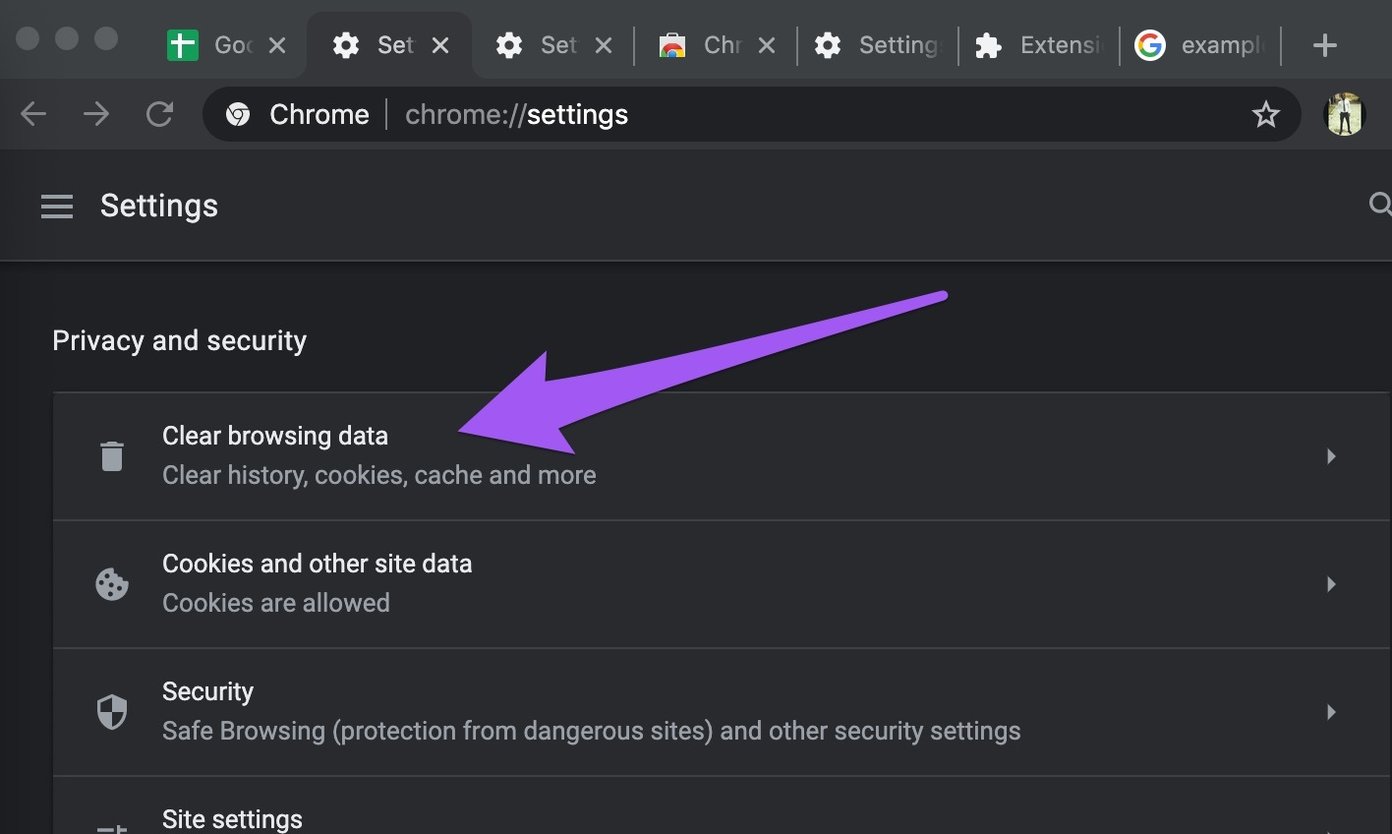
Step 2: Select the ‘Privacy and security‘ option from the left pane, and click on ‘Clear browsing data.’
Step 3: Go to the Advanced tab and check only the ‘Hosted app data‘ box. Finally, click on the Clear Data button to proceed.

Now, go back to the Google Sheets tab and reload the page.
Fix 3: Re-Enable Offline Mode
With Offline mode enabled, you can create and edit documents in Sheets and other Google apps without an internet connection. The document is saved on your PC and uploaded to the cloud when you’re connected to the internet. Quite nifty, no? Well, this mode sometimes causes documents not to load up correctly in Chrome.
Step 1: Open your Google Drive Settings by following this link.
Step 2: Here, in the General section, scroll down and toggle off the Offline option and click on OK.

Follow the same steps to re-enable the feature. Now, open a sheet and check if Chromes load it correctly.
Was this helpful?
Last updated on 09 July, 2024
Read Next
 4 Fixes for Google Calendar Not Loading in Chrome
Fix 1: Ensure JavaScript Is Enabled Numerous modern-day websites rely on JavaScript to render content in your browser.
4 Fixes for Google Calendar Not Loading in Chrome
Fix 1: Ensure JavaScript Is Enabled Numerous modern-day websites rely on JavaScript to render content in your browser.
 9 Best Ways to Fix Google Chrome Not Loading Pages in Windows 10
Google Chrome is one of the most used browsers in the world, no doubt.
9 Best Ways to Fix Google Chrome Not Loading Pages in Windows 10
Google Chrome is one of the most used browsers in the world, no doubt.
 7 Ways to Fix Images Not Loading in Google Chrome
Fix 1: Verify Site Settings To start, verify the content settings in Chrome and ensure websites are allowed to load images on your computer.
7 Ways to Fix Images Not Loading in Google Chrome
Fix 1: Verify Site Settings To start, verify the content settings in Chrome and ensure websites are allowed to load images on your computer.
 How to Fix Facebook Not Loading in Google Chrome
Basic Fixes Try using Incognito Mode: This is a quick hack that enables faster loading of websites that don't launch in the standard browsing window.
How to Fix Facebook Not Loading in Google Chrome
Basic Fixes Try using Incognito Mode: This is a quick hack that enables faster loading of websites that don't launch in the standard browsing window.
 6 Ways to Fix Google Slides Not Loading in Chrome
Fix 1: Free Up Google Drive Storage Space Google Slides may fail to open a file and display errors like "Something went wrong" or "Sorry, the file you have requested
6 Ways to Fix Google Slides Not Loading in Chrome
Fix 1: Free Up Google Drive Storage Space Google Slides may fail to open a file and display errors like "Something went wrong" or "Sorry, the file you have requested
 3 Ways to Fix Facebook Games Not Loading in Google Chrome
Try Basic Fixes Close and reopen the game: Sometimes, temporary glitches can cause your Facebook games to become unresponsive and stop working.
3 Ways to Fix Facebook Games Not Loading in Google Chrome
Try Basic Fixes Close and reopen the game: Sometimes, temporary glitches can cause your Facebook games to become unresponsive and stop working.
 2 Best Ways to Import Questions Into Google Forms From Google Sheets
Typically, when you create a Google Form, you need to perform several steps.
2 Best Ways to Import Questions Into Google Forms From Google Sheets
Typically, when you create a Google Form, you need to perform several steps.
 How to Insert a Date Picker in Google Sheets and Google Docs
Google Sheets and Google Docs provide a free, online alternative to Microsoft Office, along with unique features.
How to Insert a Date Picker in Google Sheets and Google Docs
Google Sheets and Google Docs provide a free, online alternative to Microsoft Office, along with unique features.
The article above may contain affiliate links which help support Guiding Tech. The content remains unbiased and authentic and will never affect our editorial integrity.