Basic Fixes
- Restart Play Store: Tap and hold the Play Store app, select App Info, and tap on Force Stop. Open the Play Store and check if the white screen issue is fixed.
- Restart your device: Restart your device to free up memory and resources for the Google Play Store app.
- Check internet connection: Ensure your device is connected to a functional and stable Wi-Fi or a cellular network.
- Check if Play Store is down: Check if Play Store is facing downtime – if so, you will have to wait until the services are restored.
- Check date and time: Incorrect date and time can cause issues within the Play Store app.
- Disable VPN: Disable VPN on your device to eliminate any network restrictions causing the problem.
Fix 1: Clear Cache for Play Store and Play Services
Cache and junk files accumulated within the Google Play Store, or the Play Services app can cause the persistent white screen issue.
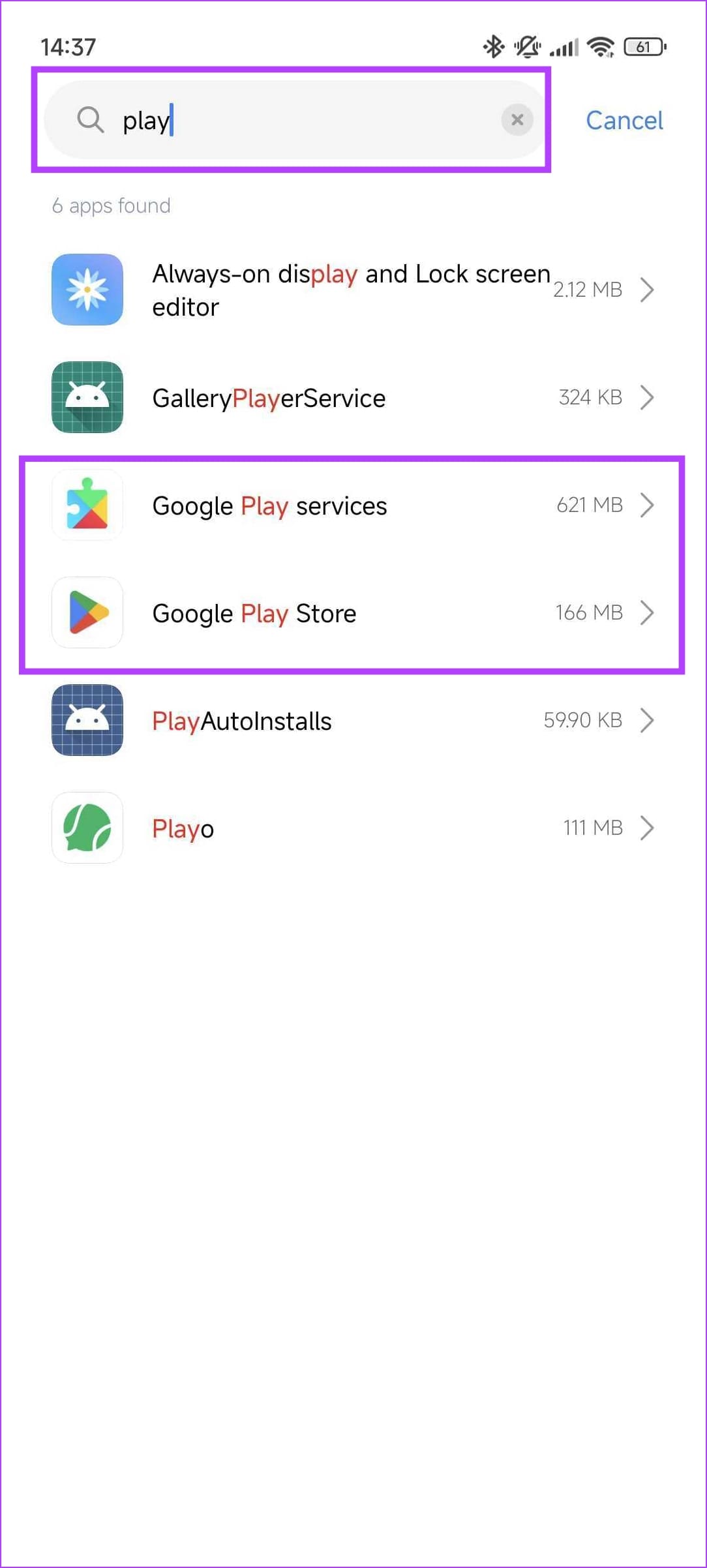
Step 1: Open the Settings app. Go to Apps > Manage apps. Find Google Play Store and Google Play Services from the list.
Note: If you don’t find them, open the list that says System Apps.
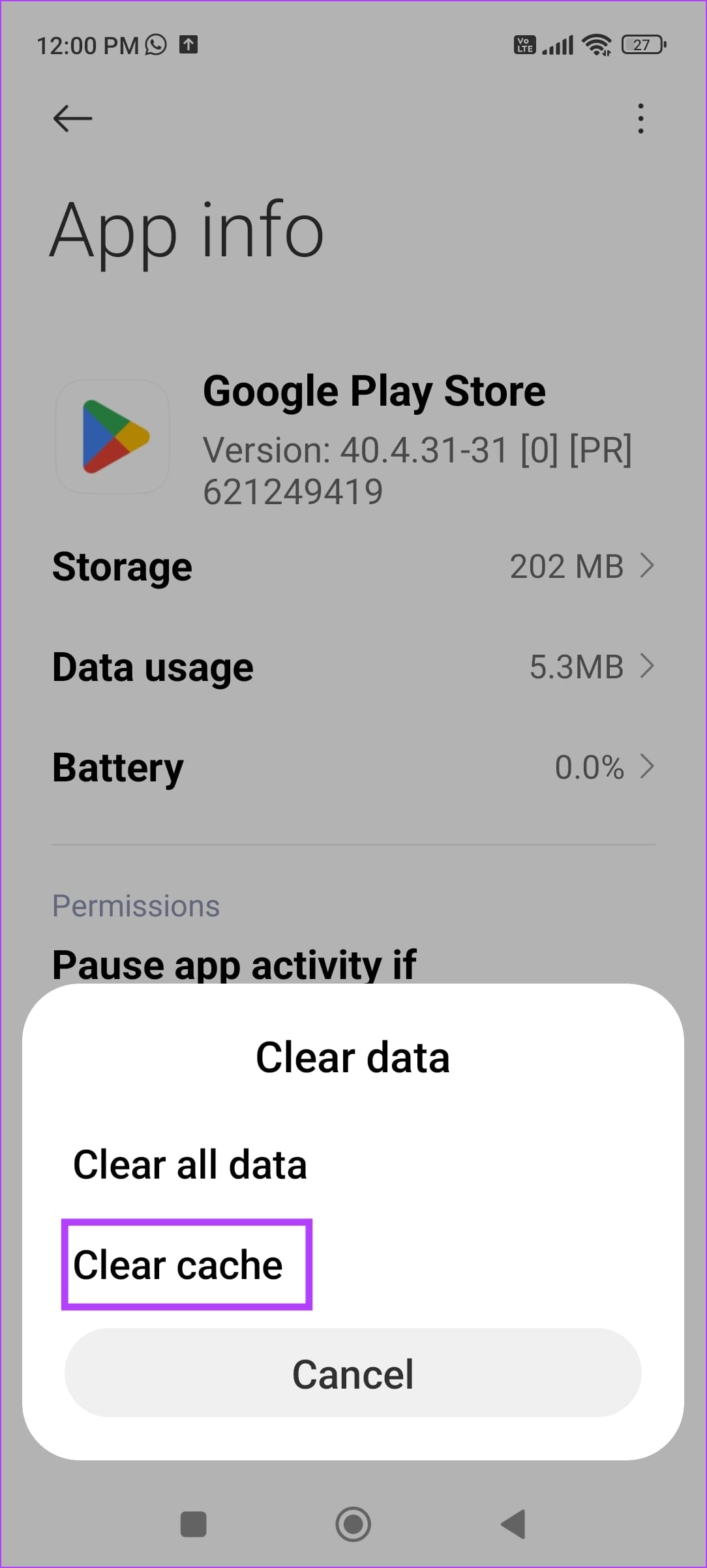
Step 2: Tap on Clear data > Clear cache for both apps.

Fix 2: Reset App Preferences
Resetting the app preferences can help fix any misconfigured settings for the Google Play Store app.
Open the Settings app and tap on Apps. Select All Apps, tap on the three-dot menu at the top right, and select Reset app preferences.


Fix 3: Provide the Relevant Permissions
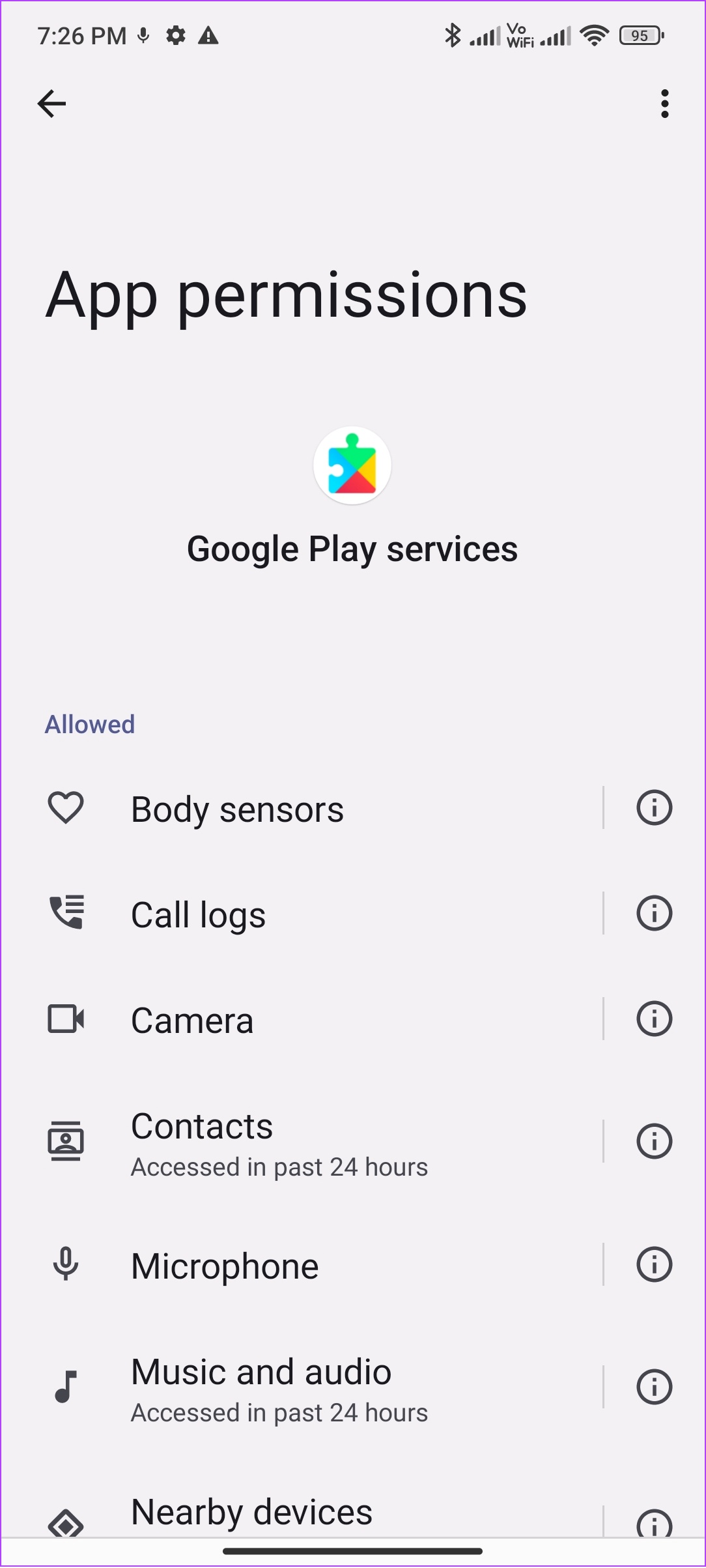
Ensure both the Google Play Store and the Play Services have the necessary permissions to operate on your Android device.
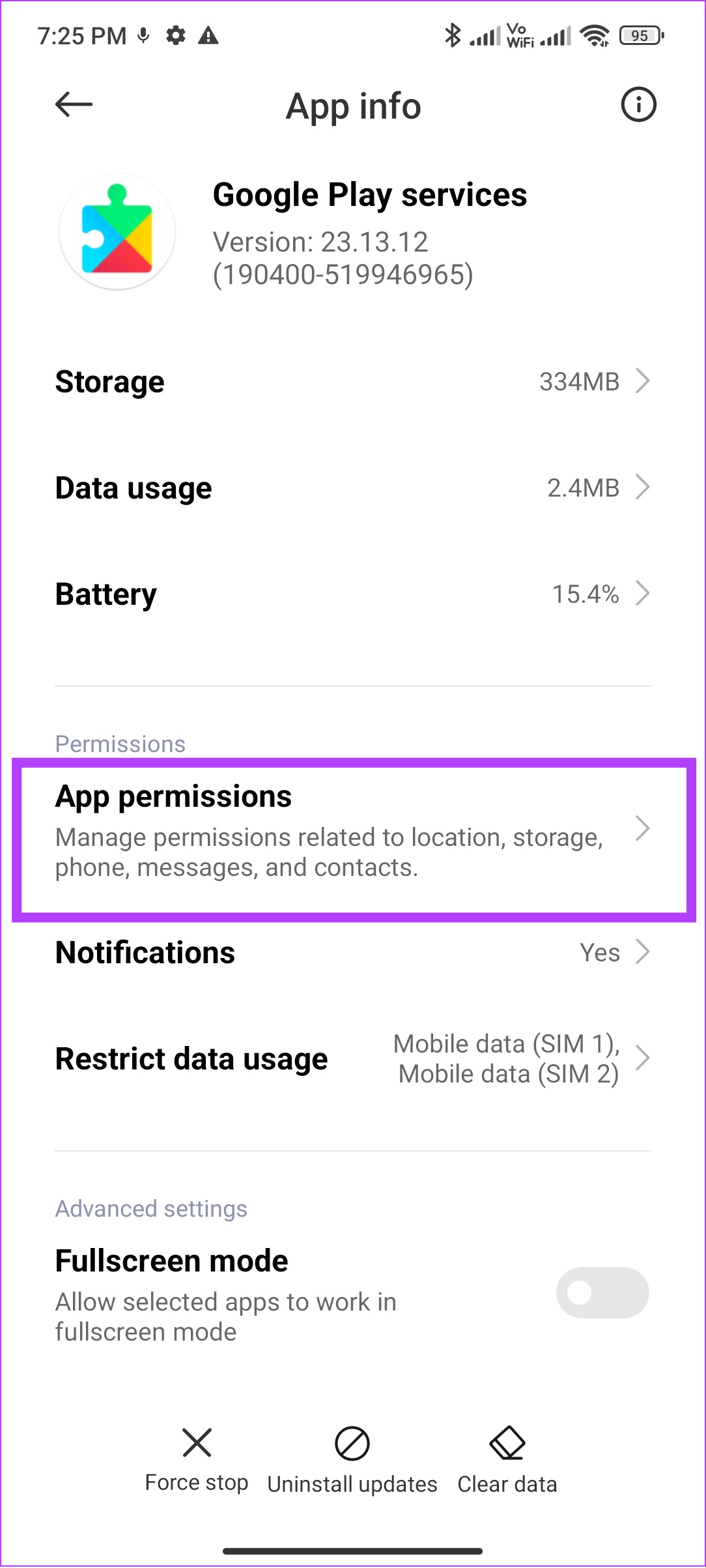
Step 1: Open the Settings app. Go to Apps > Manage apps. Find Google Play Store and Google Play Services from the list.
Step 2: For both apps, select App permissions and allow all the permissions in the next screen.
Fix 4: Update Play Store
Update the Play Store app to the latest version to see if the white screen bug has been fixed.
Step 1: Open Play Store and tap your profile picture icon at the top right corner.
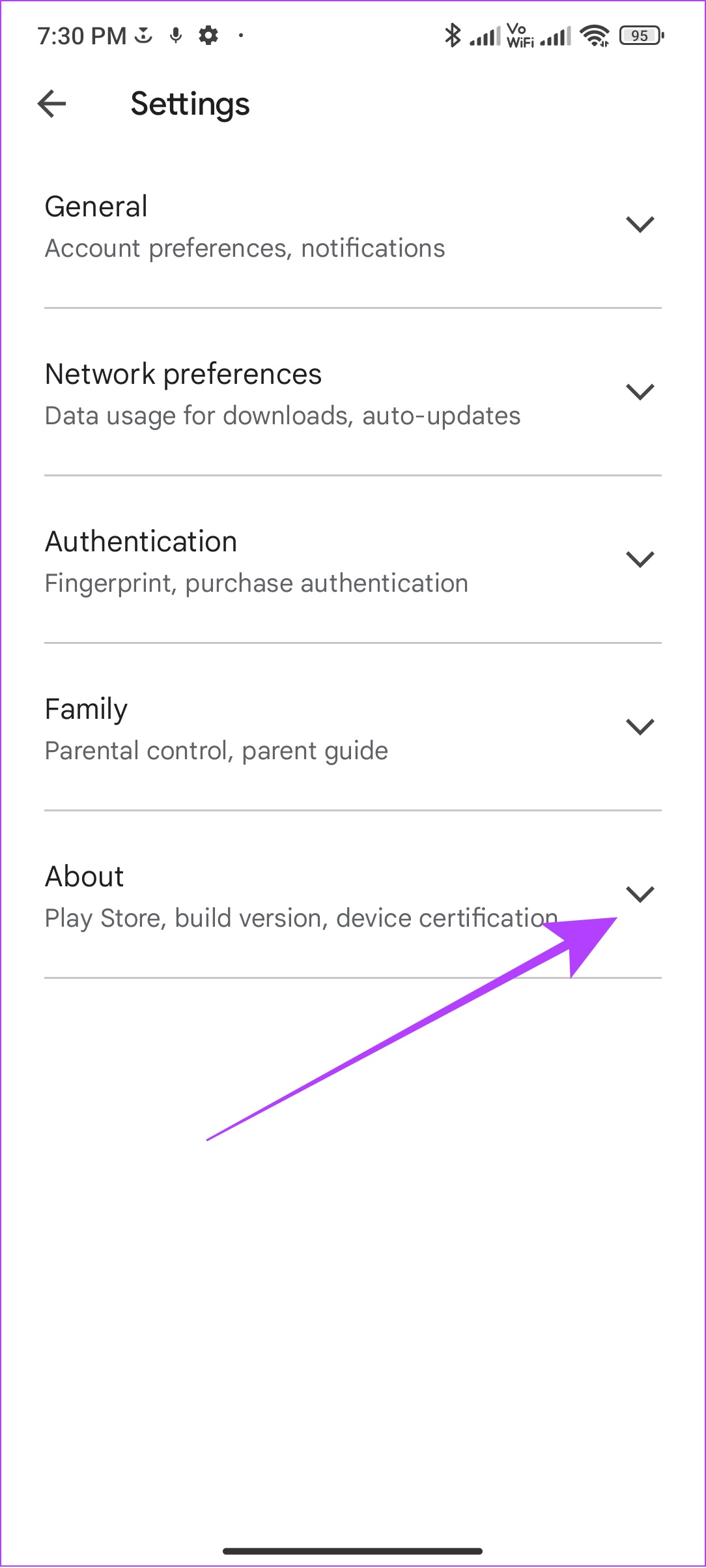
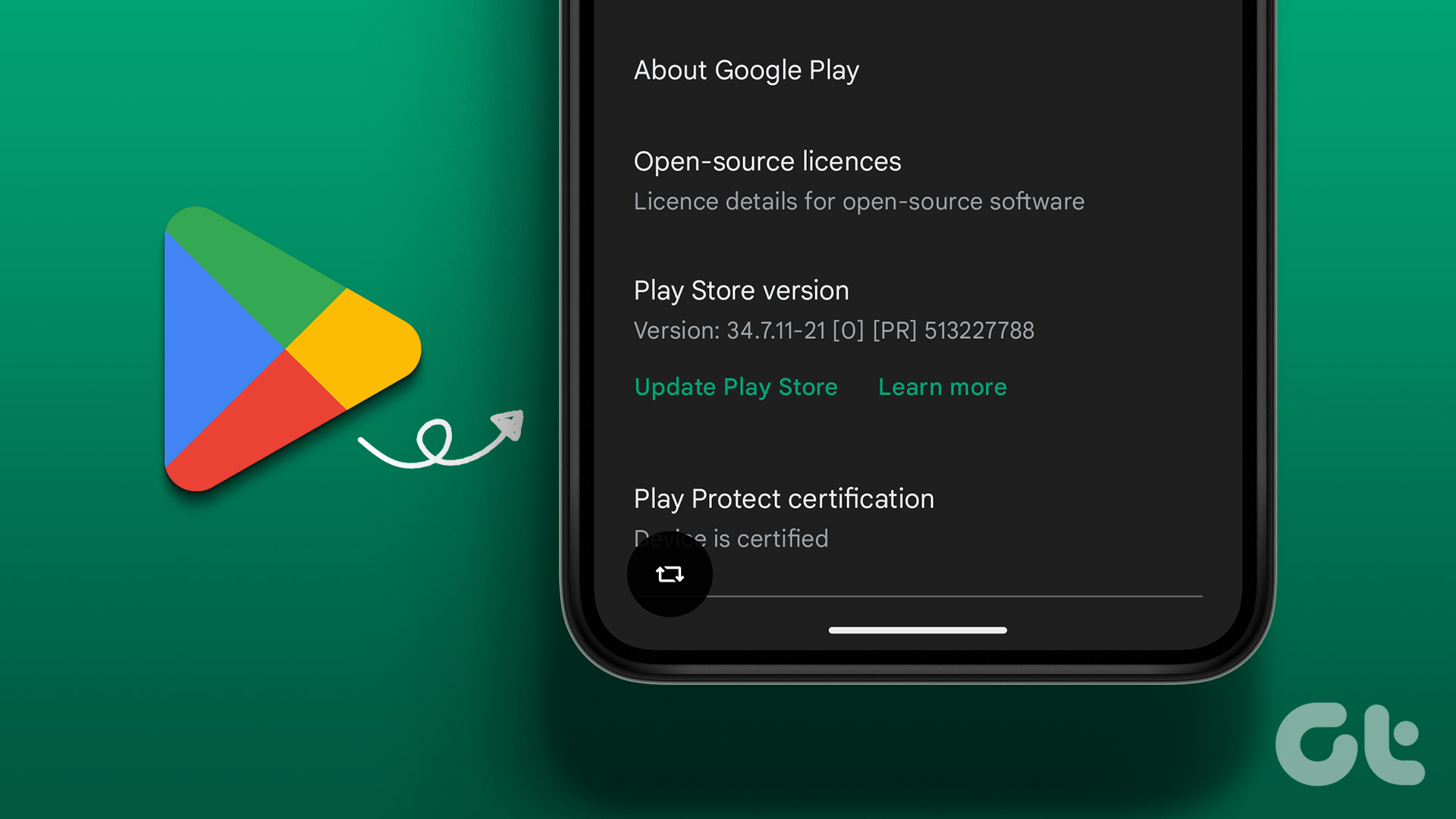
Step 2: Choose Settings and tap About. Tap Update Play Store under Play Store version.


Also Read: How to manually update Google Play Services
Fix 5: Uninstall Updates for Play Store
If a recent update is causing the white screen issue – you can try removing the update from both Play Store and Play Services.
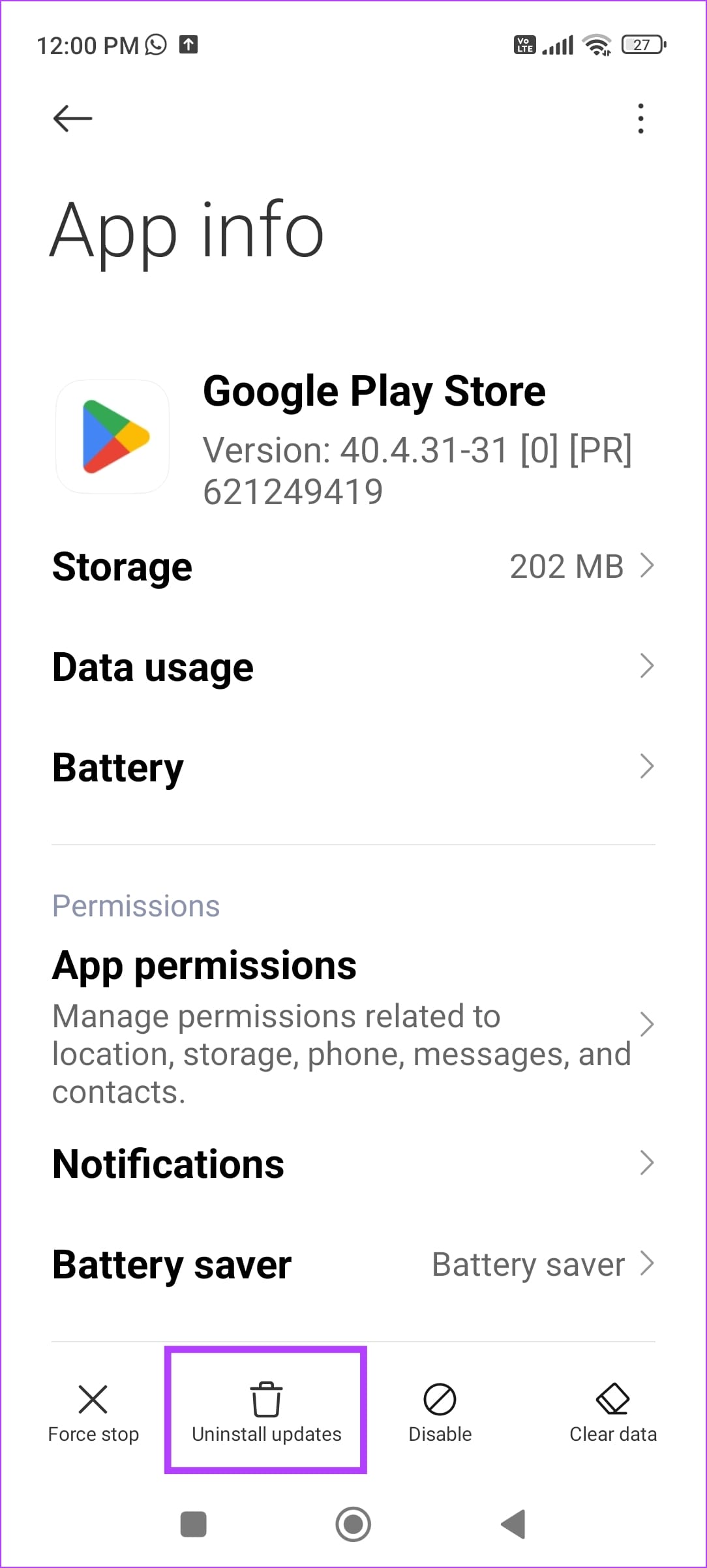
Step 1: Open the Settings app. Go to Apps > Manage apps. Find Google Play Store and Google Play Services from the list. If you don’t find them, open the list that says System Apps.
Step 2: Select Uninstall Updates.
Wait for the process to complete, and then both these apps will get updated to the latest version in the background.
Was this helpful?
Last updated on 27 June, 2024
Read Next
 6 Ways to Fix Google Play Store Has Stopped Error on Android
Common Fixes Restart the device: Long-press the physical Power button and select Restart in the power menu.
6 Ways to Fix Google Play Store Has Stopped Error on Android
Common Fixes Restart the device: Long-press the physical Power button and select Restart in the power menu.
 6 Ways to Fix Google Play Store Not Opening on Android
Basic Fixes Check the Google Play server: Access the Google Play Status Dashboard to verify the Play Store service availability.
6 Ways to Fix Google Play Store Not Opening on Android
Basic Fixes Check the Google Play server: Access the Google Play Status Dashboard to verify the Play Store service availability.
 5 Ways to Fix Error Checking for Updates in the Google Play Store
Basic Fixes Check the app update preference: If you can't update apps manually, check the app update preference to automate it.
5 Ways to Fix Error Checking for Updates in the Google Play Store
Basic Fixes Check the app update preference: If you can't update apps manually, check the app update preference to automate it.
 6 Fixes for Google Play Store Not Working on Samsung Galaxy Phones or Tablets
Try Basic Fixes Free up storage space: The Google Play Store may not download or update apps on your Samsung device if there is not enough storage space.
6 Fixes for Google Play Store Not Working on Samsung Galaxy Phones or Tablets
Try Basic Fixes Free up storage space: The Google Play Store may not download or update apps on your Samsung device if there is not enough storage space.
 7 Ways to Fix Google Play Store Not Showing Installed Apps
Fix 1: Turn Off Parental Controls on Play Store Parental control on Play Store allows you to prevent unauthorized transactions and hide inappropriate apps on Play Store.
7 Ways to Fix Google Play Store Not Showing Installed Apps
Fix 1: Turn Off Parental Controls on Play Store Parental control on Play Store allows you to prevent unauthorized transactions and hide inappropriate apps on Play Store.
 4 Ways to Fix Google Play Store Won’t Connect to the Internet
Try Basic Fixes Toggle airplane mode: Turning airplane mode on and off is an easy way to refresh all the network connections on your Android.
4 Ways to Fix Google Play Store Won’t Connect to the Internet
Try Basic Fixes Toggle airplane mode: Turning airplane mode on and off is an easy way to refresh all the network connections on your Android.
 5 Ways to Fix Google Play Store ‘No Connection’ Error
Basic Ways: Restart your phone: Restarting your Android phone will help restart all device services, eliminating any temporary glitches that might be erroring out the Google Play Store app.
5 Ways to Fix Google Play Store ‘No Connection’ Error
Basic Ways: Restart your phone: Restarting your Android phone will help restart all device services, eliminating any temporary glitches that might be erroring out the Google Play Store app.
 3 Ways to Update Google Play Store
Method 1: Update Google Play Store From the Settings Menu Step 1: Open the Play Store app on your phone.
3 Ways to Update Google Play Store
Method 1: Update Google Play Store From the Settings Menu Step 1: Open the Play Store app on your phone.
The article above may contain affiliate links which help support Guiding Tech. The content remains unbiased and authentic and will never affect our editorial integrity.