Basic Fixes
- Check your network connection – Ensure your phone is connected to a good internet connection. Check its speed online.
- Inspect your phone’s storage – Head to Android settings, search Storage, and click the storage result to view the phone storage. On iPhone, navigate to Settings > General > iPhone Storage to inspect the available free space.
- Check Archive and Bin folders – Open Google Photos, select the Library tab at the bottom, and tap Archive to view all archived photos. Similarly, tap Bin to view all the deleted photos in the Google Photos app.
- Update or reinstall the Google Photos app – Open the Google Play Store or Apple App Store, search Google Photos, and tap Update (if available). Alternatively, delete and reinstall it from their respective app stores.
Fix 1: Enable Backup in Google Photos
The Google Photos app won’t show all photos if you haven’t enabled backup and sync for your device’s media. Head to the app settings to resolve it.
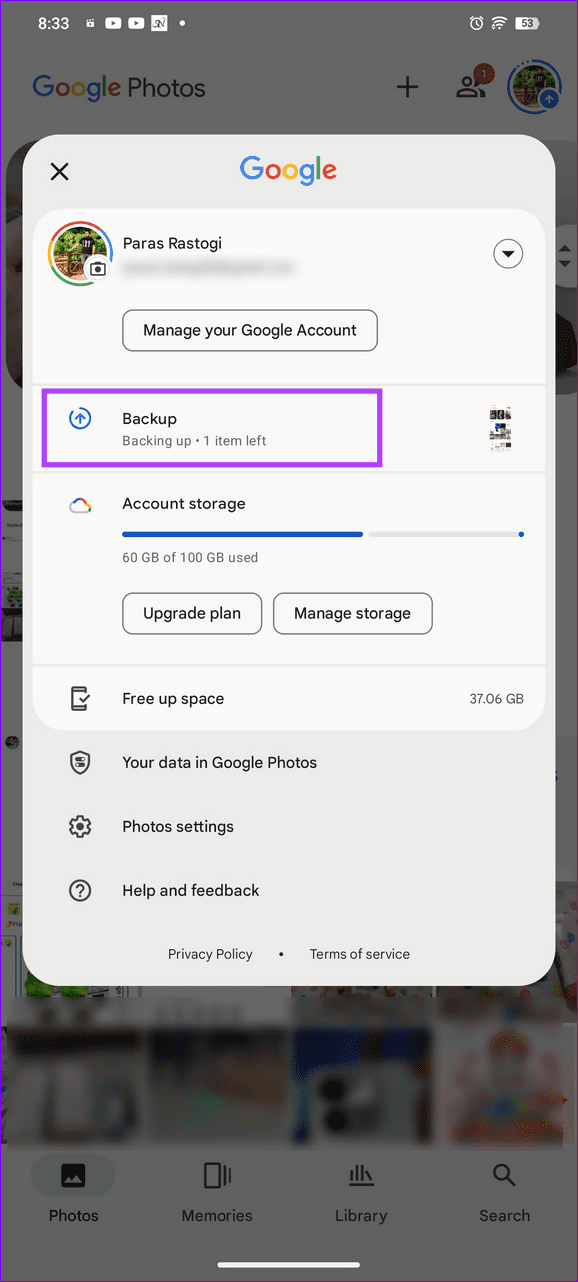
Step 1: Tap your profile picture at the top right corner of Google Photos and select Backup.

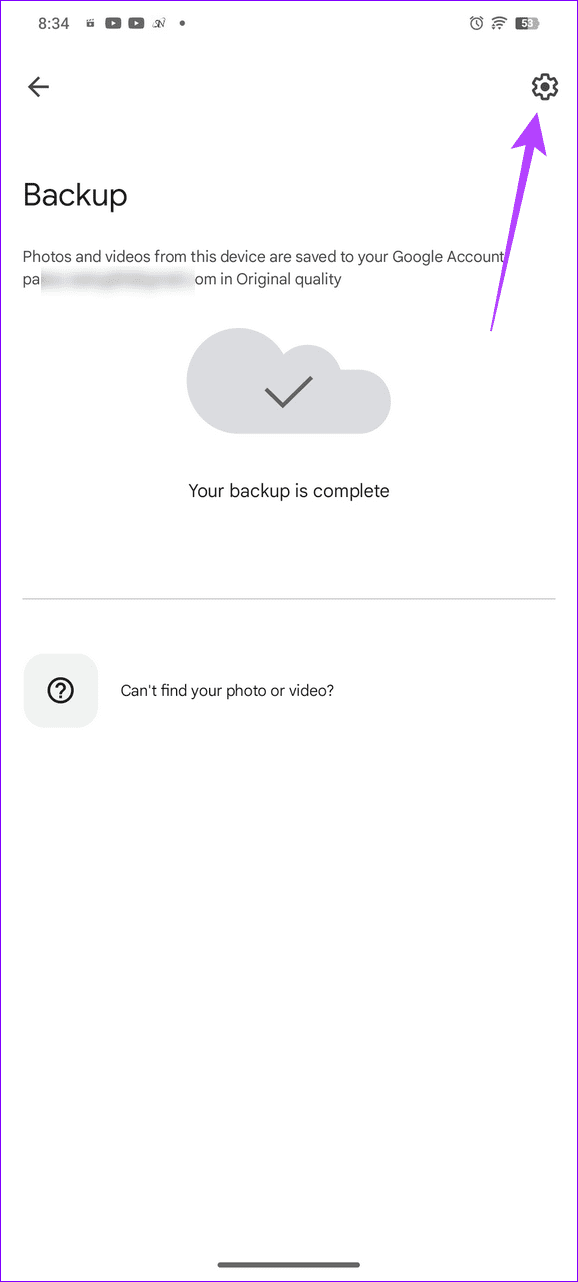
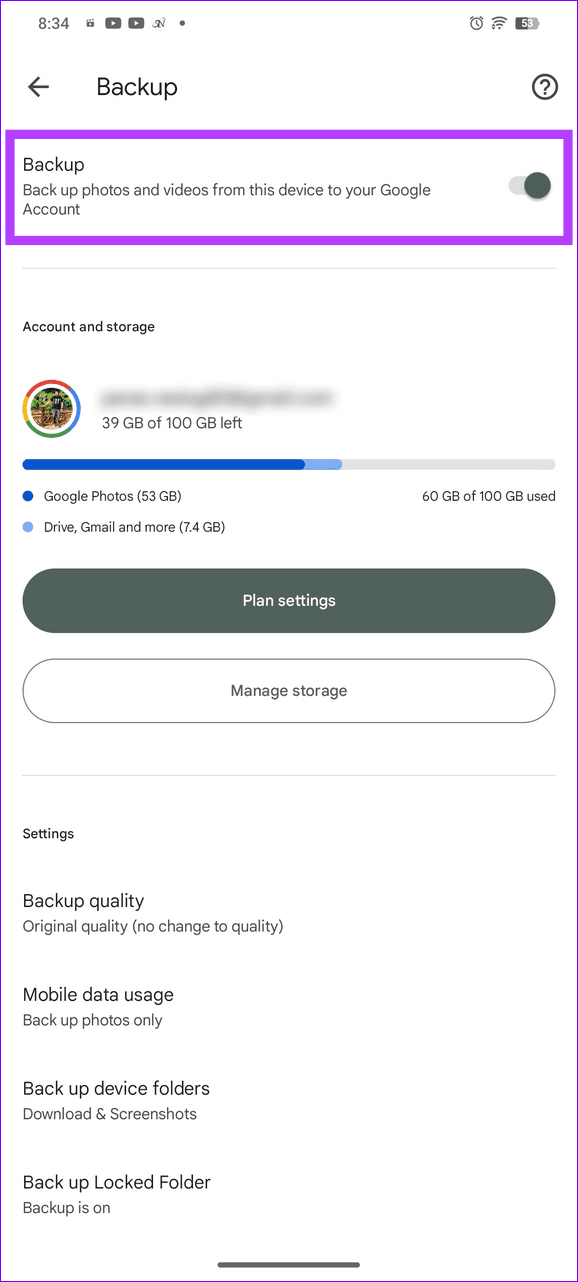
Step 2: Select the Gear icon at the top right and enable the Backup toggle.
Fix 2: Enable App Permissions
Google Photos may fail to show all photos on your phone if it doesn’t have the necessary photo and video permissions. Open your device settings to enable it manually.
Android
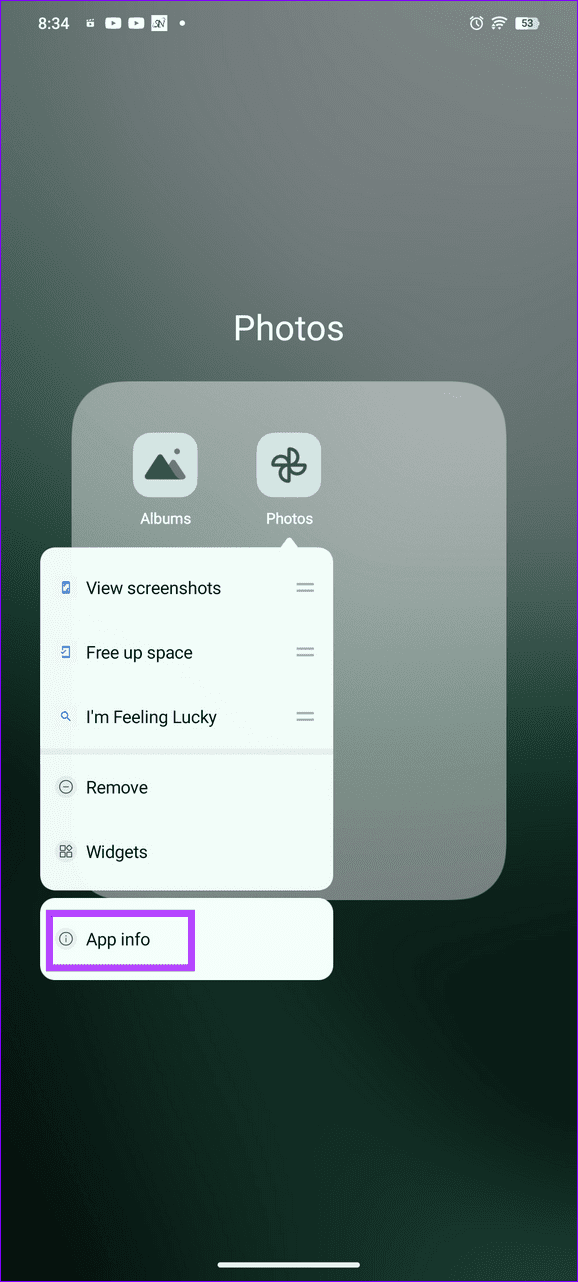
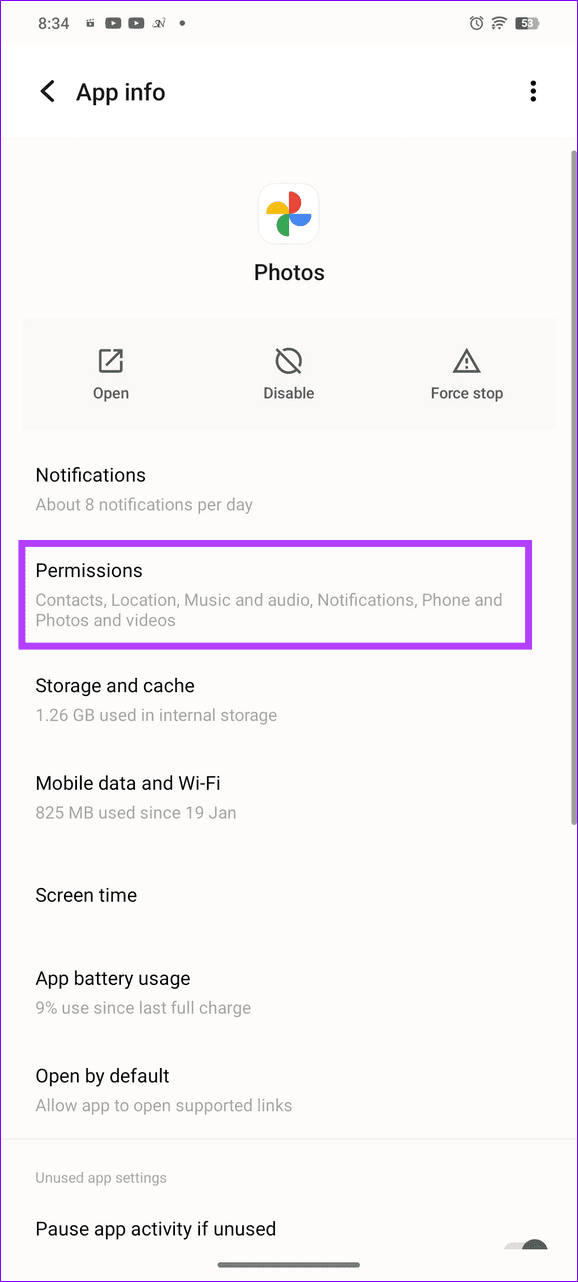
Step 1: Long-tap the Google Photos icon to open App info and select Permissions.
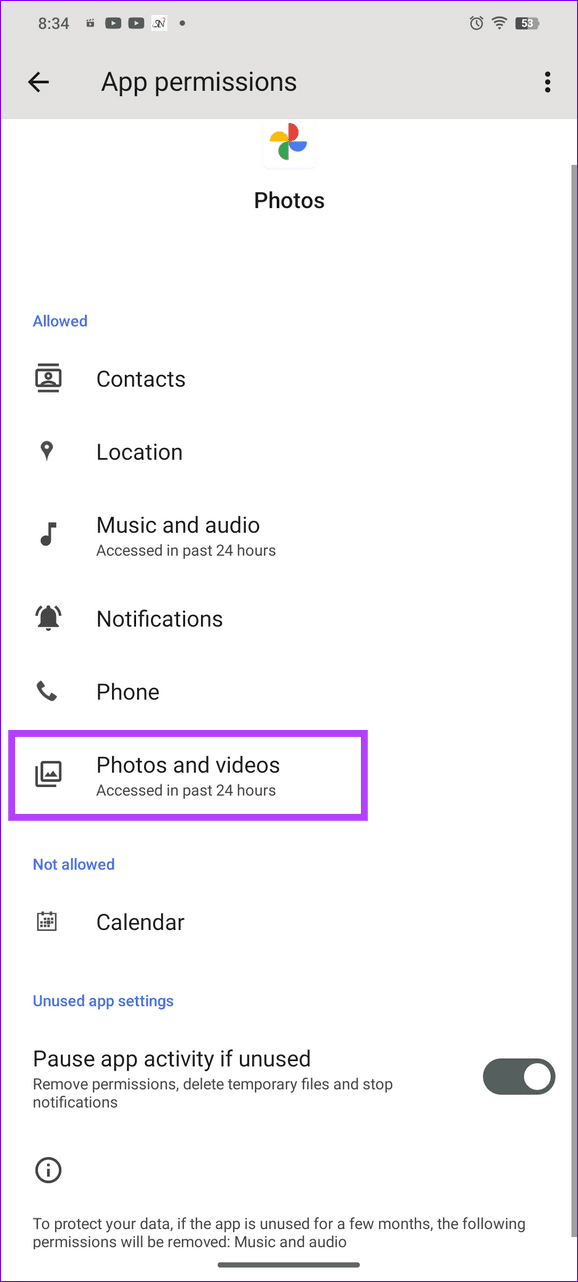
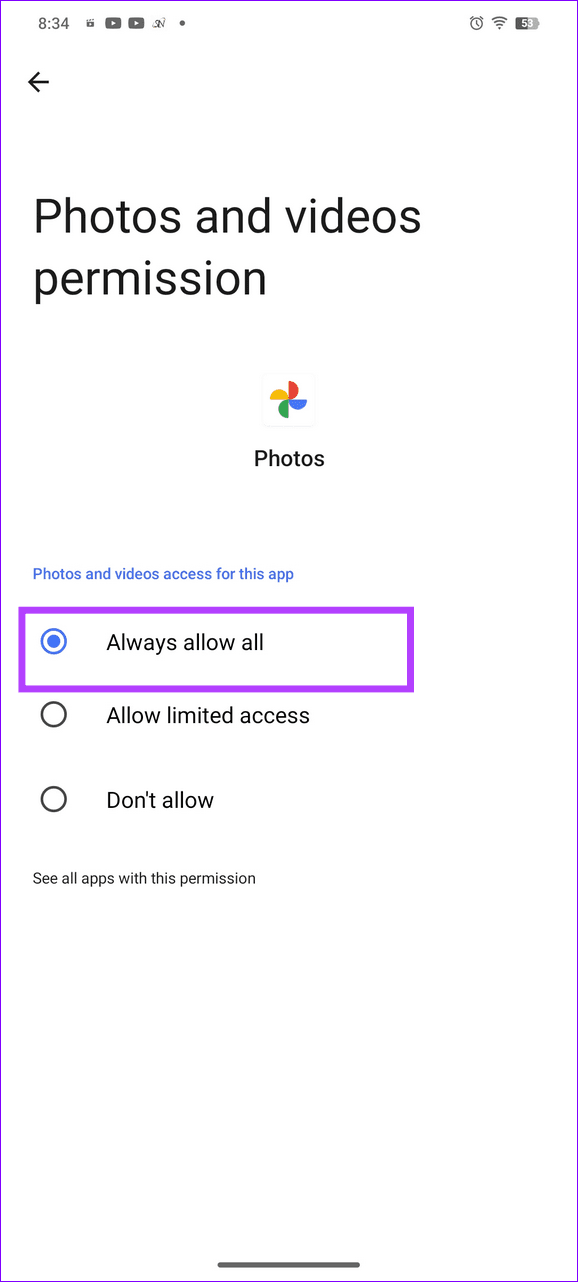
Step 2: Tap Photos and videos and set it to Always allow all.
iOS
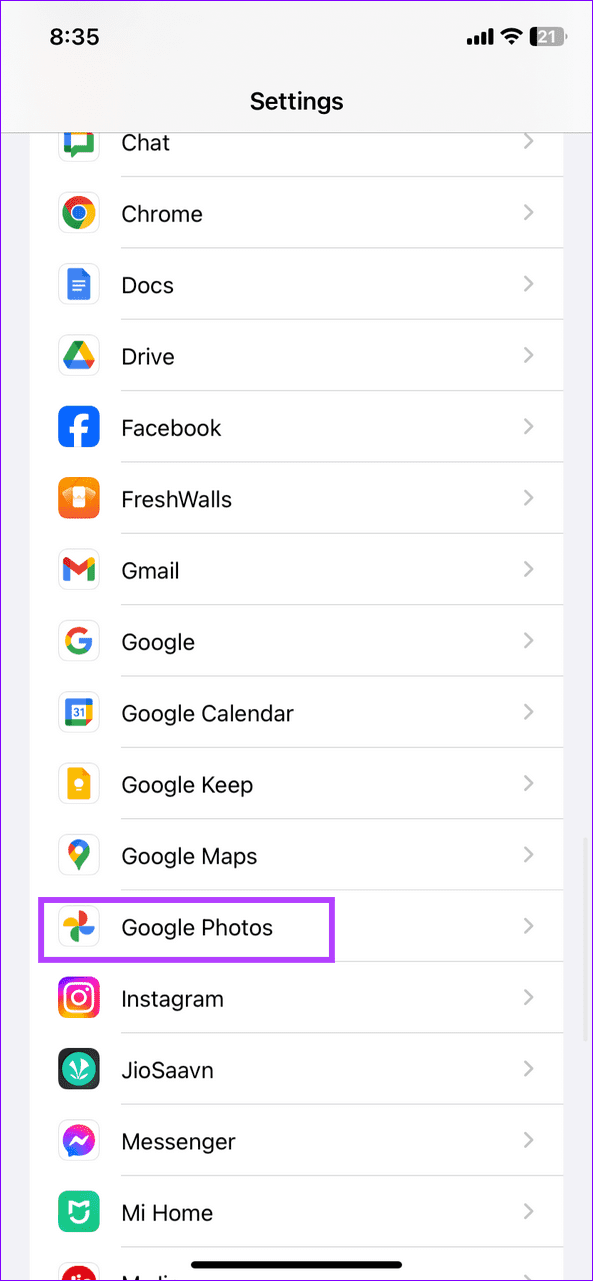
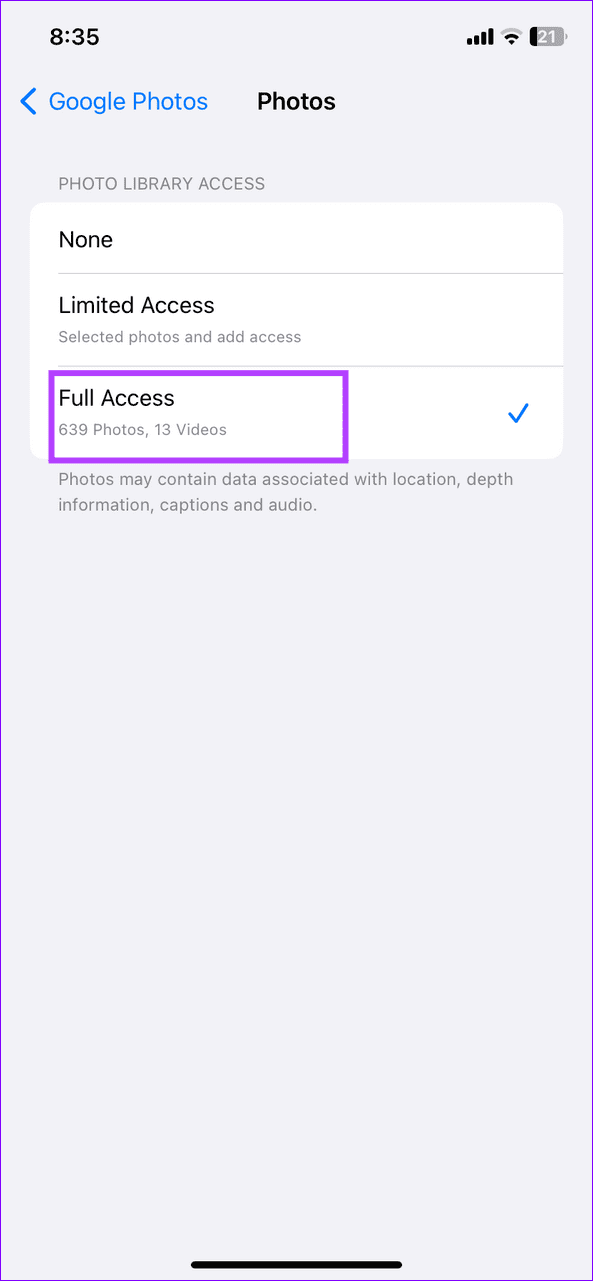
Step 1: Open iPhone settings and scroll down to select Google Photos.
Step 2: Tap Photos and assign it Full Access.

Fix 3: Check Device Folders
If you can’t find certain photos from a specific device folder in Google Photos, its sync might be disabled. Head to Google Photos settings to enable its backup manually.
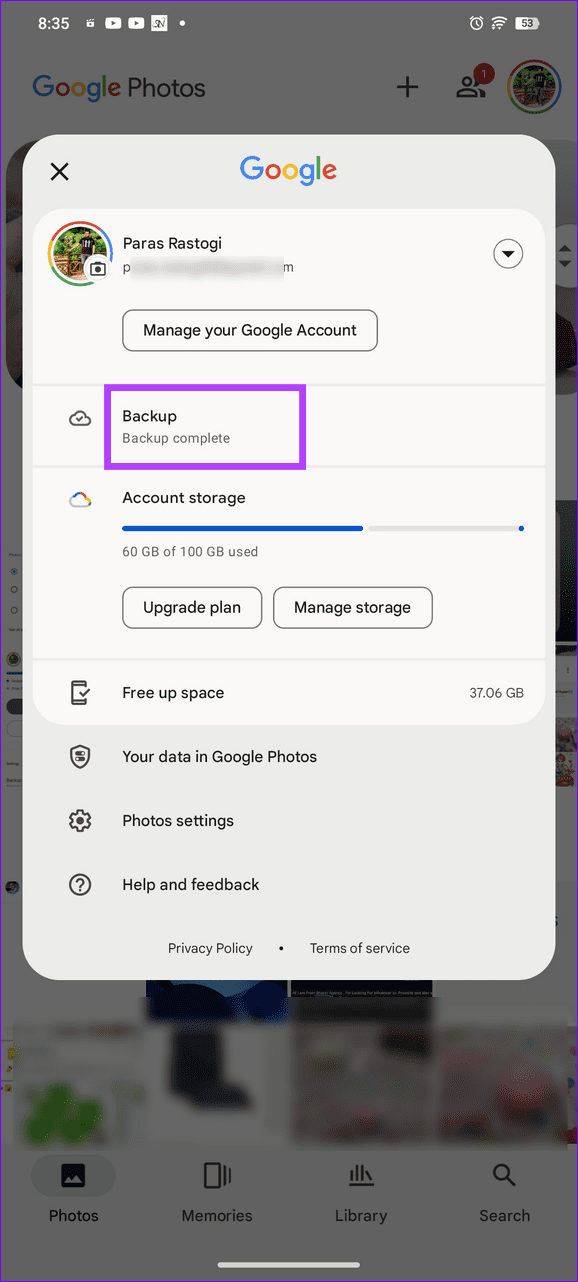
Step 1: Tap your profile picture at the top right of Google Photos and select Backup.
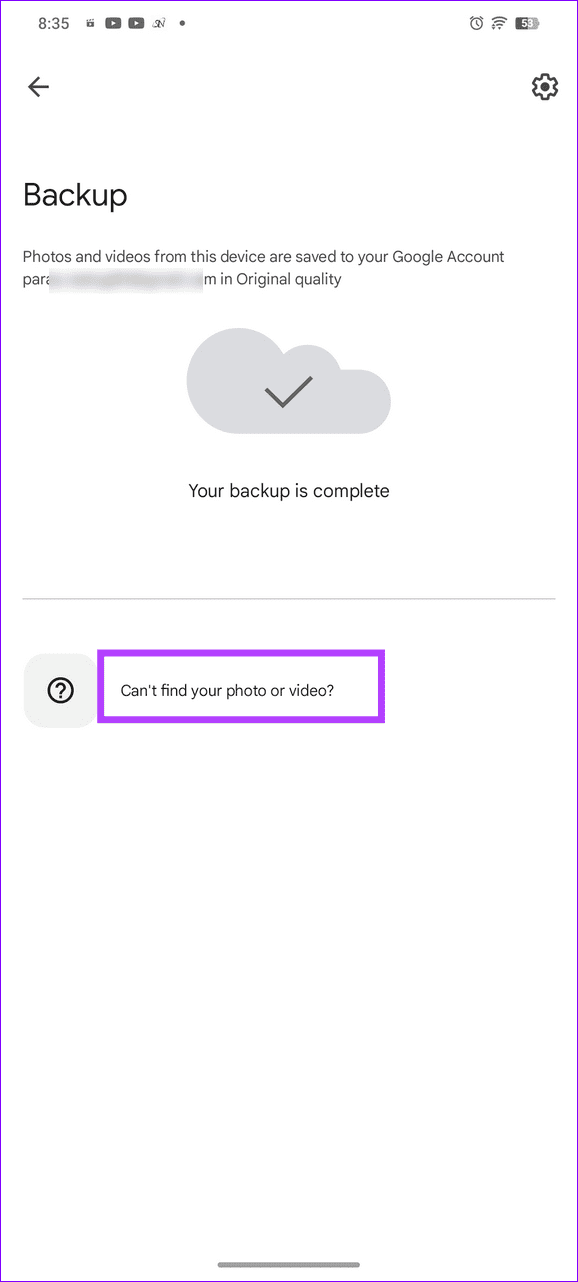
Step 2: Select Can’t find your photo or video? and tap Check device folders.

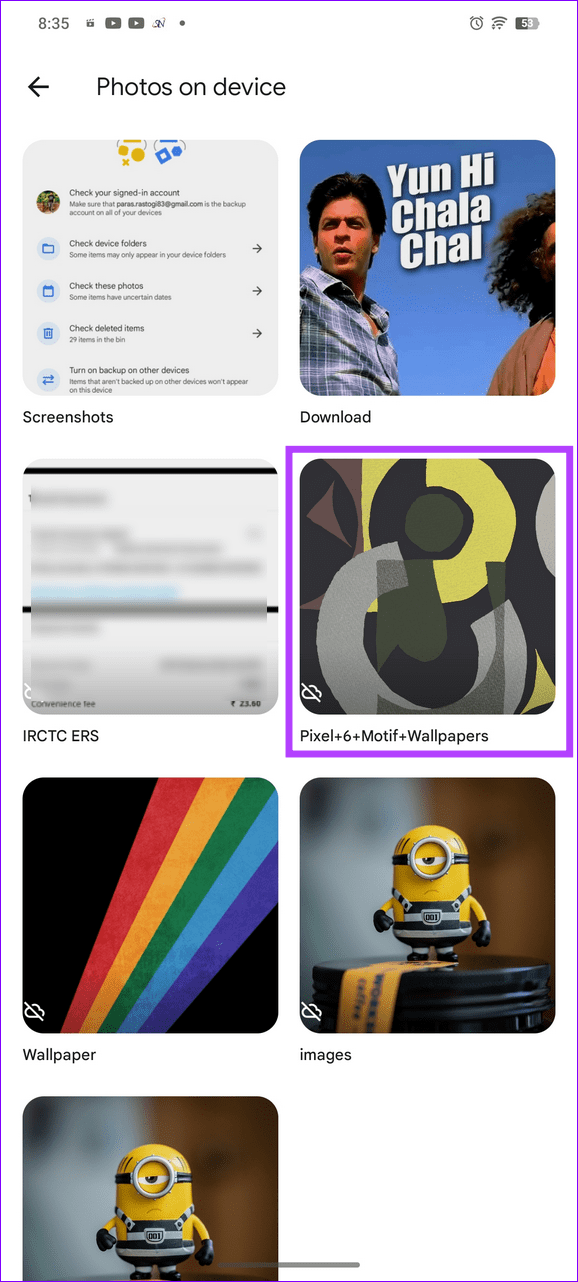
Step 3: Open your desired folder containing the photos and enable its toggle from the top right.

Fix 4: Clear the Google Photos Cache (Android)
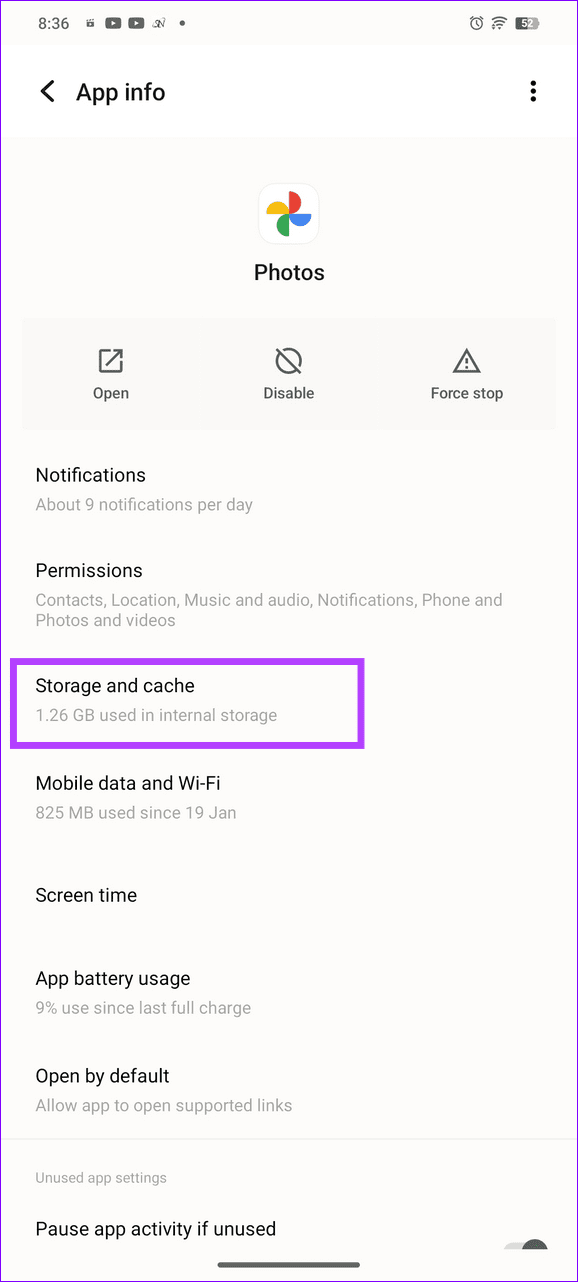
Corrupt cache files are a common culprit behind Google Photos not showing all photos on your Android phone. Clear them manually to restore normalcy.
Long-tap the Google Photos icon to open App info, select Storage and cache, and tap Clear cache.


Fix 5: Enable Background App Refresh (iOS)
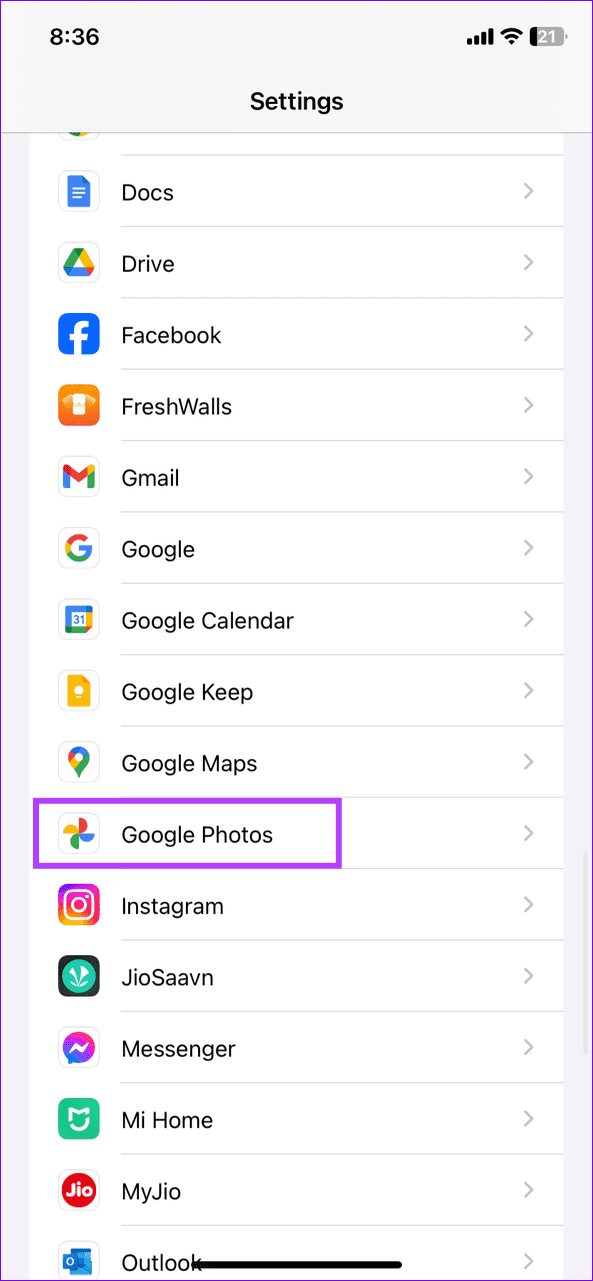
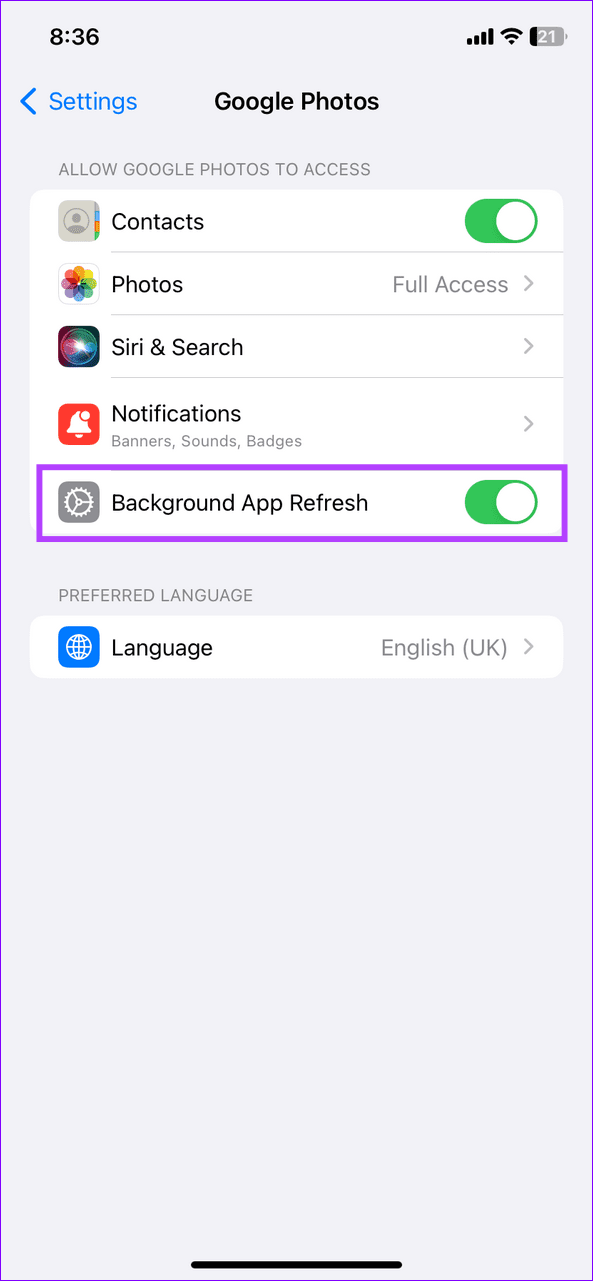
If Google Photos doesn’t have the necessary permission to run in the background, it will stop syncing the photos when you close the app. Enable the Background App Refresh manually to resolve it.
Open iPhone settings, scroll down to select Google Photos, and toggle on Background App Refresh.
Was this helpful?
Last updated on 16 May, 2024
Read Next
 3 Fixes for iMessage Photos Not Showing in Photos App
Basic Fixes Force quit and relaunch Messages app: You can force quit and relaunch the Messages app to give it a fresh start on your iPhone.
3 Fixes for iMessage Photos Not Showing in Photos App
Basic Fixes Force quit and relaunch Messages app: You can force quit and relaunch the Messages app to give it a fresh start on your iPhone.
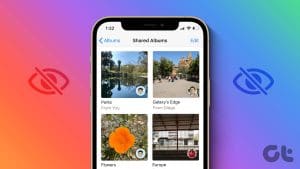 2 Ways to Fix Apple Photos Not Showing Shared Albums
Basic Fixes Check Apple server status: You can visit Apple's official System Status support page to check if the Photos app is facing any issues in the backend.
2 Ways to Fix Apple Photos Not Showing Shared Albums
Basic Fixes Check Apple server status: You can visit Apple's official System Status support page to check if the Photos app is facing any issues in the backend.
 4 Fixes for Google Photos Not Showing in Ambient Mode on Google TV
Basic Fixes Check your Google account: Open Settings > Accounts and sign in > Check the Google account you are using.
4 Fixes for Google Photos Not Showing in Ambient Mode on Google TV
Basic Fixes Check your Google account: Open Settings > Accounts and sign in > Check the Google account you are using.
 3 Ways to Fix Google Maps Showing Wrong Location on Android and iPhone
Try Basic Fixes Turn off battery saver mode: When you enable battery-saving mode, your phone turns off power-hungry features such as GPS tracking and background app data to improve battery
3 Ways to Fix Google Maps Showing Wrong Location on Android and iPhone
Try Basic Fixes Turn off battery saver mode: When you enable battery-saving mode, your phone turns off power-hungry features such as GPS tracking and background app data to improve battery
 Google Drive vs Google Photos: Which Is Best for Storing Photos
Google Drive vs Google Photos Comparison Key Differences Feature Google Drive Google PhotosFile Types All types Photos, Videos, GIFsOrganization Folders & Subfolders AlbumsPhoto Quality Original Original, High (compressed), Express (compressed)Storage
Google Drive vs Google Photos: Which Is Best for Storing Photos
Google Drive vs Google Photos Comparison Key Differences Feature Google Drive Google PhotosFile Types All types Photos, Videos, GIFsOrganization Folders & Subfolders AlbumsPhoto Quality Original Original, High (compressed), Express (compressed)Storage
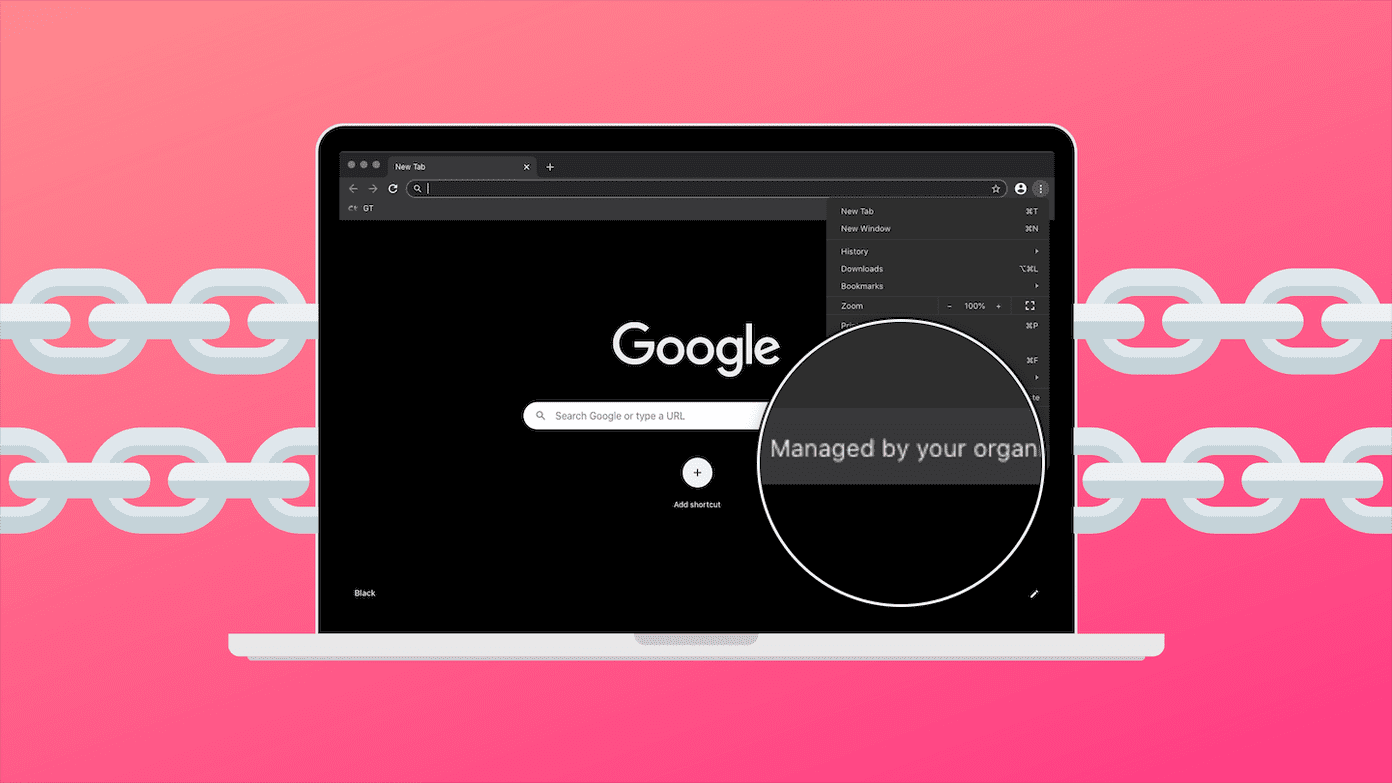 How to Remove Photos from Google Drive but Not Google Photos
Google Drive and Photos are two similar yet distinct products for storing photos and videos.
How to Remove Photos from Google Drive but Not Google Photos
Google Drive and Photos are two similar yet distinct products for storing photos and videos.
 How to Move Photos From iPhone to Google Photos
Method 1.
How to Move Photos From iPhone to Google Photos
Method 1.
 How to Sync Apple Photos Library With Google Photos
How to Enable Backup & Sync in Google Photos To add the pictures in your Photos app to the Google Photos app, you first need to enable the automatic sync
How to Sync Apple Photos Library With Google Photos
How to Enable Backup & Sync in Google Photos To add the pictures in your Photos app to the Google Photos app, you first need to enable the automatic sync
The article above may contain affiliate links which help support Guiding Tech. The content remains unbiased and authentic and will never affect our editorial integrity.