Basic Fixes:
- Check for Instagram app updates: Glitches from the previous app updates can prevent certain app functions from working properly. To fix these, we suggest updating the Instagram app.
- Disable VPN: Some Instagram features might be region-locked, which can be why you can’t upload a GIF. Disable the VPN and check again to see if you can use GIFs on Instagram.
- Force close and restart Instagram: Forcing the Instagram app to close will also close all app functions. Then, once you reopen the app, all these app functions will also restart. This can help fix any temporary glitches preventing GIFs from working.
Fix 1: Switch Between Professional or Business Account
Sometimes, Instagram rolls out new features targeting a specific type of account. This means you might get some features in your personal account and some in your professional or business account. So, you can switch between Instagram business or professional account to get them. Here’s how.
Note: If you have a private account, you must turn it into a Public account to make it a professional or business account.
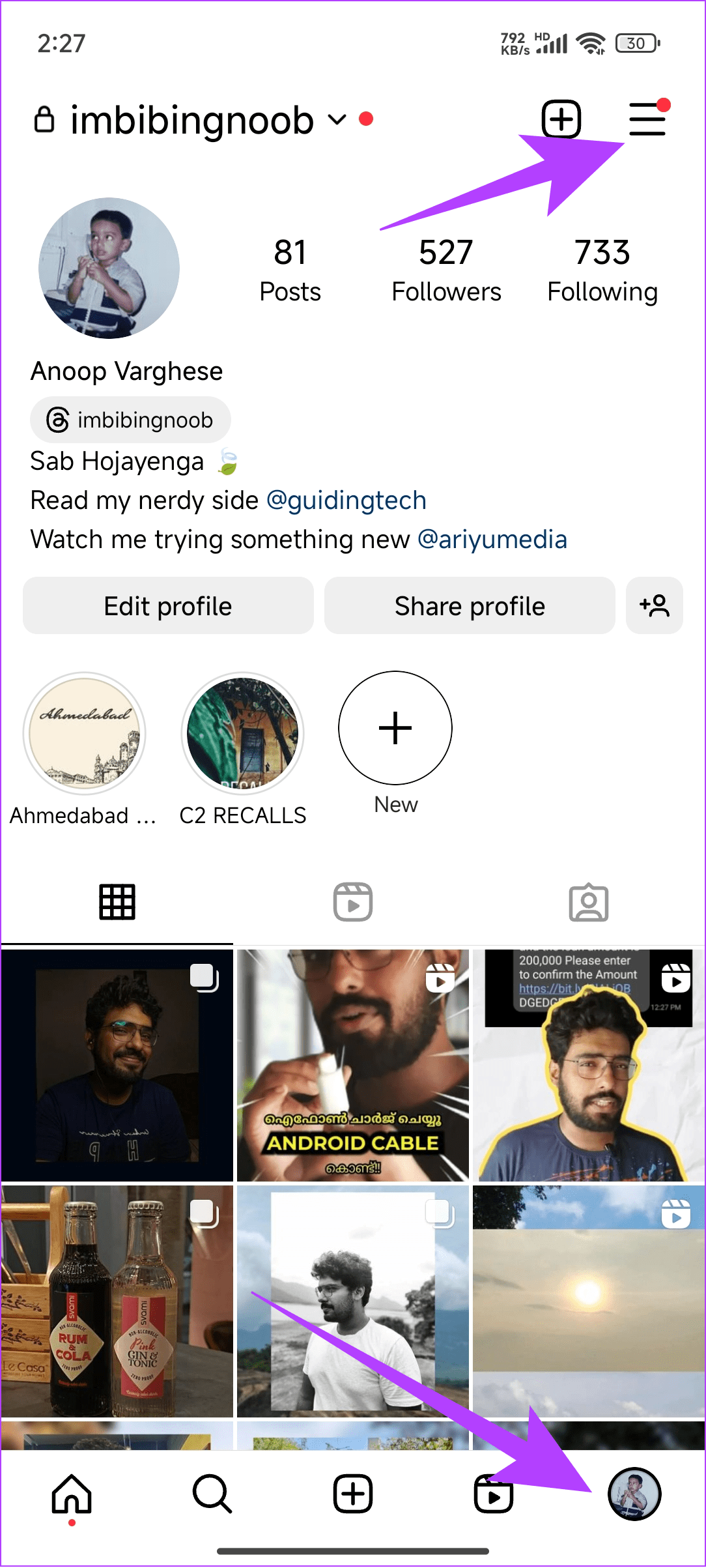
Step 1: Open Instagram → profile picture → hamburger menu at the top right → Settings and privacy.

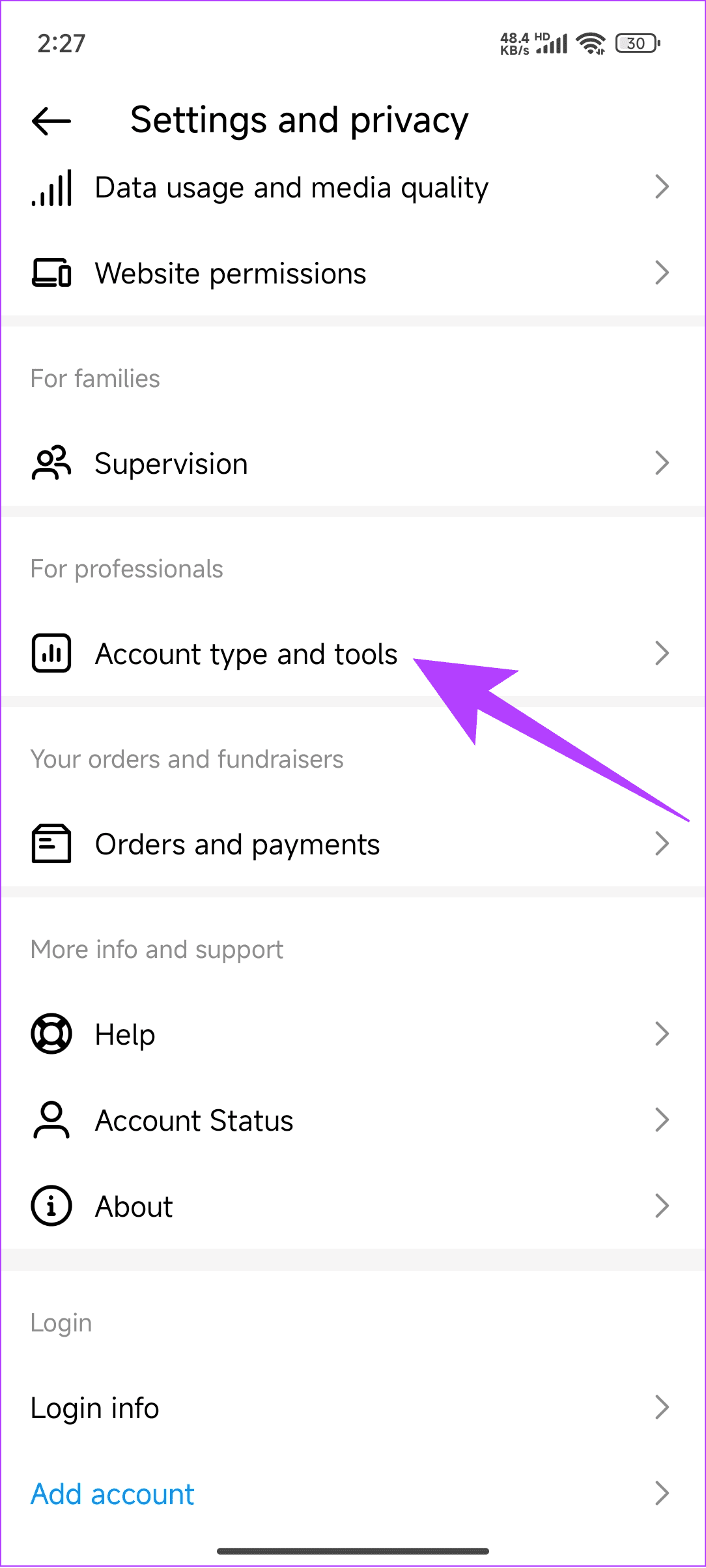
Step 2: Select Account type and tools. Tap on Switch to professional account to convert your existing account.
Tip: You can also select Add new professional account to add a new professional account.

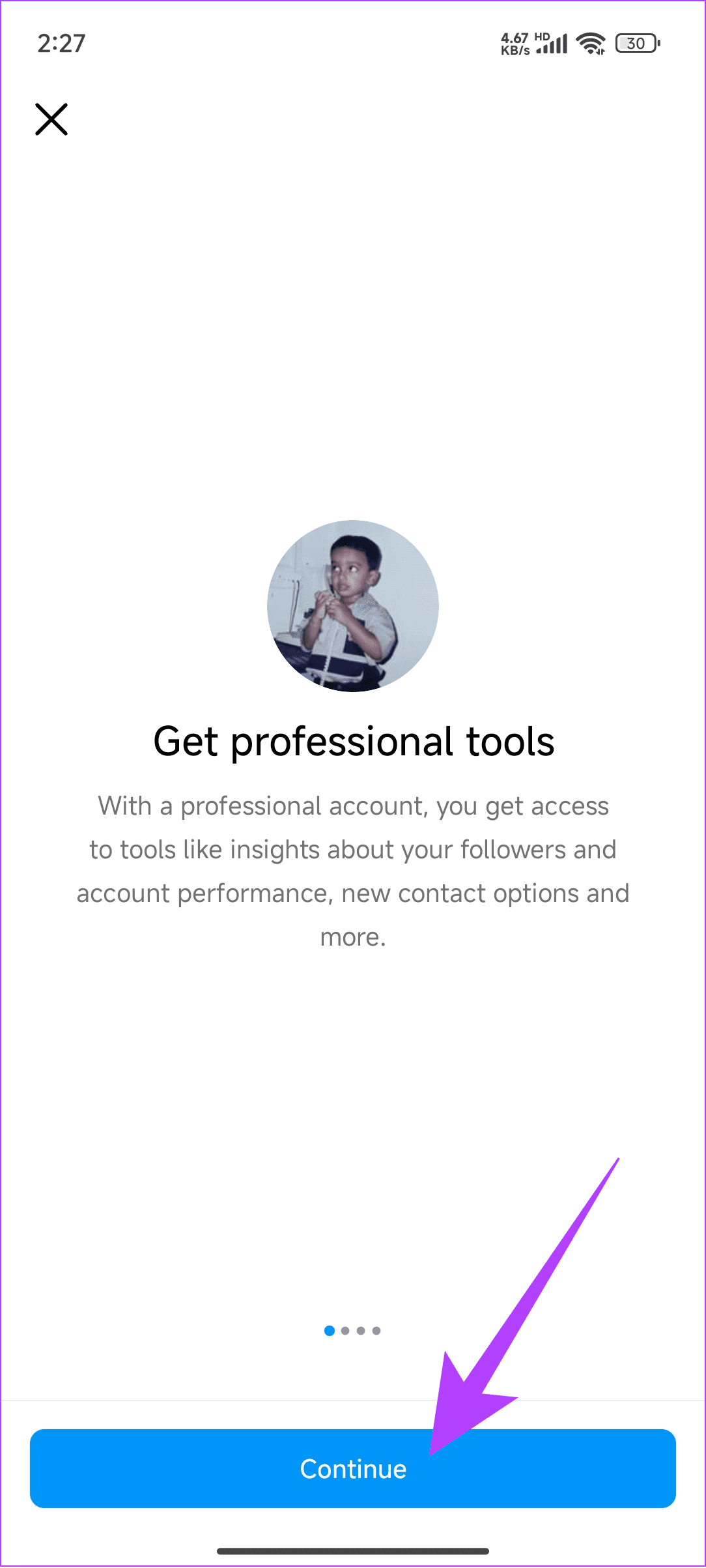
Step 3: Tap on Continue and choose the preferred account type. Tap on Done.

Step 4: Tap OK to confirm. Choose the relevant category and tap Next. Lastly, tap OK to finish.
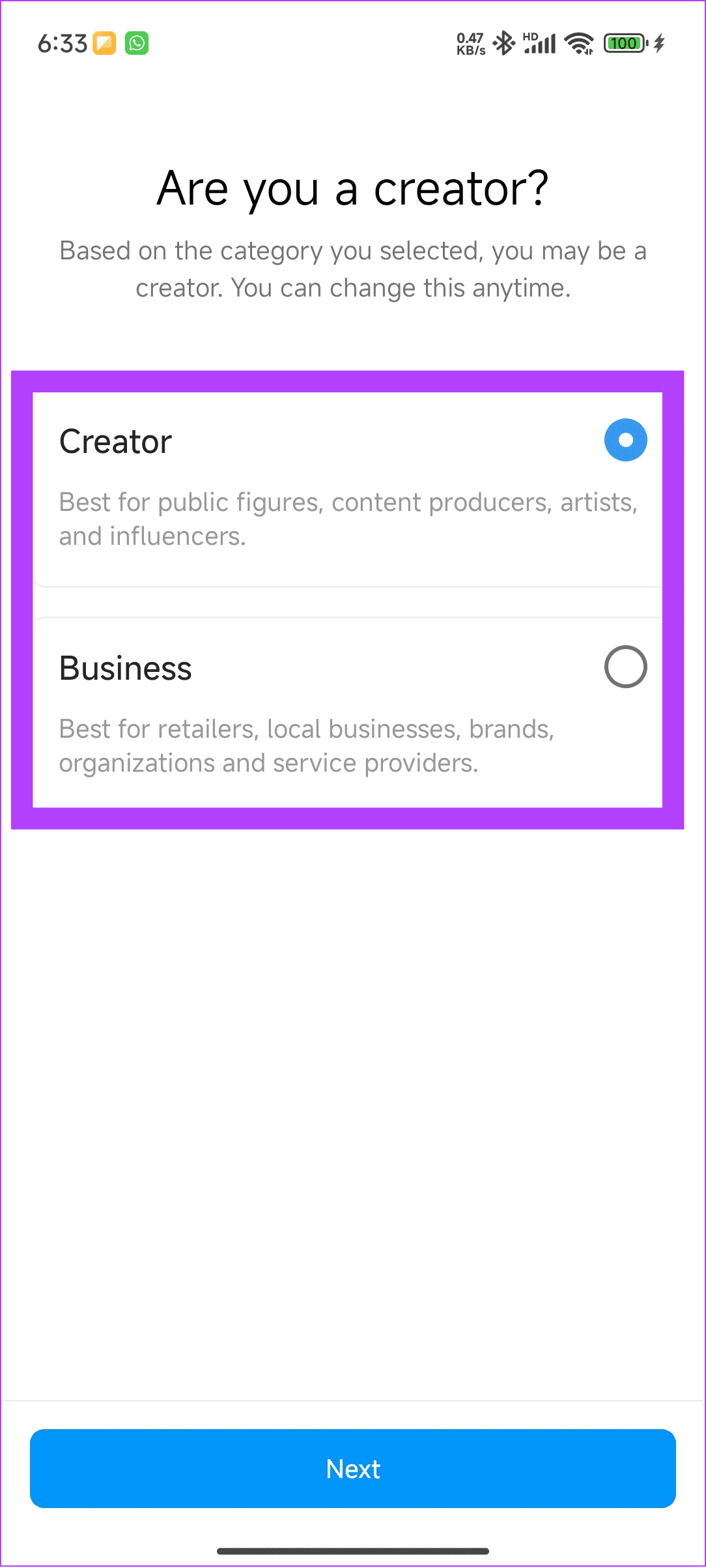
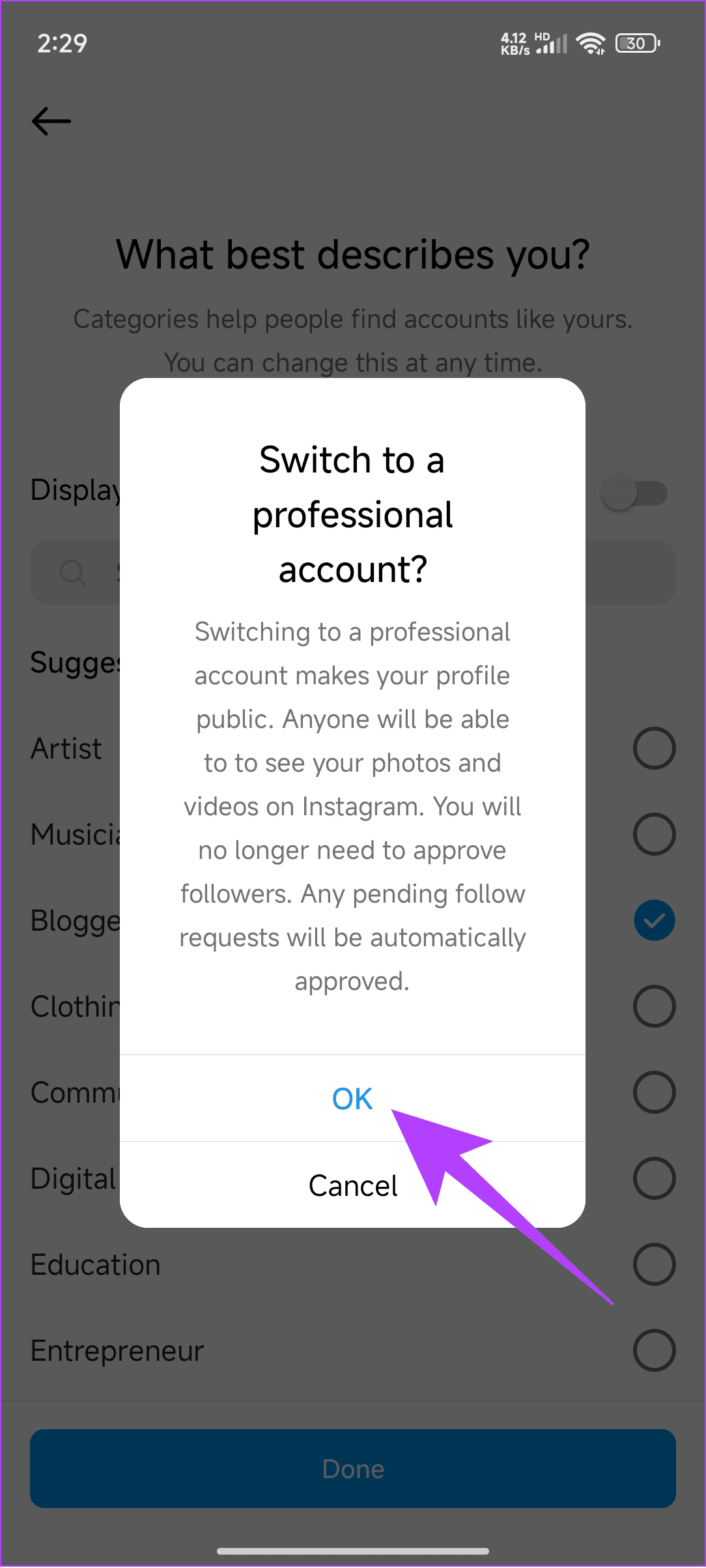
Now, try using GIFs to see if the issue has been resolved. You can also check our guide to learn the difference between professional and personal accounts on Instagram.
Fix 2: Log Out and Log in to Instagram
Sometimes, new features might only appear in your profile if you log out and back in. Doing this will also help refresh your account information. Here’s how to log out of Instagram.
Step 1: Open Instagram → profile picture → hamburger menu → Settings and privacy.
Step 2: Tap on Log out and confirm the same.
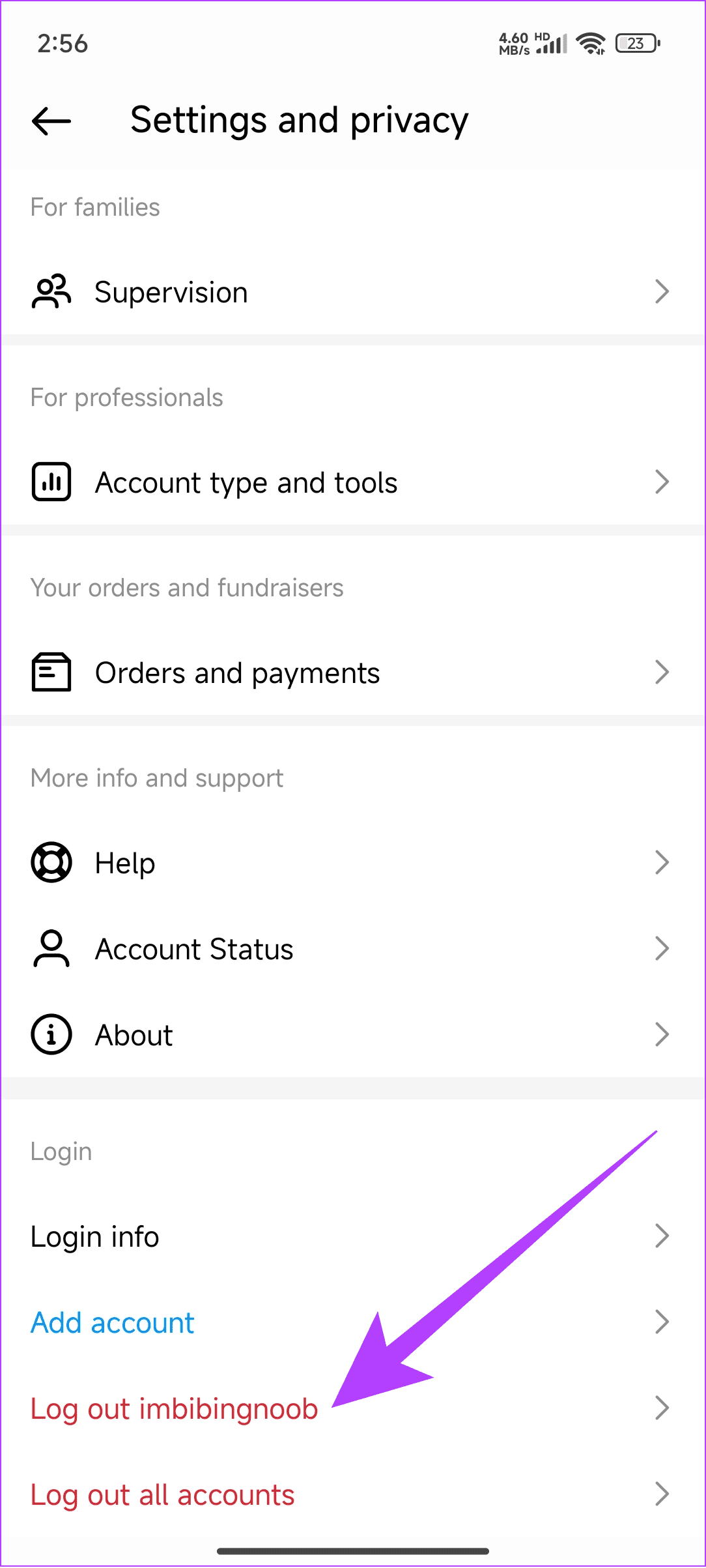
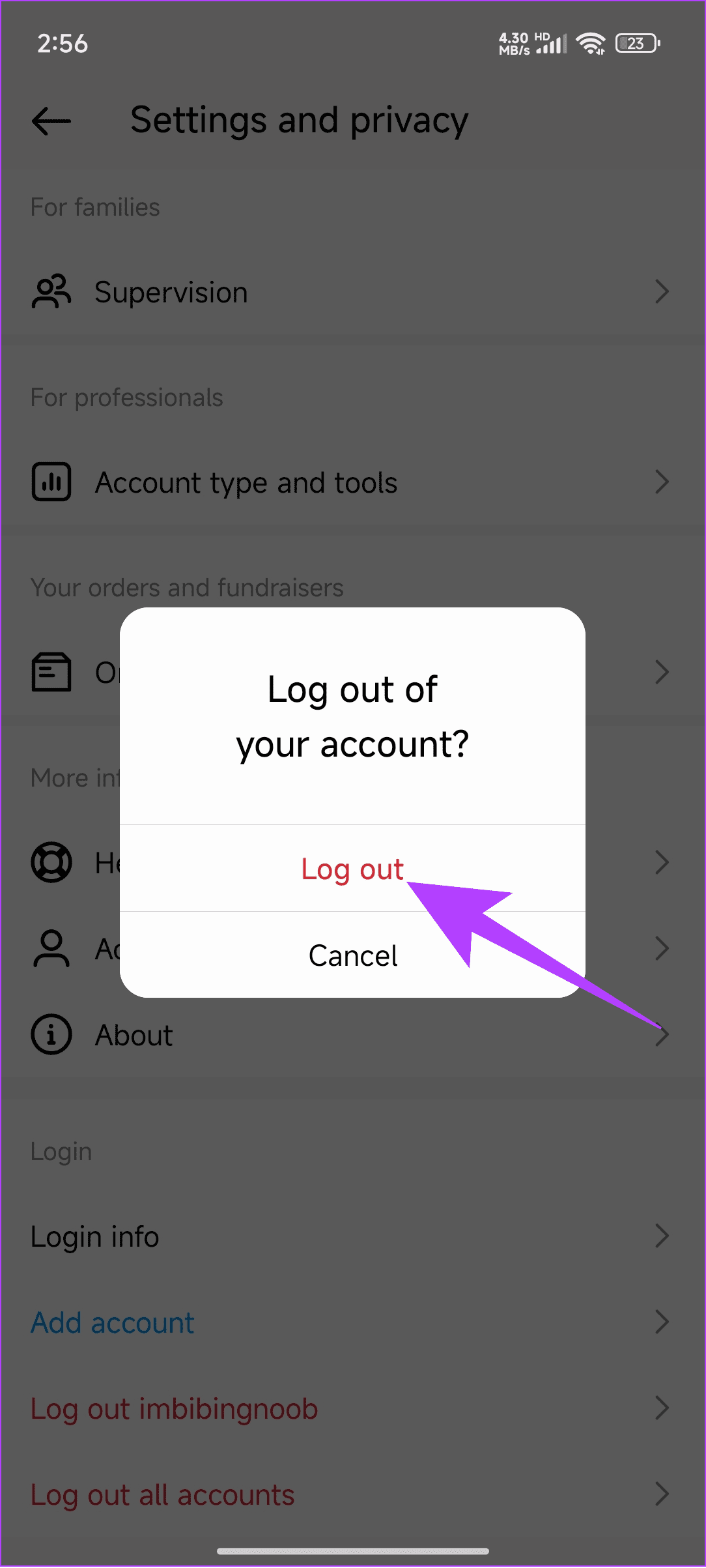
Once you log out, log back into your account by tapping log in next to your username. You can also log in to a different device or browser and check if the issue persists.
Also Read: How to find your Instagram password on any device
Fix 3: Uninstall and Reinstall Instagram
Some files might prevent GIFs from working on Instagram. Uninstalling Instagram can fix this. Follow these steps to uninstall the app on Android and iPhone.
On Android
Step 1: Open the Play Store, search Instagram, and open the app page.
Step 2: Tap Uninstall and confirm the same.

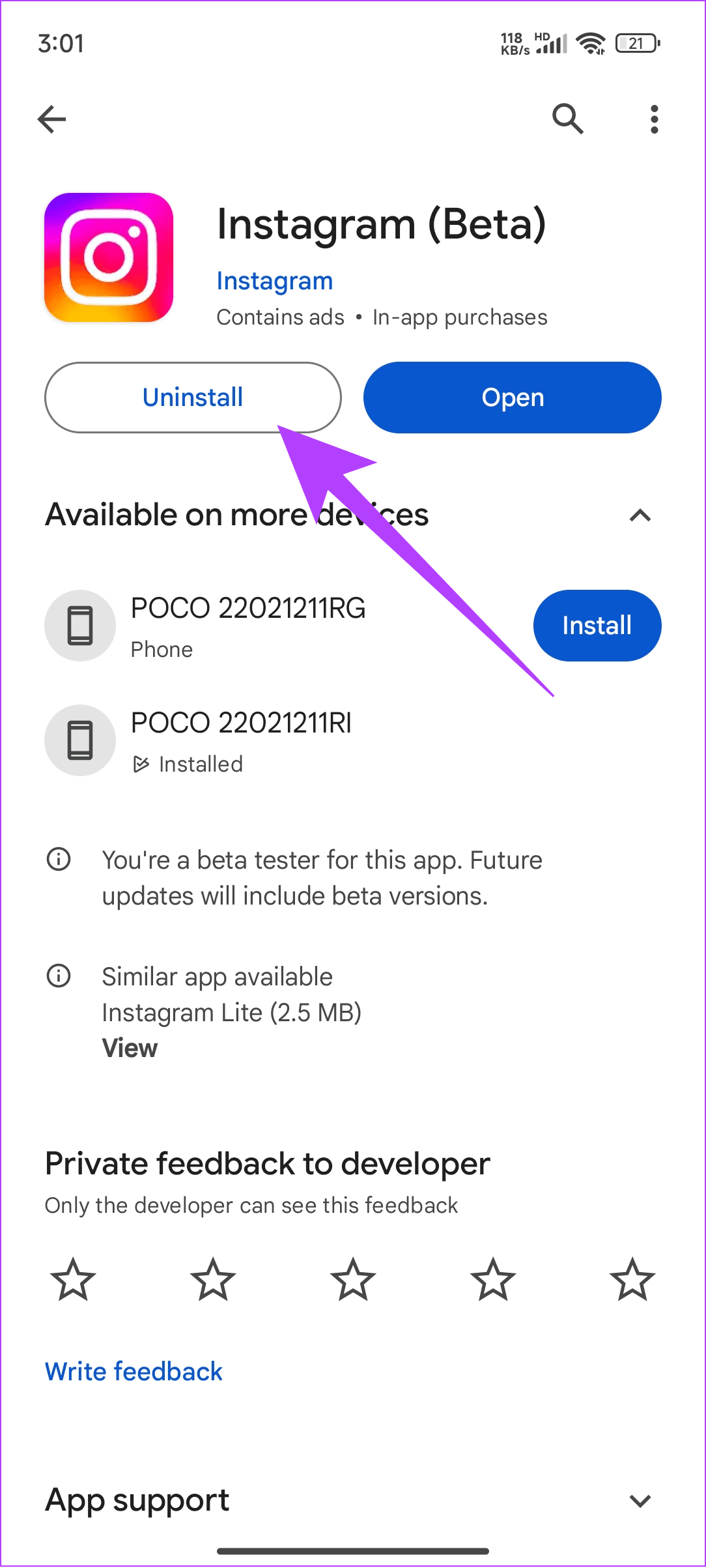
Step 3: Now, tap Install to reinstall the Instagram app, sign in using your account credentials, and check again.
On iPhone
Step 1: Long-press the Instagram app and tap on Delete App.
Step 2: Here, tap on Delete to confirm.
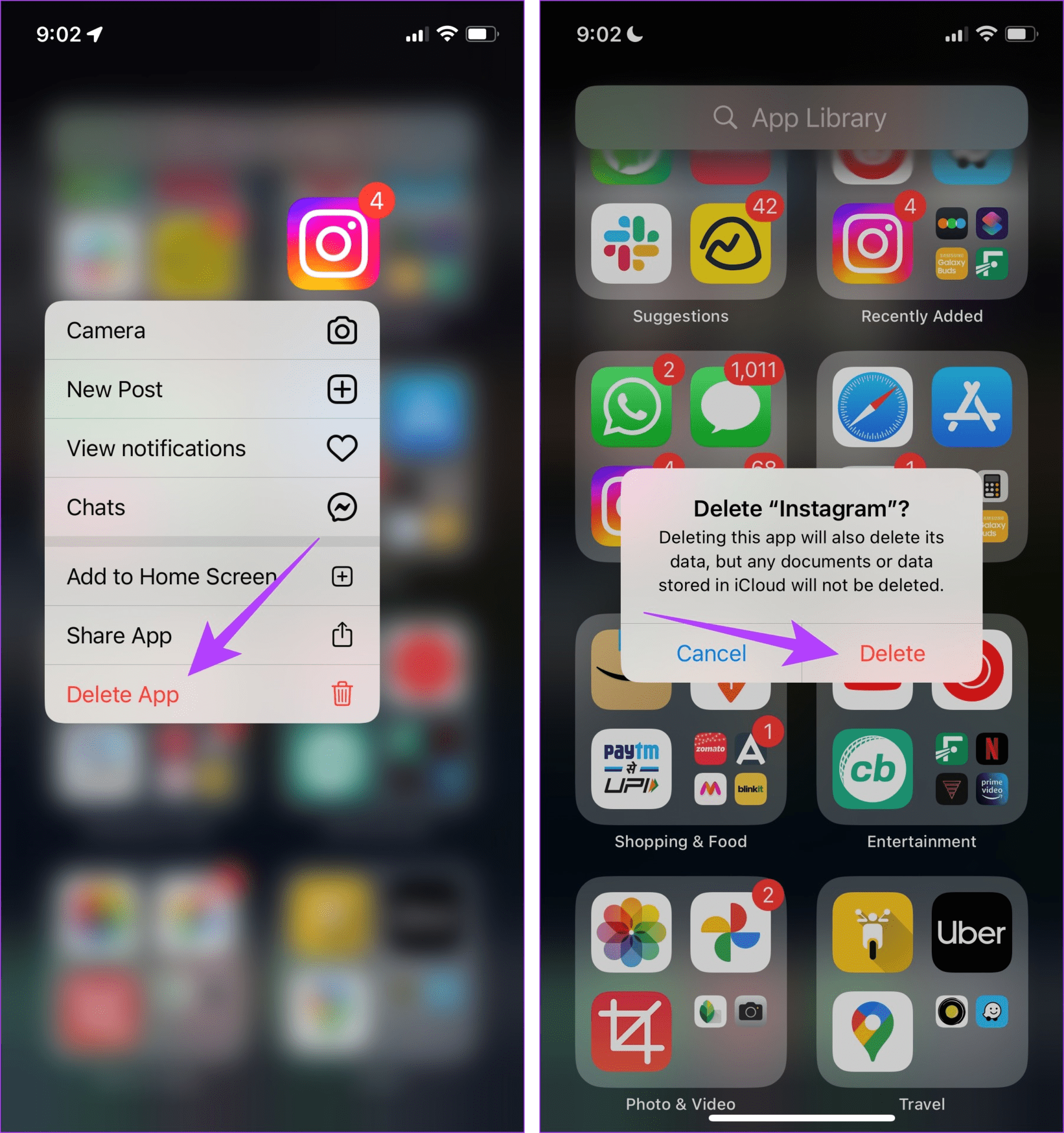
Step 3: Once done, reinstall the Instagram app on your iPhone and sign in again. Then, try sending a GIF on the Instagram app to see if the issue has been fixed.
Was this helpful?
Last updated on 27 June, 2024
Read Next
 4 Fixes for GIFs Not Working in Telegram
Basic Fixes Check if the GIF file is corrupted: It is a common issue and you can't trust every website to let you download high-quality GIFs.
4 Fixes for GIFs Not Working in Telegram
Basic Fixes Check if the GIF file is corrupted: It is a common issue and you can't trust every website to let you download high-quality GIFs.
 8 Fixes for GIFs Not Working or Disappeared on iPhone
Not everything can be described in words.
8 Fixes for GIFs Not Working or Disappeared on iPhone
Not everything can be described in words.
 How to Download GIFs from Pinterest
Download GIFs from Pinterest on the Mobile App Method 1: Using the Native Download Button Step 1: Navigate to the GIF that you want to download.
How to Download GIFs from Pinterest
Download GIFs from Pinterest on the Mobile App Method 1: Using the Native Download Button Step 1: Navigate to the GIF that you want to download.
 How to Send Live Photos as GIFs on WhatsApp
Method 1.
How to Send Live Photos as GIFs on WhatsApp
Method 1.
 How to Send GIFs in Microsoft Outlook and Gmail
Method 1.
How to Send GIFs in Microsoft Outlook and Gmail
Method 1.
 4 Fixes for Cannot Send GIFs in WhatsApp Web
Basic Fixes Check your internet connection: Sometimes GIFs take longer than usual to send due to poor internet speeds.
4 Fixes for Cannot Send GIFs in WhatsApp Web
Basic Fixes Check your internet connection: Sometimes GIFs take longer than usual to send due to poor internet speeds.
 How to Create Animated GIFs in Paint 3D
Using Paint 3D you can either convert a normal image to a GIF or create your text images in the GIF format.
How to Create Animated GIFs in Paint 3D
Using Paint 3D you can either convert a normal image to a GIF or create your text images in the GIF format.
 3 Ways to Fix Instagram Story Sound Not Working
Basic Troubleshooting Turn off silent mode or increase the volume - Instagram's sounds are automatically muted on silent mode.
3 Ways to Fix Instagram Story Sound Not Working
Basic Troubleshooting Turn off silent mode or increase the volume - Instagram's sounds are automatically muted on silent mode.
The article above may contain affiliate links which help support Guiding Tech. The content remains unbiased and authentic and will never affect our editorial integrity.