Fix 1: Update the Game Bar App and Open It From Microsoft Store
Several users on a Microsoft community post reported fixing the error almost instantly by updating the Game Bar app and launching it from the Microsoft Store. You can also try this.
Head to the Microsoft Store to update the Game Bar app from the Microsoft Store. Once updated, click the Open button to launch Game Bar and check if you can record your screen.

Fix 2: Repair or Reset the Game Bar App
If updating the Game Bar app proves ineffective, you can use the built-in app repair feature on Windows to fix issues with it. Here’s how:
Step 1: Press the Windows key + S to access the search menu. Type in Game Bar and select App settings.
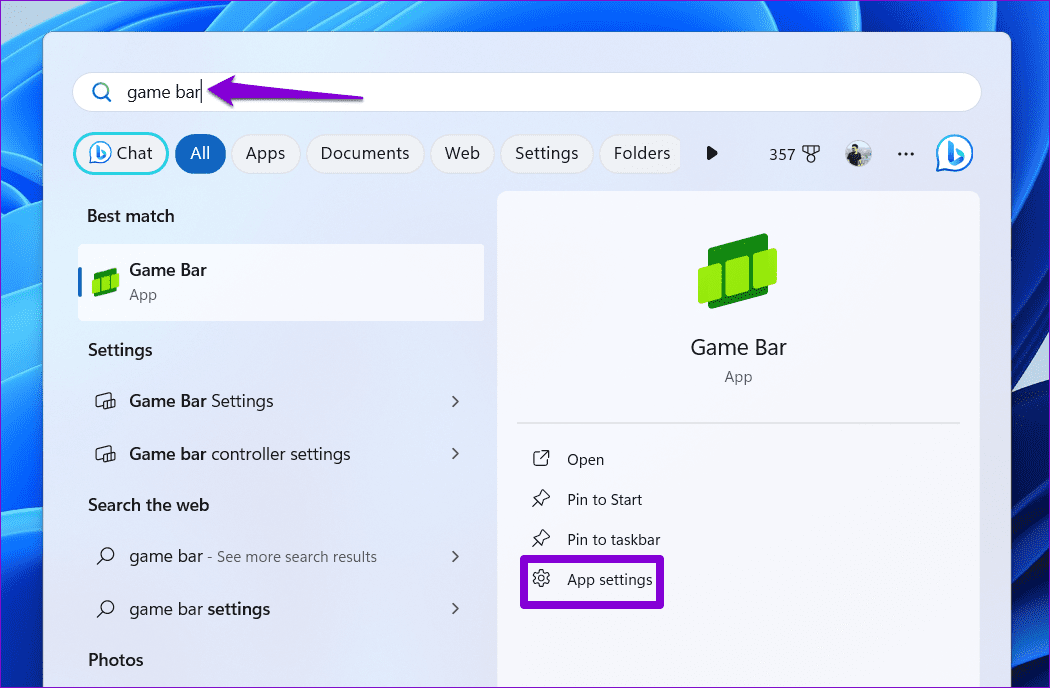
Step 2: Click the Repair button and wait for the process to complete.

If you get the error even after repairing the app, consider resetting it from the same menu. This will clear all the app data and revert the app to its default settings. Following that, you won’t encounter the “Gaming features aren’t available for the Windows desktop or File Explorer” error.

Fix 3: Reinstall the Xbox Game Bar
Another reason why you could encounter such errors with the Xbox Game Bar app is if some of the core app files have become corrupted. In that case, your best option is to uninstall the Xbox Game Bar from your PC and install it again. Here are the steps for the same.
Step 1: Click the search icon on the taskbar, type in powershell, and select Run as administrator.
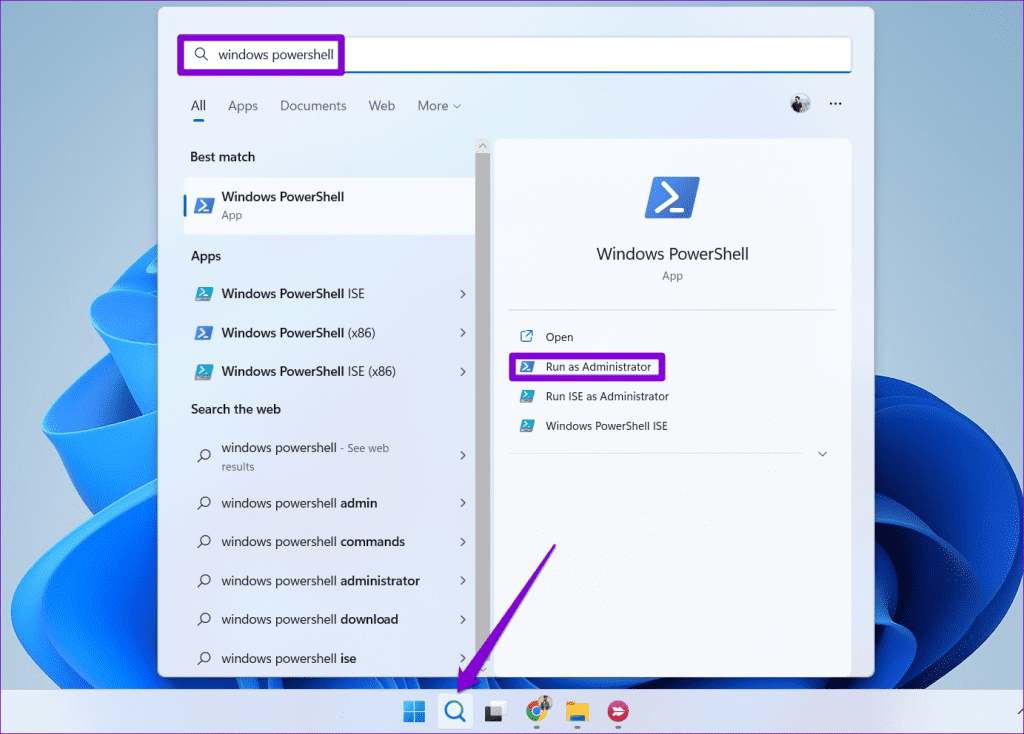
Step 2: Type the following command in the PowerShell window and press Enter.
get-appxpackage Microsoft.XboxGamingOverlay | remove-appxpackage

Step 3: Type in the following command and press Enter to reinstall Game Bar on your PC.
Get-AppXPackage Microsoft.XboxGamingOverlay -AllUsers | Foreach {Add-AppxPackage -DisableDevelopmentMode -Register "$($_.InstallLocation)\AppXManifest.xml"}

Fix 4: Check Group Policy Settings
On computers running Windows Pro, Education, or Enterprise editions, you can enable or disable features like game recording via the Local Group Policy Editor. You need to review the relevant policies to ensure game recording isn’t disabled from there.
Step 1: Press the Windows key + R to open the Run dialog box. Type gpedit.msc in the box and press Enter.
Step 2: In the Local Group Policy Editor window, use the left pane to navigate to the following folder.
Computer Configuration > Administrative Templates > Windows Components > Windows Game Recording and Broadcasting
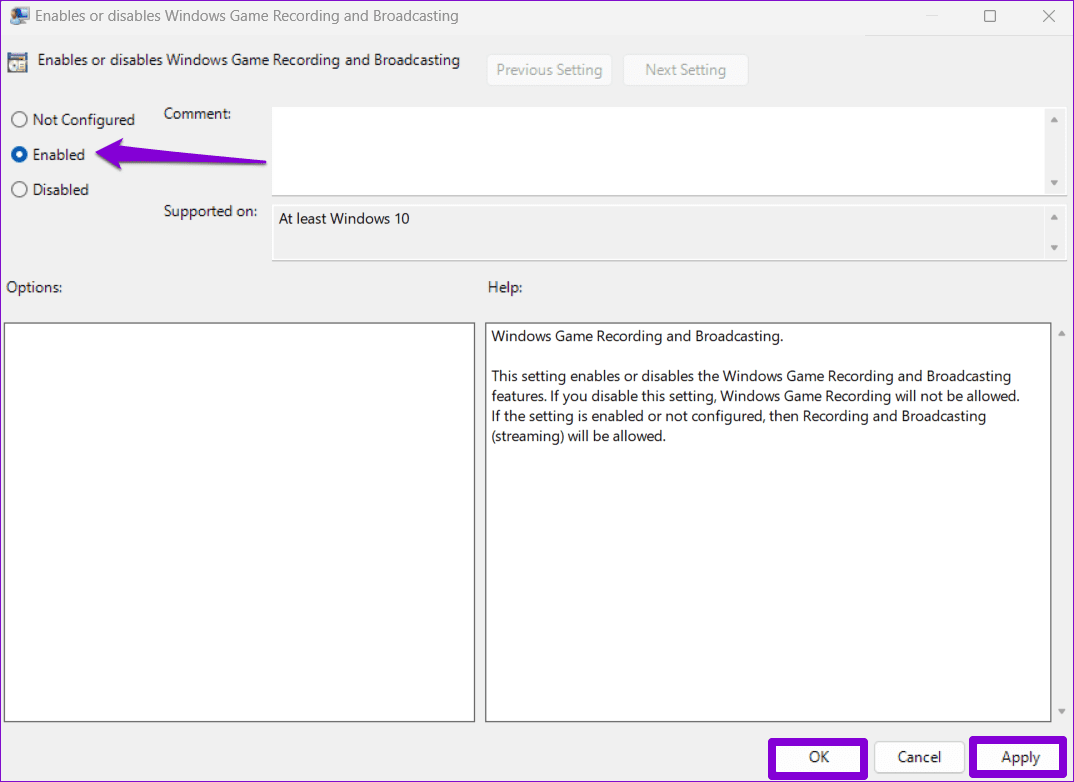
Step 3: Double-click the Enables or disables Windows Game Recording and Broadcasting policy on your right.

Step 4: Select Enabled and then hit Apply, followed by OK.
Fix 5: Enable Game DVR
If you still encounter the “Gaming features aren’t available for the Windows desktop or File Explorer” error, the Game DVR feature is likely disabled on your PC. Here’s how to enable it.
Step 1: Press the Windows key + I to open the Settings app. Switch to the Gaming tab and click on Captures.

Step 2: Enable the toggle next to Record what happened.

Fix 6: Enable Game Mode
Enabling Game Mode allows Windows to restrict background tasks and updates during your games, ensuring a smoother experience while playing or recording games. If the above solutions don’t work and if the record option still appears grayed out in Game Bar, try enabling Game Mode to see if that helps.
Step 1: Press the Windows key + I to open the Settings app. Switch to the Gaming tab and click on Game Mode.

Step 2: Enable the toggle next to Game Mode.

Was this helpful?
Last updated on 12 August, 2024
Read Next
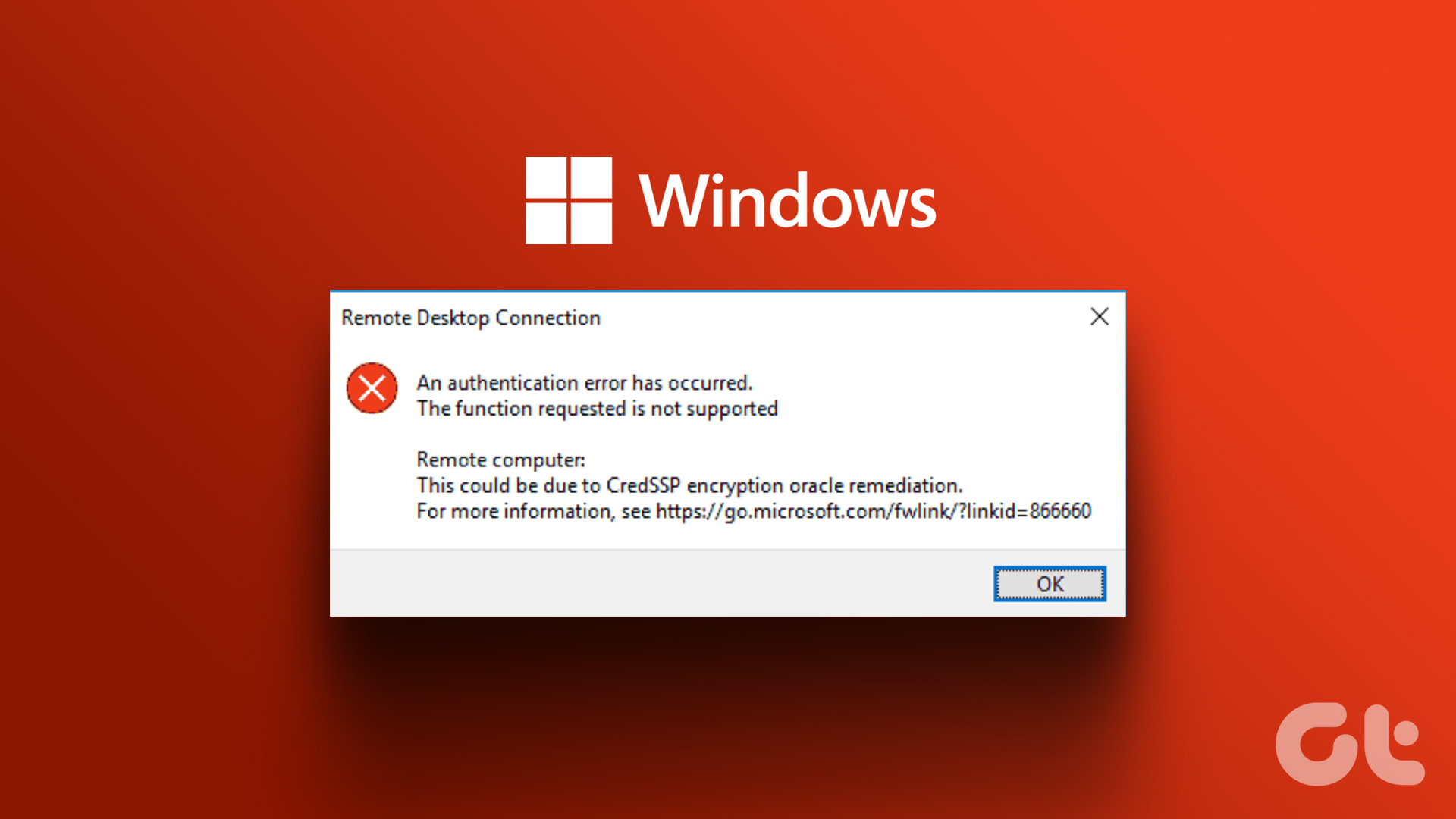 4 Fixes for Remote Desktop Authentication Error on Windows 11
Preliminary Fixes Check remote if the desktop is enabled: The Remote Desktop authentication error often occurs because your Windows 11 PC cannot establish a remote connection without the Remote Desktop
4 Fixes for Remote Desktop Authentication Error on Windows 11
Preliminary Fixes Check remote if the desktop is enabled: The Remote Desktop authentication error often occurs because your Windows 11 PC cannot establish a remote connection without the Remote Desktop
 6 Cool Features That Make the MSI Claw the Best Handheld Gaming Console
Gaming handhelds have been quite the rage in the past few years with several brands jumping onto the bandwagon.
6 Cool Features That Make the MSI Claw the Best Handheld Gaming Console
Gaming handhelds have been quite the rage in the past few years with several brands jumping onto the bandwagon.
 How to Fix iCloud Missing Media Features Error on Windows
Fix 1: Turn on Missing Media Features Chances are, if you live outside of Europe or Korea, your copy of Windows came with the media features turned off by default.
How to Fix iCloud Missing Media Features Error on Windows
Fix 1: Turn on Missing Media Features Chances are, if you live outside of Europe or Korea, your copy of Windows came with the media features turned off by default.
 5 Fixes for “Word Experienced an Error Trying to Open the File” Error in Windows
Fix 1: Unblock Your Word File Microsoft Word may fail to open a document if it has been altered by third-party software.
5 Fixes for “Word Experienced an Error Trying to Open the File” Error in Windows
Fix 1: Unblock Your Word File Microsoft Word may fail to open a document if it has been altered by third-party software.
 6 Best UPS for Gaming PCs for Uninterrupted Gaming
A reliable UPS acts as your gaming PC's guardian angel, shielding it from power fluctuations, surges, and unexpected outages.
6 Best UPS for Gaming PCs for Uninterrupted Gaming
A reliable UPS acts as your gaming PC's guardian angel, shielding it from power fluctuations, surges, and unexpected outages.
 5 Fixes for Cloud Gaming Not Working in Xbox App for Windows
Fix 1.
5 Fixes for Cloud Gaming Not Working in Xbox App for Windows
Fix 1.
 5 Fixes for Unable to Change Desktop Background on Windows
Fix 1: Ensure Windows Is Activated Although you can use an unactivated version of Windows 10 or 11, there are a few limitations.
5 Fixes for Unable to Change Desktop Background on Windows
Fix 1: Ensure Windows Is Activated Although you can use an unactivated version of Windows 10 or 11, there are a few limitations.
 5 Fixes for Remote Desktop Copy-Paste Not Working on Windows
Fix 1: Configure Remote Desktop Connection Settings A common reason you may be unable to copy and paste data during a Remote Desktop session is if you have previously disabled
5 Fixes for Remote Desktop Copy-Paste Not Working on Windows
Fix 1: Configure Remote Desktop Connection Settings A common reason you may be unable to copy and paste data during a Remote Desktop session is if you have previously disabled
The article above may contain affiliate links which help support Guiding Tech. The content remains unbiased and authentic and will never affect our editorial integrity.