Fix 1. Check for Hardware Issues
Checking for hardware issues should be your first call. You may be experiencing the problem because the gaming controller is faulty. This may be mechanical damage, particularly if the controller was dropped and landed hard. In such a case, you may need a new gaming controller to fix the problem. In some instances, a faulty mouse will also trigger the problem, and you may also need to replace your mouse.
Before purchasing a replacement, you may want to test the controller on a different computer. This is a good way to rule out other causes, such as malware infection.
Fix 2. Disable the Enable the Steam Overlay While In-Game Feature
Steam’s Overlay gives you access to many features in-game. You may access your chat, friends list, and the Steam store. However, some of these features may cause conflicts with gaming controllers as they are not always compatible with every controller, which may cause unusual behavior.
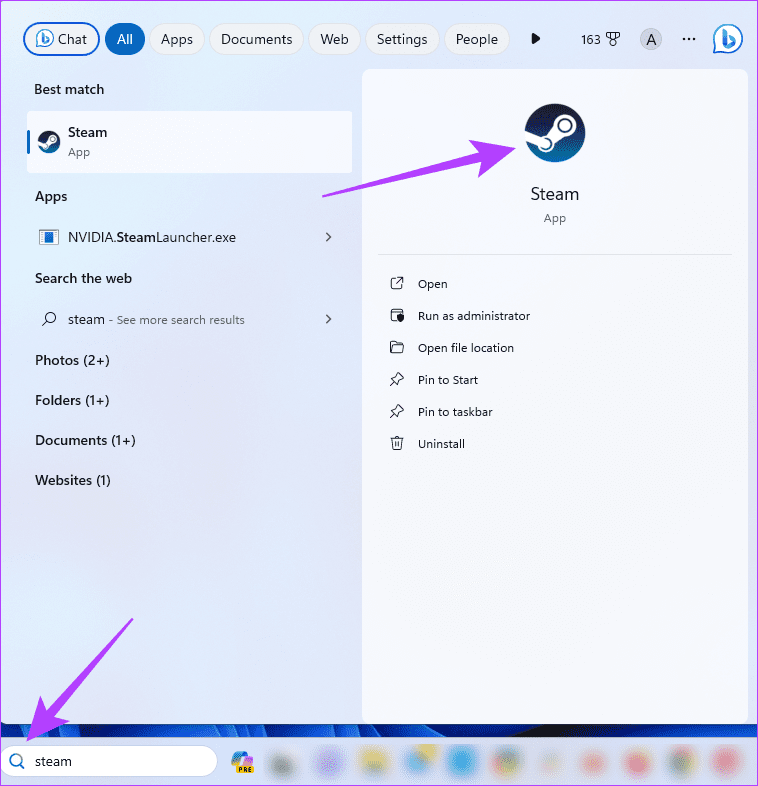
Step 1: Click the Windows Search icon on the Taskbar, type Steam, and click the Steam application.
Step 2: On the upper right, click Steam menu, and click Settings.

Step 3: Click the In Game menu and toggle off Enable the Steam Overlay while in-game.

Step 4: Restart the Steam application for your changes to take effect.
Fix 3. Enable the Disable Steam Input Feature
The Input feature allows the Steam app to customize gaming controller input. This is a valuable feature because it allows you to use controllers not natively supported by the game. However, misconfiguring the Steam Input feature may cause abnormal behavior and make the gaming controller act like a mouse on Windows 11. You need to disable this feature:
Step 1: Open Steam, click the Library menu, right-click the problematic game, and click Properties.

Step 2: Click Controller on the right pane, expand Use default settings, and click Disable Steam Input.

Step 3: Restart the Steam application.
Fix 4. Turn off Xbox Configuration Support
Xbox Configuration Support on Steam is another feature that allows controller customization. Since misconfiguration may cause the gaming controller to act like a mouse on Windows 11, you may disable this setting to prevent Steam from interfering with the controller’s inputs.
Step 1: Click the Steam menu in the upper-right corner, and click Settings from the menu that appears.
Step 2: On the left pane, click Controller, and on the right, click General Controller Settings.

Step 3: Untick Xbox Configuration Support, click Back, and click OK.

Fix 5. Tweak the Controller’s Desktop Configuration
Misconfiguration could be a significant cause of the gaming controller acting like a mouse on Windows 11. You may use the steps below to reconfigure the controller’s settings and change its desktop configuration.
Step 1: On the upper right, click Steam, then click Settings.
Step 2: On the left pane, click Controller, and on the right, click Desktop Configuration.

Step 3: According to your preferences, you may customize the settings and keep tweaking till the problem is resolved.
Fix 6. Disable the Controller as a Mouse From the Control Panel
When you use your controller as a mouse, actions taken on the controller are automatically interpreted as mouse actions on Windows. The solution is to prevent the controller from controlling the mouse cursor by disabling it as a mouse from the Control Panel.
Step 1: Click the Windows Search icon on the Taskbar, type control, and click the Control Panel option.

Step 2: Set the View by option to Category, then click Hardware and Sound.

Step 3: Under the Device and Printers section, click Mouse.

Step 4: Click the Hardware tab, select Mouse from the Devices list, and click the Properties button at the bottom right.
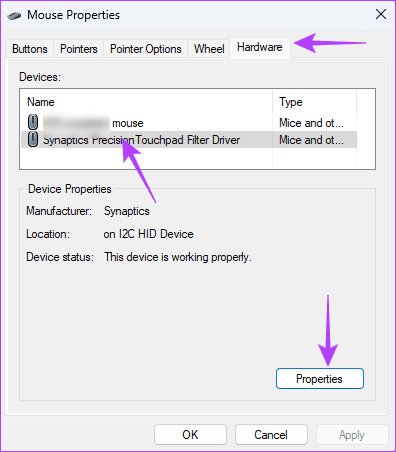
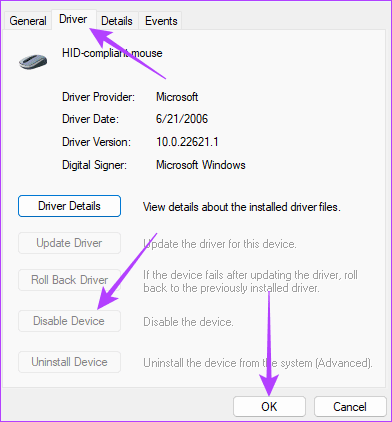
Step 5: Navigate to the Driver tab, click the Disable Device button, and click OK on both windows.
Was this helpful?
Last updated on 09 August, 2024
Read Next
 Top 3 Touch Mouse Alternatives to Apple’s Magic Mouse
The Magic Mouse is useful for plenty of people, but some can get annoyed by its poor ergonomics.
Top 3 Touch Mouse Alternatives to Apple’s Magic Mouse
The Magic Mouse is useful for plenty of people, but some can get annoyed by its poor ergonomics.
 Top 4 Ways to Fix Windows 10 Not Detecting PS4 Controller
While Xbox reigns to work as a controller with Windows, there are plenty of PS4 owners who struggle to use their Dual Shock controller with Windows.
Top 4 Ways to Fix Windows 10 Not Detecting PS4 Controller
While Xbox reigns to work as a controller with Windows, there are plenty of PS4 owners who struggle to use their Dual Shock controller with Windows.
 Top 7 Ways to Fix Steam Not Recognizing Controller on Windows 11
Select games on your PC are more fun with a controller rather than the keyboard and mouse combo.
Top 7 Ways to Fix Steam Not Recognizing Controller on Windows 11
Select games on your PC are more fun with a controller rather than the keyboard and mouse combo.
 How to Change Domain Controller on Windows
Things to Know Before Switch Domain Controller on Windows Back up your Active Directory to ensure you can recover if something goes wrong during the migration process.
How to Change Domain Controller on Windows
Things to Know Before Switch Domain Controller on Windows Back up your Active Directory to ensure you can recover if something goes wrong during the migration process.
 8 Fixes for Microphone Not Working in Xbox Game Bar on Windows 11
Basic Fixes Reconnect the external microphone: Plug out the external connected microphone, wait a few seconds, and reconnect it.
8 Fixes for Microphone Not Working in Xbox Game Bar on Windows 11
Basic Fixes Reconnect the external microphone: Plug out the external connected microphone, wait a few seconds, and reconnect it.
 3 Fixes if GeForce Experience Not Recording Game Audio in Windows 11
Common Fixes Close and restart GeForce Experience - Click the Arrow button in the system tray notifications area and right-click the NVIDIA icon to select Exit.
3 Fixes if GeForce Experience Not Recording Game Audio in Windows 11
Common Fixes Close and restart GeForce Experience - Click the Arrow button in the system tray notifications area and right-click the NVIDIA icon to select Exit.
 5 Fixes When Discord Is Picking Up Game Audio in Windows 11
Before going into the fixes, ensure the USB connector is connected to the motherboard USB port.
5 Fixes When Discord Is Picking Up Game Audio in Windows 11
Before going into the fixes, ensure the USB connector is connected to the motherboard USB port.
 3 Fixes When Streamlabs Game Capture Not Working in Windows 11
Basic Fixes: Ensure that Streamlabs is installed in C drive: If you have installed Streamlabs on any drive other than the default location (C drive), you will face issues with
3 Fixes When Streamlabs Game Capture Not Working in Windows 11
Basic Fixes: Ensure that Streamlabs is installed in C drive: If you have installed Streamlabs on any drive other than the default location (C drive), you will face issues with
The article above may contain affiliate links which help support Guiding Tech. The content remains unbiased and authentic and will never affect our editorial integrity.