


Basic Fixes:
- Restart the Fire TV Stick: The menu button on the Fire TV Stick remote may malfunction due to a temporary glitch. A simple device restart can help fix this. To do this, use the Settings menu and restart your Fire TV Stick device. Then, try using the menu button again.
- Update Fire TV Stick software: To fix any software-related bugs, install the latest FireOS updates for your Fire TV Stick device. Open Settings, and from the My Fire TV menu, check for and install the latest software updates. Once your device finishes restarting, check again.
Fix 1: Check Fire TV Stick Remote Status
Your Fire TV Stick allows you to check the status of the Fire TV Stick remote. If the remote runs low on battery, the menu button may not work as expected. Here’s how to check that using your Fire TV Stick’s settings menu.
Step 1: Open Fire TV Stick and go to Settings. Here, select Controllers & Bluetooth Devices.
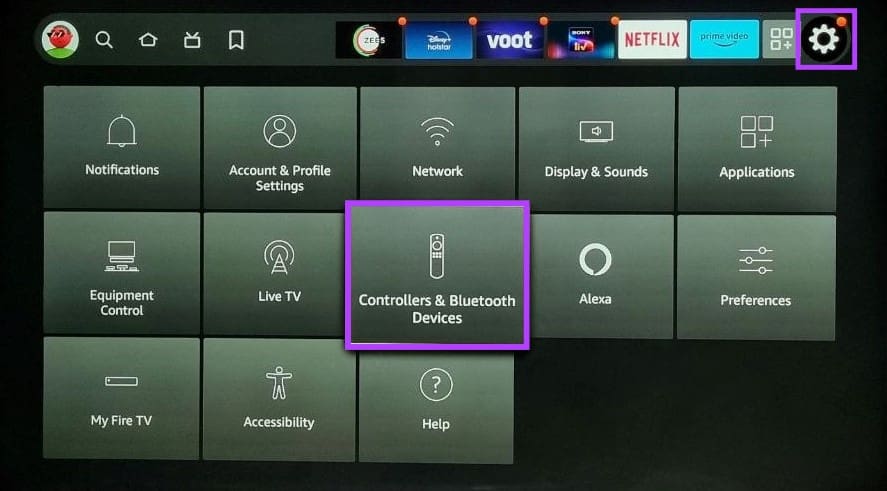
Step 2: From the options, select Amazon Fire TV Remotes.

Step 3: Check the battery status from the right-side panel.
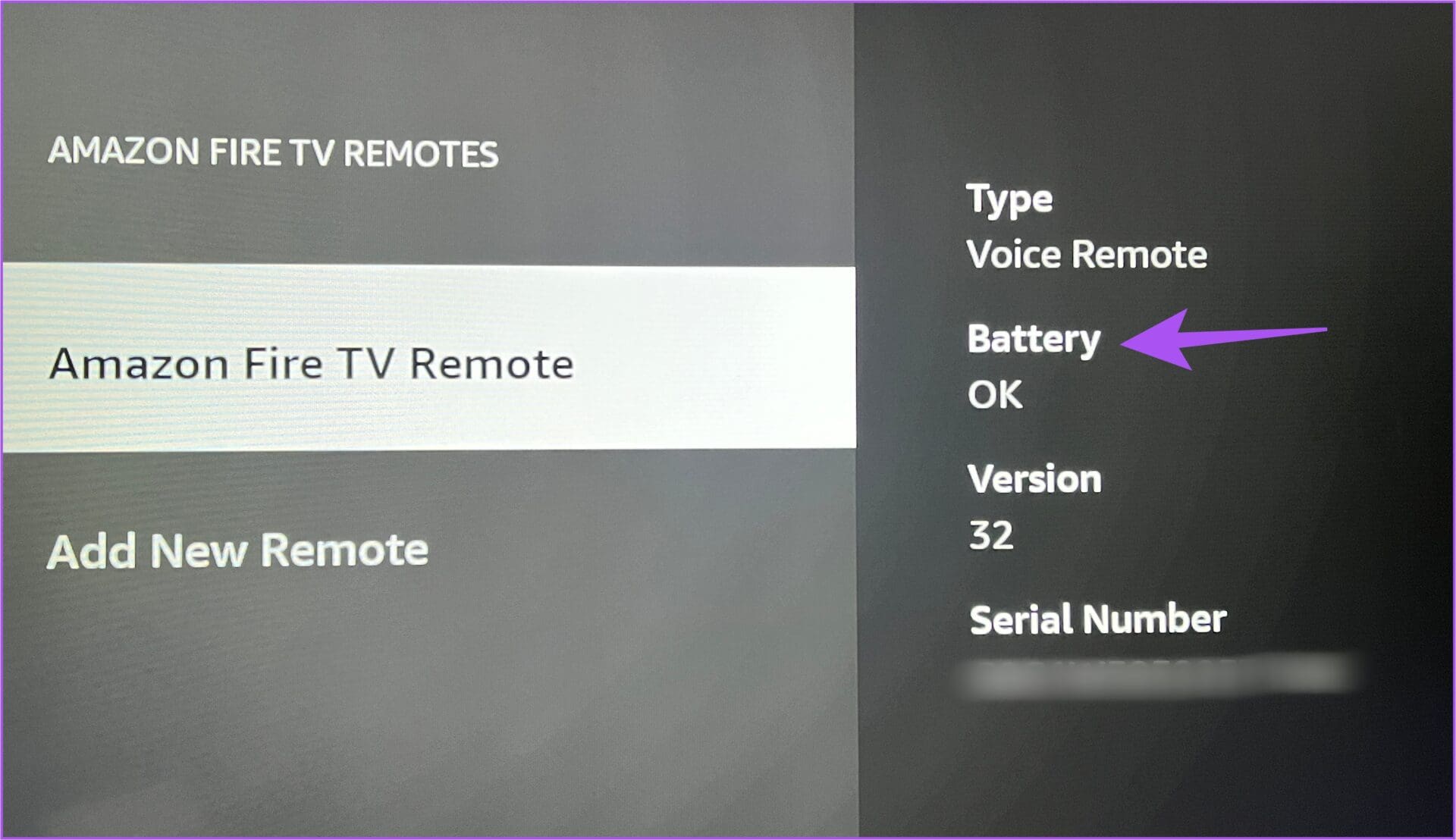
If the status shows anything other than OK, change the remote batteries and check again.
Also Read: How to fix Fire TV Stick remote not working
Fix 2: Reset Fire TV Stick Remote
You can reset the Fire TV Stick remote to resolve any issues resulting from the previous pairing. Please note this will only work if the menu button on your Fire TV Stick remote is unresponsive and not broken. Unplug your Fire TV Stick and wait for a minute. Then, follow the below steps.
Step 1: On your remote, simultaneously press and hold the Left button, Menu button, and Back button for about 12 seconds.
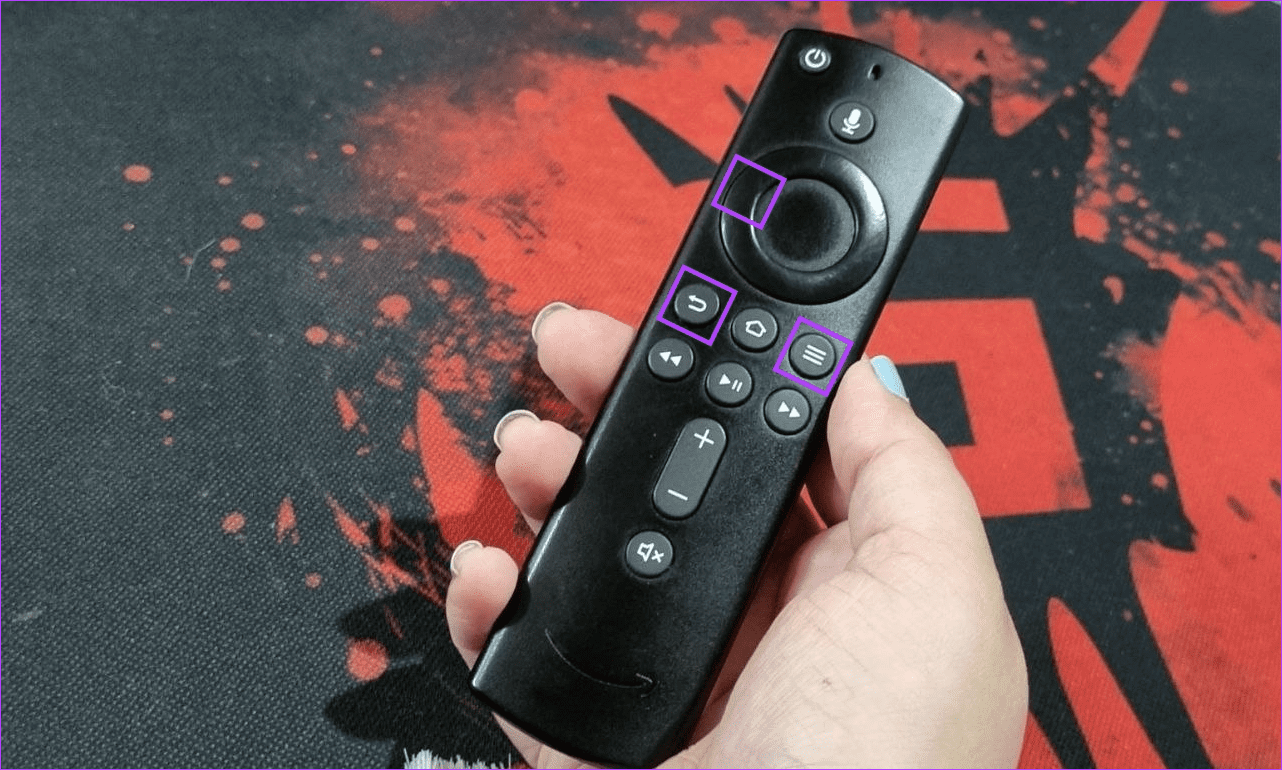
Step 2: Now, release the buttons and wait for another 5 seconds. Remove the batteries from the remote and power your Fire TV Stick back on.
Step 3: Put the batteries back in and point the remote toward your Fire TV Stick. Now, press and hold the Home button for 10 seconds.

Release the Home button once a light appears on the remote. Additionally, you should also see a pairing notification on the screen. If that doesn’t happen, use the following method.
Fix 3: Reset Your Fire TV Stick
If you can’t reset the Fire TV Stick remote or if that fix doesn’t work, try resetting your Fire TV Stick device as a whole. This will delete all Fire TV Stick settings, accounts, apps, etc., and reset it to factory defaults. This should fix any related issues. Follow the below steps to do it.
Step 1: Open your Fire TV Stick and select Settings from the menu options. Scroll down and select My Fire TV.
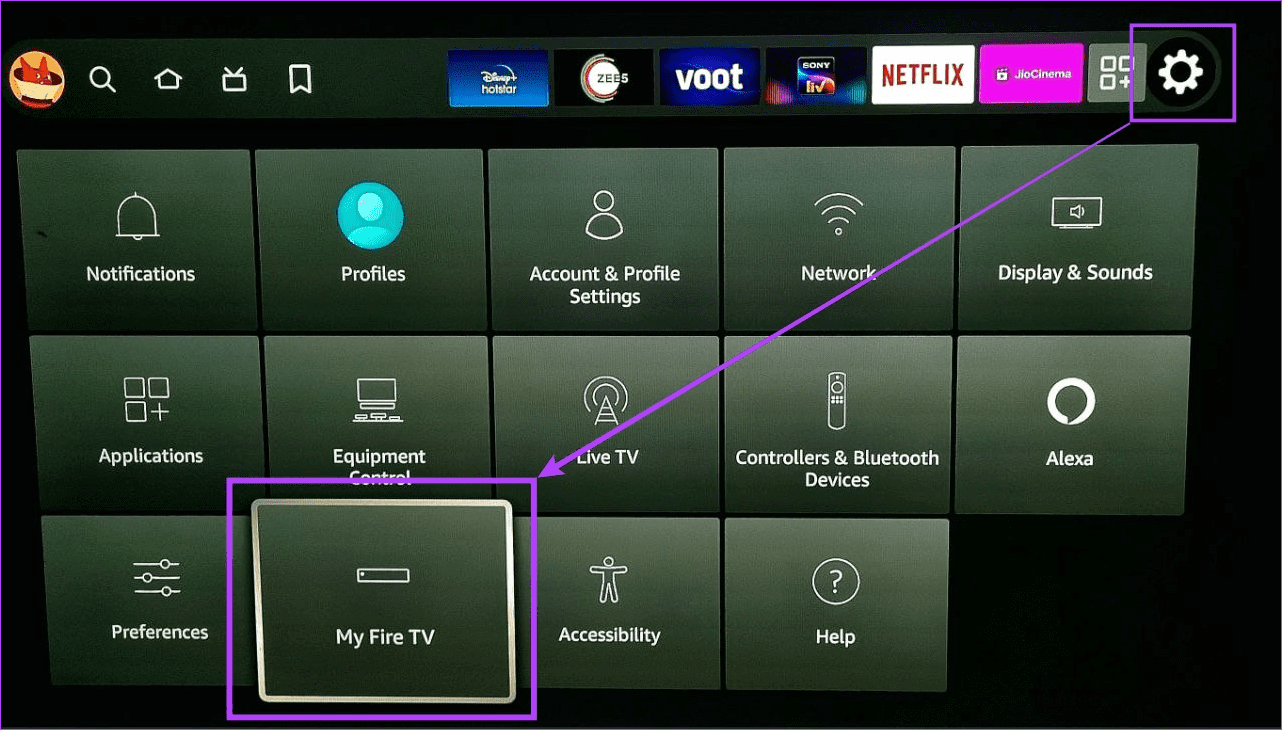
Step 2: Then, select Reset to Factory Defaults.
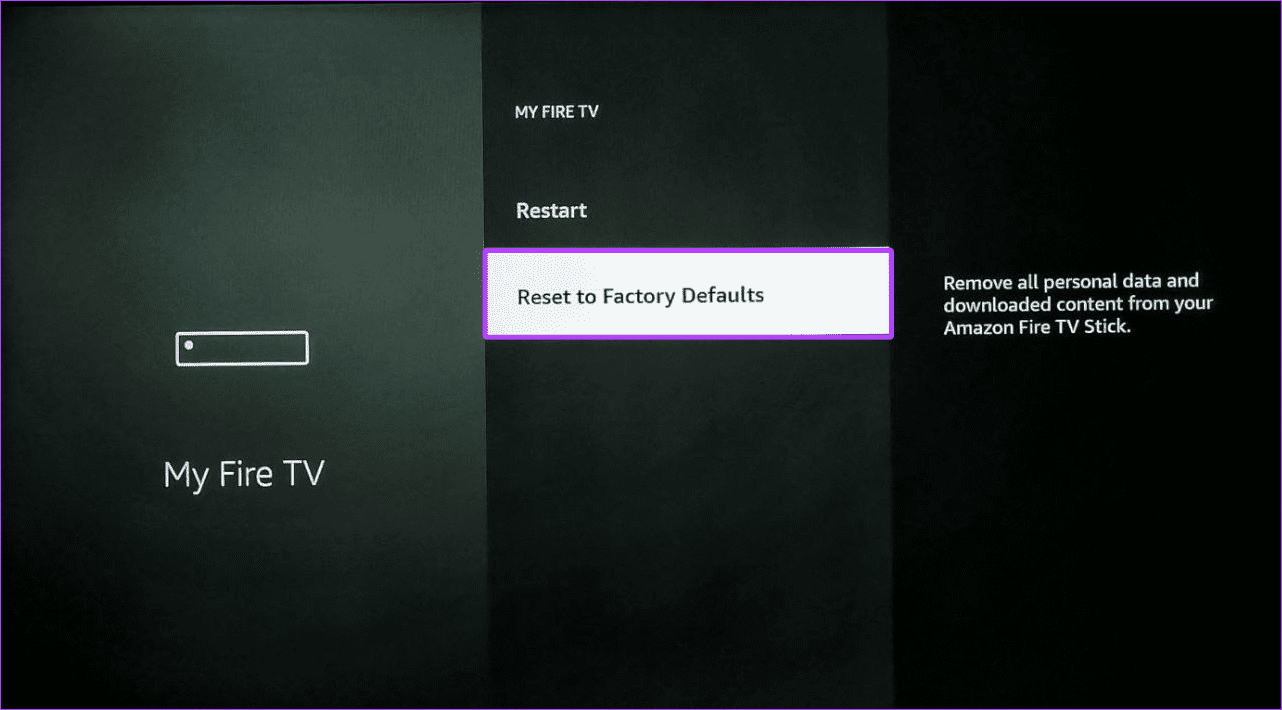
Step 3: Here, select Reset to confirm. Wait for your device to finish resetting.
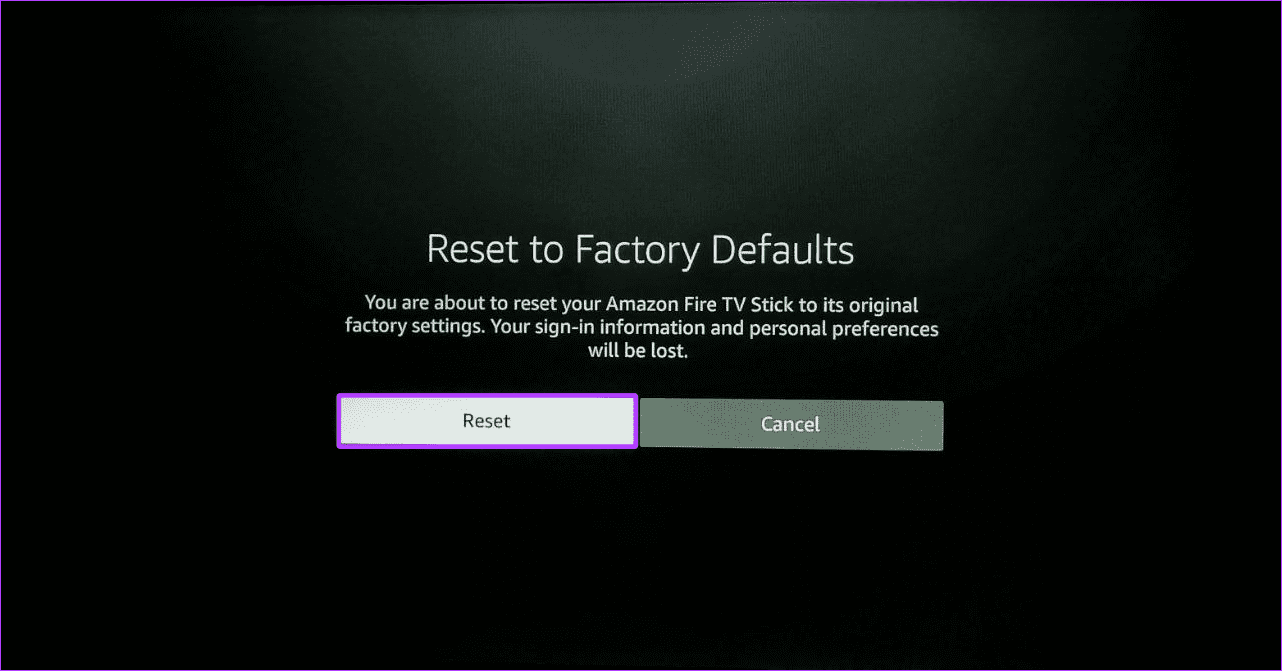
Then, set up your Fire TV Stick and try using the menu button to see if it’s working as expected. If the issue persists, we recommend getting a new remote or using the Fire TV Stick remote app.
Was this helpful?
Last updated on 26 June, 2024
1 Comment
Leave a Reply
Read Next
 3 Ways to Fix Fire TV Stick Mirroring Not Working or Freezing
Screen Mirroring Requirements and Limitations for Fire TV Stick Before starting, let us look at certain conditions that you might need to meet when screen mirroring your device to your
3 Ways to Fix Fire TV Stick Mirroring Not Working or Freezing
Screen Mirroring Requirements and Limitations for Fire TV Stick Before starting, let us look at certain conditions that you might need to meet when screen mirroring your device to your
 4 Ways to Fix Fire TV Stick Remote Not Working
Basic Fixes Ensure the remote is within range: The usual range of a Fire TV Stick's remote is around 10 feet.
4 Ways to Fix Fire TV Stick Remote Not Working
Basic Fixes Ensure the remote is within range: The usual range of a Fire TV Stick's remote is around 10 feet.
 3 Ways to Fix Apple TV App Not Working on Amazon Fire TV Stick
Basic Fixes Force quit and relaunch Apple TV app: This will give the app a fresh start on your Firestick.
3 Ways to Fix Apple TV App Not Working on Amazon Fire TV Stick
Basic Fixes Force quit and relaunch Apple TV app: This will give the app a fresh start on your Firestick.
 3 Ways to Fix Prime Video App Not Working on Fire TV Stick
Common Fixes Restart the Fire TV Stick: Select the gear icon at the top right of the Fire OS home screen to expand Settings.
3 Ways to Fix Prime Video App Not Working on Fire TV Stick
Common Fixes Restart the Fire TV Stick: Select the gear icon at the top right of the Fire OS home screen to expand Settings.
 3 Ways to Fix Fire TV Stick Remote Volume Not Working
Basic Fixes: Check the remote batteries: Fire TV Stick relies on batteries to work properly.
3 Ways to Fix Fire TV Stick Remote Volume Not Working
Basic Fixes: Check the remote batteries: Fire TV Stick relies on batteries to work properly.
 5 Ways to Fix Amazon Silk Browser Not Working on Fire TV Stick
Basic Fixes Check your network connection: Open Fire OS settings via the Gear icon at the top right.
5 Ways to Fix Amazon Silk Browser Not Working on Fire TV Stick
Basic Fixes Check your network connection: Open Fire OS settings via the Gear icon at the top right.
 3 Ways to Fix YouTube TV Not Working on Amazon Fire TV Stick
Basic Fixes Check the YouTube server status: Visit Downdetector to check an active YouTube TV server outage.
3 Ways to Fix YouTube TV Not Working on Amazon Fire TV Stick
Basic Fixes Check the YouTube server status: Visit Downdetector to check an active YouTube TV server outage.
 How to Fix “Fire TV Stick Connected With Problems” Error
Basic Fixes: Restart the Fire TV Stick and router: Temporary connection problems can cause internet issues on your Fire TV Stick.
How to Fix “Fire TV Stick Connected With Problems” Error
Basic Fixes: Restart the Fire TV Stick and router: Temporary connection problems can cause internet issues on your Fire TV Stick.
The article above may contain affiliate links which help support Guiding Tech. The content remains unbiased and authentic and will never affect our editorial integrity.
I have lately found less movies available with captions. Movies are most generally for me the only thing I really need captions for because of hearing loss.
Is it possible that not ALL movies on the FiveStar app, regardless if they come FiveStar, Freevee, etc., that just don’t have the captions provided when movies are released for streaming?
I have already done a two or three of the suggestions to get captions. Short of getting captions on everything, I would be satisfied to know the
answer to the above question.