Basic Fixes
- Update iOS: Ensure your device is running on iOS 17 and above. Moreover, an updated OS will eliminate bugs, so update your device before anything else.
- Check supported devices: FaceTime reactions only work on iPhone 12 and newer models. Before you troubleshoot the issue, ensure you’re using the correct device.
- Clean front camera: Reactions work only while using the front camera; they’ll not work with the Rear camera. Try cleaning your front camera, and also ensure your iPhone’s screen protector is not covering the front camera.
Fix 1. Enable Reaction in the Control Center
Generally, reaction gesture effects are enabled by default. However, there is a setting that allows you to turn off gestures for activating reaction effects. You may have accidentally turned it off. So, try turning it on as shown below:
Step 1: Start a FaceTime call. Open Control Center on your iPhone.
Step 2: Tap on Video Effects followed by Reactions to enable it.

Step 3: If it’s already active, tap it to turn it off and then turn on again.
Fix 2. Use the Right Actions to Activate Reactions
The FaceTime reactions can be activated in two ways.
- Long-press on your camera view and the reactions will appear. Select the appropriate reaction to send.
- Alternatively, you can activate reactions using certain gestures. So, ensure you use the right gestures to trigger reactions in FaceTime or any other video conferencing app on your iPhone.

Here’s a list of supported FaceTime reaction gestures on iOS and iPadOS 17+ and macOS.
| Reaction | Gesture |
| Hearts ❤️ | Make a heart with fingers |
| Thumbs up 👍 | Thumbs up (with one hand) |
| Thumbs down 👎 | Thumbs down (with one hand) |
| Firework | Double thumbs up (with both hands) |
| Rain 🌧️ | Double thumbs down (with both hands) |
| Balloons 🎈 | Peace sign with one hand✌️ |
| Confetti 🎉 | Peace sign with two hands |
| Laser burst 💥 | Rock sign with two hands 🤘 |
Tip: If this reminds you of iMessage effects, here’s a list of iMessage tricks you can try out.
Fix 3. Be Patient and Within the Frame
If you use gestures to activate FaceTime reactions, be patient. Basically, the FaceTime gestures take a second or two to activate. These aren’t instant, but a moment or two is enough for your iPhone or iPad to detect the gesture and activate the associated reaction effect.
Furthermore, you should ensure that your face and hands are within the frame—both of these should be visible. Otherwise, FaceTime gestures will not work.
Tip: Know how to optimize FaceTime audio and video settings
Fix 4. Disable FaceTime Temporarily
Finally, if nothing helps, try disabling FaceTime temporarily. For that, follow these steps:
Step 1: Open Settings on your iPhone.
Step 2: Go to FaceTime. Turn off the toggle for FaceTime.
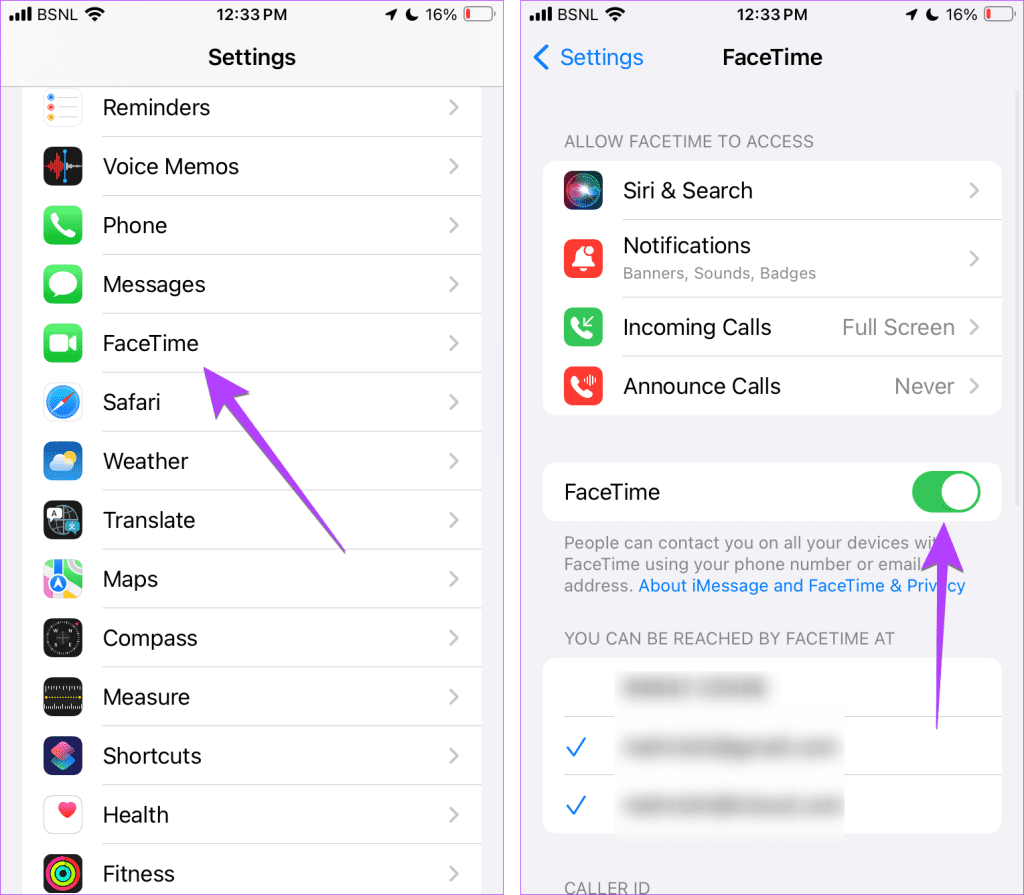
Step 3: Restart your iPhone or iPad.
Step 4: Go back to Settings > FaceTime and enable FaceTime.
Tip: Know how to use iMessage or FaceTime without a SIM card on iPhone or iPad.
Was this helpful?
Last updated on 20 August, 2024
Read Next
 Top 9 Ways to Fix Touchpad Gestures Not Working in Windows 10
Windows 10 supports various touchpad (trackpad) gestures.
Top 9 Ways to Fix Touchpad Gestures Not Working in Windows 10
Windows 10 supports various touchpad (trackpad) gestures.
 5 Ways to Fix Touchpad Gestures Not Working on Windows 11
Fix 1: Enable Touchpad Gestures The first thing you need to do is review the touchpad settings on your PC and ensure that gesture controls are enabled.
5 Ways to Fix Touchpad Gestures Not Working on Windows 11
Fix 1: Enable Touchpad Gestures The first thing you need to do is review the touchpad settings on your PC and ensure that gesture controls are enabled.
 4 Ways to Fix Gestures Not Working on Android
Try Basic Fixes Remove the screen protector and case: Using a low-quality screen protector from an unknown brand may affect the touchscreen's functionality.
4 Ways to Fix Gestures Not Working on Android
Try Basic Fixes Remove the screen protector and case: Using a low-quality screen protector from an unknown brand may affect the touchscreen's functionality.
 3 Ways to Fix Trackpad Gestures Not Working on Mac
Basic Fixes Disconnect External Mouse: This is to ensure there aren't any hardware conflicts Update to the Latest Version: Updating your machine to the latest macOS version can also fix
3 Ways to Fix Trackpad Gestures Not Working on Mac
Basic Fixes Disconnect External Mouse: This is to ensure there aren't any hardware conflicts Update to the Latest Version: Updating your machine to the latest macOS version can also fix
 3 Fixes if Reactions Are Not Working on Google Messages
Basic Fixes Force quit and relaunch Google Messages: This will give the app a fresh start.
3 Fixes if Reactions Are Not Working on Google Messages
Basic Fixes Force quit and relaunch Google Messages: This will give the app a fresh start.
 3 Fixes for Message Reactions Not Working on Instagram
Basic Fixes Log in again to your profile: If you cannot react to messages on Instagram, you can log out and sign in again on your iPhone or Android.
3 Fixes for Message Reactions Not Working on Instagram
Basic Fixes Log in again to your profile: If you cannot react to messages on Instagram, you can log out and sign in again on your iPhone or Android.
 3 Fixes for Reactions Not Working in Facebook Messenger
Basic Fixes Log in again to your Facebook account: This will load all your chats and preferences again in the Facebook Messenger app.
3 Fixes for Reactions Not Working in Facebook Messenger
Basic Fixes Log in again to your Facebook account: This will load all your chats and preferences again in the Facebook Messenger app.
 What Are Emphasized Reactions and How to Use Them on iPhone
Reaction Types and What They Mean Heart: This can be used to emphasize a message you loved from the sender.
What Are Emphasized Reactions and How to Use Them on iPhone
Reaction Types and What They Mean Heart: This can be used to emphasize a message you loved from the sender.
The article above may contain affiliate links which help support Guiding Tech. The content remains unbiased and authentic and will never affect our editorial integrity.