Basic Fixes
- Force close and reopen the Facebook app: Swipe up from your phone’s screen bottom to switch apps and slide up the Facebook card to force close it. Reopen the Facebook app.
- Check Facebook servers: Visit Downdetector to check an active Facebook server outage.
- Update or reinstall the Facebook app: Open the Google Play Store or Apple App Store, search Facebook, and tap Update (if available). Alternatively, uninstall the app from your phone and install it afresh.
Fix 1: Clear the Facebook App Cache and Data (Android)
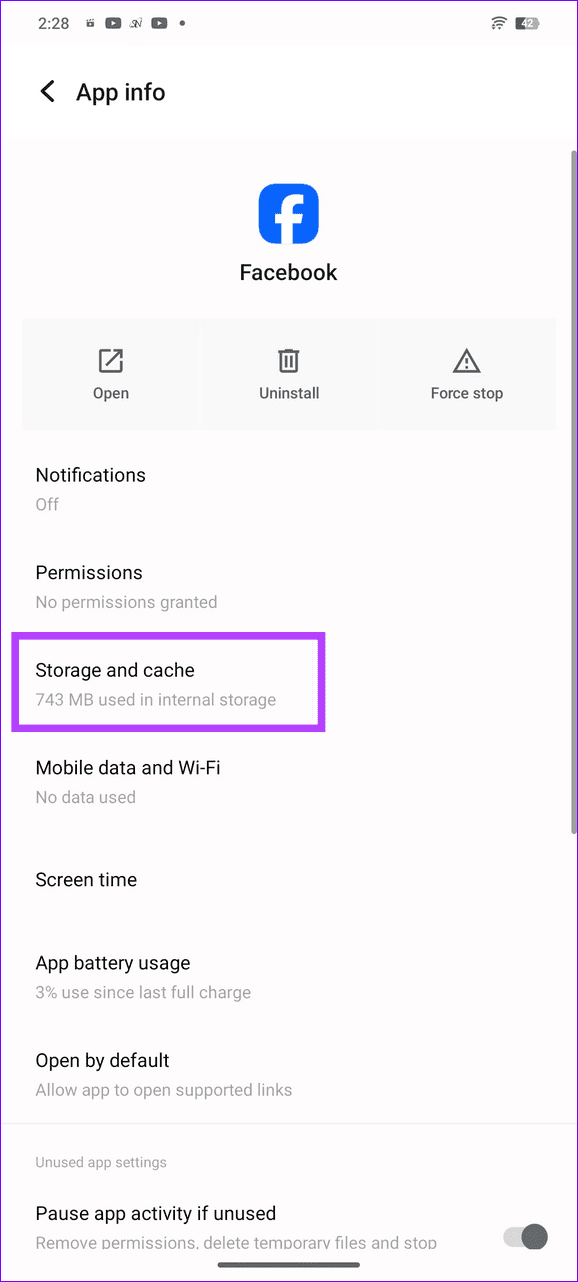
Corrupt cache and obsolete app data are common reasons behind the white screen issue in the Facebook app on Android. Clear them manually and retry opening the Facebook app.
Step 1: Long-tap the Facebook app icon to open App info and select Storage and cache.
Step 2: Tap Clear cache followed by Clear storage.


Fix 2: Offload the Facebook App (iOS)
Unlike Android, you can’t manually clear the Facebook app cache on iOS. Instead, offload the app, and reinstall it to fix its white screen issue.
Step 1: Open iPhone settings, select General, and tap iPhone Storage.


Step 2: Select Facebook and tap Offload App. Reinstall it from the App Store and check if the white screen issue is resolved.


Fix 3: Remove Browser Cookies and Cache (Web)
If you’re browsing Facebook on your PC and greeted with its white screen of death, removing your browser’s cookies and cache files resolves the problem instantly. Let’s take Google Chrome for instance.
Step 1: Click the vertical three-dot menu at the top right of Google Chrome, and select Settings.
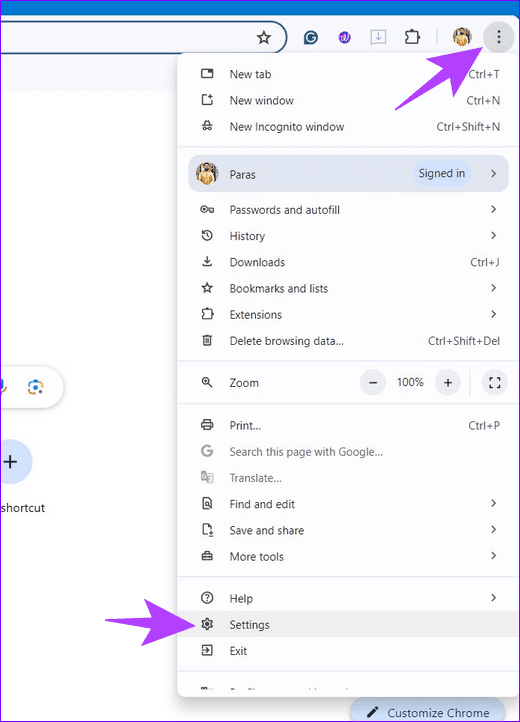
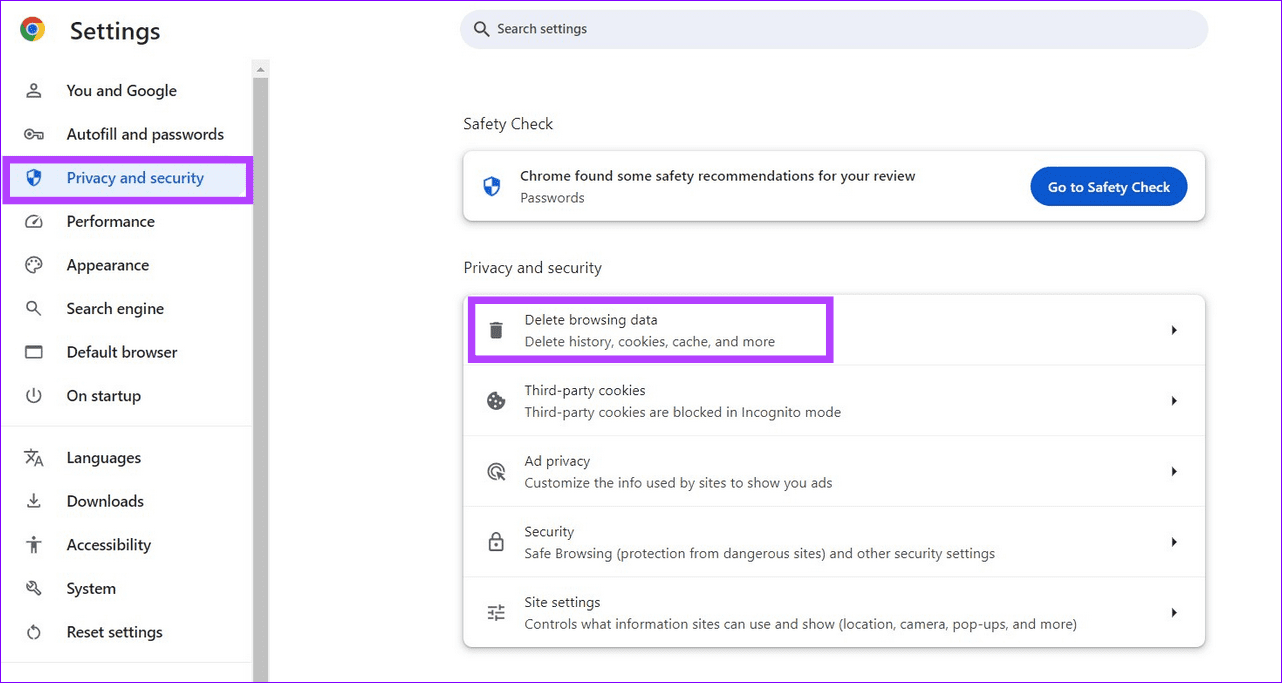
Step 2: Select Privacy and security from the left sidebar, and click Delete browsing data.
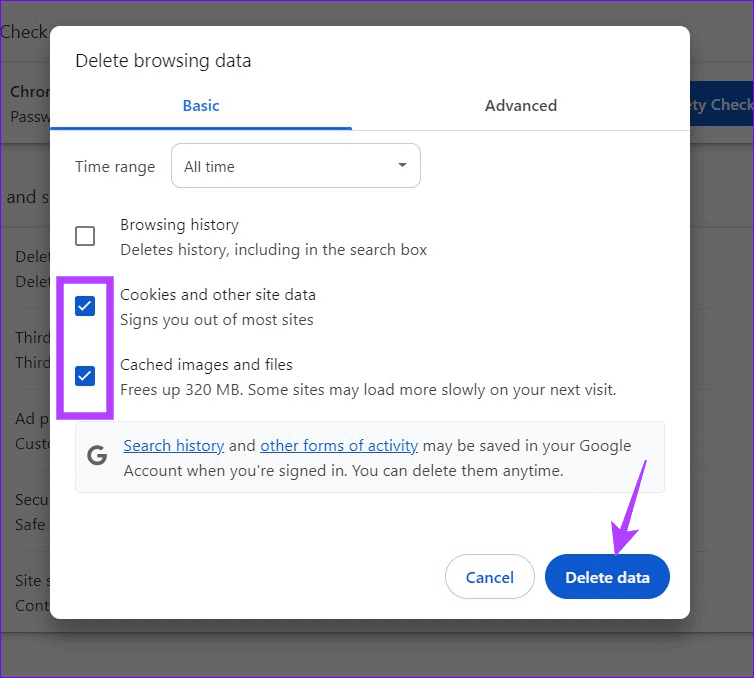
Step 3: Mark ‘Cookies and other site data‘, ‘Cached images and files‘, and click Delete data.
Fix 4: Disable Ad Blockers and Extensions (Web)
Facebook displays ads to generate revenue. Removing them using an Ad Blocker or similar browser extension can crash the webpage, causing a white screen issue. Disable these extensions and reload Facebook.
Note: These steps may differ on browsers other than Google Chrome.
Step 1: Click the vertical three-dot menu at the top right of Google Chrome, select Extensions, and open Manage Extensions.

Step 2: Toggle off Ad Blocker and other unnecessary browser extensions to disable them. Alternatively, click Remove below a browser extension to delete it.

Was this helpful?
Last updated on 25 July, 2024
Read Next
 3 Ways to Fix “Can’t Log Out of Facebook” Issue on Any Device
Why Can’t I Log Out of Facebook on Mobile and Desktop Before we start fixing, here are some reasons that could cause this issue.
3 Ways to Fix “Can’t Log Out of Facebook” Issue on Any Device
Why Can’t I Log Out of Facebook on Mobile and Desktop Before we start fixing, here are some reasons that could cause this issue.
 2 Ways to Fix Spotify Stops Playing When Screen Is Off Issue
Basic Fixes: Check your internet connection: If you've been facing issues with Spotify, it may be time to check your internet speed.
2 Ways to Fix Spotify Stops Playing When Screen Is Off Issue
Basic Fixes: Check your internet connection: If you've been facing issues with Spotify, it may be time to check your internet speed.
 8 Ways to Fix Crunchyroll Showing Black Screen Issue
Streaming on Crunchyroll is extremely convenient, thanks to the desktop and mobile app support.
8 Ways to Fix Crunchyroll Showing Black Screen Issue
Streaming on Crunchyroll is extremely convenient, thanks to the desktop and mobile app support.
 How To Fix Instagram Not Posting To Facebook Business Page Issue
Both Facebook and Instagram have features that make them easy to use together.
How To Fix Instagram Not Posting To Facebook Business Page Issue
Both Facebook and Instagram have features that make them easy to use together.
 5 Ways to Fix Blurry Screen Issue on Windows 11
Fix 1: Change Display Resolution and Scale One of the most common causes of a blurry Windows 11 screen is the incorrect display resolution or scale.
5 Ways to Fix Blurry Screen Issue on Windows 11
Fix 1: Change Display Resolution and Scale One of the most common causes of a blurry Windows 11 screen is the incorrect display resolution or scale.
 2 Ways to Fix Android Auto Black Screen Issue
Basic Fixes Let your phone cool down if it's overheating: If your phone has been sitting in your car for a long time and it's sunny outside, it's possible your
2 Ways to Fix Android Auto Black Screen Issue
Basic Fixes Let your phone cool down if it's overheating: If your phone has been sitting in your car for a long time and it's sunny outside, it's possible your
 3 Ways to Fix iPhone Screen Black and White Issue
Basic Fixes: Connect to a charger: If your device has low battery levels, it might automatically switch to the Grayscale setting to extend battery life.
3 Ways to Fix iPhone Screen Black and White Issue
Basic Fixes: Connect to a charger: If your device has low battery levels, it might automatically switch to the Grayscale setting to extend battery life.
 5 Ways to Fix Yellow Tint Issue on Windows 11 Laptop Screen
https://youtu.be/690urJUURvM Basic Fixes: Turn off the Night Light: While Night Light helps reduce eye strain by turning your screen to a warmer shade, it can make the computer monitor screen
5 Ways to Fix Yellow Tint Issue on Windows 11 Laptop Screen
https://youtu.be/690urJUURvM Basic Fixes: Turn off the Night Light: While Night Light helps reduce eye strain by turning your screen to a warmer shade, it can make the computer monitor screen
The article above may contain affiliate links which help support Guiding Tech. The content remains unbiased and authentic and will never affect our editorial integrity.